Oracle ZDM 26.1 Instant Deploy: End-to-End Physical PDB Cloning with Oracle Key Vault (OKV)
Introduction
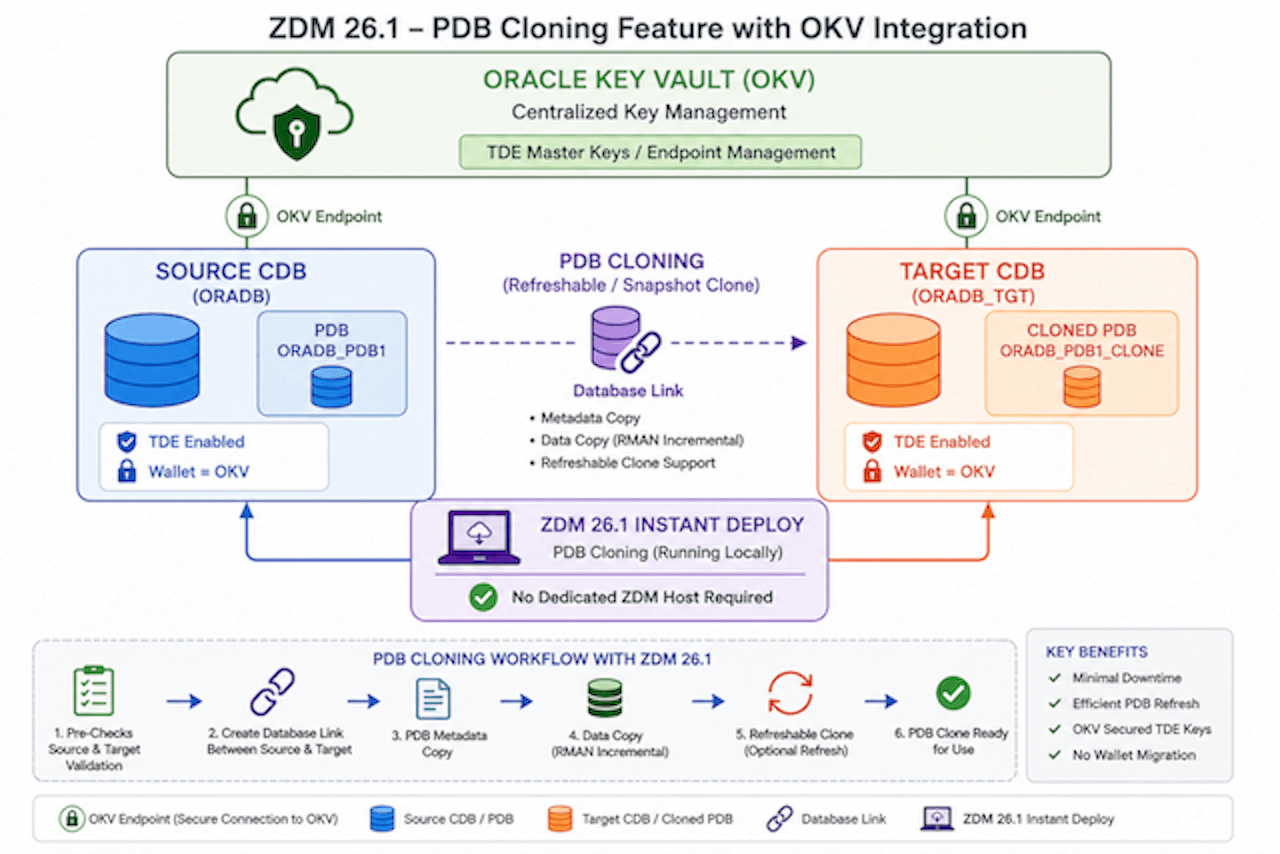
Oracle Zero Downtime Migration (ZDM) 26.1 introduces Instant Deploy, enabling database migrations directly from the source or target database host without requiring a dedicated ZDM server. This release also enhances integration with Oracle Key Vault (OKV) and improves Transparent Data Encryption (TDE) wallet migration capabilities.
Limitations in Earlier ZDM Releases
Prior to Oracle ZDM 26.1:
- Instant Deploy was not available. Database migrations required a dedicated ZDM server installation and lifecycle management.
- Automatic migration of Oracle Key Vault (OKV) external keystore wallets was not supported. When the source or target database used an OKV external keystore, TDE wallet migration and key management had to be performed manually.
What’s New in ZDM 26.1
- ZDM 26.1 automatically migrates external keystore wallets when the source or target database is configured to use an Oracle Key Vault (OKV) external keystore.
ZDM 26.1 supports the following wallet migration scenarios:
- Source database with an OKV wallet to a target database with an OKV wallet
- Source database with an OKV wallet to a target database with a file-based wallet
- Source database with a file-based wallet to a target database with an OKV wallet
- Source database with a file-based wallet to a target database with a file-based wallet
ZDM 26.1 detects whether the source database is configured to use an OKV wallet and downloads the TDE keys before migrating them to the target database. If the target database is also configured with an OKV wallet, ZDM uploads the migrated TDE keys to the target OKV wallet. Leave the ZDM_SKIP_TDE_WALLET_MIGRATION parameter at its default value (FALSE) to allow ZDM to automatically migrate the TDE wallet during the migration workflow.
Objectives
-
Leverage ZDM 26.1 Instant Deployment without requiring a dedicated ZDM server.
-
Use Oracle Key Vault (OKV) on both source and target databases for centralized TDE key management.
-
Eliminate manual TDE wallet and encryption key migration activities.
-
Demonstrate end-to-end migration of a TDE-enabled PDB using the ZDM 26.1 PDB Cloning feature.
-
Create a refreshable PDB clone using the database link-based migration method in ZDM 26.1.
Version Compatibility
This tutorial demonstrates Oracle Zero Downtime Migration (ZDM) 26.1 Instant Deploy with Oracle AI Database 26ai and Oracle Key Vault (OKV) 21.14 for end-to-end physical PDB cloning and automatic TDE wallet migration.
The primary workflow in this tutorial was validated using:
- Oracle AI Database 26ai (Release 23.26 or later)
- Oracle Zero Downtime Migration (ZDM) 26.1
- Oracle Key Vault (OKV) 21.14
Note: Some sections in this tutorial are applicable only to earlier Oracle Database releases for reference purposes. These sections are clearly marked as 12.1 Only or 18c and 19c Only and can be skipped when using Oracle AI Database 26ai.
Current Environment Before Migration
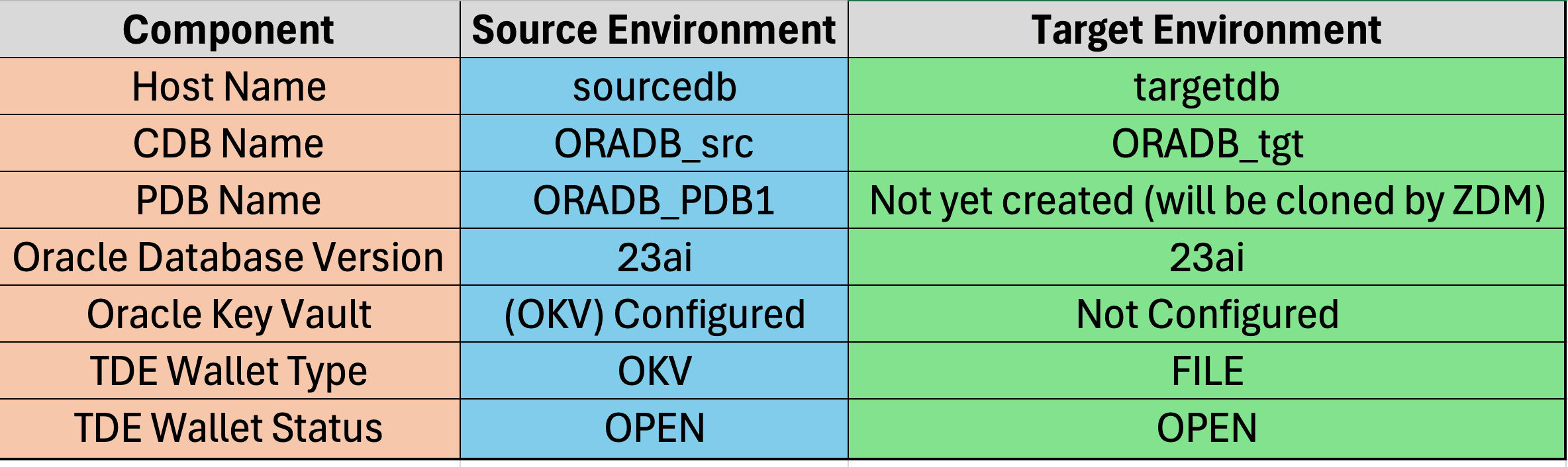
Before initiating the Oracle Zero Downtime Migration (ZDM) workflow, verify that both the source and target environments are correctly configured for Physical PDB Cloning. The following table summarizes the environment used in this tutorial and the status of the key components prior to migration.
Prerequisites
Note: Ensure that your environment meets all Oracle Zero Downtime Migration (ZDM) 26.1 prerequisites before starting this tutorial. Refer to the Preparing for Database Migration section in the Oracle ZDM documentation for the complete list of prerequisites:
https://docs.oracle.com/en/database/oracle/zero-downtime-migration/26.1/zdmug/preparing-for-database-migration.html#GUID-25B07C59-8143-41CB-B431-3D9225CCFDD6
Set Up Oracle Zero Downtime Migration (ZDM) 26.1 Instant Deploy
- The Instant Deploy is a lightweight, downloadable software package that lets you run Zero Downtime Migration (ZDM) directly, without having to install or maintain a separate ZDM server.
- You use the same zdmcli commands and user experience as standard ZDM, however without installing or starting a persistent service.
- The CLI launches the migration and provides live progress updates.
- You can run the ZDM instant deploy tool in the same database host that is being migrated.
- The instant deploy feature enables Oracle to facilitate database migrations for you with minimal infrastructure requirements.
The Environment
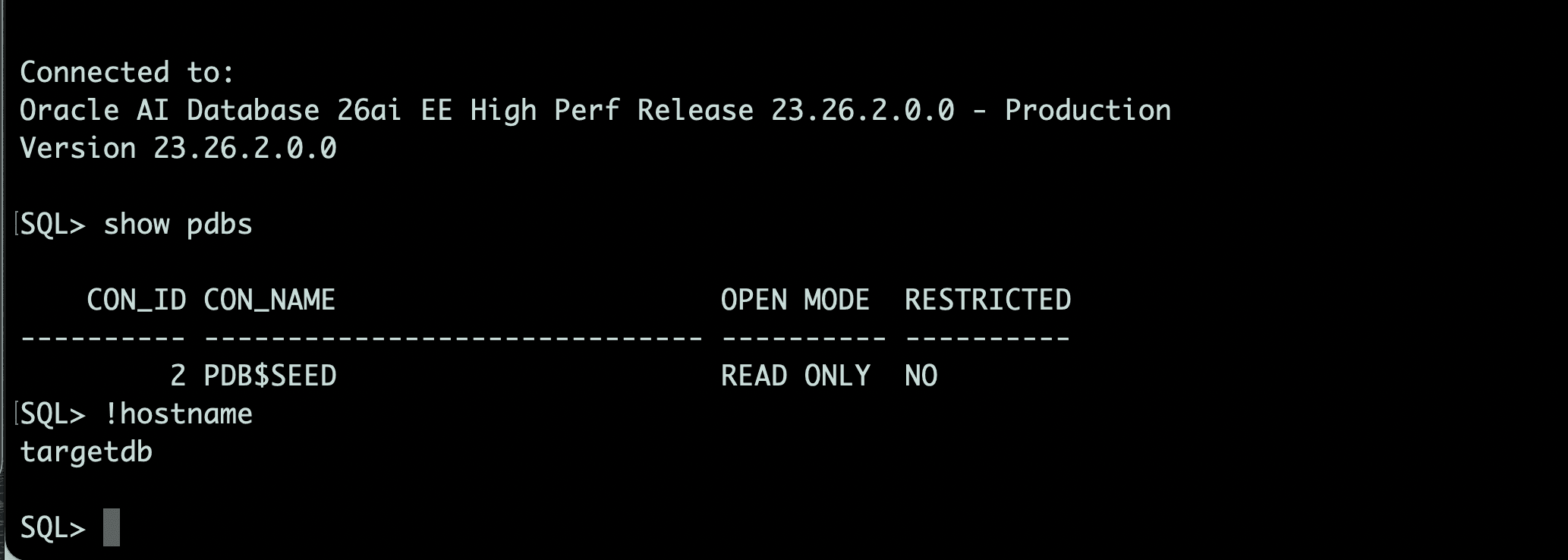
For demonstration purposes, this tutorial uses OCI Oracle Base Database Service with Oracle AI Database 26ai, version 23.26.2.0.0.
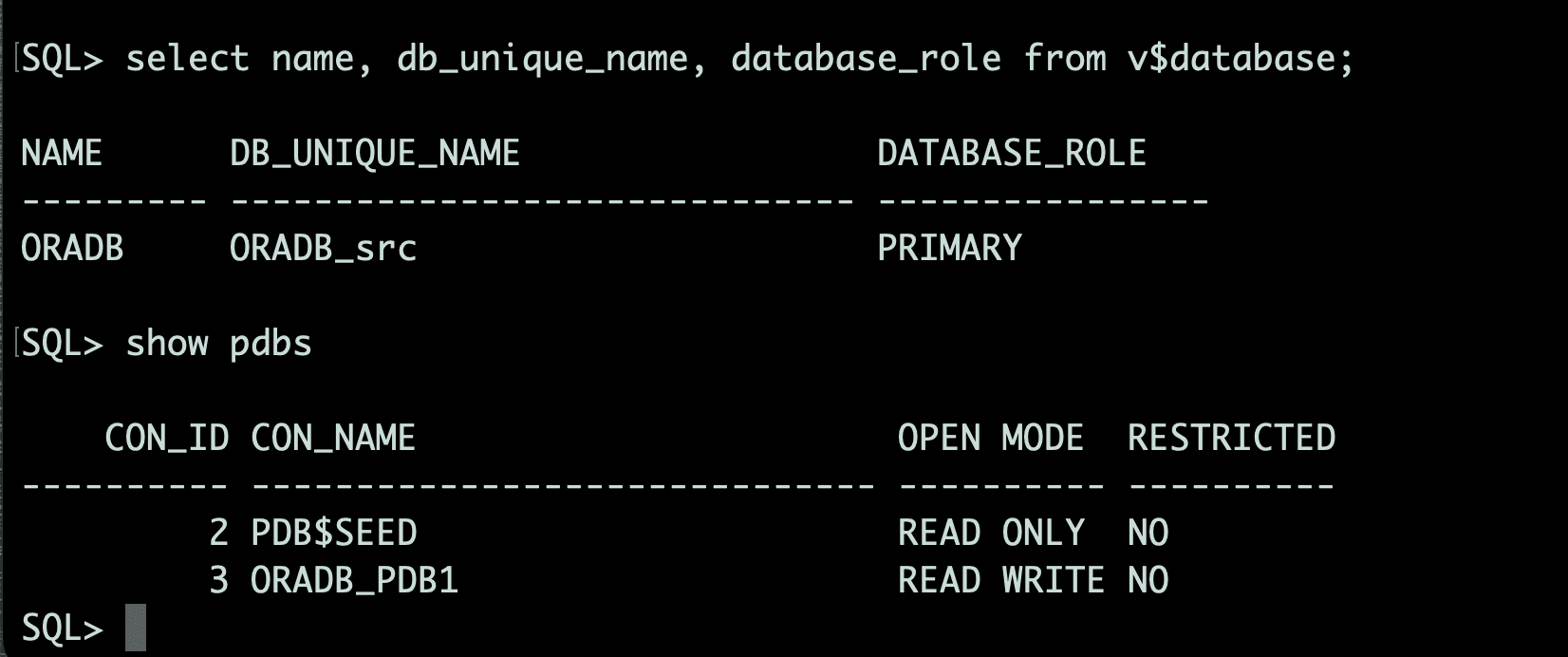
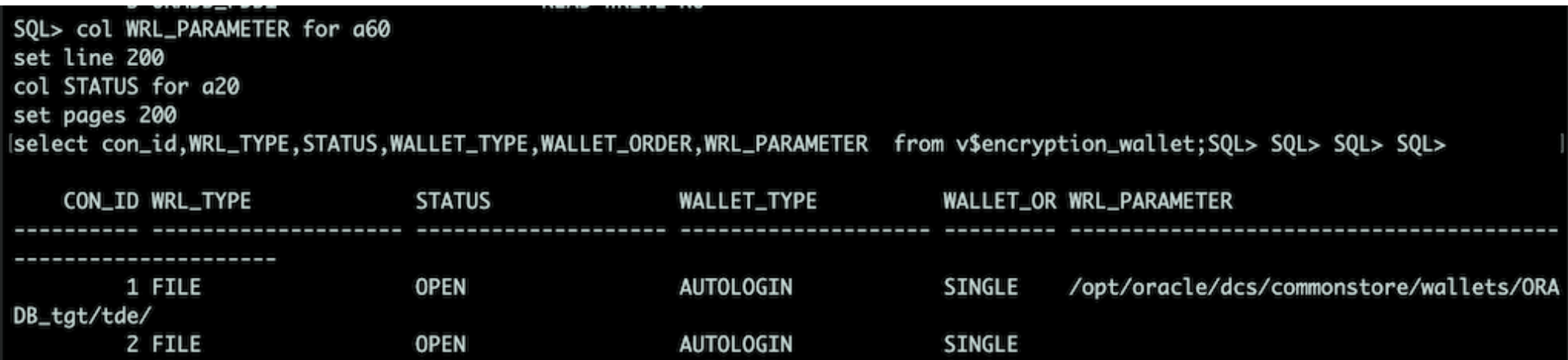
Source: hostname: sourcedb, DB name: ORADB, DB unique name: ORADB_src TDE is managed by Oracle Key Vault (OKV).
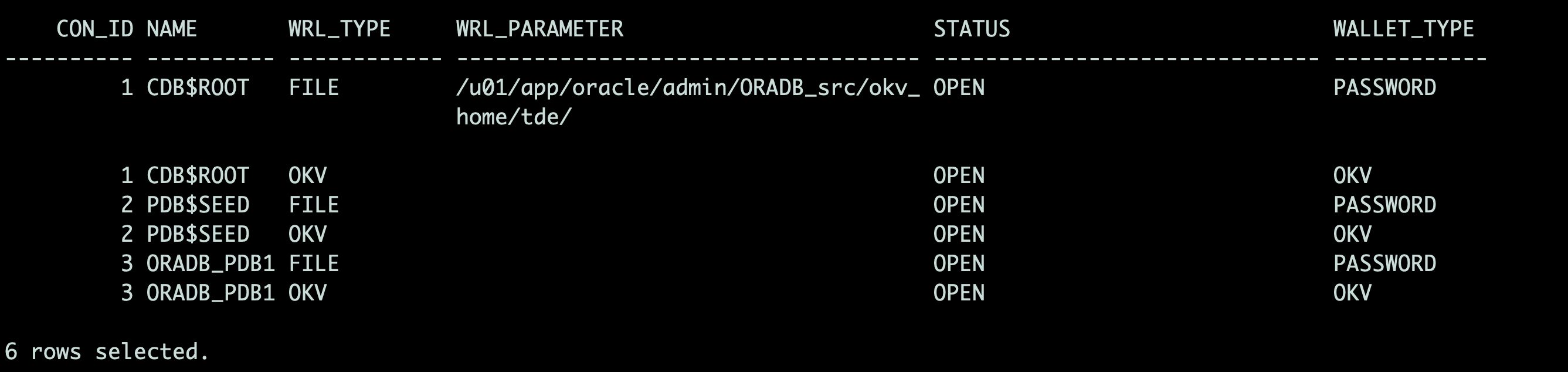
Target: hostname: targetdb, DB name: ORADB, DB unique name: ORADB_tgt TDE uses a file-based wallet.
Migration Workflow
Step 1: Download the latest Oracle Zero Downtime Migration (ZDM) 26.1 release from the Oracle ZDM product page (version 26.1).
Download the latest Oracle Zero Downtime Migration (ZDM) 26.1 software from the Oracle Zero Downtime Migration download page. The software is distributed through Oracle Software Delivery Cloud (OSDC). Sign in using your Oracle Single Sign-On (SSO) account, accept the license agreement, and download the latest ZDM release package (for example, V1055491-01.zip). For the latest download and documentation, refer to the following resources:
Oracle Zero Downtime Migration Download:
https://www.oracle.com/database/technologies/rac/zdm-downloads.html
Oracle Zero Downtime Migration 26.1 Documentation:
https://docs.oracle.com/en/database/oracle/zero-downtime-migration/26.1/index.html
Step 2. Copy the V1055491-01.zip file to a directory with sufficient free storage.
After downloading the software, copy the ZIP archive to the source database host (or the target host if you plan to use Instant Deploy from the target) and proceed with the extraction in the next step.
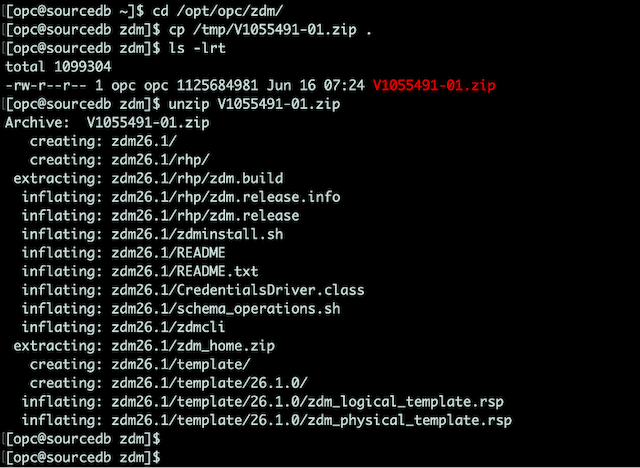
Extracting the ZIP file creates the zdm26.1 subdirectory. The extracted ZDM software is located in /opt/opc/zdm/zdm26.1.
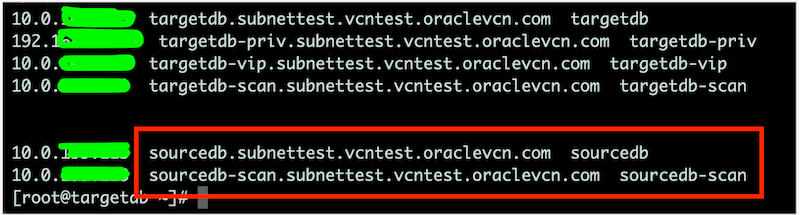
Step 3: Update the /etc/hosts file on each host with the other host’s name and IP address.
Add the source hostname and IP information to the /etc/hosts file of the target host.
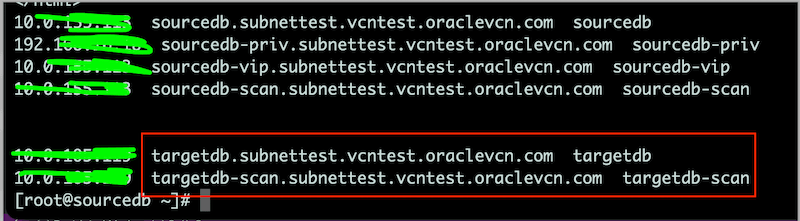
Add the target hostname and IP information to the /etc/hosts file of the source host.
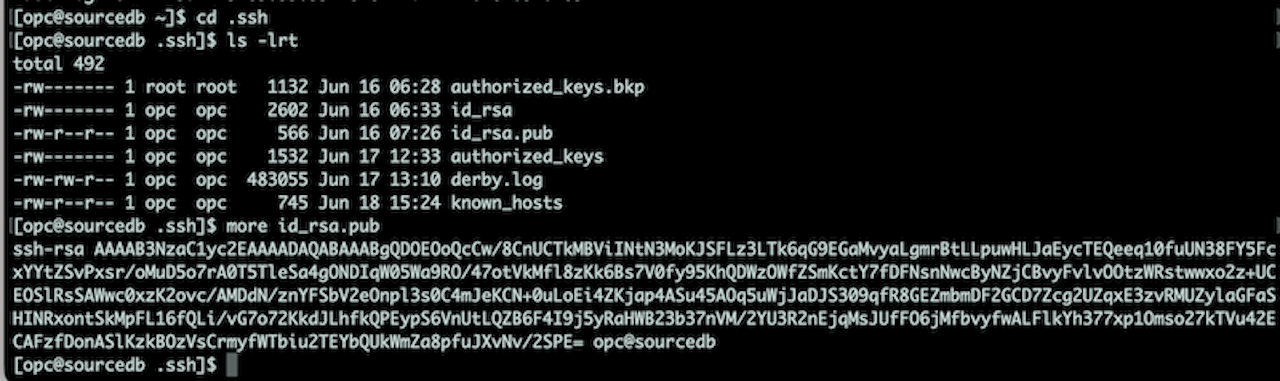
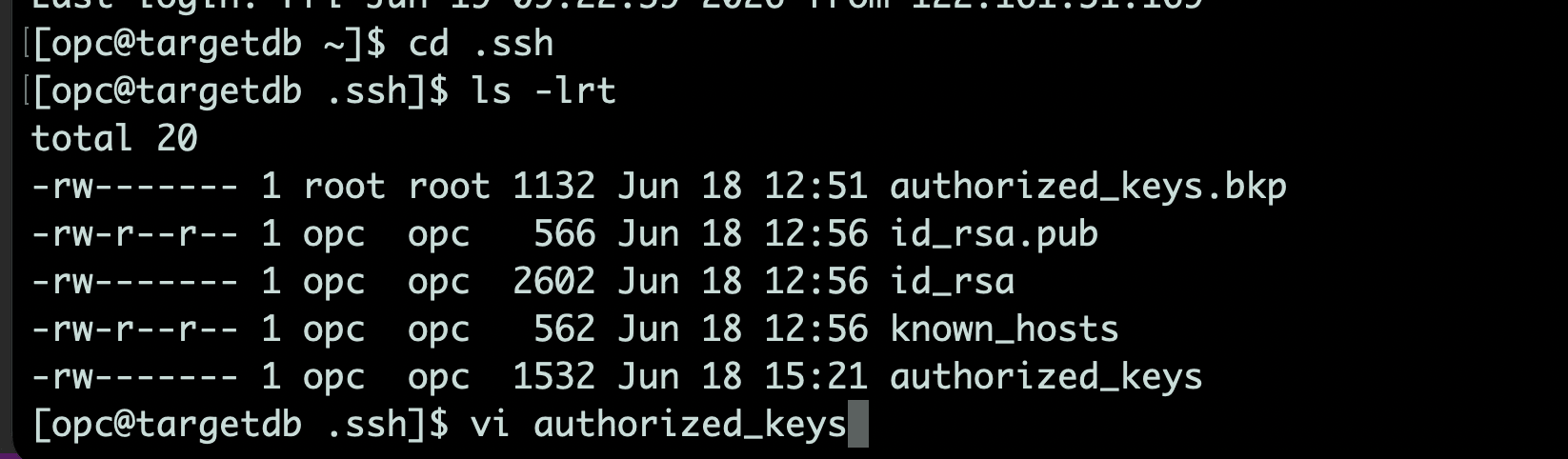
Step 4: Copy the SSH public key for your OS user (in this case, opc) on the source host and add it to the authorized_keys file for the OS user (in this case, also opc) on the target host.
On Source host
On Target host
Test the SSH connectivity from the source to the target database host:
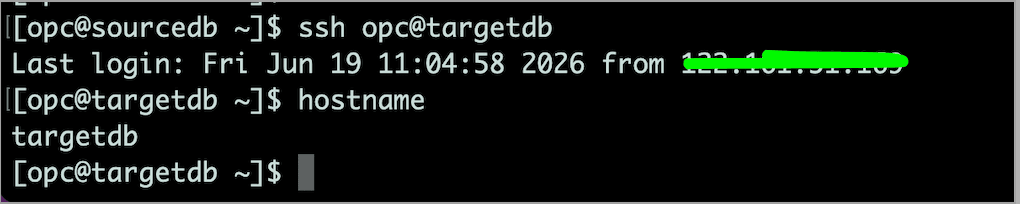
Verify that TTY is disabled for the SSH-privileged user. If TTY is disabled, the following command returns the date from the remote host without any errors:

Step 5: Verify that TDE on the source database is managed by Oracle Key Vault (OKV).
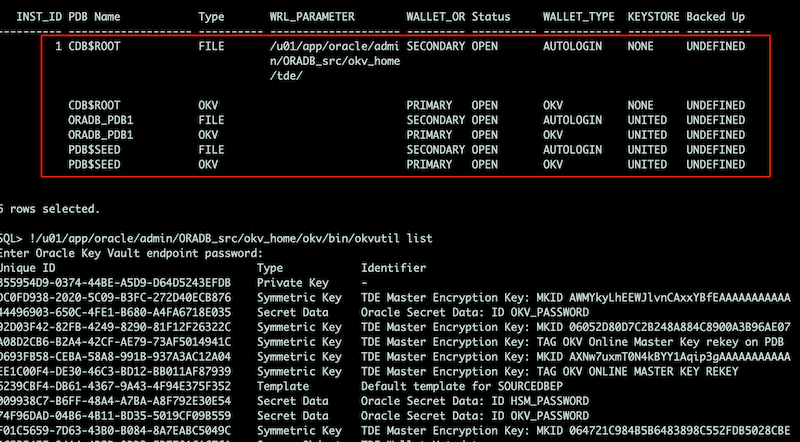
Step 6: Configure Oracle Key Vault (OKV) for the Target Database.
1: Register the Target Database as an Oracle Key Vault (OKV) Endpoint.
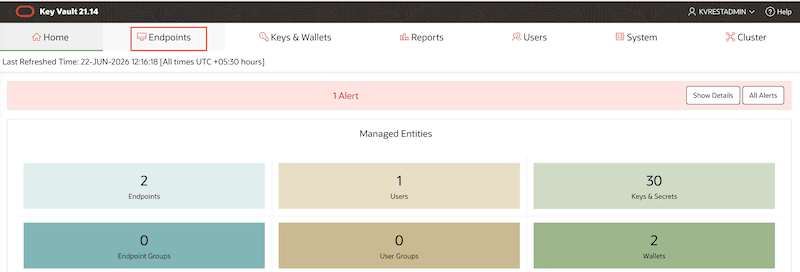
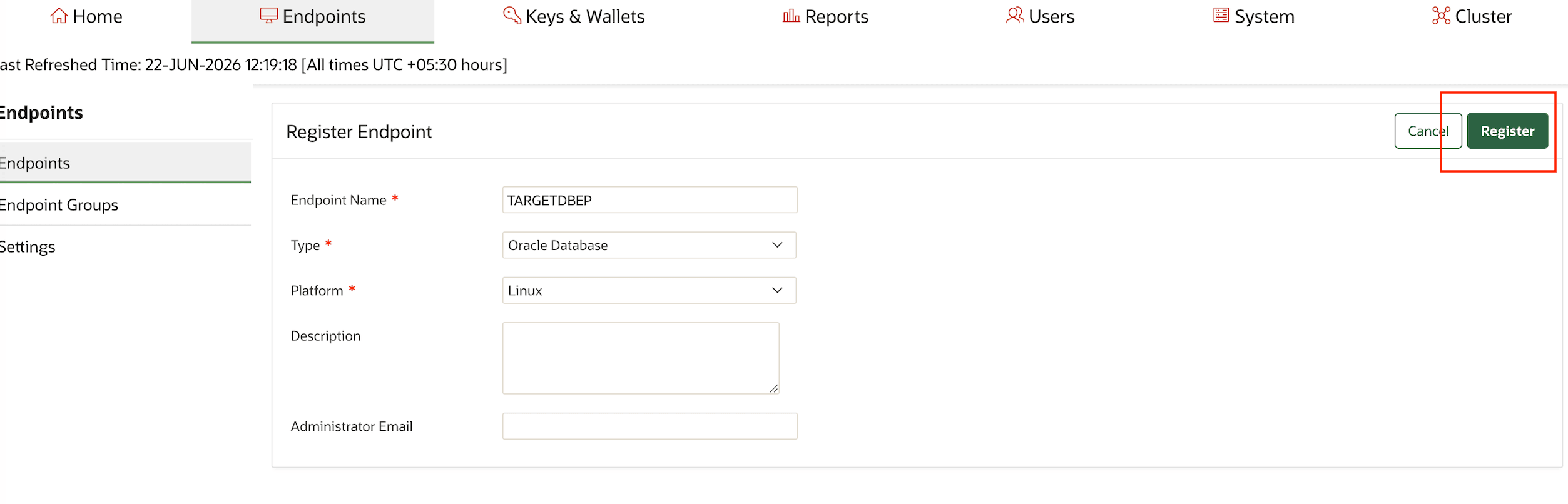
2: Copy the Oracle Key Vault (OKV) Enrollment Token.
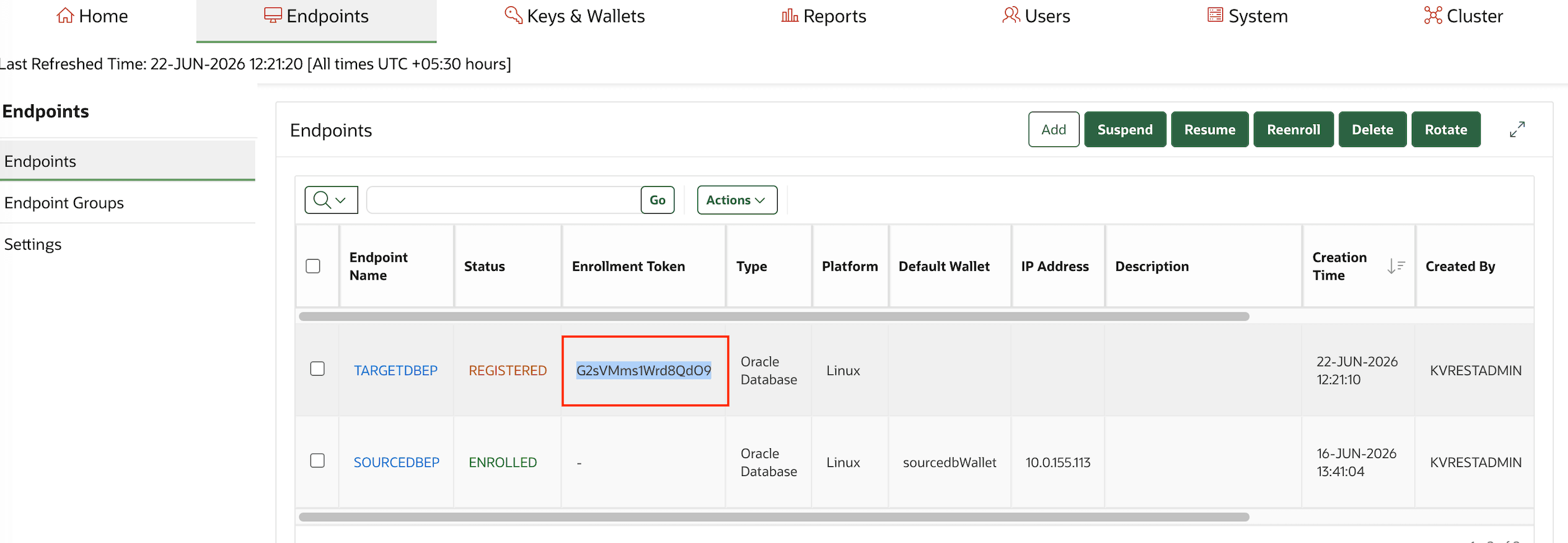
3: Enroll the Target Database Endpoint and Download the Oracle Key Vault (OKV) Endpoint Software.
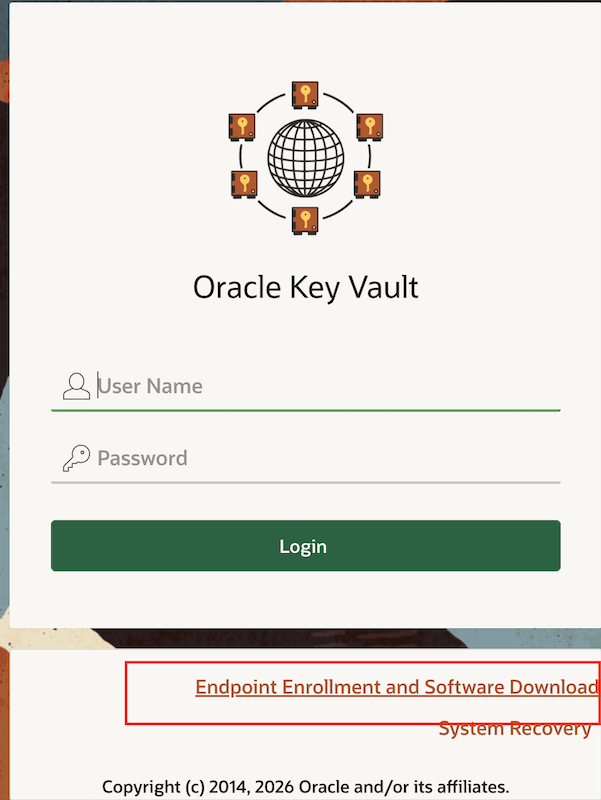
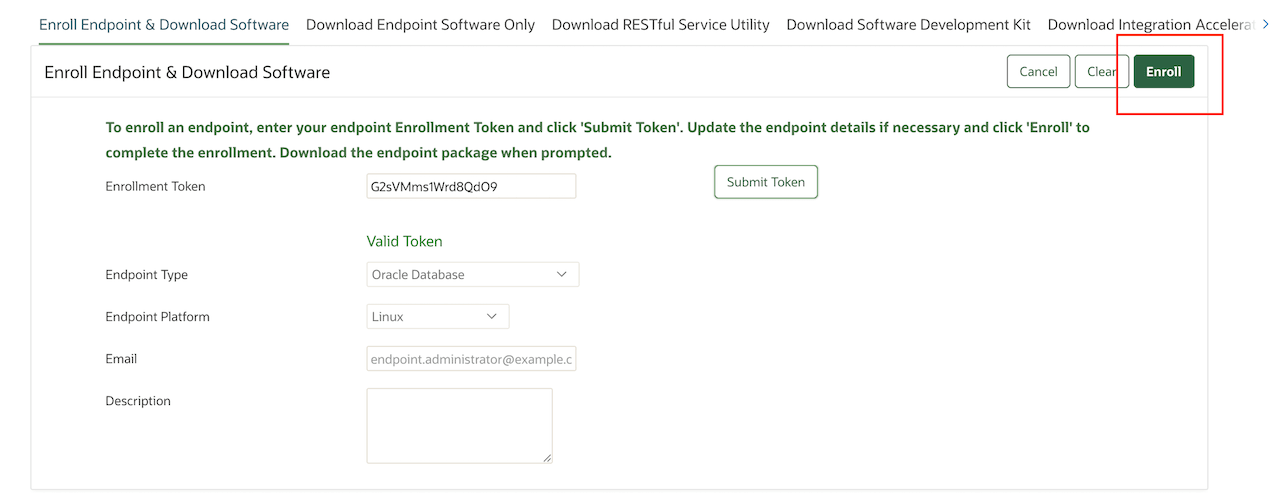
4: Create the necessary directories for OKV on the target host:
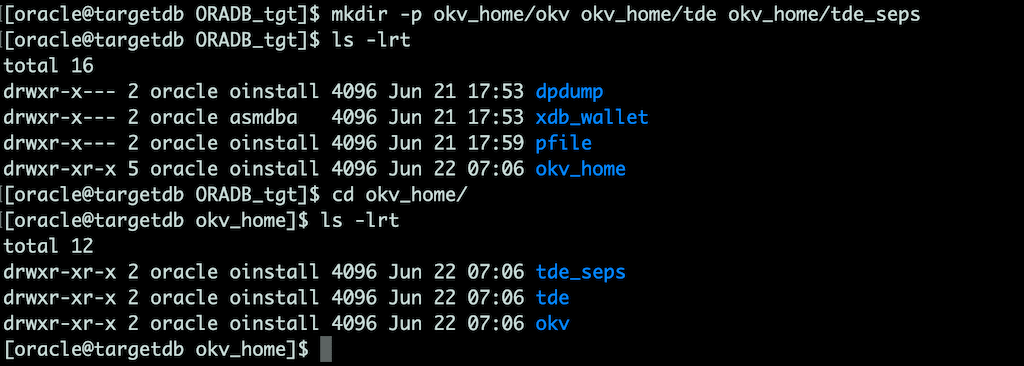
5: Install the Oracle Key Vault endpoint JAR file:

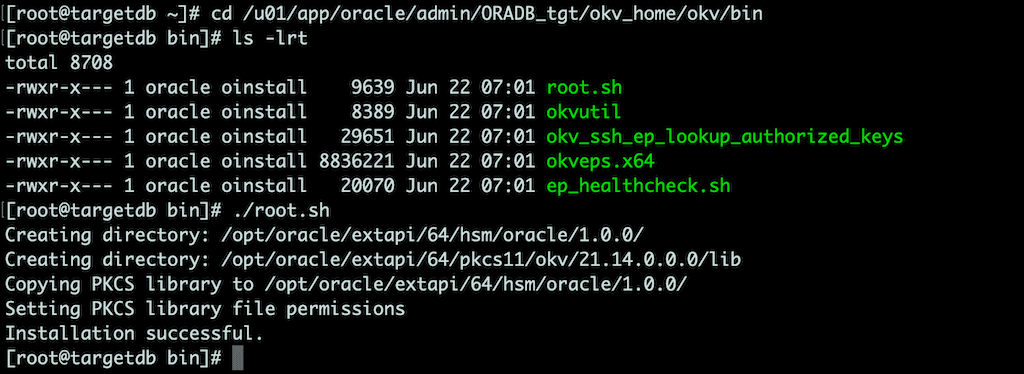
6: Assign the source virtual wallet to the target endpoint:
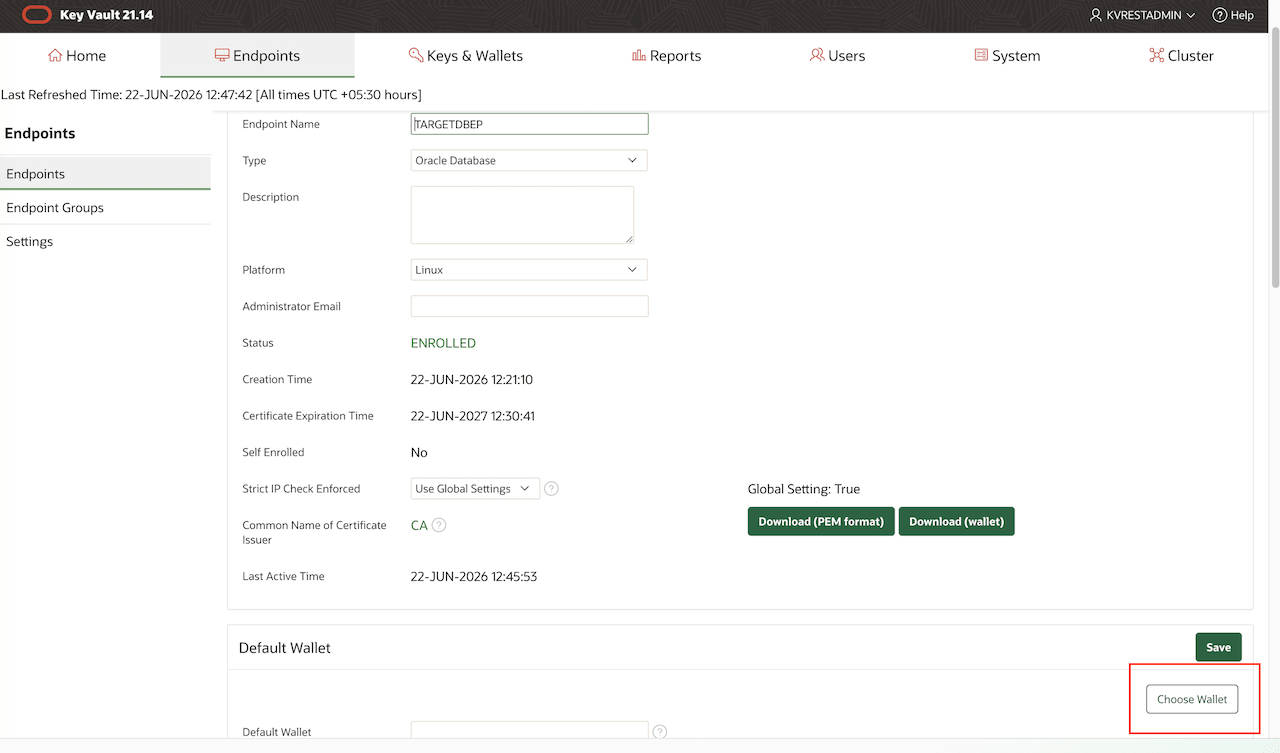
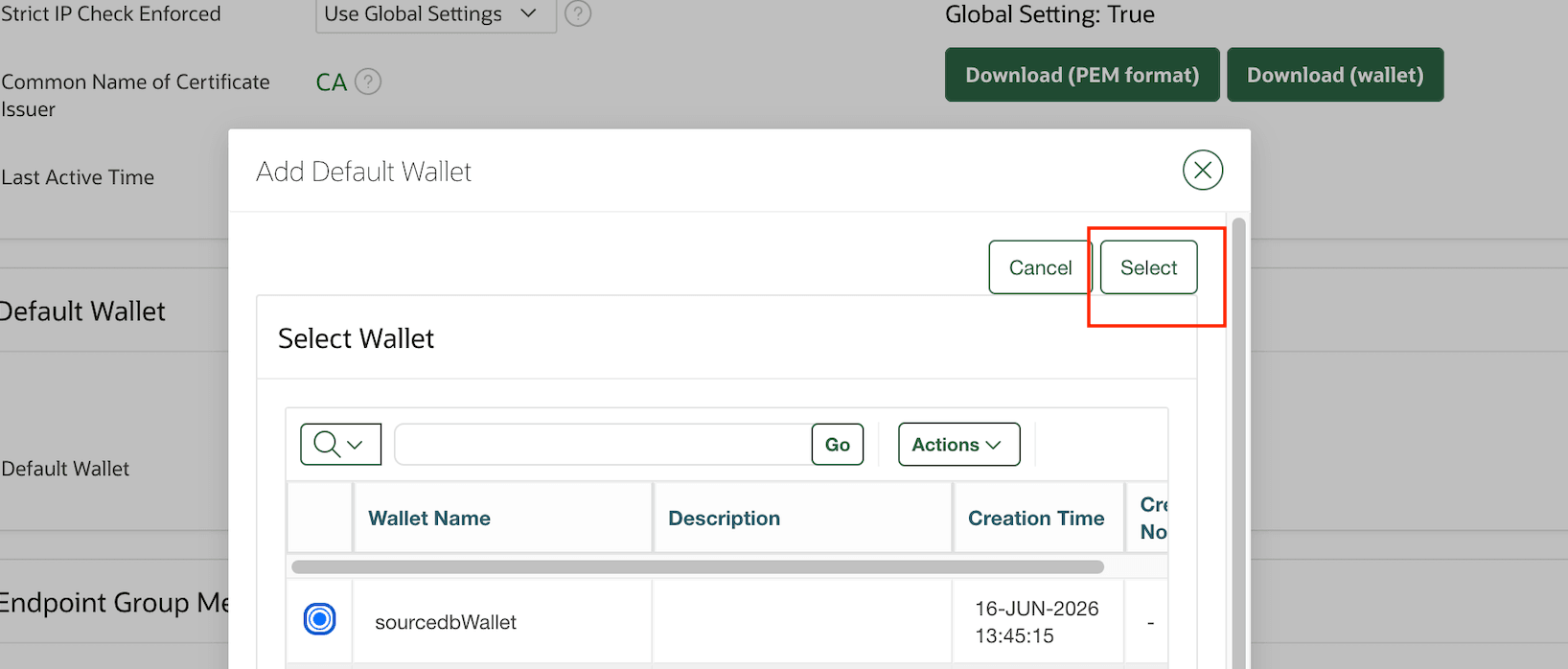
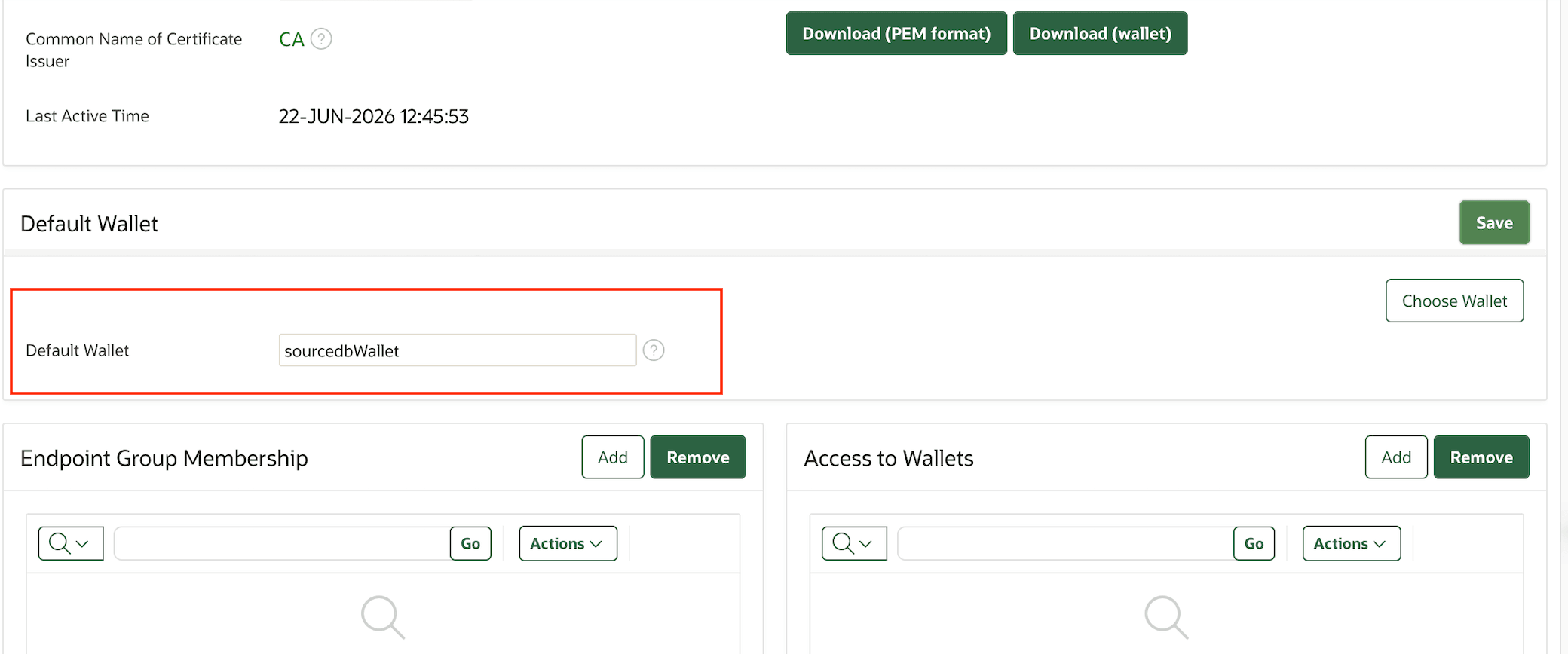
7: Upload the current wallets to Oracle Key Vault (OKV) (Migration from File-Based Wallet to OKV):
Once the connection to OKV has been verified, upload the current wallets to OKV. To verify the current WALLET_ROOT location, run the following query:
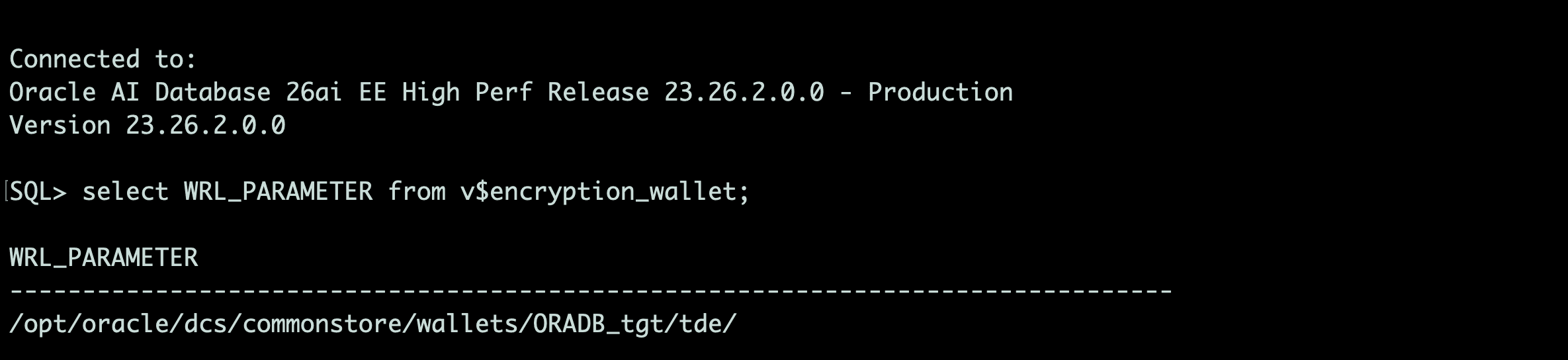
After identifying the wallet location, copy the existing wallets to WALLET_ROOT/tde:
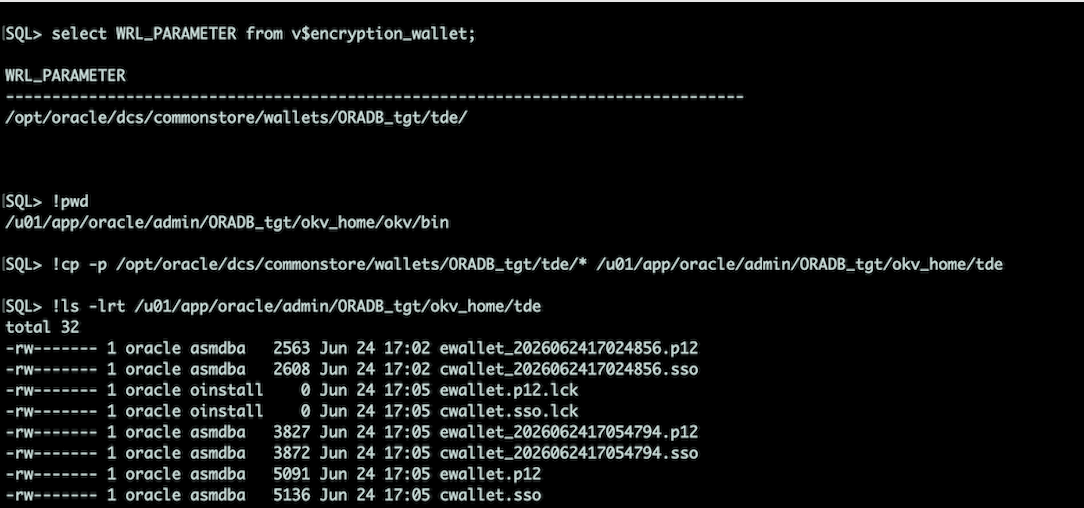
Once the copy is complete, upload the wallets to OKV by using WALLET_ROOT/okv/bin/okvutil with the wallets stored in WALLET_ROOT/tde:
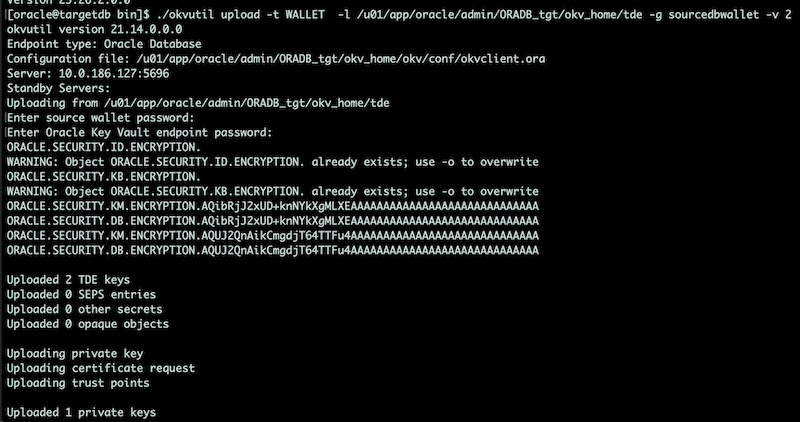
8: Add the OKV password to the keystore to enable automatic login to the OKV keystore.(RUN ON ALL NODES):

9: Add Secret Key to use external store (RUN ON ALL Nodes) :

10: Update Database Initialization Parameters:
Update the wallet_root and tde_configuration initialization parameters for OKV usage. Please note that the tde_configuration initialization parameter depends on the wallet_root parameter. Since the wallet_root parameter has SPFILE scope, a database restart is required for the changes to take effect.
Also, setting the wallet_root and tde_configuration overrides the ENCRYPTION_WALLET_LOCATION setting in the sqlnet.ora.
Before updating the database initialization parameters, please execute a backup of the spfile.
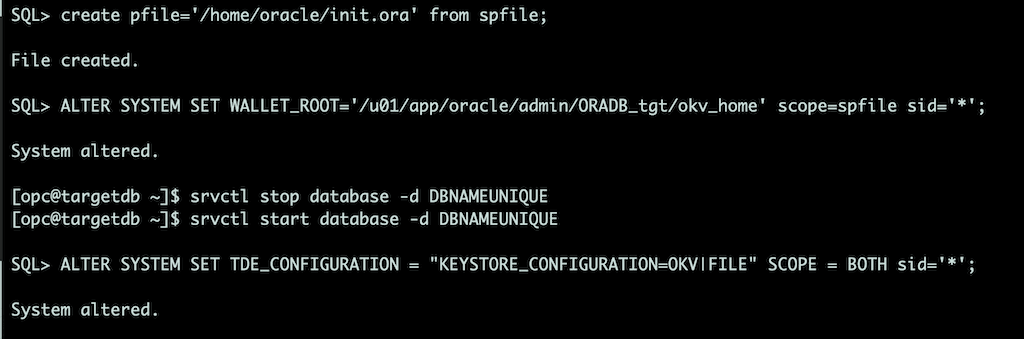
11: sqlnet.ora and RAC Database Environment Settings (12.1 ONLY):
Since the wallet_root and tde_configuration init.ora parameters do not exist in 12.1, we need to make changes in the sqlnet.ora and the RAC database environmental settings.
Sqlnet.ora:
Change only the method under the ENCRYPTION_WALLET_LOCATION entry to HSM:

ENCRYPTION_WALLET_LOCATION=
(SOURCE=
(METHOD=HSM)
(METHOD_DATA=(DIRECTORY=/var/opt/oracle/dbaas_acfs/DBNAME/tde_wallet)))
RAC Database Environment Settings:
Add the ORACLE_BASE and ORACLE_UNQNAME environment variables to the RAC database environment settings:
[opc@targetdb ~]$ srvctl getenv database -d DBNAMEUNIQUE
DBNAMEUNIQUE:
TNS_ADMIN=/u02/app/oracle/product/12.1.0/dbhome_1/network/admin/DBNAME
bash-3.2$ srvctl setenv database -d DBNAMEUNIQUE -T "ORACLE_BASE=/u02/app/oracle"
bash-3.2$ srvctl setenv database -d DBNAMEUNIQUE -T "ORACLE_UNQNAME=DBNAMEUNIQUE"
bash-3.2$ srvctl getenv database -d DBNAMEUNIQUE
12: Restart the Database.
[opc@targetdb ~]$ srvctl stop database -d DBNAMEUNIQUE
[opc@targetdb ~]$ srvctl start database -d DBNAMEUNIQUE
13: Migrate the TDE Keystore to Oracle Key Vault (OKV).
Run the following command on one database node to migrate the TDE software keystore to Oracle Key Vault (OKV).
SQL>ADMINISTER KEY MANAGEMENT set key identified by "<OKV-pwd>" force keystore migrate using "TDE-wallet-password";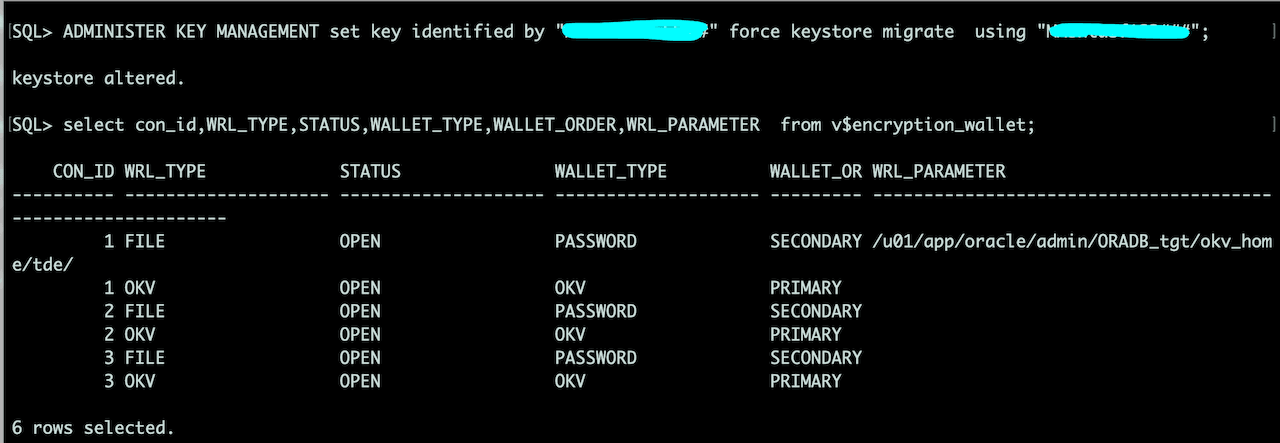
Once the command returns successfully, restart the database to verify that communication with Oracle Key Vault is functioning correctly:
[opc@targetdb ~]$ srvctl stop database -d DBNAMEUNIQUE
[opc@targetdb ~]$ srvctl start database -d DBNAMEUNIQUE
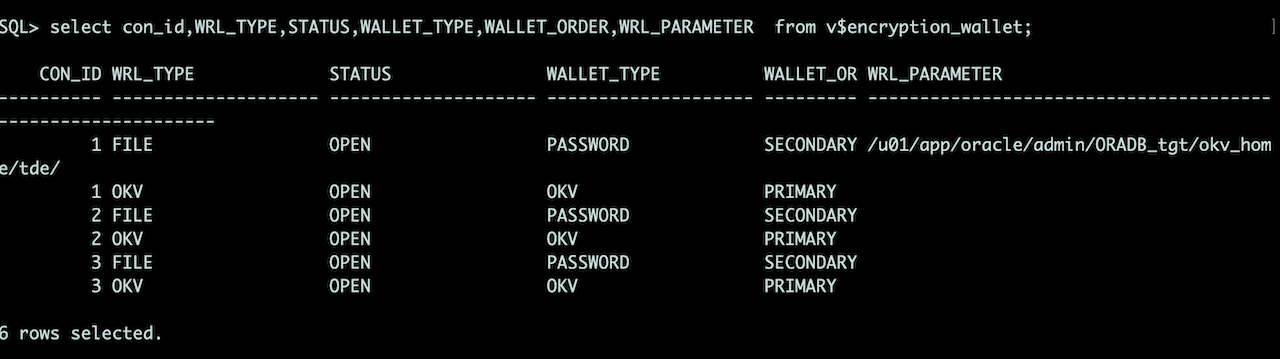
14: Verify the Oracle Key Vault (OKV) Configuration
Run the following queries to verify that the Oracle Key Vault (OKV) configuration is correctly configured and that the database can access the external keystore.
Step 7: Create the ZDM response file on the source database host. This file defines the migration configuration, including the source and target database information, Oracle Key Vault (OKV) parameters, and Physical PDB Cloning settings.
The following example shows the response file used for this migration:
[opc@sourcedb ~]$ more /opt/opc/zdm/zdm26.1/template/26.1.0/zdm_physical_PDB_Cloning.rsp
ZDM_SRC_DB_OKV_HOME=/u01/app/oracle/admin/ORADB_src/okv_home/okv
ZDM_TGT_DB_OKV_HOME=/u01/app/oracle/admin/ORADB_tgt/okv_home/okv
ZDM_SRC_DB_OKV_VIRTUAL_WALLET_NAME=sourcedbwallet
ZDM_TGT_DB_OKV_VIRTUAL_WALLET_NAME=sourcedbwallet
ZDM_SKIP_TDE_WALLET_MIGRATION=FALSE
PLATFORM_TYPE=VMDB
TGT_DB_UNIQUE_NAME=ORADB_tgt
MIGRATION_METHOD=ONLINE_PHYSICAL
DATA_TRANSFER_MEDIUM=DBLINK
ZDM_PDB_CLONE_METHOD=REFRESHABLE
ZDM_SRC_PDB_NAME=ORADB_PDB1
ZDM_TGT_PDB_NAME=ORADB_PDB1
ZDM_TGT_DBLINK_NAME=clonedblink
ZDM_TGT_DBLINK_USERNAME=
ZDM_TGT_DBLINK_PASSWORD_WALLET=
ZDM_PDB_REFRESH_INTERVAL=60
ZDM_SWITCHOVER=FALSE
ZDM_SRC_DB_RESTORE_SERVICE_NAME=ORADB_PDB1
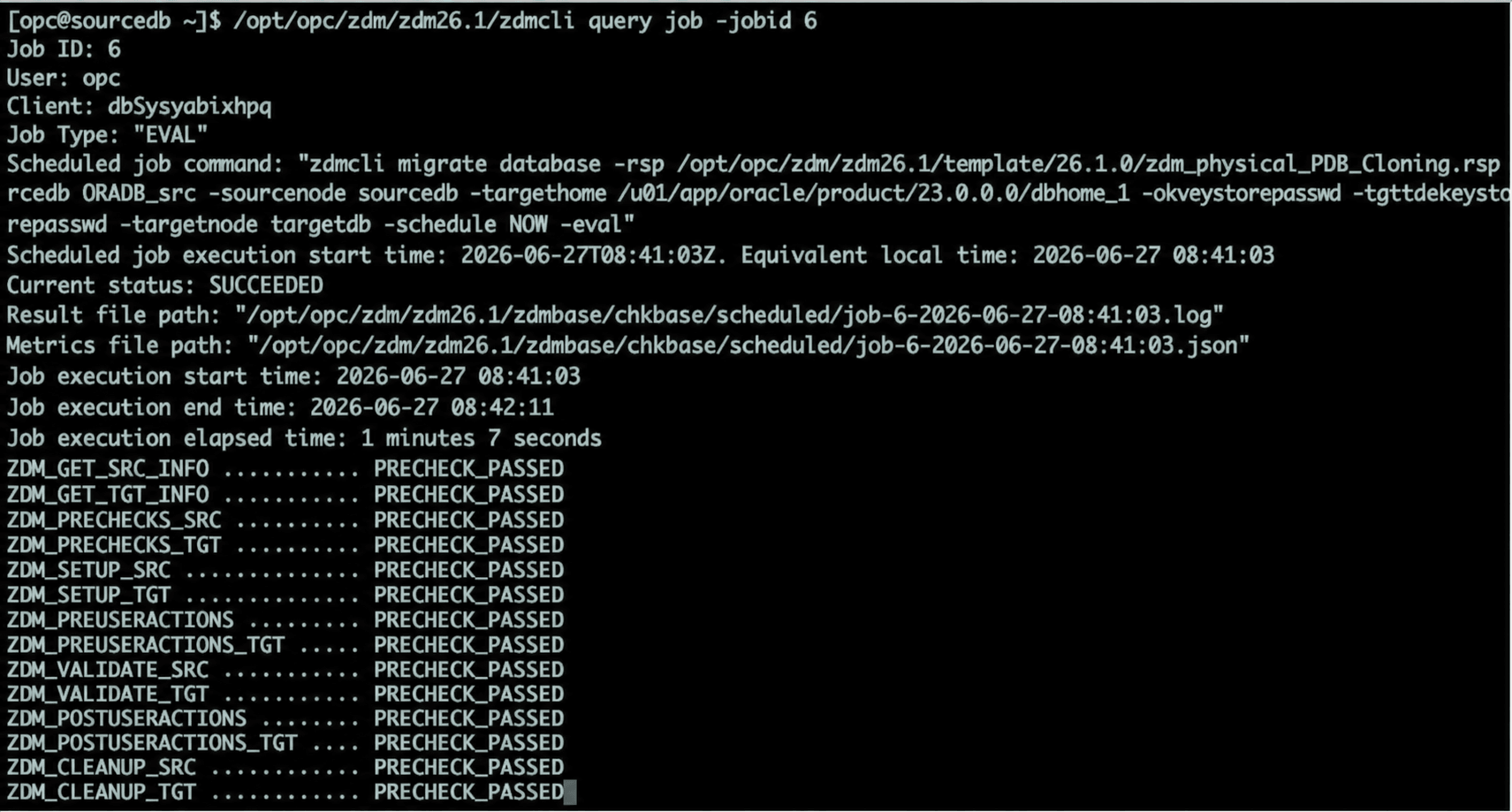
Step 8: Run the following command on the source database host to evaluate the migration and validate that the source and target environments are ready for migration.
[opc@sourcedb ~]$ /opt/opc/zdm/zdm26.1/zdmcli migrate database \
> -rsp /opt/opc/zdm/zdm26.1/template/26.1.0/zdm_physical_PDB_Cloning.rsp \
> -sourcedb ORADB_src \
> -sourcenode sourcedb \
> -targethome /u01/app/oracle/product/23.0.0.0/dbhome_1 \
> -tdekeystorepasswd \
> -tgttdekeystorepasswd \
> -targetnode targetdb \
> -schedule NOW \
> -eval
Enter source database ORADB_src SYS password:
Enter source database ORADB_src TDE keystore password:
Enter target container database TDE keystore password:
Migration evaluation job started
Result file path: /opt/opc/zdm/zdm26.1/zdmbase/chkbase/scheduled/job-6-2026-06-27-09:08:10.log
======================JOB_EXECUTION_DETAILS_START======================
User: opc
Client: dbSysyabixhpq
 ...............................................
 .........................
Note:
If the Oracle Key Vault (OKV) endpoint password is the same as the TDE keystore password, the
-tdekeystorepasswdand-tgttdekeystorepasswdoptions are sufficient.If the OKV endpoint password is different from the TDE keystore password, also specify the following options:
-okvkeystorepasswd– Prompts for the source OKV endpoint password.-tgtokvkeystorepasswd– Prompts for the target OKV endpoint password.These options enable ZDM to authenticate with the Oracle Key Vault endpoints independently of the TDE keystore passwords during wallet migration.
Verify the migration job status, as shown below.
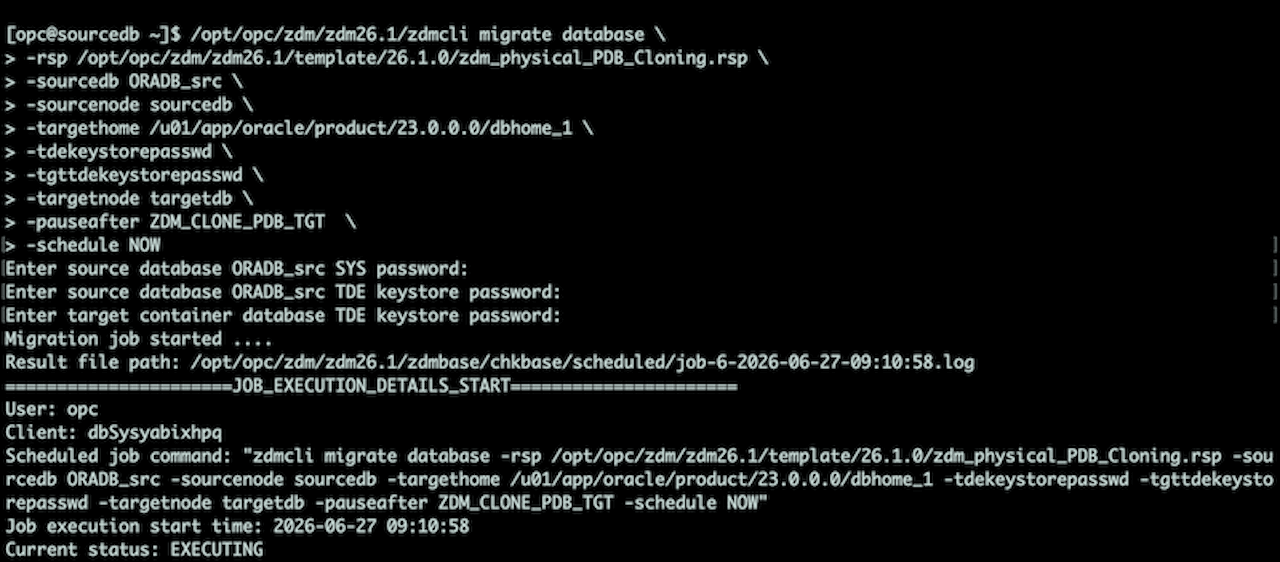
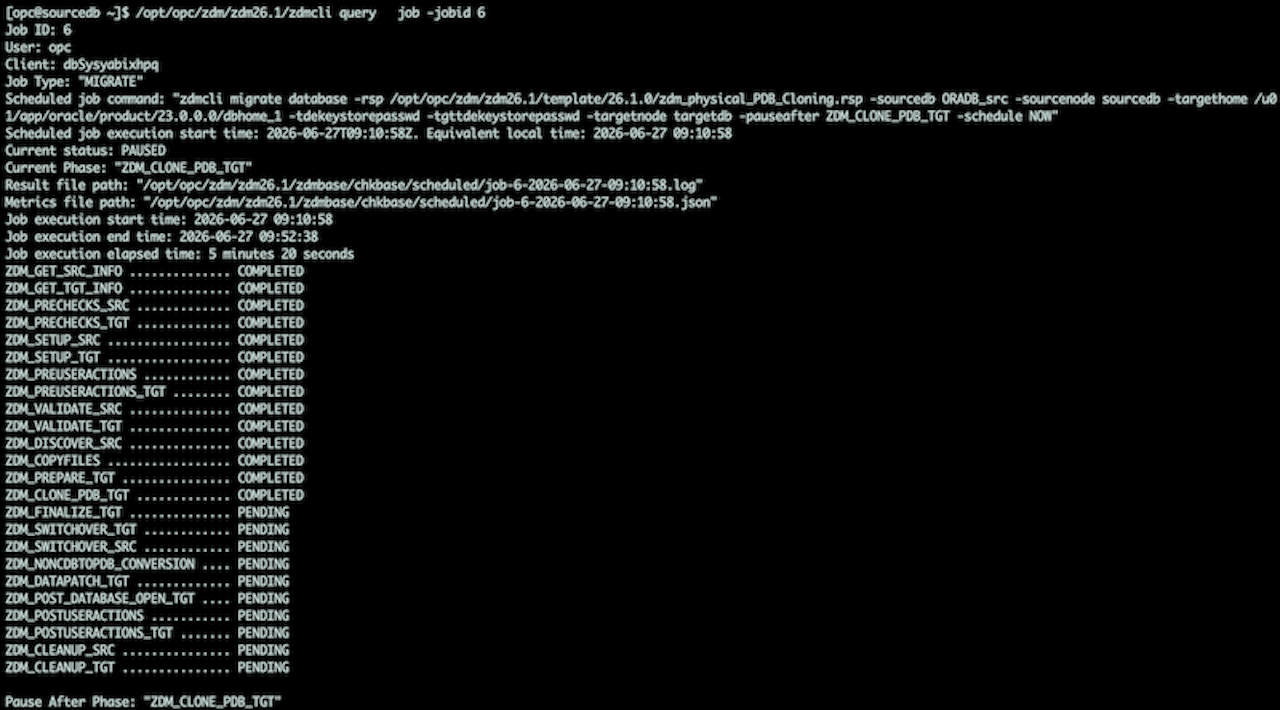
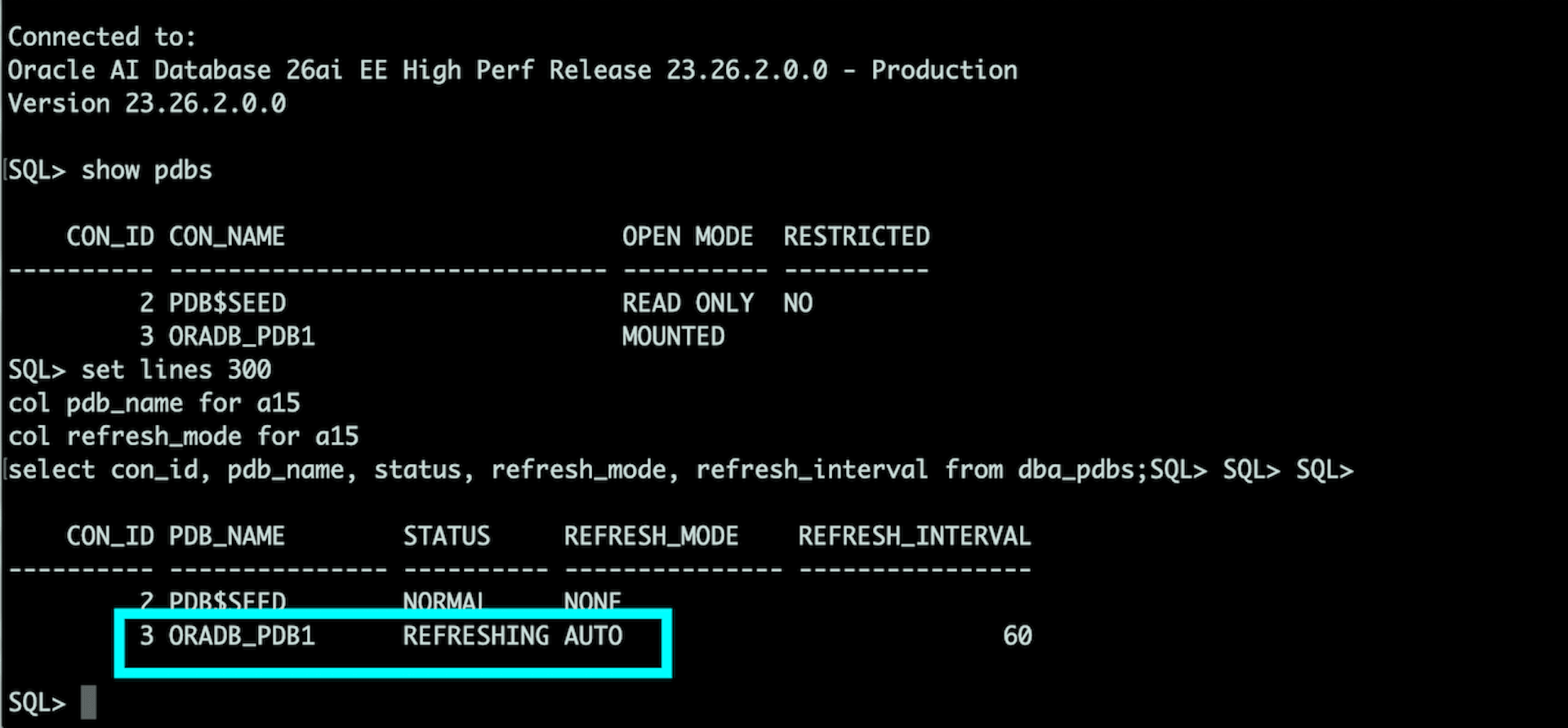
Step 9: Initiate the migration and use the -pauseafter option to stop the migration after the ZDM_CLONE_PDB_TGT phase. During this phase, changes made to the source PDB are synchronized to the target PDB at the interval specified by ZDM_PDB_REFRESH_INTERVAL.
Step 10: Verify the migration job status.
Verify the status of the target PDB.
Step 11: Resume the migration job when you are ready to perform the final application switchover.
[opc@sourcedb ~]$ /opt/opc/zdm/zdm26.1/zdmcli resume job -jobid 6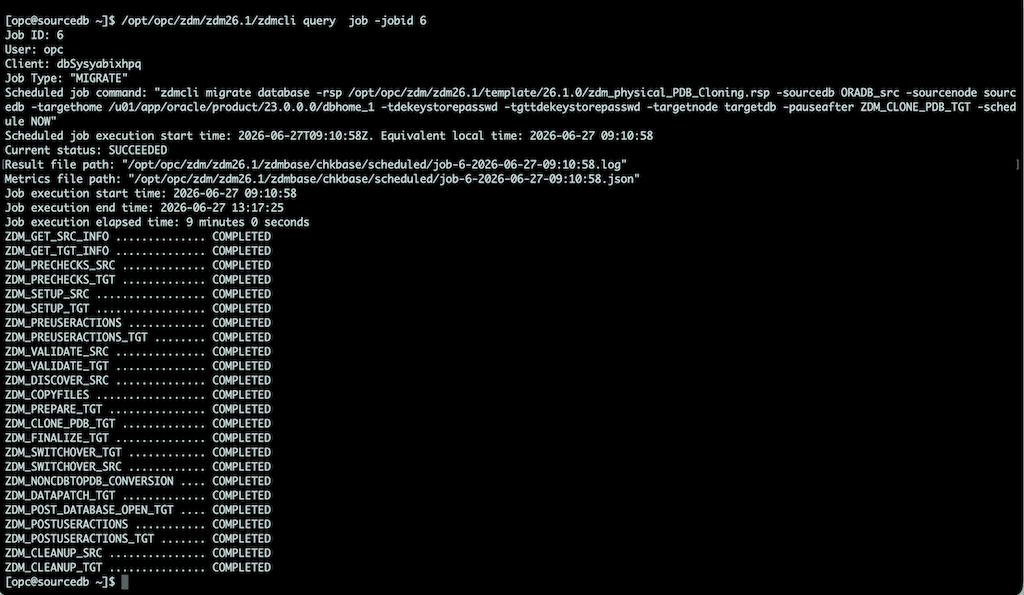
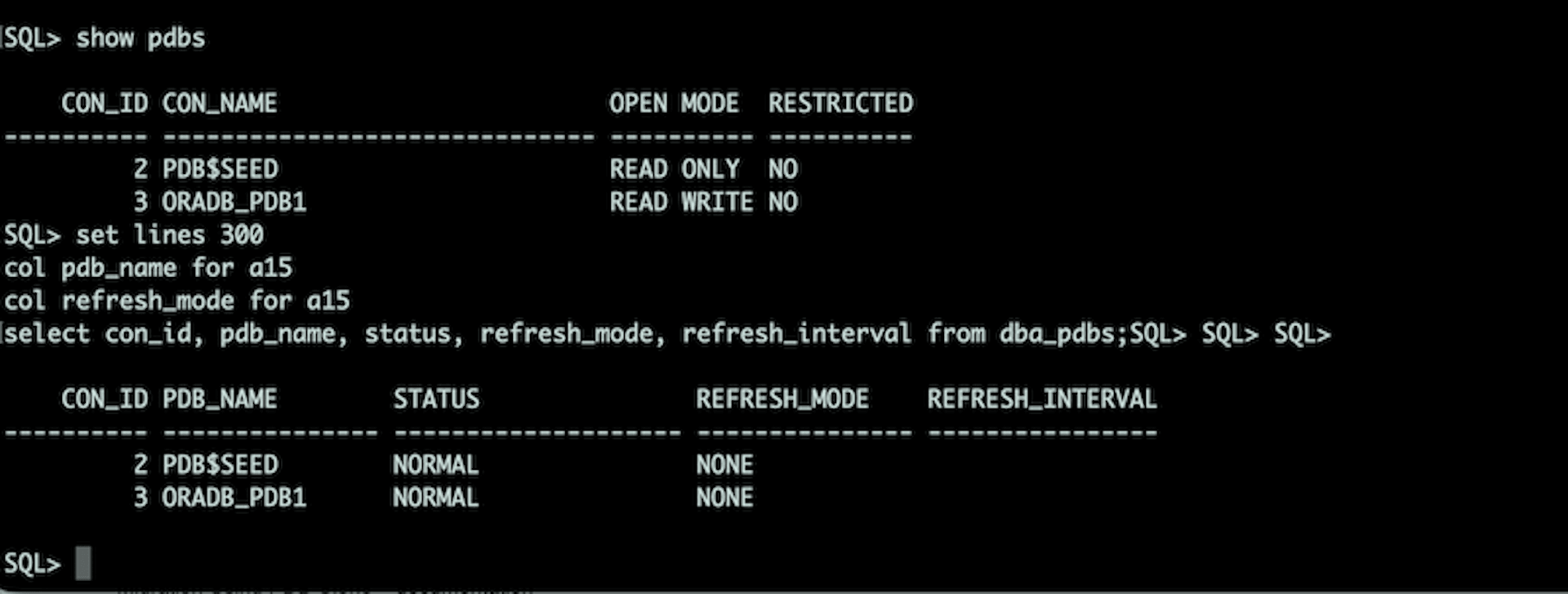
Verify the status of the target PDB after the migration completes:
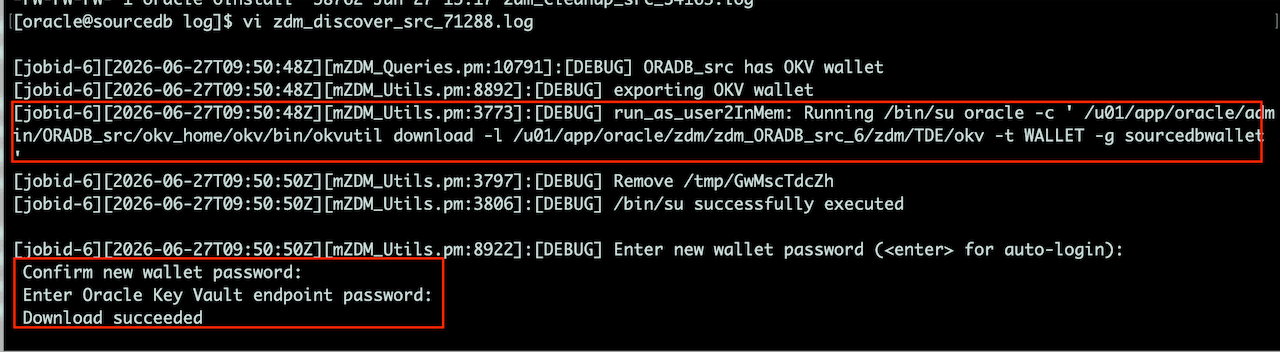
Verify Automatic TDE Wallet Migration
The following log shows that ZDM automatically downloads the TDE wallet from Oracle Key Vault (OKV) on the source database host:
References
- Oracle Zero Downtime Migration 26.1 Documentation
- https://docs.oracle.com/en/database/oracle/zero-downtime-migration/26.1/
- https://docs.oracle.com/en/database/oracle/zero-downtime-migration/26.1/zdmug/preparing-for-database-migration.html#GUID-0049AE7E-12D7-402B-A988-1C8A802922CF
- Preparing for Database Migration
- https://docs.oracle.com/en/database/oracle/zero-downtime-migration/26.1/zdmug/preparing-for-database-migration.html
- Oracle Key Vault Documentation
- https://docs.oracle.com/en/database/oracle/key-vault/
Acknowledgments
Author: Amresh Kumar Singh (Principal Consultant)
More Learning Resources
Explore other labs on docs.oracle.com/learn or access more free learning content on the Oracle Learning YouTube channel. Additionally, visit education.oracle.com/learning-explorer to become an Oracle Learning Explorer.
For product documentation, visit Oracle Help Center.
Oracle ZDM 26.1 Instant Deploy End-to-End Physical PDB Cloning with Oracle Key Vault (OKV)
G58238-03