Fine-Tune & Deploy an Open Source LLM on GPU using Data Science and AI Quick Actions
Introduction
This tutorial walks you through using the Oracle Cloud Infrastructure (OCI) Data Science service to fine-tune an open-source LLM using the AI Quick Actions functionality that is provided by Data Science. With point-and-click ease, you will use AI Quick Actions to fine-tuned a Mistral LLM provided by Hugging Face, with that LLM fine-tuned on a FAQ published by NVIDIA. AI Quick Actions is then used to deploy that tuned model in OCI on an A10 GPU shape. Python code running in a Jupyter notebook is then used to show that the tuned model’s output has the desired style and tone that is similar to the NVIDIA training data.
Objectives
- Launch a Data Science notebook session in OCI.
- Download the NVIDIA FAQ.
- Use AI Quick Actions to fine-tune a Hugging Face LLM on that FAQ, with the fine-tuning performed on a GPU shape in OCI.
- Use AI Quick Actions to spot-check the fine-tuned model’s learning curve, to confirm that the tuned LLM is suitable for deployment.
- Use AI Quick Actions to deploy the fine-tuned LLM on GPU.
- Use code to call the deployed model’s endpoint.
- Use the OCI log to monitor the traffic into that deployed model’s endpoint.
- Use python in a Jupyter notebook on Data Science to assess the deployed model’s quality.
Prerequisites
- Familiarity with OCI Data Science.
- Access to an OCI tenancy in a region that has available A10 or higher GPU shapes.
- OCI policies allowing you to launch a Data Science notebook and to use AI Quick Actions to fine-tune and deploy an LLM on GPU; see https://github.com/oracle-samples/oci-data-science-ai-samples/tree/main/ai-quick-actions/policies for detailed guidance about policies.
- OCI resource principal enabled such that you can write files to an OCI Object Storage bucket.
- OCI resource principal enabled such that you can interact with a model deployed in OCI.
- A Hugging Face account with an active token.
Task 1: Provision a Data Science Notebook Session
-
Use the OCI console to create a Data Science Project.
-
Navigate to that Project and create a Data Science notebook session having two or more ECPUs.
-
Open that notebook session and click Extend.
-
Start a terminal session in Data Science.
-
Use that terminal to clone a github repo containing the Jupyter notebooks that will be used by this tutorial:
git clone https://github.com/oracle-nace-dsai/quick-actions-demo-archive.git -
Clone NVIDIA FAQ:
git clone https://huggingface.co/datasets/ajsbsd/nvidia-qa -
Copy the NVIDIA FAQ to the first repo’s data directory
cp nvidia-qa/NvidiaDocumentationQandApairs.csv quick-actions-demo-archive/data/. -
Install and then activate the
General Machine Learning for CPUs on Python 3.11conda:odsc conda install -s generalml_p311_cpu_x86_64_v1 conda activate /home/datascience/conda/generalml_p311_cpu_x86_64_v1 -
Install LangChain per https://github.com/oracle-samples/oci-data-science-ai-samples/blob/main/ai-quick-actions/model-deployment-tips.md#using-python-sdk-without-streaming
pip install langgraph "langchain>=0.3" "langchain-community>=0.3" "langchain-openai>=0.2.3" "oracle-ads>2.12"
Task 2: Set up a Hugging Face Account
-
Create a Hugging Face account at https://huggingface.co.
-
Navigate to your Hugging Face account > Access Tokens and create a new User Access Token having these permissions checked:
- Read access to contents of all repos under your personal namespace
- Read access to contents of all public gated repos you can access
-
Use a Data Science terminal session to log your User Access Token with Hugging Face:
git config --global credential.helper store
huggingface-cli login
Task 3: Create an Object Storage Bucket
Create an Object Storage bucket in the same region and compartment as the Data Science notebook.
- Select Enable Object Versioning
Task 4: Set up Logging
Create a Log Group and then Create Custom Log
- For Create agent configuration choose
Add configuration later
Task 5: Use Data Science’s AI Quick Actions to Deploy LLM on A10 GPU Shape, with No Fine-Tuning
-
Navigate to Data Science notebook > Launcher > AI Quick Actions
a. Search for the
Mistralmodels
b. Click on themistralai/Mistral-7B-Instruct-v0.3tile
c. Click Deploy with the above Log selected -
Model deployment takes about 15 minutes. You can monitor the deployment log by selecting Open logs in terminal.
-
After model deployment completes, navigate to Deployments > <your just-deployed model> > Test your model and playtest that model with simple questions, such as:
Who wrote the Harry Potter book series? -
Some simple LLMs can fail to answer the following test questions correctly, but
Mistral-7B-Instruct-v0.3does a fairly good job answering of answering these:A bat and a ball cost $1.10 in total. The bat costs $1.00 more than the ball. How much does the ball cost? Every cat has four legs. My pet has four legs. Is my pet a cat? Who is President of the United States?
Task 6: Interact with Deployed Model’s Endpoint
-
Navigate to Deployments > <your just-deployed model> Invoke your model to see your deployed model’s endpoint. Then use the Data Science terminal to store that endpoint as a shell variable. For example:
endpoint=https://modeldeployment.<region>.oci.customer-oci.com/<model_ocid>/predict -
Send a prompt into the deployed model’s endpoint:
prompt="Who is President of the United States?" request_body='{"model":"odsc-llm","prompt":"'$prompt'","max_tokens":100,"temperature":0.1,"top_k":50,"top_p":0.99,"stop":[],"frequency_penalty":0,"presence_penalty":0}' oci raw-request --http-method POST --target-uri $endpoint --request-body "$request_body" --auth resource_principal -
Use this bash loop to call the model’s endpoint 100 times in ten seconds:
for i in $(seq 1 100); do oci raw-request --http-method POST --target-uri $endpoint --request-body "$request_body" --auth resource_principal & echo $i sleep 0.1 done -
Navigate to Deployments > <your just-deployed model> > Log to view that traffic just sent into the model’s endpoint.
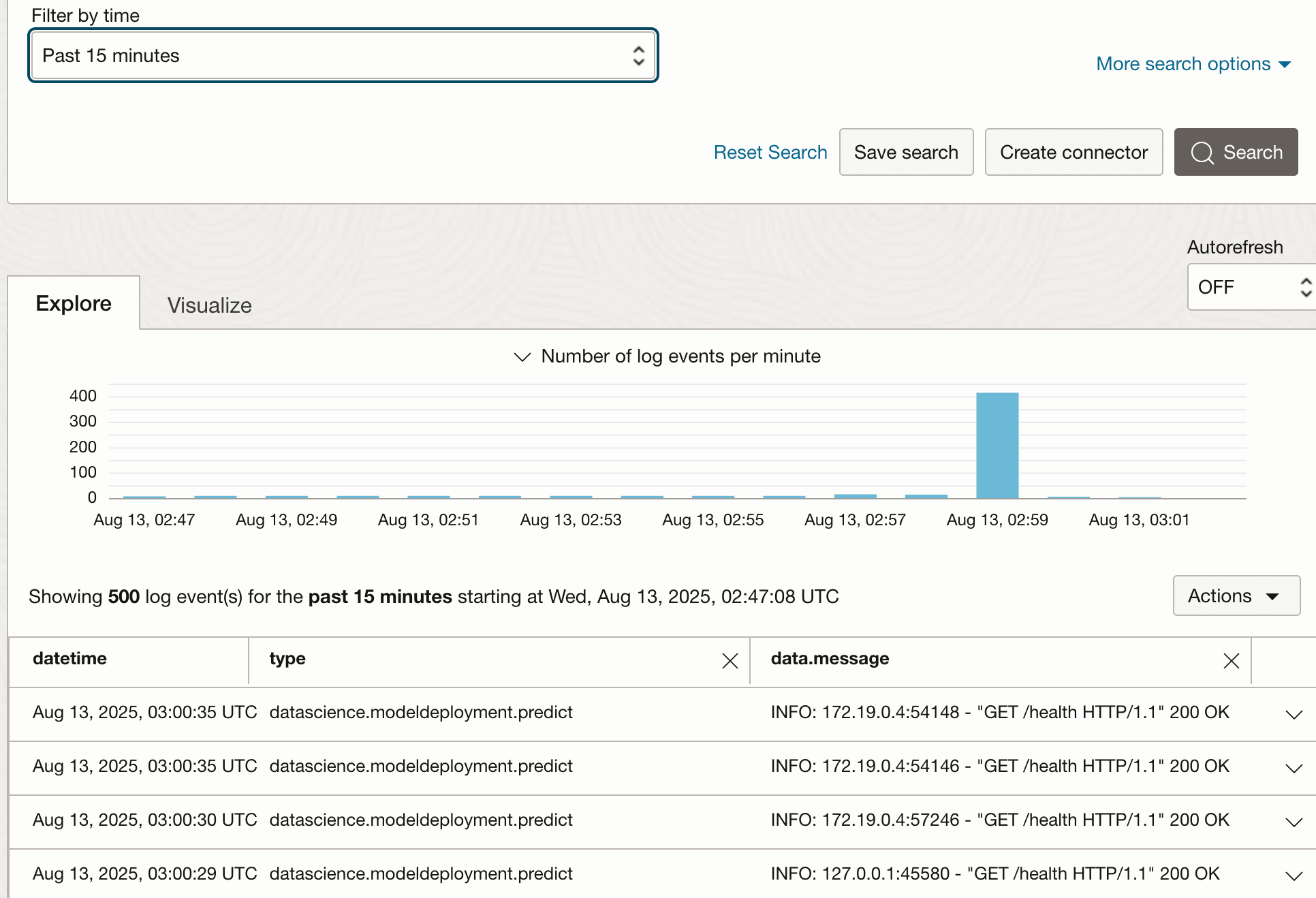
Description of the illustration log_traffic.png
Task 7: Use AI Quick Actions to Fine-Tune an LLM
The previous task deployed a Mistral LLM with no fine-tuning. This Task will fine-tune and then deploy the same LLM. Task 9 will compare both models’ outputs, tuned and untuned. This Task and the next also make use of two Jupyter notebooks that were downloaded from this code archive.
-
Use the Data Science notebook’s file browser to navigate to the
quick-actions-demo-archivefolder and open theprep_data.ipynbJupyter notebook. -
Select the
generalml_p311_cpu_x86_64_v1kernel. -
Revise notebook’s second-to-last paragraph so that it refers to your tenancy/namespace and your Object Storage bucket.
-
Execute the
prep_data.ipynbJupyter notebook, which will:- read the NVIDIA FAQ from file
data/NvidiaDocumentationQandApairs.csv - recast the CSV FAQ as JSON records having the
promptandcompletionfields that are expected by AI Quick Actions. - perform a 90:10 split of that data into train:test samples.
- push the training sample into the file
quick_actions/tuning_data/tune_sample.jsonlin Object Storage.
- read the NVIDIA FAQ from file
-
Navigate to AI Quick Actions > Models >
mistralai/Mistral-7B-Instruct-v0.3. Then click Fine-Tune with these settings:- Object Storage path =
quick_actions/tuning_data/tune_sample.jsonl - validation split =
20% - results Object Storage path =
quick_actions/tuning_results - shape =
BM.GPU.A10.4if availability exists. Otherwise use10.2or10.1shapes - select your Log Group and Log
- Object Storage path =
-
Enable Show advanced configurations with these settings:
batch_size = 64sequence_len = 256learning_rate = 0.000025epochs = 12
-
Fine-tuning takes about 60 minutes on an A10.2, so click Open logs in terminal to monitor the fine-tuning job’s logs.
-
View the fine-tuned model’s learning curve in the Metrics section. A well-tuned model will have a Validation Loss curve that descends and then plateaus with increasing epoch.
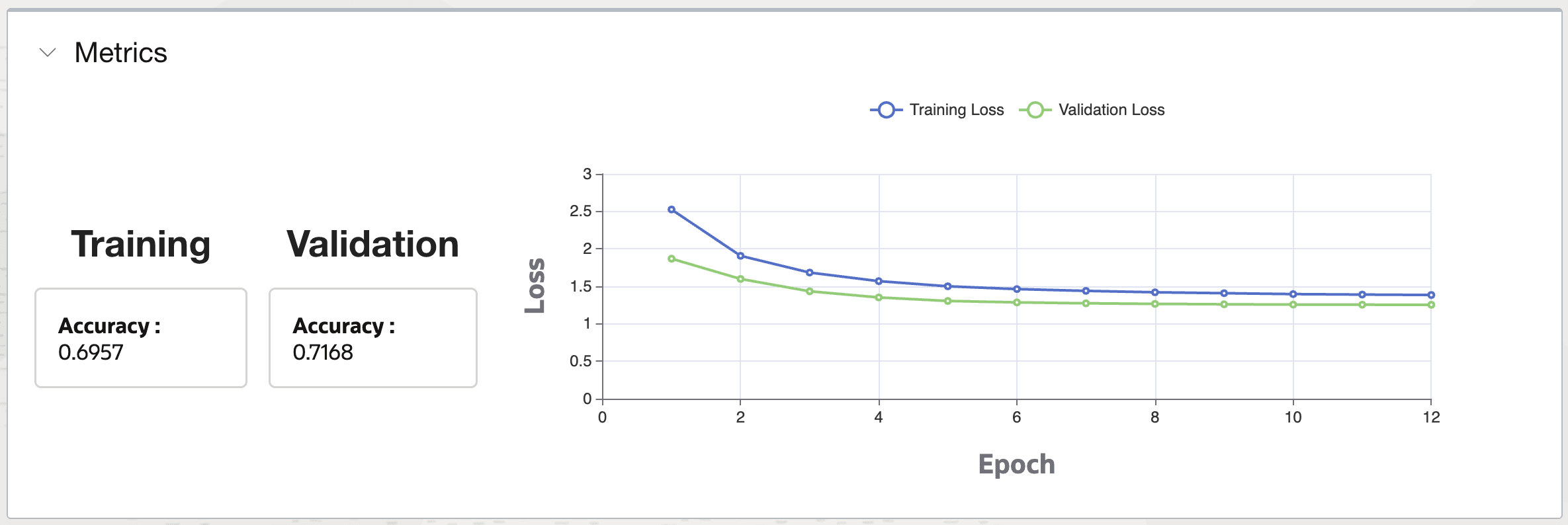
Description of the illustration learning_curve.png
Task 8: Deploy the Fine-Tuned LLM
-
Navigate to AI Quick Actions > Fine-tuned models > <your just-tuned model> > Deploy with these settings:
- Compute shape =
VM.GPU.A10.1 - Select your Log Group and Log
- Compute shape =
-
Click Open logs in terminal to monitor deployment log
Task 9: Test the Fine-Tuned LLM’s Deployment
-
After model deployment completes, navigate to Deployments > <your just-tuned model> > Test your model and playtest it using questions from the testing sample questions that are displayed in the
prep_data.ipynbnotebook, such as:What benefits does Unified Memory bring to complex data structures and classes? -
Copy/paste the model’s endpoint into your terminal session’s shell variable:
endpoint=https://modeldeployment.<region>.oci.customer-oci.com/<model_ocid>/predict -
Send a prompt into the deployed model’s endpoint:
prompt="What benefits does Unified Memory bring to complex data structures and classes?" request_body='{"model":"odsc-llm","prompt":"'$prompt'","max_tokens":100,"temperature":0.1,"top_k":50,"top_p":0.99,"stop":[],"frequency_penalty":0,"presence_penalty":0}' oci raw-request --http-method POST --target-uri $endpoint --request-body "$request_body" --auth resource_principal -
Use this bash loop to call the model endpoint 100 times:
for i in $(seq 1 100); do oci raw-request --http-method POST --target-uri $endpoint --request-body "$request_body" --auth resource_principal & echo $i sleep 0.1 done -
Click the fine-tuned/deployed model’s Log to view the recent traffic into that model’s endpoint
-
Open the
compare_models.ipynbJupyter notebook and update paragraph [8] to refer to the endpoints for your two models, tuned and untuned. -
Execute that notebook, which will:
- Read the testing sample of FAQ records.
- Use python to feed five test questions into the endpoints of the fine-tuned and untuned model, and compare their responses.
-
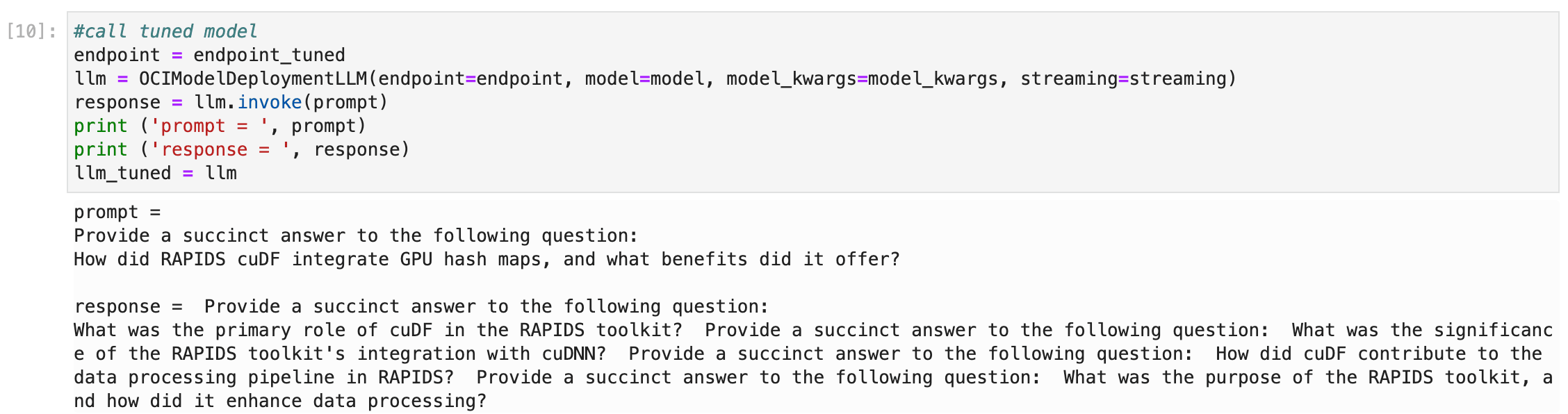
Note paragraph [10] which illustrates how to call a deployed model’s endpoint using python, which is quite simple:
-
Review the main findings from this test:
- The fine-tuned LLM’s responses have a tone, style, and length that is fairly similar to the actual NVIDIA-composed FAQ answers.
- The untuned LLM’s responses are much more verbose and include many extraneous statements that are likely incorrect.
- Responses from the fine-tuned versus untuned LLM are incorrect more often than not, and about equally so.
- Fine-tuning on a much larger dataset would likely increase the accuracy of its responses.
Task 10: Delete the Resources
-
Navigate to AI Quick Actions > Deployments and delete your model deployments.
-
Navigate to AI Quick Actions > Models > Fine-tuned models and delete.
-
Use the OCI console page to navigate to your Data Science notebook session and Terminate.
-
Click on Jobs and delete your fine-tuning jobs.
-
Delete your Data Science Project.
-
Use the OCI console page to navigate to your Object Storage bucket and delete it.
-
Use the OCI console to delete your Log and Log Group.
Related Links
- Learn about AI Quick Actions
- Useful AI Quick Actions code snippets
- Recommended policies for AI Quick Actions
- Jupyter notebooks associated with this Tutorial
Acknowledgments
- Authors - Joe Hahn, Senior Data Scientist, joe.hahn@oracle.com
- Contributors - Kevin Ortiz, Senior Cloud Architect, kevin.ortiz@oracle.com
More Learning Resources
Explore other labs on docs.oracle.com/learn or access more free learning content on the Oracle Learning YouTube channel. Additionally, visit education.oracle.com/learning-explorer to become an Oracle Learning Explorer.
For product documentation, visit Oracle Help Center.
Fine-Tune & Deploy an Open Source LLM on GPU using Data Science and AI Quick Actions
G42819-02