Automatically Rename Presentation Columns
You can choose a presentation table and automatically rename all or selected presentation columns to user-friendly names.
Any presentation columns with the Use Logical Column
Name field enabled aren't available to automatically rename. See Modify a Presentation Column Name.
The presentation column rename applies the rename actions you specified in the Automatically rename objects when added to the logical layer user preference. For example, Change each underscore (_) to a space. By default, this option is disabled in user preferences. See Automatically Rename Logical Layer Objects.
- On your home page, click Navigator
 and then click Semantic
Models.
and then click Semantic
Models. - In the Semantic Models page, click a semantic model to open it.
- Click Presentation Layer
 .
. - In the Presentation Layer pane, browse for and double-click the table with the column you want to rename.
- In the presentation table, click the Columns tab and
click Rename Columns
 .
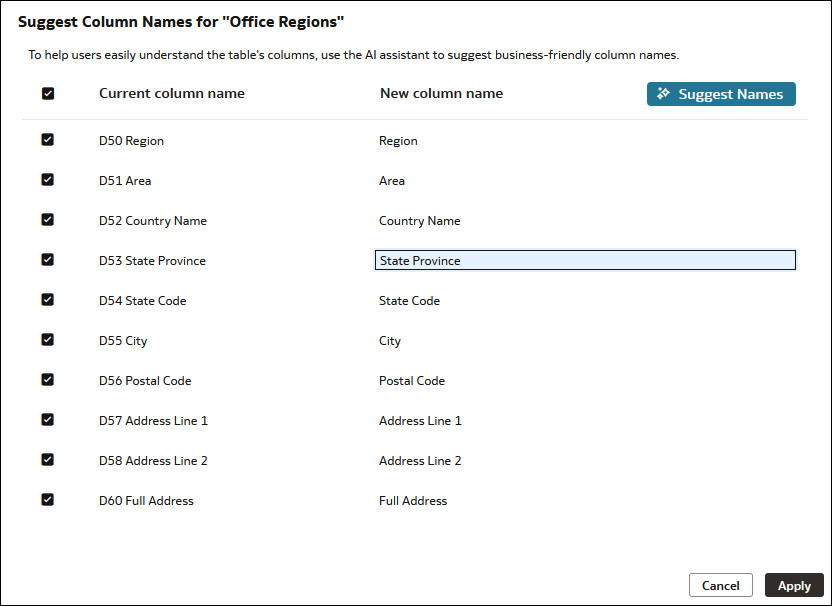
. - In Suggest Column Names, deselect any columns you don't want to rename. Click Suggest Names.
- Optional: Click a column's suggested new name to modify it.
- Click Apply, and then click Save.