6 Import Metadata and Working with Data Sources
This chapter contains the following topics:
Perform Data Source Preconfiguration Tasks
You might need to perform configuration steps to access the data sources.
These configuration steps are sometimes required before you can import physical objects from your data sources into your repository file, or set up connection pools to your data sources.
For many data sources, you need to install client components. Client components are often installed on the computer hosting the Oracle BI Server for query access, and on the computer hosting the Model Administration Tool (if different) for offline operations such as import. In some cases, you must install client components on the computer where the JavaHost process is located.
This section contains the following topics:
Set Up ODBC Data Source Names (DSNs)
Before you can import from a data source through an ODBC connection, or set up a connection pool to an ODBC data source, you must first create an ODBC Data Source Name (DSN) for that data source on the client computer.
You reference the DSN in the Import Metadata Wizard when you import metadata from the data source.
You can only use ODBC DSNs for import on Windows systems.
ODBC DSNs on Windows systems are used for both initial import, and for access to the data source during query processing. On Linux systems, ODBC DSNs are only used for data access. See Set Up Data Sources on Linux.
Set Up Oracle Database Data Sources
When you import metadata from an Oracle Database data source or set up a connection pool, you can include the entire connect string for Data Source Name, or you can use the net service name defined in the tnsnames.ora file.
If you choose to enter only the net service name, you must set up a tnsnames.ora file in the following location within the Oracle Analytics Server environment, so that the Oracle BI Server can locate the entry:
BI_DOMAIN/bidata/components/core/serviceinstances/ssi/oracledb
You should always use the Oracle Call Interface (OCI) when importing metadata from or connecting to an Oracle Database. Before you can import schemas or set up a connection pool, you must add a TNS names entry to your tnsnames.ora file. See the Oracle Database documentation for more information.
This section contains the following topics:
-
Advanced Oracle Database Features Supported by Oracle BI Server
-
Oracle Database Fast Application Notification and Fast Connection Failover
-
Additional Oracle Database Configuration for Client Installations
See Enable NUMERIC Data Type Support for Oracle Database and TimesTen.
Oracle Database In-Memory Data Sources
For all Oracle Database In-Memory data sources, the Oracle BI Server creates tables in memory.
Oracle Database In-Memory is a high-performance in-memory data manager. It uses In-Memory Column Store to store copies of tables and partitions in a special columnar format that exists in memory and provides for rapid scans.
Oracle on Exadata Data Sources
For Oracle Database on Exadata and Oracle Database In-Memory on Exadata data sources, the Oracle BI Server creates tables in memory.
Oracle BI Server uses Exadata Hybrid Columnar Compression (EHCC) by default.
Oracle Exadata Database Machine is the optimal platform for running Oracle Database. Both Oracle Database and Oracle Database In-Memory run on the Oracle Exadata Database Machine. See the documentation included with the Exadata Database Machine for more information.
Advanced Oracle Database Features Supported by Oracle BI Server
The Oracle BI Server supports the compression, Exadata Hybrid Columnar Compression, and In-Memory features to take advantage of native Oracle Database functionality and significantly improve query time.
When you import metadata or specify a database type, the feature set for that database object is automatically populated with default values appropriate for the database type. The Oracle BI Server uses the SQL features with this data source. When a feature is marked as supported (checked) in the Features tab of the Database dialog, the Oracle BI Server pushes the function or calculation to the data source for improved performance. When a function or feature isn't supported in the data source, the calculation or processing is performed in the Oracle BI Server.
The following is information about Oracle Database features supported by Oracle BI Server:
-
Compression
Compression reduces the size of the database. Because compressed data is stored in fewer pages, queries need to read fewer pages from the disk, thereby improving the performance of I/O intensive workloads. Compression is used by default. If you create aggregates on your Oracle databases, then compression is applied to the aggregate tables by default.
When you create a database object for any of the Oracle databases, the COMPRESSION_SUPPORTED feature is automatically applied to the object.
-
Exadata Hybrid Columnar Compression (EHCC)
Oracle's EHCC is optimized to use both database and storage capabilities on Exadata and enables the highest level of data compression to provide significant performance improvements. By default, Oracle 11g Database on Exadata, Oracle Database on Exadata, and Oracle Database In-Memory on Exadata use this type of compression.
When you create a database object for any of the Oracle databases, the EHCC_SUPPORTED feature is automatically applied to the object.
By default, compression is disabled for objects in the Oracle databases. To enable compression for an object, set the object's
PERF_PREFER_COMPRESSIONflag to on. -
In-Memory
– In memory retrieval eliminates seek time when querying the data, which provides faster and more predictable performance than disk. The in memory feature creates tables in memory for Oracle Database In-Memory and Oracle Database In-Memory on Exadata. If you create aggregates on these databases, then the aggregates are created in memory.
When you create a database object for any of the above mentioned Oracle databases, the INMEMORY_SUPPORTED feature is automatically applied to the object.
Oracle Database Fast Application Notification and Fast Connection Failover
If Fast Application Notification (FAN) events and Fast Connection Failover (FCF) are enabled on the Oracle Database, the Oracle Call Interface (OCI) uses the FAN events and enables FCF for the Oracle Database data sources.
Fast Application Notification (FAN) events and Fast Connection Failover (FCF) run in the background. When a query initiated by a user fails due to the unavailability of an Oracle database, the query fails quickly and the user can then retry the query rather than wait for the database request to time out.
Additional Oracle Database Configuration for Client Installations
You must install the Oracle Database Client on the computer where you performed the client installation.
After installing the Oracle Database Client, create an environment variable called ORACLE_HOME and set it to the Oracle home for the Oracle Database Client. Create an environment variable called TNS_ADMIN, and set the variable to the tnsnames.ora file location of BI_DOMAIN\config\fmwconfig\bienv\core.
Configure Oracle BI Server When Using a Firewall
The presence of a firewall between the Oracle BI Server and the Oracle Database can result in very long query times.
You could experience long query times when using a simple nqcmd query that could take two to three minutes to return results, or when using Answers, you don't get a response after running or validating a SQL statement initiated in Presentation Services.
To improve query time, go to the sqlnet.ora file in BI_DOMAIN\config\fmwconfig\bienv\core and add the BREAK_POLL_SKIP and DISABLE_OOB parameters as follows:
BREAK_POLL_SKIP=10000
DISABLE_OOB=ON
You perform this configuration change only on the Oracle BI Server. You don't need to change configuration on the Oracle Database or on user client desktops.
DataDirect Drivers and Oracle Database
You must use ODBC DataDirect drivers to establish connections to ODBC data sources.
ODBC DataDirect drivers are also used by the Oracle Platform Security Services (OPSS) security store implementation to access credentials.
DataDirect ODBC framework and Oracle Wire Protocol support Oracle Database connectivity, and are configured for data source name (DSN) and DNS-less connectivity without additional configuration.
You can find additional information about the DataDirect drivers in the Progress DataDirect documentation located in the following installation directories:
-
mwhome\bi\common\ODBC\Merant\7.1.6\help -
mwhome\bi\common\ODBC\Merant\8.0.0\help -
mwhome\bi\common\ODBC\Merant\8.0.2\help
About Setting Up Oracle OLAP Data Sources
Before you import from an Oracle OLAP data source, ensure that the data source is a standard form Analytic Workspace.
You must install the Oracle Database Client on the computer where you performed the client installation before you can import from Oracle OLAP sources.
The biadminservlet Java process must be running to import from Oracle OLAP data sources, for both offline and online imports. You can use the Deployments option in Weblogic Console or Fusion Middleware
Control to check the status of the biadminservlet Java process.
Use either the Administrator or Runtime client install option.
After installing the Oracle Database Client, create an environment variable called ORACLE_HOME, and set the variable to the Oracle home for the Oracle Database Client. Create an environment variable called TNS_ADMIN, and set the variable to the location of the tnsnames.ora file located in BI_DOMAINbidata/components/core/serviceinstances/ssi/oracledb.
Java Data Sources
If you use the JDBC connection type, then the remote Java data sources must connect to Weblogic Server.
If you aren't using JDBC (Direct Driver) this configuration isn't required.
Before you can include JDBC and JNDI data sources in the repository, you must perform the required set up tasks.
You must configure JDBC in the Oracle WebLogic Server. For information about how to perform this configuration, see Using JDBC Drivers with WebLogic Server in the Oracle WebLogic Server documentation.
You must load data sources for importing into the repository. See Load Java Data Sources.
Load Java Data Sources
To make Java data sources available for import into the repository, you must first connect to the Java Datasource server to load the Java metadata.
- In the Model Administration Tool, select File, and select Load Java Datasources.
- In the Connect to Java Datasource Server dialog, enter the enter hostname, port, and credentials to access the server and load the Java metadata.
- Click OK.
About Setting Up Oracle TimesTen In-Memory Database Data Sources
Oracle TimesTen In-Memory Database is a high-performance, in-memory data manager.
These preconfiguration instructions assume that you've already installed Oracle TimesTen, see Oracle Data Integrator for more information.
If you plan to create aggregates on your TimesTen source, you must also ensure that PL/SQL is enabled for the instance, and that the PL/SQL first connection attribute PLSQL is set to 1. You can enable PL/SQL at install time, or run the ttmodinstall utility to enable it post-install. See TimesTen In-Memory Database Reference for more information.
This section contains the following topics:
-
Improve Use of System Memory Resources with TimesTen Data Sources
-
Configure Oracle BI Server to Access the TimesTen DLL on Windows
See Enable NUMERIC Data Type Support for Oracle Database and TimesTen.
Configure TimesTen Data Sources
You must configure TimesTen before you can use it as a data source.
- On the computer where TimesTen has been installed, create a Data Manager DSN, as a system DSN.
- Perform an initial connection to the data store to load the TimesTen database into memory, and then create users and grant privileges. The default user of the data store is the instance administrator, or in other words, the operating system user who installed the database.
- On the computer running the Oracle BI Server, install the TimesTen Client.
- On the computer where the TimesTen Client has been installed, create a Client DSN, as a system DSN.
If the TimesTen database is installed on the same computer as the TimesTen client, you can specify either the Data Manager DSN or the Client DSN in the Import Metadata Wizard.
After importing data from your TimesTen source, or when manually setting up a database object and connection pool, ensure that your database type and version are set correctly in the Database field of the General tab of the Database dialog. You must also ensure that the Call interface field in the General tab of the Connection Pool dialog is set correctly. See:
-
Oracle Exalytics In-Memory Machine for specific instructions on setting up TimesTen sources on the Oracle Exalytics Machine
Improve Use of System Memory Resources with TimesTen Data Sources
To improve the use of system memory resources, Oracle recommends that you increase the maximum number of connections for the TimesTen server.
To avoid lock timeouts, you might also want to adjust the LockWait interval for the connection as appropriate for your deployment. See LockWait in TimesTen In-Memory Database Reference Guide for more information.
About Setting Up Essbase Data Sources
The Oracle BI Server uses the Essbase client libraries to connect to Essbase data sources.
The Essbase client libraries are installed by default. No additional configuration is required to enable Essbase data source access.
See Configure SSO for Essbase, Hyperion Financial Management, or Hyperion Planning Data Sources for configuration used for authentication using a shared token against Essbase installed with the EPM System Installer.
About Setting up Cloudera Impala Data Sources
These topics provide information about Windows ODBC drivers and Cloudera Impala Metadata.
Use the information in this section to set up Cloudera Impala data sources in the Oracle BI repository.
Obtain Windows ODBC Driver for Cloudera
If you performed a client installation, then you don't have the Windows ODBC driver required for you to import Cloudera Impala metadata.
If you used the Installer to install the Model Administration Tool, then you don't have to perform this procedure.
- Go to Cloudera's website.
- Click the Downloads link and then click the Impala ODBC Drivers & Connectors link.
- In the Download list, locate the required ODBC driver for your Administration Tool platform and click Download Bits to download the installer.
- Run the ODBC driver installer to install the driver.
Import Cloudera Impala Metadata Using the Windows ODBC Driver
Cloudera Impala is a massively parallel processing (MPP) SQL query engine that runs natively in Apache Hadoop. Perform this procedure to import Cloudera Impala metadata into the Oracle BI repository.
To perform this procedure, you must have the required Windows ODBC driver. If you've a client installation of the Administration Tool, then you must follow the Obtain Windows ODBC Driver for Cloudera procedure to install the required Windows ODBC driver.
About Setting Up Apache Hive Data Sources
These topics provide information about Windows ODBC drivers and Apache Hive.
This section contains the following topics:
Obtain Windows ODBC Driver for Client Installation
If you've a client install of the Administration Tool, you don't have the Windows ODBC driver required for you to import Apache Hive metadata.
To obtain the Windows driver required to perform the import, log in to the My Oracle Support web site support.oracle.com and access DocID 1520733.1. The technical note associated with this DocID includes the required Windows driver, together with the instructions to install the driver and to perform the metadata import from the Hive data source.
Limitations on the Use of Apache Hive
These topics describes the limitations on the use of Hadoop and Hive with Oracle Analytics Server.
This section contains the following topics:
Hive Limitation on Dates
There are limitations with the DATE type with Hive data sources.
Hive supports the Timestamp data type. Use the DATE or DATETIME data type for timestamp columns in the repository's Physical layer.
Hive Doesn't Support Count (Distinct M) Together with Group By M
Learn the limitations of Hive data sources.
Queries similar to the following could cause Hive to crash.
SELECT M, COUNT(DISTINCT M) ... FROM ... GROUP BY M ...
The situation occurs when the attribute in the COUNT(DISTINCT... definition is queried directly and if that attribute is also part of the table or foreign key or level key. Because COUNT(DISTINCT X) together with GROUP BY X always results in the count value of 1, a significant number of occurrences of this case are unlikely to happen.
To avoid this error when using COUNT(DISTINCT...) on a measure, don't include the exact attribute or any attribute in the same level.
Hive Doesn't Support Differing Case Types
Hive requires a strict check on types of the various parts of the Case statement.
This causes a presentation query such as the following to fail in Hive:
select supplierid, case supplierid when 10 then 'EQUAL TO TEN' when 20 then
'EQUAL TO TWENTY' else 'SOME OTHER VALUE' end as c2 from supplier order by c2
asc, 1 desc
The full error message in Hive for this query is:
FAILED: Error in semantic analysis: Line 2:32 Argument type mismatch '10':
The expressions after WHEN should have the same type with that after CASE:
"smallint" is expected but "int" is found
Exception Thrown for Locate Function with an Out-of-Bounds Start Position Value
Learn how to use the Locate function’s syntax.
The full syntax of the Locate function is of the form:
LOCATE ( charexp1, charexp2, [, startpos] )
where charexp1 is the string to search for within the string charexp2.
The optional parameter startpos is the character position within charexp2 at which to begin the search.
If startpos has a value that's longer than the length of charexp2, such as in the following example:
select locate('c', 'abcde', 9) from employee
then Hive throws an exception instead of returning 0.
Hive May Crash on Queries Using Substring
Some queries that use the Substring function with a start position parameter value might cause Hive to crash.
The following might cause Hive to crash:
select substring(ProductName, 2) from Products
Hive Doesn't Support Create Table
As the Apache Hive ODBC driver doesn't support SQLTransact, which is used for creating tables, CREATE TABLE isn't supported by Hive.
Hive May Fail on Long Queries With Multiple AND and OR Clauses
The examples show conditions that could cause Hive data sources to fail.
The following WHERE clauses are examples of conditions that might cause queries to fail in Hive due to their excessive length:
Example 1
        WHERE (Name = 'A' AND Id in (1))
           OR (Name = 'B' AND Id in (2))
           OR  .......
           OR (Name = 'H' AND Id in (8))
Example 2
        WHERE (Id BETWEEN '01' AND '02')
           OR (Id BETWEEN '02' AND '03')
           OR  .......
           OR (Id BETWEEN '07' AND '08'))
Long queries could fail in Hive especially if the queries have conditions with multiple OR clauses each grouping together combinations of AND and BETWEEN sub-clauses as shown in the preceding examples.
Queries with Subquery Expressions May Fail
Queries with subquery expressions might fail in Hive.
If subquery expressions are used, the physical query that Oracle BI Server generates could include mixed data types in equality conditions. Because of Hive issues in equality operators, you could get an incorrect query result.
For example, for the following query:
select ReorderLevel from Product where ReorderLevel in
  (select AVG(DISTINCT ReorderLevel) from Product);
Oracle BI Server generates the following physical query that includes 'ReorderLevel = 15.0' where ReorderLevel is of type Int and 15.0 is treated as Float:
Select T3120.ReorderLevel as c1 from Products T3120
 where (T3120.ReorderLevel = 15.0)
You can correct the mixed data types issue using the following command:
select ReorderLevel from Product where ReorderLevel in
  (select cast(AVG(DISTINCT ReorderLevel) as integer) from Product);
About Setting Up Hyperion Financial Management Data Sources
Use these required steps to configure the Hyperion Financial Management data source.
Hyperion Financial Management 11.1.2.3.x or 11.1.2.4.x can use the ADM native driver or the ADM thin client driver. You can install and configure the ADM thin client driver on Linux operating system.
You can also use the Hyperion Financial Management 11.1.2.3.x and 11.1.2.4.x data sources with Oracle Analytics Server running in a Windows or Linux deployment.
Hyperion Financial Management ADM driver includes the ADM native driver and ADM thin client driver. For both Windows and Linux deployments, ensure that you perform the configuration using the Enterprise Performance Management Configurator.
-
In the Windows and Linux configurations, provide the details for the Hyperion Shared Services Database to register with the Foundation server and the Hyperion Financial Management server.
-
During configuration, make sure to enable DCOM configuration.
-
If you're configuring for Windows, then in the DCOM User Details page, enter a domain user as the user for connecting to the Hyperion Financial Management server. If you're configuring the ADM thin client driver for Linux, then you don't need to perform this step.
In addition, you must edit the obijh.properties file on each system that's running the JavaHost process to include environment variables that are required by Hyperion Financial Management. The JavaHost process must be running to import from Hyperion Financial Management data sources, for both offline and online imports. If you've a client installation of the Model Administration Tool, then see Performing Additional Hyperion Configuration for Client Installations for JavaHost configuration steps.
Important:
You should always use forward slashes (/) instead of backslashes (\) when configuring the EPM paths in the obijh.properties file.
Forward slashes are required in the EPM paths on Windows. Backslashes don't work when configuring the EPM paths in the obijh.properties file.
-
Locate the
obijh.propertiesat:ORACLE_HOME/bi/modules/oracle.bi.cam.obijh/env/obijh.properties -
Open the
obijh.propertiesfile for editing. -
Append the following to the
OBIJH_ARGSvariable:DEPM_ORACLE_HOME=C:/Oracle/Middleware/EPMSystem11R1 -DEPM_ORACLE_INSTANCE=C:/Oracle/Middleware/user_projects/epmsystem1 -DHFM_ADM_TRACE=2
-
Add the following variables to the end of the
obijh.propertiesfile:EPM_ORACLE_HOME=C:/Oracle/Middleware/EPMSystem11R1EPM_ORACLE_INSTANCE=C:/Oracle/Middleware/user_projects/epmsystem1 -
Locate the
loaders.xmlfile in:ORACLE_HOME/bi/bifoundation/javahost/config/loaders.xml -
In the
loaders.xmlfile, locate<!-- BI Server integration code -->. -
In the
<ClassPath>, add thefm-adm-driver.jar,fm-web-objectmodel.jar,epm_j2se.jar, andepm_hfm_web.jarfiles using the format shown in the following:<ClassPath> {%EPM_ORACLE_HOME%}/common/hfm/11.1.2.0/lib/fm-adm-driver.jar; {%EPM_ORACLE_HOME%}/common/hfm/11.1.2.0/lib/fm-web-objectmodel.jar; {%EPM_ORACLE_HOME%}/common/jlib/11.1.2.0/epm_j2se.jar; {%EPM_ORACLE_HOME%}/common/jlib/11.1.2.0/epm_hfm_web.jar; </ClassPath> -
Save and close the file.
-
Go to the
ORACLE_HOME/bi/bifoundation/javahost/lib/obisintegration/admdirectory and delete all jar files except foradmintegration.jarandadmimport.jar. -
Restart OBIS1.
-
Repeat these steps on each computer that runs the JavaHost process.
Perform Additional Hyperion Configuration for Client Installations
If you install the Administration Tool using the Plus Client Installer, you must perform additional configuration before you can perform offline imports from Hyperion Financial Management data sources.
When importing from Hyperion Financial Management data sources in offline mode, the Model Administration Tool must point to the location of a running JavaHost.
The steps in this section are only required for client installations of the Model Administration Tool.
Set Up Oracle RPAS Data Sources
Oracle BI Server can connect to Oracle RPAS (Retail Predictive Application Server) data sources through ODBC DSNs.
To set up Oracle RPAS data sources, you must first install the Oracle RPAS ODBC driver. During set up of the ODBC DSN, you must select the SQLExtendedFetch option, select DBMS from the Authentication Method list, and select No from the Normalize Dimension Tables list. See About Importing Metadata from Oracle RPAS Data Sources.
On Windows systems, you can connect to Oracle RPAS data sources for both initial import and for access to the data source during query processing. On Linux systems, you can only connect to Oracle RPAS data sources for data access.
Set Up Teradata Data Sources
You can use ODBC to access Teradata data sources.
See Set Up ODBC Data Source Names (DSNs).
After you've installed the latest Teradata ODBC driver and set up an ODBC DSN, you must add the lib directory for your Teradata data source to your Windows system Path environment variable. For example:
C:\Program Files\Teradata\Client\15.00\ODBC Driver for Teradata nt-x8664\Lib
You must edit obis.properties on each computer running the Oracle BI Server to include required Teradata variables.
Avoid Spool Space Errors for Queries Against Teradata Data Sources
Some queries against Teradata might get a No more spool space error from the data source.
This error can occur for DISTINCT queries resulting from selecting All Choices in the Filters pane in Answers.
To avoid this error, you can ensure that the Oracle BI Server rewrites the query to use GROUP BY rather than DISTINCT for these queries by ensuring that the following conditions are met:
-
There is only one dimension column in the projection list, and it's a target column rather than a combined expression.
-
The original query from Answers is requesting
DISTINCT, and doesn't include aGROUP BYclause -
The
FROMtable is a real physical table rather than an opaque view. -
The
FROMtable is an atomic table, not a derived table. -
The following ratio must be less than the threshold:
(the distinct number of the projected column) / (number of rows of
FROMtable)Both values used in this ratio come from the repository metadata. To populate these values, click Update Row Count in the Model Administration Tool for both of the following objects:
-
The
FROMphysical table -
The physical column for the projected column
By default, the threshold for this ratio is 0.15. To change the threshold, create an environment variable on the Oracle BI Server computer called
SA_CHOICES_CNT_SPARSITYand set it to the new threshold. -
Enable NUMERIC Data Type Support for Oracle Database and TimesTen
You can enable NUMERIC data type support for Oracle Database and TimesTen data sources.
When NUMERIC data type support is enabled, NUMBER columns in Oracle Database and TimesTen data sources are treated as NUMERIC to provide greater precision. In addition, literals are instantiated as NUMERIC instead of DOUBLE for Oracle Database and TimesTen data sources.
See Logical SQL Reference Guide for Oracle Business Intelligence Enterprise Edition.
- Set
ENABLE_NUMERIC_DATA_TYPEtoYESinNQSConfig.INIfile located inBI_DOMAIN/config/fmwconfig/biconfig/OBIS. - Enable the NUMERIC_SUPPORTED database feature in the Physical layer database object. See SQL Features Supported by a Data Source for more about how to set database features.
The decimal/numeric data from other database types is mapped as DOUBLE when the ENABLE_NUMERIC_DATA_TYPE parameter is set to YES.
The data type of physical columns imported prior to changing the ENABLE_NUMERIC_DATA_TYPE setting remain unchanged. For existing DOUBLE physical columns, you must manually update the data type to NUMBER as needed.
Cast numeric data types to other number data types, and cast other number data types to numeric data types.
Numeric data type support isn't available when using the Oracle BI Server JDBC driver.
Your performance overhead could increase when numeric data types are enabled resulting from the higher number of bits for numeric data.
Configure Essbase to Use a Shared Logon
Shared logon is required and enabled by default for all Essbase connection pools.
You can't disable the Shared logon setting in the General tab of the Connection Pool Properties dialog.
Configure SSO for Essbase, Hyperion Financial Management, or Hyperion Planning Data Sources
Configure SSO and shared logon to use Hyperion Financial Management, or Hyperion Planning installed with the EPM System Installer as a data source.
If you use Hyperion Financial Management, or Hyperion Planning installed with the EPM System Installer as a data source for the Oracle BI Server, then use the SSO token option with shared logon. In this case, Oracle BI Server uses impersonation to connect to Hyperion Planning. The user details provided in the shared logon is used to connect to the data source, and the processing user is the impersonated user. The impersonated users should exist in the identity store used by Hyperion Financial Management or Hyperion Planning.
The user and the Enterprise Performance Management user must use the same identity store.
Note:
Essbase no longer supports CSS token based authentication. As a result, you must update the connection pools to use EssLoginAs authentication. EssLoginAS authentication provides reliable and better performance than CSS token based authentication, and provides the shared logon credentials of the Essbase administrator in the connection pool.
Import Metadata from Multidimensional Data Sources
You can import metadata from a multidimensional data source to the Physical layer of the Oracle BI repository.
Using multidimensional data sources enables the Oracle BI Server to connect to and extract data from a variety of sources.
During the import process, each cube in a multidimensional data source is created as a single physical cube table. The Oracle BI Server imports the cube metadata, including its metrics, dimensions, and hierarchies. After importing the cubes, you need to verify that the physical cube columns have the correct aggregation rule, and that the hierarchy type is correct. See Work with Physical Hierarchy Objects.
Note:
Manually creating a physical schema from a multidimensional data source is labor-intensive and error prone. Therefore, it's strongly recommended that you use the import method.
Oracle recommends removing hierarchies and columns from the Physical layer if you aren't going to use the hierarchies and columns in the business model. Eliminating unnecessary objects in the Model Administration Tool could result in better performance.
If you're importing metadata into an existing database in the Physical layer, confirm that the COUNT_STAR_SUPPORTED option is selected on the Features tab in the Database properties dialog. If you import metadata without the COUNT_STAR_SUPPORTED option selected, the Update Row Count option doesn't display in the right-click menu for the database's physical tables.
See Multidimensional Connection Options.- In the Model Administration Tool, do one of the following:
- Select File, then select Import Metadata.
- From an existing database, right-click the connection pool in the Physical layer and select Import Metadata.
- In Select Data Source, in the Connection Type field, select the type of connection appropriate for your data source, and click Next.
- In Select Metadata Types (only Oracle RPAS data sources), select Tables, Keys, and Foreign Keys and then, click Next.
- In Select Metadata Objects, from the Available list, select the objects to import using the Import >, or Import All >>.
- Select Import UDAs if you want to import user-defined attributes (UDAs) from an Essbase data source.
- Click Finish.
A list of warning messages display if some objects weren't imported. Resolve the issues as needed.
After you import metadata, you should verify that your database and connection pool settings are correct. In rare cases, the Oracle BI Server can't determine the exact database type during import and instead assigns an approximate type to the database object. See Set Up Database Objects and Create or Change Connection Pools.
Visually inspect the imported data in the Physical layer such as physical columns and hierarchical levels to confirm that the import completed successfully.
For Essbase data sources, all hierarchies are imported as Unbalanced by default. Review the Hierarchy Type property for each physical hierarchy and change the value if necessary. Supported hierarchy types for Essbase are Unbalanced, Fully balanced, and Value.
Multidimensional Data Source Connection Options
In the Model Administration Tool when importing multidimensional data sources into your repository, you can use these connection types in the Import Metadata wizard’s Select Data Source page.
ODBC 3.5
The ODBC 3.5 connection type is used for Oracle RPAS data sources. Select the DSN entry and provide the user name and password for the selected data source. See Set Up ODBC Data Source Names (DSNs).
Essbase 9+
Use Essbase 9+ connection type for Essbase 9 or Essbase 11 data sources. Provide the host name of the computer where the Essbase Server is running in the Essbase Server field, then provide a valid user name and password for the data source. This information should be obtained from your data source administrator.
If the Essbase Server is running on a non-default port or in a cluster, include the port number in the Essbase Server field as hostname:port_number. See Work with Essbase Data Sources.
XMLA
Use the XMLA connection type for Microsoft Analysis Services and SAP/BW. Enter the URL of a data source from which to import the schema. You must specify the Provider Type such as Analysis Services 2000 or SAP/BW 3.5/7.0, and a valid user name and password for the data source.
You can use a new or existing Target Database.
Oracle OLAP
Provide the net service name in the Data Source Name field, and a valid user name and password for the data source. The data source name is the same as the entry you created in thetnsnames.ora file in the Oracle Analytics Server environment. You can also choose to enter a full connect string rather than the net service name.
Provide the URL of the biadminservlet. The servlet name is services, for example:
http://localhost:9704/biadminservlet/services
You must start the biadminservlet before you can use it. Check the status of the servlet in the Administration Console if you receive an import error. You can also check the Administration Server diagnostic log and the Domain log.
See Work with Oracle OLAP Data Sources.
You can use data sources from an Oracle Database data sources and the OLAP connection type. The data source can contain both relational tables and multidimensional tables. You should avoid putting multidimensional and relational tables in the same database object because you might need to specify different database feature sets for the different table types.
For example, Oracle OLAP queries fail if the database feature GROUP_BY_GROUPING_SETS_SUPPORTED is enabled. However, you might need to GROUP_BY_GROUPING_SETS_SUPPORTED enabled for Oracle Database relational tables.
You should create two separate database objects, one for relational tables, and one for multidimensional tables.
Hyperion ADM
Provide the URL for the Hyperion Financial Management or Hyperion Planning server.
For Hyperion Financial Management 11.1.2.1 and 11.1.2.2 using the ADM native driver, include the driver and application name (cube name), in the following format:
adm:native:HsvADMDriver:ip_or_host:application_name
For example:
adm:native:HsvADMDriver:192.0.2.254:UCFHFM
For Hyperion Financial Management 11.1.2.3 and 11.1.2.4 use the ADM thin client driver, and include the driver and application name (cube name) as follows:
adm:thin:com.hyperion.ap.hsp.HspAdmDriver:ip_or_host:port:application_name
For example:
adm:thin:com.hyperion.ap.hsp.HspAdmDriver:192.0.2.254:8300:UCFHP
For Hyperion Planning 11.1.2.4 or later, the installer doesn't deliver all of the required client driver .jar files. To ensure that you've the required .jar files, go to your instance of Hyperion, locate and copy the adm.jar, ap.jar, and HspAdm.jar files, and paste the files into MIDDLEWARE_HOME\oracle_common\modules.
For Hyperion Planning 11.1.2.4 or later using the ADM thin client driver, include the driver and application name (cube name), in the following format:
adm:thin:com.oracle.hfm.HsvADMDriver:server:application_name?locale=en_US
Select the provider type and enter a valid user name and password for your data source.
Before importing metadata, start the JavaHost process for both offline and online imports.
See Work with Hyperion Financial Management and Hyperion Planning Data Sources.
Review and complete the pre-configuration steps in About Setting Up Hyperion Financial Management Data Sources before importing.
About Importing Metadata from Oracle RPAS Data Sources
Learn about using the Model Administration Tool to import metadata from Oracle RPAS.
When using the Model Administration Tool to import metadata from Oracle RPAS:
-
Oracle RPAS schemas can only be imported on Windows.
-
Before you import RPAS schemas, you must set the Normalize Dimension Tables field value in the ODBC DSN Setup page to Yes for the following reasons:
-
Setting this value to Yes uses an appropriate schema model (the snowflake schema) that creates joins correctly and enables drill down in the data.
-
Setting this value to No uses a star schema model that creates joins between all of the tables, causing an incorrect drill down. Many of the joins created in the star schema more are unnecessary. You should remove the unnecessary joins manually.
-
-
When you import RPAS schemas in the Model Administration Tool, you must import the data with joins. To do this, select the metadata types Keys and Foreign Keys in the Import Metadata Wizard.
-
After you've imported RPAS schemas, you must change the Normalize Dimension Tables field value in the ODBC DSN Setup page back to No. You need to revert this setting back to No after import to enable the Oracle BI Server to correctly generate optimized SQL against the RPAS driver.
If you don't change the Normalize Dimension Tables setting value to No, most queries fail with an error message similar to the following:
[nQSError: 16001] ODBC error state: S0022 code: 0 message: [Oracle Retail][RPAS
ODBC]Column:YEAR_LABEL not found..[nQSError: 16014] SQL statement preparation
failed. Statement execute failed.
-
If Oracle RPAS is the only data source, you must set the value of
NULL_VALUES_SORT_FIRSTtoONin theNQSConfig.INIfile. See Administering Oracle Analytics Server for setting values inNQSConfig.INI.
After you import metadata from an Oracle RPAS data source, a database object for the schema is automatically created. Depending on your version of RPAS, you might need to adjust the data source definition in the Database property.
If RPAS is specified in the data source definition Database field and the version of RPAS is prior to 1.2.2, then the Oracle BI Server performs aggregate navigation when the SQL is generated and sent to the database. Because the table name used in the generated SQL is automatically generated, a mismatch between the generated SQL and the database table name could result. To enable the SQL to run, you must:
-
Change the names of tables listed in the metadata so that the generated names are correct.
-
Create tables in the database with the same names as the generated names.
If the database doesn't have tables with the same name or if you want to have the standard aggregate navigation, then you must change the data source definition Database field from RPAS to ODBC Basic. See Create a Database Object Manually in the Physical Layer.
About Importing Metadata from XML Data Sources
Learn how to import metadata from Extensible Markup Language (XML) documents.
This section contains the following topics:
About Using XML as a Data Source
The Oracle BI Server supports the use of XML data as a data source for the Physical layer in the repository.
Depending on the method used to access XML data sources, a URL might represent a data source.
The following are data sources:
-
A static XML file or HTML file that contains XML data islands on the Internet including intranet or extranet. For example:
tap://216.217.17.176/[DE0A48DE-1C3E-11D4-97C9-00105AA70303].XML -
Dynamic XML generated from a server site. For example:
tap://www.aspserver.com/example.asp -
An XML file or HTML file that contains XML data islands on a local or network drive. For example:
d:\xmldir\example.xmld:\htmldir\island.htmYou can also specify a directory path for local or network XML files, or you can use the asterisk ( * ) as a wildcard with the filenames. If you specify a directory path without a filename specification like
d:/xmldir, all files with the XML suffix are imported. For example:d:\xmldir\d:\xmldir\exam*.xmld:\htmldir\exam*.htmd:\htmldir\exam*.html -
An HTML file that contains tables are wrapped in opening and closing
<table>and</table>tags. The HTML file may reside on the Internet including intranet or extranet, or on a local or network drive, see About Using HTML Tables as a Data Source.
URLs can include repository or session variables, providing support for HTTP data sources that accept user IDs and passwords embedded in the URL. For example:
http://somewebserver/cgi.pl?userid=valueof(session_variable1)&password=
valueof(session_variable2)
This functionality also lets you create an XML data source with a location that's dynamically determined by some run-time parameters, see Use Variables in the Oracle BI Repository.
If the Oracle BI Server needs to access any non-local files, for example, network files or files on the Internet, you must run the Oracle BI Server using a valid user ID and password with sufficient network privileges to access these remote files.
Import Metadata from XML Data Sources Using XML ODBC
Learn how to import metadata using ODBC.
Using the XML ODBC database type, you can access XML data sources through an ODBC interface. The data types of the XML elements representing physical columns in physical tables are derived from the data types of the XML elements as defined in the XML schema.
In the absence of a proper XML schema, the default data type of string is used. Data Type settings in the Physical layer don't override those defined in the XML data sources. When accessing XML data without XML schema, use the CAST operator to perform data type conversions in the Business Model and Mapping layer of the Model Administration Tool.
If you're importing metadata into an existing database in the Physical layer, confirm that the COUNT_STAR_SUPPORTED option is selected in the Features tab of the Database properties dialog. If you import metadata without selecting the COUNT_STAR_SUPPORTED option, the Update Row Count option doesn't display in the right-click menu for the database's physical tables.
When you import through the Oracle BI Server, the data source name (DSN) entries are on the Oracle BI Server computer, not on the local computer.
Example of an XML ODBC Data Source
The example shows an XML ODBC data source in the Microsoft ADO persisted file format.
The example in this section shows an XML ODBC data source in the Microsoft ADO persisted file format. Both the data and the schema could be contained inside the same document.
XML ODBC Example
<xml xmlns:s='uuid:BDC6E3F0-6DA3-11d1-A2A3-00AA00C14882'
  xmlns:dt='uuid:C2F41010-65B3-11d1-A29F-00AA00C14882'
  xmlns:rs='urn:schemas-microsoft-com:rowset'
  xmlns:z='#RowsetSchema'>
<s:Schema id='RowsetSchema'>
  <s:ElementType name='row' content='eltOnly' rs:CommandTimeout='30'
  rs:updatable='true'>
    <s:AttributeType name='ShipperID' rs:number='1' rs:writeunknown='true'
    rs:basecatalog='Paint' rs:basetable='Shippers' rs:basecolumn='ShipperID'>
      <s:datatype dt:type='i2' dt:maxLength='2' rs:precision='5'
      rs:fixedlength='true' rs:benull='false'/>
    </s:AttributeType>
    <s:AttributeType name='CompanyName' rs:number='2' rs:writeunknown='true'
    rs:basecatalog='Paint' rs:basetable='Shippers' rs:basecolumn='CompanyName'>
      <s:datatype dt:type='string' rs:dbtype='str' dt:maxLength='40'
      rs:benull='false'/>
    </s:AttributeType>
    <s:AttributeType name='Phone' rs:number='3' rs:nullable='true'
    rs:writeunknown='true' rs:basecatalog='Paint' rs:basetable='Shippers'
    rs:basecolumn='Phone'>
      <s:datatype dt:type='string' rs:dbtype='str' dt:maxLength='24'
      rs:fixedlength='true'/>
    </s:AttributeType>
    <s:extends type='rs:rowbase'/>
  </s:ElementType>
</s:Schema>
<rs:data>
  <z:row ShipperID='1' CompanyName='Speedy Express' Phone='(503)
  555-9831          '/>
  <z:row ShipperID='2' CompanyName='United Package' Phone='(503)
  555-3199          '/>
  <z:row ShipperID='3' CompanyName='Federal Shipping' Phone='(503)
  555-9931          '/>
</rs:data>
</xml>
Examples of XML Documents
These examples of several different situations and explains how the Oracle BI Server XML access method handles those situations.
-
The XML documents 83.xml and 8_sch.xml demonstrate the use of the same element declarations in different scope. For example, <p3> could appear within <p2> as well as within <p4>.
Because the element <p3> in the preceding examples appears in two different scopes, each element is given a distinct column name by appending an index number to the second occurrence of the element during the import process. In this case, the second occurrence becomes p3_1. If <p3> occurs in additional contexts, they become p3_2, p3_3.
-
The XML documents 83.xml and 84.xml (shown in demonstrate that multiple XML files can share the same schema (8_sch.xml).
83.xml
===83.xml===
<?xml version="1.0"?>
<test xmlns="x-schema:8_sch.xml">|
<row>
<p1>0</p1>
<p2 width="5" height="2">
   <p3>hi</p3>
   <p4>
      <p3>hi</p3>
      <p6>xx0</p6>
      <p7>yy0</p7>
   </p4>
   <p5>zz0</p5>
</p2>
</row>

<row>
<p1>1</p1>
<p2 width="6" height="3">
   <p3>how are you</p3>
   <p4>
      <p3>hi</p3>
      <p6>xx1</p6>
      <p7>yy1</p7>
   </p4>
   <p5>zz1</p5>
</p2>
</row>
</test>
8_sch.xml
===8_sch.xml===
<Schema xmlns="urn:schemas-microsoft-com:xml-data"
xmlns:dt="urn:schemas-microsoft-com:datatypes">
         <AttributeType name="height" dt:type="int" />
   <ElementType name="test" content="eltOnly" order="many">
      <AttributeType name="height" dt:type="int" />
      <element type="row"/>
   </ElementType>
   <ElementType name="row" content="eltOnly" order="many">
         <element type="p1"/>
      <element type="p2"/>
   </ElementType>
   <ElementType name="p2" content="eltOnly" order="many">
         <AttributeType name="width" dt:type="int" />
      <AttributeType name="height" dt:type="int" />
         <attribute type="width" />
      <attribute type="height" />
      <element type="p3"/>
      <element type="p4"/>
      <element type="p5"/>
   </ElementType>
   <ElementType name="p4" content="eltOnly" order="many">
      <element type="p3"/>
      <element type="p6"/>
      <element type="p7"/>
   </ElementType>
   <ElementType name="test0" content="eltOnly" order="many">
      <element type="row"/>
   </ElementType>
      <ElementType name="p1" content="textOnly" dt:type="string"/>
      <ElementType name="p3" content="textOnly" dt:type="string"/>
      <ElementType name="p5" content="textOnly" dt:type="string"/>
      <ElementType name="p6" content="textOnly" dt:type="string"/>
      <ElementType name="p7" content="textOnly" dt:type="string"/>
</Schema>
84.xml
===84.xml===
<?xml version="1.0"?>
<test0 xmlns="x-schema:8_sch.xml">
<row>
<p1>0</p1>
<p2 width="5" height="2">
   <p3>hi</p3>
   <p4>
      <p3>hi</p3>
      <p6>xx0</p6>
      <p7>yy0</p7>
   </p4>
   <p5>zz0</p5>
</p2>
</row>

<row>
<p1>1</p1>
<p2 width="6" height="3">
   <p3>how are you</p3>
   <p4>
      <p3>hi</p3>
      <p6>xx1</p6>
      <p7>yy1</p7>
   </p4>
   <p5>zz1</p5>
</p2>
</row>
</test0>
Island2.htm
===island2.htm===
<HTML>
   <HEAD>
<TITLE>HTML Document with Data Island</TITLE>
</HEAD>
   <BODY>
<p>This is an example of an XML data island in I.E. 5</p>
   <XML ID="12345">
   test>
      <row>
         <field1>00</field1>
         <field2>01</field2>
   </row>
      <row>
         <field1>10</field1>
         <field2>11</field2>
   </row>
      <row>
         <field1>20</field1>
         <field2>21</field2>
      </row>
   </test>
</XML>
<p>End of first example.</p>
<XML ID="12346">
   <test>
      <row>
         <field11>00</field11>
         <field12>01</field12>
      </row>
      <row>
         <field11>10</field11>
         <field12>11</field12>
      </row>
      <row>
         <field11>20</field11>
         <field12>21</field12>
      </row>
   </test>
</XML>
<p>End of second example.</p>
</BODY>
</HTML>
About Using a Standby Database
You should use a standby database for its high availability and failover functions, and as a backup for the primary database.
You schedule frequent and regular replication jobs from the primary database to a secondary database in a standby database configuration. Configure short intervals in the replication to enable writing to the primary database and facilitate reading from the secondary database without causing any synchronization or data integrity problems.
Because a standby database is essentially a read-only database, you can use the standby database as a business intelligence query server, relieving the workload of the primary database and improving query performance.
The following topics explain how to use a standby database:
Configure a Standby Database
In a standby database configuration, you've two databases: a primary database that handles all write operations and is the source of truth for data integrity, and a secondary database that's exposed as a read-only source.
When you use a standby database configuration, all write operations are off-loaded to the primary database, and read operations are sent to the standby database.
Write operations that need to be routed to the primary source may include the following:
-
Oracle BI Scheduler job and instance data
-
Temporary tables for performance enhancements
-
Writeback scripts for aggregate persistence
-
Usage tracking data, if usage tracking has been enabled
-
Event polling table data, if event polling tables are being used
The following list provides an overview of how to configure the Oracle BI Server to use a standby database.
-
Create a single database object for the standby database configuration, with temporary table creation disabled.
-
Configure two connection pools for the database object:
-
A read-only connection pool that points to the standby database
-
A second connection pool that points to the primary database for write operations
-
-
Update any connection scripts that write to the database so that they explicitly specify the primary database connection pool.
-
If usage tracking has been enabled, update the usage tracking configuration to use the primary connection.
-
If event polling tables are being used, update the event polling database configuration to use the primary connection.
-
Ensure that Oracle BI Scheduler isn't configured to use any standby sources.
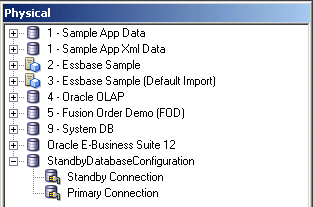
Even though there are two separate physical data sources for the standby database configuration, you create only one database object in the Physical layer. The image shows the database object and connection pools for the standby database configuration in the Physical layer.
Create the Database Object for the Standby Database Configuration
Use the Administration Tool to create a database object in the repository for the standby database configuration.
When you create the database object, make sure that the persist connection pool isn't assigned, to prevent the Oracle BI Server from creating temporary tables in the standby database.
- In the Model Administration Tool, right-click the Physical layer and select New Database to create a database object.
- In Name, provide a name for the database.
- From the Database Type list, select the type of database.
- In the Persist connection pool field, verify that the value is not assigned.
Create Connection Pools for the Standby Database Configuration
After you've created a database object in the repository for the standby database configuration, use the Administration Tool to create two connection pools, one that points to the standby database, and another that points to the primary database.
Because the standby connection pool is used for the majority of connections, make sure that the standby connection pool is listed first. Connection pools are used in the order listed, until the maximum number of connections is achieved. Ensure that the maximum number of connections is set in accordance with the standby database tuning. See Create or Change Connection Pools.
- In the Model Administration Tool, in the Physical layer, right-click the database object for the standby database configuration and select New Object, then select Connection Pool.
- Provide a name for the connection pool, and ensure that the call interface is appropriate for the standby database type.
- Provide the Data source name for the standby database.
- Enter a user name and password for the standby database.
- Click OK.
- In the Model Administration Tool, in the Physical layer, right-click the database object for the standby database configuration and select New Object, then select Connection Pool.
- Provide a name for the connection pool, and ensure that the call interface is appropriate for the primary database type.
- Provide the Data source name for the primary database.
- Enter a user name and password for the primary database.
- Click OK.
Update Write-Back Scripts in a Standby Database Configuration
If you use scripts that write to the database such as scripts for aggregate persistence, you must update the scripts to explicitly refer to the primary connection pool.
Information written through the primary connection is automatically transferred to the standby database through the regularly scheduled replication between the primary and secondary databases. The information is available through the standby connection pool.
The following example shows a write-back script for aggregate persistence that explicitly specifies the primary connection pool:
create aggregates sc_rev_qty_yr_cat for "DimSnowflakeSales"."SalesFacts"
("Revenue", "QtySold") at levels ("DimSnowflakeSales"."Time"."Year",
"DimSnowflakeSales"."Product"."Category") using connection pool
"StandbyDemo"."Primary Connection" in "StandbyDemo"."My_Schema"
Set Up Usage Tracking in a Standby Database Configuration
The Oracle BI Server supports the collection of usage tracking data.
When usage tracking is enabled, the Oracle BI Server collects usage tracking data for each query and writes statistics to a usage tracking log file or inserts them directly to a database table.
If you want to enable usage tracking on a standby database configuration using direct insertion, you must create the table used to store the usage tracking data such as S_NQ_ACCT on the primary database. Then, import the table into the physical layer of the repository using the Model Administration Tool.
You must ensure that the database object for the usage tracking table is configured with both the standby connection pool and the primary connection pool. Then, ensure that the CONNECTION_POOL parameter for usage tracking points to the primary database. For example, in NQSConfig.ini:
CONNECTION_POOL = "StandbyDatabaseConfiguration"."Primary Connection";
Set Up Event Polling in a Standby Database Configuration
You can use an Oracle BI Server event polling table (event table) as a way to notify the Oracle BI Server that one or more physical tables have been updated.
The event table is a physical table that resides on a database available to the Oracle BI Server. It's normally exposed only in the Physical layer of the Model Administration Tool, where it's identified in the Physical Table dialog as an Oracle BI Server event table.
The Oracle BI Server requires write access to the event polling table. Because of this, if you're using event polling in a standby database configuration, you must ensure that the database object for the event table only references the primary connection pool.
See Cache Event Processing with an Event Polling Table in Administering Oracle Analytics Server for full information about event polling, including how to set up, activate, and populate event tables.
Set Up Oracle BI Scheduler in a Standby Database Configuration
Oracle BI Scheduler is an extensible application and server that manages and schedules jobs, both scripted and unscripted.
Oracle BI Scheduler is an extensible application and server that manages and schedules jobs, both scripted and unscripted. To use Oracle BI Scheduler in a standby database configuration, you must ensure that the database object for Oracle BI Scheduler only references the primary connection pool.
See Configuration Tasks for Oracle BI Scheduler in Integrator's Guide for Oracle Business Intelligence Enterprise Edition for full information about setting up and using Oracle BI Scheduler.