20 Use Variables in the Oracle BI Repository
You can use the Variable Manager in the Model Administration Tool to define two classes of variables: repository variables and session variables. Values in repository and session variables aren't secure, because object permissions don't apply to variables. Anybody who knows or can guess the name of the variable can use it in an expression in Answers or in a Logical SQL query. Because of this, don't put sensitive data like passwords in session or repository variables.
Initialization blocks are used to initialize dynamic repository variables, system session variables, and nonsystem session variables.
This chapter contains the following topics:
Work with Repository Variables
Learn about repository variables and how to create repository variables in these topics.
This section provides information about working with repository variables, and contains the following topics:
About Repository Variables
A repository variable has a single value at any point in time.
Use repository variables instead of literals or constants in the Model Administration Tool Expression Builder. The Oracle BI Server substitutes the value of the repository variable with the variable in the metadata.
This section contains the following topics:
About Static Repository Variables
The value of a static repository variable is initialized in the Variable dialog.
The value of the static repository variable persists and doesn't change until an administrator decides to change it. For example, suppose you want to create an expression to group times of day into different day segments. If Prime Time were one of those segments and corresponded to the hours between 5:00 PM and 10:00 PM, you could create a CASE statement like the following:
CASE WHEN "Hour" >= 17 AND "Hour" < 23 THEN 'Prime Time' WHEN... ELSE...END
Hour is a logical column, mapped to a timestamp physical column using the date-and-time Hour(<<timeExpr>>) function.
Rather than entering the numbers 17 and 23 into this expression as constants, you could use a static repository variable named prime_begin, initialize the variable to a value of 17, and then create another variable named prime_end and initialize it to a value of 23.
Static repository variables must have default initializers that are either numeric or character values. You can use the Expression Builder to insert a constant as the default initializer, such as Date, Time, and TimeStamp. You can't use any other value or expression as the default initializer for a static repository variable.
In previous releases, the Model Administration Tool didn't limit the values of default initializers for static repository variables. Because of this, if your repository has been upgraded from a previous release, you may see warnings in the Consistency Checker similar to the following:
The variable, 'Current Month' does not have a constant default initializer.
If you see warnings similar to this, update the relevant static repository variables so that the default initializers have constant values.
About Dynamic Repository Variables
You initialize dynamic repository variables in the same way as static variables, but the values are refreshed by data returned from queries.
When defining a dynamic repository variable, you create an initialization block or use a preexisting one that contains a SQL query. You also set up a schedule that the Oracle BI Server uses to run the query and periodically refresh the value of the variable. When the value of a dynamic repository variable changes, all cache entries associated with a business model that reference the value of that variable are purged automatically.
Each query can refresh several variables, one variable for each column in the query. In Oracle BI Server, create a schedule to run the queries.
Dynamic repository variables are useful for defining the content of logical table sources. If, for example, you've two sources for information about orders, one source contains recent orders and the other source contains historical data, you need update the repository to use the recent orders and move the historical order data to a different view.
You describe the content of the sources in the Logical Table Source. Without using dynamic repository variables, you would describe the content of the source containing recent data with an expression such as:
Orders.OrderDates."Order Date" >= TIMESTAMP '2001-06-02 00:00:00'
This content statement becomes invalid as new data is added to the recent source and older data is moved to the historical source. To accurately reflect the new content of the recent source, you would have to modify the fragmentation content description manually. You can set up dynamic repository values to do automatically modify the content.
Another suggested use for dynamic repository values is in WHERE clause filters of logical table sources.
A common use of these variables is to set filters for use in Oracle BI Server. For example, to filter a column on the value of the dynamic repository variable CurrentMonth, set the filter to the variable CurrentMonth.
Create Repository Variables
Use these steps to create repository variables.
Use unique names for all variables. The names of system session variables are reserved, so you can't use system session variable names for other types of variables.
When you create a dynamic repository variable to override selection steps in a hierarchy column, choose an initialization block with its initialization string written in JSON syntax. See Initialization Strings Used in Variables to Override Selection Steps. To create a new initialization block, click New; see Create Initialization Blocks.
Static repository variables must have a default value defined in the Default initializer field. Static repository variables are constants that don't change values. If you initialize a variable using a character string, enclose the string in single quotes ( ' ).
- In the Model Administration Tool, select Manage, then select Variables.
- In the Variable Manager, From Action, select New , then select Repository , and select Variable.
- In the Repository Variable dialog, in Name, type a name for the variable.
- From Type, select one of the following:
- Static
- Dynamic
- If you selected Dynamic, from the Initialization Block list select an existing initialization block to refresh the value on a continuing basis.
- In Default initializer, type the value for the repository variable, or click the Expression Builder button to define an expression to use as the variable value.
- Click OK.
Use Repository Variables in Expression Builder
After creating variables, you can use them in the Expression Builder.
Use variables as arguments of the function VALUEOF(). This happens automatically when you double-click the variables to paste them into the expression.
You can't use variables to represent columns or other repository objects.
For example, the following CASE statement is identical to the one explained in the preceding example, except that variables have been substituted for the constants:
CASE WHEN "Hour" >= VALUEOF("prime_begin")AND "Hour" < VALUEOF("prime_end") THEN 'Prime Time' WHEN ... ELSE...END- In Expression Builder, click the Repository Variables folder in the left pane to display all repository variables (both static and dynamic) in the middle pane by name.
- To use a repository variable in an expression, select it and double-click. Expression Builder pastes it into the expression at the active cursor insertion point.
Work with Session Variables
Learn about session variables and how to create them.
This section provides information about working with session variables, and contains the following topics:
About Session Variables
Session variables obtain their values from initialization blocks.
Unlike dynamic repository variables, however, the initialization of session variables isn't scheduled. When a user begins a session, the Oracle BI Server creates new instances of session variables and initializes them.
Unlike a repository variable, there are as many instances of a session variable as there are active sessions on the Oracle BI Server. Each instance of a session variable could be initialized to a different value.
Session variables are primarily used when authenticating users against external sources such as database tables or LDAP servers. If a user is authenticated successfully, session variables can be used to set filters and permissions for that session. When using session variables to set up security, see Manage Session Variables.
Note: Oracle Analytics doesn’t support the variables :user and :password in data source connection credentials.
This section contains the following topics:
About System Session Variables
Oracle BI Server and Oracle BI Presentation Services use system session variables for specific purposes.
System session variables have reserved names that can't be used for other kinds of variables such as static or dynamic repository variables and non-system session variables.
When you use these variables for Oracle BI Presentation Services, preface their names with NQ_SESSION. For example, to filter a column on the value of the variable LOGLEVEL, set the filter to the variable NQ_SESSION.LOGLEVEL.
The table describes the available system session variables.
| Variable | Description |
|---|---|
|
USER |
Holds the value the user enters. The |
|
USERGUID |
Contains the global unique identifier (GUID) of the user, populated from the LDAP or other profile for the user. |
|
GROUP |
Contains the groups that the user belongs to. Legacy groups are mapped to application roles automatically. When a user belongs to multiple groups, include the group names in the same column, separated by semicolons, for example, GroupA;GroupB;GroupC. If you must use a semicolon as part of a group name, precede the semicolon with a backslash character (\). |
|
ROLES |
Contains the application roles that the user belongs to. When a user belongs to multiple roles, include the role names in the same column, separated by semicolons, for example, RoleA;RoleB;RoleC. If a semicolon must be included as part of a role name, precede the semicolon with a backslash character (\). |
|
ROLEGUIDS |
Contains the global unique identifiers (GUIDs) for the application roles to which the user belongs. GUIDs for application roles are the same as the application role names. |
|
PERMISSIONS |
Contains the permissions held by the user such as oracle.bi.server.manageRepositories. |
|
PROXY |
Holds the name of the proxy user that is authorized to act for another user. See Managing Security for Oracle Analytics Server for more information about the PROXY system session variable. |
|
DISPLAYNAME |
Used for Oracle BI Server. It contains the name that's displayed to the user in the greeting in the Oracle BI Presentation Services user interface. It's also saved as the author field for catalog objects. |
|
LOGLEVEL |
The
|
|
DESCRIPTION |
Contains a description of the user as populated from the LDAP or other user profile. |
|
USERLOCALE |
Contains the locale of the user as populated from the LDAP or other user profile. |
|
DISABLE_CACHE_HIT |
Used to enable or disable Oracle BI Server result cache hits. This variable has a possible value of 0 or 1. |
|
DISABLE_CACHE_SEED |
Used to enable or disable Oracle BI Server result cache seeding. This variable has a possible value of 0 or 1. |
|
DISABLE_SUBREQUEST_CACHE |
Used to enable or disable Oracle BI Server subrequest cache hits and seeding. This variable has a possible value of 0 or 1. |
|
SELECT_PHYSICAL |
Identifies the query as a |
|
DISABLE_PLAN_CACHE_HIT |
Used to enable or disable Oracle BI Server plan cache hits. This variable has a possible value of 0 or 1. |
|
DISABLE_PLAN_CACHE_SEED |
Used to enable or disable Oracle BI Server plan cache seeding. This variable has a possible value of 0 or 1. |
|
TIMEZONE |
Contains the time zone of the user as populated from the LDAP or other user profile. |
|
WEBLANGUAGE |
Used for Oracle BI Presentation Services. Holds the user interface display language. Users can select a language on the sign-in page for Oracle Analytics Server, or they can change the language setting on the Preferences tab of the My Account dialog after signing in. |
|
AUTHINITBLOCKONLY |
Determines if the initialization blocks required for authentication are run. This variable has a value of Yes. The value is case-insensitive. |
|
PORTALPATH |
Used for Oracle BI Server. It identifies the default dashboard the user sees when logging in, the user can override this preference after signing onto Oracle Analytics Server. |
|
REQUESTKEY |
Used for Oracle BI Presentation Services. Any users with the same nonblank request key share the same cache entries. This tells Oracle BI Presentation Services that these users have identical content filters and security. Sharing cache entries is a way to minimize unnecessary communication with the Oracle BI Presentation Services. |
|
SKIN |
Determines certain elements of the look and feel of the Oracle BI Presentation Services user interface. The user can alter some elements of the user interface by picking a style when logged on. The |
About Nonsystem Session Variables
A common use for nonsystem session variables is setting user filters.
For example, you could define a nonsystem variable called SalesRegion that's initialized to the name of the user’s sales region.
You can set a security filter for all members of a group that allow the group to view only the data pertinent to their region.
When you use these variables for Oracle BI Server, preface their names with NQ_SESSION. For example, to filter a
column on the value of the variable SalesRegion, set the filter to the
variable "NQ_SESSION"."SalesRegion".
Create Session Variables
Use these steps to create session variables.
Create unique names for all variables. The names of system session variables are reserved. You can't use system session variable names for other types of variables.
The Enable any user to set the value option lets non-administrators set the variable for sampling.
The NQSSetSessionValues() stored procedure isn't supported for use through the Issue SQL page in Oracle BI Presentation Services Administration. You must select the Enable any user to set the value option to set a value for the variable.
When Security Sensitive is selected, the Oracle BI Server looks at the parent database object of each column or table that's referenced in the logical request projection list. If the database object has the Virtual Private Database option selected, the Oracle BI Server matches a list of security-sensitive variables to each prospective cache hit. Cache hits would only occur on cache entries that included and matched all security-sensitive variables.
If you're creating a session variable to override a hierarchy column's selection steps, then you must choose an initialization block with its initialization string written in JSON syntax. See Initialization Strings Used in Variables to Override Selection Steps and Create Initialization Blocks.
See Set Up an Expression.
- In the Model Administration Tool, select Manage, then select Variables.
- In the Variable Manager dialog, from the Action menu, select New, select Session , and then select Variable.
- In the Session Variable dialog, in Name, type a variable name.
- Optional: Select Enable any user to set the value to set the session variable after the initialization block has populated the value, at user login, by calling the ODBC stored procedure
NQSSetSessionValue(). - Optional: Select Security Sensitive to identify the variable as sensitive to security when using a row-level database security strategy, such as a Virtual Private Database (VPD).
- From the Initialization Block list, select an initialization block to use to refresh the value on a continuing basis or click New to create a new initialization block.
- In Default Initializer, type the value, or click the Expression Builder button to use Expression Builder.
- Click OK.
Work with Initialization Blocks
Initialization blocks are used to initialize dynamic repository variables, system session variables, and nonsystem session variables.
For example, the NQ_SYSTEM initialization block is used to refresh system session variables.
This section contains the following topics:
About Using Initialization Blocks with Variables
An initialization block contains the SQL statement that's run to initialize or refresh the variables associated with that block.
The SQL statement must reference physical tables that can be accessed using the connection pool specified in the Connection Pool field in the Initialization Block dialog.
If you want the query for an initialization block to have database-specific SQL, you can select a database type for that query. If a SQL initialization string for that database type was defined when the initialization block is instantiated, the string is used, otherwise, a default initialization SQL string is used.
By default, when you open the Initialization Block dialog for editing in online mode, the initialization block object is automatically checked out. While the initialization block is checked out, the Oracle BI Server can continue to refresh the value of dynamic variables updated by this initialization block, depending on the refresh interval rate. When you check in the initialization block, the values of the dynamic variables are reset to the values shown in the Default initializer. If you don't want to reset the value, use the Undo Check Out option.
This section contains the following topics:
Initialize Dynamic Repository Variables
The values of dynamic repository variables are set by queries defined in the Default initialization string field of the Initialization Block dialog.
You can set up a schedule that the Oracle BI Server follows to run the query and periodically refresh the value of the variable. If you stop and restart the Oracle BI Server, the server automatically runs the SQL statements in repository variable initialization blocks, reinitializing the repository variables.
The Oracle BI Server logs all SQL queries issued to retrieve repository variable information in obis1_query.log located in the DOMAIN_Home/servers/obis1/logs when the logging level for the administrator account, set upon installation, is set to 2 or higher. You should set the logging level to 2 for the administrator to provide the most useful level of information.
Initialize Session Variables
As with dynamic repository variables, session variables obtain their values from initialization blocks. Unlike dynamic repository variables, session variables aren't updated at scheduled time intervals.
Instead, the Oracle BI Server creates new instances of those variables whenever a user begins a new session. The values remain unchanged for the duration of the session.
Processing of session variable initialization blocks during session logon can be deferred until their associated session variables are actually accessed within the session, see Create Initialization Blocks.
The Oracle BI Server logs all SQL queries issued to retrieve session variable information if the logging level is set to 2 or higher in the Identity Manager User object, or the LOGLEVEL system session variable is set to 2 or higher in the Variable Manager.
Qeries and errors are stored in the obis1_query.log located in the DOMAIN_Home/servers/obis1/log directory.
See Manage the Query Log in Administering Oracle Analytics Server.
About Row-Wise Initialization
You can use the row-wise initialization option to create session variables dynamically and set their values when a session begins.
The names and values of the session variables reside in an external database that you access through a connection pool. The variables receive their values from the initialization string that you type in the Initialization Block dialog.
For example, suppose you want to create session variables using values
contained in a table named RW_SESSION_VARS. The table contains
three columns:
-
USERID, containing values that represent the unique identifiers of the users -
NAME, containing values that represent session variable names -
VALUE, containing values that represent session variable values
The table shows the example.
| USERID | NAME | VALUE |
|---|---|---|
|
JOHN |
LEVEL |
4 |
|
JOHN |
STATUS |
FULL-TIME |
|
JANE |
LEVEL |
8 |
|
JANE |
STATUS |
FULL-TIME |
|
JANE |
GRADE |
AAA |
Note:
To avoid errors, be sure that your initialization block doesn't contain NULL values, and that the query's results set doesn't contain NULL values.To use row-wise initialization, create an initialization block and select the Row-wise initialization option, see Create Initialization Blocks. For this example, provide the following SQL statement for the initialization string:
SELECT NAME, VALUE
FROM RW_SESSION_VARS
WHERE USERID='VALUEOF(NQ_SESSION.USERID)'
NQ_SESSION.USERID has already been initialized using
another initialization block.
The following session variables would be created:
-
When John connects to the Oracle BI Server, his session contains two session variables from row-wise initialization:
LEVEL, containing the value4, andSTATUS, containing the valueFULL_TIME. -
When Jane connects to the Oracle BI Server, her session contains three session variables from row-wise initialization:
LEVEL, containing the value8;STATUS, containing the valueFULL-TIME; andGRADE, containing the valueAAA.
Initialize a Variable with a List of Values
You can use the row-wise initialization option to initialize a variable with a list of values. You can then use the SQL IN operator to test for values in a specified list.
This information and example pertain to Logical SQL. If you're using Physical SQL to initialize a variable with a list of values, then you must use the VALUELISTOF function. For example, to get the customers assigned to the user names in the variable LIST_OF_USERS, use the following statement:
For example, you type the following SQL statement for the initialization string:
SELECT 'LIST_OF_USERS', USERID
FROM RW_SESSION_VARS
WHERE NAME='STATUS' AND VALUE='FULL-TIME'
This SQL statement populates the variable LIST_OF_USERS with a list, separated by colons, of the values JOHN and JANE, for example, JOHN:JANE. You can then use this variable in a filter, as shown in the following WHERE clause:
WHERE TABLE.USER_NAME = valueof(NQ_SESSION.LIST_OF_USERS)
The variable LIST_OF_USERS contains a list of values, that is, one or more values. This logical WHERE clause expands into a physical IN clause, as shown in the following statement:
WHERE TABLE.USER_NAME IN ('JOHN', 'JANE')
Select 'LIST_OF_CUSTOMERS', Customer_Name from RW_CUSTOMERS where RW.CUSTOMERS.USER_NAME in (VALUELISTOF(NQ_SESSION.LIST_OF_USERS))
To filter by specific values in the list, use ValueNameof similar to the following example. The first value is 0, not 1.
Select 'LIST_OF_CUSTOMERS', Customer_Name from RW_CUSTOMERS where RW.CUSTOMERS.USER_NAME in '(ValueNameOf(0,NQ_SESSION.LIST_OF_USERS))
Create Initialization Blocks
Learn about initialization blocks in these topics.
To create initialization blocks, perform the steps in the following sections:
Create Session Variable Initialization Blocks
Use these steps to create a session variable initialization block.
When using Database as the data source type, you can use a default initialization string or a database-specific SQL statement, with a valid connection pool. You can test the connection before saving the changes.
When using LDAP Server as the data source type, select an existing LDAP Server or define a new server with the hostname, port number, password, and other LDAP specific configuration information.
When using a Custom Authenticator as the data source type, select an existing custom authenticator, or select a new authenticator and supply the required configuration properties.
- In the Model Administration Tool, click the Manage menu, and select Variables.
- In the Variable Manager, from the Action menu, select Session, and then select Initialization Block.
- In the Session Variable Initialization Block, type a name for the initialization block.
- Optional: Specify when the initialization block runs, select Disabled.
- Click Edit Data Source, select a Data Source Type and complete the remaining fields specific to the selected data source type.
- Click Edit the Target Variable, and edit or define the variable to use with the initialization block.
- Click Edit the Execution Precedence, and Add or Remove initialization blocks that run before this initialization block.
- Optional: Click Test to verify that your initialization block performs as expected.
- Click OK.
Assign a Name and Schedule to Initialization Blocks
For repository variables, you can specify the day, date, and time for the start date, as well as a refresh interval.
The session initialization block options are:
-
Disabled. If you select this option, the initialization block is disabled.
You can also right-click an existing initialization block in the Variable Manager and choose Disable or Enable. This option enables you to change this property without opening the initialization block dialog.
-
Allow deferred execution. If you select this option, processing of the initialization block is deferred until an associated session variable is accessed for the first time during the session.
This option prevents processing of all session variable initialization blocks during the session logon stage, giving a shorter logon time. Session variables that aren't needed during the session don't have their initialization blocks run. This saves the resources which would've been used to run these unnecessary initialization blocks.
The deferred run of an initialization block also triggers the processing of all unprocessed predecessor initialization blocks. All associated variables of the initialization block and its unprocessed predecessors are updated with the values returned from the deferred execution.
The Allow deferred execution option is unavailable in some circumstances; see When Processing of Session Variable Initialization Blocks Can't Be Deferred.
-
Required for authentication. Oracle doesn't recommend that you use this setting because initialization blocks for authentication is a deprecated feature.
If you select this option, this initialization block must succeed for users to log in. Users are denied access to Oracle Analytics Server if the initialization block fails to run. Failure to run can occur if the wrong credentials have been defined in the initialization block, or if there's an error in the default initialization string.
The initialization block success requirement is waived for internal processes, like Delivers that use impersonation, if a single user session variable has been associated with the initialization block. In this case, the trusted internal process can connect regardless of whether the initialization block succeeds or fails.
- In the Model Administration Tool, select Manage, then select Variables to assign a name and schedule to initialization blocks.
- In the Variable Manager, expand Session or Respository, and then select Initialization Block.
- In the [Repository|Session] Variable Initialization Block dialog, type a name for the block. The
NQ_SYSTEMinitialization block name is reserved. - (Repository initialization blocks only) In the Schedule area, select a start date and time and the refresh interval.
- (Session init blocks only) Select an option.
The next step is to select the data source and connection pool.
Select and Test the Data Source and Connection Pool
If you select Database as the data source type for an initialization block, the values returned by the database for the columns in your SQL statement are assigned to variables that you associate with the initialization block.
It's recommended that you create a dedicated connection pool for initialization blocks where you select Database as the data source type. In addition, if an initialization block fails for a particular connection pool during Oracle BI Server start-up, no more initialization blocks using that connection pool are processed. Instead, the connection pool is blocklisted and subsequent initialization blocks for that connection pool are skipped.
See:
If you select Database as the data source type, and don't select the Use OBI EE Server option.
The SQL statement used to refresh the variable must reference physical tables accessed through the connection pool specified in the Connection Pool field. You don't have to include the tables in the Physical layer of the metadata. At run time, if an initialization string for the database type has been defined, the initialization string is used. If the initialization string for the database type wasn't defined, the default initialization SQL for the database type is used. You can overwrite the default string.
When you create SQL and submit it directly to the database, for example, when using database-specific SQL in initialization blocks, the SQL statement bypasses the Oracle BI Server. The order of the columns in the SQL statement and the order of the variables associated with the initialization block determine which columns are assigned to each variable.
You should test this SQL using the Test button in the [Repository|Session] Variable Initialization Block Data Source dialog. If the SQL statement contains an error, the database returns an error message.
If you select Database as the data source type, and select the Use OBI EE Server option.
The SQL statement you use to refresh the variable might be written for a specific database. However, it still works with other data sources because the SQL statement is processed by the Oracle BI Server. The Oracle BI Server can also provide functions such as PI that might not be available in the data source, and the SQL statement works with other data sources supported by the Oracle BI Server, for example, ADF, Oracle, and XML files. When you select the Use OBI EE Server option, there's no need for a connection pool, because the SQL statement is sent to the Oracle BI Server and not directly to the underlying database.
You can only test this SQL statement using the Test button in the [Repository|Session] Variable Initialization Block Data Source dialog when in online mode. If the SQL statement contains an error, the database returns an error message.
-
In the Model Administration Tool, select Manage, then select Variables.
-
In Variable Manager, select the initialization block to edit.
-
Click Edit Data Source next to the Connection Pool field.
-
From the Data Source Type list, select one of the following types.
-
Database: For repository and session variables.
-
LDAP Server: For session variables.
-
Custom Authenticator: For session variables.
-
-
If you selected Database for your data source type, perform one of the following steps:
-
Select Default initialization string or Use database specific SQL, and then perform the following steps:
-
Click Browse next to the Connection Pool field to select the connection pool associated with the database where the target information is located. If you don't select a connection pool before typing the initialization string, you receive a message prompting you to select the connection pool.
-
In the Select Connection Pool dialog, select the connection pool and click Select. You must select a connection pool before typing an initialization string.
By default, the first connection pool under the database object in the Physical layer isn't available for selection. This behavior ensures that you can't use the same connection pool for initialization blocks that you use for queries.
You can change this behavior so that the first connection pool is available for selection by selecting Allow first Connection Pool for Init Blocks in the Options dialog, although this isn't recommended.
-
If you selected Use database specific SQL, then in the Database pane, expand and select the database. Then, enter its associated string.
Otherwise, in the Default initialization string box, type the SQL initialization string needed to populate the variables.
If you're editing an initialization block to be used by a variable to override a hierarchy column's selection steps, then in the Default initialization string box, type the JSON initialization string.
-
(Optional) Click Test to test the data source connectivity for the SQL statement.
-
Click OK to return to the Initialization Block dialog.
-
-
Select Use OBI EE Server, and then perform the following steps:
-
In the box, enter the SQL initialization string needed to populate the variables.
The string you enter here is processed by the Oracle BI Server, and therefore as long as it's supported by the Oracle BI Server, the string works with different data sources.
-
Click OK to return to the Initialization Block dialog.
-
-
-
If you selected LDAP Server for your data source type, perform the following steps:
-
Click Browse to select an existing LDAP Server, or click New to open the General tab of the LDAP Server dialog and create an LDAP Server.
-
Click OK to return to the Initialization Block dialog.
The LDAP server name and the associated domain identifier appear in the Name and Domain identifier columns.
-
-
If you selected Custom Authenticator for your data source type, perform the following steps:
-
Click Browse to select an existing custom authenticator, or click New to create one.
-
Click OK to return to the Initialization Block dialog.
-
-
Click OK.
Initialization Strings Used in Variables to Override Selection Steps
For analyses that contain hierarchical columns, selection steps can be overridden with session variables or repository variables.
Session and repository variables intended for this purpose must contain valid JSON syntax, rather than SQL syntax, in their initialization strings.
Using JSON, you must define type, column, and members with the following syntax.
{
  "type": "Hierarchy",
  "column": {
    "subject_area":"your_subject_area",
    "hier_id":"your_hier_id",
    "dim_id":"your_dim_id",
    "table_name":"your_table_name"
  },
  "members": [
    {
      "level_id":"your_level_id",
      "values": [
        your_value,
        your_value
      ]
    },
    {
      "level_id":"your_level_id",
      "values": [
        your_value
      ]
    }
  ]
}
Where:
"type" indicates hierarchy type.
"column" indicates the hierarchy column's information such as subject area and table name.
"dim_id" is the logical dimension name.
"members" indicates which hierarchy level and which member ID.
"level_id" is the presentation level name.
Example of Standard Hierarchy Syntax
{
  "type": "Hierarchy",
  "column": {
    "subject_area": "A - Sample Sales",
    "hier_id": "H2 Offices",
    "dim_id": "H3 Offices",
    "table_name": "Offices"
  },
  "members": [
    {
      "level_id": "Company",
      "values": [
        10001,
        10002
      ]
    },
    {
      "level_id": "Organization",
      "values": [
        1005
      ]
    }
  ]
}
Example of Parent-Child Hierarchy Syntax
{
  "type":"Hierarchy",
  "column":{
    "subject_area":"A - Sample Sales",
    "hier_id":"Sales Rep Hierarchy",
    "dim_id":"H5 Sales Rep",
    "table_name":"Sales Person"
  },
  "members":[
    {
      "level_id":"Grand Total",
      "values":[
        27,
        24,
        18,
        16
      ]
    }
  ]
}
Examples of Initialization Strings
These examples show you how to initialize strings.
A SQL Statement When Site Uses Delivers
SELECT username, groupname, dbname, schemaname FROM users
WHERE username=':USER'
NQS_PASSWORD_CLAUSE(and pwd=':PASSWORD')NQS_PASSWORD_CLAUSE
This SQL contains two constraints in the WHERE clause:
':USER' , use the colon and single quotes, is the ID the user types when logging in.
':PASSWORD' , use the colon and single quotes, is the password the user enters. This is another system variable whose presence is always assumed when the USER system session variable is used. You don't need to set up the PASSWORD variable, and you can use this variable in a database connection pool to allow pass through login using the user ID and password of the user. You can also use this variable in a SQL statement.
When using external table authentication with Delivers, the portion of the SQL statement that makes up the :PASSWORD constraint must be embedded between NQS_PASSWORD_CLAUSE clauses.
The query returns data only if the user ID and password match values found in the specified table. You should test the SQL statement outside of the Oracle BI Server, substituting valid values for the USER and PASSWORD variables and removing the NQS_PASSWORD_CLAUSE clause.
A SQL Statement When Site Doesn't Use Delivers
SELECT username, groupname, dbname, schemaname FROM users
WHERE username=':USER'
AND pwd=':PASSWORD'
This SQL statement contains two constraints in the WHERE clause:
':USER' (note the colon and the single quotes) is the ID the user types when logging in.
':PASSWORD' , use the colon and single quotes, is the password the user enters. This is another system variable whose presence is always assumed when the USER system session variable is used. You don't need to set up the PASSWORD variable, and you can use this variable in a database connection pool to allow pass through login using the user ID and password of the user. You can also use this variable in a SQL statement.
The query returns data only if the user ID and password match values found in the specified table. You should test the SQL statement outside of the Oracle BI Server, substituting valid values for the USER and PASSWORD variables.
A SQL Statement Joining Tables From Multiple Data Sources - When Using the 'OBI EE Server' Setting
select WUSER.name, wuser_detail.email
from "db-11g/orcl"."NAME"."WUSER',
"sqlexpress"."master"."dbo"."wuser_detail"
where username=:USER:
The above query example in the initialization block uses a join query with multiple tables from different data sources, for example, Oracle and XML Files. The query works because when you select the Use OBI EE Server option, the query is rewritten by the Oracle BI Server for the specified data sources.
Test Initialization Blocks
You should test the SQL statement using the Test button or a SQL tool such as the Oracle Analytics Server Client utility.
If you use a SQL tool, be sure to use the same DSN or one set up identically to the DSN in the specified connection pool.
In online mode, Initialization Block tests don't work with connection pools set to use :USER and :PASSWORD as the user name and password. In offline mode, the Set values for variables dialog is displayed so that you can populate :USER and :PASSWORD.
The next step is to associate variables with the initialization block.
Variable Order in Initialization Blocks
The column order in the SQL statement and variable order associated with the initialization block determines the column value that's assigned to each variable.
When you associate variables with an initialization block, the value returned in the first column is assigned to the first variable in the list.
When you open a repository in online mode, the value shown in the Default initialization string field of the Initialization Block dialog is the current value of that variable as known to the Oracle BI Server. The number of associated variables could differ from the number of columns that are retrieved. If there are fewer variables than columns, extra column values are ignored. If there are more variables than columns, the additional variables aren't refreshed. The variables retain their original values. You can run any legal SQL using an initialization block, including SQL that writes to the database or alters database structures, when user ID associated with the connection pool has permissions to perform these actions.
If you stop and restart the Oracle BI Server, the server automatically runs the SQL statement in the repository variable initialization blocks, re-initializing the repository variables.
For session variable initialization blocks, you can select Row-wise initialization. The Use caching option is automatically selected when you select the Row-wise initialization option. Selecting the Use caching option directs the Oracle BI Server to store the results of the query in a main memory cache. See About Row-Wise Initialization.
The Oracle BI Server uses the cached results for subsequent sessions. This can reduce session startup time. However, the cached results might not contain the most current session variable values. If every new session needs the most current set of session variables and their corresponding values, you should clear this option.
Associate Variables with Initialization Blocks
Use this procedure to associate repository or session variables with initialization blocks.
See:
For the Custom Authenticator data source type (session variables only), the variable USER is required.
If you select Row-wise initialization, the Use caching option is available. See About Row-Wise Initialization
- In the Model Administration Tool, select Manage, then select Variables to associate variables with initialization block.
- In the Variable Manager dialog, double-click the initialization block to edit the repository initialization blocks or session initialization blocks.
- Click Edit Data Target.
- In the Repository|Session Variable Initialization Block Variable Target dialog, do one of the following:
- Click New, and in the Variable dialog, create a new variable to associate with the initialization block.
- Click Link, in the Browse dialog, select the variable to associate the variable with the initialization block, and then and click OK.
- For session variable initialization blocks only, select Row-wise initialization.
- To remove a variable from association with this block, select the variable and click Remove.
- Click OK.
Establish Execution Precedence
When a repository has multiple initialization blocks, you can set the order (establish the precedence) in which the blocks are initialized.
First, you open the block that you want to be run last and then add the initialization blocks that you want to be run before the block you've open. For example, suppose a repository has two initialization blocks, A and B. You open initialization block B, and then specify that block A runs before block B. This causes block A to run according to block B's schedule, in addition to its own.
-
Execution precedence doesn't apply, because during user login, an initialization block with the Use OBI EE Server option selected is run after initialization blocks with the Use OBI EE Server option not selected.
-
The Required for authentication option is dimmed, because this type of initialization block is run after authentication.
When Processing of Session Variable Initialization Blocks Can't Be Deferred
Processing of session variable initialization blocks can't be deferred in some circumstances.
When the processing of session variable initialization blocks can't be deferred, a message is displayed that explains why.
See Assign a Name and Schedule to Initialization Blocks.
The following list summarizes the scenarios in which processing of session variable initialization blocks can't be deferred:
-
The Row-wise initialization option is selected in the Session Variable Initialization Block Variable Target dialog and the variables haven't been declared explicitly with default values.
Example message: "The execution of init block 'A_blk' cannot be deferred as it is using row-wise initialization."
-
The Required for authentication option is selected in the Session Variable Initialization Block dialog.
Example message: "The execution of init block 'A_blk' cannot be deferred as it is required for authentication."
-
The Data Source Type isn't Database.
Example message: "The execution of init block 'A_blk' cannot be deferred as it does not have a connection pool."
-
The initialization block is used by session variables named
PROXYorUSER.Example message: "The execution of init block 'A_blk' cannot be deferred as it is used by session variable 'PROXY'."
-
The initialization block is used by session variables where the Security Sensitive option is selected in the Session Variable dialog.
Example message: "The execution of init block 'A_blk' cannot be deferred as it is used by session variable 'A' which is security sensitive."
-
The initialization block is a predecessor to another initialization block which doesn't have the Allow deferred execution option selected.
Example message:"One of the successors for init block 'A_blk' does not have "Allow deferred execution" flag set. Init block 'B_blk' does not have "Allowed deferred execution" flag set.
Enable and Disable Initialization Blocks
You can use the Variable Manager in Model Administration Tool to enable and disable initialization blocks.
- In the Model Administration Tool, select Manage, then select Variables.
- In the Variable Manager, select Initialization Blocks under Repository or Session.
- In the right pane, right-click the initialization block you want to enable or disable.
- Choose Enable or Disable from the right-click menu.
- Close the Variable Manager and save the repository.
Work with Multi-Source Session Variables
Oracle Analytics Server supports session variables that are populated from multiple data sources.
While the main focus of this section is on the definition and usage of multi-source session variables, you may also select the VALUEOF the component session variables in logical queries and data filters.
You can use these multi-source session variables in logical queries or in repository data filters, and contain the union of values from the different data sources.
There is no restriction on the number of values that the multi-source session variable can hold. To create a multi-source session variable, you first create row-wise initialization blocks for each source.
You explicitly define session variables for each source. Use the following format for the session variable names:
-
<ms_variable_name>____<source>
You must use exactly four underscore characters as the separator.
This automatically creates a single multi-source session variable, named:
-
<ms_variable_name>
The component session variable names, <ms_variable_name>____<source>, appear separately in the Variable Manager in the Model Administration Tool, but the Expression Builder displays only the single multi-source session
variable name, <ms_variable_name>.
If any of the row-wise initialization blocks returns null results, this is logged in the Oracle BI Server log, nqserver.log. You can add values to the multi-source session variable from other component initialization blocks that succeed in returning values. The multi-source session variable fails only if all of the component initialization blocks return null values.
You can set processing precedence and deferred processing with multi-source session variables, similar to regular session variables.
Example to Illustrate the Creation and Usage of Multi-Source Session Variables
Use these examples to learn how to create a multi-source session variable.
The following example illustrates how to create and use a multi-source session variable:
-
In the Variable Manager in the Administration Tool, select Action, select New, select Session, and then select Initialization Block.
-
Create a row-wise initialization block called
mvcountry_sebl_initwith the following SQL for Default initialization string:select distinct 'MVCOUNTRY____SEBL', country from siebel_table
-
Create a second row-wise initialization block called
mvcountry_orcl_initwith the following SQL for Default initialization string:select distinct 'MVCOUNTRY____ORCL', country from oracle_table
-
Still in the Variable Manager, select Action, then New, then Session, and then Variable.
-
Create a session variable called MVCOUNTRY____SEBL, making sure to include four underscores between the variable name and the source name. For Initialization Block, select
mvcountry_sebl_init. -
Create a second session variable called MVCOUNTRY____ORCL, making sure to include four underscores between the variable name and the source name. For Initialization Block, select
mvcountry_orcl_init.
While the component session variables appear in the Variable Manager, the MVCOUNTRY multi-source session variable that has been created appears in Expression Builder.
Using the Multi-Source Session Variable in a Logical Query
You can now use the MVCOUNTRY multi-source session variable in a logical query.
For example:
select lastName, firstName, country from employee
where country=VALUEOF(NQ_SESSION.MVCOUNTRY)
Using the Multi-Source Session Variable in a Data Filter
Perform the following steps to use the MVCOUNTRY multi-source session variable in a data filter:
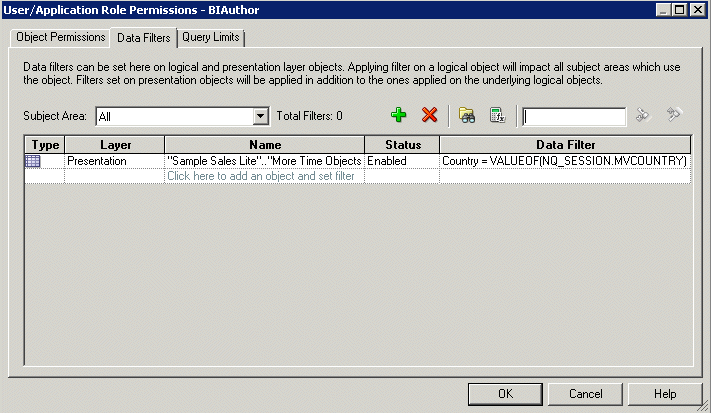
- In the Data Filters tab, create the data filter expression:
-
Country=VALUEOF(NQ_SESSION.MVCOUNTRY)
-
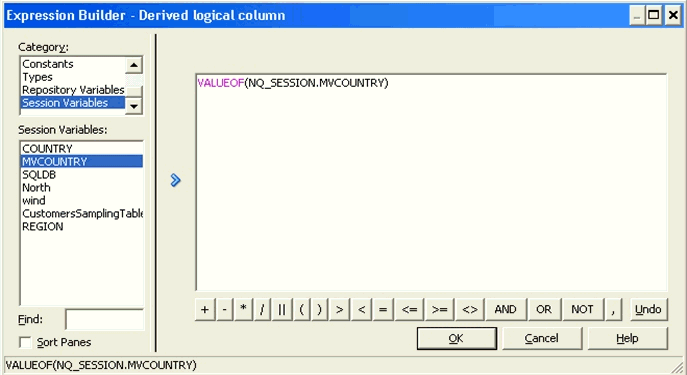
The Expression Builder, as shown in the image that follows, displays only the MVCOUNTRY multi-source session variable, and not the regular session variables that were used during the creation of the multi-source session variable.
List Repository Variables Command
Use the list connection pool command listrpdvariable to create a list of repository variables in JSON format for a specific service instance.
Use the listrpdvariable and the updaterpdvariables utility when you need to update more than one variable.
You run the utility through a launcher script, datamodel.sh on Linux, and datamodel.cmd on Windows.
If the domain is installed in default folder then the location of the launcher script looks like the following:
Oracle_Home/user_projects/domains/Domain_Name/bitools/bin/datamodel.sh or datamodel.cmd on Windows.
If the client install doesn't have domain names, the launcher script location is as follows:
Oracle_Home\bi\bitools\bin\datamodel.cmd
Syntax
The listrpdvariables command takes the following parameters:
listrpdvariables -SI <service_instance> -U <cred_username> [-P <cred_password>] [-S <hostname>] [-N <port_number>] [-V <comma or new line separated FILE containing selected variables names>] [-O <outputFile.json>] [-SSL] [-H]
Where
SI specifies the name of the service instance.
U specifies a valid user's name to be used for authentication.
P specifies the password corresponding to the user's name that you specified for U. If you don't supply the password, then you're prompted for the password when the command is run. Oracle recommends that you include a password in the command only if you're using automated scripting to run the command.
S specifies the host name. Only include this option when you're running the command from a client installation.
N specifies the port number. Only include this option when you're running the command from a client installation.
V is an optional argument that specifies the repository variable names that you want to list. You must separate the variable names with commas. If you don't pass the V argument or pass the V argument without listing any variable names, then by default all repository variables are returned.
O specifies the output file name with the .json suffix.
SSL specifies to use SSL to connect to the Oracle WebLogic Server to run the command. Only include this option when you're running the command from a client installation.
H displays the usage information and exits the command. Use -H or run .sh without any parameters to display the help content.
Example
datamodel.sh listrpdvariables -SI ssi -U weblogic -P password -slc01.example.com -N 7777 -V selectedvar.csv -O listrpdvar.json
Sample JSON List Repository Variable Output
{    "Title":"List Rpd Variables",
    "Rpd-Variables":[
        {
            "uid":"80000000-3335-155c-991a-0af2537d0000",
            "variable":"RPD_ST_VARIABLE",
            "value":"'rpdStatic Variable'"
        },
        {
            "uid":"c0000000-33c0-155c-991a-0af2537d0000",
            "variable":"DYNAMIC_REPO_VAR",
            "value":"'dynamic repo var'"
        }
    ]
}
Sample JSON Output
Note:
If there is no match, meaning none of the variable names included in the V argument matched the repository variables in the repository, then the JSON output is an empty array list.
{
    "Title":"List Rpd Variables",
    "Rpd-Variables":[
    ]
}
Update Repository Variables Command
Use the updaterpdvariables command to upload a JSON input file or a modified JSON file containing variable information to a specific server instance.
Use this and the listrpdvariable utility when you need to update more than one variable.
You can create and upload a JSON input file that contains new repository variables, names and values.
You can also upload an updated JSON file containing modified repository variables, names or values. Use the listrpdvariable command to create a JSON file containing a list of repository variables for a specific service instance. Modify the variable information in this file and then upload it to the service instance using the updaterpdvariables command.
Note:
You must not modify the uid values for variables in the file. See Overview of User and Application Role Commands.
You run the utility through a launcher script, datamodel.sh on Linux and datamodel.cmd on Windows. If the domain is installed in default folder then the location of the launcher script looks like the following:
Oracle_Home/user_projects/domains/Domain_Name/bitools/bin/datamodel.sh or datamodel.cmd on Windows
If the client install doesn't have domain names, the launcher script location is as follows:
Oracle_Home\bi\bitools\bin\datamodel.cmd
Syntax
updaterpdvariables -C <rpdVariablesList.json> -SI <service_instance> -U <cred_username> [-P <cred_password>] [-S <hostname>] [-N <port_number>] [-SSL] [-H]
Where
C specifies the name of the JSON file that you want to upload. Note this file must not contain modified uid values for variables. See the Creating a JSON Input File section and the JSON Input Repository Variable File example that follows below.
SI specifies the name of the service instance.
U specifies a valid user's name to be used for authentication.
P specifies the password corresponding to the user's name that you specified for U. If you don't supply the password, then you're prompted for the password when the command is run. Oracle recommends that you include a password in the command only if you're using automated scripting to run the command.
S specifies the host name. Only include this option when you're running the command from a client installation.
N specifies the port number. Only include this option when you're running the command from a client installation.
SSL specifies to use SSL to connect to the Oracle WebLogic Server to run the command. Only include this option when you're running the command from a client installation.
H displays the usage information and exits the command. Use -H or run .sh without any parameters to display the help content.
Example
datamodel.sh updaterpdvariables -SI ssi -U weblogic -P password -S slc01.example.com -N 7777 -C listrpdvar.json
Creating a JSON Input File
Use the JSON file that was generated when you ran the listrpdvariable command as a model for a JSON input file. Using the outputted JSON file as a model ensures that the new file's syntax is valid. See List Repository Variables Command.
When writing the input file, note the following information:
uid – This element can be any text.
variable – This element is the new variable's name.
value – This element is the new variable's value. Use singular quotes inside of double quotes. For example "'VALUE'".
JSON Input Repository Variable File Example
{
    "Title":"List Rpd Variables",
    "Rpd-Variables":[
      {
        "uid":"80000000-3335-155c-991a-0af2537d0000",
        "variable":"RPD_ST_VARIABLE",
        "value":"'rpdStatic Variable My value'"
      },
      {
        "uid":"c0000000-33c0-155c-991a-0af2537d0000",
        "variable":"DYNAMIC_REPO_VAR_NEW_NAME",
        "value":"'dynamic repo var'"
      },
      {
        "uid":"New1",
        "variable":"NEW_VAR_NAME",
        "value":"'new value for new variable'"
      }
    ]
}