10 Work with Logical Tables, Joins, and Columns
This chapter contains the following sections:
Create the Business Model and Mapping Layer
After creating all of the elements of the Physical layer, you can drag tables or columns from the Physical layer to a business model in the Business Model and Mapping layer to create logical objects in the metadata.
This section contains the following topics:
Create Business Models
The Business Model and Mapping layer of the Administration Tool can contain one or more business models.
A business model contains the business model definitions and the mappings from logical to physical tables for the business model.
When you work in a repository in offline mode, remember to save your repository from time to time. You can save a repository in offline mode even though the business models may be inconsistent.
After you create a business model, you can create business model objects by dragging and dropping objects from the Physical layer.
Automatically Create Business Model Objects
To automatically map objects in the Business Model and Mapping layer to sources in the Physical layer, you can drag and drop Physical layer objects to a particular business model in the logical layer.
When you drag a physical table to the Business Model and Mapping layer, a corresponding logical table is created. For each physical column in the table, a corresponding logical column is created. If you drag multiple tables at once, a logical join is created for each physical join, but only the first time the tables are dragged onto a new business model.
Automatically Create Business Model Objects for Multidimensional Data Sources
Setting up objects in the Business Model and Mapping layer for multidimensional data sources is similar to setting up logical layer objects for a relational data source.
When creating the business model layer, you can drag and drop the Physical layer cube to the logical layer. A fully configured and consistent business model is created automatically that retains all metrics, attributes and dimensions.
For Essbase data sources, Oracle recommends creating a separate business model for each Essbase cube by dragging each cube individually to the Business Model and Mapping layer.
Duplicate a Business Model and Subject Area
Learn how to make copies of a selected business model and assign new names to the copy.
You can select a business model and its corresponding subject area, make a copy, and assign new names to the duplicate objects. Aliases aren't copied.
- In the Model Administration Tool with the repository open, right-click a business model, and select Duplicate with Subject Area.
- In the Copy Business Model and Subject Area dialog, select the business model and corresponding subject area you want to copy.
- Specify new names for the business model and subject area in the appropriate name fields, and then click OK.
The copied business model appears in the Business Model and Mapping layer, and the copied subject area appears in the Presentation layer.
Create and Manage Logical Tables
Logical tables exist in the Business Model and Mapping layer.
The logical schema defined in each business model must contain at least two logical tables, and you must define relationships between them.
Each logical table is associated with one or more logical columns and one or more logical table sources. You can add a new logical table source, edit or delete an existing table source, create or change mappings to the table source, or define when to use logical tables sources. See Create Logical Table Sources.
You can change the logical table name, reorder the logical table sources, and configure the logical keys, both primary and foreign
This section contains the following topics:
Create Logical Tables
Dragging and dropping physical tables from the Physical layer to the Business Model and Mapping layer is the recommended method for creating logical tables. If a table doesn't exist in your physical schema, you can create the logical table manually.
If you drag and drop physical tables from the Physical layer to the Business Model and Mapping layer, the columns in the table are also to the logical table along with key and foreign key relationships. Logical keys and joins are created that mirror the keys and joins in the Physical layer.
After creating a logical table using the menu option method, you must create all keys and joins manually.
After adding objects to the Business Model and Mapping layer, you can modify the objects in the logical table without affecting the objects in the Physical layer.
If you create new tables or drag additional tables from the Physical layer to the Business Model and Mapping layer, you must create the logical mappings between the new or newly dragged tables and the previously dragged tables.
See Define Logical Joins with the Joins Manager and Define Logical Joins with the Business Model Diagram.
A lookup table stores multilingual data corresponding to rows in the base tables. See Localize Oracle Analytics Server in Administering Oracle Analytics Server.- In the Model Administration Tool, to create a logical table, do one of the following:
- (Recommended method) Select one or more table objects in the Physical layer, then drag and drop the table objects to a business model in the Business Model and Mapping layer.
- (Manual method) In the Business Model and Mapping layer, right-click the business model, select New Object , and then select Logical Table.
- For manually created tables, right-click the table, and select Properties.
- For manually created tables, in the Logical Table General tab, in Name, type a name for the logical table.
- Optional: Select Lookup table when you intend to use the table as a lookup table.
- Optional: In Description, type an explanation of the table’s use.
- Click OK.
Enable Data Driven Fragment Selection in Logical Table Sources
You can improve the performance of fragmented logical table sources by enabling the data driven fragment selection option in the
Data driven fragment selection is disabled by default.
- In the Model Administration Tool, from the Business Model and Mapping column, right-click a model that uses fragmented logical table sources and select Query Related Objects , and then select Logical Table Source.
- In Query Related Objects, select a logical table source, and click Edit.
- In Logical Table Sources, in the Content tab, click Enable Data Driven Fragment Selection, and click OK.
Specify a Primary Key in a Logical Table
After creating tables in the Business Model and Mapping layer, you specify a primary key for each dimension table.
Logical dimension tables must have a logical primary key. Logical keys can be composed of one or more logical columns.
Note:
Oracle recommends that you don't specify logical keys for logical fact tables.
- In the Business Model and Mapping layer of the Model Administration Tool, double-click a table.
- In the Logical Table dialog, select the Keys tab and then click New.
- In the Logical Key dialog, type a name for the key and select the column that defines the key of the logical table.
- Click OK.
Review Foreign Keys for a Logical Table
Oracle recommends that you don't use foreign key joins in logical tables.
You must enable the Allow logical foreign key join creation option in the Options dialog to create joins with foreign keys.
See Create Logical Foreign Key Joins with the Joins Manager.
Define Logical Joins
Relationships between logical tables are expressed by logical joins.
Logical joins are conceptual, rather than physical, joins. Logical joins don't join to specific keys or columns. A single logical join can correspond to many possible physical joins.
A key property of a logical join is cardinality. Cardinality expresses how rows in one table are related to rows in the table to which it's joined. A one-to-many cardinality means that for every row in the first logical dimension table, there are 0, 1, or many rows in the second logical table. The Model Administration Tool considers a table to be a logical fact table if it's at the Many end of all logical joins that connect it to other logical tables.
Specifying the logical table joins is required so that the Oracle BI Server can have the necessary metadata to translate a logical request against the business model to SQL queries against the physical data sources. The logical join information provides the Oracle BI Server with the many‐to‐one relationships between the logical tables. This logical join information is used when the Oracle BI Server generates queries against the underlying databases.
You don't need to create logical joins in the Business Model and Mapping layer if both of the following statements are true:
-
You create the logical tables by simultaneously dragging and dropping all required physical tables to the Business Model and Mapping layer.
-
The logical joins are the same as the joins in the Physical layer.
You might need to create some logical joins in the Business Model and Mapping layer, because you can't drag and drop all physical tables simultaneously except in very simple models.
You can create logical joins using either the Joins Manager or the Business Model Diagram. When you create a complex join in the Physical layer, you can specify expressions and the specific columns on which to create the join. When you create a logical join in the Business Model and Mapping layer, you can't specify expressions or columns on which to create the join. The existence of a join in the Physical layer doesn't require a matching join in the Business Model and Mapping layer.
It's recommended that you don't have foreign keys for logical tables. However, for backward compatibility, you can create logical foreign key joins using the Joins Manager if you select Allow logical foreign key join creation in the Options dialog. Compose a logical key for a fact table using the key columns that join to the attribute tables. You might need logical foreign key joins if the Oracle BI Server is used as an ODBC data source for certain third-party query and reporting tools.
This section contains the following topics:
Define Logical Joins with the Business Model Diagram
The Business Model Diagram shows logical tables and any defined joins between them.
In the Business Model Diagram, the join is represented by a line between the two selected tables, with an arrow at the one end of the join. The image shows a join in the Business Model Diagram.

You can use the Business Model Diagram to define logical joins between tables. See Specify a Driving Table.
This driving table option is useful for optimizing the manner in which the Oracle BI Server processes multi-database inner joins when one table is very small and the other table is very large. Don't select a driving table unless multi-database joins are going to occur.
Important:
Use extreme caution in deciding whether to specify a driving table. Driving tables are used for query optimization only under rare circumstances and when the driving table is extremely small (fewer than 1000 rows). Choosing a driving table incorrectly can lead to severe performance degradation.
- In the Model Administration Tool, right-click a business model and select Business Model Diagram, then select Whole Diagram.
- From the Diagram menu, click the New Join button on the Model Administration Tool toolbar.
- In the Business Model Diagram, click to select the first table in the join, the table representing many in the one‐to‐many join.
- Move the cursor to the table to use for the join, the table representing one in the one‐to‐many join, and then click the second table to select it.
- Optional: To specify a driving table for the key, select a table from the Driving table list, and an applicable cardinality.
- Select the join type from the Type list, or keep the default value.
- Set the Cardinality for each side of the join, or keep the default values.
- Click OK.
Define Logical Joins with the Joins Manager
You can use the Joins Manager to view logical join relationships and to create logical joins.
You can also use the Joins Manager to create logical foreign key joins if you select Allow logical foreign key join creation in the Options dialog, although this isn't recommended.
This section contains the following topics:
Create Logical Joins with the Joins Manager
Logical joins are recommended over logical foreign key joins in the Business Model and Mapping layer.
Use the driving option for optimizing the manner in which the Oracle BI Server processes multi-database inner joins when one table is very small and the other table is very large. Don't select a driving table unless multi-database joins are going to occur.
Note:
Use extreme caution in deciding whether to specify a driving table. Driving tables are used for query optimization only under rare circumstances and when the driving table is extremely small, that is, less than 1000 rows. Choosing a driving table incorrectly can lead to severe performance degradation.
- In the Model Administration Tool, select Manage, then select Joins.
- In the Joins Manager, select Action, select New , and then select Logical Join.
- In the Logical Join dialog, type a name for the logical join.
- In the Table lists on the left and right side of the dialog, select the tables that the logical join references.
- Optional: To specify a driving table for the key, select a table from the Driving list, and an applicable cardinality.
- Select the join type from the Type list, or keep the default value.
- Set the Cardinality for each side of the join, or keep the default values.
- Click OK.
Create Logical Foreign Key Joins with the Joins Manager
You might need logical foreign key joins if you plan to use the Oracle BI Server as an ODBC data source for certain third-party query and reporting tools.
You shouldn't create logical foreign keys. See Specify a Driving Table.
The driving table option is useful for optimizing the manner in which the Oracle BI Server processes multi-database inner joins when one table is very small and the other table is very large. Don't select a driving table unless multi-database joins are going to occur.
Important:
Use extreme caution in deciding whether to specify a driving table. Driving tables are used for query optimization only under rare circumstances and when the driving table is extremely small, that is, less than 1000 rows. Choosing a driving table incorrectly can lead to severe performance degradation.
- In the Model Administration Tool, select Tools, then select Options.
- In the General tab of the Options dialog, select Allow logical foreign key join creation.
- Click OK.
- Select Manage, then select Joins to display the Joins Manager.
- Select Action, select New, and then select Logical Foreign Key.
- In the Browse dialog, double-click a table.
- In the Logical Foreign Key dialog, type a name for the foreign key.
- In the Table list on the left side of the dialog, select the table that the foreign key references.
- Select the columns in the left table that the foreign key references.
- Select the columns in the right table that make up the foreign key columns.
- (Optional) To specify a driving table for the key, select a table from the Driving list, and an applicable cardinality.
- Select the join type from the Type list, or keep the default value.
- Set the Cardinality for each side of the join, or keep the default values.
- In Expression Builder, type an expression for the join.
- Click OK to save your work.
Specify a Driving Table
Driving tables are useful for optimizing how the Oracle BI Server processes cross-database joins when one table is very small and the other table is very large.
Specifying driving tables leads to query optimization only when the number of rows being selected from the driving table is much smaller than the number of rows in the table to which it's being joined.
Important:
To avoid problems, only specify driving tables when the driving table is extremely small - less than 1000 rows.
You can specify a driving table for logical joins from the Logical Joins window. When you specify a driving table, the Oracle BI Server uses the driving table if the query plan determines that the table’s use can optimize query processing. The small table (the driving table) is scanned, and parameterized queries are issued to the large table to select matching rows. The other tables, including other driving tables, are then joined together.
Important:
If large numbers of rows are being selected from the driving table, specifying a driving table could lead to significant performance degradation or, if the MAX_QUERIES_PER_DRIVE_JOIN limit is exceeded, the query terminates.
Use driving tables with inner joins, and for outer joins when the driving table is the left table for a left outer join, or the right table for a right outer join. Driving tables aren't used for full outer joins. See Define Logical Joins for instructions on specifying a driving table.
There are two entries in the database features table that control and tune driving table performance.
-
MAX_PARAMETERS_PER_DRIVE_JOINThis is a performance tuning parameter. The larger its value, the fewer parameterized queries are generated. Values that are too large can result in parameterized queries that fail due to back-end database limitations. Setting the value to 0 (zero) turns off drive table joins.
-
MAX_QUERIES_PER_DRIVE_JOINThis is used to prevent runaway drive table joins. If the number of parameterized queries exceeds its value, the query is terminated and an error message is returned to the user.
Factors That Determine Join Trimming
When determining which joins Oracle BI Server can trim from a physical query, the Oracle BI Server considers the factors described in this section.
The following join trimming rules are enforced for tables within a logical table source:
-
Join Outerness (Inner, Left Outer, Right Outer, or Full Outer).
-
Join Cardinality, {0...1, 1, N, Unknown} to {0...1, 1, N, Unknown}; for example, 0...1 to N represents a zero or one-to-many join. There are nine join cardinality combinations excluding those with Unknown cardinality on at least one side of the join.
-
Whether the logical table source contains a WHERE clause filter.
-
Whether the physical join is a complex join or a foreign key join.
For the Oracle BI Server to trim a join, meeting the following criteria is required.
-
No references to the trimmed table can exists anywhere in the query such as in the projected list of columns or in the WHERE clause.
-
The trimmed table mustn't cause the cardinality of the result set to change. If removing a join could potentially change the number of rows selected, then the Oracle BI Server doesn't trim it.
A join is considered to have the potential to change the number of rows in the result set if any of the following conditions are true. If any of these conditions are true, then the join isn't trimmed from the query:
-
The join is a full outer join, only inner joins, left outer joins, and right outer joins are candidates for trimming
-
The join cardinality is unknown on either side
-
The table to trim is on the many side of a join, in other words, the detail table is never trimmed in a master-detail relationship
-
The table to trim has a 0..1 cardinality and the join is an inner join. 0..1 cardinality implies that a possible matching row in the table. A join with 0..1 cardinality on one side is effectively like a filter. Oracle BI Server can't trim the table without changing the number of rows selected.
-
The table to trim is on the left side of a left outer join or on the right side of a right outer join, the row-preserving table is never trimmed. There is an exception to this rule for queries that select only attributes in which a DISTINCT clause is added to the query. Because of the DISTINCT clause, trimming the row-preserving table doesn't affect the number of rows returned from the null-supplying table. In the special case of distinct queries on attributes, you can trim the row-preserving table from an outer join.
-
The following table provides examples of when the Oracle BI Server can trim joins from the query.
| Scenario | Result |
|---|---|
 Employee INNER JOIN Department |
Oracle BI Server can trim Department because it's on the one side of an inner join. Oracle BI Server can't trim Employee because it's on the many side of an inner join. |
|
Employee LEFT OUTER JOIN Department |
Oracle BI Server can trim Department because it's on the one side of the join and it's on the right side of a LEFT OUTER JOIN, the null supplying table. Oracle BI Server can't trim Employee because it's on the many side, and because it's on the left side of a LEFT OUTER JOIN, the row preserving table. |
|
Employee RIGHT OUTER JOIN Department |
Oracle BI Server can't trim Department because it's on the right side of a RIGHT OUTER JOIN, the row preserving table. Oracle BI Server can't trim Employee because it's on the many side of the join. |
 Employee INNER JOIN EmployeeInfo |
Oracle BI Server can trim either side because both tables are on the one side of an inner join. |
|
Employee LEFT OUTER JOIN EmployeeInfo |
Oracle BI Server can trim EmployeeInfo since it's on the one side of the join, and it's on the right side of a LEFT OUTER JOIN, the null supplying table. Oracle BI Server can't trim Employee because it's on the left side of a LEFT OUTER JOIN, the row preserving table. |
|
Employee RIGHT OUTER JOIN EmployeeInfo |
Oracle BI Server can trim EmployeeInfo because it's on the right side of a RIGHT OUTER JOIN, the row preserving table. You can trim Employee because it's on the "one" side of the join, and it's on the left side of a RIGHT OUTER JOIN, the null supplying table. |
 Employee INNER JOIN Department |
Oracle BI Server can trim Department because it's on the 0..1 side of an inner join. Oracle BI Server can trim Employee because it's on the many side of an inner join. |
|
Employee LEFT OUTER JOIN Department |
Oracle BI Server can trim Department because it's on the 0..1 side of an outer join, and it's on the right side of a LEFT OUTER JOIN, the null supplying table. The Oracle BI Server allows trimming the null supplying table on the 0..1 side of an outer join, because in this case, trimming Department from the query wouldn't change the number of rows selected from the Employee table. Oracle BI Server can trim Employee since it's on the many side of an outer join. |
|
Employee FULL OUTER JOIN Department |
Oracle BI Server can't trim either side because the join is a FULL OUTER JOIN. |
 Employee MANY TO MANY Project |
Oracle BI Server can't trim either side because the join is many-to-many. |
 Employee UNKNOWN Department |
Oracle BI Server can't trim either side because the join has unknown cardinality. |
Identify Physical Tables That Map to Logical Objects
The Physical Diagram shows the physical tables that map to the selected logical object and the physical joins between each table.
One of the joins options, Object(s) and Direct Joins within Business Model, is unique to the logical layer. It creates a physical diagram of the tables that meet both of the following conditions:
-
Tables in the selected objects and tables that join directly
-
Tables that are mapped, exist in logical table sources in the business model, in the business model
- In the Model Administration Tool Business Model and Mapping layer, right-click a business model, logical table, or logical table source.
- Select Physical Diagram and then one of the joins options.
- Click and drag any object to more clearly view the relationship lines such as one-to-many.
Create and Manage Logical Columns
Many logical columns are automatically created by dragging tables from the Physical layer to the Business Model and Mapping layer.
Other logical columns, especially ones that involve calculations based on other logical columns, can be created later.
Logical columns are displayed in a tree structure expanded out from the logical table to which they belong. If the column is a primary key column or participates in a primary key, the column is displayed with a key icon. If the column has an aggregation rule, it's displayed with a ruler icon. You can also reorder logical columns in the Business Model and Mapping layer.
This section contains the following topics:
Create Logical Columns
Use this procedure to create logical columns in the Business Model and Mapping layer.
Base the Sort for a Logical Column on a Different Column
For a logical column, you can specify a different column on which to base the sort order.
Change the sort order of a column when you don't want to order the values alphabetically (lexical order).
In a lexical order sort, numbers are ordered by their alphabetic spelling and not divided into a separate group.
For example, if you sorted on month (using a column such as MONTH_NAME), the results return February, January, March in their lexicographical sort order. You might want sort months in chronological order. Your table needs to have a month key such as MONTH_KEYwith values of 1 (January), 2 (February), 3 (March) to achieve the chronological sort order. You set the Sort order column field for the MONTH_NAME column to the MONTH_KEY and then, a request to order by MONTH_NAME would return January, February, and March.
The sort column is automatically defined for Essbase data sources when business models are created by dragging and dropping cubes from the Physical layer.
Enable Double Column Support by Assigning a Descriptor ID Column
When multilingual columns are based on a lookup function, it's common to specify the non-translated lookup key column as the descriptor ID column of the translated column.
Assigning a descriptor ID column to a logical column enables double column support. You can use double column support to defining language-independent filters. For example, in Answers, users see the display column, but the query filters on the hidden descriptor ID column.
See Support Multilingual Data.
Double column support provides a mechanism for associating two columns. One column provides the display and description values such as the description of an item. The second column provides a descriptor ID or code column. For example, you can use the actual column to provide the project list, and hide the ID column associated with the first column, as in Clinic and Clinic ID. Only the Clinic description is displayed to the user. Using the double column approach helps satisfy the uniqueness requirements of Essbase. In the Clinic example, you would add an association to a column that contains the clinic ID using the steps in the procedure.
- Open the repository in the Model Administration Tool.
- In the Business Model and Mapping layer, expand the business model, and expand the table contain the column to update.
- Right-click the column, select Query Related Objects, select Business Model and Mapping, and then select Logical Column.
- In the Logical Column(s) related to the selected column dialog, click the column to associate with the selected column, and click Edit.
- In the Logical Column dialog, next to the Descriptor ID column field, click Set
- In the Browse dialog, select a column to use as the Descriptor ID, and click OK.
Create Derived Columns
Some columns are derived from other logical columns as a way to apply post-aggregation calculations to measures.
You specify the derived column expression in the Column Source tab of the Logical Column dialog.
You can also create a set of derived columns using the Calculation Wizard. See Use the Calculation Wizard.
If the parameter PREVENT_DIVIDE_BY_ZERO is set to YES in NQSConfig.INI, the Oracle BI Server prevents errors in divide-by-zero situations, even for Answers column calculations. The Oracle BI Server creates a divide-by-zero prevention expression using nullif() or a similar function when it writes the physical SQL. Because of this, you don't have to use CASE statements to avoid divide-by-zero errors, as long as PREVENT_DIVIDE_BY_ZERO is set to YES (the default value).
You can also apply calculations pre-aggregation. See Define Physical to Logical Table Source Mappings and Creating Calculated Items.
To optimize performance, don't define aggregations in Expression Builder. Instead, use the Aggregation tab of the Logical Column dialog. See Set Default Levels of Aggregation for Measure Columns.
- In the Logical Column dialog, select the Column Source tab.
- Select the option Derived from existing columns using an expression.
- Click the Expression Builder button to open Expression Builder.
- In the Expression Builder - Derived logical column dialog, specify the expression from which the logical column should be derived.
- Click OK.
You can display data from multilingual database schemas by using Expression Builder to create a lookup function. See Support Multilingual Data in Administering Oracle Analytics Server.
Configure Logical Columns for Multicurrency Support
You can configure logical columns so that users can select the currency in which they prefer to view currency columns in analyses and dashboards.
You can set up this feature so that all users see the same static list of currency options, or you can provide a dynamic list of currency options that changes based on a Logical SQL statement you specify.
When you use session variables in an expression for Presentation Services, you must preface their names with NQ_SESSION. Edit any logical columns that display currency values to use the appropriate conversion factor using the PREFERRED_CURRENCY session variable.
See Create Session Variables and Create Initialization Blocks.
The following logical column expression uses the value of the NQ_SESSION.PREFERRED_CURRENCY variable to switch between different currency columns. The currency columns are expected to have the appropriate converted values.
INDEXCOL( CASE VALUEOF(NQ_SESSION.PREFERRED_CURRENCY) WHEN 'gc1' THEN 0
WHEN 'gc2' THEN 1 WHEN 'orgc' THEN 2 WHEN 'lc1' THEN 3 ELSE 4 END,
"Paint"."Sales Facts"."USDCurrency",
"Paint"."Sales Facts"."DEMCurrency" ,
"Paint"."Sales Facts"."EuroCurrency" ,
"Paint"."Sales Facts"."JapCurrency" ,
"Paint"."Sales Facts"."USDCurrency" )
Additional configuration is required in Presentation Services to enable this feature. For full information about the Oracle BI Presentation Services configuration, see Define User-Preferred Currency Options in Administering Oracle Analytics Server.
Set Default Levels of Aggregation for Measure Columns
You need to specify aggregation rules for mapped logical columns that are measures.
Only perform aggregation on measure columns, with the possible exception of the aggregation COUNT and COUNTDISTINCT. Measure columns should exist only in logical fact tables.
You can select different aggregation rules for different dimensions that are associated with this logical column. For example, if someone queries the aggregate column along with one dimension, you may want to use one type of aggregation rule, whereas with another dimension, you may want to use a different aggregation rule.
When the default aggregation rule is Count Distinct, you can specify an override aggregation expression for specific logical table sources. For example, you may want to specify override aggregation expressions when you're querying different aggregate table sources that already contain some level of aggregation. If you don't specify any override, then the default rule prevails.
You can choose the EVALUATE_AGGR aggregation rule to enable queries to call custom functions in the data source. See Define Aggregation Rules for Multidimensional Data Sources.
By default, data is considered sparse. However, you might have a logical table source with dense data. A logical table source is considered to have dense data if it has a row for every combination of its associated dimension levels. When setting up aggregate rules for a measure column, you can specify that data is dense only if all the logical table sources to which it's mapped are dense.
See Set Up Dimension-Specific Aggregate Rules for Logical Columns.
For measures in which the additivity is the same in all dimensions, select one of the aggregate functions from the Default Aggregation Rule list. The function you select is always applied when a user or an application requests the column in a query, unless an override aggregation expression has been specified. When you select Count Distinct as the default aggregation rule, you can specify an override aggregation expression for specific logical table sources. Choose this option when you've more than one logical table source mapped to a logical column and you want to apply a different aggregation rule to each source.
- In the Business Model and Mapping layer, double-click a logical column.
- In the Logical Column dialog, click the Aggregation tab.
- In the Aggregation tab, choose one of the following options:
- Select one of the aggregate functions from the Default Aggregation Rule list.
-
Click the Add button to select logical table sources for which you want to specify individual aggregation rules.
-
In the Browse dialog, select the logical table source you want to add, and click OK.
-
In the Formula list for that logical table source, select the aggregation rule you want to use.
-
- Select Based on dimensions if your measure has different additivity for different dimensions, for semi-additive measures.
-
Click the Add button to select additional dimensions for which you want to specify aggregation rules.
-
In the Browse dialog, select the dimension you want to add, and then click OK.
-
In the Formula list for that dimension, select the aggregation rule you want to use, or click the Expression Builder button to build the aggregation rule using Expression Builder.
-
The Data is dense option appears when you select Based on dimensions. Select this option only if all the logical table sources to which this column is mapped are dense.
Selecting Data is dense indicates that all sources to which this column is mapped have a row for every combination of dimension levels that they represent. Selecting this option when any table source that's used by this column doesn't contain dense data returns incorrect results.
-
- Select one of the aggregate functions from the Default Aggregation Rule list.
- Click OK.
Set Up Dimension-Specific Aggregate Rules for Logical Columns
The majority of measures have the same aggregation rule for each dimension. Some measures can have different aggregation rules for different dimensions.
For example, bank could calculate account balances averages over a specific time, but calculated averages on individual accounts with a simple summation for a period. You can configure dimension‐specific aggregation rules. You can specify one aggregation rule for a given dimension and specify other rules to apply to other dimensions.
You need to configure dimensions in the Business Model and Mapping layer to set up dimension‐specific aggregation. See Manage Logical Table Sources (Mappings).
After selecting rules for specified dimensions, set the aggregation rule for any remaining dimensions by using the dimension labeled Other.
When calculating the measure, aggregation rules are applied in the order (top to bottom) established in the dialog. If you've multiple dimensions, use Up or Down to change the order in which the dimension-specific rules are performed.
- In the Business Model and Mapping layer, double-click a logical column.
- In the Logical Column dialog, click the Aggregation tab.
- In the Aggregation tab, select Based on dimensions.
- In the Browse dialog, select a dimension over which you want to aggregate, and then click OK.
- In the Aggregation tab, from the Formula list, select a rule.
- Optional: If you need to create more complex formulas, click the Expression Builder button to open Expression Builder.
- Click OK.
Specify Dimension-Specific Aggregation Rules for Multiple Logical Columns
You can specify aggregation rules for multiple logical fact columns using the steps in this task.
When calculating the measure, aggregation rules are applied in the order (top to bottom) established in the dialog.
Select a minimum of two columns to enable the Set Aggregation menu item. Set Aggregation isn't enabled if one or more of the columns are derived columns.
- In the Business Model and Mapping layer, select multiple logical fact columns.
- Right-click and select Set Aggregation.
- In the Aggregation dialog, select All columns the same or select Clear and select specific columns.
- In the Aggregation tab, select Based on dimensions.
- In the Browse dialog, select a dimension over which you want to perform aggregation, and then click OK.
- After setting up the rule for a dimension, specify aggregation rules for any other dimensions in the entry labeled Other.
- Click the Expression Builder button to the right of the Formula column.
- In the Expression Builder - Aggregate dialog, from the Formula list, select the aggregation to perform over the dimension.
- To change the order in which the dimension-specific rules are performed, click Up or Down, and then click OK.
Define Aggregation Rules for Multidimensional Data Sources
Learn the best practices for defining aggregation rules for logical measures sourced from Essbase, Oracle OLAP, and other multidimensional data sources, like Microsoft Analysis Services and SAP/BW.
When you import Essbase and some other multidimensional cubes into the Physical layer, Oracle BI Server can't read the aggregation rules set within the data source. As a result of the default behavior, the measures are imported automatically with the default aggregation rule of External Aggregation.
External Aggregation means that the Oracle BI Server:
-
isn't aware of the underlying aggregation rule for the specific measure.
-
can't compute the measure.
-
always ships the query to the underlying multidimensional data source for aggregation.
Because the underlying data sources are extremely efficient, pushing the aggregation rules down to the data source ensures that the Oracle BI Server returns the results without adding any additional overhead in processing. Oracle recommends updating the aggregation rule for each measure, both in the Physical layer and Business Model and Mapping layer, with the corresponding aggregation rule defined in the data source. Updating the aggregation rule for each measure ensures that the Oracle BI Server can do additional computations when needed. There is no query performance impact, since the Oracle BI Server still pushes down optimized queries wherever possible.
If the Oracle BI Server needs to do additional aggregation for a particular query, and the aggregation rule is set to the default of External Aggregation, the server returns the following error:
An external aggregate is found in an outer query block.
This error occurs because the Oracle BI Server can't read the aggregation rule in the underlying data source. To ensure that correct results are returned for these queries, you should change the aggregation rules set in the Oracle BI Repository to match the aggregation rules set in the underlying data source.
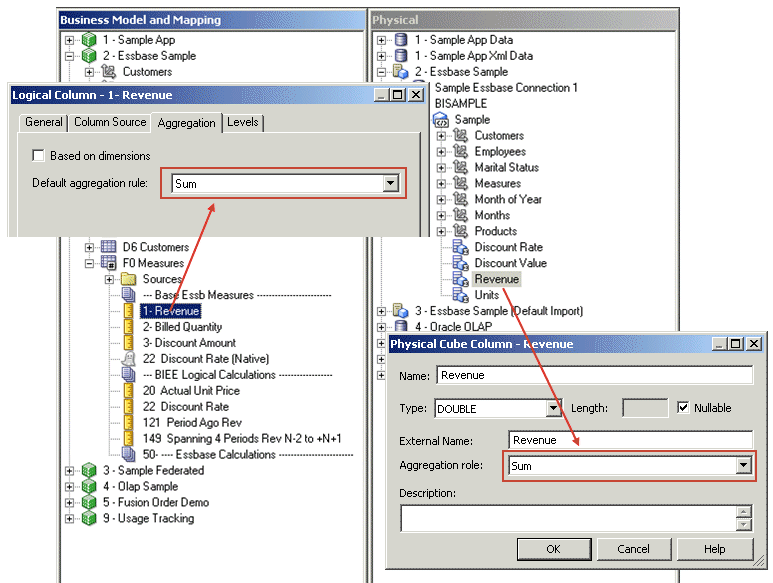
You must ensure that the aggregation rule defined matches the rule in the underlying data source. Also, you must set the appropriate aggregation rule in both the Physical layer and Business Model and Mapping layer, as shown in the following image.
For custom aggregations or aggregations which don't have a corresponding function within the Oracle BI Server, it's recommended to leave the aggregation as External Aggregation for both the physical measure column and its corresponding logical measure column.
For Oracle OLAP data sources, you don't explicitly set Physical layer aggregation rules for Oracle OLAP columns. Because of this, you only need to set the aggregation rule for Oracle OLAP columns in the Business Model and Mapping layer.
In addition, if a query requests an aggregate that doesn't exist in the Oracle OLAP data source, and the aggregation rule is set to External Aggregation, then the Oracle BI Server returns an error. To avoid this error, make sure to explicitly set the aggregation rule for the Oracle OLAP column in the Business Model and Mapping layer.
If you don't explicitly set the aggregation rule for Oracle OLAP columns to something other than External Aggregation, requests from Oracle BI Presentation Services custom groups fail, because custom groups always request aggregates that don't exist in the data source.
Associate an Attribute with a Logical Level in Dimension Tables
You can associate attributes with a logical level.
You can associate measures with levels from multiple dimensions and aggregate to the levels specified. A measure is associated to a level is called a level-based measure. A level-based measure is computed at that grain, even when the query context has a lower grain. For example, if yearlySales is associated to year level, it's computed at the yearly level in the following query: Select month, yearlySales.
Dimensions appear in the Dimensions list. If this attribute is associated with a logical level, the level appears in the Levels list.
Another way to associate a measure with a level in a dimension is to expand the dimension tree in the Business Model and Mapping layer, and then use drag-and-drop to drop the column on the target level. See Level-Based Measure Calculations.
- In the Business Model and Mapping layer of the Model Administration Tool, double-click a logical column to associate a measure with a logical level in a dimension.
- In the Logical Column dialog, click the Levels tab.
- In the Levels tab, click the row containing the logical dimension to associate with a logical level.
- From the Logical Level list, select the level.
- Click OK.
Move or Copy Logical Columns
Dragging and dropping a logical column from one table to another moves the logical column.
If a column with the same name already exists, the new column is renamed, for example, mycolumn#1.
You can also choose the option Prompt when moving logical columns in the Options dialog to cause the Sources for moved columns dialog to be displayed when you drag and drop a logical column. This dialog gives you options about the drag and drop behavior.
See Set Administration Tool Options to read about the Prompt when moving logical columns option.
After completing this procedure, the column that you move or copy is associated with the logical source. The action list values are as follows:
-
If you select Ignore, no logical source is added in the Sources folder of the destination table.
-
If you select Create new, a copy of the logical source associated with the logical column is created in the Sources folder of the destination table.
-
If you select Use existing, you must select a logical source from the Sources folder of the destination table.
- In the Business Model and Mapping layer, drag and drop a logical column to a different logical table.
- In the Sources for moved columns dialog, select from the Action list.
Model Bridge Tables
A bridge table enables you to resolve many-to-many relationships between tables.
For example, you might hold information about employees in an Employees table, and information about the jobs they do in a Jobs table. However, an organization's employees can have multiple jobs, and the same job can be performed by multiple employees. This situation would result in a many-to-many relationship between the Employees table and the Jobs table.
To resolve the many-to-many relationship, you can create a bridge table or intermediate table called Assignments. Each row in the Assignments table is unique, representing one employee doing one job. If an employee has several jobs, there are several rows in the Assignments table for that employee. If a job is done by several employees, there are several rows in the Assignments table for that job. The primary key of the Assignments table is a composite key, made up of a column containing the employee ID and a column containing the job ID.
By acting as a bridge table between the Job and Employee tables, the Assignments table enables you to resolve the many-to-many relationship between Employees and Jobs into:
-
A one-to-many relationship between Employees and Assignments
-
A one-to-many relationship between Assignments and Jobs
The image shows a Physical layer view of the example bridge and associated dimension tables.
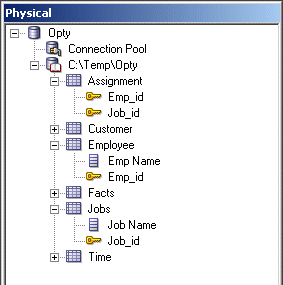
You should include Weight Factor as an additional column in the bridge table, and to calculating during ETL for efficient query processing.
The following sections explain how to model bridge tables in the Physical and Business Model and Mapping layers:
Create Joins in the Physical Layer for Bridge and Associated Dimension Tables
To model bridge tables in the Physical layer, create joins between the bridge table and the associated dimension tables.
- In the Model Administration Tool, in the Physical layer, select the fact, bridge, and associated dimension tables.
- Right-click the objects, select Physical Diagram, and then choose Selected Object(s) Only.
- Click New Join, select the bridge table, and then select one of the dimension tables.
- Click OK in the Physical Foreign Key dialog.
- Repeat steps 2 and 3 for the other associated dimension table.
- Ensure that one of the associated dimension tables is joined to the fact table.
Model the Associated Dimension Tables in a Single Dimension
In the Business Model and Mapping layer, you can choose to model the two dimension tables associated with a bridge table in a single dimension, or in two separate dimensions.
To model the associated dimension tables in one dimension, create a second logical table source that maps to the bridge table and the other dimension table, and then add columns from the other dimension table. Don't drag the bridge table and the associated dimension table that isn't joined to the fact table. For the example described in the previous sections, you'd drag all objects except for the Assignment and Employee tables.
Providing two separate logical table sources makes queries more efficient, because it ensures that queries against a single dimension table don't involve the bridge table.
It's a good practice to use the bridge table name as the name of the source.
- Drag objects from the Physical layer to the Business Model and Mapping layer.
- In the Business Model and Mapping layer, right-click the dimension table that's joined to the fact table, and select New Object, then select Logical Table Source.
- In the Logical Table Source dialog, provide a name for the new bridge table source.
- Click the Add button in the upper right corner of the Logical Table Source dialog.
- Select the bridge table from the Name list, and then click Select.
- Click Add, select the associated dimension table that isn't joined to the fact table, and then click Select.
- In the Logical Table Source dialog, click OK.
- Drag columns from the dimension table that isn't joined to the fact table, Employees in this example, from the Physical layer to the logical table source that you just created.
You can create dimensions based on your logical tables, including the logical table with the bridge table source.
Model the Associated Dimension Tables in Separate Dimensions
As an alternative to modeling the two dimension tables associated with a bridge table in a single dimension, you can choose to model them in separate dimensions.
Create a logical join between the fact table and the dimension table that isn't physically joined to the fact table, and then modify the logical table source for that same dimension table to add the other table mappings.
You can create dimensions based on your logical tables, including both logical tables associated with the bridge table.