Autonomous AI Database (Serverless) - Automatic
Learn how to back up an Autonomous AI Database using the Automatic Backup option.
Automatic Backup from the Azure Portal
Autonomous AI Database(s) are backed up continuously and automatically which allow you to restore or clone your database to available timestamps within your selected backup retention period. The retention period for Automatic backups ranges from 1 day to 60 days.
Complete the following steps:
-
From the Azure Portal, select Oracle AI Database@Azure, and then select the Oracle Autonomous AI Database link.
-
From the Oracle Autonomous AI Database list, select your Autonomous AI Database.
-
From the Overview page, navigate to the Backup section to view the details of the backup settings including Automatic backup retention, Last automatic backup, Next long-term backup, and Long-term backup schedule.
-
If you want to edit your automatic backup retention, select the retention days link.
-
From the Edit auto-backup retention page, move the slider to adjust your retention day(s).
-
Select the Edit button to apply the changes.
-
-
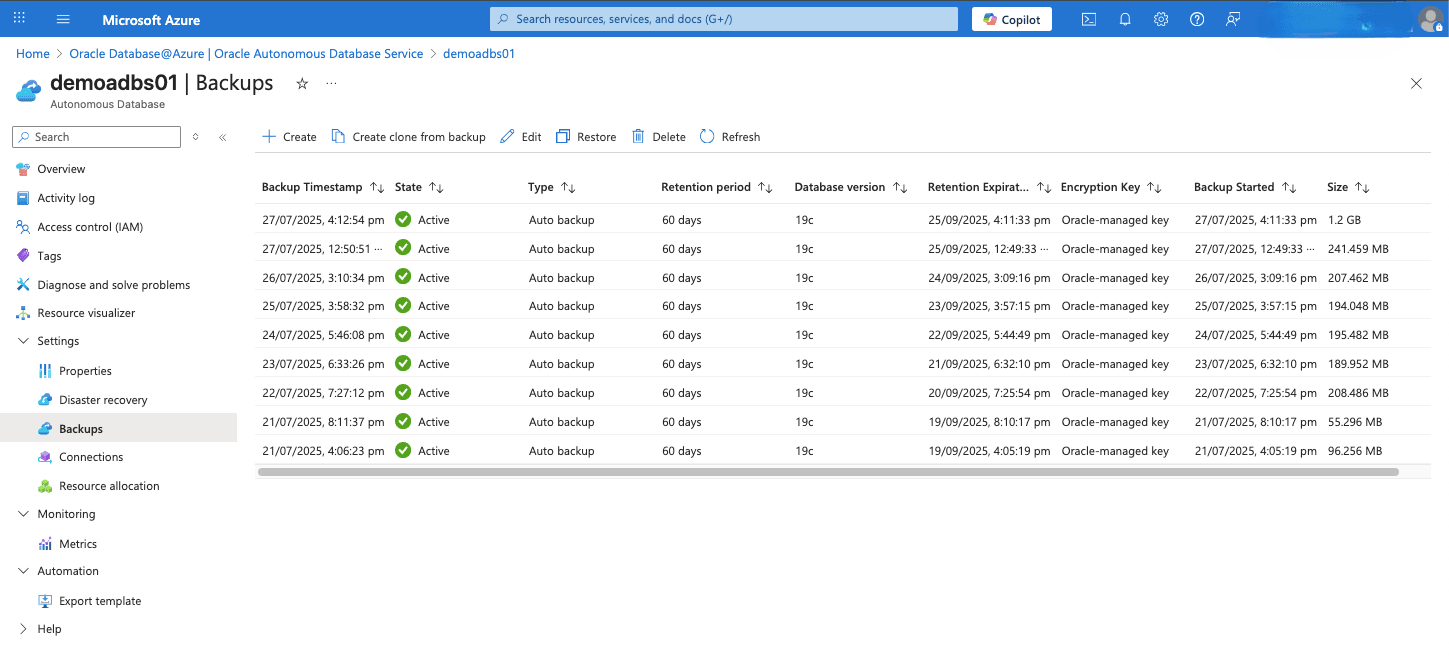
From the left navigation menu, expand the Settings section, and then select the Backups link to view the details of your backup settings including State, Type, Retention period, Backup Started, and Retention Expiration Date.
-
Automatic Backup from the OCI Console
Complete the following steps:
-
From the OCI console, select Oracle Database, and then select Autonomous AI Database.
-
From the Autonomous AI Databases list, select your Autonomous AI Database.
-
Select the Autonomous AI Database information tab and then navigate to Backup section to view the details of it including Automatic backup retention period, Total backup storage and Last automatic backup.
-
If you want to edit your automatic backup retention, select the Edit button.
-
From the Edit backup retention page, enter your retention day(s) into the Automatic backup retention period in days field.
-
Select the Save button to apply the changes.
-
-
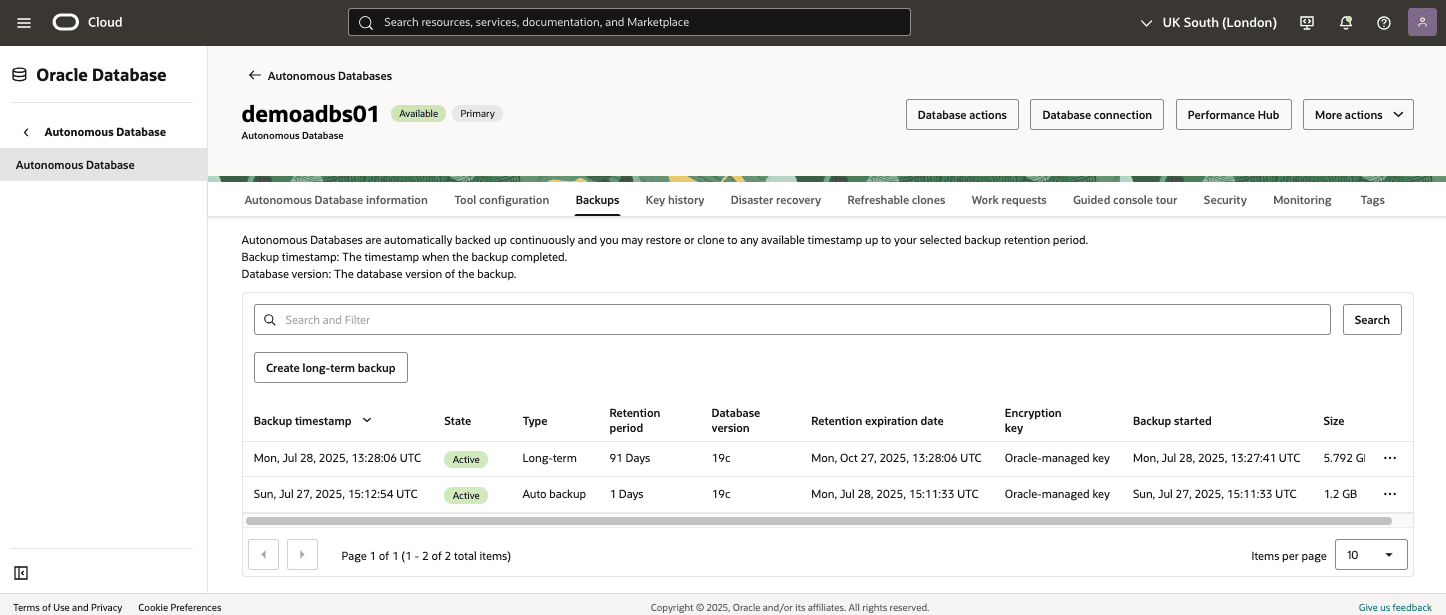
Select the Backups tab to view the details of your backup settings including State, Type, Retention period, Backup Started, and Retention Expiration Date.
-
Prerequisites
-
Azure CLI installed
-
Azure CLI version >= 2.87.0
-
oracle-database (extension) version >= 2.0.4
Sample Azure CLI Command
RESOURCE_GROUP="demo-rg-azcli" AUTONOMOUS_DB_NAME="demoadbsazcli" LOCATION="eastus" ## Update automatic backup retention period az oracle-database autonomous-database update --resource-group $RESOURCE_GROUP \ --autonomousdatabasename $AUTONOMOUS_DB_NAME \ --retention-days 60 \ --query "{retentionDays:properties.backupRetentionPeriodInDays,provisioningState:properties.provisioningState}" \ --output json \-
There is currently no content for this page. Oracle AI Database@Azure team intends to add content here, and this placeholder text is provided until that text is added. The Oracle AI Database@Azure team is excited about future new features, enhancements, and fixes to this product and this accompanying documentation. We strongly recommend you watch this page for those updates.
There is currently no content for this page. Oracle AI Database@Azure team intends to add content here, and this placeholder text is provided until that text is added. The Oracle AI Database@Azure team is excited about future new features, enhancements, and fixes to this product and this accompanying documentation. We strongly recommend you watch this page for those updates.