Base Database
Creating an Oracle Base Database requires an existing Resource Anchor and Network Anchor. Creating an Oracle Base Database may take up to 1 hour or more.
- Complete the prerequisites before creating a Base Database. For more information, see Prerequisites.
- From Azure portal, select Oracle AI Database@Azure.
- From the left menu, select Oracle Base Database Service, and then select the + Create button.
- The Base Database creation process is a six (6) step process.
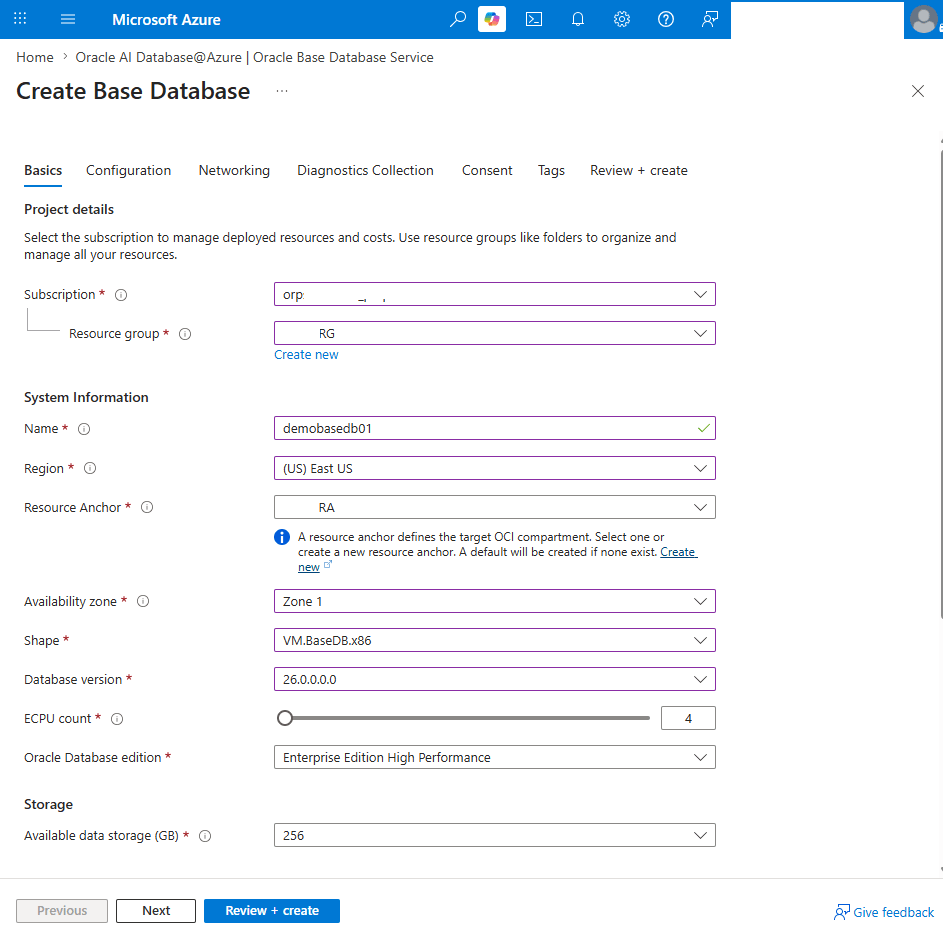
- From the Basics tab of the Create Base Database flow, complete the following substeps:
- Select the Subscription in which Base Database will be created.
- Select or create a Resource group to place Base Database.
- From the System Information section, enter a descriptive name in the Base Database Name field. The identifier must contain only letters and numbers, starting with a letter. 30 characters max. Spaces are not allowed .
- From the Region dropdown list, select a region for physical location of the Base Database.
- The Resource Anchor dropdown automatically displays a value based on the selected Subscription and Resource group.
- The Availability zone dropdown is a drop-down list that contains the AZ where Base Database will reside.
- From the Shape list, select one of the available options: VM.Standard.x86 or VM.BaseDB.x86. The VM.BaseDB.x86 shape allows you to create and manage DB systems with flexible ECPU allocation, including the ability to update ECPU allocations after provisioning. For more information, see Available Shapes and How It Determines the Resources Allocated.
Note
- Supported DB systems using VM.Standard.x86 can also be migrated to VM.BaseDB.x86.
- Oracle Real Application Clusters (RAC) is not supported.
- The Database version dropdown list allows you select either 19c or 26ai versions.
- The ECPU count slider allows you to set the ECPU count. The minimum ECPU count is 4, and the maximum is 256.
- From the Oracle Database edition dropdown list, select one of the options: Standard Edition, Enterprise Edition or Enterprise Edition High Performance.
- The Available data storage dropdown list allows you to select the available database storage. The minimum storage is 256 GB and the maximum is 40960 GB.
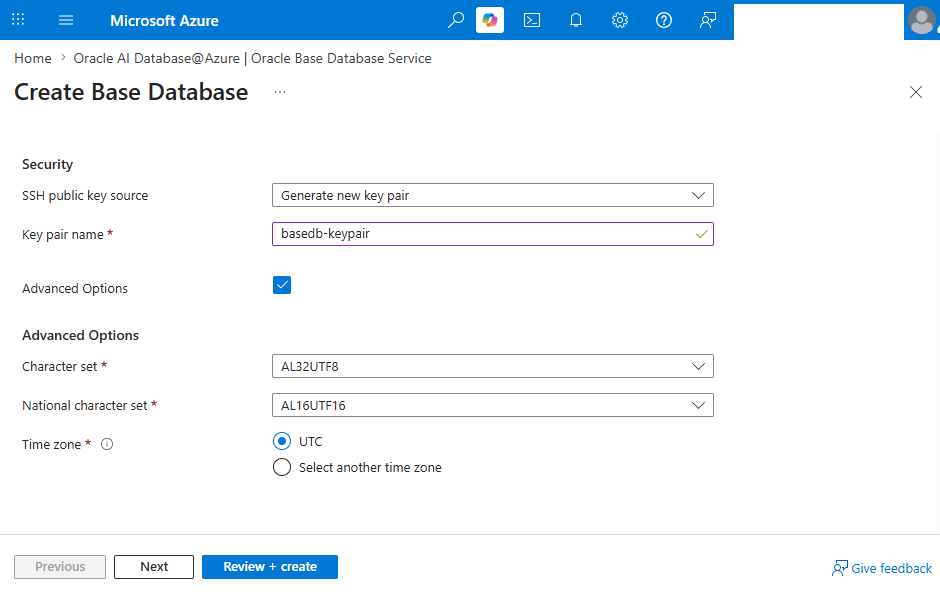
- From the Security section, you can select the SSH public key source as Generate new key pair or Use the existing key stored in Azure or Use existing public key.
- If you select the SSH public key source as Generate new key pair, the Key pair name field automatically displays. Enter a descriptive name in the Key pair name field.
- If you select the SSH public key source as Use the existing key stored in Azure, the Stored Keys field automatically displays. From the dropdown list, select a key from Azure Key Vault.
- If you select the SSH public key source as Use existing public key, the SSH public key source field automatically displays. You must provide an RSA public key in either the single-line format starting with
ssh-rsaor the multi-line PEM format. You can generate SSH keys usingssh-keygenon Linux and macOS, or PuTTYGen on Windows. For more information, see generate SSH Key.
- Select the Advanced Options checkbox if you want to set Character set and National character set.
- The Time zone field allows you to select the time zone for your Base Database. The UTC option is selected by default.
- Select the Next button to continue the creation process.
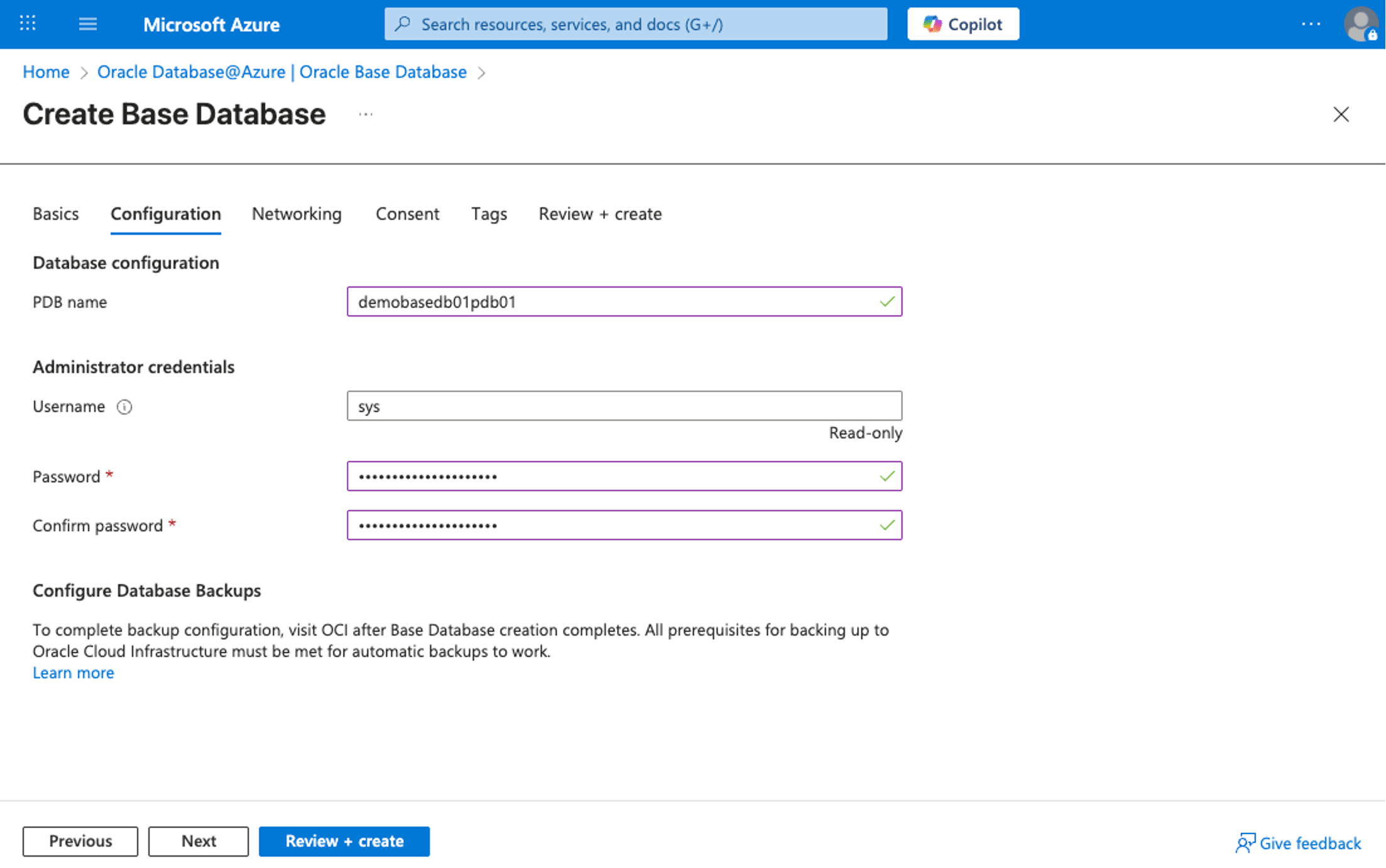
- From the Configuration tab of the Create Base Database flow, complete the following substeps:
- From the Database configuration section, enter a descriptive PDB name. The identifier must begin with an alphabetic character and can contain a maximum of 30 alphanumeric characters. Special characters are not permitted. The identifier should not be same as database name.
- The Administrator credentials section allows you to enter the Password for the Database Admin role.
- The Username field is ready-only and set as sys by default.
- The Password must be 9 to 255 characters and contain at least two uppercase, two lowercase, two numbers, and two special characters. The special characters must be an underscore (
_), an number sign (#) or a hypen (-). - The Confirm password must match with the Password you entered in the previous step.
- Select the Next button to continue the creation process or select the Previous button to go back.
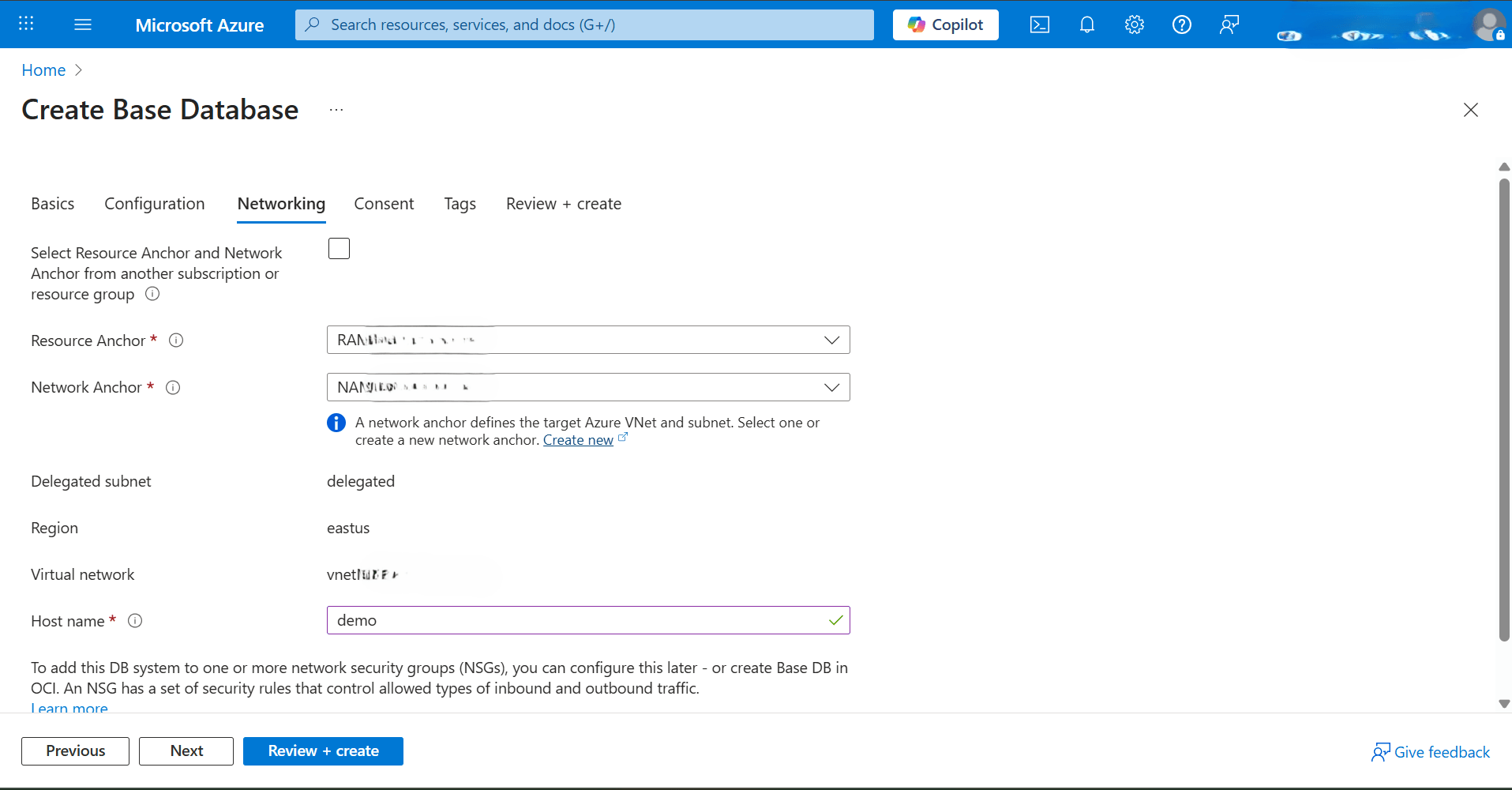
- From the Networking tab of the Create Base Database flow, complete the following substeps:
- The Select Resource Anchor and Network Anchor from another subscription or resource group checkbox is optional.
- If you select the checkbox, you must choose your Subscription and Resource Group from the dropdown list. This capability allows you to select Resource Anchor and Network Anchor from a different subscription or resource group than your Base Database.
Note
- You can use different Resource Anchors that are in the same subscription, or in different subscriptions, only if those subscriptions all use the same billing account.
- You must assign the same permissions to your other subscription as to your primary subscription, as specified in the Create Base Database prerequisites section.
- If you use several subscriptions with the same billing account, you can set them up to share resources and manage them together. For more information, see Multi-Subscription.
- If you do not select the checkbox, the Resource Anchor and Network Anchor fields are automatically populated based on your selections in the Basics section.
- If you select the checkbox, you must choose your Subscription and Resource Group from the dropdown list. This capability allows you to select Resource Anchor and Network Anchor from a different subscription or resource group than your Base Database.
- The Delegated subnet and Virtual network populates automatically based on the selected Network Anchor.
- The Host name prefix field allows you to enter a unique host name for your Base Database. The name must be between 1 and 11 characters. The name must begin with a letter, end with a letter or number, and may contain only letters, numbers, and hyphens.
- Select the Next button to continue the creation process or select the Previous button to go back.
- The Select Resource Anchor and Network Anchor from another subscription or resource group checkbox is optional.
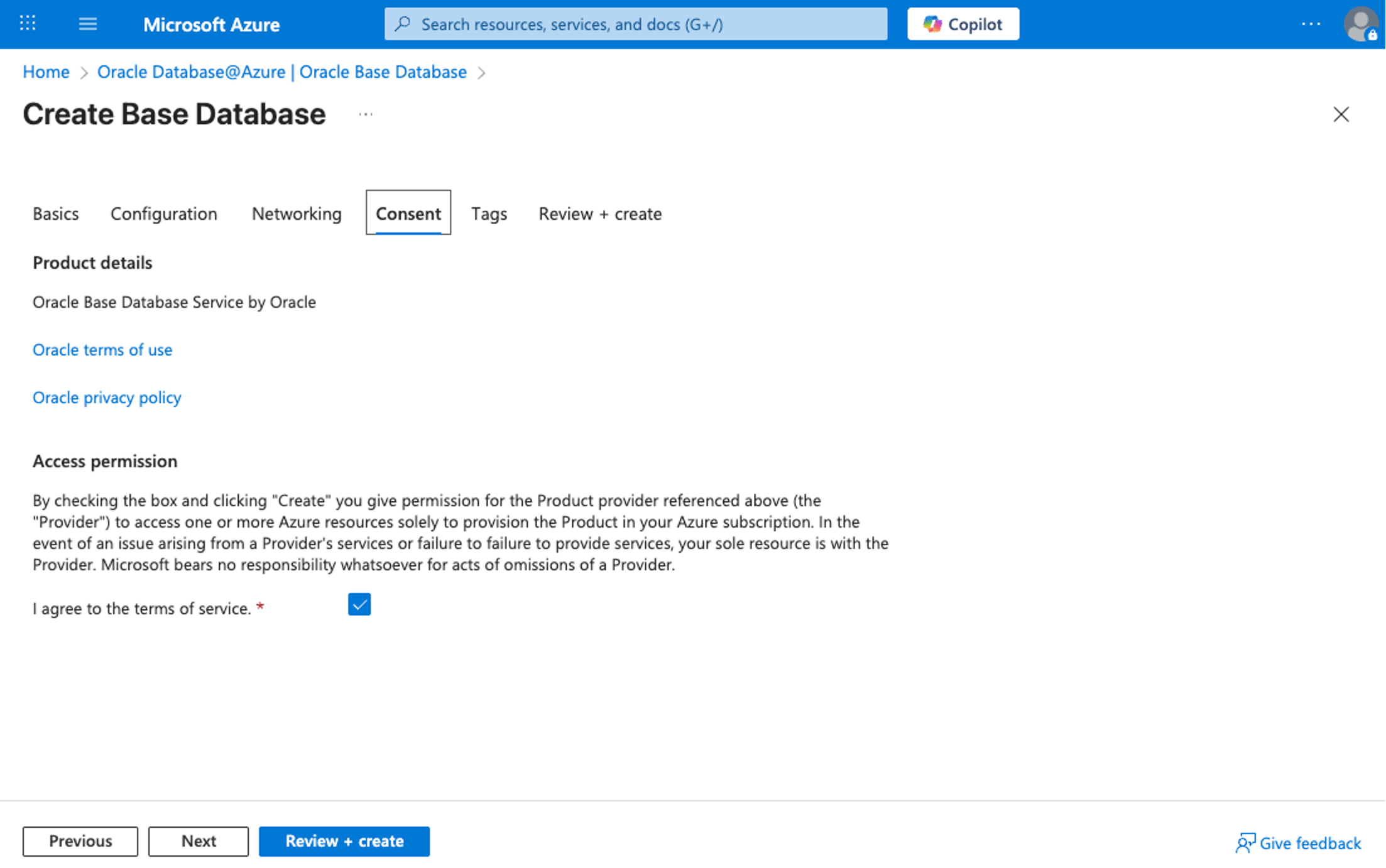
- From the Consent tab of the Create Base Database flow, read Oracle terms of use and the Oracle privacy policy.
- Select the I agree to terms of service checkbox to provide consent.
- Select the Next button to continue the creation process or select the Previous button to go back.
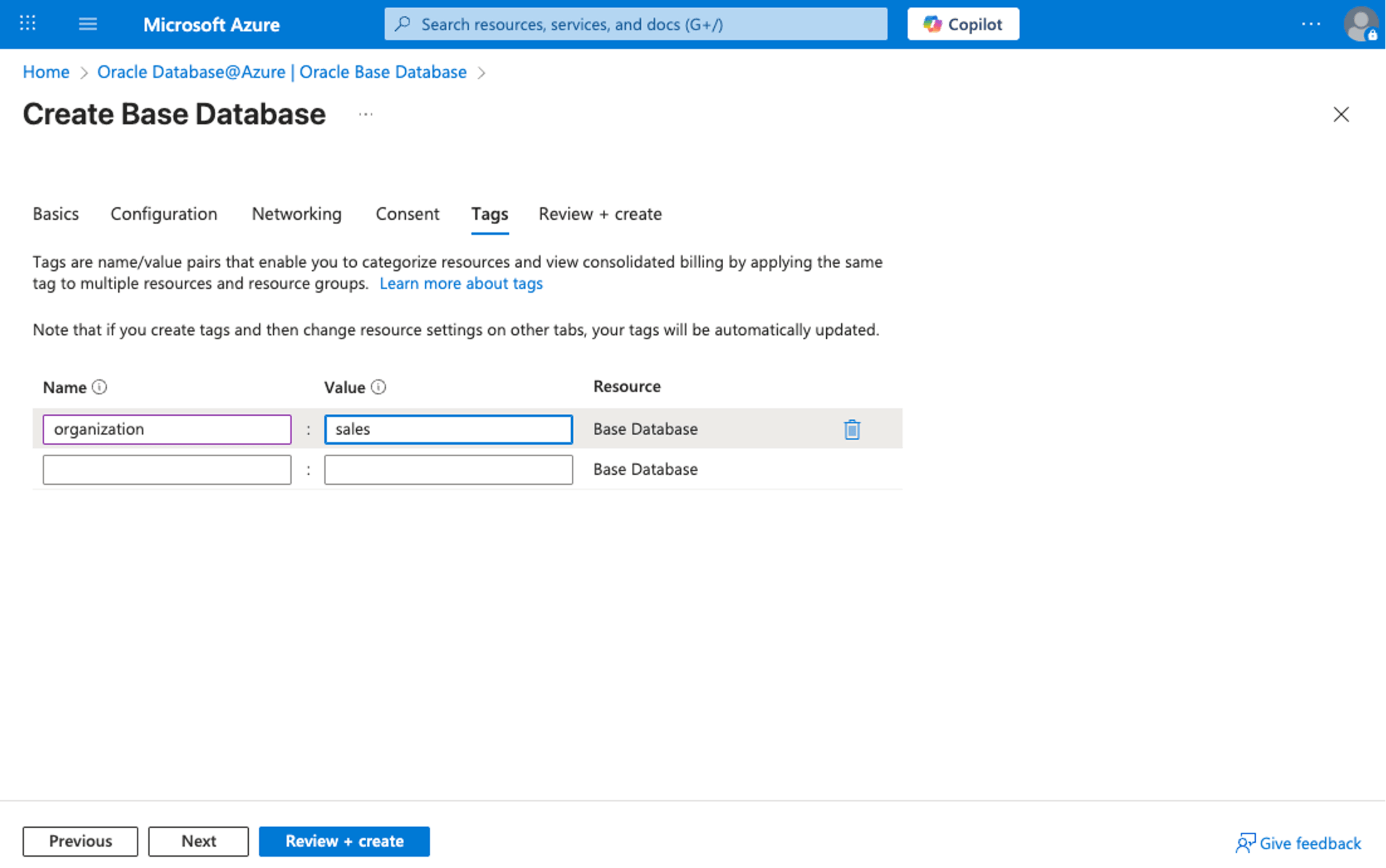
- From the Tags tab of the Create Base Database flow, complete the following substeps.
- You can enter tags if desired or required by providing the details. A new line will be added automatically to add more tags. Repeat this step for each tag you want to add.
- Select the Next button to continue the creation process or select the Previous button to go back.
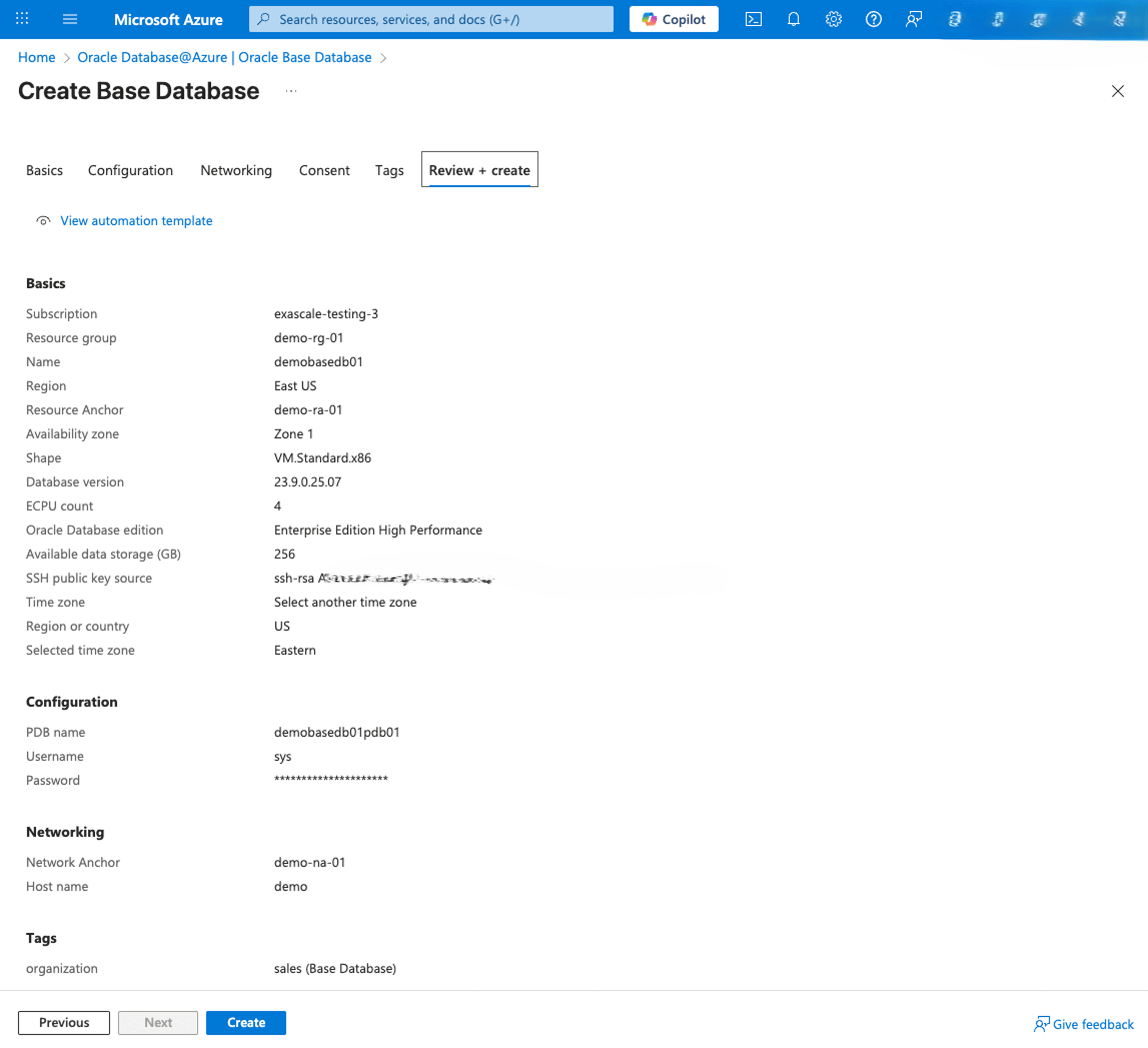
- From the Review + Create tab of the Create Base Database flow, review the settings you have selected. If any changes are required, select the Previous button.
- Select the Create button to continue the creation process, the Previous button to go back, or the cross (X) button to stop the creation process and return to the Base Database list.
- If you have selected the Generate new key pair option on the Basics tab, a popup will appear on the screen to download the Private Key.
Note
This option will appear only once, so make sure to download the key. - You will be redirected to the Base Database creation progress page.
- Once Base Database is created, you can view details from the Base Database list on Oracle AI Database@Azure.
- From the OCI console, select Oracle AI Database, and then select Oracle Base Database Service.
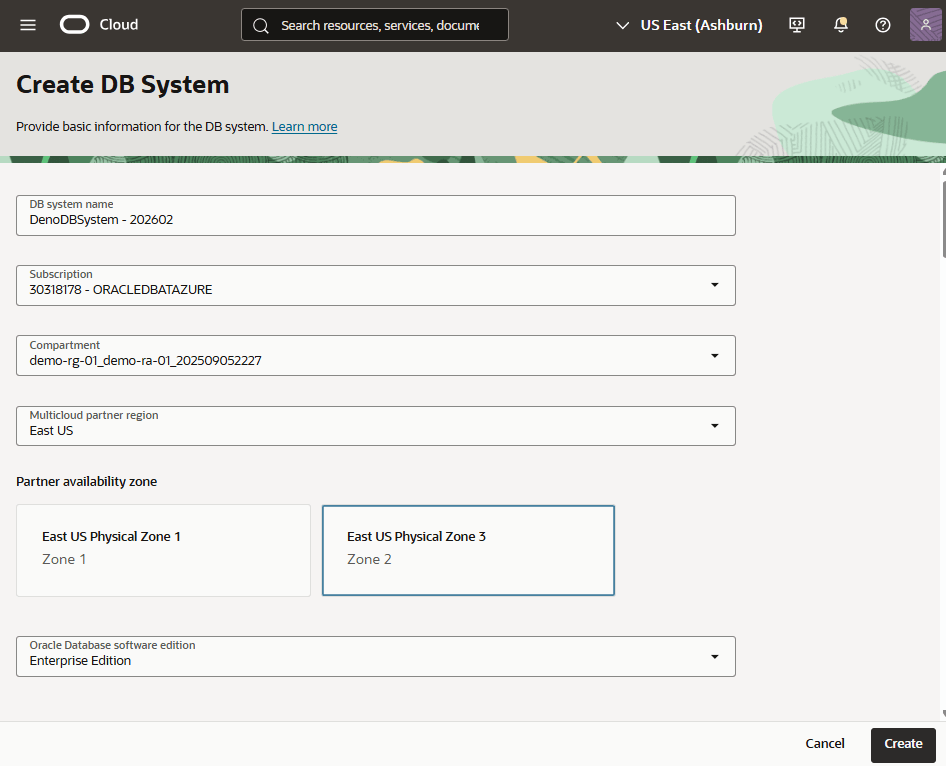
- Select the Create DB system button to start the provisioning of Base Database. From the Create DB System page, complete the following substeps:
- Enter a descriptive name in the DB system name field. The display name must be 1 to 255 characters, of letters, numbers, underscores (_) and hyphens (-). The display name must start with a letter or underscore(_) and cannot contain two successive hyphens(-).
- From the dropdown list, select the Subscription which ends with
ORACLEDBATAZURE. - From the dropdown list, select the compartment which was created when you created your Resource Anchor.
- The Multicloud partner region provides you options to select an availability domain in which the DB system resides.
- In the Partner availability zone section, select the logical zone that matches your Network Anchor.
- The Oracle Database software edition list provides Standard Edition, Enterprise Edition, Enterprise Edition High Performance, and Enterprise Edition Extreme Performance options. Based on your requirements, select one from the list.
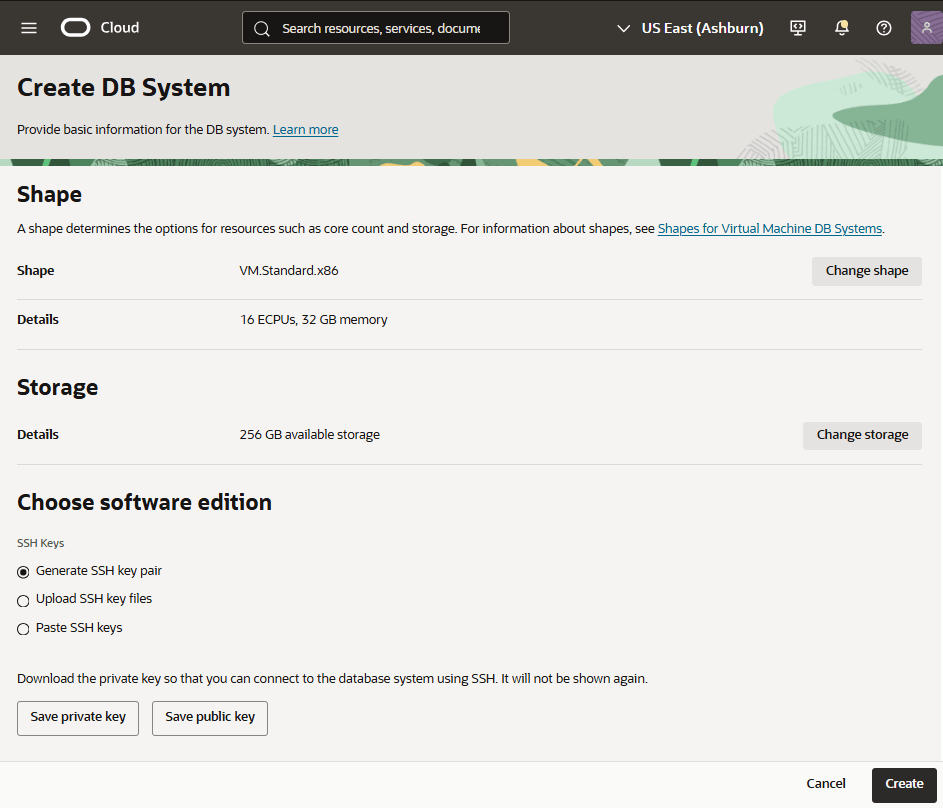
- The Shape determines the type of DB system created and the resources allocated to the system. Base Database in Oracle AI Database@Azure supports VM.Standard.x86 and VM.BaseDB.x86 shapes. The VM.BaseDB.x86 shape allows you to create and manage DB systems with flexible ECPU allocation, including the ability to update ECPU allocations after provisioning.. For more information, see Available Shapes and How It Determines the Resources Allocated. Select the Change shape button to modify the following information:
- From the Configure ECPU section. Select the (…) icon, and then select the Update ECPU count option to change it.
- Select the Change button to save the changes.
Note
Supported DB systems using VM.Standard.x86 can also be migrated to VM.BaseDB.x86. - From the Storage section allows you to select the available database storage. If you want to change storage, select the Change storage button.
- From the Available data storage dropdown list, select the amount of storage in GB to allocate to the DB system. The minimum is 256 GB and maximum is 40960 GB storage.
- Based on your Available data storage selection, the Recovery area storage (GB) field populates automatically. This field is read-only.
- Review your information, and then select the Save button.
- From the SSH Keys section, choose one of the following options.
- Generate SSH key pair: allow you to provide Key pair name, generated automatically and stored with the provided name.
- Upload SSH key files: allow you to choose existing SSH keys from your computer.
- Paste SSH keys: allow you to paste existing SSH keys from your computer. You can generate SSH keys using ssh-keygen on Linux and OS X, or PuTTYGen on Windows. For more information, see generate SSH Key.
- From the License type section, you can choose either License included or Bring Your Own License (BYOL).
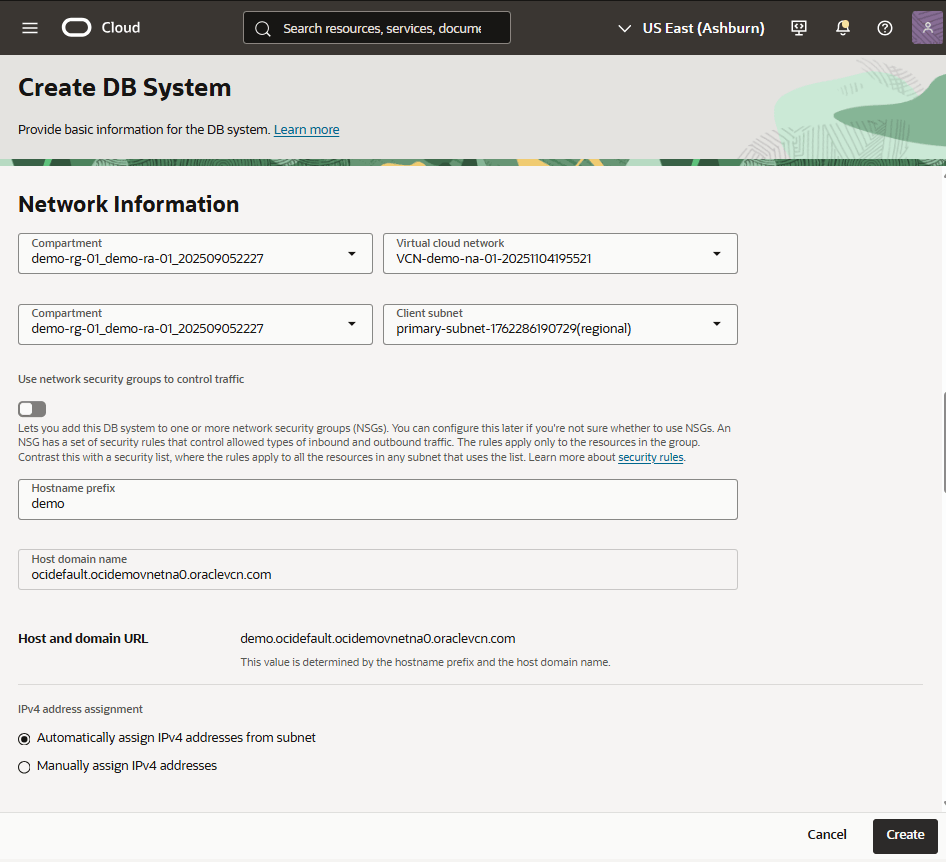
- From the Network Information section, complete the following steps.
- Select the Compartment which was created when you create your Resource Anchor.
- From the Virtual cloud network list, select a VCN in which to create the DB system.
- Select the Compartment which was created when you create your Resource Anchor.
- Select the Client subnet.
- If you want to use network security groups to control traffic, enable the toggle. From the dropdown list, select the Compartment and Network security groups.
- Enter a descriptive Hostname prefix for the DB system. The maximum number of characters allowed is 16.
- The Host domain name field is the domain name for the DB system.
- The Host and domain URL combines the host and domain names to display the fully qualified domain name (FQDN) for the database.
- IPv4 address: You can either automatically assign an IPv4 address or enter it manually.
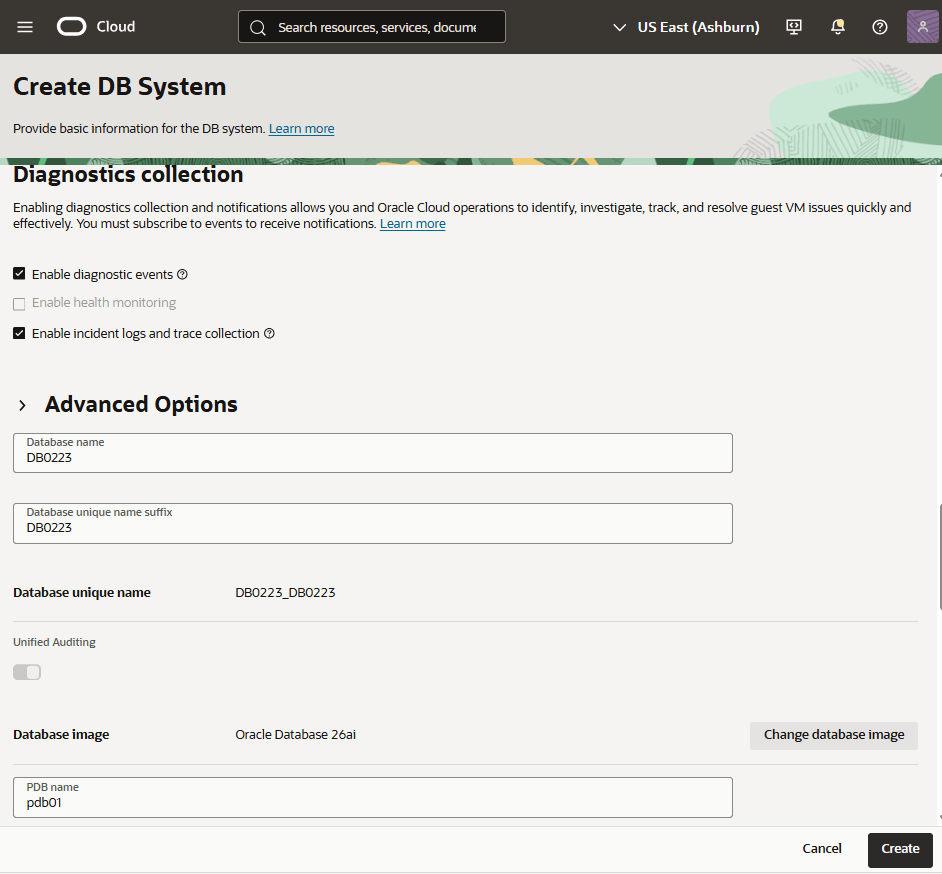
- From the Diagnostics collection section, you can Enable diagnostic events, and Enable incident logs and trace collection. By default the options are selected for enabling. However, you can select to uncheck the diagnostic collection check boxes if you do not require the diagnostic feature.
- From the Advanced options section, you can expand Advanced options to provide the advanced options for this resource.
- Enter a name for the database in the Database name field.
- The Database unique name suffix field is optional.
- By the default, Unified Auditing is enabled.
- The Database image field determines what Oracle Database version is used for the database. If you want to change, click on the Change database image.
- Enter a PDB name.
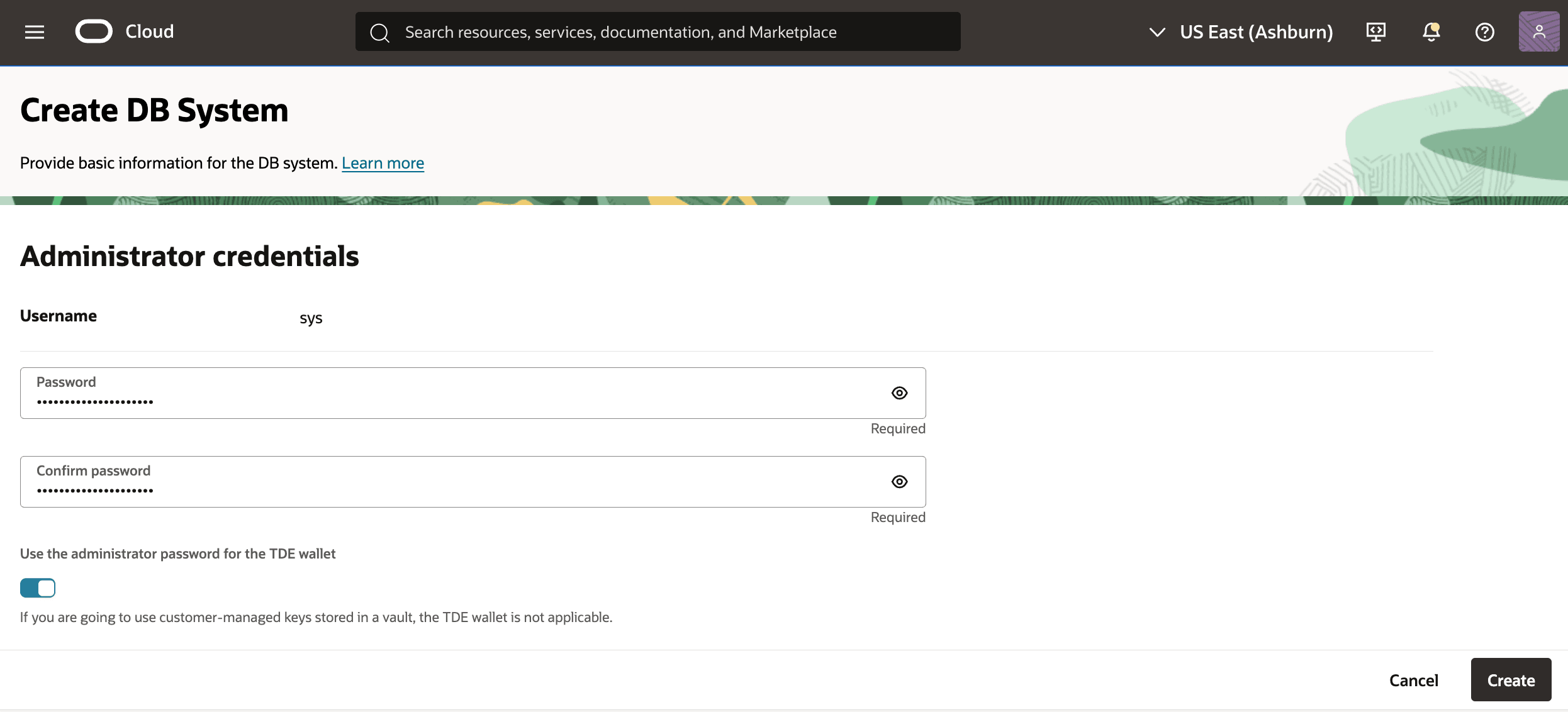
- From the Administrator credentials section, complete the following steps:
- Enter your Password. Password must be 9 to 30 characters and contain at least 2 uppercase, 2 lowercase, 2 special, and 2 numeric characters. The special characters must be underscore (_), number sign (#), or hyphen (-).
- Enter your Confirmed password.
- The toggle to Use the administrator password for the TDE wallet is enabled by default. If you are using customer-managed encryption keys stored in a vault in your tenancy, the TDE wallet password is not applicable to your DB system.
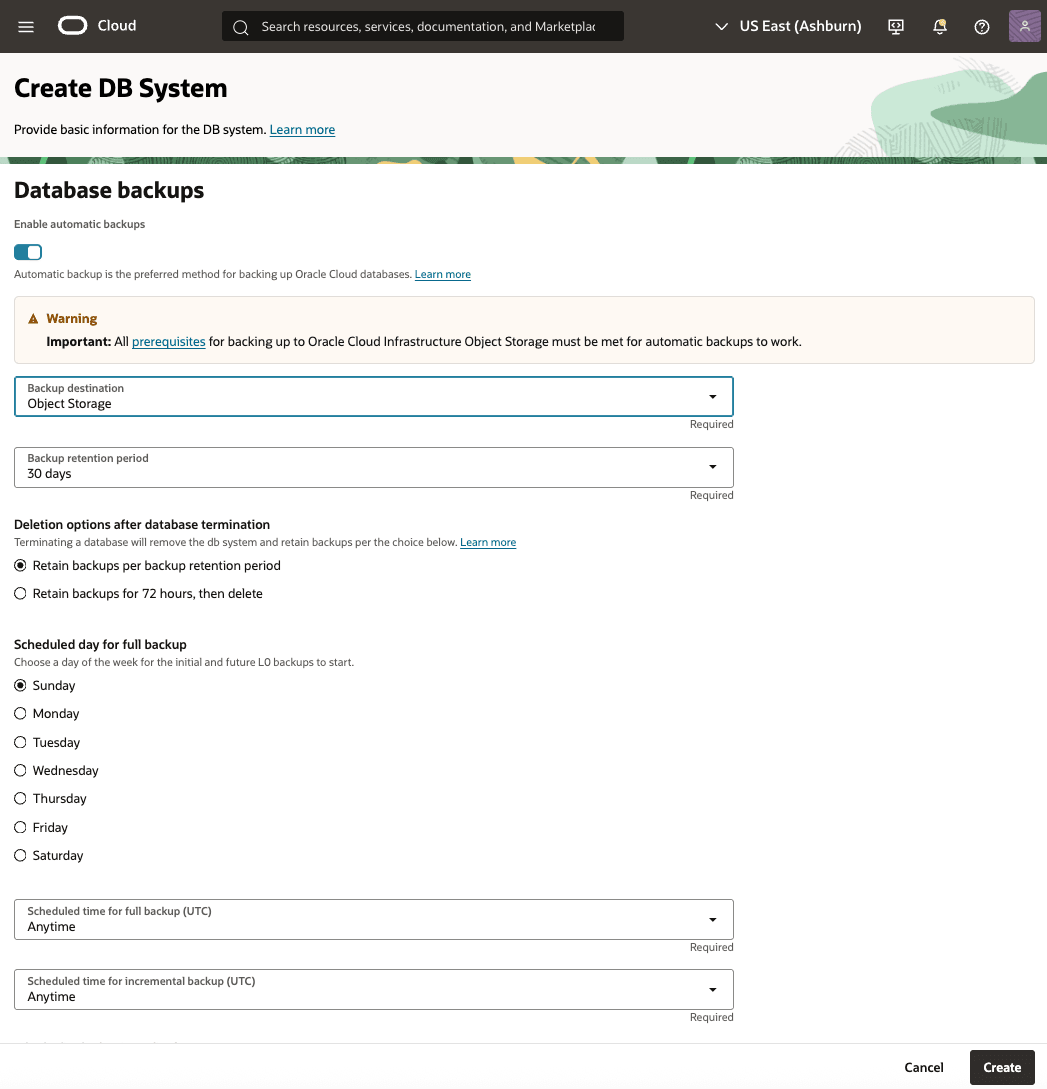
- From the Database backups section, you can switch on or off the Enable automatic backups toggle based on your requirement.
- Select your Backup destination from the dropdown list.
- Select your Backup retention period from the dropdown list.
- From the Deletion options after database termination section, choose etiher Retain backups per backup retention period or Retain backups for 72 hours, then delete.
- You can choose a day of the week for the initial and future backups to start from the Scheduled day for full backup section.
- From the Scheduled time for initial backup (UTC) list, select a time for the initial backup to begin.
- From the Scheduled time for incremental backup (UTC) list, select a time for the incremental backup to begin.
- The Take the first backup immediately option is selected by default. You can change based on your requirements.
- From the Advanced options section, you can expand Advanced options to provide the advanced options for this resource.
- Management: Select Character set and National character set from the dropdown list.
- Encryption: Expand Encryption to configure the encryption key management option for your database. By default, the database is configured using Oracle-managed encryption keys. To configure the database with encryption based on encryption keys you manage, select the Use customer-managed keys option.
- Tags: You can add additional metadata to organize resources with free-form and defined tags.
- Select the Create button to create.
- Return to the DB Systems to view the State of your creation process.
There is currently no content for this page. Oracle AI Database@Azure team intends to add content here, and this placeholder text is provided until that text is added. The Oracle AI Database@Azure team is excited about future new features, enhancements, and fixes to this product and this accompanying documentation. We strongly recommend you watch this page for those updates.
There is currently no content for this page. Oracle AI Database@Azure team intends to add content here, and this placeholder text is provided until that text is added. The Oracle AI Database@Azure team is excited about future new features, enhancements, and fixes to this product and this accompanying documentation. We strongly recommend you watch this page for those updates.
There is currently no content for this page. Oracle AI Database@Azure team intends to add content here, and this placeholder text is provided until that text is added. The Oracle AI Database@Azure team is excited about future new features, enhancements, and fixes to this product and this accompanying documentation. We strongly recommend you watch this page for those updates.