Autonomous AI Database (Serverless)
Autonomous Data Guard for Autonomous AI Database
This topic explains the required steps to:
-
Enable Autonomous Data Guard (local/in-region) on an Autonomous AI Database resource.
-
Optionally set the maximum data loss limit (for automatic failover behavior, if supported or required).
-
Perform switchover and failover.
-
Disable Autonomous Data Guard.
Note
Note:
The table below shows the OCI regions supporting both Local Backup-Based Disaster Recovery and Autonomous Data Guard.
Region Available Versions Zone Configuration US East (Ashburn) 19c, 26ai Dual-Zone Germany Central (Frankfurt) 19c, 26ai Dual-Zone UK South (London) 19c, 26ai Dual-Zone Australia Southeast (Melbourne) 19c, 26ai Dual-Zone Italy Northwest (Milan) 19c, 26ai Dual-Zone US Midwest (Des Moines) 19c Single-Zone -
In US East (Ashburn), Germany Central (Frankfurt), UK South (London), Australia Southeast (Melbourne), and Italy Northwest (Milan), Local Autonomous Data Guard places the standby database in a different zone from the primary database (dual-zone configuration).
-
In US Midwest (Des Moines), Local Autonomous Data Guard is local within the same zone (single-zone configuration).
-
We plan to expand Local Autonomous Data Guard availability to additional OCI regions over time. If you need Local Autonomous Data Guard in a region not currently listed, please create a support request. For more information, see Creating a Support Request.
Upgrade
gcloudCLI to the Required or Latest Version-
Check version
-
Run the following command:
gcloud --version -
Verify that the displayed versions match the following set, or a newer equivalent patch version:
-
Google Cloud SDK 564.0.0
-
alpha 2026.04.03
-
bq 2.1.31
-
core 2026.04.03
-
gcloud-crc32c 1.0.0
-
gsutil 5.36
-
-
-
Update components, if required
-
Run the following command:
gcloud components update -
Run the following command to confirm the update:
gcloud --version
-
Set Environment Variables
-
Set the environment variables:
export GCP_PROJECT_NUMBER="YOUR_PROJECT_NUMBER" export GCP_LOCATION="YOUR_GCP_LOCATION" # e.g. us-east4, europe-west2 export ADBS_NAME="YOUR_ADBS_ID" # e.g. Database ID, gi126pesc9tp1 export ADB_ID="projects/${GCP_PROJECT_NUMBER}/locations/${GCP_LOCATION}/autonomousDatabases/${ADBS_NAME}" -
Confirm the values:
echo "ADB_ID=${ADB_ID}"
Validate Access and Confirm the Autonomous AI Database Resource
-
Make sure that you are authenticated to the correct account.
-
List the authenticated accounts:
gcloud auth list gcloud config list -
Obtain the current details of your Autonomous AI Database resource:
gcloud oracle-database autonomous-databases describe "${ADB_ID}" \ --location="${GCP_LOCATION}" -
Review the current properties, and confirm that the database is in a stable lifecycle state before enabling disaster recovery.
localDataGuardEnabled: false
localDisasterRecoveryType: BACKUP_BASED
localStandbyDb:
state: STANDBY
Enable Autonomous Data Guard (Local or Cross-Zones)
-
Enable local Autonomous Data Guard for Autonomous AI Database by running the following command:
gcloud oracle-database autonomous-databases update "${ADB_ID}" --location="${GCP_LOCATION}" --properties-local-data-guard-enabled -
Verify that Autonomous Data Guard is enabled:
gcloud oracle-database autonomous-databases describe "${ADB_ID}" --location="${GCP_LOCATION}"isAutoScalingEnabled: true isLocalDataGuardEnabled: true isStorageAutoScalingEnabled: true licenseType: BRING_YOUR_OWN_LICENSE localAdgAutoFailoverMaxDataLossLimitDuration: 0 localDataGuardEnabled: true localDisasterRecoveryType: ADG localStandbyDb: state: STANDBY
Set the Maximum Data Loss Limit Duration
If you need to set or update the maximum data loss limit (if supported by the service in your environment), complete the following steps:
-
Run the following command:
gcloud oracle-database autonomous-databases update "${ADB_ID}" --location="${GCP_LOCATION}" --properties-local-adg-auto-failover-max-data-loss-limit-duration=60 -
Replace
60with your required value. -
Verify the applied value:
gcloud oracle-database autonomous-databases describe "${ADB_ID}" --location="${GCP_LOCATION}"
Perform a Switchover (Planned Disaster Recovery)
Switchover performs a planned role change (primary ↔ standby).
-
Run the following command to initiate a switchover for your Autonomous AI Database:
gcloud oracle-database autonomous-databases switchover "${ADB_ID}" --location="${GCP_LOCATION}" -
Wait for the operation to complete, then verify the new role and Autonomous AI Database status:
gcloud oracle-database autonomous-databases describe "${ADB_ID}" --location="${GCP_LOCATION}"
Perform a Failover (Unplanned Disaster Recovery)
Failover is used when the primary database is unavailable.
-
Run the following command to initiate a failover:
gcloud oracle-database autonomous-databases failover "${ADB_ID}" --location="${GCP_LOCATION}" -
Wait for the operation to complete, then verify the new role and Autonomous AI Database status:
gcloud oracle-database autonomous-databases describe "${ADB_ID}" --location="${GCP_LOCATION}"
Disable Autonomous Data Guard
-
Run the following command to disable local Autonomous Data Guard for your Autonomous AI Database:
gcloud oracle-database autonomous-databases update "${ADB_ID}" --location="${GCP_LOCATION}" --no-properties-local-data-guard-enabled
-
Disaster Recovery
This topic explains how to create a cross-region disaster recovery peer to protect your Autonomous AI Database instance from a complete region failure with a standby database or a backup copy in a different region than the primary database.
Complete the following steps to create a cross-region disaster recovery peer.
-
From the Google Cloud console, select Oracle AI Database@Google Cloud.
-
From the left-menu, select Autonomous AI Database Service and then Autonomous AI Database.
-
Select your Autonomous AI Database that you want to create disaster recovery peer.
-
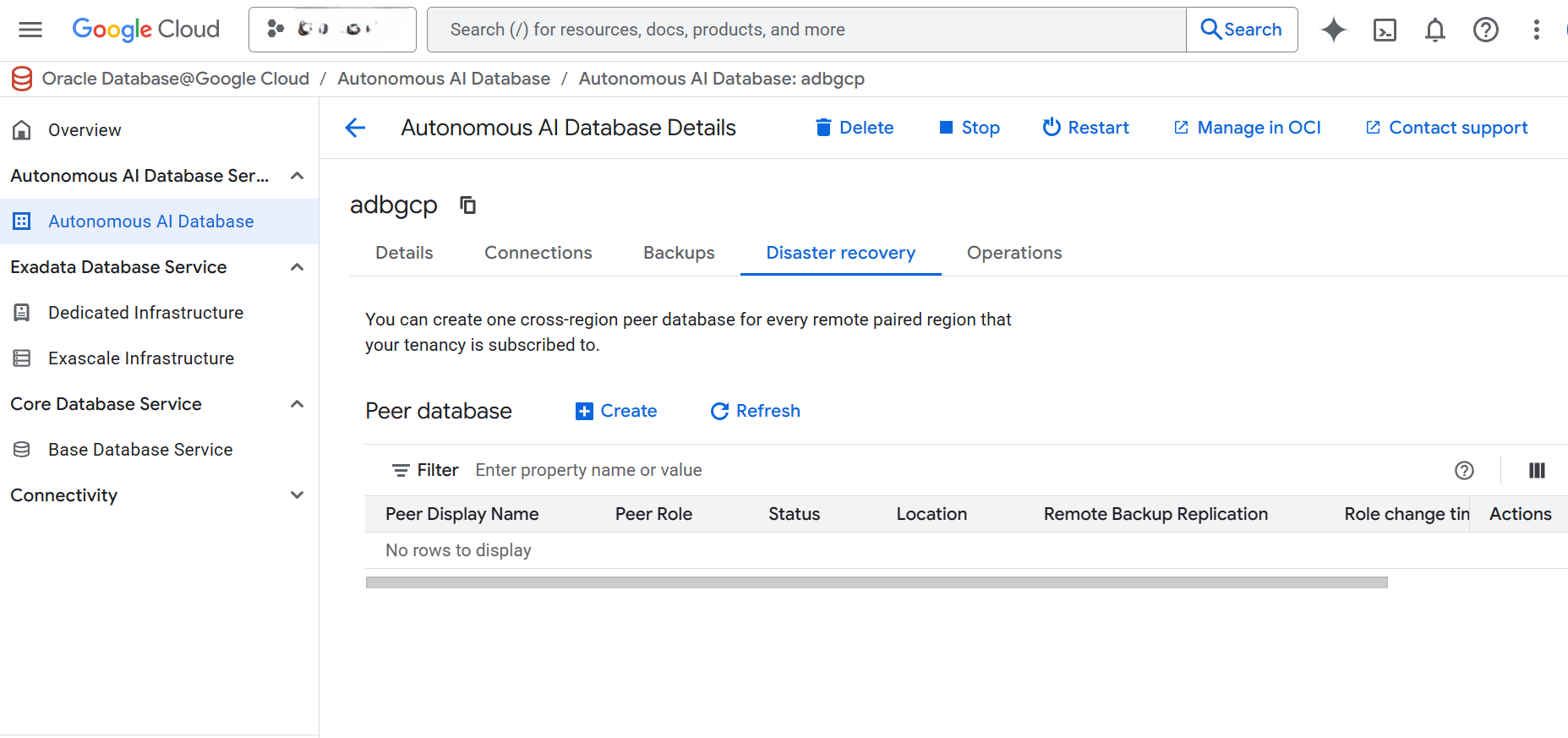
Select the Disaster recovery tab, and then select the + Create button. Adding disaster recovery creates a peer database and incurs an additional cost.
-
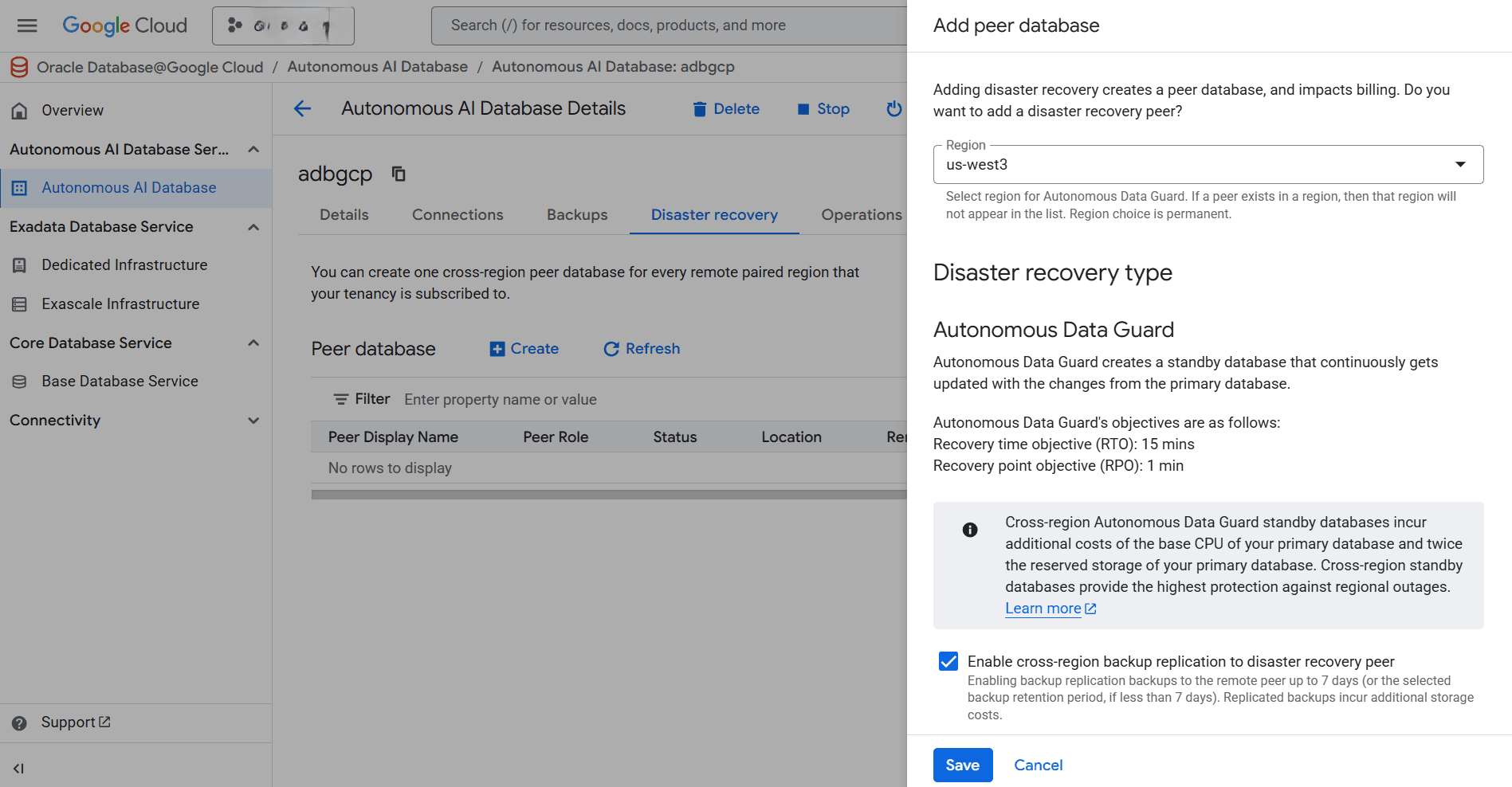
From the Add peer database page, complete the following substeps:
-
From the Region dropdown list, select region for Autonomous Data Guard.
Note
Note:
-
You can create up to 1 local peer and 1 cross-region peer for every remote paired region that your tenancy subscribed to
-
If there is already a paired region, then that Region will not displayed in the list.
-
Some regions have a paired region to support cross-region disaster recovery. The pairing is bi-directional and it will allow you to create a cross-region peer in a different region. You can only create a cross-region disaster recovery in a paired region. For more information, see the following table below.
Table 1 Paired Regions
Regional Pair A Regional Pair B us-east4 (Northern Virginia) us-west3 (Salt Lake City) europe-west2 (London) europe-west3 (Frankfurt) us-east4 (Northern Virginia) US Midwest (Des Moines) europe-west8 (Milan) europe-west3 (Frankfurt)
-
-
From the Disaster recovery type section, select the checkbox to Enable cross-region backup replication to disaster recovery peer.
Note
Note:
-
For the disaster recover type, Autonomous Data Guard is a supported option.
-
Cross-region Autonomous Data Guard standby databases incur an additional cost.
-
For Autonomous Data Guard, Recovery time objective is approximately
15 minsand Recovery point objective is approximately1 min. For more information, see Autonomous Data Guard Recovery Time Objective (RTO) and Recovery Point Objective (RPO).
-
-
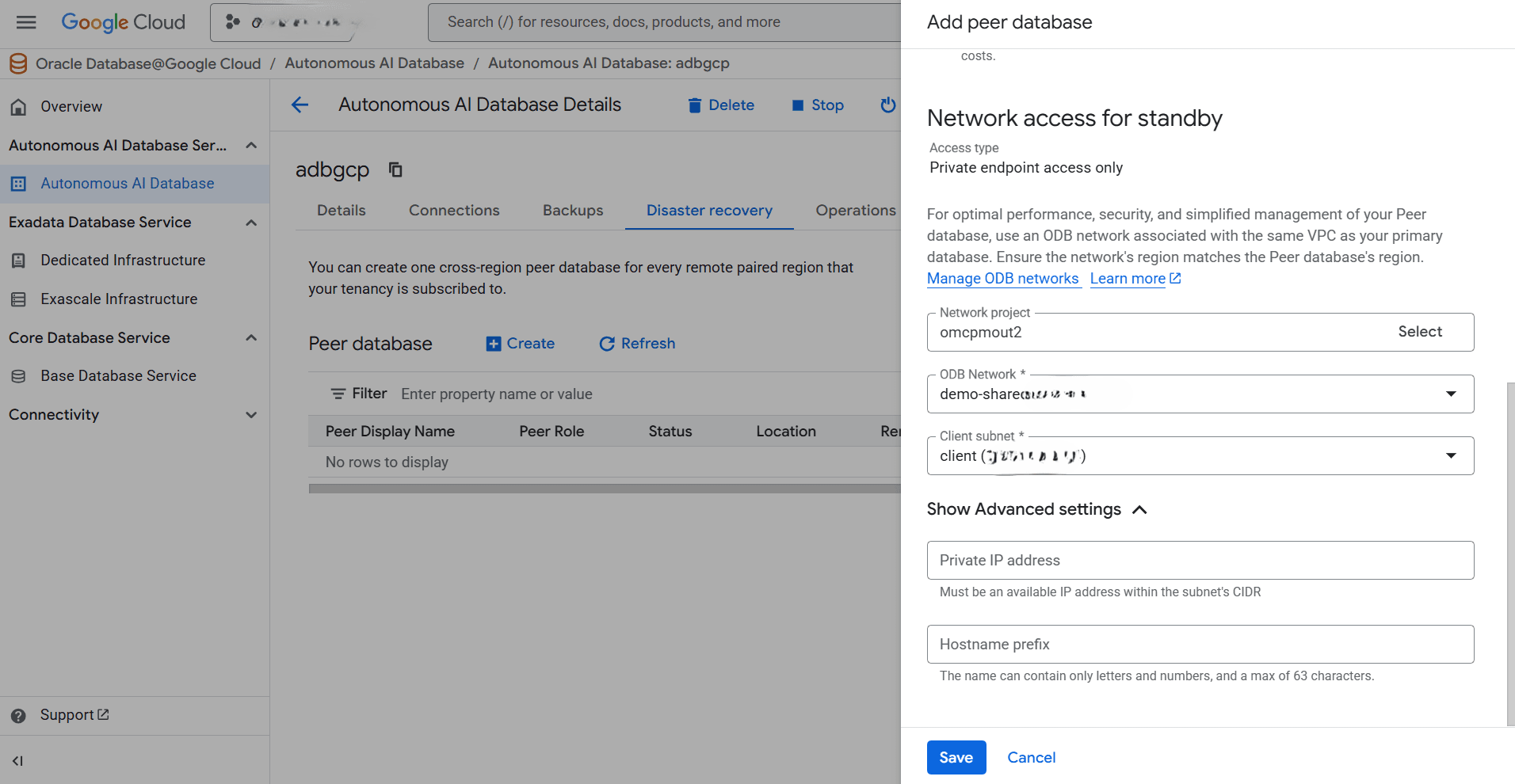
From the Network access for standby section, select your Network project, ODB Network and Client subnet.
Note
Note: You can modify and manage your network settings within the OCI console after creating a peer database. -
Expand the Show Advanced settings section, enter an available IP address within the subnet’s CIDR in the Private IP address field. Then, enter a name in the Hostname prefix field. The name can contain only letters and numbers, and a maximum of 63 characters.
-
Review your information, and then select the Save button to create a peer database.
-
-
Once the process completes successfully, the Status changes to Available.
-
You can view the peer database in the resource list under the Disaster recovery tab.
-