Exadata Database
To create an Exadata Database and its associated components (Database Home, Container Database (CDB), and Pluggable Database (PDB)) using the OCI console, follow these steps.
-
Complete the prerequisites before creating an Exadata Database. For more information, see the Prerequisites section.
-
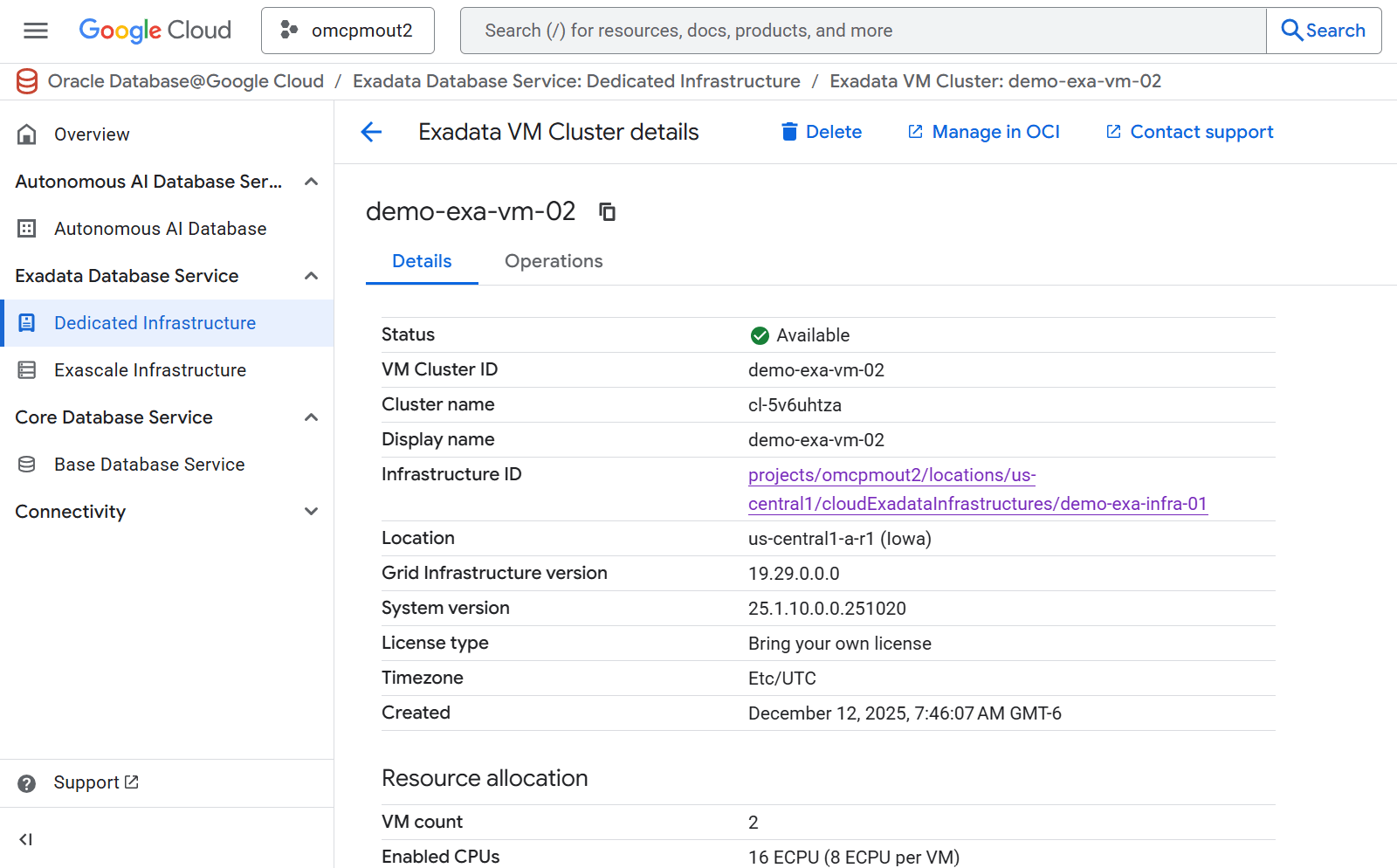
From Google Cloud dashboard, select the Exadata Database Service > Dedicated Infrastructure menu item.
-
By default, the Exadata Infrastructure tab is selected. Select theExadata VM Cluster tab.
-
Select the Manage in OCI icon which allows you to manage your Exadata VM Cluster in OCI.
-
Subsequent steps for creation of Exadata Database are performed through the OCI Console.
-
Create a Container Database (CDB)
-
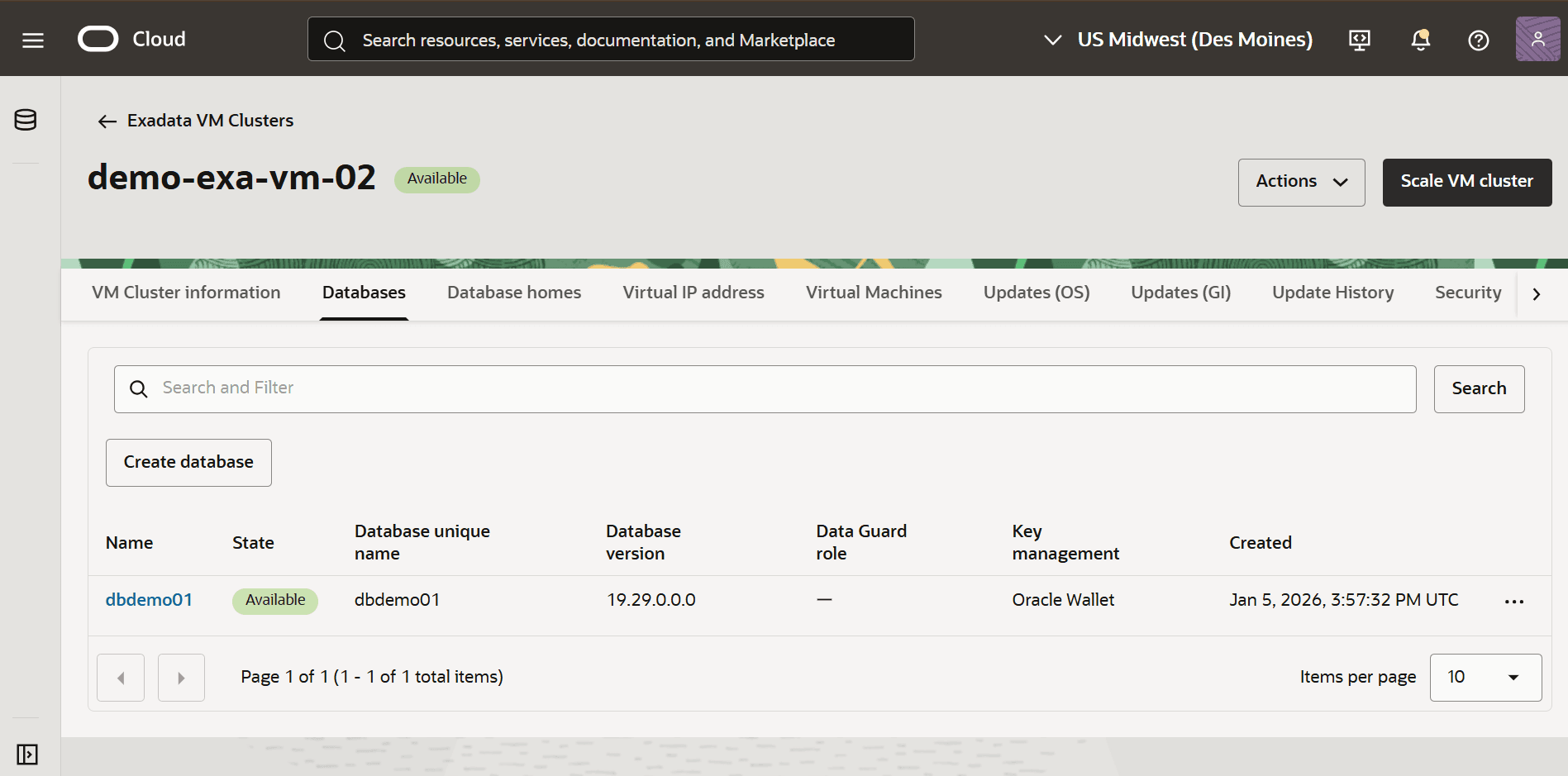
From the OCI console, select the Databases tab, and then select the Create database button.
-
From the Create database page, complete the following steps.
-
From the Basic Information section, enter the following.
-
Enter a Database name. The Database name can contain alphanumeric characters and it cannot be longer than 8 characters.
-
Enter a name in the Database unique name field. If you do not specify it, the system automatically generates a database unique name. The Database unique name can be up to 30 characters.
-
-
From the Database Home section, enter the following.
-
The Database release dropdown list allows you select either 19c or 26ai versions.
-
For your Database Home source, there are two available options. These options are Create a new Database Home and Select an existing Database Home. Based on your requirements, make a selection.
-
If you select the Create a new Database Home option, complete the following steps:
-
Enter a name in the Database Home display name field.
-
Select the Enable Unified Auditing checkbox. This combines all database component audit trails into single unified audit file.
-
From the Database image drop-down, select the image that will be used for database creation.
-
-
If you select the Create a new Database Home option, enter a name in the Database Home display name field.
-
-
-
From the Create administrator credentials section, enter the following.
-
The administrator username is
sysby default. -
Enter your Password. The Password must be 9 to 30 characters and contain at least 2 uppercase, 2 lowercase, 2 special, and 2 numeric characters. The only permitted special characters are underscore (_), hash (#), and hyphen (-).
-
Enter your Confirm password to ensure that it matches Password.
-
-
From the Database backups section, enter the following.
-
Select the Enable automatic backups button to enable automatic incremental backups for your database.
-
In the Backup destination drop-down, you can select either Object Storage or Autonomous Recovery Service.
-
If you select the Object Storage option, complete the following substeps:
-
In the Backup retention period of the backup, enter a value from 7 to 60 days.
-
In the Scheduled day for full backup (UTC) section, choose a day of the week for the initial and future LO backups to start.
-
In the Scheduled time for full backup (UTC) drop-down, select the time window when the full backups start.
-
In the Scheduled time for incremental backup (UTC) drop-down, select the time window when the incremental backups start.
-
-
If you select the Autonomous Recovery Service option, complete the following substeps:
-
From the Compartment drop-down list, select the compartment.
-
From the Protection policy drop-down list, make a selection based on your requirements.
-
The backup location field is set to Backups will be stored in OCI.
-
The Retention lock field is Disabled by default.
-
Enable the Real-time data protection toggle to minimize the possibility of data loss.
-
From the Scheduled time for daily backup (UTC) drop-down list, select the time window when the daily backup starts.
-
-
-
Select the Take the first backup immediately button if you want to take your first backup immediately after successful database creation.
-
From the Deletion options after database termination section, you can choose an option to retain protected database backups after the database is terminated. Based on your system requirements, make a selection.
-
-
From the Encryption section, allows you to choose either Use Oracle-managed keys or Use customer-managed keys.
-
The Use the administrator password for the TDE wallet toggle is enabled. When this option checked, the password entered for the
SYSuser is also used for the TDE wallet. -
The Advanced options section, which is optional and collapsed by default, you can enter the following:
-
Enter your Oracle SID prefix.
Note
Note: The Oracle AI Database instance number is automatically added to the SID prefix to create theINSTANCE_NAMEdatabase parameter. -
The Character set field is selected as
AL32UTF8. -
The National character set field is selected as
AL16UTF16.
-
-
From the Tags section, enter the following.
-
If you want to add a tag, select Add tag button.
-
Select your Namespace from the drop-down. The default value is entered.
-
Enter values for your Key and Value.
-
-
Select the Create button to complete the process.
-
Once your database is created, the Status changes from Provisioning to Available. From the database details page, select the specific Exadata Database. Navigate to Encryption section and select the Change button. This displays the current encryption settings for the selected Exadata Database.
Create a Pluggable Database (PDB)
-
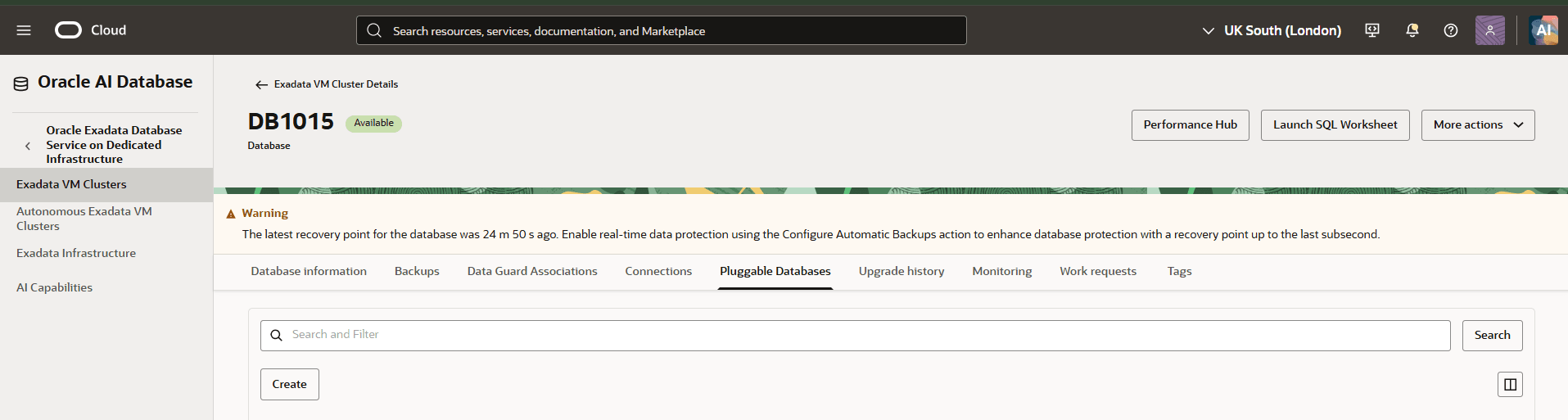
From the OCI console, select the Databases tab, and then select the database that you are using.
-
Select the Pluggable Databases tab and then select the Create button.
-
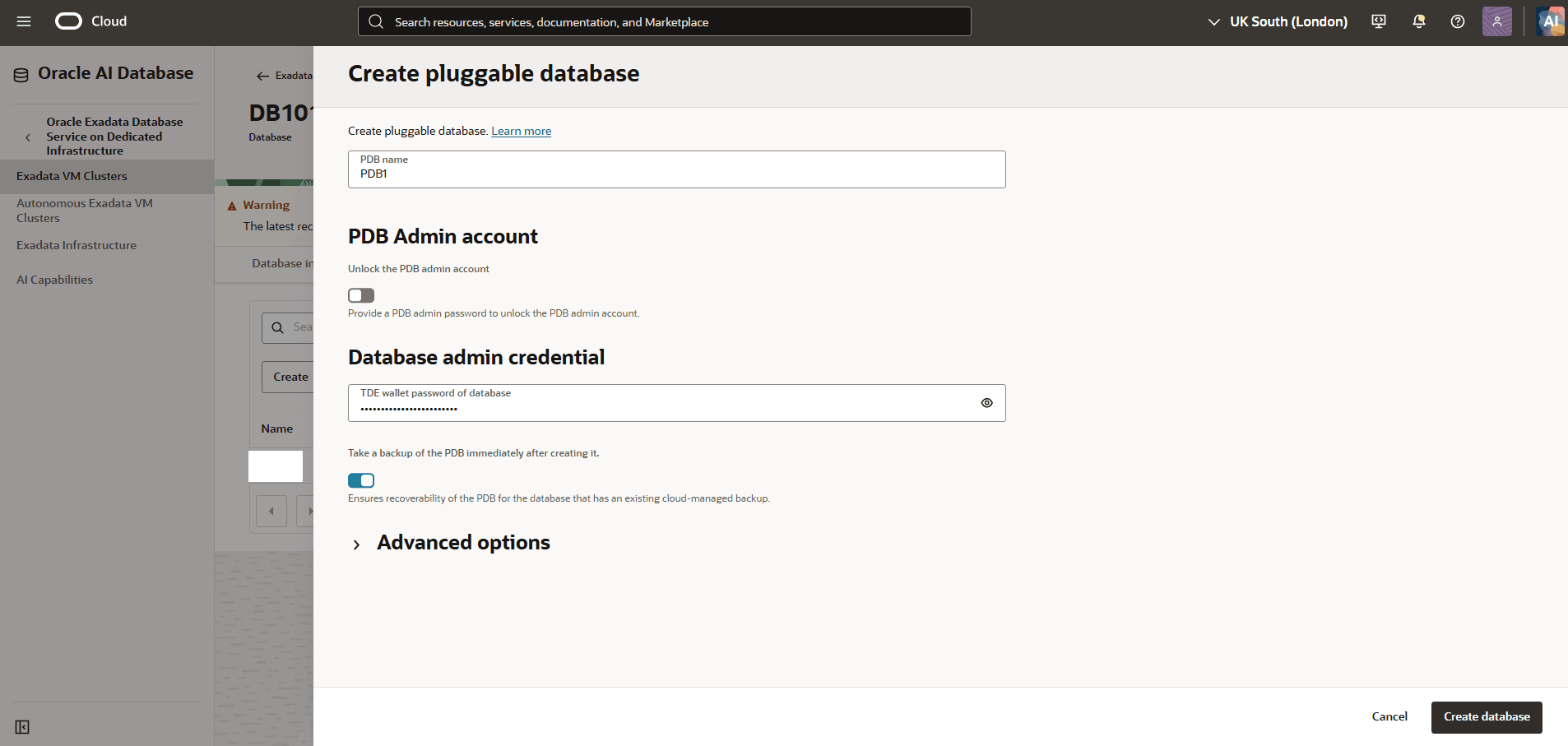
From the Create pluggable database page, complete the following steps:
-
Enter a descriptive name in the PDB name field.The PDB name must begin with an alphabetic character.
-
From the PDB Admin account section, if you enable the Unlock the PDB admin account toggle, you must provide a PDB admin password to unlock the PDB admin account.
- In the Database admin credential section, enter your TDE wallet password of database.
-
The Take a backup of the PDB immediately after creating it toggle is enabled by default.This options ensures recoverability of the PDB for the database that has an existing cloud-managed backup.
Note
Note: If you disable this option, the PDB will not be recoverable until the next daily backup completes successfully. -
Expand the Advanced options section to manage Encryption and Tags. This section is optional.
- Review your entered information, and then select the Create database button.
-
-
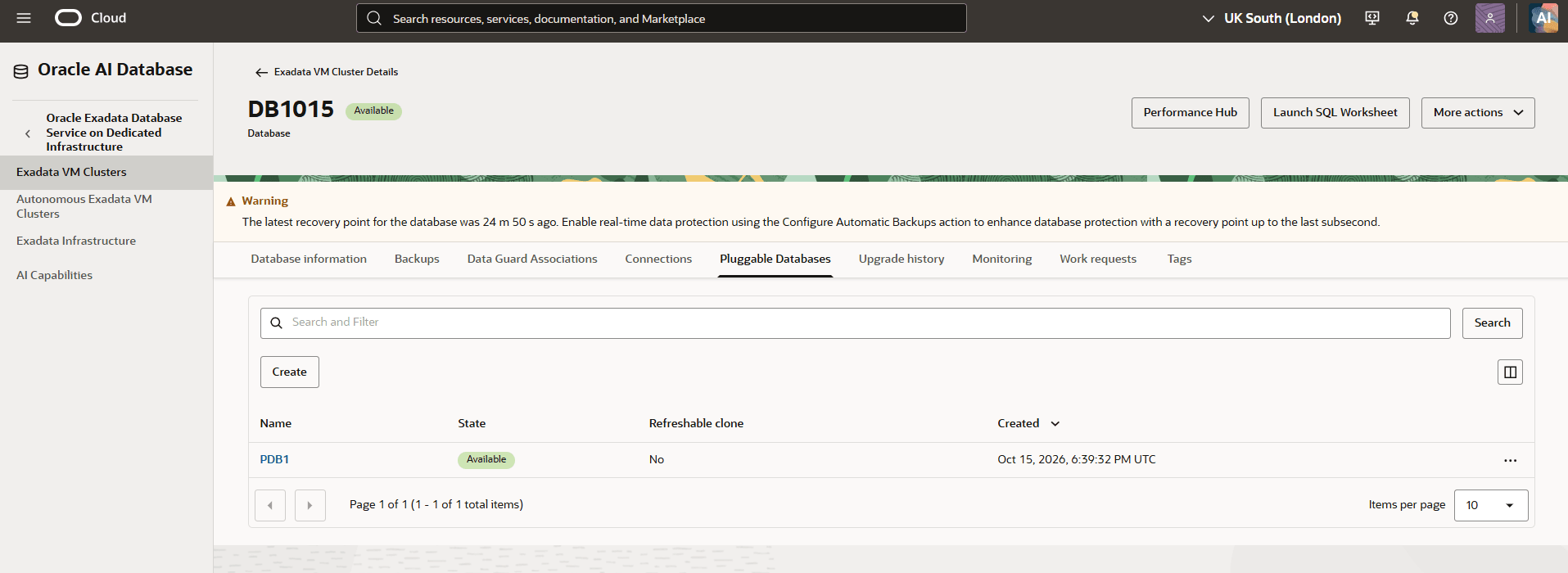
Once it is created, navigate back to the the Pluggable Databases tab to view the details.
-
There is currently no content for this page. Oracle AI Database@Google Cloud team intends to add content here, and this placeholder text is provided until that text is added. The Oracle AI Database@Google Cloud team is excited about future new features, enhancements, and fixes to this product and this accompanying documentation. We strongly recommend you watch this page for those updates.
There is currently no content for this page. Oracle AI Database@Google Cloud team intends to add content here, and this placeholder text is provided until that text is added. The Oracle AI Database@Google Cloud team is excited about future new features, enhancements, and fixes to this product and this accompanying documentation. We strongly recommend you watch this page for those updates.
You can provision an Exadata Database in Google Cloud using OCI Terraform provider.
Prerequisites
-
Terraform or OpenTofu installed
-
Google Cloud credentials configured
-
HashiCorp Google Cloud provider version >= 7.0. For details, see Create ODB Network.
-
Exadata VM Cluster is created using Terraform
Sample Terraform Configuration Using OCI Terraform Provider
# Create Database Home resource "oci_database_db_home" "db_home" { vm_cluster_id = google_oracle_database_cloud_vm_cluster.exadata_vm_cluster.properties[0].ocid source = "VM_CLUSTER_NEW" display_name = "dbhome-26ai" db_version = "23.26.0.0.0" freeform_tags = { "env" = "dev" } } # Create Container and Pluggable Database resource "oci_database_database" "exa_database" { db_home_id = oci_database_db_home.db_home.id source = "NONE" database { db_name = "democdb" # db_unique_name = var.database_database_db_unique_name pdb_name = "demopdb" # database_software_image_id = oci_database_database_software_image.test_database_software_image.id admin_password = "********************" # Enter a strong password db_backup_config { auto_backup_enabled = true auto_backup_window = "SLOT_TWO" auto_full_backup_day = "MONDAY" auto_full_backup_window = "SLOT_TWO" backup_deletion_policy = "DELETE_IMMEDIATELY" # Possible values: DELETE_IMMEDIATELY, DELETE_AFTER_RETENTION_PERIOD backup_destination_details { type = "OBJECT_STORE" # Possible values: OBJECT_STORE, RECOVERY_APPLIANCE } recovery_window_in_days = 7 run_immediate_full_backup = true } tde_wallet_password = "********************" # Enter a strong password # sid_prefix = var.database_database_sid_prefix character_set = "AL32UTF8" ncharacter_set = "AL16UTF16" freeform_tags = { "env" = "dev" } } }-