Prerequisites
Before configuring your Oracle AI Database@Google Cloud environment, you need to understand the prerequisites for your chosen encryption method.
Oracle AI Database@Google Cloud provides two main approaches for Transparent Data Encryption (TDE):
-
Oracle-managed Key (OMK)
- Oracle Wallet
-
Customer-managed Key (CMK)
-
OCI Vault
-
Oracle Key Vault (OKV)
-
Google Cloud Key Management Service (Cloud KMS)
-
This section explains the required prerequisites to configure your Oracle AI Database@Google Cloud.
Oracle-managed keys are the default method for securing data encryption in Oracle AI Database@Google Cloud. In Oracle AI Database, data encryption at rest is managed by Transparent Data Encryption. When you use Oracle-managed keys, the database system automatically handles all key management tasks, including key generation, secure storage, and rotation required by TDE. There are no prerequisites or additional configuration steps required to use Oracle-managed keys with Oracle AI Database@Google Cloud.
Prerequisites to Use Customer-Managed Keys on Oracle AI Database@Google Cloud with OCI Vault
Using customer-managed encryption keys on Oracle AI Database@Google Cloud with Oracle Cloud Infrastructure Vault (OCI Vault) involves creating a master key in OCI Vault and configuring your Oracle Cloud Infrastructure Vault database to use encryption keys in OCI Vault.
Complete the following prerequisites:
-
Create an OCI Vault
-
From the OCI Console, select Identity and Security. Under Key Management, select Vault.
-
Select the Create Vault button.
-
Select a compartment.
-
Enter a name for the vault.
-
Enable the Make it a virtual private vault toggle to create a dedicated partition in a hardware security module (HSM), if required.
Note
Note: You cannot change the vault type after you create the vault. -
The Tags section is optional.
-
Select the Create Vault button.
Note
Note: We recommend creating the vault in a compartment dedicated to customer-managed keys, as described in Before You Begin: Compartment Hierarchy Best Practice. For more information, see Creating a Vault.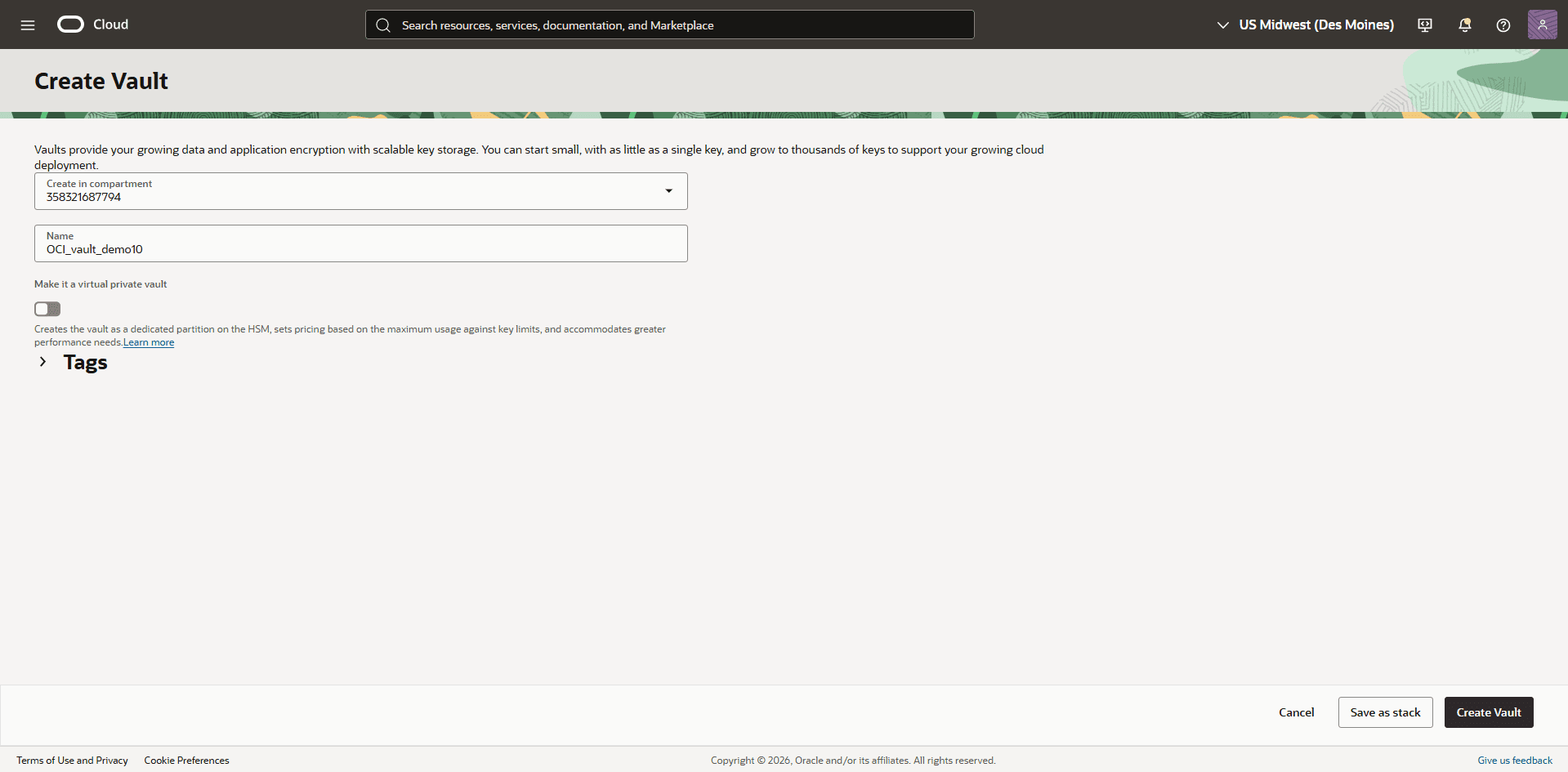
-
-
-
Create a Master Encryption Key in the Vault
-
From the Vault menu, select the vault that you created previously.
-
Select the Master Encryption Keys tab, then select the Create Key button.
-
Choose a compartment.
-
Select the protection mode from the dropdown list:
-
HSM: Creates a master encryption key that is stored and processed on an HSM.
-
Software: Creates a master encryption key that is stored in a software file system in the Vault service. Software-protected keys are protected at rest using an HSM-based root key. You can export software keys to other key management devices or to a different OCI region. Software-protected keys do not incur cost.
-
-
Enter a key name.
-
From the Key Shape: Algorithm dropdown list, select AES (Symmetric key used for Encrypt and Decrypt).
-
From the Key Shape: Length dropdown list, select 256 bits.
Note
Note: We recommend creating a separate master encryption key for each container database (CDB). This approach simplifies key rotation management. For more information, see Creating a Master Encryption Key and Overview of Key Management..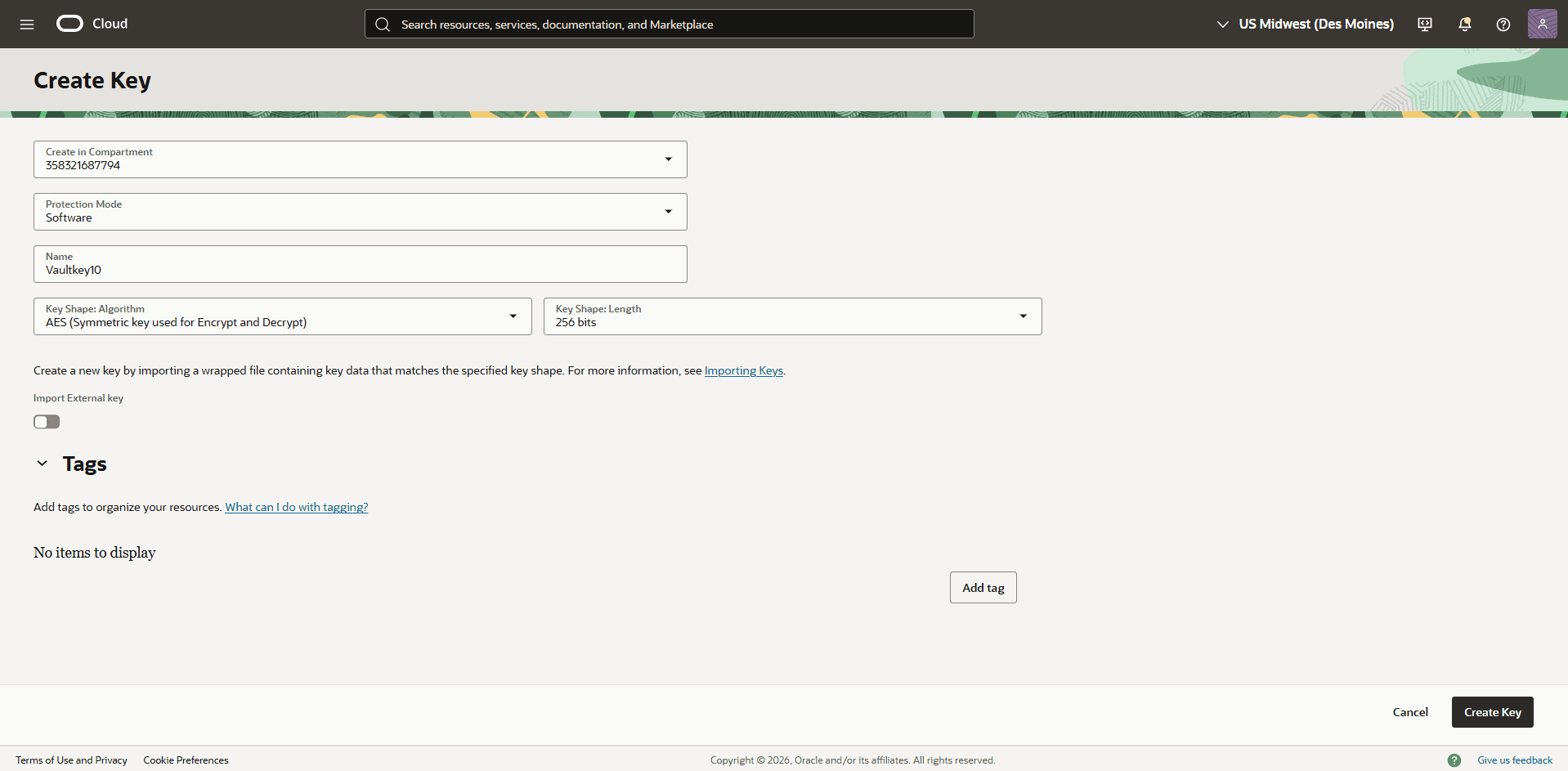
-
-
-
Configure a Service Gateway, Route Rule, and Egress Security Rule
To enable communication between OCI Vault and Oracle AI Database@Google Cloud, configure a Service Gateway, update the Route table(s), and configure the required security list permissions.
-
From the OCI Console, navigate to the Virtual Cloud Network (VCN) associated with your Oracle AI Database@Google Cloud database.
-
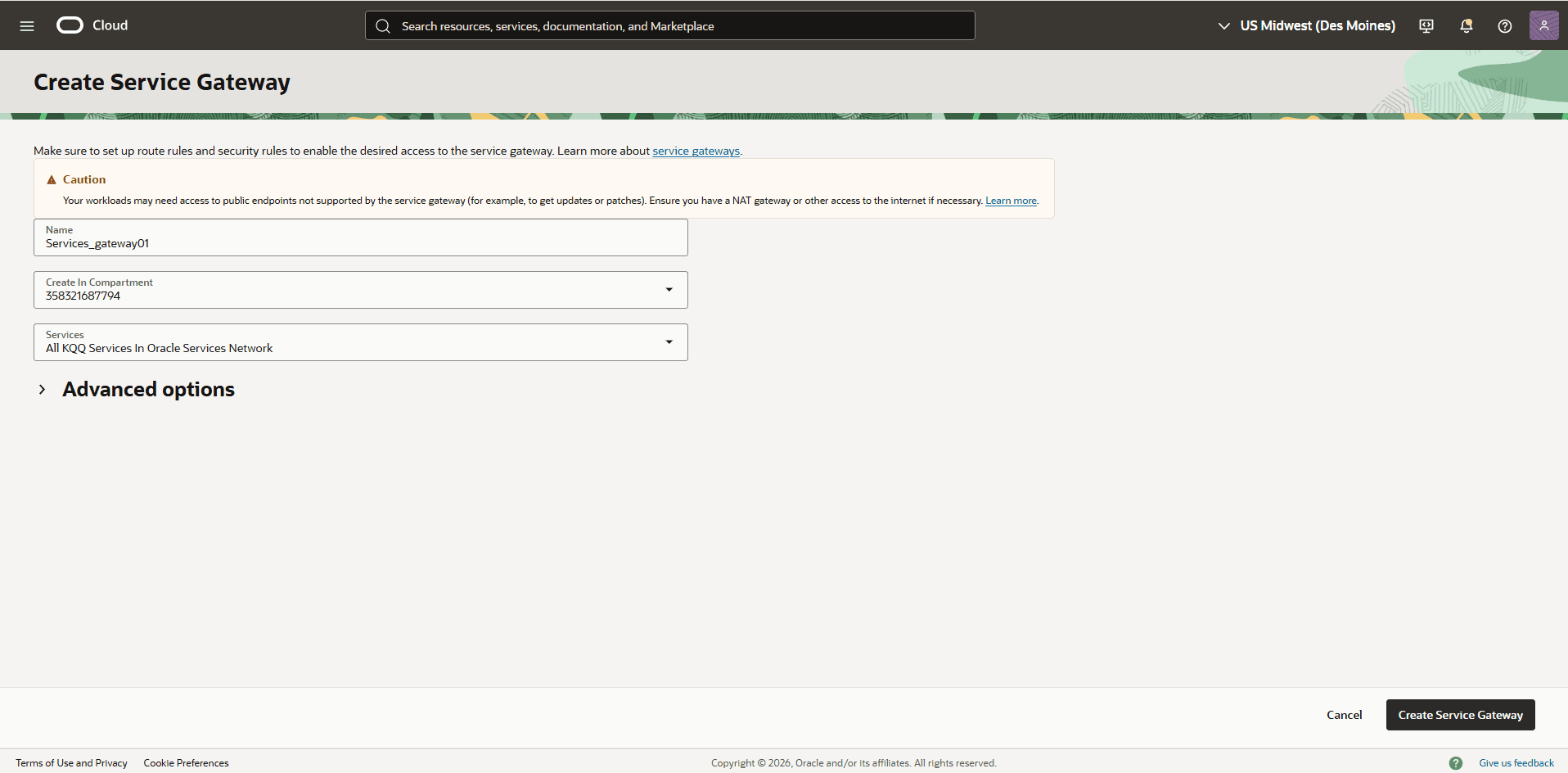
Select the Gateways tab. In the Service Gateways section, select the Create Service Gateway button.
-
Enter a descriptive name for the service gateway.
-
For Services, select the All KQQ Services in Oracle Services Network option.
-
Review your information, and then select the Create Service Gateway to create your service gateway.
-
-
Select the Routing tab, then select your default route table.
-
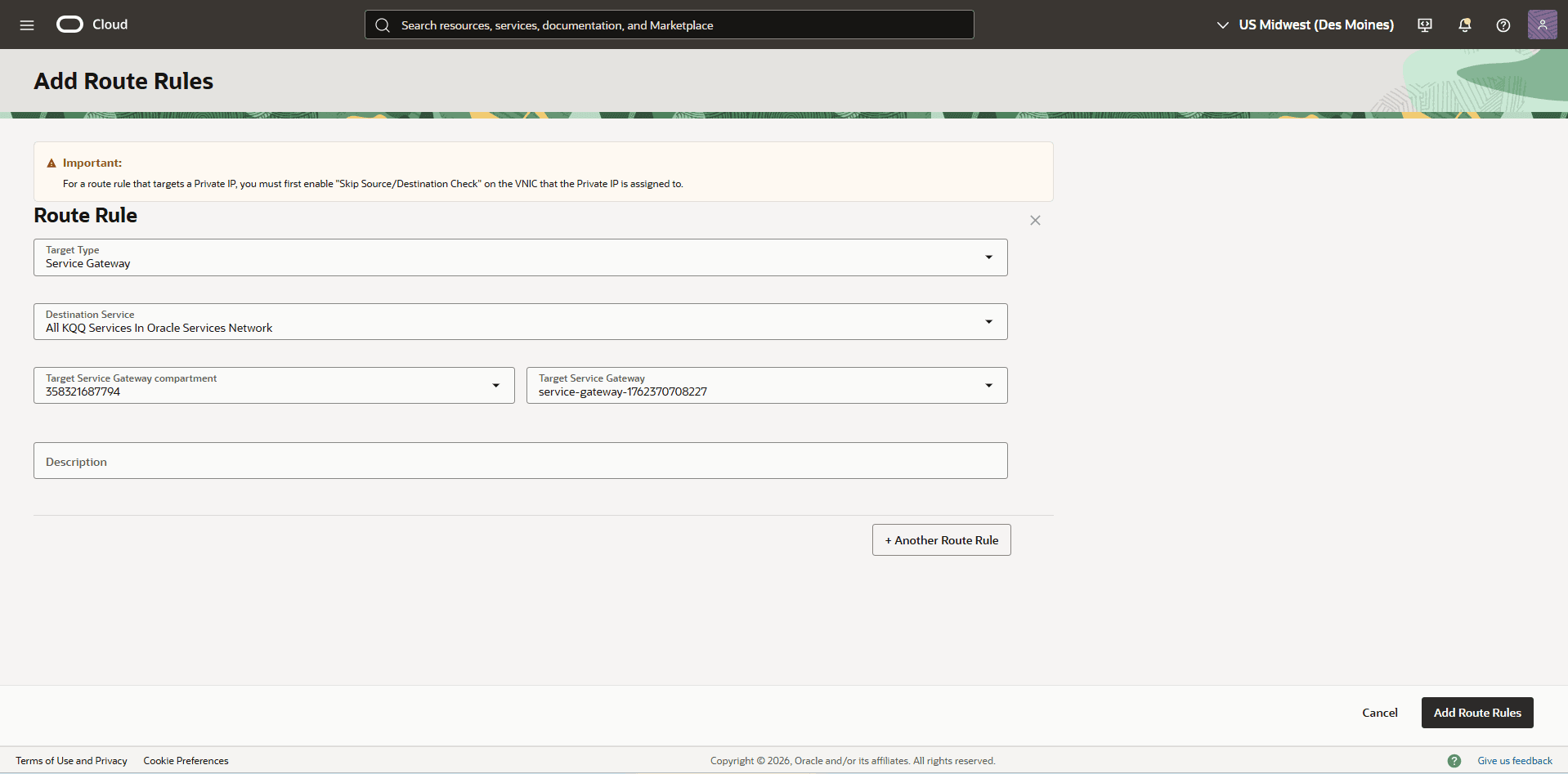
Select the Route Rules tab, then select the Add Route Rules button.
-
Set Target Type to Service Gateway.
-
Set Destination Service to All KQQ Services in Oracle Services Network.
-
In the Target Service Gateway compartment field, select the compartment that contains the service gateway.
-
In the Target Service Gateway field, select the service gateway that you created previously.
-
Review your information, and then select the Add Route Rules button.
-
-
From the Virtual Cloud Network (VCN) that is associated with your Oracle AI Database@Google Cloud database, select the Security tab.
-
In the Security List section, select the default security list.
-
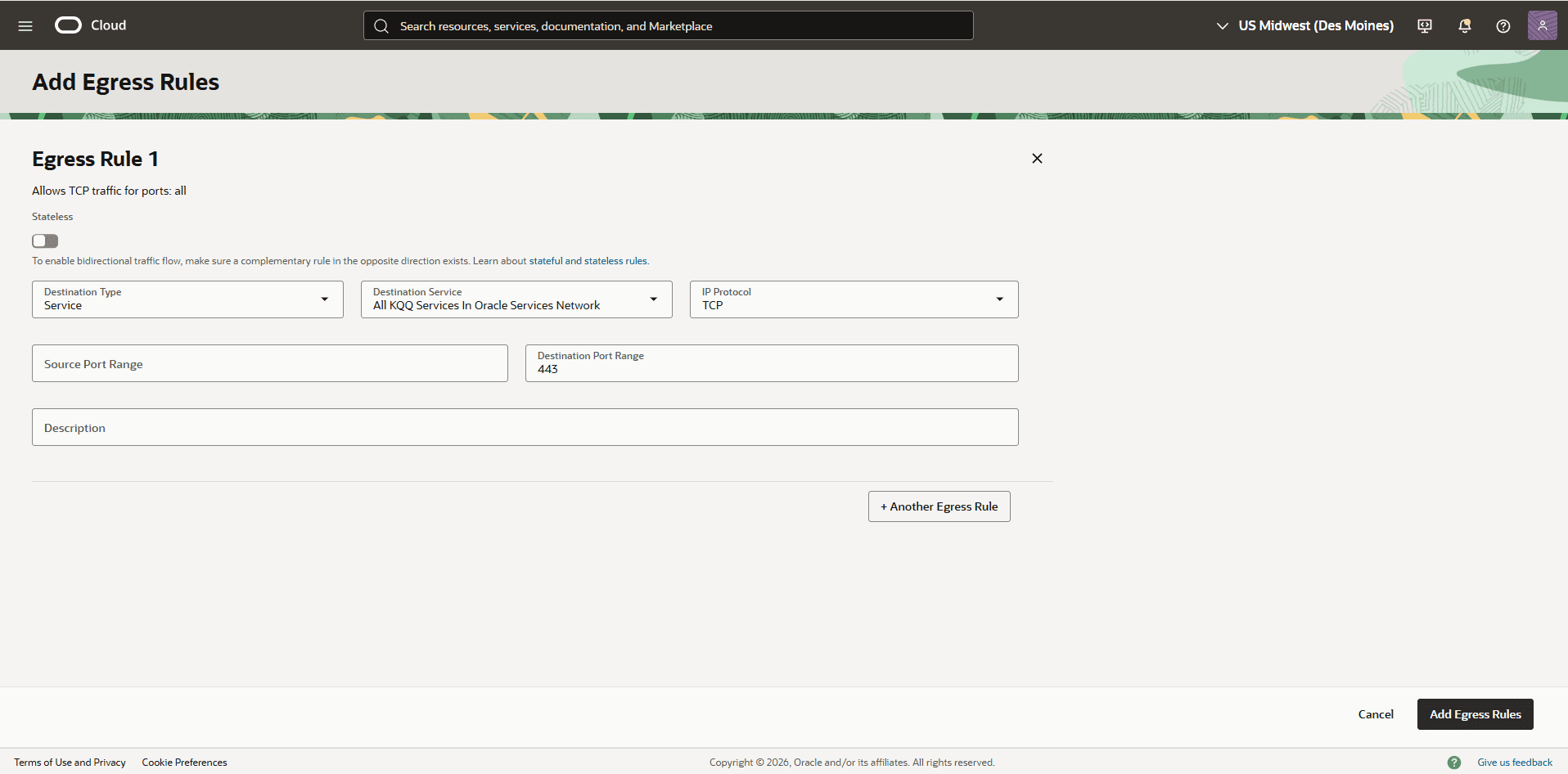
Select the Security Rules tab, then select the Add Egress Rules button.
-
Set Stateless to No.
-
Set Destination Type to Service.
-
Set Destination Service to All IAD Services in Oracle Services Network.
-
Set IP Protocol to TCP.
-
Set Source Port Range to All.
-
Set Destination Port Range to 443.
-
Select the Add Egress Rules button.
-
-
-
There is currently no content for this page. The Oracle AI Database@Google Cloud team intends to add content here, and this placeholder text is provided until that text is added.
The Oracle AI Database@Google Cloud team is excited about future new features, enhancements, and fixes to this product and this accompanying documentation. We strongly recommend you watch this page for those updates.
Oracle AI Database@Google Cloud now supports integration with Google Cloud’s Key Management Service (KMS).
This capability allows you to manage Transparent Data Encryption (TDE) master encryption keys (MEKs) using Google Cloud Customer-Managed Keys (CMKs).
Previously, TDE master encryption keys (MEKs) can only be stored in a file-based Oracle Wallet, Oracle Cloud Infrastructure (OCI) Vault, or Oracle Key Vault (OKV). With this update, you can now store and manage CMKs directly in Cloud KMS, providing improved key lifecycle control and alignment with your organization’s security policies.
To configure Cloud KMS to encrypt your database, complete the following prerequisite steps.
Create a Key Ring in Google Cloud KMS
-
From the Google Cloud console, select Key Management.
-
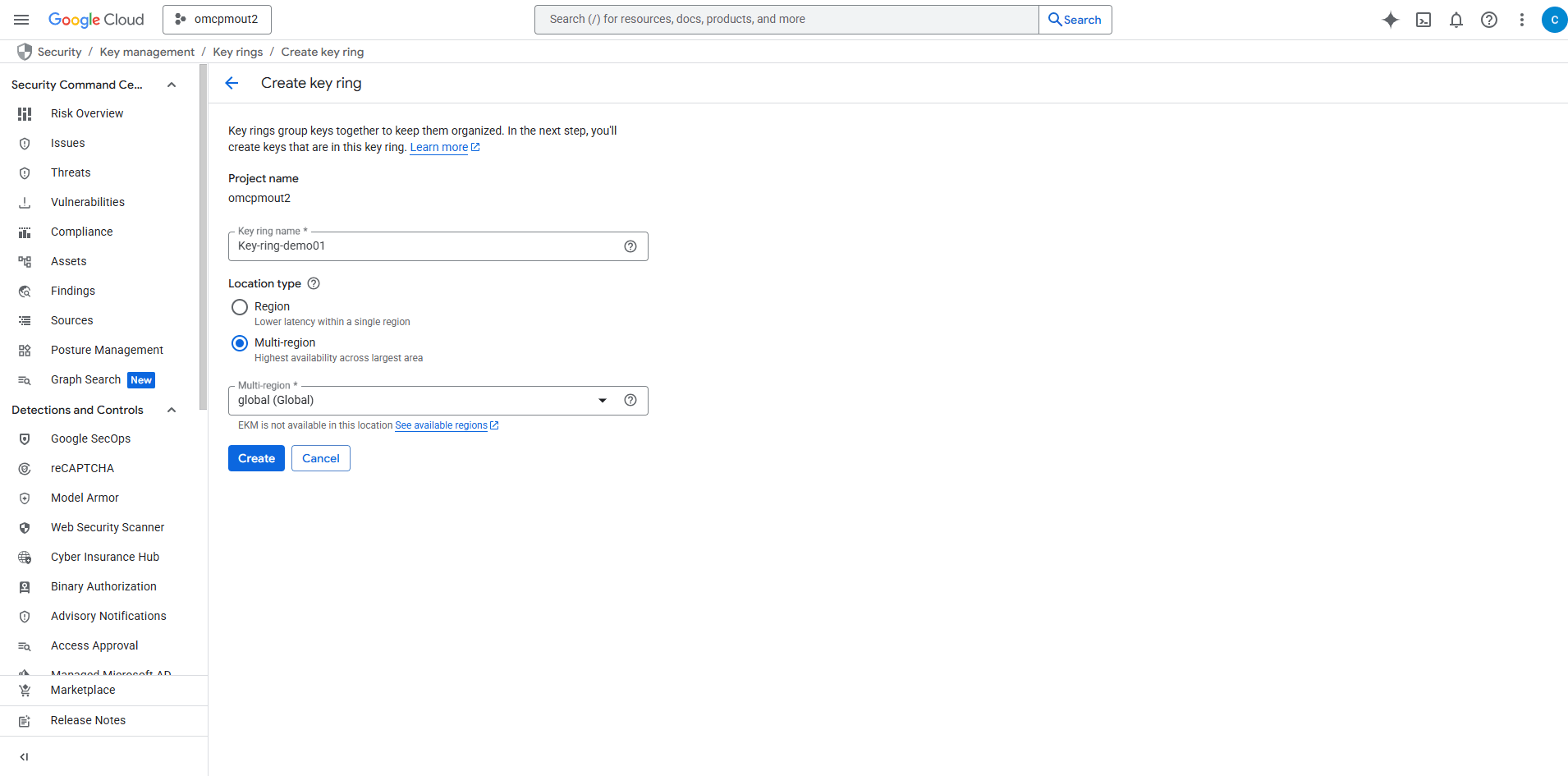
Select the Create key ring button.
-
Enter a descriptive Key ring name. Names can only contain letters, numbers, underscores (_), and hyphens (-).
-
Choose your Location type.
-
Region: It allows you to select a specific region.
-
Multi-region: It allows you to select a multi-region such as global.
Note
Note:
-
Key rings with the same name can exist in different locations, so you must always specify the location.
-
Choose a location close to the resources you want to protect.
-
For Customer Managed Encryption Keys, ensure the key ring is in the same location as the resources that will use it.
Choosing a location for your Key Ring:
When creating a key ring in Google Cloud Key Management Service (KMS), selecting the right location is crucial. Your choice affects where your cryptographic keys are stored and how they’re replicated. For more information, see Cloud KMS locations.
-
Region:
-
Data is stored in a specific geographic region.
-
Keys remain within the boundaries of this single region.
-
Ideal for:
-
Low-latency applications
-
Compliance with data residency requirements
-
Region-specific workloads
-
-
-
Multi-region:
-
Data is replicated across multiple regions within a larger geographical area.
-
Google manages distribution and replication automatically.
-
You cannot select individual data centers or regions.
-
Ideal for:
-
High availability
-
Resilient, fault-tolerant applications
-
Services serving a wide regional area
-
-
-
Global:
-
A special type of multi-region.
-
Keys are distributed across Google data centers worldwide.
-
Location selection and control are not available.
-
Ideal for:
-
Applications with global users
-
Use cases needing maximum redundancy and reach
-
-
Note
Note: If you plan to use Cross-Region Data Guard, select Multi-region or Global as the location for your key ring. -
-
Select the Create button to create key ring.
-
-