Creating, Editing, and Publishing a Portal Page
Use the portal editor to create and edit portal pages and publish them for portal users. Preview how the pages look on different device screens such as smart phones, tablets, and desktop browsers.
Permissions: To perform the tasks in this chapter, you must be a portal manager or member with the portal-level permission
Basic Services: Edit Page Access, Structure, and Content(standard permissions) orPages: Create, Edit, and Delete Pages(advanced permissions). Users with this permission can create and edit pages, revise page properties, add page content, and delete pages. This includes delegated administration to override the page security and grant other users permissions to create subpages, edit the page, and so on, overriding any permission limits of user roles.
Note that a user with a role that grants them permissions to create, edit, or publish a portal page, or even manage a portal, is not automatically allowed to view the portal. To view a portal, a user must be explicitly granted the portal-level permission Basic Services: View Pages and Content (standard permissions) or Pages: View Pages (advanced permissions).
To publish a page, you may need additional permissions. See Publishing a Portal Page.
See About Roles and Permissions for a Portal.
Topics
Viewing the Pages and Page Variants in a Portal
With appropriate permissions, you can view all pages in a portal, preview what a page will look like on a device (such as smart phones, tablets, and desktop browsers) in a selected device group, or filter the listing by device group:
At the application level, your system administrator configures device group settings and creates page variants for system pages as described in Administering Oracle WebCenter Portal.
Accessing the Pages in aPortal
You can access the pages in a portal in the following ways:
-
In portal view mode. Select pages in the portal navigation to view them.
-
In the portal editor. If you have permissions to edit pages in the portal.
Previewing a Page for a Device
You can preview what the pages of a portal will look like on various devices (such as smart phones, tablets, and desktop browsers). This preview is useful for determining if you need to create a page variant for a page on a particular device to optimize the display of the page on that device.
See Also: - Setting the Page Behavior for a Portal When No Page Variant Exists
To preview how a page will look on a selected device:
-
Open the page in the portal editor. The default view shows how the page looks on a desktop browser.
-
Click the Desktop menu, and select a device group for which to preview the selected page. Figure: Selecting Device Group for Page Preview
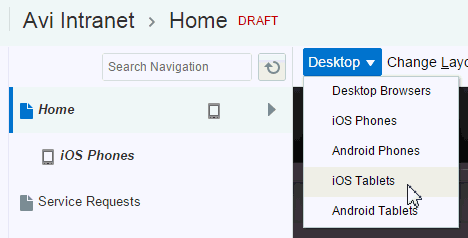
Description of the illustration wcpaa_page_pgvar4.gif
-
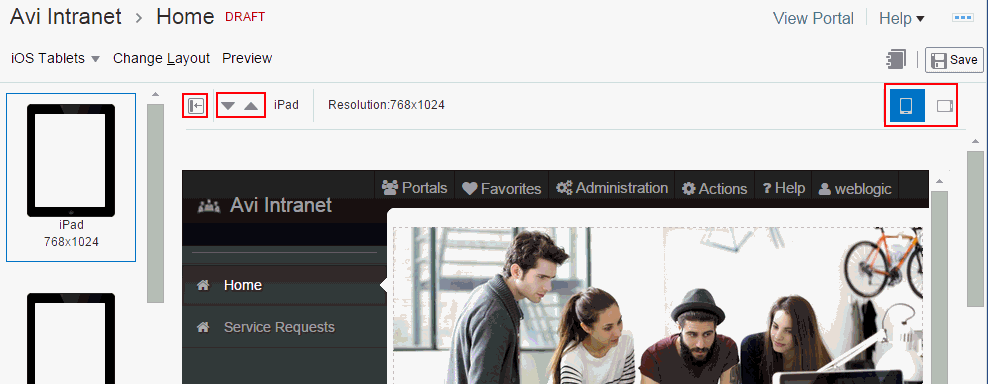
In the left pane, select a device from the device group, or click the Move down and Move up icons to sequentially select each device and view how the page content will be formatted when it is displayed on the selected device. For example, scroll bars may be added if the device viewport is not big enough for the full page.
Viewing the page on different devices in edit view can help you decide whether the base page is suitable for certain devices. For example, if you determine that a particular base page is suitable for both desktop and tablet, you can decide a page variant for tablet is not needed.
In this view, you can:
-
Scroll through the list of devices in the device group.
-
Change the orientation of the device by clicking the Portrait and Landscape icons.
-
Hide and show the device pane by clicking the Collapse and Expand icons.
-
Edit the page.
Figure: Previewing Page Format
-
Description of the illustration wcpaa_pgprev_ipad.gif
-
To preview the page in a selected device viewport, click Preview. In this view, you cannot edit the page. A preview shows exactly what will be seen on the device, including page fallbacks (if specified) and the device skin.
If a page is configured to have no fallback if an associated page variant does not exist, either at the application level (see Setting the Page Behavior for a Portal When No Page Variant Exists) or the portal level (Setting Page Behavior for a Specific Page When No Page Variant Exists), that page will not be shown in the device viewport.
Figure: Previewing Page in Device Viewport
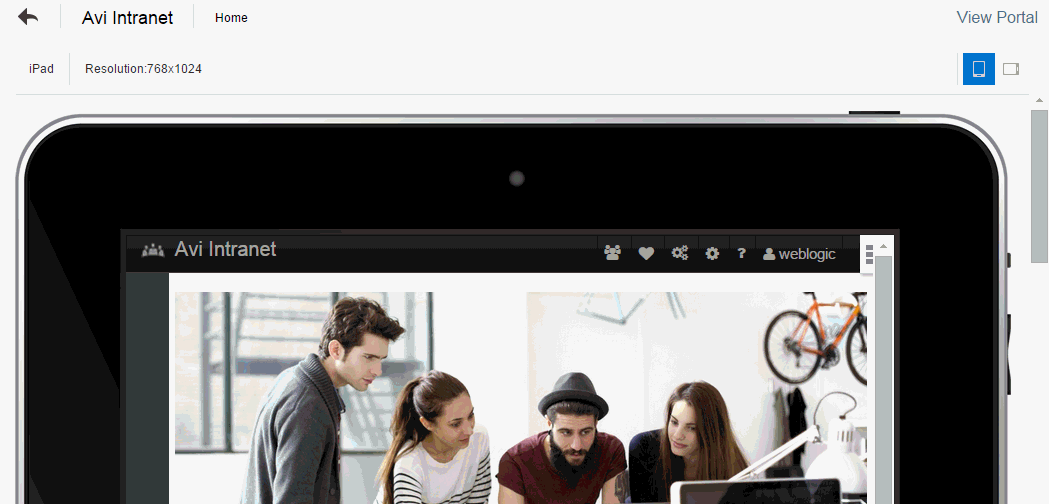
Description of the illustration wcpaa_pgprev_ipad2.gif
-
Click the Back To Edit icon to return to the portal editor. Figure: Back To Edit Icon
Filtering a Page Listing by Name or Description
To filter the pages listed in the navigation pane by name or description:
- In the Filter field, enter a string containing full or partial page names or descriptions.
The navigation pane lists pages matching the filter in name or description.
Note:
When the navigation pane displays a filtered list, the items in the list do not show an **Actions** icon (). Clear the filter to select actions on any navigation item.
Filtering a Page Listing by Device Group
If you want to view or work with only the pages for a particular device group, you can filter the listing in the navigation pane.
See Also: - Setting the Page Behavior for a Portal When No Page Variant Exists
To view pages for a particular device group:
-
In the portal editor, click Desktop, and select the device group for which you want to view associated pages.
Figure: Filtering Page List By Device Group
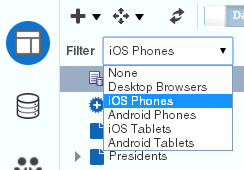
Description of the illustration wcpaa_page_pgvar3.gif
The selection pane displays pages associated with the selected device group.

Any pages that are configured to have no fallback if an associated page variant does not exist, either at the application level or the portal level, will not be shown in the navigation when you filter by that device group.
Creating Pages or Subpages in a Portal
With appropriate permissions, you can create a new page or subpage when creating a new portal in the portal creation wizard, editing an existing portal, or viewing a portal:
Permissions: To create a new page in a portal, you must be a portal manager or a portal member with the portal-level permission
Basic Services: Edit Page Access, Structure, and Content(standard permissions) orPages: Create, Edit, and Delete Pages(advanced permissions).
Creating Pages or Subpages When Creating a NewPortal
When creating a new portal, you can quickly create pages and subpages using a special syntax in the Create Portal wizard.
Pages and subpages created using this method are immediately added to the portal navigation and are visible to others who view the portal. After creating the page, users with appropriate permissions can edit or manage the page as required.
When page drafts are enabled in the portal administration settings, updates to the page are saved as a page draft and are not immediately available when viewing the portal. When users with Edit Page or Contribute Page Content permission view the page in the portal editor, they will see the latest updates in the page draft. Users without either of these permissions will only ever see the most recently published page. When you or other approvers are satisfied with the page updates, you can publish the page.
Creating a Page or Subpage When Editing a Portal
When page drafts are enabled in the portal administration settings, a new page created in the portal editor is initially a page draft and not immediately available when viewing the portal. When users with Edit Page or Contribute Page Content permission view the page in the portal editor, they will see the latest updates in the page draft. Users without either of these permissions will only ever see the most recently published page. When you or other approvers are satisfied with the page updates, you can publish the page.
To create a new page or subpage when editing a portal:
Creating a Page When Viewing aPortal
When viewing a portal, you can create a new page that is immediately added to the portal navigation and is visible to others who view the portal. After creating the page, users with appropriate permissions can edit or manage the page as required.
When page drafts are enabled in the portal administration settings, updates to the page are saved as a page draft and are not immediately available when viewing the portal. When users with Edit Page or Contribute Page Content permission view the page in the portal editor, they will see the latest updates in the page draft. Users without either of these permissions will only ever see the most recently published page. When you or other approvers are satisfied with the page updates, you can publish the page.
For more information, see About Page Drafts and Publishing a Portal Page.
To create a new page while viewing a portal:
Creating a Page Variant for a Device Group
Page variants are alternative views of an existing page for device groups to target specific device size and characteristics, when the base page does not display well on the device. The base page and the page variant have the same URL, security, parameters, and so on.
Note:
If your portal pages use a non-responsive page template, the display on different devices may exhibit formatting issues, such as overlapping text.
Page variants can be created for the Home page and user-created pages in a portal in the portal editor. Like portal pages, when page drafts are enabled in the portal administration settings, a new page variant is initially a page draft and not immediately available when viewing the portal. Users with appropriate permissions can edit or manage the page variant draft as required, then publish the page variant to add it to the portal navigation and make it available to others who view the portal.
Note:
For portals that do not use responsive page templates, you can create page variants to optimize the display of portal pages for a specific device group. At runtime, WebCenter Portal can check if a page variant exists for the device being used to display a portal page, and displays the page using the page variant definition. By default, this check is not performed. To turn it on, see Enabling Page Variants for Device Groups in Administering Oracle WebCenter Portal.
When a page variant is published for a specific device group, portal users will see that variant when they view the page on a device (such as smart phones, tablets, and desktop browsers) in the device group. When viewing the page on a device in a device group that does not have a page variant defined, the device displays the base page.
Any changes you make to the content of the base page are not reflected in its page variant(s), and vice versa. However, any changes to the page information, security, or parameters of base page are reflected in its page variant(s). Page variants do not include the Summary, Security, Parameters, and Advanced tabs that allow you to edit this information.
To create a page variant for a device group:
Editing a Portal Page
One of the most powerful offerings in a portal is the ability to add and edit portal pages. This capability is delivered through the page editor, a fully-integrated environment for revising the properties, layout, and content of portal pages, and wiring pages, task flows, and portlets to each other.
This section provides an overview of the page editor and describes how to perform editorial tasks:
About the Page Editor
In the page editor, you can select a page in the left navigation pane to edit it. To hide or show the left navigation pane, click the Pages icon.
Figure: Page Editor
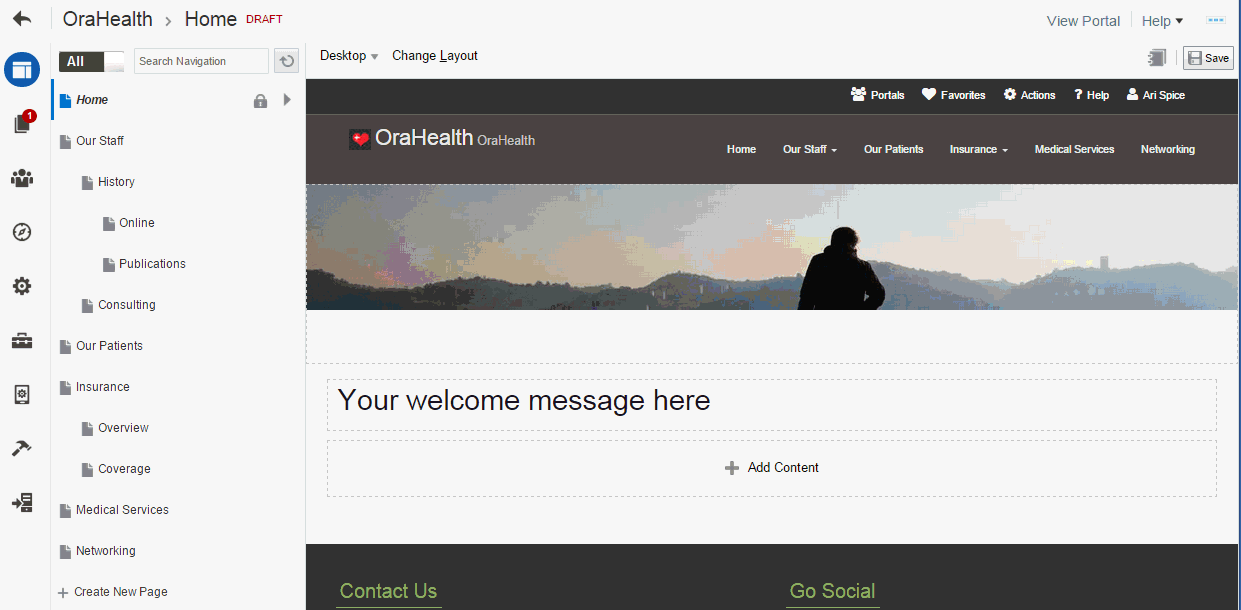
Description of the illustration wcpaa_page_editor.gif
When page drafts are enabled in the portal administration settings, you can refine your page updates before making them available to others who view the portal. When users with Edit Page or Contribute Page Content permission view the page in the portal editor, they will see the latest updates in the page draft. When viewing a portal, these users can click an icon in the floating toolbar to switch views between the published page and the pending page draft. Users without either of these permissions will only ever see the most recently published page. When you or other approvers are satisfied with the page updates, you can publish the page.
When editing a page, the page content is editable, but the page template “container” for the page is not editable.
Note:
You can click a page's **Actions** icon () and select **Page Information** to manage pages and other navigation items, including viewing and modifying page information, defining parameters, establishing page security, and specifying additional navigation options.
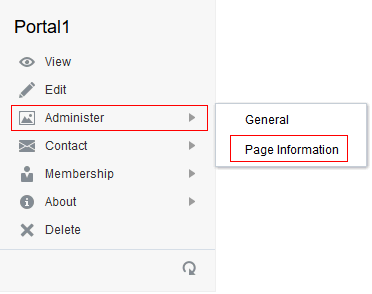
Alternatively, locate the portal you want to edit, then click  to display the portal actions menu and select Administer, then select Page Information. Page Information for the first visible page opens.
The page editor provides a WYSIWYG rendering of the page and its content, where controls are directly selectable on each component to move, delete, or perform custom actions on the component. To add components to the page, you use the resource catalog, which you can show and hide on the right side of the page.
Figure: Showing and Hiding the Resource Catalog
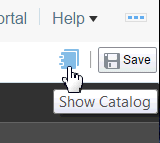
Description of the illustration wcpaa_rc_icon.gif
Figure: Resource Catalog
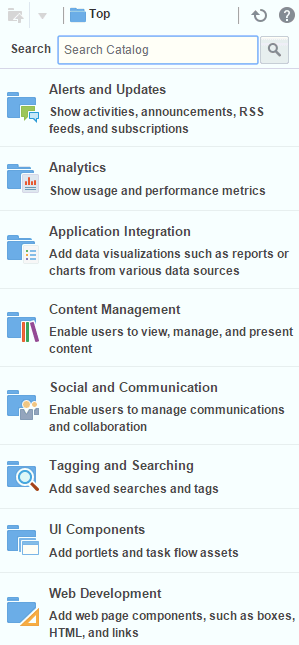
Description of the illustration wcpaa_rc.gif
About Page Drafts
In the portal administration settings, a portal manager can enable or disable page drafts. - Accessing the Pages in a Portal
For information about enabling or disabling page drafts, see Disabling and Enabling Page Drafts in a Portal.
When page drafts are enabled, changes that you make to a page are processed in one of the following ways:
In the portal editor, the Drafts icon in the left pane is overlaid by a number indicating how many page drafts exist in the current portal. If there are no page drafts to be published, there is no number on the Drafts icon.
Figure: Drafts Icon

Opening a Page in the Page Editor
To open a page you created or have permissions to edit in the page editor:
-
In portal view mode. Select pages in the portal navigation to view them.
-
In the portal editor. If you have permissions to edit pages in the portal.1
About Concurrent Users in the Page Editor
Because users access a portal from the Web, multiple users may attempt to edit the same page at the same time. When one user is editing a page, a lock icon displays alongside the page in the navigation pane (Figure 8-19). If you hover over the lock icon, hint text specifies the user who has the page locked.
Figure: Page Lock Icon
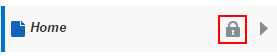
Description of the illustration wcpaa_pged_lockicon.gif
When a second user attempts to edit the page, a concurrency warning notifies the user that the page is already locked for editing (Figure 8-20). Only one user can edit a page at a time.
Figure: A Concurrency Warning in the Page Editor
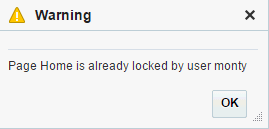
Description of the illustration wcpaa_pged_lock.gif
When the page is not being edited, the lock icon does not display, and the page is available for editing by any authorized user.
Refreshing a Page with Page Style Updates
If the page style used by a page is updated after the page is created and populated, you can refresh the page to reflect the page style updates, without affecting the existing content of the page.
Even when page drafts are enabled, refreshing the page style takes effect immediately on the published page, regardless of whether or not the page has a pending draft. In other words, you do not need to publish the page draft before the effect of the new page style can be seen by page viewers.
When changes to the page style enclose page content, WebCenter Portal preserves the content. For example, if a page style uses a three column layout, then is modified to use a two column layout, the page content in the deleted layout column moves to the first column on the page.
To refresh a page to show changes made to its page style:
-
In portal view mode. Select pages in the portal navigation to view them.
-
In the portal editor. If you have permissions to edit pages in the portal.5
Changing Page Layout
When you create a new page, the first page of the wizard enables you to select a page style for the page. Every page style includes a default layout, which you can modify in the page editor.
When you select a new layout for a page, the new layout takes effect immediately; you do not need to explicitly save the page to apply the new layout.
When page drafts are enabled in the portal administration settings, any updates to page layout take effect only on the page draft. You must publish the page for updates to be seen by page viewers.
Note:
With the exception of Wiki, Blog, and Web Page, the built-in page styles allow you to modify the default layout in the page editor, selecting a new built-in or custom layout that is defined as an asset. For more information, see Table 18-1.
To change a page layout to a built-in or custom layout that is defined as an asset at either the portal or application level:
-
In portal view mode. Select pages in the portal navigation to view them.
-
In the portal editor. If you have permissions to edit pages in the portal.6
Adding Components to a Page
You develop the content of a page by adding components to it in the page editor. In the page editor, the resource catalog provides a gateway to a wide range of task flows, portlets, components, and other types of resources.
When page drafts are enabled in the portal administration settings, any updates to a page take effect only on the page draft. You must publish the page for updates to be seen by page viewers.
Note:
The page content is editable, but the page template “container” for the page is not editable. To edit a page template, see Editing a Page Template.
For information about adding components to a page, see:
-
In portal view mode. Select pages in the portal navigation to view them.
-
In the portal editor. If you have permissions to edit pages in the portal.7
Adding Text, Image, or Video Components to a Page
You can add text, images, or video to a page through content contribution and publishing components. For more information about content contribution and publishing and how to add these components to a page, see Enabling Content Contribution and Publishing.
Publishing a Portal Page
Page drafts can be enabled or disabled in the portal administration settings. When page drafts are enabled, you can refine your page updates before making them available to others who view the portal. When you or other approvers are satisfied with the page updates, you can publish the page.
For more information, see About Page Drafts.
Note:
To publish a page, you must be a portal manager or member with the portal-level permission of either:
In portal view mode. Select pages in the portal navigation to view them.
In the portal editor. If you have permissions to edit pages in the portal.8
To publish a page after editing it:
In portal view mode. Select pages in the portal navigation to view them.
In the portal editor. If you have permissions to edit pages in the portal.9
Working in Structure View in the Page Editor
Structure view of the page editor displays only when editing page templates, or application-level system pages and task flows.
Structure view provides a combined WYSIWYG and hierarchical rendering of page components, where controls are available in the toolbar of the page structure pane to add, edit properties, delete, cut, and paste page components. For more information, see:
-
Setting the Page Behavior for a Portal When No Page Variant Exists
-
Setting Page Behavior for a Specific Page When No Page Variant Exists0
About Structure View
In Structure view, you have access to page layout components in a tree structure, which enables you to fine-tune the design of page templates, system pages, and tasks flows, and select and modify components that are not exposed in the resource catalog.
For examples, see Working with Layout Components.
Figure: Structure View of Page Editor: Editing a System Page
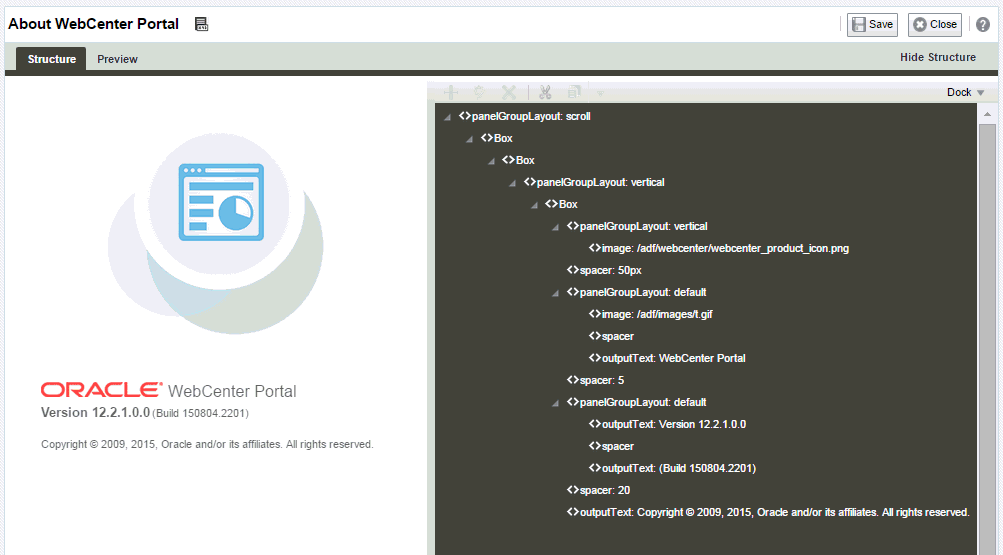
Description of the illustration wcsug_pgcre8_sourceview.gif
Component selection is indicated by a dark blue outline. A light blue outline is drawn when the mouse hovers around a component that can be selected for editing, and your mouse cursor changes to a magnifying glass. When you select a component in the structure pane, it is automatically selected on the page. Similarly, if you select a component on the page, it is automatically selected in the structure pane.
Figure: Mouse Cursor as Magnifying Glass in Structure View
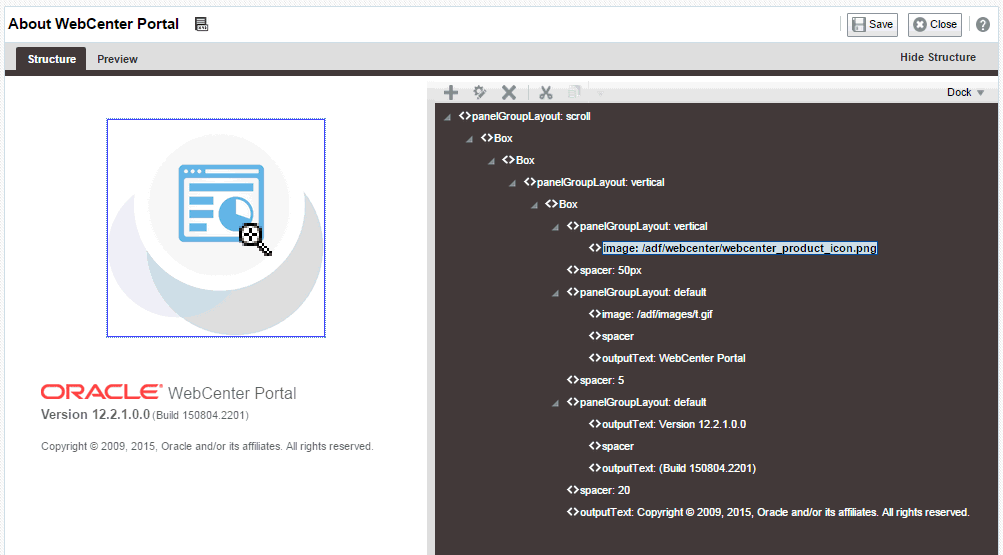
Description of the illustration wcsug_pgcre8_inspect.gif
Note:
You can edit core ADF Faces components, task flows, and declarative components only in Structure view of the page.
Adding a Component in Structure View
To add a component in Structure view:
-
Setting the Page Behavior for a Portal When No Page Variant Exists
-
Setting Page Behavior for a Specific Page When No Page Variant Exists1
Setting Component Properties in Structure View
To set properties of a component on a page in Structure view:
-
Setting the Page Behavior for a Portal When No Page Variant Exists
-
Setting Page Behavior for a Specific Page When No Page Variant Exists2
Deleting a Component in Structure View
The controls for deleting a component are located on the header of the hierarchical list pane in Structure view:
To delete a component from a page in Structure view:
-
Setting the Page Behavior for a Portal When No Page Variant Exists
-
Setting Page Behavior for a Specific Page When No Page Variant Exists3
Personalizing Pages
Using Expression Language (EL) expressions, you can present targeted content or shape the way content is presented by selecting and applying a page template based on whoever is the current user. For example, one user role sees a page through template A, while another user role sees the same page through template B. If you need assistance, an application developer can help provide an EL expression to add to your page (see Expression Language Expressions in Developing for Oracle WebCenter Portal).
There is a wide variety of user and application context that can determine the content a user sees. For example, content can be restricted by role through a security mechanism, such as page hierarchy security. Or, content can be targeted based on more dynamic user and application context, such as user profile values and session information.