Replicar dados entre bancos de dados na nuvem na mesma região
Saiba como configurar o Oracle Cloud Infrastructure GoldenGate para replicar dados entre dois Autonomous AI Databases.
Visão geral
O Oracle Cloud Infrastructure GoldenGate permite que você replique bancos de dados suportados, na mesma região. As etapas a seguir orientam você sobre como instanciar um banco de dados de destino usando o Oracle Data Pump e replicar dados da origem para o destino.
Esse início rápido também está disponível como LiveLab: Veja o workshop
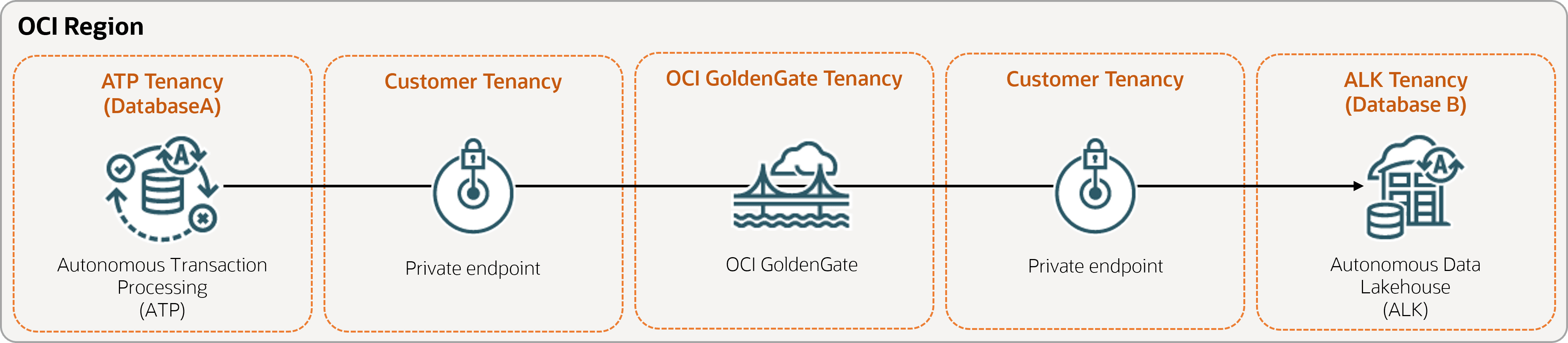
Descrição da ilustração same-region.png
Antes de começar
Para concluir com sucesso esse início rápido, você deve ter:
-
Um banco de dados de origem existente
-
Um banco de dados de destino existente
-
O banco de dados de origem e de destino deve estar em uma única tenancy, na mesma região
-
Se precisar de dados de amostra, faça download de Archive.zip e siga as instruções em Lab 1, Tarefa 3: Carregar o esquema ATP
Tarefa 1: Configurar o ambiente
-
Crie uma conexão de origem do Oracle Autonomous AI Transaction Processing (ATP).
-
Use a ferramenta SQL para ativar o log complementar:
ALTER DATABASE ADD SUPPLEMENTAL LOG DATA -
Execute a seguinte consulta na ferramenta SQL para garantir que
support_mode=FULLpara todas as tabelas do banco de dados de origem:select * from DBA_GOLDENGATE_SUPPORT_MODE where owner = 'SRC_OCIGGLL';
Tarefa 2: Criar o Extract Integrado
Um Extract Integrado captura alterações contínuas no banco de dados de origem.
-
Na página Detalhes da implantação, selecione Iniciar console.
-
Se necessário, informe oggadmin para o Nome do usuário e a senha que você usou ao criar a implantação e selecione Acessar.
-
Adicionar Dados da Transação e uma Tabela de Checkpoint:
-
Abra o menu de navegação, em seguida, selecione Conexões de BD.
-
Selecione Conectar-se ao banco de dados SourceDB.
-
No menu de navegação, selecione Trandata e, em seguida, Adicionar Trandata (ícone de mais).
-
Para Nome do Esquema, digite
SRC_OCIGGLLe selecione Enviar. -
Para verificar, digite
SRC_OCIGGLLno campo Pesquisar e selecione Pesquisar. -
Abra o menu de navegação, em seguida, selecione Conexões de BD.
-
Selecione Conectar-se ao banco de dados TargetDB.
-
No menu de navegação, selecione Checkpoint e, em seguida, Add Checkpoint (ícone de mais).
-
Para Tabela de Checkpoint, digite
"SRCMIRROR_OCIGGLL"."CHECKTABLE"e selecione Submeter.
-
-
Adicione um processo de Extract.
Observação: Consulte opções de parâmetro de extração adicionais para obter mais informações sobre parâmetros que você pode usar para especificar tabelas de origem.
Na página Parâmetros da Extração, anexe as seguintes linhas em
EXTTRAIL <trail-name>:-- Capture DDL operations for listed schema tables ddl include mapped -- Add step-by-step history of to the report file. Useful when troubleshooting. ddloptions report -- Write capture stats per table to the report file daily. report at 00:01 -- Rollover the report file weekly. Useful when IE runs -- without being stopped/started for long periods of time to -- keep the report files from becoming too large. reportrollover at 00:01 on Sunday -- Report total operations captured, and operations per second -- every 10 minutes. reportcount every 10 minutes, rate -- Table list for capture table SRC_OCIGGLL.*; -
Verifique transações de longa execução. Execute o seguinte script no seu banco de dados de origem:
select start_scn, start_time from gv$transaction where start_scn < (select max(start_scn) from dba_capture);Se a consulta retornar linhas, localize o SCN da transação e, em seguida, confirme ou reverta a transação.
Tarefa 3: Exportar dados usando o Oracle Data Pump (ExpDP)
Use o Oracle Data Pump (ExpDP) para exportar dados do banco de dados de origem para o Oracle Object Store.
-
Crie um bucket do Oracle Object Store.
Anote o namespace e o nome do bucket para uso com os scripts de Exportação e Importação.
-
Crie um Token de Autenticação e copie e cole a string de token em um editor de texto para uso posterior.
-
Crie uma credencial em seu banco de dados de origem, substituindo
<user-name>e<token>pelo nome de usuário da sua conta do Oracle Cloud e pela string de token criada na etapa anterior:BEGIN DBMS_CLOUD.CREATE_CREDENTIAL( credential_name => 'ADB_OBJECTSTORE', username => '<user-name>', password => '<token>' ); END; -
Execute o script a seguir em seu banco de dados de origem para criar o job Exportar Dados. Certifique-se de substituir corretamente
<region>,<namespace>e<bucket-name>no URI do Object Store.SRC_OCIGGLL.dmpé um arquivo que será criado quando esse script for executado.DECLARE ind NUMBER; -- Loop index h1 NUMBER; -- Data Pump job handle percent_done NUMBER; -- Percentage of job complete job_state VARCHAR2(30); -- To keep track of job state le ku$_LogEntry; -- For WIP and error messages js ku$_JobStatus; -- The job status from get_status jd ku$_JobDesc; -- The job description from get_status sts ku$_Status; -- The status object returned by get_status BEGIN -- Create a (user-named) Data Pump job to do a schema export. h1 := DBMS_DATAPUMP.OPEN('EXPORT','SCHEMA',NULL,'SRC_OCIGGLL_EXPORT','LATEST'); -- Specify a single dump file for the job (using the handle just returned) -- and a directory object, which must already be defined and accessible -- to the user running this procedure. DBMS_DATAPUMP.ADD_FILE(h1,'https://objectstorage.<region>.oraclecloud.com/n/<namespace>/b/<bucket-name>/o/SRC_OCIGGLL.dmp','ADB_OBJECTSTORE','100MB',DBMS_DATAPUMP.KU$_FILE_TYPE_URIDUMP_FILE,1); -- A metadata filter is used to specify the schema that will be exported. DBMS_DATAPUMP.METADATA_FILTER(h1,'SCHEMA_EXPR','IN (''SRC_OCIGGLL'')'); -- Start the job. An exception will be generated if something is not set up properly. DBMS_DATAPUMP.START_JOB(h1); -- The export job should now be running. In the following loop, the job -- is monitored until it completes. In the meantime, progress information is displayed. percent_done := 0; job_state := 'UNDEFINED'; while (job_state != 'COMPLETED') and (job_state != 'STOPPED') loop dbms_datapump.get_status(h1,dbms_datapump.ku$_status_job_error + dbms_datapump.ku$_status_job_status + dbms_datapump.ku$_status_wip,-1,job_state,sts); js := sts.job_status; -- If the percentage done changed, display the new value. if js.percent_done != percent_done then dbms_output.put_line('*** Job percent done = ' \|\| to_char(js.percent_done)); percent_done := js.percent_done; end if; -- If any work-in-progress (WIP) or error messages were received for the job, display them. if (bitand(sts.mask,dbms_datapump.ku$_status_wip) != 0) then le := sts.wip; else if (bitand(sts.mask,dbms_datapump.ku$_status_job_error) != 0) then le := sts.error; else le := null; end if; end if; if le is not null then ind := le.FIRST; while ind is not null loop dbms_output.put_line(le(ind).LogText); ind := le.NEXT(ind); end loop; end if; end loop; -- Indicate that the job finished and detach from it. dbms_output.put_line('Job has completed'); dbms_output.put_line('Final job state = ' \|\| job_state); dbms_datapump.detach(h1); END;
Tarefa 4: Instanciar o banco de dados de destino usando o Oracle Data Pump (ImpDP)
Use o Oracle Data Pump (ImpDP) para importar dados para o banco de dados de destino do SRC_OCIGGLL.dmp que foi exportado do banco de dados de origem.
-
Crie uma credencial em seu banco de dados de destino para acessar o Oracle Object Store (usando as mesmas informações na seção anterior).
BEGIN DBMS_CLOUD.CREATE_CREDENTIAL( credential_name => 'ADB_OBJECTSTORE', username => '<user-name>', password => '<token>' ); END; -
Execute o script a seguir no banco de dados de destino para importar dados do
SRC_OCIGGLL.dmp. Certifique-se de substituir corretamente<region>,<namespace>e<bucket-name>no URI do Object Store:DECLARE ind NUMBER; -- Loop index h1 NUMBER; -- Data Pump job handle percent_done NUMBER; -- Percentage of job complete job_state VARCHAR2(30); -- To keep track of job state le ku$_LogEntry; -- For WIP and error messages js ku$_JobStatus; -- The job status from get_status jd ku$_JobDesc; -- The job description from get_status sts ku$_Status; -- The status object returned by get_status BEGIN -- Create a (user-named) Data Pump job to do a "full" import (everything -- in the dump file without filtering). h1 := DBMS_DATAPUMP.OPEN('IMPORT','FULL',NULL,'SRCMIRROR_OCIGGLL_IMPORT'); -- Specify the single dump file for the job (using the handle just returned) -- and directory object, which must already be defined and accessible -- to the user running this procedure. This is the dump file created by -- the export operation in the first example. DBMS_DATAPUMP.ADD_FILE(h1,'https://objectstorage.<region>.oraclecloud.com/n/<namespace>/b/<bucket-name>/o/SRC_OCIGGLL.dmp','ADB_OBJECTSTORE',null,DBMS_DATAPUMP.KU$_FILE_TYPE_URIDUMP_FILE); -- A metadata remap will map all schema objects from SRC_OCIGGLL to SRCMIRROR_OCIGGLL. DBMS_DATAPUMP.METADATA_REMAP(h1,'REMAP_SCHEMA','SRC_OCIGGLL','SRCMIRROR_OCIGGLL'); -- If a table already exists in the destination schema, skip it (leave -- the preexisting table alone). This is the default, but it does not hurt -- to specify it explicitly. DBMS_DATAPUMP.SET_PARAMETER(h1,'TABLE_EXISTS_ACTION','SKIP'); -- Start the job. An exception is returned if something is not set up properly. DBMS_DATAPUMP.START_JOB(h1); -- The import job should now be running. In the following loop, the job is -- monitored until it completes. In the meantime, progress information is -- displayed. Note: this is identical to the export example. percent_done := 0; job_state := 'UNDEFINED'; while (job_state != 'COMPLETED') and (job_state != 'STOPPED') loop dbms_datapump.get_status(h1, dbms_datapump.ku$_status_job_error + dbms_datapump.ku$_status_job_status + dbms_datapump.ku$_status_wip,-1,job_state,sts); js := sts.job_status; -- If the percentage done changed, display the new value. if js.percent_done != percent_done then dbms_output.put_line('*** Job percent done = ' \|\| to_char(js.percent_done)); percent_done := js.percent_done; end if; -- If any work-in-progress (WIP) or Error messages were received for the job, display them. if (bitand(sts.mask,dbms_datapump.ku$_status_wip) != 0) then le := sts.wip; else if (bitand(sts.mask,dbms_datapump.ku$_status_job_error) != 0) then le := sts.error; else le := null; end if; end if; if le is not null then ind := le.FIRST; while ind is not null loop dbms_output.put_line(le(ind).LogText); ind := le.NEXT(ind); end loop; end if; end loop; -- Indicate that the job finished and gracefully detach from it. dbms_output.put_line('Job has completed'); dbms_output.put_line('Final job state = ' \|\| job_state); dbms_datapump.detach(h1); END;
Tarefa 5: Adicionar e executar um processo de Replicat Não Integrado
-
Adicionar e executar um processo Replicat.
Na tela Arquivo de Parâmetro, substitua
MAP *.*, TARGET *.*;pelo seguinte script:-- Capture DDL operations for listed schema tables ddl include mapped -- Add step-by-step history of ddl operations captured -- to the report file. Very useful when troubleshooting. ddloptions report -- Write capture stats per table to the report file daily. report at 00:01 -- Rollover the report file weekly. Useful when PR runs -- without being stopped/started for long periods of time to -- keep the report files from becoming too large. reportrollover at 00:01 on Sunday -- Report total operations captured, and operations per second -- every 10 minutes. reportcount every 10 minutes, rate -- Table map list for apply DBOPTIONS ENABLE_INSTANTIATION_FILTERING; MAP SRC_OCIGGLL.*, TARGET SRCMIRROR_OCIGGLL.*;Observação:
DBOPTIONS ENABLE_INSTATIATION_FILTERINGativa a filtragem de CSN em tabelas importadas usando o Oracle Data Pump. Para obter mais informações, consulte Referência de DBOPTIONS. -
Executar Inserções no banco de dados de origem:
-
Retorne à console do Oracle Cloud e use o menu de navegação para navegar de volta para o Oracle AI Database, Autonomous AI Transaction Processing e, em seguida, SourceDB.
-
Na página Detalhes do SourceDB, selecione Database actions e, em seguida, selecione SQL.
-
Informe as seguintes inserções e selecione Executar Script:
Insert into SRC_OCIGGLL.SRC_CITY (CITY_ID,CITY,REGION_ID,POPULATION) values (1000,'Houston',20,743113); Insert into SRC_OCIGGLL.SRC_CITY (CITY_ID,CITY,REGION_ID,POPULATION) values (1001,'Dallas',20,822416); Insert into SRC_OCIGGLL.SRC_CITY (CITY_ID,CITY,REGION_ID,POPULATION) values (1002,'San Francisco',21,157574); Insert into SRC_OCIGGLL.SRC_CITY (CITY_ID,CITY,REGION_ID,POPULATION) values (1003,'Los Angeles',21,743878); Insert into SRC_OCIGGLL.SRC_CITY (CITY_ID,CITY,REGION_ID,POPULATION) values (1004,'San Diego',21,840689); Insert into SRC_OCIGGLL.SRC_CITY (CITY_ID,CITY,REGION_ID,POPULATION) values (1005,'Chicago',23,616472); Insert into SRC_OCIGGLL.SRC_CITY (CITY_ID,CITY,REGION_ID,POPULATION) values (1006,'Memphis',23,580075); Insert into SRC_OCIGGLL.SRC_CITY (CITY_ID,CITY,REGION_ID,POPULATION) values (1007,'New York City',22,124434); Insert into SRC_OCIGGLL.SRC_CITY (CITY_ID,CITY,REGION_ID,POPULATION) values (1008,'Boston',22,275581); Insert into SRC_OCIGGLL.SRC_CITY (CITY_ID,CITY,REGION_ID,POPULATION) values (1009,'Washington D.C.',22,688002); -
Na Console de Implantação do OCI GoldenGate, selecione o Nome da extração (UAEXT) e selecione Estatísticas. Verifique se SRC_OCIGGLL.SRC_CITY está listada com 10 inserções.
-
Volte para a tela Visão Geral, selecione o Nome do replicador (REP) e, em seguida, selecione Estatísticas. Verifique se SRCMIRROR_OCIGGLL.SRC_CITY está listada com 10 inserções
-