使用无头 Oracle Content Management 在 Java for Android 中构建图像库
简介
使用 Java 或 Kotlin 的 Android 开发环境可以成为构建使用 Oracle Content Management 内容的应用程序的一个强大工具。使用合适的内容模型,您可以快速构建构成典型图像库的 Android UI。
In this tutorial, we’ll build a simple image gallery application for Android using Java by leveraging Oracle Content Management as a headless CMS.此 Android 示例可在 GitHub 上找到。本教程包含三个步骤:
先决条件
在继续本教程之前,我们建议您首先阅读以下信息:
要遵循本教程,您需要:
- Oracle Content Management 订阅
- 具有内容管理员角色的 Oracle Content Management 账户
- 配置了 Android 工具的 Windows 或 Mac 计算机
- 本教程假定您已经熟悉使用 Java 的常见 Android 开发概念,因此对 Java 和 Android 编程的现有了解
我们正在构建什么
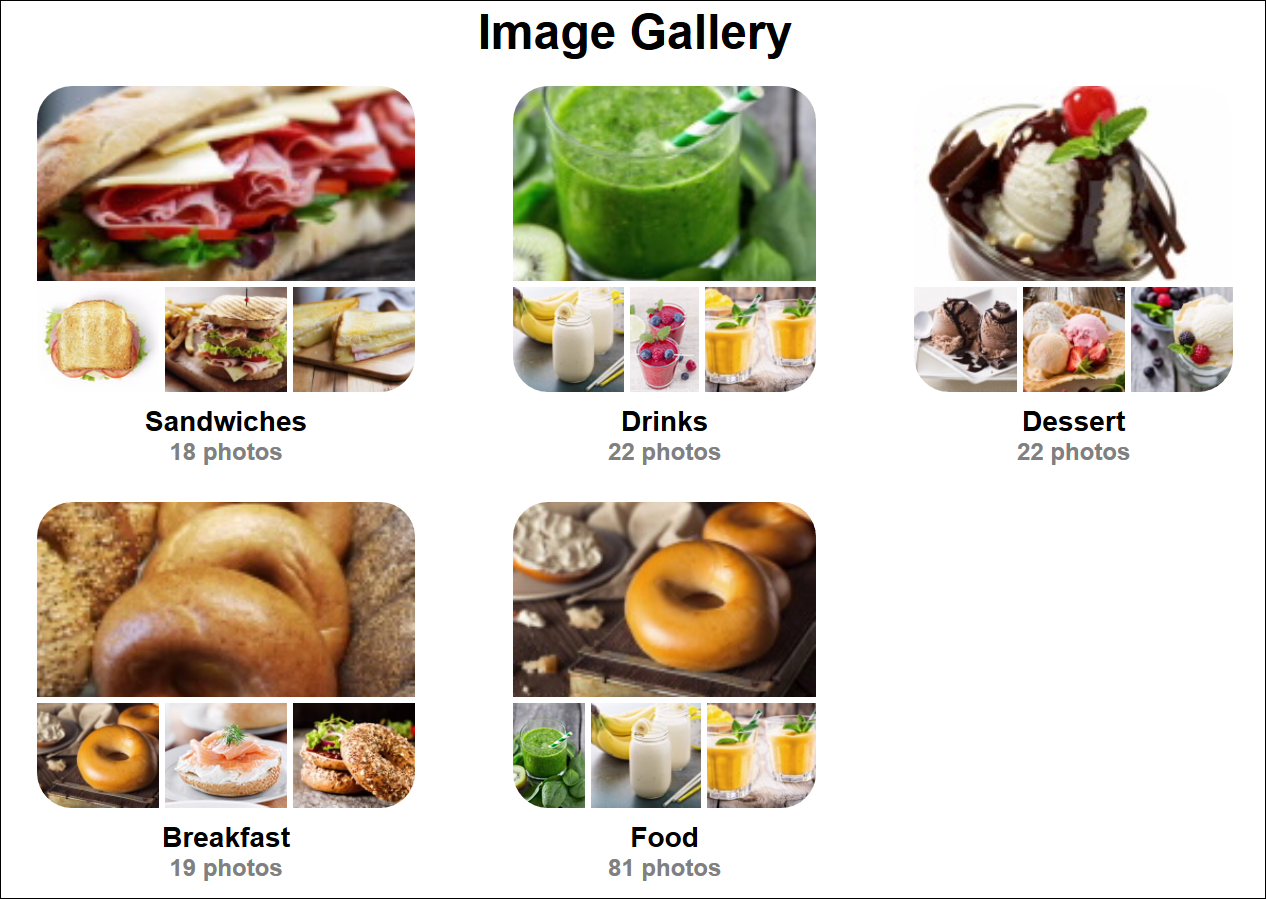
我们的图片库将包含咖啡店提供的几页食品和饮料图像。
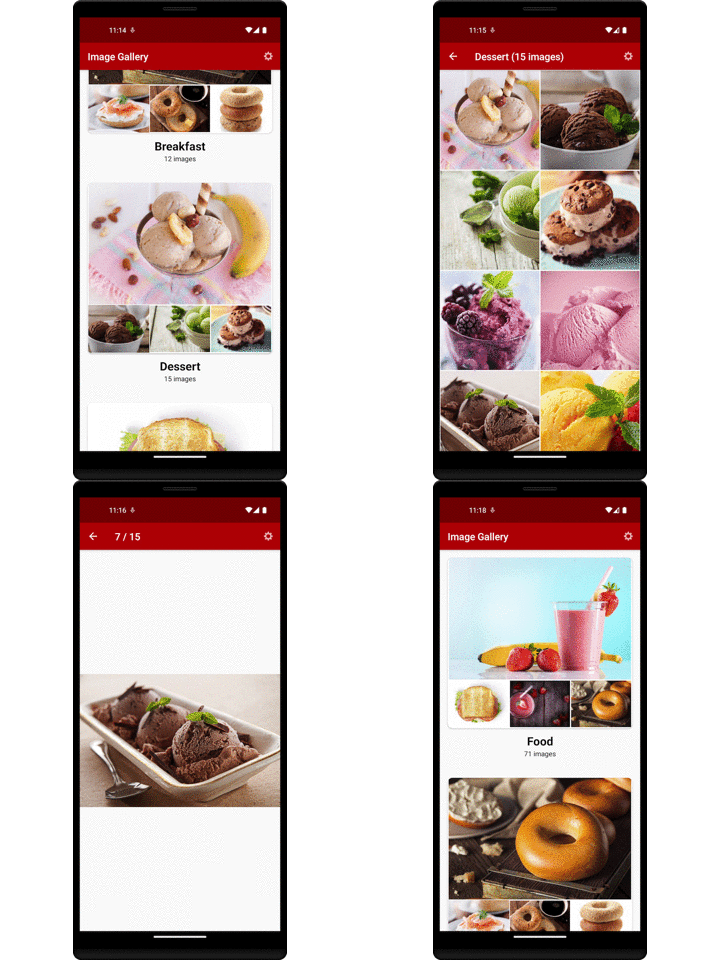
类别是分类的子节点,可以组织成层次结构。对于图像库,我们希望显示所有可用的类别,而不考虑组织。为此,我们首先需要查找可用的分类,我们使用 Oracle Content Management 库的 GetTaxonomiesRequest 类来设置和发出请求。
注:GetTaxonomiesRequest 的实现使用 REST API 资源 GET /published/api/v1.1/taxonomies 。
对于找到的每个分类,我们将获取其类别集。这是使用 Oracle Content Management 库的 GetTaxonomyCategoriesRequest 类完成的。
注:GetTaxonomyCategoriesRequest 的实现使用 REST API GET /published/api/v1.1/taxonomies/{id}/categories 。
对于返回的每个分类类别,我们显示一个预览,其中包含类别名称、类别中的图像数以及前四个图像的缩略图重现。
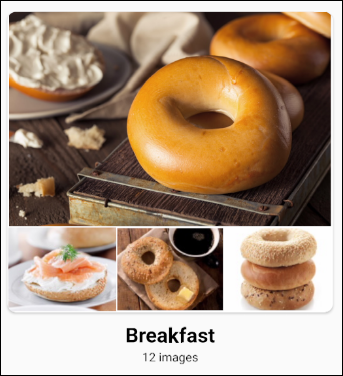
注:除了发布要查看的数字资产之外,您还需要将分类发布到渠道。
要继续,您需要主动订阅 Oracle Content Management 并使用内容管理员角色登录。
步骤 1:准备 Oracle Content Management
此教程基于您已创建资产存储库并且当前具有空内容模型(即未创建内容类型)的假设。
如果您还没有 Oracle Content Management 实例,请参阅快速入门以了解如何注册 Oracle Cloud、预配 Oracle Content Management 实例以及将 Oracle Content Management 配置为无头 CMS。
在本教程中,您需要通过两种方式之一创建内容模型。有一个可下载的资产包可用,该包将填充空资料档案库中的内容类型和关联内容,您也可以创建自己的内容模型和内容。
要准备 Oracle Content Management,请执行以下操作:
创建通道和资产资料档案库
您首先需要在 Oracle Content Management 中创建通道和资产资料档案库,以便可以发布内容。
要在 Oracle Content Management 中创建通道和资产资料档案库,请执行以下操作:
作为管理员登录 Oracle Content Management Web 界面。
在左侧导航菜单中选择内容,然后从页眉的选择列表中选择发布渠道。
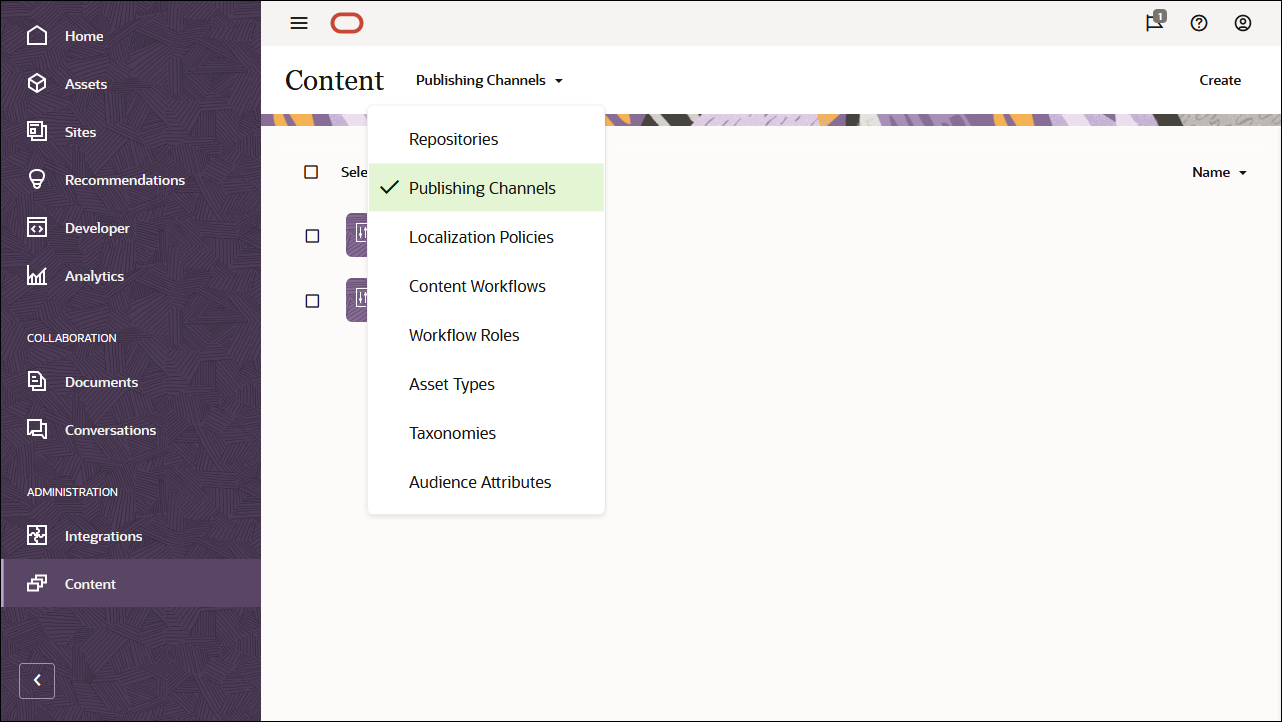
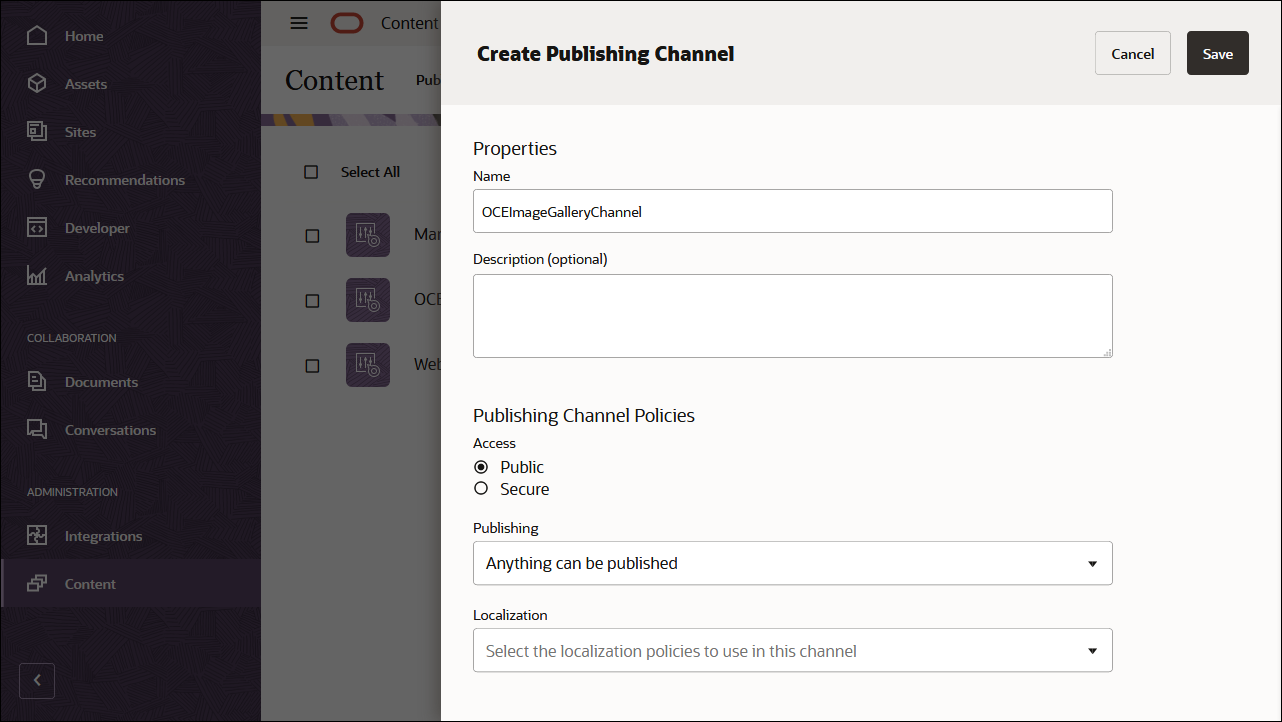
在右上角,单击创建以创建新通道。为此教程命名通道 ‘ OCEImageGalleryChannel ’,并保持公开访问。单击保存以创建通道。
在左侧导航菜单中选择内容,然后从页眉的选择列表中选择资料档案库。
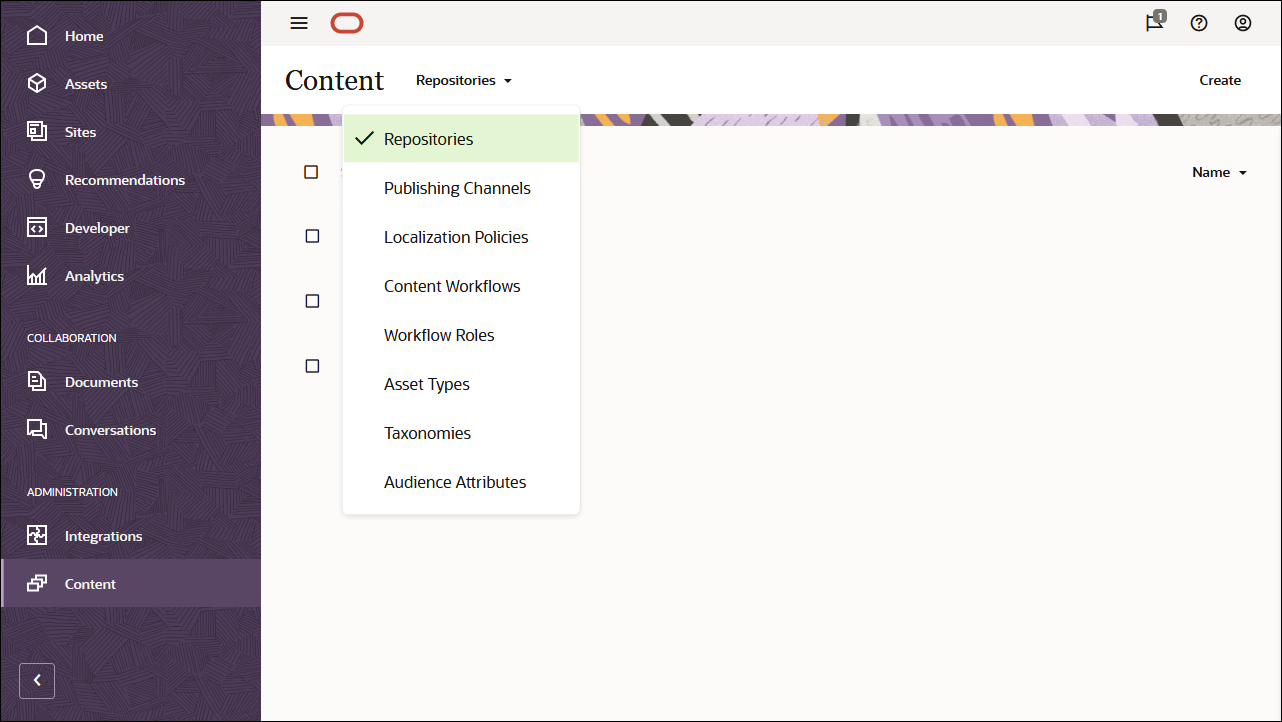
在右上角,单击创建以创建新的资产存储库。为此教程将资产资料档案库命名为 'OCEImageGalleryRepository'。
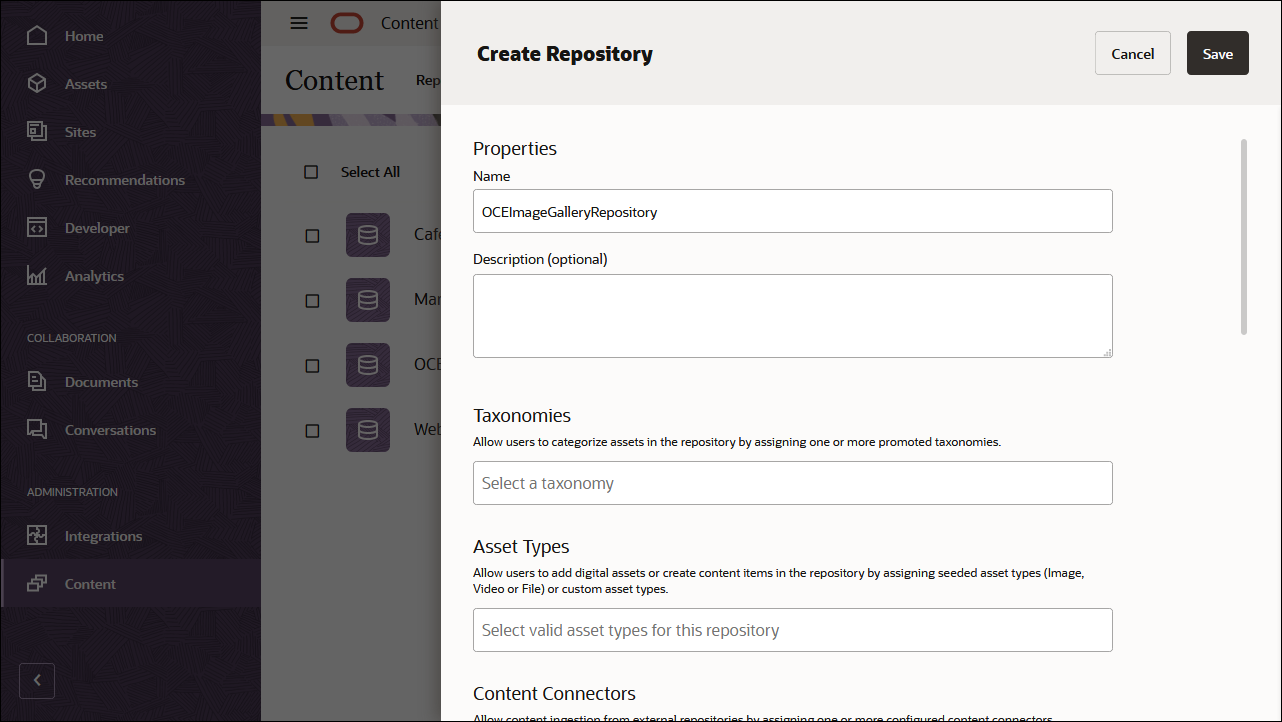
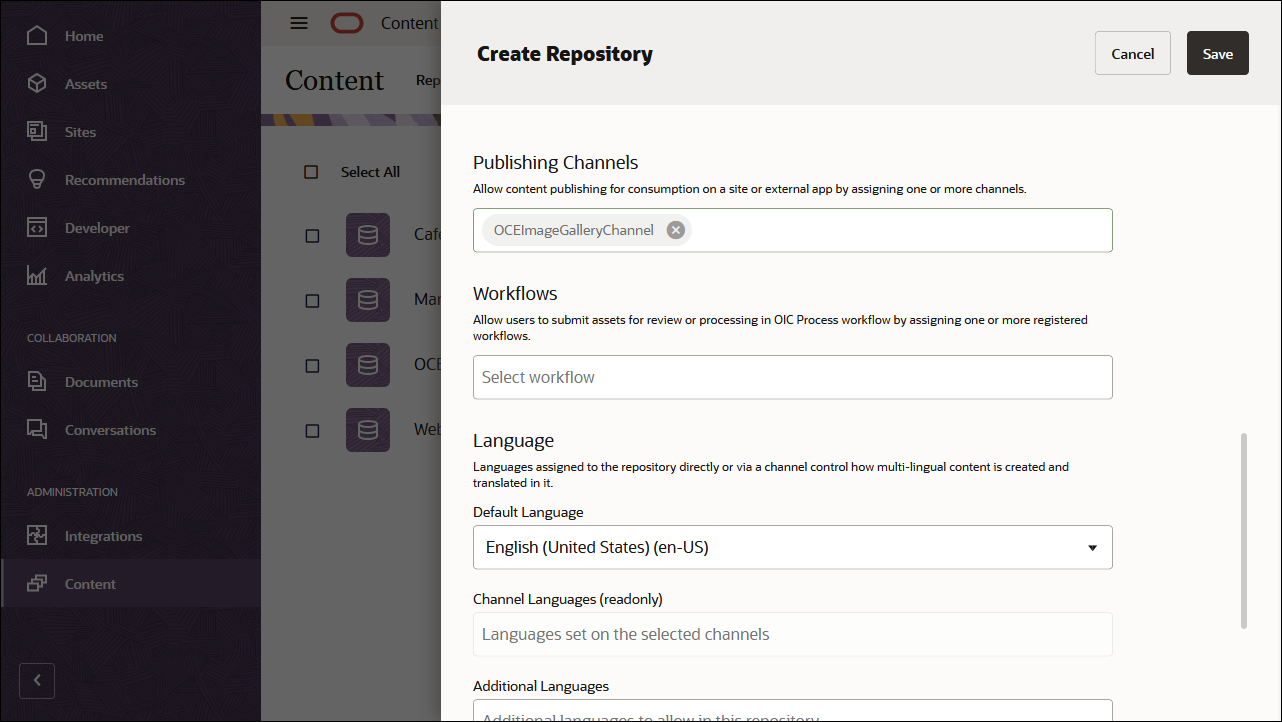
在发布渠道字段中,选择 OCEImageGalleryChannel 以向 Oracle Content Management 表明 OCEImageGalleryRepository 资料档案库中的内容可以发布到 OCEImageGalleryChannel 通道。完成后,单击保存。
导入 Oracle Content Management 示例资产包
您可以下载预配置的 Oracle Content Management 示例资产包,其中包含此教程的所有必需内容类型和资产。
您可以从 Oracle Content Management 示例资产包上载在本教程中使用的内容的副本。这将允许您试验内容类型并修改内容。下载资产包归档文件 OCESamplesAssetPack.zip,并将其提取到您选择的目录:
从 Oracle Content Management 下载页下载 Oracle Content Management 示例资产包 (OCESamplesAssetPack.zip)。将下载的 zip 文件解压缩到计算机上的某个位置。提取之后,此位置将包含一个名为 OCEImageGallery_data.zip 的文件。
作为管理员登录 Oracle Content Management Web 界面。
在左侧导航菜单中选择内容,然后从页眉的选择列表中选择资料档案库。现在选择 OCEImageGalleryRepository ,然后单击顶部操作栏中的导入内容按钮。
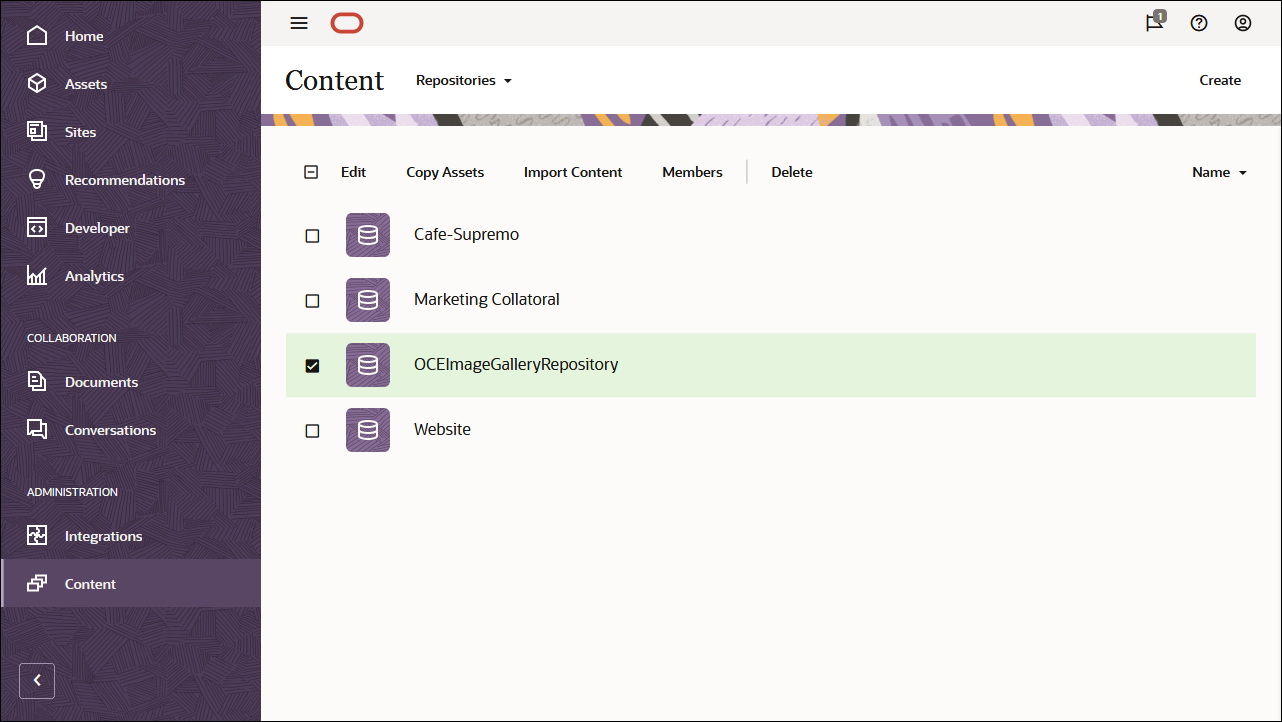
将 OCEImageGallery_data.zip 从本地计算机上载到文档文件夹。
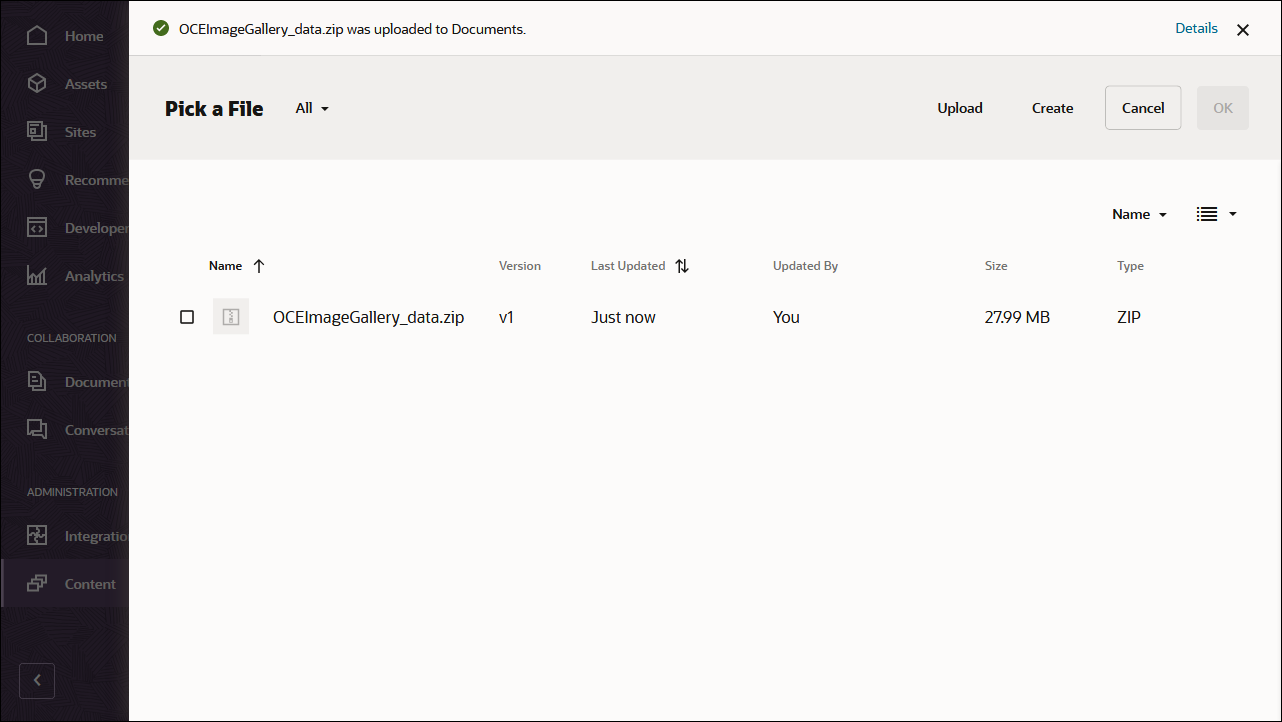
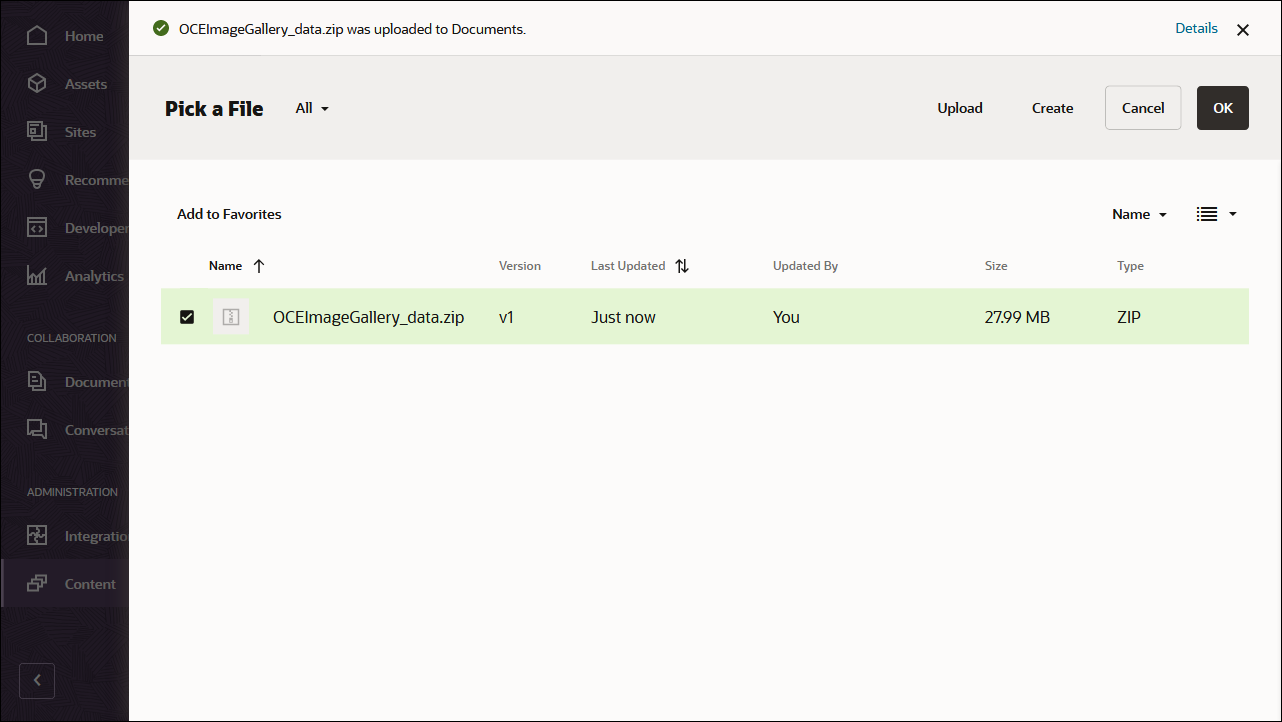
上载后,选择 OCEImageGallery_data.zip ,然后单击确定将内容导入到资产存储库中。
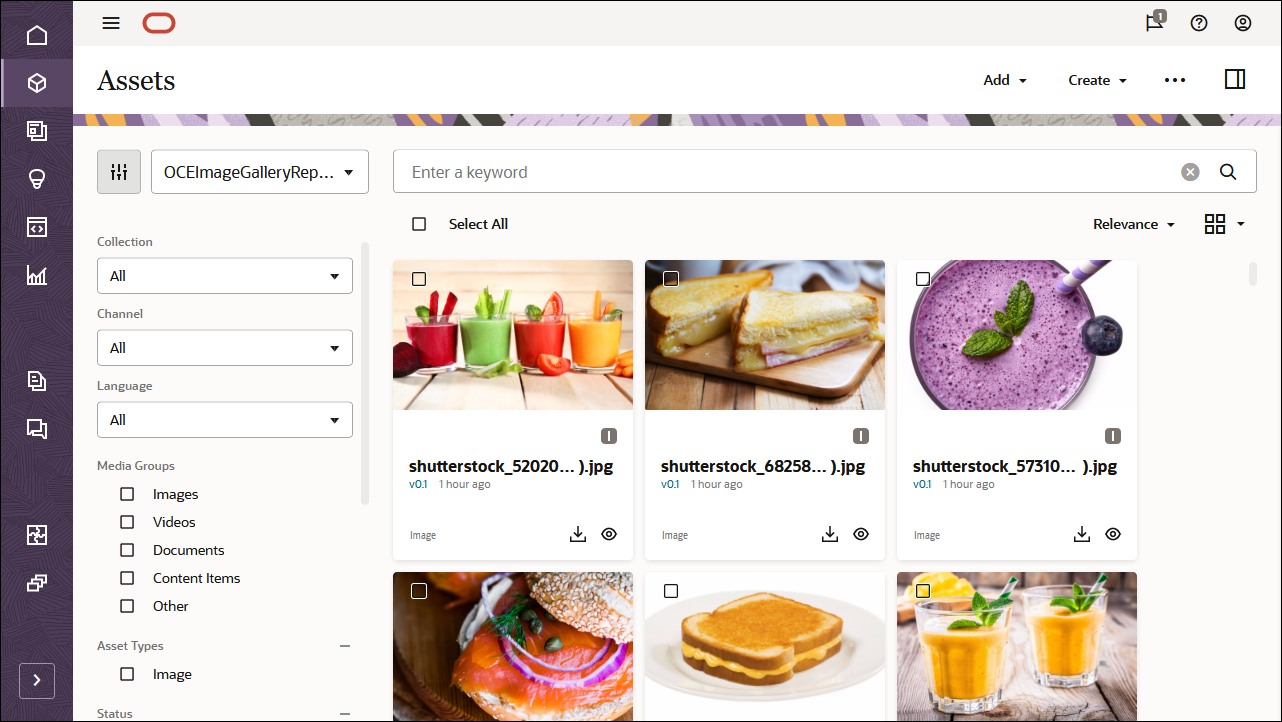
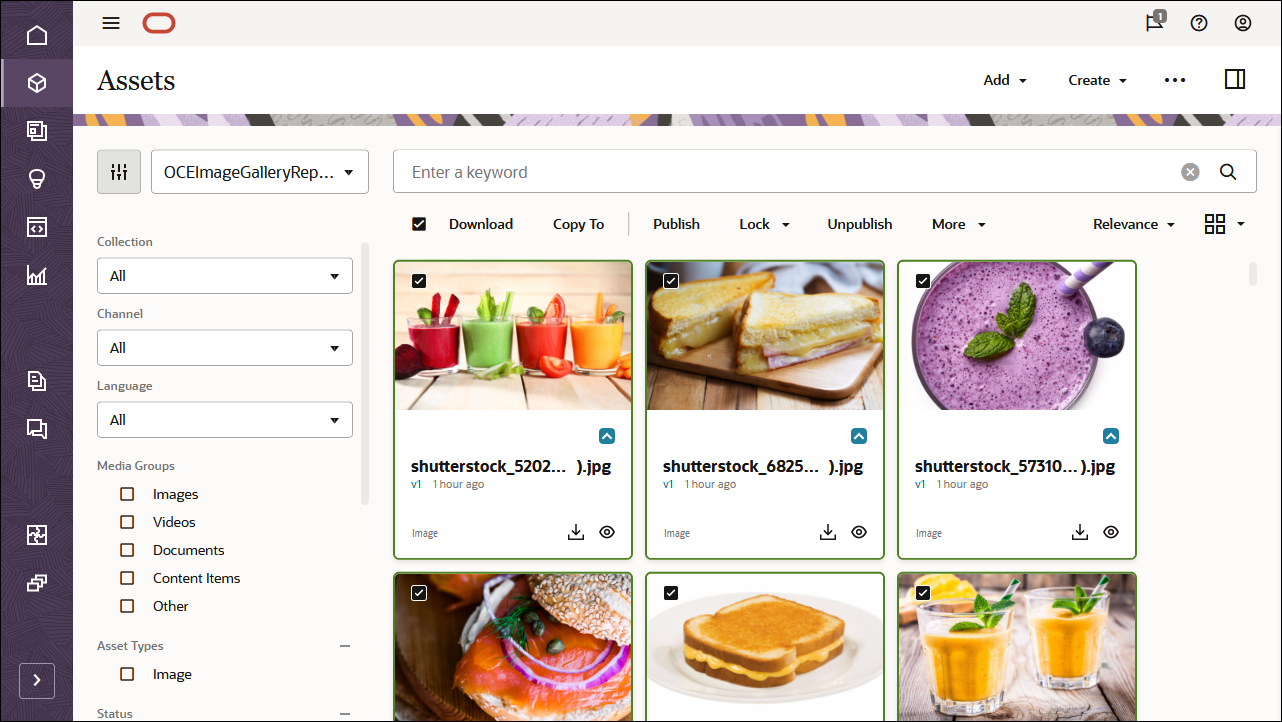
成功导入内容后,导航到资产页并打开 OCEImageGalleryRepository 系统信息库。您将看到所有相关图像和内容项现已添加到资产存储库中。
单击左上方的全选,然后单击发布以将所有导入的资产添加到之前创建的发布渠道 OCEImageGalleryChannel。
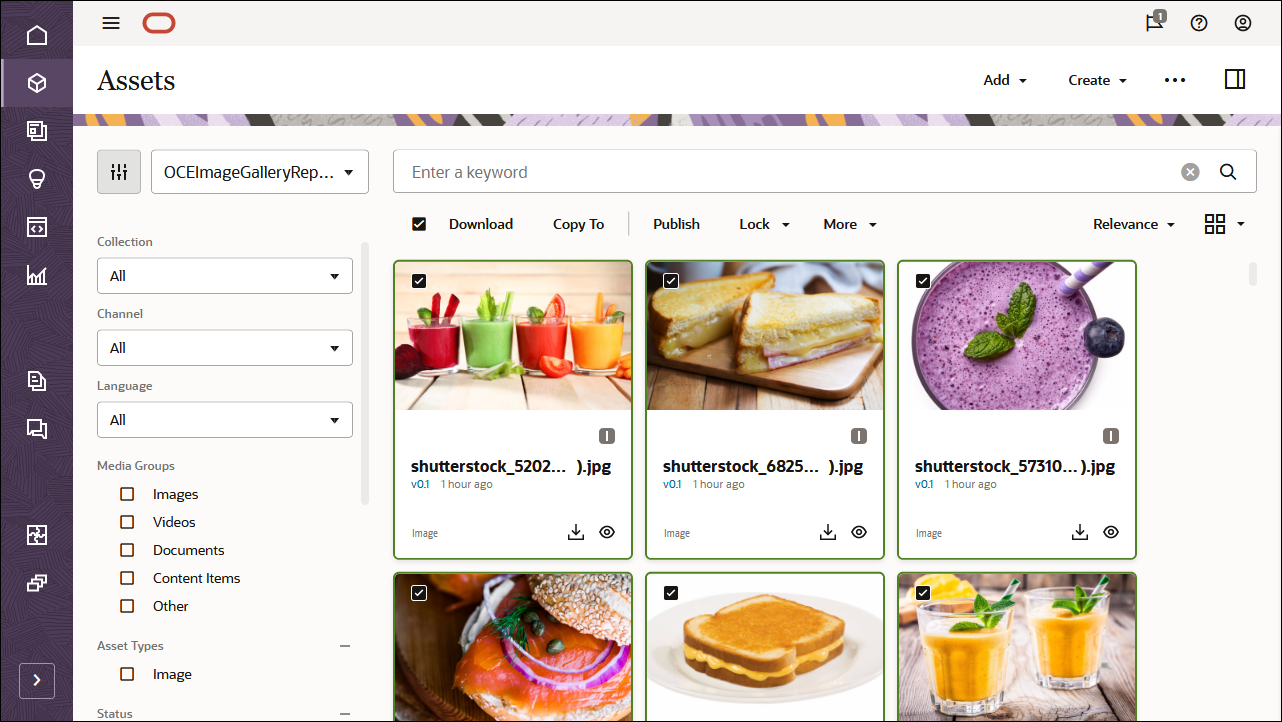
在发布之前,您需要验证所有资产。首先将 OCEImageGalleryChannel 添加为所选通道,然后单击验证按钮。
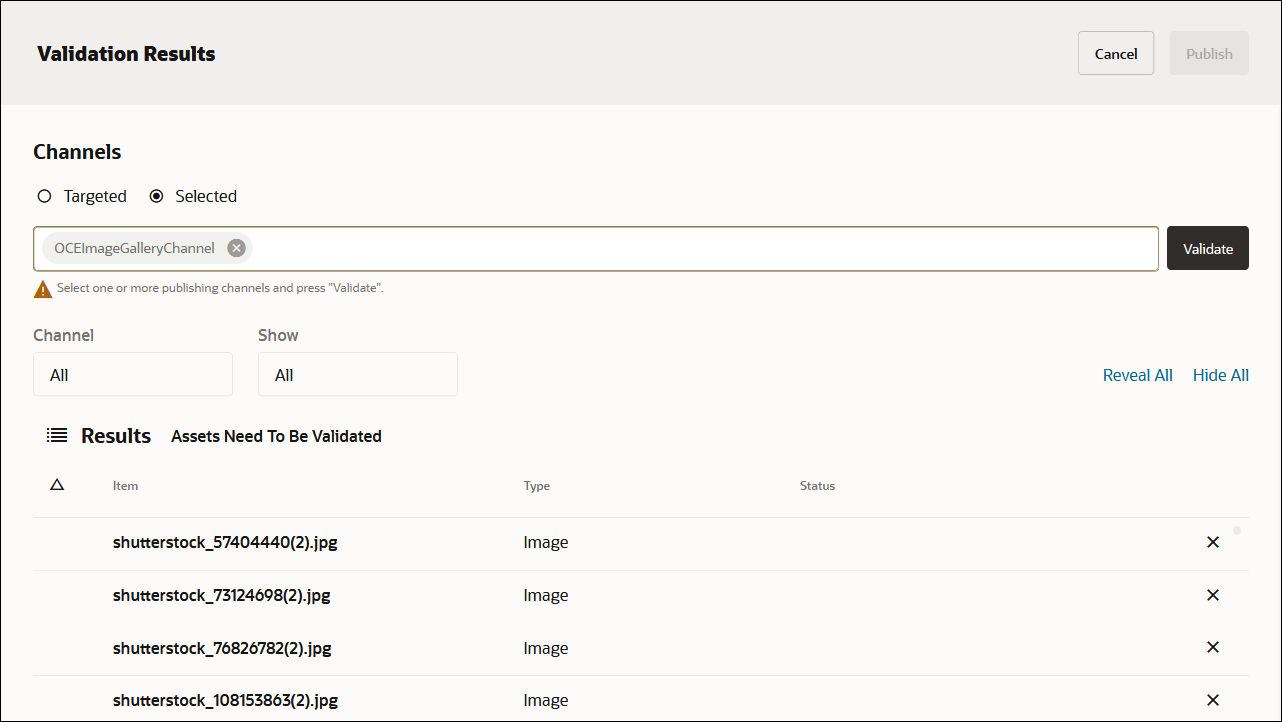
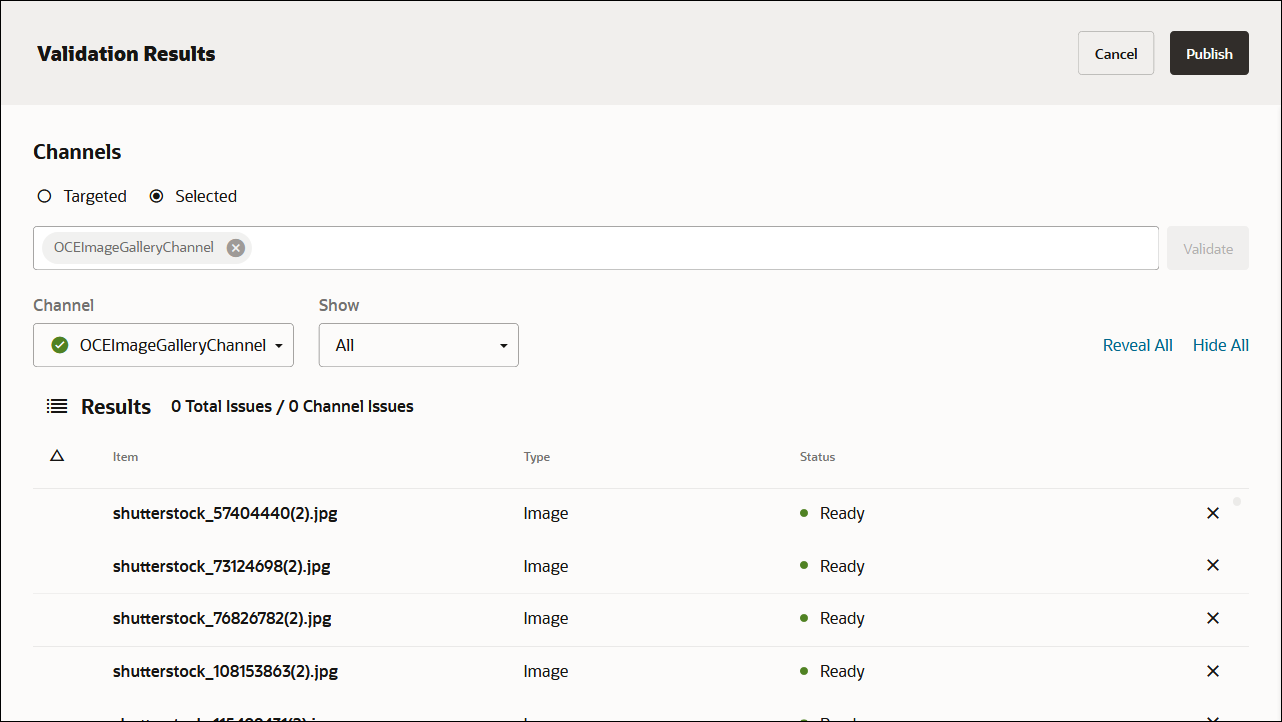
验证资产后,通过单击右上角的发布按钮将所有资产发布到选定的渠道。
完成此操作后,您可以在资产页面上看到所有资产都已发布。(可以通过资产名称上方的图标来确定。)
导入 Oracle Content Management 示例资产包后,可以开始在 Android Studio 中构建图像库。
上载您自己的映像资产
在本教程中,我们使用名为“OCEImageGalleryRepository”的资产存储库为库站点构建主页。此主页包含标题“图像库”以及包含图像资产的图像集合专辑。
要将图像资产添加到库资产存储库,请执行以下操作:
登录 Oracle Content Management Web 界面。
单击左侧导航菜单中的资产。
打开 OCEImageGalleryRepository 系统信息库。
单击页面右上角的添加可将图像资产添加到库资产资料档案库。
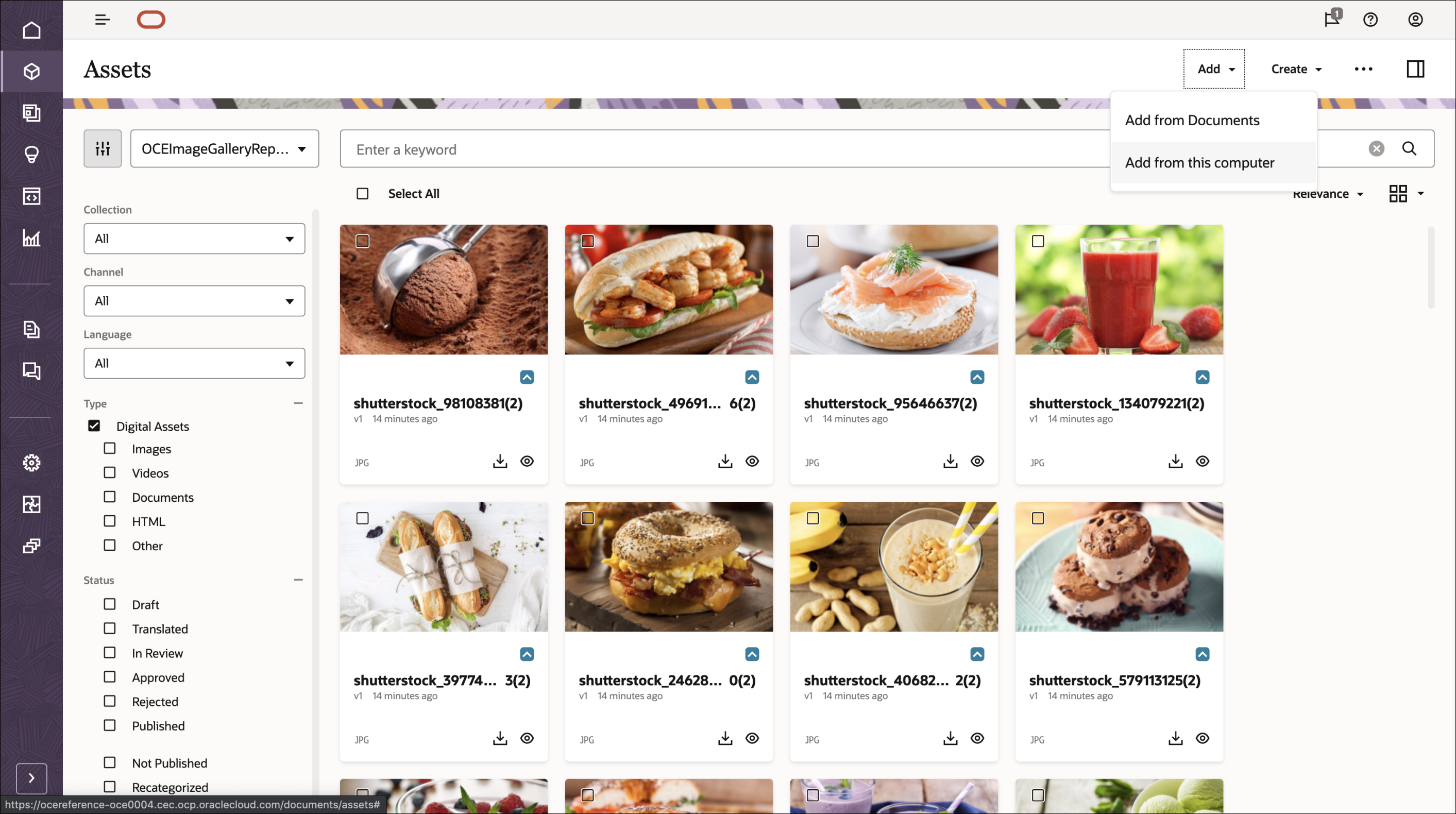
从本地计算机上载您自己的新资产,或选择 Oracle Content Management 中已有的现有资产。
创建分类并将它们链接到图像资产
您需要在 Oracle Content Management 中创建分类,然后将类别分配给资料档案库中的资产。
要在 Oracle Content Management 中创建分类,请执行以下操作:
作为管理员登录 Oracle Content Management Web 界面。
在左侧导航菜单中选择内容,然后从页眉的选择列表中选择分类。
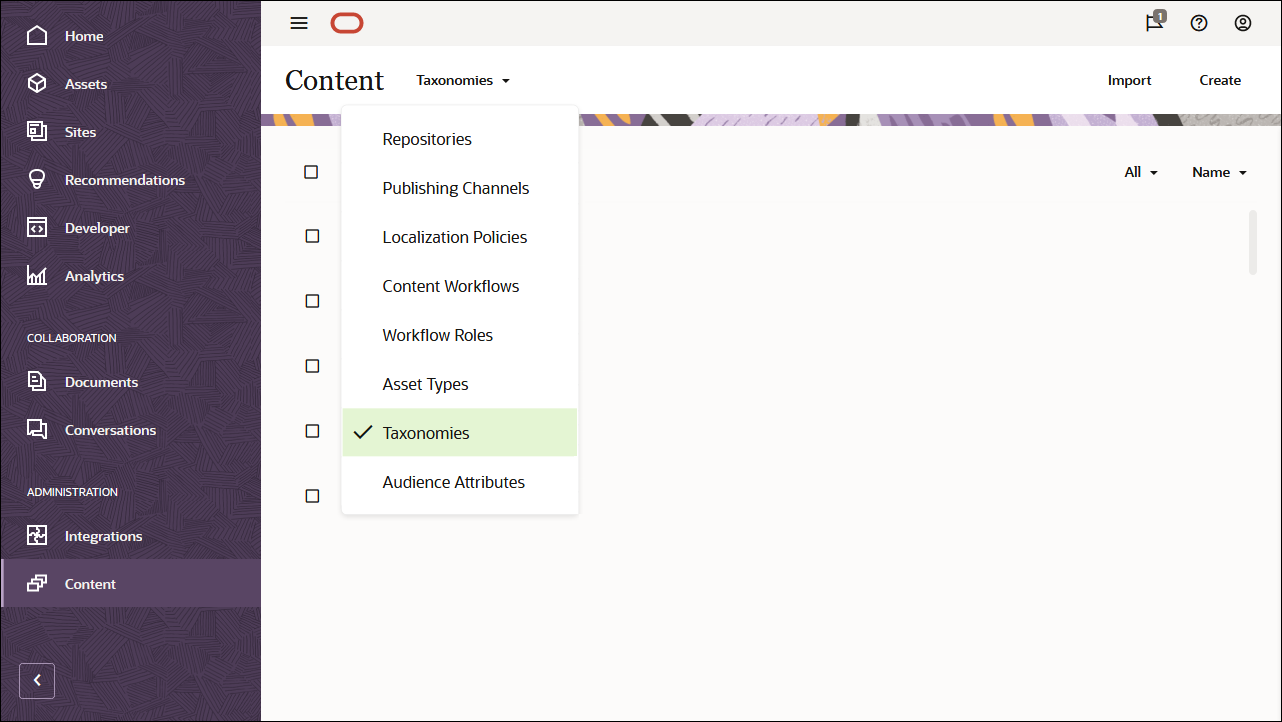
在右上角,单击创建以创建新的分类。为此教程命名通道 ‘ OCEImageGalleryTaxonomy ’。
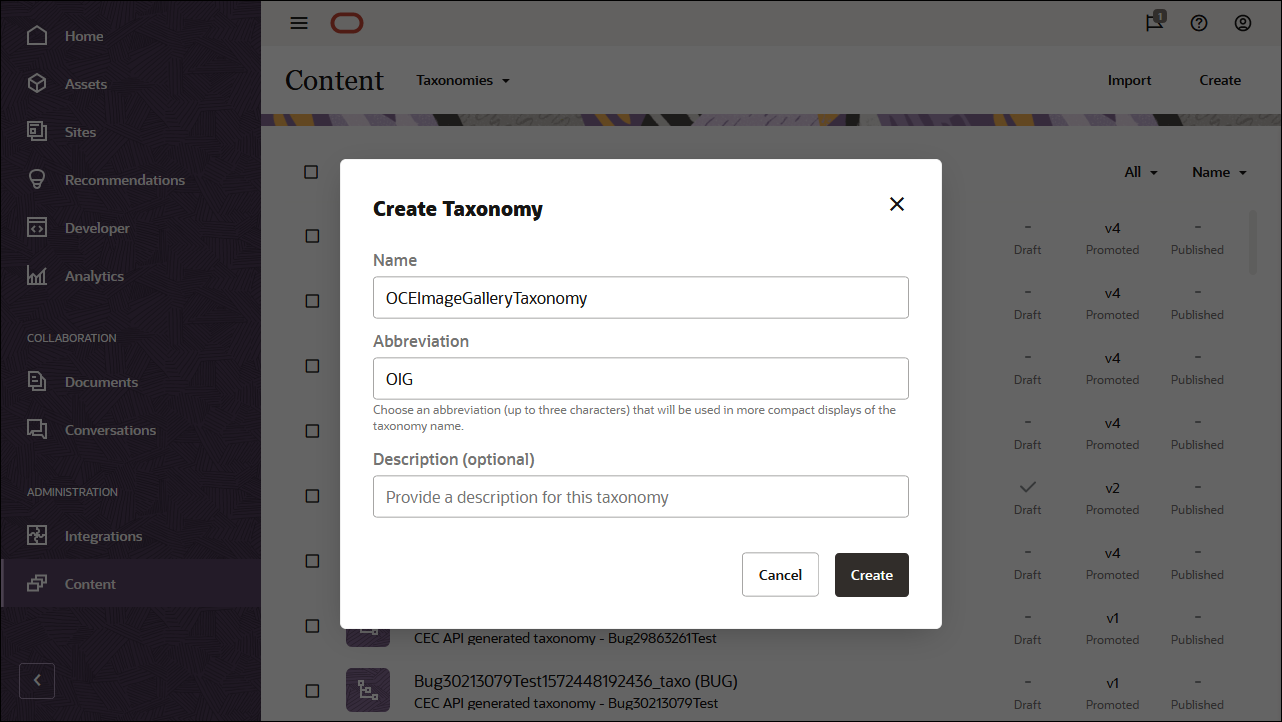
单击创建。
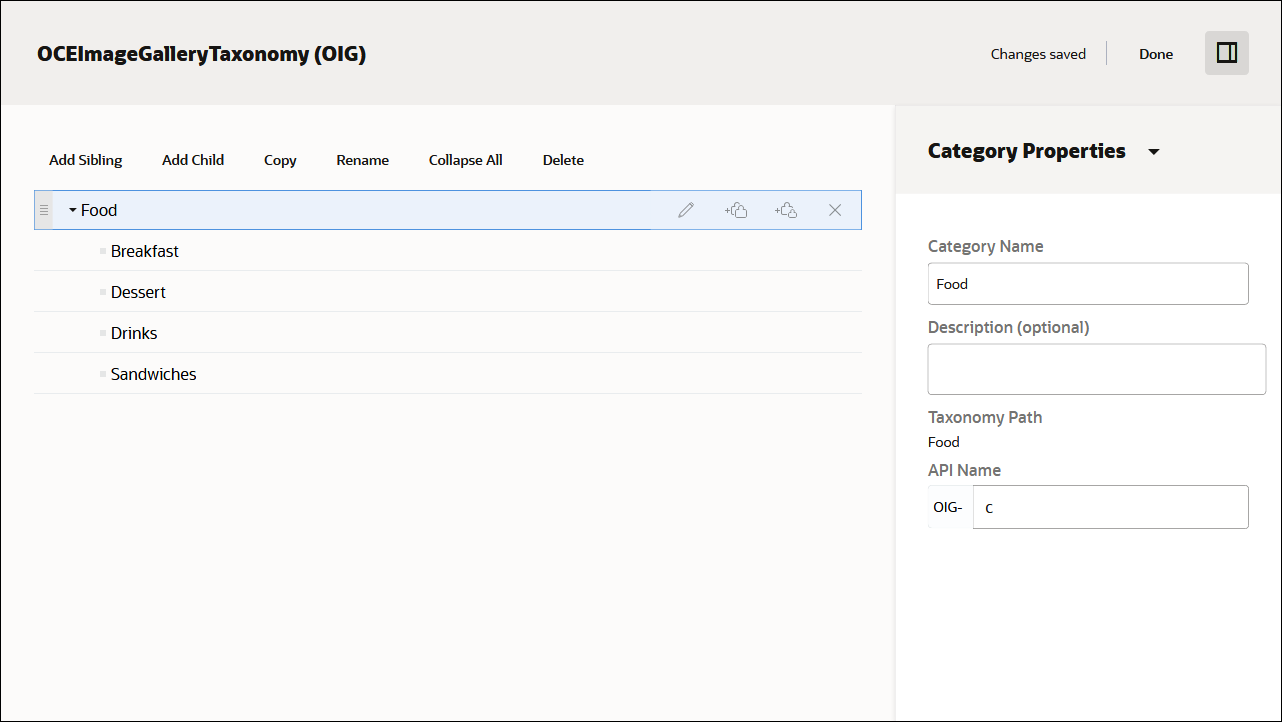
现在,通过添加类别来构建分类。单击添加类别。
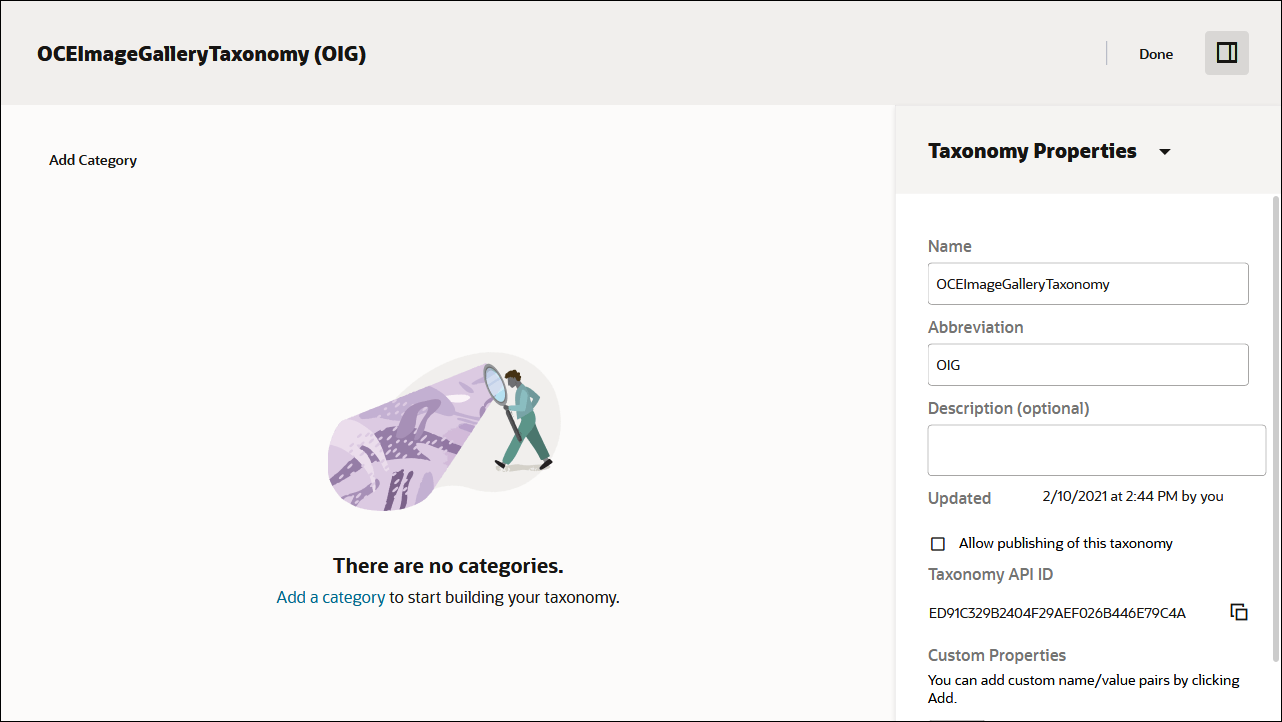
将父类别项命名为“食品”,并添加以下子类别:
- 早餐
- 甜点
- 饮酒
- 三明治
单击屏幕右上方的完成。
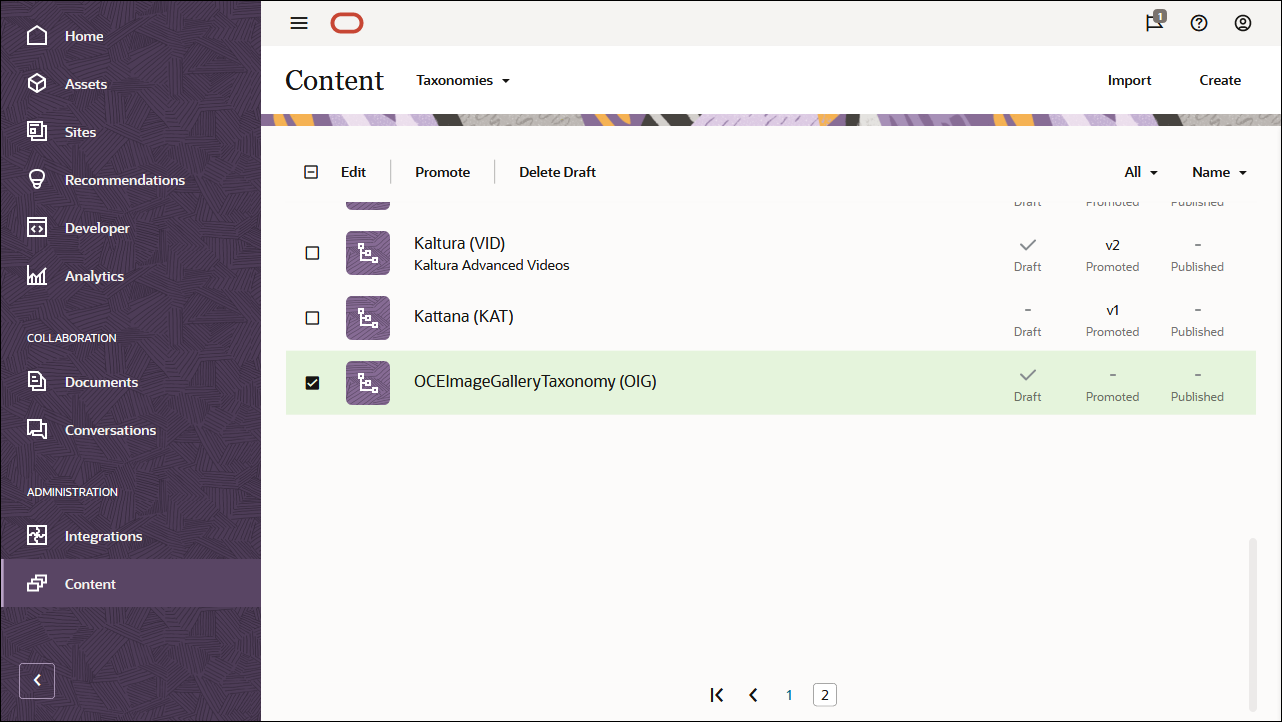
在“分类”页上,选择 OCEImageGalleryTaxonomy 分类,然后在操作栏中单击提升以使其可用于资产资料档案库。
接下来,编辑 OCEImageGalleryRepository 系统信息库以为该系统信息库启用 OCEImageGalleryTaxonomy 分类:
作为管理员登录 Oracle Content Management Web 界面。
在左侧导航菜单中选择内容,然后从页眉的选择列表中选择资料档案库。
选择并编辑 OCEImageGalleryRepository 系统信息库。
在分类字段中,选择 OCEImageGalleryTaxonomy,以便可以将该分类中的类别分配给 OCEImageGalleryRepository 资料档案库中的资产。
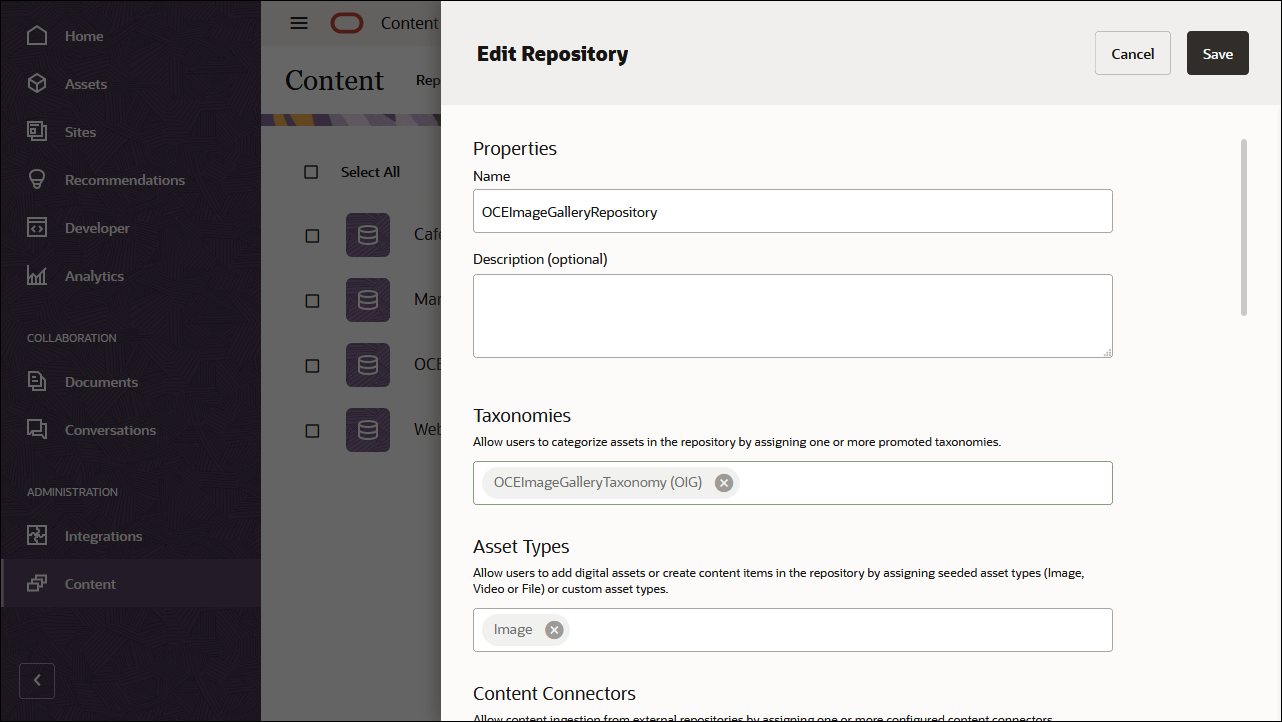
单击保存。
然后,将分类类别分配给 OCEImageGalleryRepository 资料档案库中的每个图像资产:
登录 Oracle Content Management Web 界面。
单击左侧导航菜单中的资产。
打开 OCEImageGalleryRepository 系统信息库。
选择一个或多个图像资产,单击操作栏中的更多,然后从菜单中选择类别。
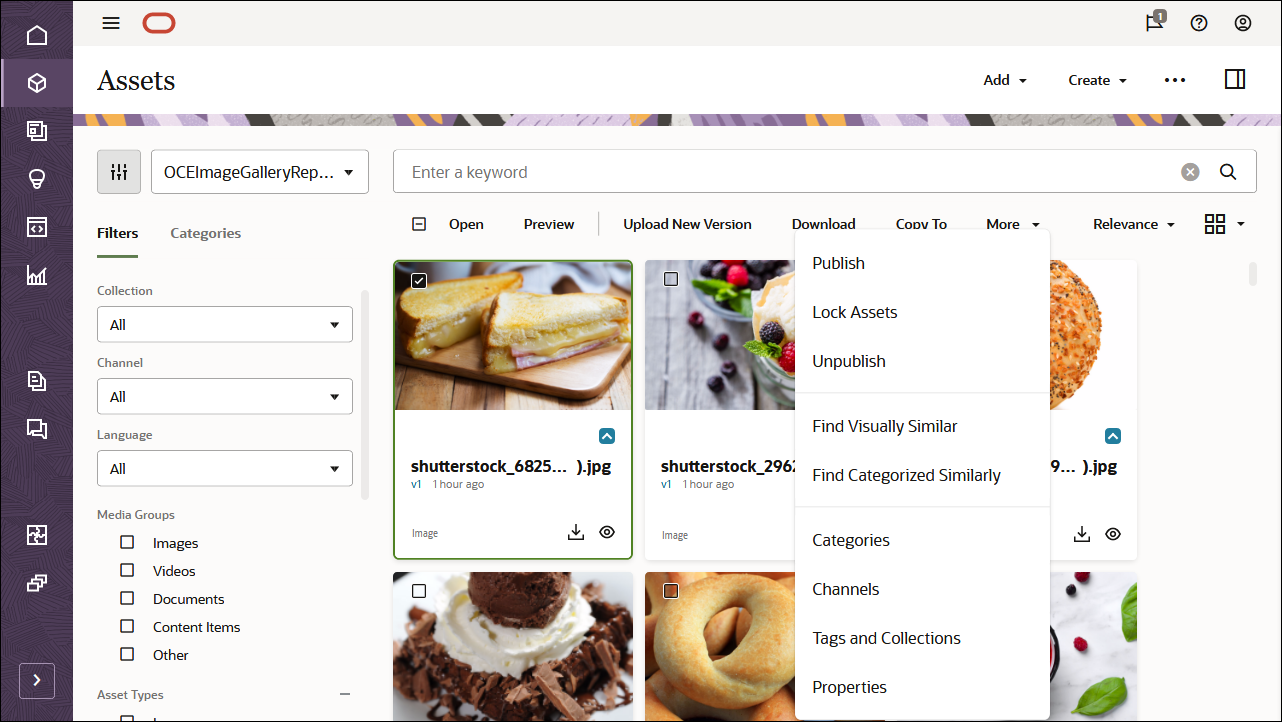
在“类别”面板中,单击添加类别。在搜索栏中搜索类别名称,或者从分类层次结构中选择类别,然后单击添加以分配所选类别。您可以为资产分配多个类别。
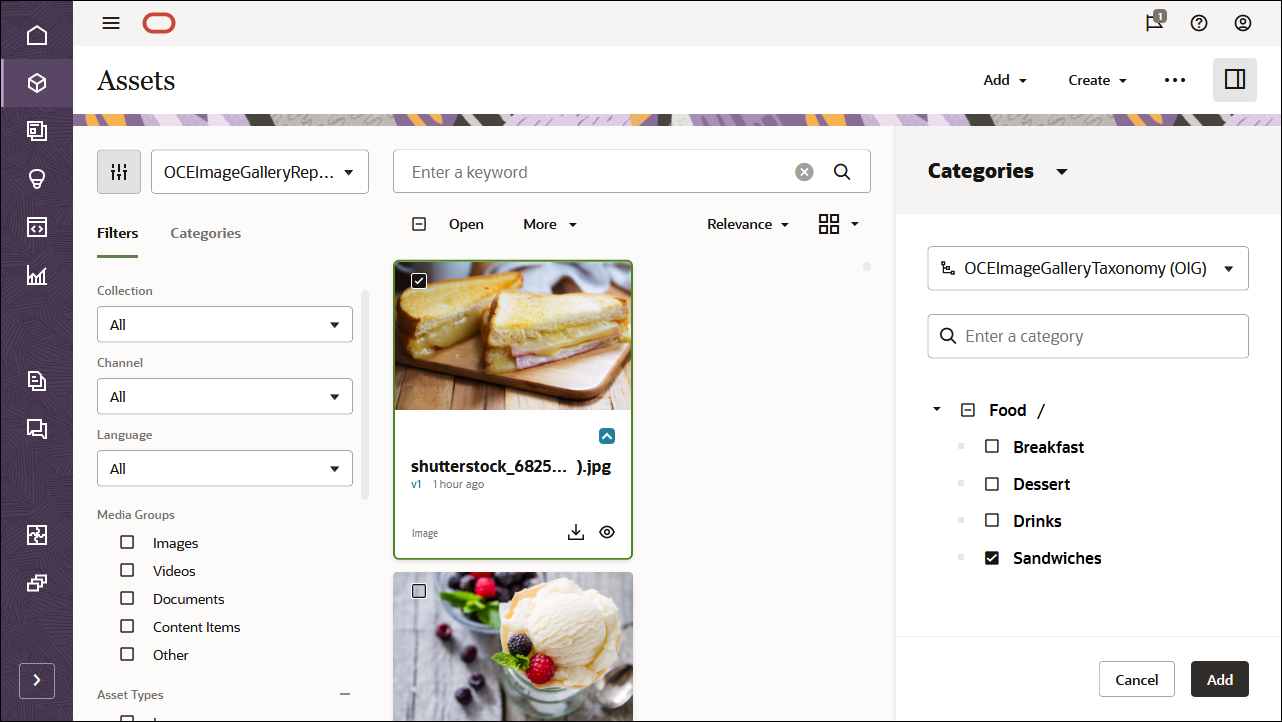
完成将分类分配给所有映像资产后,选择资料档案库中的所有资产并将其发布到 OCEImageGalleryChannel 通道。
步骤 2:在 Android Studio 中构建图像库
为了在 Android 应用程序中使用我们的 Oracle Content Management 内容,我们可以使用 Android 图像库示例,该示例在 GitHub 上作为开源资料档案库提供。
注意:请记住,使用 Android 示例是可选的,在本教程中使用它可帮助您快速入门。您也可以构建自己的应用程序。
要在 Android Studio 中构建图像库,请执行以下操作:
- 克隆示例存储库、Android SDK,并在本地发布 SDK
- 在 Android Studio 中打开 Android 示例
- 使用 Oracle Content Management REST API 提取内容
在本地克隆示例资料档案库、Android SDK 和发布 SDK
Android 库示例可用作 GitHub 上的开源系统信息库。
您首先需要将示例从 GitHub 克隆到本地计算机,以及从 GitHub 克隆到 Android SDK(如果您尚未安装)。
一旦您有了示例代码和 SDK,为了在示例项目中使用 Android SDK,您应在本地 Maven 资料档案库中构建并发布 SDK,以便示例项目可以使用该 SDK。在 Android Studio 中打开 Android SDK 项目并运行 publishToMavenLocal 任务,以构建 SDK 并将其发布到本地 Maven 资料档案库。
在 Android Studio 中打开 Android 示例
与任何 Android 应用程序一样,你需要将其导入 Android Studio,以便可以在 Android 仿真器或设备中构建和运行它。示例代码已预先配置了用于获取库应用程序数据的服务器和发布通道。
使用 Oracle Content Management REST API 提取内容
通过 REST API for Content Delivery ,可以访问 Oracle Content Management 中发布的资产。发布的资产包括内容项和数字资产以及其重现。现在,我们可以利用 REST API for Content Management 提取内容,以便我们可以在库应用程序中呈现内容。
src/.../samples/gallery/MainActivity.java 文件具有用于创建 ContentDeliveryClient 对象的函数,该对象用于请求对象调用 REST API。以下函数是样例应用程序中函数的简化版本,显示正在使用的值。
void createDeliveryClient() {

    // inti and customize the SDK settings
    ContentSettings contentSettings = new ContentSettings();

    // initialize the cache settings (optional configured via settings in sample)
    contentSettings.setCacheSettings(new CacheSettings(context.getCacheDir()));

    // set the host and channel token
    String channelToken = "e0b7b1e6421e78189345448deaddb091";
    String host = "https://headless.mycontentdemo.com";

    // create client API we'll use in request objects to make SDK calls
    deliveryClient = ContentSDK.createDeliveryClient(
            host, channelToken, contentSettings);
}
使用 Oracle Content SDK 请求主页数据
注:初始主页的 SDK 调用序列位于 GalleryHomePageRepository.java 中。
初始页面需要多次数据调用才能正确显示页面:
- 首先,为之前提供的渠道标记加载分类。
- 对于返回的每个分类,我们将获取该分类中的所有类别。
- 对于返回的每个类别,我们都会获得该类别中的资产列表。
- 将下载每个类别的前四个项的中和缩略图重现图像 URL。
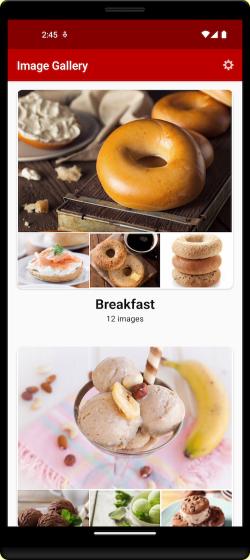
初始数据提取的入口点是 GalleryHomePageRepository.java 中的 fetchHomePageData() 方法。此方法将在单独的线程上执行一系列同步 SDK 调用,然后通过回调异步返回结果。
使用 GetTaxonomiesRequest 类和 fetch() 方法检索初始分类数据,如下所示。
// create request to get list of taxonomies, limiting the number of results to 10 max
GetTaxonomiesRequest request = new GetTaxonomiesRequest(deliveryClient).limit(10);

// get the list of taxonomies synchronously
ContentResponse<TaxonomyList> response = request.fetch();
请注意,所有 API 都使用以 ContentDeliveryClient 对象作为参数创建请求对象的模式。
limit(<value>) 构建器方法可用,因为 GetTaxonomiesRequest 扩展了用于获取数据列表的任何请求的公用 PaginatedListRequest 类。
此处使用 request.fetch(),因为我们已创建一个单独的线程来按顺序进行多个 SDK 调用。在另一部分中,有一个使用异步 SDK 调用的示例。
请求成功完成后,我们将返回 ContentResponse<TaxonomyList> 类型的对象。如果 response.isSuccess() 为 true,则分类 TaxonomyList 的列表来自 getResult() 方法。
接下来,我们需要获取可用的分类类别列表。我们仍在为 SDK 调用创建的单独线程中,因此下一次调用也是根据分类 ID 获取分类类别列表的同步调用。
// get list of taxonomy categories based on the taxonomy id
GetTaxonomyCategoriesRequest categoriesRequest =
    new GetTaxonomyCategoriesRequest(deliveryClient, taxonomy.getId());

// get list synchronously
ContentResponse<TaxonomyCategoryList> response = categoriesRequest.fetch();

// get the list from the response (assuming successful)
TaxonomyCategoryList categoryList.getItems = response.getResult();
对于每个类别,我们需要遵循相同的常规流程,通过创建搜索请求来查找类别节点 ID 的匹配资产来获取与该类别关联的资产列表。
// go through each category to get list of assets for that category
for(TaxonomyCategory category : categoryList.getItems()) {

    // setup search request to match "Image" type and the category node id
    SearchAssetsRequest assetsRequest = new SearchAssetsRequest(deliveryClient)
            .type(AssetType.TYPE_ASSET_IMAGE)
            .taxonomyCategoryNodeId(category.getId());

    // synchronous request to get matching assets
    ContentResponse<AssetSearchResult> searchResponse = assetsRequest.fetch();

    // search result from the response
    AssetSearchResult searchResult = searchResponse.getResult();

    // get the list of digital assets
    List<DigitalAsset> digitalAssetList = searchResult.getDigitalAssets();

}
最后,对于一个类别中的前四个资产中的每个资产,我们将生成用于下载三个较小图像的大图像和缩略图重现的介质重现的 URL。
该 URL 可用于使用您首选的 Android 图像库呈现图像,但示例使用通用开源库 Glide。
// (the sample code verifies that there are at least 4 images in the list)
// get the medimum rendition image url for the first main image from the list.
String mainImageUrl = digitialAssetList.get(0).getRenditionUrl(RenditionType.Medium);

// example code using Glide to render the main image into an ImageView
Glide.with(context).load(mainImageUrl).into(mainImageView);

// get the thumbnail rendition for the other 3 images
String smallImageUrl1 = digitialAssetList.get(1).getRenditionUrl(RenditionType.Thumbnail);
String smallImageUrl2 = digitialAssetList.get(2).getRenditionUrl(RenditionType.Thumbnail);
String smallImageUrl3 = digitialAssetList.get(3).getRenditionUrl(RenditionType.Thumbnail);

// load small images using Glide, etc...
获取库页和图像预览
包含类别中所有图像预览的页面使用异步请求请求请求与类别节点 ID 匹配的所有图像。
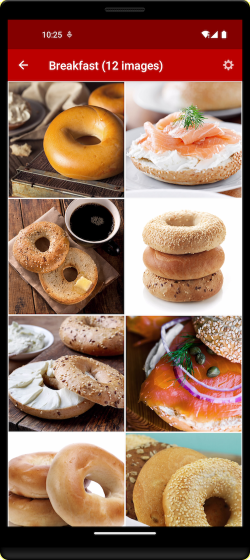
使用为响应指定的回调方法执行异步调用,如下所示。此代码的完整版本位于文件 GalleryPhotosFragment.java 中。
public void fetchDigitalAssets() {

    // search for all matching image assets for the specific category node id
    SearchAssetsRequest assetsRequest = new SearchAssetsRequest(getDeliveryClient())
            .type(AssetType.TYPE_ASSET_IMAGE)
            .taxonomyCategoryNodeId(categoryNodeId);

    // fetch the results asynchronously and call the specified method when done
    assetsRequest.fetchAsync(this::showDigitalAssets);

}

public void showDigitalAssets(ContentResponse<AssetSearchResult> response) {
   // handle errors if response.isSuccess is false otherwise process results...
}
单击特定图像时,完整大小的预览将使用文件的本机重现。
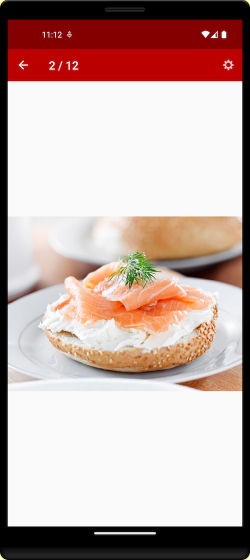
对于 digitalAsset 对象,您将获得本机重现 URL 并按如下方式在 Glide 中呈现:
String fullSizeImageUrl = digitalAsset.getRenditionUrl(RenditionType.Native);

// example using Glide to render the main image into an ImageView
Glide.with(context).load(fullSizeImageUrl).into(fullSizeImageView);
第 3 步:运行应用程序
现在我们已经构建了我们的 Android 画廊应用程序,我们需要在 Android Studio 的移动仿真器或设备中测试它,以便我们可以调试任何问题并在应用程序上线之前预览应用程序。
总结
在本教程中,我们创建了一个可以在 Github 上找到的图像库 Android 应用程序。此应用程序使用 Oracle Content Management 作为无头 CMS。在使用库站点教程的已发布内容的渠道设置和配置 Oracle Content Management 之后,我们运行应用程序来提取所需内容。
通过文档了解重要的 Oracle Content Management 概念。
您可以在 Oracle 帮助中心的 Oracle Content Management 示例页上找到更多类似这样的示例。