在 Oracle JET Web 应用程序中更新数据记录
简介
本教程展示如何使用 Oracle JavaScript Extension Toolkit (Oracle JET) Web 应用程序更新现有数据记录并将其提交到 REST 服务。
目标
完成本教程后,您将学习如何更新现有数据记录并将其提交给 REST 服务。
先决条件
- 开发环境已设置为创建 Oracle JET 应用程序,并安装了 JavaScript 运行时、Node.js 和最新的 Oracle JET 命令行界面
- 完成此学习路径中的上一个教程,以便您已使用 REST 数据提供程序创建
JET_Web_Application文件夹来提取数据
任务 1:在视图中创建对话框
使用 oj-dialog 定制 HTML 元素收集表单信息,然后将该信息传递给可观察文件。
-
导航到
JET_Web_Application/src/ts/views目录并在编辑器中打开dashboard.html文件。 -
找到
oj-button id="createButton"元素并在该元素下添加另一个oj-button元素。将on-oj-action属性设置为"[[showEditDialog]]",将disabled属性设置为"[[!itemSelected()]]"。. . . <h3 id="itemsListHeader">Activity Items</h3> <oj-button id="createButton" on-oj-action="[[showCreateDialog]]">Create</oj-button> <!-- If itemSelected is set to false, disabled is true, and vice versa. --> <oj-button id="updateButton" disabled="[[!itemSelected()]]" on-oj-action="[[showEditDialog]]">Update </oj-button> <oj-list-view id="itemsList" class="item-display" data="[[itemsDataProvider]]" . . . -
查找
oj-bind-if test="[[itemSelected()]]"标记并在其中添加oj-dialog元素。将id属性设置为"editDialog",将class属性设置为no-display。. . . <oj-bind-if test="[[itemSelected()]]"> <oj-dialog id="editDialog" class="no-display" dialog-title="Update Item Details" cancel-behavior="icon"> </oj-dialog> <div id="itemDetailsContainer" class="oj-flex-item oj-panel oj-bg-neutral-30 oj-md-6 oj-sm-12"> <h3>Item Details</h3> . . . -
在您创建的
oj-dialog元素内,添加两个带有slot="body"和slot="footer"属性的div标记。<oj-dialog id="editDialog" class="no-display" dialog-title="Update Item Details" cancel-behavior="icon"> <div slot="body"> </div> <div slot="footer"> </div> </oj-dialog> -
在您创建的
div slot="footer"元素内添加oj-button元素,并设置on-oj-action="[[updateItemSubmit]]"属性。<div slot="footer"> <oj-button id="submitBtn" on-oj-action="[[updateItemSubmit]]">Submit </oj-button> </div> -
在您创建的
div slot="body"标记内,为inputItemID值添加oj-label-value、oj-label元素和oj-input-text元素。<div slot="body"> <oj-label-value label-edge="inside"> <oj-label for="chatWindow" slot="label">Item ID</oj-label> <div slot="value" class="slot-line"> <oj-bind-text id="chatWindow" value="[[inputItemID]]" class="text-width"></oj-bind-text> </div> </oj-label-value> </div> -
在
oj-label-value元素下,为Name、Price和Description值添加oj-input-text元素。<div slot="body"> . . . </oj-label-value> <oj-label class="oj-label oj-label-value" for="createNewName">Name</oj-label> <oj-input-text id="createNewName" value='{{inputItemName}}'></oj-input-text> <oj-label class="oj-label oj-label-value" for="createNewPrice">Price</oj-label> <oj-input-text id="createNewPrice" value="{{inputPrice}}"></oj-input-text> <oj-label class="oj-label oj-label-value" for="createNewDesc">Description</oj-label> <oj-input-text id="createNewDesc" value="{{inputShortDesc}}"></oj-input-text> </div>请注意,使用方括号绑定
inputItemID值,这表示单向绑定,因为用户不应编辑 ID 值。使用大括号绑定inputItemName和其他值,这表示双向绑定,并允许用户覆盖该值。 -
验证带有
id="itemsList"的列表视图组件将selectedItemChanged指定为on-first-selected-item-changed属性的值。 -
保存
dashboard.html文件。您的代码应类似于此 final-update-dashboard-html.txt 文件。
-
导航到
JET_Web_Application/src/css目录并打开app.css文件。将以下样式定义添加到文件的末尾。. . . .no-display { display: none; } .slot-line { line-height: 2.4em; } .text-width { width: 100%; min-width: 100%; }您的代码的外观应与此 final-css.txt 文件类似。
任务 2:处理打开 ViewModel 中的对话框
声明您在视图中引用的新观察程序和方法,以便在为 Oracle JET Web 应用提供服务时成功初始化。
-
导航到
JET_Web_Application/src/ts/viewModels目录并在编辑器中打开dashboard.ts文件。 -
在
dashboard.ts文件的顶部,验证是否已导入对话框组件和输入文本组件的 Oracle JET 模块。import * as AccUtils from "../accUtils"; . . . import { ojDialog } from "ojs/ojdialog"; import "ojs/ojdialog"; import "ojs/ojinputtext"; . . . -
在
DashboardViewModel类中,在上一个用于创建新活动项的代码下方,创建一个名为showEditDialog的方法以打开对话框并检索要更新的字段的值。. . . public createItem = async (event: ojButtonEventMap["ojAction"]) => { . . . } // end createItem public showEditDialog = (event: ojButtonEventMap["ojAction"]) => { this.inputItemName(this.itemData().name); this.inputPrice(this.itemData().price); this.inputShortDesc(this.itemData().short_desc); (document.getElementById("editDialog") as ojDialog).open(); } -
在
showEditDialog方法下,创建一个名为updateItemSubmit的方法以提交对话框数据,并添加close命令。public showEditDialog = (event: ojButtonEventMap["ojAction"]) => { this.inputItemName(this.itemData().name); this.inputPrice(this.itemData().price); this.inputShortDesc(this.itemData().short_desc); (document.getElementById("editDialog") as ojDialog).open(); } public updateItemSubmit = async (event: ojButtonEventMap["ojAction"]) => { (document.getElementById("editDialog") as ojDialog).close(); } -
保存
dashboard.ts文件。您的代码应类似于此 update-dashboard-ts.txt 文件。
任务 3:处理提交 ViewModel 中的对话框输入
创建对象以存储从视图中的对话框提取的数据,并使用提取 API 和 HTTP PUT 方法将其发送到 REST 服务。最后,在 RESTDataProvider 实例上使用 RESTDataProvider 的 mutate 方法。
-
在打开的
dashboard.ts文件的DashboardViewModel类中,声明用于提交数据的方法中要使用的以下变量的类型并初始化这些变量。class DashboardViewModel { . . . // Fields in update dialog inputItemID: ko.Observable<number>; inputItemName: ko.Observable<string>; inputPrice: ko.Observable<number>; inputShortDesc: ko.Observable<string>; // Fields for delete button and update dialog, among others selectedRow = ko.observable<number>(); . . . constructor() { . . . // Initialize fields in update dialog this.inputItemID = ko.observable(); this.inputItemName = ko.observable(); this.inputPrice = ko.observable(); this.inputShortDesc = ko.observable(); } // End constructor -
在
close()调用上方的updateItemSubmit方法中,声明变量row以保存“更新项详细信息”对话框中的输入值。还包括if语句,以检查是否已选择数据。public updateItemSubmit = async (event: ojButtonEventMap["ojAction"]) => { const currentRow = this.selectedRow; if (currentRow != null) { const row = { itemId: this.itemData().id, name: this.inputItemName(), price: this.inputPrice(), short_desc: this.inputShortDesc() }; }; // End if statement (document.getElementById("editDialog") as ojDialog).close(); } -
在
close()调用上方,创建将数据发送到 REST 服务的请求。public updateItemSubmit = async (event: ojButtonEventMap["ojAction"]) => { const currentRow = this.selectedRow; if (currentRow != null) { const row = { . . . short_desc: this.inputShortDesc() }; // Create and send request to update row on rest service const request = new Request( `${this.restServerURLItems}${this.itemData().id}`, { headers: new Headers({ "Content-type": "application/json; charset=UTF-8", }), body: JSON.stringify(row), method: "PUT", } ); const response = await fetch(request); const updatedRow = await response.json(); } // End if statement (document.getElementById("editDialog") as ojDialog).close(); } // update-item-end -
在向 REST 服务发送数据的请求下,创建
update变更并调用mutate方法,以通知RESTDataProvider实例数据已更新。也可以调用refresh()方法来刷新浏览器中显示的数据。public updateItemSubmit = async (event: ojButtonEventMap["ojAction"]) => { const currentRow = this.selectedRow; if (currentRow != null) { . . . }; const request = new Request( `${this.restServerURLItems}${this.itemData().id}`, { . . . } ); . . . const updatedRow = await response.json(); // Create update mutate event and call mutate method // to notify dataprovider consumers that a row has been // updated const updatedRowKey = this.itemData().id; const updatedRowMetaData = { key: updatedRowKey }; this.itemsDataProvider.mutate({ update: { data: [updatedRow.items[0]], keys: new Set([updatedRowKey]), metadata: [updatedRowMetaData], }, }); this.itemsDataProvider.refresh(); } // End if statement (document.getElementById("editDialog") as ojDialog).close(); } // update-item-end -
保存
dashboard.ts文件。您的代码应类似于此 final-update-dashboard-ts.txt 文件。
任务 4:测试代码并更新记录
-
在浏览器中,查看 Web 应用程序中的动态更改。
-
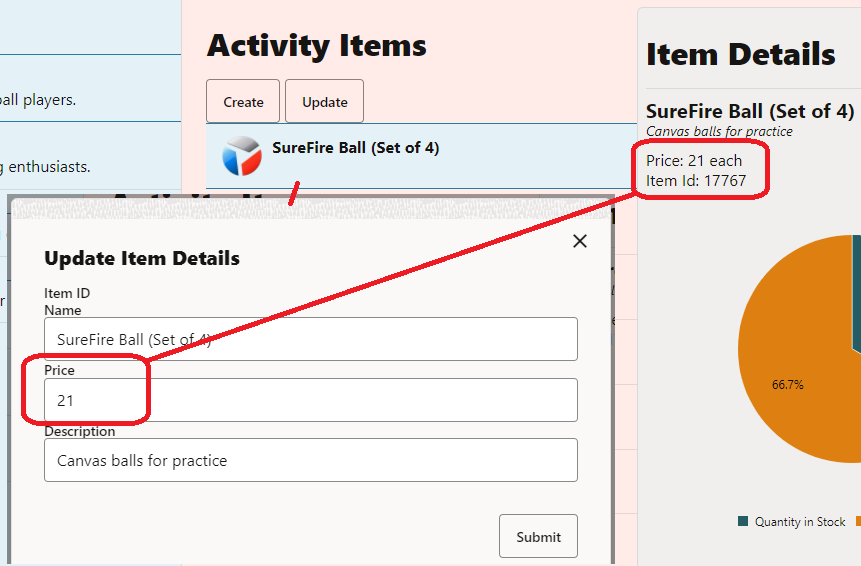
在 Web 应用程序中,单击 Baseball 活动,然后单击 SureFire Ball (Set of 4) 项。
-
单击 Update(更新)按钮。
此时将弹出“更新项目详细信息”对话框。
-
将价格从
20.5更改为21,然后单击提交。此部分将刷新,并且项的价格已更新。
-
关闭显示正在运行的 Web 应用程序的浏览器窗口或选项卡。
-
在终端窗口中,按 Ctrl+C,如果出现提示,输入
y以退出 Oracle JET 工具批处理作业。
更多学习资源
在 docs.oracle.com/learn 上浏览其他实验室,或者在 Oracle Learning YouTube 渠道上访问更多免费学习内容。此外,访问 education.oracle.com/learning-explorer 以成为 Oracle Learning Explorer。
有关产品文档,请访问 Oracle 帮助中心。
Update data records in an Oracle JET web app
F49655-01
February 2022
Copyright © 2022, Oracle and/or its affiliates.