Oracle JET Web 應用程式中的資料連結元件
簡介
本教學課程示範如何在 Oracle JavaScript Extension Toolkit (Oracle JET) Web 應用程式中使用本機 JSON 文件。
Oracle JET 是一種開發工具程式,提供許多資料提供者類別來管理各種來源的資料。在 viewModel 中,您將使用從 JSON 檔案讀取的資料填入 MutableArrayDataProvider 執行處理,然後將 MutableArrayDataProvider 執行處理連結至檢視中的 Oracle JET 自訂 HTML 元素。
目標
完成此教學課程時,您將瞭解如何從 JSON 文件讀取資料至資料提供者、新增 Oracle JET 清單檢視元件,以及將資料連結至 JSON 資料物件。
必要條件
- 設定使用 JavaScript 程式實際執行、Node.js 及已安裝最新 Oracle JET 版本命令行介面建立 Oracle JET App 的開發環境
- 在此學習路徑中完成上一個教學課程,因此您已建立
JET_Web_Application資料夾 - store_data.json 已下載至
JET_Web_Application/src/ts/目錄
作業 1:下載 JSON 文件並檢查資料
- 將
store_data.json檔案下載至JET_Web_Application/src/ts/目錄。 - 在 Web 瀏覽器中開啟
store_data.json檔案,並檢視資料結構。store_data.json檔案包含活動物件及其特性的清單。每個活動都包含具有自己特性的項目陣列。
作業 2:在 ViewModel 中填入資料提供者
將資料從 JSON 檔案植入 Oracle JET ojmutablearraydataprovider 物件。
-
瀏覽至
JET_Web_Application/src/ts/viewModels目錄,然後在編輯器中開啟dashboard.ts檔案。 -
從
store_data.json檔案匯入資料,使資料可在 ViewModel 中使用。import * as AccUtils from "../accUtils"; import * as ko from "knockout"; import MutableArrayDataProvider = require("ojs/ojmutablearraydataprovider"); import "ojs/ojselectsingle"; import "ojs/ojlabel"; import "ojs/ojchart"; import * as storeData from "text!../store_data.json"; -
如果沒有,請匯入用來存放 JSON 資料的
ojmutablearraydataprovider模組。import MutableArrayDataProvider = require("ojs/ojmutablearraydataprovider"); -
在
DashboardViewModel()類別之前,請先定義類型別名Activity,其中包含number類型的id欄位。... type Activity = { id: number; } class DashboardViewModel { -
在
DashboardViewModel()類別中,為將在下一個步驟建立的activityDataProvider新增類型。class DashboardViewModel { val: ko.Observable<string>; . . . chartDataProvider: MutableArrayDataProvider<string, {}>; chartData: Array<Object>; activityDataProvider: MutableArrayDataProvider<Activity["id"], Activity>; . . . -
在
DashboardViewModel()類別的constructror方法中,建立MutableArrayDataProvider(activityDataProvider) 的執行處理,然後使用JSON.parse方法讀取 JSON 資料。constructor() { this.val = ko.observable("pie"); ... this.activityDataProvider = new MutableArrayDataProvider< Activity["id"], Activity >(JSON.parse(storeData), { keyAttributes: "id", }); . . . -
匯入 Oracle JET 清單檢視元件模組。
import * as storeData from "text!../store_data.json"; import MutableArrayDataProvider = require("ojs/ojmutablearraydataprovider"); import "ojs/ojlistview";ojlistview模組支援此教學課程下一區段中的檢視。 -
儲存
dashboard.ts檔案。您的dashboard.ts檔案看起來應類似 final-data-bind-dashboard-ts.txt。
任務 3:資料連結檢視中的清單檢視元件
oj-list-view 元素是 Oracle JET 自訂 HTML 元素,具備增強 HTML 清單版本的互動式功能。您可以將 viewModel 中植入的 activityDataProvider 變數連結至「清單檢視」的 data 屬性,以提供資料至清單。
-
瀏覽至
JET_Web_Application/src/ts/views目錄,然後在編輯器中開啟dashboard.html檔案。 -
In the
dashboard.htmlfile, add adivelement with anidattribute value ofactivitiesContainerabove theitemDetailsContainerdivelement that contains the Oracle JET Select Single and Chart components.<div class="oj-hybrid-padding"> <h1>Product Information</h1> <div id="activitiesContainer"> </div> <div id="itemDetailsContainer"> <oj-label for="basicSelect">Select Chart:</oj-label> ... </div> -
在
activitiesContainerdiv元素內,新增含有data屬性的oj-list-view元素,該屬性使用單向連結來取得清單資料。<div class="oj-hybrid-padding"> <h1>Product Information</h1> <div id="activitiesContainer"> <oj-list-view id="activitiesList" aria-labelledby="activitiesHeader" data="[[activityDataProvider]]" gridlines.item="visible"> </oj-list-view> </div>我們也為
gridlines屬性指定visible值,讓格線顯示在清單中的項目之間,以aria-labelledby屬性作為輔助功能最佳實務。 -
在您建立的
oj-list-view元素內,新增含slot屬性的 HTMLtemplate元素,以呈現清單中的每個項目。<div class="oj-hybrid-padding"> <h1>Product Information</h1> <div id="activitiesContainer"> <oj-list-view id="activitiesList" aria-labelledby="activitiesHeader" data="[[activityDataProvider]]" gridlines.item="visible"> <template slot="itemTemplate"> </template> </oj-list-view> </div> -
Within the template element, add another
divelement that contains anoj-bind-textcustom HTML element with avalueattribute that uses a one-way binding to get the list data from the current data object.<div class="oj-hybrid-padding"> <h1>Product Information</h1> <div id="activitiesContainer"> <oj-list-view id="activitiesList" aria-labelledby="activitiesHeader" data="[[activityDataProvider]]" gridlines.item="visible"> <template slot="itemTemplate"> <div> <strong> <oj-bind-text value="[[$current.data.name]]"></oj-bind-text> </strong> </div> </template> </oj-list-view> </div> -
新增 HTML
h3元素以提供活動清單的標頭。<div class="oj-hybrid-padding"> <h1>Product Information</h1> <div id="activitiesContainer"> <h3 id="activitiesHeader">Activities</h3> <oj-list-view id="activitiesList" aria-labelledby="activitiesHeader" data="[[activityDataProvider]]" gridlines.item="visible"> . . . -
在
itemDetailsContainerdiv中,新增h3元素和oj-label元素,以提供圖表的標頭。. . . <div id="itemDetailsContainer"> <h3>Item Details</h3> <oj-label for="basicSelect">Select Chart:</oj-label> . . . -
儲存
dashboard.html檔案。您的dashboard.html檔案看起來應類似 final-data-bind-dashboard-html.txt。
任務 4:執行 Web 應用程式
-
在終端機視窗中,變更為
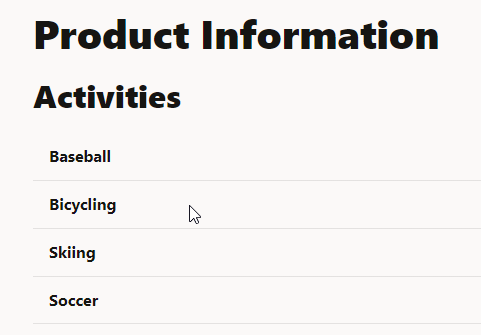
JET_Web_Application目錄,然後執行應用程式。$ ojet serve您的瀏覽器會顯示 Web 應用程式儀表板頁籤中顯示的活動清單。
-
關閉顯示您執行中 Web App 的瀏覽器視窗或頁籤。
-
在終端機視窗中,按 Ctrl+C,如果出現提示,請輸入
y以結束 Oracle JET 工具批次工作。 -
離開終端機視窗,開啟下一自學課程。
其他學習資源
探索 docs.oracle.com/learn 上的其他實驗室,或是存取更多免費學習內容至 Oracle Learning YouTube 通道。此外,瀏覽 education.oracle.com/learning-explorer 以成為 Oracle Learning Explorer。
如需產品文件,請瀏覽 Oracle Help Center。
Data bind a component in an Oracle JET web app
F53093-01
February 2022
Copyright © 2022, Oracle and/or its affiliates.