更新 Oracle JET Web 應用程式中的資料記錄
簡介
本教學課程示範如何使用 Oracle JavaScript Extension Toolkit (Oracle JET) Web 應用程式來更新現有的資料記錄,並將其送出至 REST 服務。
目標
本教學課程完成時,您將學習如何更新現有資料記錄,並將其提交至 REST 服務。
必要條件
- 設定使用 JavaScript 程式實際執行、Node.js 及已安裝最新 Oracle JET 命令行介面建立 Oracle JET App 的開發環境
- 完成此學習路徑中的上一個教學課程,因此您已使用 REST 資料提供者建立
JET_Web_Application資料夾以擷取資料
工作 1:在檢視中建立對話方塊
使用 oj-dialog 自訂 HTML 元素來收集表單資訊,然後您可以將其傳送至可觀察。
-
瀏覽至
JET_Web_Application/src/ts/views目錄,然後在編輯器中開啟dashboard.html檔案。 -
尋找
oj-button id="createButton"元素並在其下方新增第二個oj-button元素。將on-oj-action屬性設為"[[showEditDialog]]",將disabled屬性設為"[[!itemSelected()]]"。. . . <h3 id="itemsListHeader">Activity Items</h3> <oj-button id="createButton" on-oj-action="[[showCreateDialog]]">Create</oj-button> <!-- If itemSelected is set to false, disabled is true, and vice versa. --> <oj-button id="updateButton" disabled="[[!itemSelected()]]" on-oj-action="[[showEditDialog]]">Update </oj-button> <oj-list-view id="itemsList" class="item-display" data="[[itemsDataProvider]]" . . . -
尋找
oj-bind-if test="[[itemSelected()]]"標記並在其中新增oj-dialog元素。將id屬性設為"editDialog",將class屬性設為no-display。. . . <oj-bind-if test="[[itemSelected()]]"> <oj-dialog id="editDialog" class="no-display" dialog-title="Update Item Details" cancel-behavior="icon"> </oj-dialog> <div id="itemDetailsContainer" class="oj-flex-item oj-panel oj-bg-neutral-30 oj-md-6 oj-sm-12"> <h3>Item Details</h3> . . . -
在您建立的
oj-dialog元素內,新增兩個含有slot="body"和slot="footer"屬性的div標記。<oj-dialog id="editDialog" class="no-display" dialog-title="Update Item Details" cancel-behavior="icon"> <div slot="body"> </div> <div slot="footer"> </div> </oj-dialog> -
在您建立的
div slot="footer"元素內新增oj-button元素,並設定on-oj-action="[[updateItemSubmit]]"屬性。<div slot="footer"> <oj-button id="submitBtn" on-oj-action="[[updateItemSubmit]]">Submit </oj-button> </div> -
在您建立的
div slot="body"標記內,新增oj-label-value、oj-label元素以及inputItemID值的oj-input-text元素。<div slot="body"> <oj-label-value label-edge="inside"> <oj-label for="chatWindow" slot="label">Item ID</oj-label> <div slot="value" class="slot-line"> <oj-bind-text id="chatWindow" value="[[inputItemID]]" class="text-width"></oj-bind-text> </div> </oj-label-value> </div> -
在
oj-label-value元素下方,新增Name、Price和Description值的oj-input-text元素。<div slot="body"> . . . </oj-label-value> <oj-label class="oj-label oj-label-value" for="createNewName">Name</oj-label> <oj-input-text id="createNewName" value='{{inputItemName}}'></oj-input-text> <oj-label class="oj-label oj-label-value" for="createNewPrice">Price</oj-label> <oj-input-text id="createNewPrice" value="{{inputPrice}}"></oj-input-text> <oj-label class="oj-label oj-label-value" for="createNewDesc">Description</oj-label> <oj-input-text id="createNewDesc" value="{{inputShortDesc}}"></oj-input-text> </div>請注意,使用方括號 (表示單向連結) 連結
inputItemID值,因為使用者不應該編輯 ID 值。您可以使用大括弧 (表示雙向連結) 連結inputItemName和其他值,並允許使用者覆寫此值。 -
驗證搭配
id="itemsList"的「清單檢視」元件會將selectedItemChanged指定為on-first-selected-item-changed屬性的值。 -
儲存
dashboard.html檔案。您的程式碼看起來應該和這個 final-update-dashboard-html.txt 檔案類似。
-
瀏覽至
JET_Web_Application/src/css目錄,然後開啟app.css檔案。在檔案結尾新增下列樣式定義。. . . .no-display { display: none; } .slot-line { line-height: 2.4em; } .text-width { width: 100%; min-width: 100%; }您的程式碼看起來應該類似這個 final-css.txt 檔案。
工作 2:處理開啟 ViewModel 中的對話方塊
宣告檢視中參照的新可觀察項目和方法,讓您的 Oracle JET Web 應用程式在您服務時順利起始。
-
瀏覽至
JET_Web_Application/src/ts/viewModels目錄,然後在編輯器中開啟dashboard.ts檔案。 -
在
dashboard.ts檔案的頂端,驗證已匯入「對話方塊」元件和「輸入文字」元件的 Oracle JET 模組。import * as AccUtils from "../accUtils"; . . . import { ojDialog } from "ojs/ojdialog"; import "ojs/ojdialog"; import "ojs/ojinputtext"; . . . -
在
DashboardViewModel類別中,在您先前的程式碼中建立新「活動項目」,建立一個名為showEditDialog的方法來開啟對話方塊,並擷取您要更新的欄位值。. . . public createItem = async (event: ojButtonEventMap["ojAction"]) => { . . . } // end createItem public showEditDialog = (event: ojButtonEventMap["ojAction"]) => { this.inputItemName(this.itemData().name); this.inputPrice(this.itemData().price); this.inputShortDesc(this.itemData().short_desc); (document.getElementById("editDialog") as ojDialog).open(); } -
在
showEditDialog方法下方,建立一個名為updateItemSubmit的方法來送出對話方塊資料,然後新增close命令。public showEditDialog = (event: ojButtonEventMap["ojAction"]) => { this.inputItemName(this.itemData().name); this.inputPrice(this.itemData().price); this.inputShortDesc(this.itemData().short_desc); (document.getElementById("editDialog") as ojDialog).open(); } public updateItemSubmit = async (event: ojButtonEventMap["ojAction"]) => { (document.getElementById("editDialog") as ojDialog).close(); } -
儲存
dashboard.ts檔案。您的程式碼看起來應該和這個 update-dashboard-ts.txt 檔案類似。
工作 3:處理送出 ViewModel 中的對話方塊輸入
建立物件以保留從檢視中對話方塊擷取的資料,然後使用擷取 API 和 HTTP PUT 方法將其傳送至 REST 服務。最後,請在 RESTDataProvider 執行處理上使用 RESTDataProvider 的 mutate 方法。
-
在開啟的
dashboard.ts檔案中,在DashboardViewModel類別中宣告類型並初始化您要在提交資料的方法中使用的下列變數。class DashboardViewModel { . . . // Fields in update dialog inputItemID: ko.Observable<number>; inputItemName: ko.Observable<string>; inputPrice: ko.Observable<number>; inputShortDesc: ko.Observable<string>; // Fields for delete button and update dialog, among others selectedRow = ko.observable<number>(); . . . constructor() { . . . // Initialize fields in update dialog this.inputItemID = ko.observable(); this.inputItemName = ko.observable(); this.inputPrice = ko.observable(); this.inputShortDesc = ko.observable(); } // End constructor -
在
close()呼叫上方的updateItemSubmit方法中宣告變數row,以保留「更新項目詳細資訊」對話方塊的輸入值。同時包含if敘述句,以檢查資料是否已選取。public updateItemSubmit = async (event: ojButtonEventMap["ojAction"]) => { const currentRow = this.selectedRow; if (currentRow != null) { const row = { itemId: this.itemData().id, name: this.inputItemName(), price: this.inputPrice(), short_desc: this.inputShortDesc() }; }; // End if statement (document.getElementById("editDialog") as ojDialog).close(); } -
在
close()呼叫上方,建立將資料傳送至 REST 服務的要求。public updateItemSubmit = async (event: ojButtonEventMap["ojAction"]) => { const currentRow = this.selectedRow; if (currentRow != null) { const row = { . . . short_desc: this.inputShortDesc() }; // Create and send request to update row on rest service const request = new Request( `${this.restServerURLItems}${this.itemData().id}`, { headers: new Headers({ "Content-type": "application/json; charset=UTF-8", }), body: JSON.stringify(row), method: "PUT", } ); const response = await fetch(request); const updatedRow = await response.json(); } // End if statement (document.getElementById("editDialog") as ojDialog).close(); } // update-item-end -
在將資料傳送至 REST 服務的要求下,建立
update移轉並呼叫mutate方法,以通知您的RESTDataProvider執行處理資料已更新。同時,呼叫refresh()方法以重新整理瀏覽器中顯示的資料。public updateItemSubmit = async (event: ojButtonEventMap["ojAction"]) => { const currentRow = this.selectedRow; if (currentRow != null) { . . . }; const request = new Request( `${this.restServerURLItems}${this.itemData().id}`, { . . . } ); . . . const updatedRow = await response.json(); // Create update mutate event and call mutate method // to notify dataprovider consumers that a row has been // updated const updatedRowKey = this.itemData().id; const updatedRowMetaData = { key: updatedRowKey }; this.itemsDataProvider.mutate({ update: { data: [updatedRow.items[0]], keys: new Set([updatedRowKey]), metadata: [updatedRowMetaData], }, }); this.itemsDataProvider.refresh(); } // End if statement (document.getElementById("editDialog") as ojDialog).close(); } // update-item-end -
儲存
dashboard.ts檔案。您的程式碼看起來應該和這個 final-update-dashboard-ts.txt 檔案類似。
作業 4:測試代碼並更新記錄
-
在瀏覽器中,檢視 Web App 中的動態變更。
-
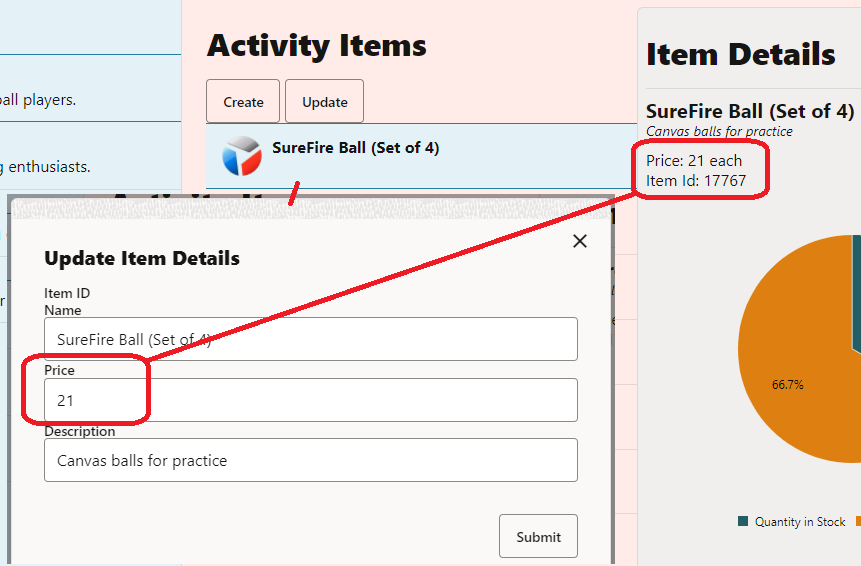
在 Web 應用程式中,按一下基礎球活動,然後按一下 SureFire Ball (集合 4) 項目。
-
按一下更新按鈕。
會出現「更新項目詳細資訊」對話方塊。
-
將價格從
20.5變更為21,然後按一下提交。區段會重新整理,且項目價格已更新。
-
關閉顯示您執行中 Web App 的瀏覽器視窗或頁籤。
-
在終端機視窗中,按 Ctrl+C,如果出現提示,請輸入
y以結束 Oracle JET 工具批次工作。
其他學習資源
探索 docs.oracle.com/learn 上的其他實驗室,或是存取更多免費學習內容至 Oracle Learning YouTube 通道。此外,瀏覽 education.oracle.com/learning-explorer 以成為 Oracle Learning Explorer。
如需產品文件,請瀏覽 Oracle Help Center。
Update data records in an Oracle JET web app
F49652-01
February 2022
Copyright © 2022, Oracle and/or its affiliates.