Sun™ ONE Messaging Server Release Notes
Version 5.2 Patch 2 July 2004
Part Number 817-6244-10
These Release Notes contain important information available at the time of release of Sun ONE Messaging Server 5.2 Patch 2 (Sun ONE Messaging Server was formerly iPlanet Messaging Server). New features and enhancements, known issues and limitations, and other information are addressed here. Read this document before you begin using Sun ONE Messaging Server 5.2 Patch 2.
The most up-to-date version of these release notes can be found at the Sun ONE documentation web site: http://docs.sun.com/prod/sunone. Check the web site prior to installing and setting up your software and then periodically thereafter to view the most up-to-date release notes and product documentation.
These release notes contain the following sections:
Release Notes Revision History
About Sun ONE Messaging Server 5.2
Sun ONE Messaging Server provides a powerful and flexible solution to the email needs of enterprises and messaging hosts of all sizes using open Internet standards.
Sun ONE Messaging Server combines the Messaging Server and Sun Internet Messaging Server. The most robust and highest performing components of each product work together to produce the Messaging Server. For example, the message store, Lightweight Directory Access Protocol (LDAP) directory, and Administration Console come from the Messaging Server, while the message transfer agent (MTA) and delegated administrator command line interface (CLI) come from Sun Internet Mail Server.
Because this is an integrated product, Messaging Server and Sun Internet Messaging Server customers might find that many processes and procedures for those products are different for Sun ONE Messaging Server. For complete information refer to the Sun ONE Messaging Server 5.2 documentation at http://docs.sun.com/db/prod/s1msgsrv.
The following list describes the features of Sun ONE Messaging Server 5.2, referred to in these release notes as Messaging Server:
- Compatibility with Sun ONE Directory Server 5.1 and 5.2.
- Integration with Sun ONE Web Server 6.0 Service Pack 2
- Enhanced Hypertext Transfer Protocol (HTTP) service with the introduction of Messenger Express Multiplexor.
- Enhanced Messenger Express, including a spelling checker, rich-text formatting for Microsoft Internet Explorer, shared folders, and user interface improvements that facilitate navigation.
- Message transfer agent direct LDAP lookup.
- Post Office Protocol (POP) before Simple Message Transfer Protocol (SMTP) service to support legacy POP clients that lack support for standard SMTP authentication. This service is implemented by using a new SMTP proxy component of the Messaging Multiplexor (MMP).
- The ability to import and export between the Messaging Server and UNIX /var/mail format folders.
- Additional support for Domain Name System (DNS) databases in the dns_verify program.
- The configuration variable store.quotanotification is no longer supported. To enable or disable quota notification, set or unset the store.quotaexceededmsg configuration variable. You cannot disable Internet Mail Access Protocol (IMAP) ALERT messages.
- Support for Short Messaging Service (SMS) using the SMS channel. The Messaging Server supports one-way email to an SMS gateway. Support for this feature is provided by a special SMS channel. The handling of SMS notifications (that is, replies and delivery receipts) and origination of email from SMS users (mobile-to-email) is not supported.
This section includes:
What’s New in This Release
New features in Messaging Server 5.2 Patch 2 include:
- The ability to take advantage of the anti-spam and anti-virus software from Brightmail, Inc., is available with the Messaging Server. See Using Brightmail Software with Messaging Server for more information on configuring and using these features.
- Additional MTA options, environment variables, metacharacters and other features were added to the Messaging Server. See Documentation Updates for Messaging Server 5.x for more information.
- Sun Cluster 3.0 Update 3 and Veritas Cluster Server 2.0 Patch 4 are supported. See the iPlanet Messaging Server Installation Guide for installation and configuration information. In addition, Veritas Cluster Server 3.5 is supported. For more information, see Veritas Cluster Server 3.5 Support.
- The Messaging Server can be installed on Solaris 9 and Windows 2000 Service Pack 2. See the sections on Solaris 9 and Microsoft Windows 2000 Service Pack 2.
Hardware and Software Requirements
The following hardware and software are required for this release of Messaging Server.
Required Software for the Messaging Server
The Messaging Server 5.2 Patch 2 requires these Sun ONE components:
- You are starting a new deployment of Messaging Server.
- You require the Class of Service (CoS) mechanism. For more information, see: http://docs.sun.com/source/816-5606-10/roles.htm#1115605.
- You require Counter Plug-in compatibility.
Use Directory Server 5.2 if your system meets any of these conditions:
You cannot upgrade the Delegated Administrator from older versions of the product. Instead, you need to uninstall the previous version of Delegated Administrator and install the version that is bundled with the new Messaging Server version which you are installing.
For more information, see the Delegated Administrator for Messaging and Collaboration Release Notes.
Review the Sun ONE Web Server 6.0 Service Pack 2 release notes to determine any required operating system patches. See http://docs.sun.com/db/prod/s1websrv/.
These products are all included in the Messaging Server distribution at the download site: http://www.sun.com/software/download/.
Supported Platforms
Messaging Server 5.2 Patch 2 is supported on these platforms:
- Solaris 9 for SPARC
- Solaris 2.6 and 8 for SPARC, with recommended patches
- Microsoft Windows NT 4.0 Service Pack 6a
- Microsoft Windows 2000 Service Pack 2
- Hewlett-Packard HP-UX 11.0 and 11i, with recommended patches
Solaris 9
The Messaging Server can be installed on Solaris 9 Update 1 or Solaris 9 Update 2. There are no required Solaris patches. Be aware that:
- If you use the directory server that is bundled with the Solaris 9 operating environment, you need to set and export (in ksh) LD_LIBRARY_PATH=/usr/iplanet/ds5/lib before running the ims_dssetup.pl script. Or you must run the ims_dssetup.pl script that is included with the Messaging Server 5.2 Hot Fix 1.07 or later.
- If you choose to perform a rolling upgrade from Solaris 8 to Solaris 9, the Solaris 9 Live Upgrade substantially reduces the service outages that are sometimes associated with an operating system upgrade. You can duplicate your current running boot environment. While the original boot environment runs, you can upgrade the duplicate environment.
Solaris 2.6 and 8
Solaris 2.6 and 8 require these patches:
- In addition to the recommended patches listed at http://access1.sun.com,Solaris 2.6 for SPARC requires patch 105591-09 or later versions (shared library patch for C++) and patch 106613-01 or later versions (character set conversion).
If you install Messaging Server in the ja_JP.PCK locale, the imadmin command line utility does not work properly without patch 106361-10.
Solaris 8 for SPARC requires the recommended patches listed at http://access1.sun.com
Ensure that your Solaris setup specifies how to route to hosts that are not on the local subnet. To do this, check that:
- The /etc/defaultrouter file contains the Internet Protocol (IP) address of the gateway system. This address must be on a local subnet.
- The /etc/resolv.conf file exists and contains the proper entries for reachable DNS servers and domain suffixes.
- The /etc/nsswitch.conf file includes the dns keyword in the hosts: line.
If you are installing Messaging Server in a secured environment, the minimum packages you need on Solaris 8 include:
Microsoft Windows NT 4.0
Windows NT 4.0 Service Pack 6a is supported.
Microsoft Windows 2000 Service Pack 2
Windows 2000 and Windows 2000 Service Pack 2 are supported when you use Messaging Server 5.2 Patch 2. See Sun problem number 4782958 to improve imapd performance.
You need the following components to install Messaging Server on Windows 2000 Service Pack 2:
Configure the Direct LDAP Mode. See the iPlanet Messaging Server Administrator’s Guide for more information.
Hewlett-Packard HP-UX
The Hewlett-Packard HP-UX 11.00 platform requires the operating system bundles and patches listed in Table 2:
The Hewlett-Packard HP-UX 11i platform requires the following patch:
Switching the globalmutex back to native implementation can improve performance. To do so, use one of these Hewlett-Packard patches:
If you are running Sun ONE Web Server on an HP-UX platform, you need to ensure that the correct patches are installed on that machine, as listed in Table 3.
To identify any existing patches on your system, use the swlist command. To install HP-UX patches, use the swinstall command. Refer to the Hewlett-Packard documentation for more information.
Required Software for Messenger Express
For Messenger Express, the Messaging Server requires a JavaScript-enabled browser. For optimal performance, use the browsers listed in Table 4:
Disc Space Requirements
The minimum disk and memory requirements for Messaging Server are:
- Approximately 1GB of disk space to support the product binaries and a minimum message store.
- 128MB of RAM.
- Adequate file system space for your user mailboxes (message store), database, log files, and message queue directory. These can grow in size dramatically depending on the size of your site, so be sure to allocate space accordingly.
Systems with limited disk space should not install Patch 2. The installation process requires enough disk space for installation and administrative tasks in the /, /var, or server-root directories, which is where the patch is typically installed. The exact amount of space depends on the components as well as the difference in the size of the new objects. Do not apply Patch 2 on a system with less than 50 MB of available space in each of these directories (/, /var, or server-root). Running out of disk space during installation might result in a partially loaded distribution. Ensure that a recent full system backup is available in case a problem occurs.
Installation Procedures for Patch 2
Patch 2 contains a bundle of updates to Messaging Server 5.2. It includes corrections and enhancements for the core Messaging Server product, such as the MTA and the message store. It also includes updates to Messenger Express, the Messaging Multiplexor, Simple Network Management Protocol (SNMP), Sun Cluster high availability (HA) agents, and Veritas HA agents. Updates to Delegated Administrator for Messaging and Collaboration are not included in this distribution. See the Delegated Administrator for Messaging and Collaboration 1.2 Patch 1 Release Notes for more information.
The following topics outline the patch installation procedures:
High Availability Notes
This section describes how to install high availability when upgrading to Messaging Server 5.2 Patch 2. Table 5 lists the supported versions of Sun Cluster Server and Veritas Cluster Server for the Messaging Server.
Sun Cluster 3.x
The patch for the Sun Cluster 3.x HA agents, Solaris Patch 112882-xx, is included with the Patch 2 distribution. The Patch 2 installation script checks whether you need other patches.
Sun Cluster 2.2, Sun Cluster3.x, and Veritas Cluster Servers
On all cluster nodes in the Messaging Server resource group, perform these steps to apply Patch 2:
- Backup the server-root/patch/patch_version/backout directory.
- Apply the patch to the second and subsequent nodes of the cluster. Specify only the HA agent component in the Perl script imspatch.pl. Be sure to back up your software after applying the patch on each node.
- Backup the server-root/patch/patch_version/backout directory after applying the distribution on the second and subsequent nodes of the cluster.
- If you need to remove the patch, you must restore the appropriate backout directory for the cluster node before running the Perl script imspatch.pl -u.
- Note that /usr/lib/sendmail is now patched if you specify the Sun Cluster 2.2, Sun Cluster 3.x HA Agent, or Veritas 2.0 HA Agent components of the patch distribution.
Saving Original Files
The installation procedure saves the Messaging Server files that are being replaced. The original files are placed in the server-root/patch/patch_version directory. The installer script cannot determine if enough system disk space is available in server-root/patch to save these files.
|
| |
| Note |
You do not need to back out older versions of Messaging Server patches prior to installing the new version. |
|
| |
Installation Instructions for Patch 2
- If the Messaging Server 5.2 Patch 2 distribution is a .zip, .tar, or .tar.gz file, unzip, untar, or uncompress it into an empty directory within the existing Messaging Server root directory.
- Ensure that all current messaging services are stopped, including dirsync, Direct LDAP, and smtp_server. Verify that all processes have stopped before proceeding to the next step.
- Go to the distribution directory and run the Perl script imspatch.pl with super user privileges. For example:
- If errors are encountered during the installation, error messages are displayed. More details about failures can be found in the log file server-root/patch/patch_version/log. If this log file already exists, the latest installation data is written to the file’s end so check there for error messages.
# cd distribution_directory
# server-root/install/perl imspatch.pl
The installation program displays this text:
Welcome to the iMS Patch Installation tool.
This tool updates your messaging server installation to iPlanet Messaging Server 5.2 Patch 2.
Note that webmail patches will overwrite HTML and Javascript files. These files need to be modified for the specific site, and any user changes needs to be merged into the new file.
Please make sure you have stopped your messaging server before proceeding
Do you want to continue [y]:
Please enter the full path to the directory where iPlanet Messaging Server was installed.
Messaging server root [/usr/iplanet/server5] :
Please select from the following components:
[1] Messaging MTA/Store/Webmail/Command Line Utilities
[2] Messaging Multiplexor
[3] Sun Cluster 2.2 HA Agent
[4] Veritas 2.0 HA Agent
[5] Sun Cluster 3.x HA Agent
Which of the above component(s) do you have installed [1]:
Current Installed Version is iPlanet Messaging Server 5.2.
The progress of the installation script is displayed on your terminal, including the output of the imsimta version and the output of the imsimta test -rewrite commands.
Post-Installation Processing
The following post-installation processes occur while ims_patch.pl is applying Patch 2. You do not have to manually perform any of these procedures.
- The MTA imsimta cnbuild and imsimta chbuild commands in the server-root/msg-instance directory are run to rebuild the MTA configuration files.
- The MTA imsimta cleandb command (server-root/msg-instance directory) is run.
- The MTA imsimta recover-crash command (server-root/msg-instance directory) is run. However, if you are not running the dirsync command, this command is not run.
- The MTA imsimta test -rewrite -debug postmaster command (server-root/msg-instance directory) is run to test the MTA.
- The MTA command, imsimta version, located in server-root/msg-instance directory, is run. The output shows the new patch version and build date. A one-line log message of the patch installation is added to the end of the server-root/README.txt file.
- The NDAStartPage variable has these strings embedded in it:
- msg.da.Host - Delegated Administrator host name.
- msg.da.Port - Delegated Administrator port number.
- msg.cfgldap.service.DefaultDomain - default mail domain.
- Messenger Express problem fixes overwrite Hypertext Markup Language (HTML) and JavaScript (.js) files, which means that any user customizations are overwritten. User customizations should be merged into the new files.
These variables must be replaced with their correct values. Consult the old main.js files for the proper values. If NDAStartPage is not updated, the Delegated Administrator link on the Messenger Express Options page will point to a non-existent URL.
Once the post-installation processes are complete, you can restart the Messaging Server services.
Uninstalling Patch 2
To uninstall the Messaging Server 5.2 Patch 2 distribution, follow these steps:
- Ensure that all Messaging Server services are stopped.
- Run the imspatch.pl Perl script as the super user with the -u flag from the back out directory (server-root/patch/patch_version).
- Certain configuration files are not removed automatically. These are the files in the server-root/patch/patch_version/save directory. For example, customizations to your imta.cnf and job_controller.cnf files are stored in this directory. If you want to remove those changes, you must do so manually.
It is very important to run the command from the back out directory and not from the patch distribution directory. For example:
# cd server-root/patch/iMS5.2hf1.09
# server-root/install/perl imspatch.pl -u
Information about the script’s progress is displayed on your terminal. It should look like this:
Welcome to the iMS Patch Uninstallation tool.
This tool rolls back your messaging server installation from 5.2p2. Please make sure you have stopped your messaging server before proceeding
Do you want to continue [y]:
Please enter the full path to the directory where iPlanet Messaging Server was installed.
Messaging server root [/usr/iplanet/server5/patch/patch_version] :
New Installed Version is 5.2
Bugs Fixed in This Release
The following table describes the problems fixed in Messaging Server 5.2 Patch 2:
Important Information
This section contains the latest information that is not contained in the core product documentation. This section covers the following topics:
Unsupported Features
While you can still perform this function, the preferred method is to install multiple Messaging Server instances on the same disk and host in separate server-root directories. In the next Messaging Server release, the ability to install multiple instances in the same server-root directory will be removed.
Localized Versions of Messaging Server
Messaging Server 5.2 Patch 2 includes all the necessary resources to support your localization needs.
Veritas Cluster Server 3.5 Support
Messaging Server 5.2 Patch 2 can now be configured with Veritas Cluster Server 3.5. Be sure to review the Veritas Cluster Server documentation prior to following these procedures.
Configuration and Installation Notes
The following instructions describe how to configure Messaging Server as an HA service, using Veritas Cluster Server 3.5. For more information on high availability, see the iPlanet Messaging Server Installation Guide for UNIX.
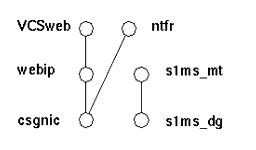
The default main.cf configuration file sets up a resource group called ClusterService that launches the VCSweb application. This group includes network logical host IP resources like csgnic and webip. In addition, the ntfr resource is created for event notification.
- Launch Cluster Explorer from one of the nodes.
- Add s1ms_dg disk group resource of type DiskGroup and enable it.
- Add s1ms_mt mount resource of type Mount.
- Create a link between s1ms_mt and s1ms_dg. Enable the resource s1ms_mt. See the following dependency tree:
- Run the Messaging Server setup program from the primary node (for example, Node_A) to install Messaging Server.
- Select Custom Installation as your installation type.
- Provide the logical host name and the logical IP address whenever a host name or an IP address is required during the installation.
- When selecting Messaging Suite components, choose Sun Cluster2.2/Veritas HA for Messaging Server in addition to your other Messaging components.
- Switch to the backup node (for example, Node_B).
- Run the Messaging Server setup program on the backup node (Node_B), but only install the Veritas agent by selecting Sun Cluster2.2/Veritas HA for Messaging Server. Do not install other Messaging Server components on this node.
- From the Cluster Explorer, Select Import Types... from the File menu which will display a file selection box.
- Import the MsgSrvTypes.cf type from the /etc/VRTSvcs/conf/config directory. Import this type file. Note that you need to be on a cluster node to find this file.
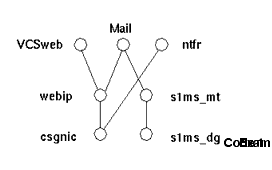
- Now create a resource of type MsgSrv (for example, Mail). This resource requires the instance name and logical host name properties to be set.
- The Mail resource depends on s1ms_mt and webip. Create links between the resources as shown in the following dependency tree:
- Switch over to Node_A and check if the HA configuration is working.
- Change the group attribute OnlineRetryLimit from 3 to 0, otherwise the failed-over service might restart on the same node.
Note that these Veritas Cluster Server instructions assume you are using the graphical user interface (GUI) to configure Messaging Server as an HA service.
To launch Cluster Explorer, run the following command:
# /opt/VRTSvcs/bin/hagui
The VRTScscm package must be installed in order to use the GUI.
The Veritas agent is now installed on Node_B.
MsgSrv Attributes
This section describes additional MsgSrv attributes that govern the behavior of the mail resource. Refer to Table 7 to configure Messaging Server with Veritas Cluster Server:.
Documentation Updates for Messaging Server 5.x
This section describes any errors or changes to the Messaging Server 5.2 documentation set.
Administrator’s Guide
This section describes any errors or changes to the iPlanet Messaging Server Administrator’s Guide.
The ability to use the anti-virus and anti-spam products of Brightmail, Inc., was introduced in the Messaging Server 5.2 Patch 2 release. (no problem number)
See Using Brightmail Software with Messaging Server for information to administer and use the anti-virus and anti-spam products.
The MTA options LDAP_HOST, LDAP_USERNAME, LDAP_PASSWORD and LDAP_PORT were introduced in the Messaging Server 5.2 release. (no problem number)
The new options, LDAP_HOST, LDAP_USERNAME,LDAP_PASSWORD, and LDAP_PORT, override the MTA’s use of the local.ugldaphost, local.ugldapbinddn, local.ugldapbindred, and local.ugldapport parameters when accessing the LDAP directory. The default values of the new options are the values of the local.ugldap* parameters.
A jettison action for the Sieve function was introduced in the Messaging Server 5.2 release. (no problem number)
The new jettison action is similar to a discard action in that it causes messages to be silently discarded. The difference between jettison and discard is that jettison forces a message discard. This difference is relevant when multiple Sieve scripts are involved. For example, a system level discard can be overridden by a user Sieve script specifying keep, whereas a system level jettison overrides anything defined in a user Sieve script.
Six environment variables were introduced in the Messaging Server 5.2 Patch 2 release. (no problem number)
The new environment variables for the conversion channel program are summarized in Table 8.
The new MTA option, LDAP_TIMEOUT MTA, was introduced in the Messaging Server 5.2 Patch 2 release.
LDAP_TIMEOUT defines a timeout value for LDAP searches performed by the MTA. This option does not affect LDAP searches performed by domain map. The default value, 180000, represents 180,000 milliseconds.
Three new metacharacters, $K, $V, and $Z, were introduced in the Messaging Server 5.2 Patch 2 release. (no problem number)
Table 9 describes the new metacharacters.
In Appendix B, Enabling Direct LDAP Mode, Step 7 was clarified. (no problem number)
Step 7 was changed from:
Compiled the modified MTA configuration. This must happen before it comes into effect.
to:
Compile the modified MTA configuration (imsimta refresh). This must happen before it comes into effect.
Messenger Express
This section describes any errors or changes to the on-line help and iPlanet Messaging Server Administrator’s Guide for Messenger Express.
The method for saving a message’s attachment has changed in the Messaging Server 5.2 Patch 2 release.
To save an attachment:
- Use the Save As function of your browser to save the attachment.
- Click Save in the dialog box.
- The “Save As” dialog box appears.
- In the File Name field, enter the name of the attachment to be saved.
- Click Save.
Or
Click the name of the attached file in the message header. (In the case of GIF or JPEG files, which are displayed inline, you will need to right-click on the image.)
Or
Choose Save Target As from the drop-down menu.
Customize Address Search to return more LDAP attributes. (problem number 4778717)
The new configuration attribute, local.service.http.ldapaddresssearchattrs, accepts a list of LDAP attributes to return on an LDAP search. For example,
configutil -o local.service.http.ldapaddresssearchattrs -v "cn, mail, sn, telephoneNumber"
This attribute does not apply to Personal Address Book searches.
Migration Guide
This section describes any errors or changes to the iPlanet Messaging Server Migration Guide.
Directory Server 4.12 is referenced in the guide. (no problem number)
The only supported directory servers are Messaging Server Directory Server 5.1 and 5.2.
Reference Manual
This section describes any errors or changes to the iPlanet Messaging Server Reference Manual.
A new option for the imsrestore utility was introduced in the Messaging Server 5.2 release. (bug number 4536650)
To restore a file larger than 2 GB, use the imsrestore utility with the -s option.
The MTA option HEADER_LIMIT was introduced in the Messaging Server 5.2 release. (no problem number)
HEADER_LIMIT sets a limit on the maximum size of the primary or outermost message header . Primary message headers are truncated without notice when the limit is reached. The default value is no limit on size.
An SMTP option, 552_PERMANENT_ERROR_STRING, was introduced in the Messaging Server 5.2 release. (no problem number)
The option 552_PERMANENT_ERROR is used to determine if a 552 response should be treated as a permanent error. This option goes in the relevant tcp_*_option file. Normally, as defined by RFC 2821, 552 responses are treated as if they are 4xx responses and temporary in nature. Some older SMTP servers use the 552 response to indicate a permanent error. The option was added to allow for this behavior.
When a 552 response is received, the text associated with it, including any xx.xx.xx extended error code but excluding any leading spaces, is compared with the value of the 552_PERMANENT_ERROR_STRING. If it matches the value, the response is treated as permanent, otherwise it is treated as a retryable error.
The MTA option, SIEVE_USER_CARRYOVER, was introduced in the Messaging Server 5.2 release. (no problem number)
The new option controls how Sieve scripts are combined when forwarding a message. This is a bit-encoded value. Only one bit is defined, bit 0. When set to 1 in the MTA option.dat file, it causes user-to-user message forwarding to cancel the domain and Sieve scripts associated with the original user entry. The default value is 0.
The MTA channel keywords, headerfoldpreserve and headertrailingpreserve, were introduced in the Messaging Server 5.2 release. (RFE 4882962)
The new source channel keywords, headerfoldpreserve and headertrailingpreserve, are useful when Messenger Express is processing messages that use a multi-byte language set, such as Japanese. For a multi-line Subject, the keywords preserve the original placement of multi-byte characters in each line.
The keywords are described in the following table:
The local.ldapconnectionload configutil attribute is no longer supported. (no problem number)
The attribute originally enabled a temporary solution to a libldap problem. As of the Messaging Server 5.2 Hot Fix 0.4 bundle, the underlying problem has been resolved. Consequently, the local.ldapconnectionload attribute of configutil is no longer needed.
The BANNER_HOST SMTP channel option was prematurely documented in the Messaging Server 5.2 release. (no problem number)
The BANNER_HOST SMTP channel option will not be implemented until the next major release.
The MTA channel keywords, alternatechannel, alternateblocklimit, alternatelinelimit, and alternaterecipientlimit, were introduced in the Messaging Server 5.2 release. (no problem number)
Use the new MTA channel keywords, described in Table 10, on destination channels when you want to send large messages to an alternate channel:
In the following channel block example, large messages over 5K that would go through the tcp_local channel to the Internet, instead go through the tcp_big channel:
tcp_local smtp ... rest of keywords ... \
There are many ways to use the alternate* channel keywords:
You can separate small messages or messages with few recipients from the large messages or messages with many recipients, since the latter might take longer for remote SMTP servers to process and accept; you might not want the larger messages to delay delivery of the smaller messages.
Note that the Job Controller’s regular scheduling of messages and assigning of messages to threads and processes are acceptable in most configurations.
In particular, setting special TCP/IP channel timeout values can be helpful if you want to send messages to remote hosts that take exceptionally long to receive large messages or messages with many recipients.
The default automatic timeout adjustment should be sufficient for most configurations. At most, you might want to adjust the values from the defaults and not use a special channel. In particular, see the channel options STATUS_DATA_RECV_PER_ADDR_TIME and STATUS_DATA_RECV_PER_BLOCK_TIME in the iPlanet Messaging Server Reference Manual.
Typically, you would put the desired maxblocks size on your regular outbound TCP/IP channels, when you want to fragment messages over a specified size. The maxblocks channel keyword is normally both the threshold at which to perform fragmentation and the size to make the fragments.
But, if you want to have a larger threshold trigger and make smaller actual fragments, you can use the alternatechannel and alternateblocklimit on the outbound TCP/IP channel. You can then use the maxblock size on your alternate channel to fragment messages over a particular size.
- You might use the alternatechannel with special filtering. For instance, a message with many recipients might need more careful scrutiny of its content in case it is spam. You might want to do different filtering based on the outgoing channel (See the destinationfilter channel keyword in the iPlanet Messaging Server Reference Manual).
If you are performing relatively resource-intensive scanning (such as virus filtering) through the conversion channel, very large messages might have a resource issue. You might want to use an alternate conversion channel. Or, you might want to do special conversion procedures within the regular conversion channel, based on the outgoing channel.
Furthermore, if you are trying to do careful analysis of delivery statistics, it is useful to process large messages in their own channel. This is because large messages or messages with many recipients that are sent to remote SMTP hosts are likely to take longer to finish processing, thus creating different delivery statistics for larger messages than for typical messages.
imsimta dirsync usage message parameters need to be documented. (problem number 4713515)
The description for the imsimta dirsync command in Chapter 2, Message Transfer Agent Command-line Utilities is missing descriptions for the options -c, -C, and -u.
The descriptions for these options are listed in the following table:
The MTA channel keywords, wrapsmtp and truncatesmtp, were introduced in the Messaging Server 5.2 release. (problem number 4547335)
The new channel keywords, wrapsmtp and truncatesmtp, are described in the following table:
Schema Reference
mgrpAllowedDomain schema attribute behavior has been updated (problem number 6255335)
Identifies domains or subdomains from which users are allowed to send messages to the mail group. Note that glob-style wildcarding can be used in the domains. In other words, any part of the domain specification can be wildcarded.
If no instances of this attribute exist on the inetMailGroup entry, then there are no restrictions on who can send messages to the mail group unless the mgrpAllowedBroadcaster, mgrpDisallowedBroadcaster, and mgrpDisallowedDomain attributes are used.
Examples:
mgrpAllowedDomain: siroe.com will only match the siroe.com domain.
mgrpAllowedDomain: *.siroe.com will match any subdomain of the siroe.com domain.
mgrpAllowedDomain: *.com will match any *.com domain.
mgrpAllowedDomain: siroe.* will match any top-level domain beginning with siroe.
Setting the Directory Server attribute mailDomainStatus to unused for a domain tells the MTA to ignore the domain entirely. (no problem number)
Using Brightmail Software with Messaging Server
Brightmail Inc. is a company that provides an anti-spam and anti-virus software solution for email servers. The Brightmail solution consists of the Brightmail server along with real-time anti-spam and anti-virus rule updates downloaded to email servers.
How Brightmail Works
Brightmail products have email probes set around the internet for detection of new spam. Brightmail technicians create custom rules to block this spam in realtime. These rules are downloaded to Brightmail servers also in realtime (the servers are installed at your site). The Brightmail database is updated and Brightmail server runs this database filter against the email for the specified users or domains.
To support Brightmail, you must set up Messaging Server to operate in direct LDAP lookup mode. Brightmail is not supported on systems that operate in the dirsync mode.
Brightmail Architecture
Figure 1 depicts the Brightmail architecture.
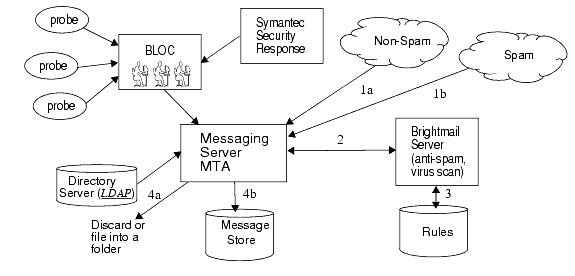
When the Brightmail Logistics and Operations Center (BLOC) receives spam from email probes, operators immediately create appropriate anti-spam rules, which are downloaded to Brightmail customer machines. Similarly, the Symantec Security Response real-time virus rules are also sent from Brightmail. These rules are used by your Brightmail servers to catch spam and viruses.
The MTA uses the Brightmail software developer’s kit (SDK) to communicate with the Brightmail server. The MTA dispatches messages based on the response back from Brightmail. After the mail (1a) or (1b) is received by the MTA, the MTA sends the message to the Brightmail server (2). The Brightmail server uses its rules and data to determine if the message is a spam or virus (3), and returns a verdict back to the MTA. Based on the verdict, the MTA either (4a) discards the message or files the message into a folder, or (4b) delivers it normally to the destination.
Because the Brightmail SDK is third party software, it is not included in Patch 2 distribution. You must obtain the Brightmail SDK and server software through Brightmail Inc. The MTA has configuration settings to tell it whether and where to load the Brightmail SDK to enable Brightmail integration.
Once the SDK is loaded, Brightmail message processing is determined by several factors and levels of granularity (the term used by Brightmail to specify active processing is optin). This is specified by the following criteria:
For any particular message recipient, the optin’s and defaults above are combined, which means, if the channel default is already specified for both spam and virus, then there is no reason to bother with per-user optin. That is, if the system administrator decides to do spam and virus filtering for everyone, then there is no reason to expose to the user the ability to optin for spam or virus. There is no way to opt out of processing, that is, you cannot say you do not want the service if it is already configured for you.
There are only two services offered, virus or spam detection. Brightmail also provides a “content-filtering” service, but this function is provided with Messaging Server by using Sieve. There is no added value to have Brightmail do the Sieve filtering.
When a message is determined to be a virus, the Brightmail server can be configured to clean the virus and resubmit the cleaned message back to the MTA. When the message is spam, the verdict back from the Brightmail along with the configuration in Brightmail allows the MTA to determine what happens to the message. Basically, three things can happen: the message is discarded, it is filed into a folder, or it is delivered normally to the Inbox folder.
The Brightmail servers can be located on the same system as the MTA, or it can be on a separate system. In fact, you can have a farm of Brightmail servers serving one or more MTAs. The Brightmail SDK uses the Brightmail configuration file to determine which Brightmail server to use. It is not something the MTA has to worry about.
Brightmail Requirements and Performance Considerations
Deploying Brightmail
This section describes how to deploy Brightmail for the following configurations:
BrightMail filtering is enabled in Messaging Server using channel keywords or the Brightmail LDAP attribute. The method of filtering on the system is additive. That is, it is the combination of both keywords and the attribute.
To Activate Brightmail Processing for All Users on a Destination or Source Channel
- Install and configure the Brightmail server.
- Set the Brightmail library and configuration file parameters by adding the following two MTA options to the options.dat file:
- Specify the desired Brightmail options in the MTA options file (Table 14) and Brightmail configuration file (Table 16).
- Specify the channels and email direction (source or destination) on which Brightmail processing will occur.
To install Brightmail on your system, see your Brightmail, Inc., representative.
Brightmail_Library=path_and_filename_of_libbmiclient.so
Brightmail_config_file=path_and_filename_of_brightmail_config_file
Set the keyword sourcebrightmailoptin or destinationbrightmailoptin on a channel block.
sourcebrightmailoptin specifies that every message coming from the channel be processed by Brightmail software.
destinationbrightmailoptin specifies that every message going to the channel be processed by Brightmail software.
Valid values for these attributes are as follows:
spam - filter for spam
virus - filter for viruses
spam,virus - filter for spam and viruses
Examples
1. In the following example, mail going into the tcp_siroemail channel will be filtered by Brightmail for spam and viruses:
tcp_siroemail smtp mx single_sys remotehost inner switchchannel \ identnonelimited subdirs
20 maxjobs 7 pool SMTP_POOL \
maytlsserver maysaslserver saslswitchchannel tcp_auth \
destinationbrightmailoptin spam,virus
tcp_siroemail-daemon
2. In the following example, mail coming from the tcp_local channel will be filtered by the Brightmail for spam:
tcp_local smtp mx single_sys remotehost inner switchchannel \
identnonelimited subdirs 20 maxjobs 7 pool SMTP_POOL \
maytlsserver maysaslserver saslswitchchannel tcp_auth \
destinationbrightmailoptin spam
tcp-daemon
To Activate Brightmail Processing for Selected Users
This section describes how to activate Brightmail processing for selected users. Note that in this Patch 2 release, you cannot enable per-user Brightmail processing from an access layer MTA. In other words, the MTA which calls the Brightmail server must be on the same machine as the message store containing the user.
- Install and configure the Brightmail software.
- Set the Brightmail library and configuration file parameters.
- Specify the desired Brightmail options in the MTA options file (Table 14) and Brightmail configuration file (Table 16).
- Specify the LDAP attribute that will be used to activate Brightmail processing on specified users.
- Set LDAP attribute mailAntiUBEService in the user entries to receive Brightmail processing.
To install Brightmail on your system, see your Brightmail representative.
Use the following two MTA options in the options.dat file:
Brightmail_Library=path_and_filename_of_libbmiclient.so
Brightmail_config_file=path_and_filename_of_brightmail_config_file
Set LDAP_SPARE_2=mailAntiUBEService in the option.dat file.
Valid values for mailAntiUBEService are spam (filter for spam) and virus (filter for viruses).
Example
Assume that LDAP_SPARE_2 was set to mailAntiUBEService in the option.dat file. If the user, Otis Fanning, has the mailAntiUBEService attribute set to spam and virus in his user entry, then his mail will be filtered by Brightmail for spam and viruses. The following example shows the Brightmail enabled user entry for Otis Fanning.
To Activate Brightmail Processing for Selected Domains on a System
- Install and configure the Brightmail software.
- Set the Brightmail library and configuration file parameters.
- Specify the desired Brightmail options in the MTA options file (Table 14) and Brightmail configuration file (Table 16).
- Specify the LDAP attribute that will be used to activate Brightmail processing on specified domains.
- Set the LDAP attribute mailAntiUBEService in the domain entries (in the DC tree) whose email will receive Brightmail processing.
To install Brightmail on your system, see with your Brightmail, Inc., representative.
Set the following two MTA options in the options.dat file:
Brightmail_Library=path_and_filename_of_libbmiclient.so
Brightmail_config_file=path_and_filename_of_brightmail_config_file
Set LDAP_DOMAIN_ATTR_OPTIN=mailAntiUBEService in the option.dat file.
Valid values for mailAntiUBEService are spam (filter for spam) and virus (filter for viruses).
Example
Assume that LDAP_DOMAIN_ATTR_OPTIN was set to mailAntiUBEService in the option.dat file. The mailAntiUBEService attribute is set to spam and virus in the example.com domain entry in the DC tree. The following example shows the Brightmail-enabled domain entry.
|
Brightmail Options and Keywords
Table 14 and Table 15 show the Messaging Server’s Brightmail options and keywords. Selected Brightmail configuration file options are shown in Table 16. The latest and complete listing of Brightmail configuration file options can be obtained from Brightmail, Inc.
|
Here is an example of an optional if-then-else statement in the option.dat file. Note that this can be used for Brightmail_action_n, Brightmail_null_action and Brightmail_string_action.
Brightmail_string_action=data:,require "fileinto";\
if header :contains ["resent-from"] ["User-1"] {\
fileinto "testspam";\
} else {\
fileinto "spam";};
|
|
Common Brightmail Deployment Scenarios
There are several common deployment Brightmail scenarios that are discussed in this section. These are:
- Processing incoming messages to the local message store (ims-ms channel).
- Processing messages going out to the internet (tcp-local channel).
- Processing messages coming in from the internet (tcp-local channel).
- Processing messages going to a specific domain (see To Activate Brightmail Processing for Selected Domains on a System).
- Processing messages going to specific users (see To Activate Brightmail Processing for Selected Users).
- Setting up Brightmail processing as a Class-of-Service Option (see the Class of Service section in the iPlanet Messaging Server Provisioning Guide).
Brightmail Processing on Local Incoming Messages
You may wish to configure your system so that all mail delivered locally is screened for spam and viruses. To set up Brightmail processing of all incoming messages to the local message store (that is, to the ims-ms channel in imta.cnf), add the destinationbrightmailoptin keyword to the ims-ms channel definition. Example:
ims-ms defragment subdirs 20 backoff “pt5m” “pt10” “pt30” “pt1h” \
“pt2h” “pt4h” maxjobs 1 pool IMS_POOL fileinto $U+$S@$D filter \
ssrd:$A ims-ms-daemon destinationbrightmailoptin spam,virus
ims-ms-daemon
Brightmail Processing on Incoming Messages from the Internet
You may wish to configure your system so that all mail coming from the internet is screened for spam. To set up Brightmail processing of all incoming messages from the internet, add the sourcebrightmailoptin keyword to the tcp-local channel definition. Example:
tcp_local smtp mx single_sys remotehost inner switchchannel \
identnonelimited subdirs 20 maxjobs 7 pool SMTP_POOL maytlsserver \
maysaslserver saslswitchchannel tcp_auth sourcebrightmailoptin spam
tcp-daemon
|
| |
| Note |
Brightmail allows you to either discard spam messages, or save them in a designated spam folder. If the ability to designate a spam folder is not available for the receiving system, then the address syntax for the spam folder will be meaningless to that system. |
|
| |
Brightmail Processing on Outgoing Messages to the Internet
You may wish to configure your system so that all mail going to the internet is screened for spam. To set up Brightmail processing of all outgoing messages to the internet, add the destinationbrightmailoptin keyword to the tcp-local channel definition on the outgoing MTA. Example:
tcp_local smtp mx single_sys remotehost inner switchchannel \
identnonelimited subdirs 20 maxjobs 7 pool SMTP_POOL maytlsserver \
maysaslserver saslswitchchannel tcp_auth \
destinationbrightmailoptin spam
tcp-daemon
Brightmail Processing on Incoming Messages to a Specific Backend Message Store Host
To configure your system so that all mail coming into a specific backend message store host is screened for virus and spam, do the following:
- Add a rewrite rule in the imta.cnf file of all inbound SMTP servers that will send messages to the backend message store host. Example:
- Add a channel corresponding to that rewrite rule with the destinationbrightmailoptin keyword. Example:
msg_store1.siroe.com $U@msg_store1.siroe.com
tcp_msg_store1 subdirs 20 backoff “pt5m” “pt10” “pt30” “pt1h” \
“pt2h” “pt4h” maxjobs 1 pool IMS_POOL fileinto $U+$S@$D \
destinationbrightmailoptin spam,virus
msg_store1.siroe.com
Using SpamAssassin
Messaging Server supports the use of SpamAssassin, a freeware mail filter used to identify spam. SpamAssassin consists of a library written in Perl and a set of applications and utilities that can be used to integrate SpamAssassin into messaging systems.
SpamAssassin calculates a score for every message. Scores are calculated by performing a series of tests on message header and body information. Each test either succeeds or fails, and the score is adjusted accordingly. Scores are real numbers and may be positive or negative. Scores that exceed a certain threshold, typically 5.0, are considered to be spam.
SpamAssassin is highly configurable. Tests may be added or removed at any time and the scores of existing tests may be adjusted. This is all done through various configuration files. Further information on SpamAssassin can be found on the SpamAssassin web site.
The same mechanism used for calling out to the Brightmail spam and virus scanning library can be used to connect to the SpamAssassin spamd server. The module provided with Messaging Server is called libspamass.so.
SpamAssassin Requirements and Performance Considerations
Deploying SpamAssassin
This section provides step-by step instructions for deploying SpamAssassin on Messaging Server.
- Install and configure SpamAssassin.
- Set the Brightmail library and configuration file parameters to SpamAssassin.
- Create a SpamAssassin options file.
- Configure SpamAssassin as desired.
- Start the spamd daemon. This is normally done with a command of the general form:
The SpamAssassin web site provides all the necessary information to do this on a variety of different systems.
Set the following two MTA options in the options.dat file:
Brightmail_Library=path_and_filename_of_libspamass.so
Brightmail_config_file=path_and_filename_of_SpamAssassin_config_file
Specify this file with the Brightmail_config_file option in the MTA option.dat file. The SpamAssassin options file consists of lines of the form option=value. Options are described in Table 17.
The default behavior for this interface (implied by the default mode=0) is to discard mail identified as spam. No additional options need to be set in order to accomplish this.
Other behavior can be obtained through a combination of setting of SpamAssassin options and Brightmail MTA options. For example, to reject all mail identified as spam, set the BRIGHTMAIL_NULL_ACTION MTA option to something like:
data:,require "reject"; reject "Suspected spam message rejected";
Similarly, spam could be filed to a SPAM folder by setting BRIGHTMAIL_NULL_ACTION to:
data:,require "fileinto"; fileinto "SPAM";
Trickier combinations are possible. For example, the spam result could be included in the reject message by setting the BRIGHTMAIL_STRING_ACTION option in the MTA to something like:
data:,require "reject"; reject "Message rejected [$U]";
and setting MODE=1 in the SpamAssassin option file.
spamd -d
spamd defaults to only accepting connections from the local system. If SpamAssassin and Messaging Server are running on different systems you will require a command of the form:
spamd -d -i <listen_ip_address> -A <allowed_hosts>
where listen_ip_address is the address on which to listen and allowed_hosts is a list of authorized hosts or networks (using IP addresses) which can connect to this spamd instance.
| Spam Assassin Options |
Description |
Default |
|---|---|---|
| host |
The name of the system where spamd is running |
localhost |
| port |
Port number where spamd listens for incoming requests. |
783 |
| debug |
0 or 1. Specifies whether to turn on debugging in the libspamass.so. Debugging of spamd itself is controlled by the command line invoking spamd. |
0 |
| mode |
Controls the translation of SpamAssassin results to Brightmail verdict information. Three different modes are available: 0 - Return the verdict string specified by the verdict option if the message is found to be spam; return a default SpamAssassin verdict if it is not. A null verdict is returned if the verdict option is empty or unspecified. 1 - Return the SpamAssassin result as a verdict if the message is found to be spam. 2 - Reserved |
0 |
| verdict |
A string, specifying the verdict string used for MODE 0 |
“” |
| field |
A string specifying the SpamAssassin result string prefix. SpamAssassin result strings generally look like: Spam-Test: False ; 0.0 / 5.0 or Spam-Test: True ; 27.7 / 5.0 The field option provides the means for changing the “Spam-Test” part of the result. Note that the “: “ will also be removed if an empty field value is specified. |
“Spam-test” |
| MTA Options for Spam Assassin |
Description |
Default |
|---|---|---|
| Brightmail_library |
Full file path and name of the SpamAssassin shared library. |
None |
| Brightmail_config_file |
Full file path and name of the SpamAssassin configuration file. |
None |
| Brightmail_null_action |
Sieve rule specifying what to do with the message when the SpamAssassin verdict returns as null. |
data:,discard; |
| Brightmail_string_action |
Sieve rule specifying what to do with the message if the verdict is a string. Default: data:,require "fileinto"; fileinto "$U; $U is the string verdict returned. |
See description |
Known Issues and Limitations
This section contains a list of the known issues with Messaging Server and its components. The following product areas are covered:
Installing Messaging Server
The section describes the known problems, issues, and considerations of the installation and uninstallation processes of the Messaging Server.
ims_dssetup.pl does not regenerate the index. (no problem number)
If you are running Messaging Server with Directory Server 4.x, and you run the ims_dssetup.pl script to prepare the Directory Server for the Messaging Server installation, the script does not regenerate the indexes. Consequently, search operations might be erratic.
The ims_dssetup.pl script properly updates the indexes for Directory Server 5.1 and 5.2.
Do not install Messaging Server and Directory Server 5.1 in the same root directory, because they use two different versions of the Administration Server. (no problem number)
Migrating to a Newer Version of Messaging Server
Upgrading to Messaging Server 5.2, while continuing to use Directory Server 5.1, causes an error when updating the schema entries. (problem numbers 4679495, 4882202)
If you migrate to Messaging Server 5.2 but use Directory Server 5.1, letter case issues arise when running the imsdirmig command to update your schema entries. You receive the following error message:
Invalid Entry Type <0>
Workaround
Change the value of nsslapd-return-exact-case in the Directory Server configuration file, dse.ldif, to off. Run imsdirmig again. After the command successfully updates the schema entries, change the value of nsslapd-return-exact-case to on.
The Event Notification Service on Windows NT platforms is not set for automatic startup after an upgrade. (problem number 4638111)
By default, the Event Notification Service is set for manual startup in Messaging Server 5.1. However, with Messaging Server 5.2, the ENS service performs an automatic startup on reboot. After upgrading to Messaging Server 5.2, the setting does not change from manual to automatic.
Workaround
Change the default setting of the ENS Service from manual to automatic startup:
If you start the ENS service prior to upgrading, you must manually shut it down, otherwise the upgrade process fails with a message stating that the msglinks.nt.inf could not be run. The iplanet-msg-install.log will indicate that the file libchartable.dll cannot be removed.
Messaging Server 5.x
Messaging Server 5.2 does not support Sun Cluster 3.1 when using HAStoragePlus. (problem number 4910187)
Messaging Server 5.2 does not support Sun Cluster 3.1 with HAStoragePlus, however, it does support Sun Cluster 3.1 with HAStorage. For more information on Sun Cluster 3.1, see High Availability Notes and the iPlanet Messaging Server Installation Guide.
DOMAIN_UPLEVEL has been modified. (no problem number)
The DOMAIN_UPLEVEL default value has changed from 1 to 0.
The following characters cannot be used in the User ID: $ ~ = # * + % ! @ , { } ( ) / < > ; : " ‘ [ ] & ? (no problem number)
This constraint is enforced by Delegated Administrator for Messaging and Collaboration as well as the MTA when operating in direct LDAP mode. Allowing these characters in a user ID can cause problems in the message store. If you want to change the list of characters forbidden by the MTA, set LDAP_UID_INVALID_CHARS in the server-root/msg-instance/imta/config/options.dat file with a string of the forbidden characters’ ASCII values. For example:
LDAP_UID_INVALID_CHARS=32,33,34,35,36,37,38,40,41,42,43,44,47,58,59,60,61,62,63,64,91,92,9 3,96,123,125,126
You are strongly advised not to relax this constraint.
The SMTP server’s default behavior will change in the next major release after the Messaging Server release. (no problem number)
The SMTP server’s default behavior accepts various line terminators. Currently, the smtp keyword is the same as using the smtp_crorlf channel keyword on the tcp channels. While this behavior complies with the original SMTP specification (RFC 821), it does not comply with the latest revision of the SMTP specification (RFC 2821).
In the next major release of Messaging Server (after the Messaging Server 5.2 Patch 2 release), the meaning of the smtp keyword and the default behavior of the tcp channels will comply with the revised standard. Specifically, the smtp keyword will become synonymous to the smtp_crlf channel keyword. For more information, see the section on “Channel Protocol Selection and Line Terminators” in the chapter on Configuring Channel Definitions in the iPlanet Messaging Server Administrator’s Guide.
NFS is not supported for mail stores. (no problem number)
NFS is not supported for several reasons, including: open with O_EXCL is non-atomic. This technique is used for synchronizing deferred handling between various threads.
Notifications can be customized and localized. (no problem number)
To customize or localize notifications, you create a complete set of return_*.txt files for each locale and/or customization and store it in a separate directory. For example, you could have French notification files stored in one directory, Spanish for another, and notifications for a special unsolicited bulk email channel stored in a third. Sample files for French, German, and Spanish are included in this release. These files can be modified to suit your needs. Refer to Chapter 6 of the Messaging Server Administrator’s Guide for complete information on Customizing and Localizing Notification Messages.
When using the MTA direct LDAP operation, you should run the imsimta restart command to immediately implement newly modified alias cache sizes or timeout values, or to immediately clear the alias cache. (no problem number)
You can now use the Direct LDAP Lookup feature which cancels the need to use the imsimta dirsync command. For more information, refer to Appendix B in the Messaging Server Administrator’s Guide.
Administration Server access control host names are case-sensitive. (problem number 4541448)
When configuring “Host Names to allow” for the Administration Server, the access control list is case-sensitive. If the domain name service (DNS) uses mixed-case host names in the IN-ADDR records (used when translating from an IP address to a domain name), the access control list must use the same case. For example, if your host is test.Sesta.Com, the access control list must include *.Sesta.Com.
For example, if the user/group base suffix is o=isp, the distinguished name (DN) of the service administrator group is cn=Service Administrators,ou=groups,o=isp. To designate the account uid=ofanning, o=sesta.com, o=isp, you add the account’s DN to the group. In the following modify record, the designated user is added as a group member in the Lightweight Directory Interchange Format (LDIF):
dn: cn=Service Administrators,ou=groups,o=isp
changetype: modifyadd: uniquemember
uniquemember: uid=ofanning, o=sesta.com, o=isp
Furthermore, for users to have service administrator privileges, the attribute memberof must be added to the user entry and set to the Service Administrator Group. For example:
dn: uid=ofanning, o=sesta.com, o=isp
changetype: modify
add: memberof
memberof: cn=Service Administrators, ou=groups, o=isp
The % character does not work correctly in expiration rules. (problem number 4542729)
If you use Microsoft Outlook Express as your IMAP mail client, the read and unread flags might not properly work. This is a known problem with the Microsoft Outlook Express client. (problem number 4543930)
Workaround
Set this configuration variable:
configutil -o local.imap.immediateflagupdate -v yes
If, while using the work-around, you experience performance issues, change the configuration variable to its original setting.
Access control filters do not work if the short form domain in used in the /etc/hosts file. (problem number 4629001)
If there is a short-form version of a domain name in the /etc/hosts file, there will be problems if you use a host name in an access control filter. When the IP address lookup returns a short-form version of the domain name, the match fails. Ensure you use a fully qualified domain name in the /etc/hosts file.
Windows 2000 Service Pack 2 platforms might encounter performance degradations. (problem number 4782958)
Restrict the number of imapd threads with the following configuril command:
configutil -o service.imap.maxthreads -v 10
Messenger Express Multiplexor (MEM) does not have a configuration option to make use of the operating system resolver as well as the name service cache daemon. (problem number 4823042)
Workaround
Configure your system as a caching-only DNS server to gain the benefit of caching MX and A records.
If indirect dependencies already exist between Sun Cluster resources, scds_hasp_check() may prevent HAStoragePlus from being supported with those existing configurations. (problem number 4827911)
This behavior is observed in Sun Cluster 3.0 Update 3. To work around this problem, create a weak dependency for the existing resources on the HAStoragePlus resource.
Messenger Express
With Directory Server 5.1 or 5.2, you cannot enter multiple email IDs for a single contact in the Personal Address Book. (problem number 4633171)
The Directory Server is exhibiting correct behavior. Because of a problem in Directory Server 4.x, you cannot enter multiple email IDs.
The toolbar does not reflect a font change made within a Compose window. (problem number 4984602)
A URL in a mail message does not display properly. (problem number 4830696)
A URL does not display properly when it contains characters surrounded by greater than (<) and less than (>) characters.
Problem when editing an existing Personal Address Book contact. (problem number 4875476)
You cannot edit an existing Personal Address Book contact unless the Display Name or Email Address fields are changed.
Checking for duplicate Personal Address Book entries is not always done. (problem number 4658077)
Messenger Express checks for duplicate entries in the Personal Address Book when creating a new contact, but it does not check for duplicates when you rename a contact.
A JavaScript error occurs when logging out of Messenger Express. (problem number 4662739)
Messenger Express deletes a blank character at the beginning of a line. (problem number 4668749)
If you try to add a user’s address to the Personal Address Book that doesn’t have a host name (userid@domain_name), you receive a “duplicates ignored” error message. (problem number 4742061)
Messages are not sorted in the order requested when there are quotation characters (“) in the message’s Subject or email address. (problem number 4877419)
The Compose window goes behind the main window when you click on Save Draft. (problem number 4899790)
An active Compose window does not stay in the correct position on the screen when you click Save Draft. The Compose window moves behind the main window, causing you to click on the Compose window to move it to the front.
Emoticons are not displayed in the pop-up window. (problem number 4903300)
When you click on the emoticons icon on the toolbar, an empty pop-up window displays.
Problems with the search results from the Personal Address Book. (problem number 4791170)
When searching the Personal Address Book, the results of the search are limited to 500 items. Items returned after the 500 limit are lost. There can also be pagination problems with the display of the returned entries.
The spell checker does not properly recognize or display the German umlaut character. (problem number 4546195)
Deleting a user with the iplanet Delegated Administrator who is on the authorized senders list of a mailing list causes the authorized senders list to disappear temporarily, and in some cases, permanently. (problem number 4830738)
Attempting to access Messenger Express from Safari running on Apple Mac 10 might not work because the Safari browser is not supported. (problem number 5076649)
Redistributable Files
Sun ONE Messaging Server 5.2 Patch 2 contains the following set of files which you may use and freely distribute in source (HTML and JavaScript) or binary (GIF) form only within a licensed distribution:
You are not permitted to distribute these files in any other way.
You can copy and use, but not modify, the following header files solely to create and distribute programs to interface with the Messaging Server application programming interface (APIs), to compile customer-written code using the documented API to interoperate or integrate with Messaging Server, and only as expressly provided in the Messaging Server documentation:
The following files are provided solely as reference for writing programs that use the API to integrate with the Messaging Server:
How to Report Problems and Provide Feedback
If you have problems with Sun ONE Messaging Server, contact Sun customer support using one of the following mechanisms:
- Sun Software Support services online at
http://www.sun.com/service/sunone/software
So that we can best assist you in resolving problems, please have the following information available when you contact support:
- Description of the problem, including the situation where the problem occurs and its impact on your operation
- Machine type, operating system version, and product version, including any patches and other software that might be affecting the problem
- Detailed steps on the methods you have used to reproduce the problem
- Any error logs or core dumps
Sun Welcomes Your Comments
Sun is interested in improving its documentation and welcomes your comments and suggestions. Use the web-based form to provide feedback to Sun:
Please provide the full document title and part number in the appropriate fields. The part number is a seven-digit or nine-digit number that can be found on the title page of the book or at the top of the document. For example, the part number of these Release Notes document is 817-6244-10.
Additional Sun Resources
Internet locations:
- Sun ONE Documentation
http://docs.sun.com/prod/sunone - Sun ONE Professional Services
http://www.sun.com/service/sunps/sunone - Sun ONE Software Products and Service
http://www.sun.com/software - Sun ONE Software Support Services
http://www.sun.com/service/sunone/software - Sun ONE Support and Knowledge Base
http://www.sun.com/service/support/software - Sun Support and Training Services
http://training.sun.com - Sun ONE Consulting and Professional Services
http://www.sun.com/service/sunps/sunone - Sun ONE Developer Information
http://sunonedev.sun.com - Sun Developer Support Services
http://www.sun.com/developers/support - Sun ONE Software Training
http://www.sun.com/software/training - Sun Software Data Sheets
http://wwws.sun.com/software
Copyright � 2005 Sun Microsystems, Inc. All rights reserved.
Sun Microsystems, Inc. has intellectual property rights relating to technology embodied in the product that is described in this document. In particular, and without limitation, these intellectual property rights may include one or more of the U.S. patents listed at http://www.sun.com/patents and one or more additional patents or pending patent applications in the U.S. and in other countries.
SUN PROPRIETARY/CONFIDENTIAL.
U.S. Government Rights - Commercial software. Government users are subject to the Sun Microsystems, Inc. standard license agreement and applicable provisions of the FAR and its supplements.
Use is subject to license terms.
This distribution may include materials developed by third parties.
Portions may be derived from Berkeley BSD systems, licensed from U. of CA.
Sun, Sun Microsystems, the Sun logo, Java and Solaris are trademarks or registered trademarks of Sun Microsystems, Inc. in the U.S. and other countries. All SPARC trademarks are used under license and are trademarks or registered trademarks of SPARC International, Inc. in the U.S. and other countries.
Copyright � 2005 Sun Microsystems, Inc. Tous droits r�serv�s.
Sun Microsystems, Inc. d�tient les droits de propri�t� intellectuels relatifs � la technologie incorpor�e dans le produit qui est d�crit dans ce document. En particulier, et ce sans limitation, ces droits de propri�t� intellectuelle peuvent inclure un ou plus des brevets am�ricains list�s � l'adresse http://www.sun.com/patents et un ou les brevets suppl�mentaires ou les applications de brevet en attente aux Etats - Unis et dans les autres pays.
Propri�t� de SUN/CONFIDENTIEL.
L'utilisation est soumise aux termes du contrat de licence.
Cette distribution peut comprendre des composants d�velopp�s par des tierces parties.
Des parties de ce produit pourront �tre d�riv�es des syst�mes Berkeley BSD licenci�s par l'Universit� de Californie.
Sun, Sun Microsystems, le logo Sun, Java et Solaris sont des marques de fabrique ou des marques d�pos�es de Sun Microsystems, Inc. aux Etats-Unis et dans d'autres pays.
Toutes les marques SPARC sont utilis�es sous licence et sont des marques de fabrique ou des marques d�pos�es de SPARC International, Inc. aux Etats-Unis et dans d'autres pays