| Skip Navigation Links | |
| Exit Print View | |

|
Oracle Hardware Installation Assistant 2.5 User's Guide for x86 Servers |
| Skip Navigation Links | |
| Exit Print View | |
|
|
Oracle Hardware Installation Assistant 2.5 User's Guide for x86 Servers |



Overview of the Oracle Hardware Installation Assistant User's Guide
Getting Started With Oracle Hardware Installation Assistant
What is Oracle Hardware Installation Assistant?
Supported Provisioning Tasks List
Launching the Application and Performing Provisioning Tasks
Local and Remote Media Launch Options for Sun Fire and Sun Blade Servers
How to Perform Provisioning Tasks
How to Install Windows Using Local or Remote Media
How to Install Linux Using Local or Remote Media
Updating System and Component Firmware
How to Update the System BIOS and Oracle ILOM Firmware
How to Update Expander Firmware
Recovering a Service Processor
How to Recover a Service Processor
Configuring Service Processor Settings
How to Configure Service Processor Identification Information Settings
How to Configure Network Information Settings
How to Manage Oracle ILOM User Accounts
Configuring BIOS Boot Device Settings
How to Set the Boot Device Order
How to Set the Boot Device for the Next Boot
Setting Up PXE-Based Oracle Hardware Installation Assistant
How to Set Up the PXE Infrastructure
Preparing the Oracle Hardware Installation Assistant PXE Image Files
Launching an Attended PXE-Based Session
Attended PXE-Based Session Overview
How to Create the Image for a PXE-Based Session
How to Launch an Attended Installation From a PXE Server
Performing Unattended PXE-Based Provisioning Tasks
Unattended PXE-Based Provisioning Tasks Requirements
Creating a State File for Unattended Installation
How to Prepare for an Unattended Installation of Linux
How to Prepare for an Unattended Installation of Windows Server
How to Prepare for an Unattended Firmware Update
How to Create the Application Image and Prepare for a PXE-Based Launch
How to Launch an Unattended Session From a PXE-Based Server
Observing Unattended PXE-Based Provisioning Tasks
Establishing a Viewing Connection Using a Virtual Console or Secure Shell (SSH) Connection
How to Set Up Root and VNC Passwords
How to Establish a Connection Using a VNC Viewer
How to Establish a Connection Using a Serial Console
Troubleshooting Oracle Hardware Installation Assistant
No Driver Found Message Appears During Oracle VM 2.2.1 Server Installation
Oracle Hardware Installation Assistant Can Go Into a Loop at Last OS Install Screen
Oracle Hardware Installation Assistant Error Messages
How to View the Application Log File
How to Debug a PXE Image That Does Not Boot
Launching Oracle Hardware Installation Assistant Using a USB Flash Drive
How to Get the Syslinux and Oracle Hardware Installation Assistant Software
Creating an Oracle Hardware Installation Assistant USB Flash Drive
How to Boot the USB Flash Drive and Launch Oracle Hardware Installation Assistant
How to Install Service Tags in Linux
The Select a Task menu appears.
Note - The Select a Task screen only appears if your server supports additional tasks other than OS installation. It does not appear if the only available task is OS installation. Additionally, the Select a Task screen only lists task options supported for your server.
The HBA selection screen appears.
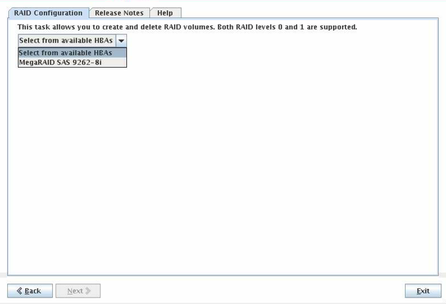
The RAID Configuration screen appears.

 | Caution - Data loss. Deleting a volume erases all data on the volume. |
The volume is deleted and the disks that were in the volume are now listed in the Available Disks box.


|