Release 8.0.6 for Windows NT and Windows 95/98
A69826-01
 Library |
 Product |
 Contents |
 Index |
| Oracle8 Client Getting Started Release 8.0.6 for Windows NT and Windows 95/98 A69826-01 |
|


This chapter describes post-installation configuration tasks for Oracle8 Client.
Specific topics discussed are:
Net8 is the Oracle network software that enable applications running on Windows NT and Windows 95 client workstations to access, modify, share, and store data on Oracle8 databases. An easy-to-use network configuration tool, Oracle Net8 Easy Config, enables you to configure Windows NT and Windows 95 clients to communicate with Oracle8 databases. Use Oracle Net8 Easy Config to create and modify server and client configuration files.
|
Additional Information:
See "Oracle Products for Windows NT, Windows 95 and Windows 98" for information on how this product is installed. See also Net8 Getting Started for Windows NT and Windows 95/98 for instructions on using Oracle Net8 Easy Config. |
Before describing how to configure Oracle Enterprise Manager, the key components are briefly described.
Oracle Enterprise Manager works with Oracle Intelligent Agent (installed in the Oracle8 database to be managed) to perform remote database management from a single console computer. Oracle Enterprise Manager is installed on a console computer, a Windows NT or Windows 95 client.
Oracle Intelligent Agent runs on the Oracle8 database to be managed. This Oracle8 database is the one you use for your production work. Oracle Intelligent Agent manages and completes tasks on the Oracle8 database that are requested from the Oracle Enterprise Manager Console computer. Oracle Intelligent Agent:
The Oracle Enterprise Manager Console uses an Oracle8 database as a repository for storing key configuration information. The Oracle8 repository database can be installed on:
The sole responsibility of the repository database is to act as the Oracle Enterprise Manager's storage resource. The Oracle8 repository database is:
Do not create a repository and a production database in the same Oracle8 database. If you do, you will not be able to perform many database administration tasks, such as starting or shutting down the database.
Set up your Oracle Enterprise Manager Console, managed Oracle8 database(s), and Oracle8 repository environment in either of two ways:
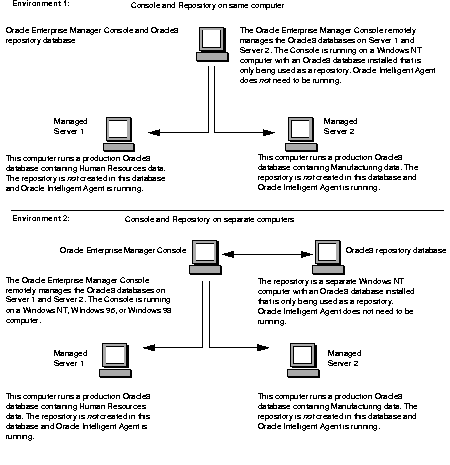
Oracle Enterprise Manager setup involves configuring the computers on which your Oracle Enterprise Manager, managed Oracle8 database(s), and Oracle8 repository database are installed. This table describes the tasks that must be performed to configure the two Oracle Enterprise Manager environments illustrated previously and the computers on which to perform these tasks. Each task is then fully described in the sections that follow. Use this table as a reference as you perform your configuration tasks.
| Perform This Task... | On Managed Oracle8 databases? | If Console and Repository are on same computer? | If Console and Repository are on separate computers? |
|---|---|---|---|
|
Yes |
No |
No |
|
|
No |
|
Yes, but only perform this task on the computer on which you create the repository |
|
|
Step 3: Create a Windows NT User Account on Managed Oracle8 Database Server |
Yes |
No |
No |
|
No |
No |
Yes |
|
|
No |
Yes |
Yes, but only perform this task on the computer on which you create the repository |
Ensure that the Oracle8 database services OracleServiceSID, OracleTNSListener80 (or OracleHOME_NAMETNSListener80 if using an Oracle home directory with a home name), and OracleAgent are started. Oracle Intelligent Agent automatically locates the services on the computer where it resides and passes this information to the Oracle Enterprise Manager Console.
To start Oracle Services:
You need to have a user account with database administrator (DBA) privileges set up on the Oracle8 repository database. Oracle Enterprise Manager places the repository in the default tablespace of the user account to which you are connected when creating the repository. Because of this, Oracle Corporation recommends that you create a new user account so that the repository can be created in its own tablespace. It is also recommended that you create a new tablespace and the newly-created user be customized to use this tablespace as their default tablespace.
To create a repository user account on the Oracle8 repository database:
C:\> SVRMGR30
SVRMGR> CONNECT SYSTEM/PASSWORD
where PASSWORD is MANAGER for the SYSTEM user account by default. If you have changed this password, substitute MANAGER with the correct password.
SVRMGR> CREATE TABLESPACE REPOSIT_TABLESPACE DATAFILE
'ORACLE_HOME\DATABASE\DATAFILE' SIZE XM;
where:
SVRMGR> CREATE USER USERNAME IDENTIFIED BY PASSWORD DEFAULT TABLESPACE
REPOSIT_TABLESPACE;
SVRMGR> GRANT DBA TO USERNAME;
SVRMGR> EXIT
Exiting Server Manager closes the database connection.
After a repository user account is created, an NT user account must be created on the managed Oracle8 database server.
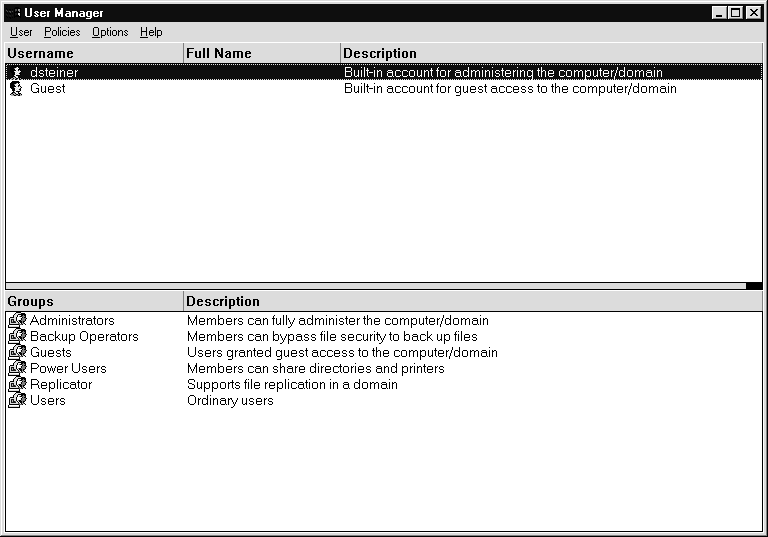
To create a user account on the managed Oracle8 database server:
The User Manager window appears:
The New User dialog box appears:
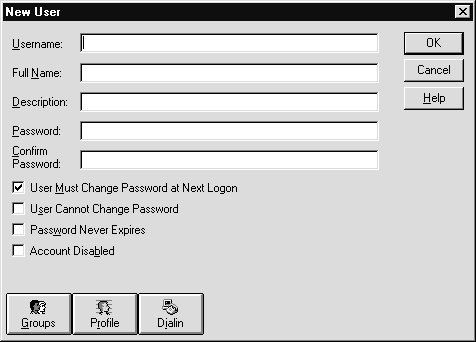
The user name and password that you enter here do not need to match those that you created in "Step 2: Create a Repository User Account".
The Group Memberships dialog box appears:
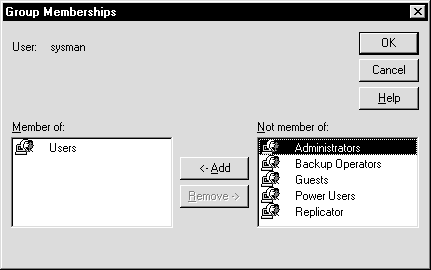
Administrators is added to the Member of list box.
The user is added and the User Manager window reappears.
The User Rights Policy dialog box appears:
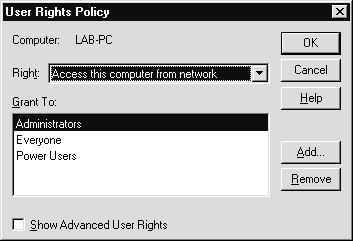
If Users does not exist, create it:
The User Manager window reappears.
If Oracle Enterprise Manager is installed on the same computer as the repository database, you do not need to configure your network. If Oracle Enterprise Manager is installed on a Windows 95 or Windows NT client console separate from the computer on which the repository database is installed, you must configure the client computer so it can connect to the Oracle8 repository database:
To create network configuration files:
Before you can use Oracle Enterprise Manager, you need a repository. The repository is a set of base tables in a database that contains status and environment information for your managed databases. A separate repository must be created for each user wanting to use Oracle Enterprise Manager.
The Oracle Enterprise Manager Console workstation must also discover network services, such as databases, listeners, and nodes, to populate the Oracle Enterprise Manager Navigator tree. In addition to discovery, Oracle Enterprise Manager must also be able to manage these services for the Job Scheduling and Event Management systems. This can be achieved with the Discovery Wizard.
When the agent starts up and is explicitly requested by the Oracle Enterprise Manager with the Navigator Discovery feature, the agent passes information from the Oracle Enterprise Manager Console to populate the Navigator tree.
To create a repository:
The Oracle Enterprise Manager Repository Login Information dialog box appears.
The Oracle Repository Manager window appears, prompting you to build the repository:
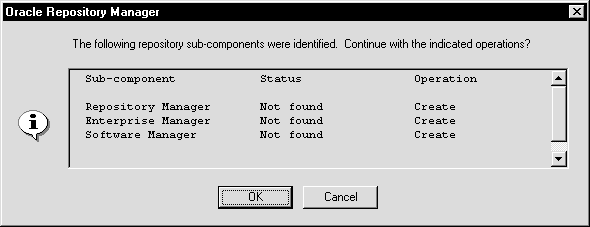
The repository is built. A dialog box asking if you want a quick tour of Oracle Enterprise Manger appears.
The Discover New Services Wizard appears:
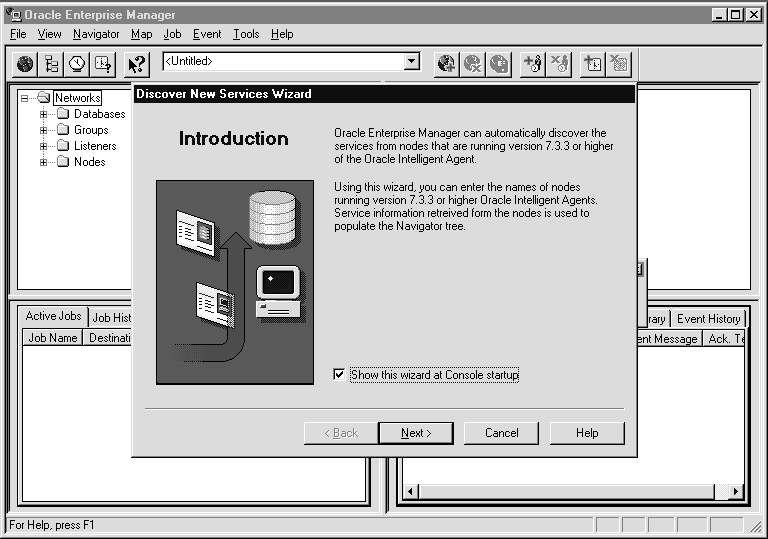
Services are discovered when you see the dialog box below with a status of Discovered:
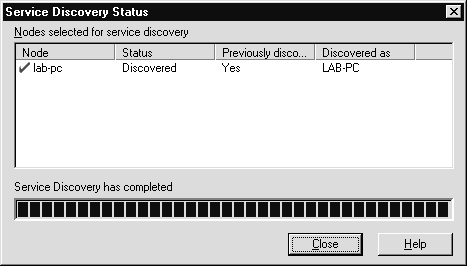
If the services are not discovered, click Help for troubleshooting hints. The wizard can be restarted by selecting Service Discovery under Navigator in the main menu.
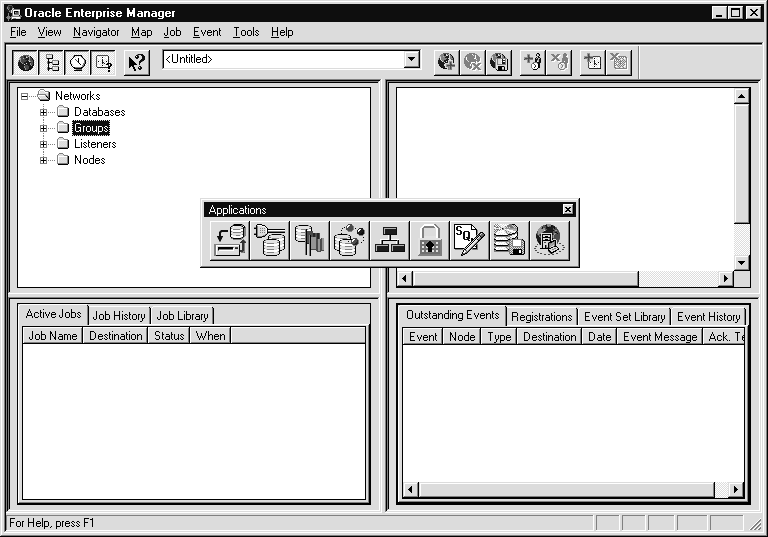
The Oracle Enterprise Manager Console appears:
Oracle8 ConText Cartridge Workbench consists of administrative tools and application development tools for Oracle8 ConText Cartridge.
Specific topics discussed in this section are:
To upgrade from previous releases of Oracle8 ConText Cartridge Workbench, install the current release of Oracle8 ConText Cartridge Workbench in the same Oracle home directory as the previous release using Oracle Installer. Oracle Installer automatically upgrades all Workbench files to the current release.
Chapter 3 of the Oracle8 ConText Cartridge Workbench User's Guide describes how to configure Oracle8 ConText Cartridge Viewer Cartridge.
Chapter 2 of the Oracle8 ConText Cartridge Workbench User's Guide describes how to configure Oracle8 ConText Cartridge Configuration Manager.
Appendix C of the Oracle8 ConText Cartridge Application Developer's Guide describes how to configure the CTXQUERY demo.
|
 Copyright © 1999 Oracle Corporation. All Rights Reserved. |
|