| Oracle® Retail Returns Management User Guide Release 14.1 E54473-01 |
|


 Previous |
 Next |
The Returns feature provides the capability to search for return tickets, view information for customer and cashier exceptions, override customer exceptions and counts, and configure return policies and exceptions. For information on configuring return policies and exceptions, see Chapter 10. For information on cashier exceptions, see Chapter 8. For information on customer exceptions, see Chapter 7.
For information on the following functions, see the following sections:
A return ticket is the record of a return attempt by a customer at a point-of-return. For a return ticket, the following data is available:
The requesting store (or channel).
The register number where the return occurred.
The cashier number and name, if available, of the cashier performing the return.
The customer's positive ID, if captured.
Customer demographics of name, address, and phone number, if captured.
The customer type assigned to this customer.
The date and time that the Authorize Items for Return request message was received, if one was received.
The date and time that the Authorize Items for Return response messages was sent, if one was sent.
The overall return authorization response for use, if the retailer chooses to process returns at the whole transaction level rather than line item level.
The item numbers, descriptions, and quantities attempted for return.
The reasons for the return.
If an original transaction was found for the item, the original transaction number.
The return authorization response of authorization, manager overrideable denial, contingent authorization, or denial that the rules engine determined. This field is a link to view details of how the rules engine derived the response.
The response code, short description, and long description that the rules engine determined.
The final response of authorized or denial.
The permission to search by certain data such as customer positive ID is controlled by the security role assigned to a user ID. If a user ID is not allowed to search by a certain category of fields, the fields are hidden.
To work with return tickets, click Return Tickets.
The Customer Service Return Ticket Search screen enables you to search for return tickets. Table 4-1 describes the types of search information that can be used.
Table 4-1 Types of Search Information
| Ticket Information | Description |
|---|---|
|
Ticket Information |
Enter the return ticket ID. The dashes in the ID are automatically added as you enter the number. |
|
Store Hierarchy Information |
Choose to search nodes in the store hierarchy or to search by store number. To search by node, click Use Hierarchy to search. Choose the node in the store hierarchy. A check next to a node name indicates that node is selected for the search. You can click a triangle next to any node name to display the child nodes or to hide the child nodes from view. To search by store ID, click Or search by store ID. Enter the store ID number. |
|
Cashier/Register Information |
Choose to find returns performed by a particular cashier and on a particular register or range of registers. The following information can be chosen:
If you select to include cashier or register criteria in the search, you must select to include Hierarchy Information as well, since the same register number could be used in multiple stores. |
|
Customer Positive ID |
Choose to find returns performed by a particular customer based on customer positive ID. The following information must be entered or selected from a menu:
|
|
Customer Information |
Choose to find returns performed by a particular customer based on customer criteria other than positive ID. The following customer information can be chosen:
|
|
Item Information |
Choose to find returns containing an attempted return of a particular item. The following item information can be chosen:
If you select to include item criteria in the search, you must select to include Hierarchy Information as well, since searching by item only would produce a large result set. |
|
Results |
Enter the maximum number of returns displayed on a page. If more returns are found than this number, navigation is provided at the bottom of the results list to allow you to select the next, previous, or a specific page of data. |
See Figure 4-1 for an example of a search selection screen.
You can search by using the ticket information only or any of the other criteria.
For each set of search information available, a check box enables you to choose if that criteria should be used. When you check the box, more fields appear on the screen. Enter any of the information. If a box is not checked, none of the fields are shown and that information is not used for the search. By default, ticket information has the box checked.
Only return tickets that meet all of the search criteria are displayed.
|
Note: The maximum number of return tickets that are displayed is determined by the MaximumSearchResults parameter. This parameter is defined in an XML file and cannot be changed through the user interface. For information on changing this parameter, see the Oracle Retail POS Suite Configuration Guide.If the number of return tickets that meet the criteria is greater than the number set by the MaximumSearchResults parameter, return tickets are displayed up to the maximum number. An error message is also displayed indicating that there were too many possible matches to display and that the search criteria should be changed to narrow the search. |
Click Ticket Search. The Customer Service Return Ticket Search screen is displayed.
To search for return tickets:
Check the box to choose any of the information you want to use in the search. Enter the information. If you want to reset all the fields to the default values, click Clear Search.
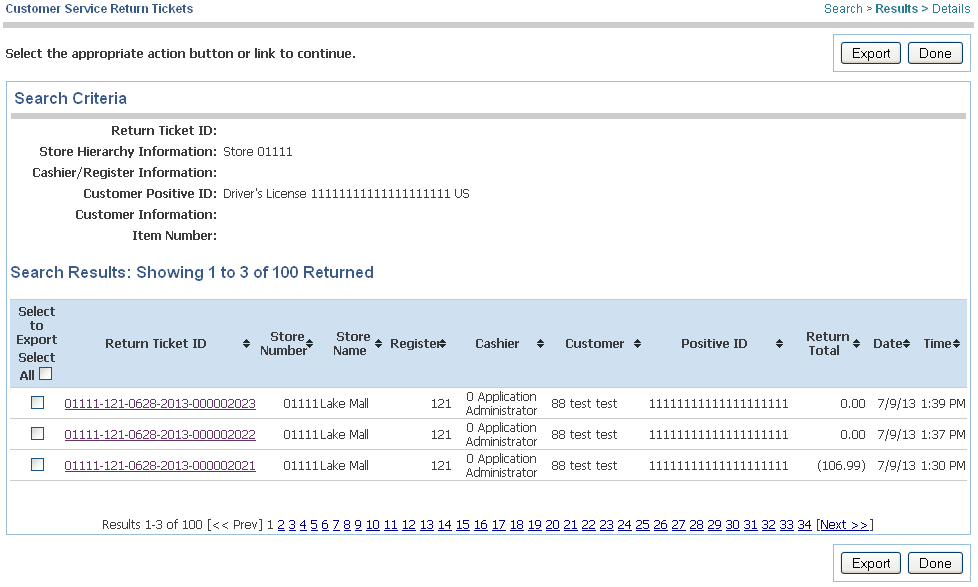
Click Search. The Customer Service Return Tickets screen is displayed. If only one return ticket is found that meets the criteria, the Return Ticket screen is displayed instead.
The Customer Service Return Tickets screen shows the list of return tickets that meet all of the selection criteria.
The following information is shown for each Return Ticket:
Return Ticket ID
Store number and name
Register number
Cashier number and name, if available
Customer number, name, and positive ID, if available
Return total
Date and time of the return attempt
To return to the Customer Service Return Ticket Search screen, click Done.
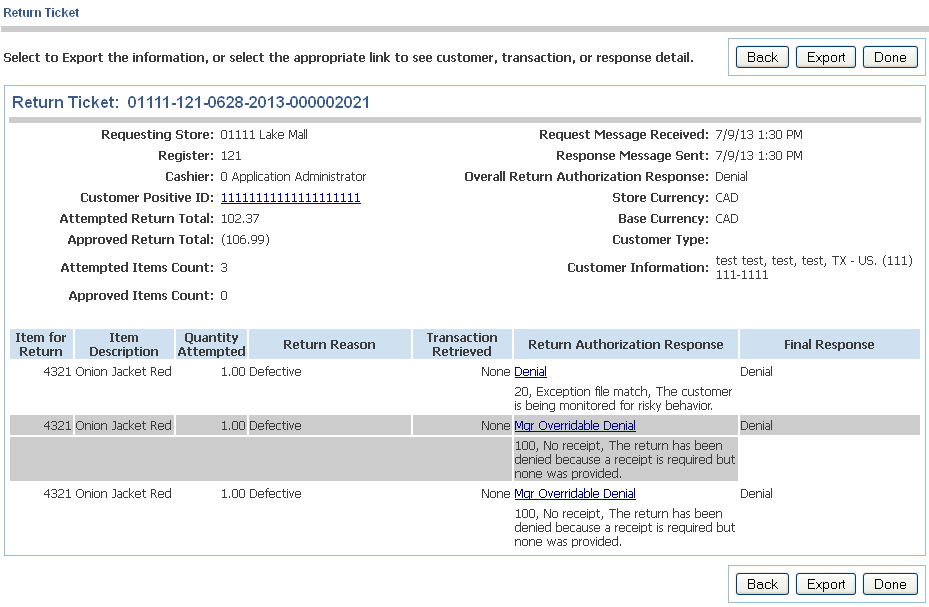
The Return Ticket screen shows detailed information on a return ticket.
To view return ticket details, click the Return Ticket ID on the Customer Service Return Tickets Screen. The Return Ticket screen is displayed.
Within the screen information, links are provided to view other information that is available. You can click the link on the customer positive ID to see the customer's exceptions. For more information, see "Working with Customer Exceptions". You can click the link in the Return Authorization Response column to see the details of how the rules engine derived the particular response.
Click a link and the data is displayed. If the data is not available or you do not have authority to view the data, the link is not displayed.
The audit log is a journal of the policy rules that were used to arrive at the return response for the line item. The rules are listed in the order in which they were applied. If the item being evaluated encountered a stop action in the policy before the final rule was reached, the audit log does not show the rules following the last rule processed.
On the Return Ticket screen, click the link in the Return Authorization Response column. The Audit Log screen is displayed.
To return to the Customer Service Return Ticket Search screen, click Done.
Ticket information can be exported in order to be viewed in a supported output format. You choose the output format and view the information using an application intended for that format. The application reformats the data, if needed, before it is displayed. Table 4-2 describes the available output formats.
|
Note: The ticket information can only be viewed in the chosen output format if the application required is available. |
To export the ticket information you are viewing:
Click Export. The Export screen is displayed.
Enter the file name and select the output format.
Click Save. The application that is required for the selected output format is started. The ticket information is displayed using that application.
Exceptions are the record of a return behavior performed by a customer or cashier on a completed return. To work with exceptions, click Exceptions.
A customer exception is the record of a return behavior performed by a customer on a completed return.
For a particular customer, the following data is available:
The customer identifier of the positive ID for the current search
Other possible matches of the positive ID
The total exception count for this customer positive ID
The Active, Past, All, and Voided exceptions recorded for this customer, including the type of exception, the Return Ticket ID associated with the exception, and the customer information collected with that Return Ticket
Previous exception counter freezes that have been entered by a user for this customer positive ID, including the type, date and time, freeze end date, and the user ID of the entering user
Previous Customer Service Overrides that have been entered by a user for this customer positive ID, including the type, date and time entered, the override expiration date, the user ID of the entering user, and the comment entered by the user
The ability for an authorized user to enter a Cumulative Exception Counter Override
The ability for an authorized user to enter a Customer Service Override
The permission to enter a Cumulative Counter Freeze and a Customer Service Override is controlled by the security role assigned to a user ID. If a user ID is not allowed to perform an operation, the section is hidden.
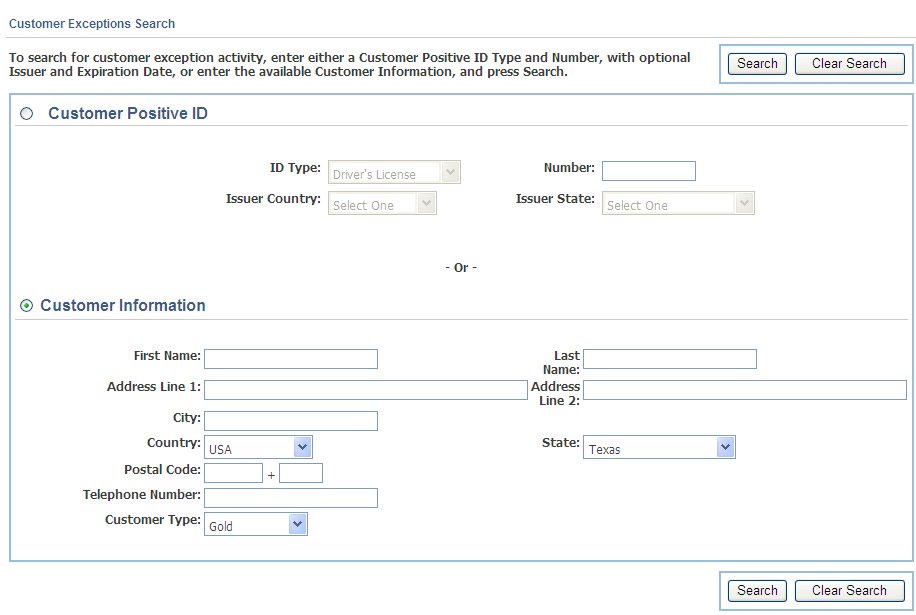
Click Customer. The Customer Exceptions Search screen is displayed. The search criteria that can be selected is Customer Positive ID or Customer Information.
See Table 4-1 for a description of the criteria.
To search for customer exceptions, choose the criteria and click Search. The Returns Customer Search Results screen is displayed.
|
Note: The maximum number of customers that are displayed is determined by the MaxCustomerSearchResults parameter. For information on changing this parameter, see "Parameter Maintenance" in Chapter 6.If the number of customers that meet the criteria is greater than the number set by the MaxCustomerSearchResults parameter, the system displays an error message. |
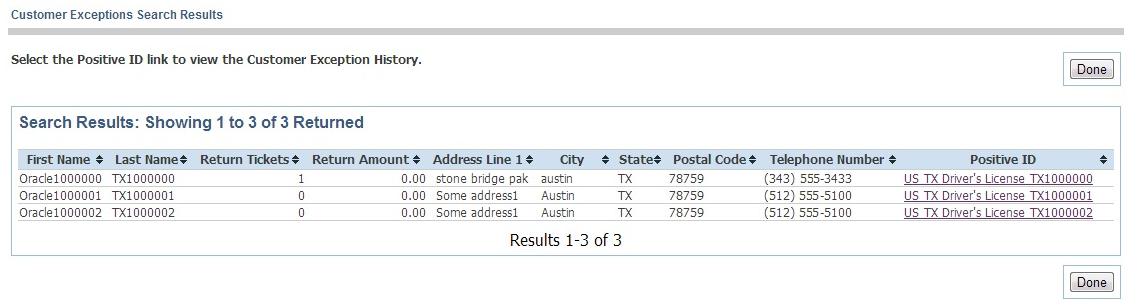
The Returns Customer Search Results screen shows the list of customers that meet all of the selection criteria.
The following information is shown for each customer:
First name and last name
Number of return tickets
Total amount of returns
Address
Telephone number
Positive ID
To view the customer's exceptions, click the positive ID. The Customer Exceptions screen is displayed.
The Customer Exceptions screen shows the return information for the positive ID selected on the Returns Customer Search Results screen.
Note the following about the information on this screen:
Exceptions are displayed based on the date they are actually created on the Oracle Retail Returns Management server and not on the business date on the return ticket. The exception creation date is usually the same as the business date, but the dates can be different if a return ticket is submitted off-line.
When a date is entered in the Show Exceptions As Of: field, exceptions created in the period on or up to 90 days (by default) before that date are displayed. The number of days in the period is defined by the parameter MaxActiveExceptionDays.
The number of exceptions displayed is limited by the parameter MaxCustomerExceptionsToDisplay.
Within the screen information, links are provided to view other information that is available. To see the customer exceptions for the other positive IDs, click the link on Possible matches for other customer positive IDs. To see the details of the particular return ticket, click the link on the return ticket ID. For an example of the screen, see "Viewing Return Ticket Details".
Click a link and the data is displayed. If the data is not available, or you do not have the authority to view it, the link is not displayed.
If exceptions have been accumulated in error, an authorized user can reset, freeze, or stop counting the customer's cumulative exception count. This feature might be used to reset a customer's cumulative count if the following conditions are met:
The customer's positive ID was stolen.
The retailer has configured to include the rule What is the customer's cumulative exception count? in return policies. For more information, see Chapter 9.
The legitimate customer is now being denied returns because of the cumulative exception count for the positive ID versus the range configured in the rule.
Conversely, the Cumulative Exception Count could be used to lock out a fraudulent customer from performing returns by doing the following:
Configure to include the rule What is the customer's cumulative exception count? in return policies. For more information, see Chapter 9.
Set the Exception Counter to a number that will be denied based on the range configured in the rule.
To enter an Exception Counter Override:
Click Actions. The Cumulative Exception Counter Override area is displayed. For an example of the screen, see "Viewing Customer Exceptions".
If you wish to reset the cumulative exception counter to a different number, enter the number in the box at the top of the Cumulative Exception Counter Override area.
Choose how to handle the override:
To calculate the exceptions, that is, to continue to accumulate exceptions for this customer, select Standard exception counting.
To freeze the counter until a certain date, at which point exceptions begin to accumulate again, select Freeze counter until and choose the date.
To freeze the cumulative exceptions at the current Exception Count, select Do Not Count.
Enter a comment describing why the override was entered.
Click Save Override.
If a customer feels that an attempted return has been wrongly denied, and contacts the retailer through a customer service department or other department that has appropriate authority, the retailer can issue one or more customer service overrides that act as a free pass on the customer's next attempted returns.
|
Note: In order to issue a customer service override, the customer's positive ID must be in the exception file, either by collection on the denied return or on previous attempted returns. |
When the customer once again attempts to perform a denied return, and their positive ID is collected with the return, the rules engine checks whether a customer service override exists for that positive ID, and automatically approves the complete return attempt, if one does. The number of customer service overrides remaining is then decremented for that positive ID.
To enter a Customer Service Override:
Click Actions. The Customer Service Override area is displayed. For an example of the screen, see "Viewing Customer Exceptions".
Enter a number of subsequent returns to allow.
Enter a comment describing why the override was granted.
Click Save Override.
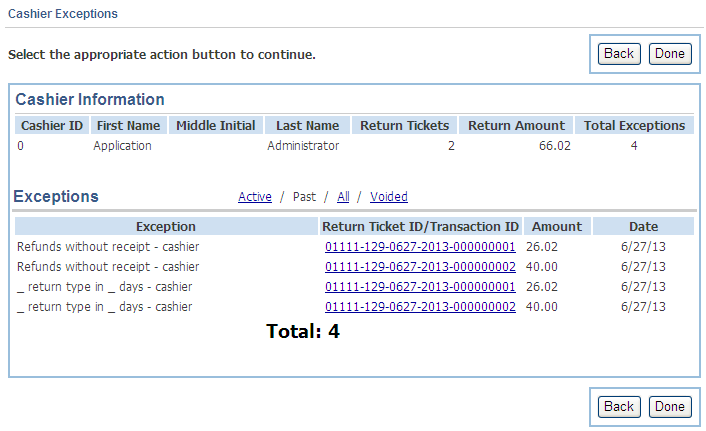
Cashier Exceptions are the record of a return behavior performed by a cashier on a completed return. For a particular cashier, the following data is available:
The cashier ID
The cashier name, if available
The total exception count for this cashier
The Active, Past, All, and Voided exceptions recorded for this cashier, including the type of exception, the return ticket ID associated with the exception, and date on which the return occurred
To search for cashier exceptions:
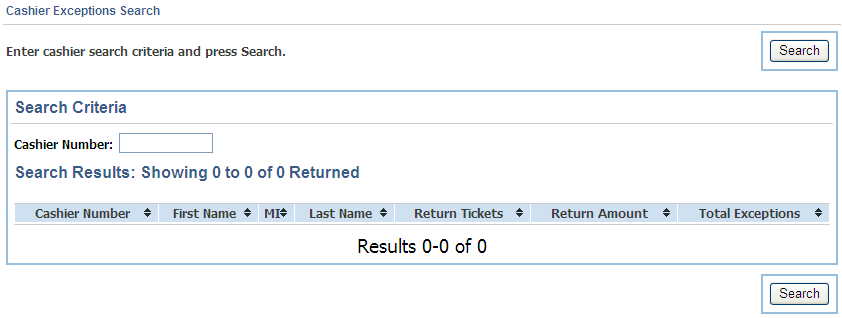
Click Cashier. The Cashier Exceptions Search screen is displayed.
Enter the Cashier Number. To see a range of cashier numbers, you can enter part of the number followed by an asterisk.
Click Search. All cashier numbers that match the cashier number selection are displayed on the screen.
|
Note: The maximum number of cashiers that are displayed is determined by the MaxCashierSearchResults parameter. For information on changing this parameter, see "Parameter Maintenance" in Chapter 6.If the number of cashiers that meet the criteria is greater than the number set by the MaxCashierSearchResults parameter, the system displays an error message. |
The Cashier Exceptions Search screen shows the list of cashiers that meet the selection criteria.
The following information is shown for each cashier:
Cashier number
Cashier name if available
The total number of cashier exceptions accumulated
To view a cashier's exceptions, click the link in the Cashier Number column. The Cashier Exceptions screen is displayed.
The Cashier Exceptions screen shows exception information for the cashier selected on the Cashier Exceptions Search screen.
Note the following about the information on this screen:
Exceptions are displayed based on the date they are actually created on the Oracle Retail Returns Management server and not on the business date on the return ticket. The exception creation date is usually the same as the business date, but the dates can be different if a return ticket is submitted offline.
The number of exceptions displayed is limited by the parameter MaxCashierExceptionsToDisplay.
Within the screen information, links are provided to view other information that is available. To see the details of the particular Return Ticket, click the link on Return Ticket ID. To see an example of the screen, see "Viewing Return Ticket Details".
Click a link and the data is displayed. If the data is not available, or you do not have the authority to view it, the link is not displayed.
To return to the Cashier Exceptions Search screen, click Done.