| Oracle® Application Server Adapters for Tuxedo User's Guide 10g Release 3 (10.1.3.4) Part Number E13829-01 |
|


|
View PDF |
| Oracle® Application Server Adapters for Tuxedo User's Guide 10g Release 3 (10.1.3.4) Part Number E13829-01 |
|
|
View PDF |
This chapter provides an example for creating an OracleAS adapter for IMS/TM. In this case it describes the steps necessary to create an adapter that will get find the names of a doctor and a patient from a Tuxedo adapter. To work with an OracleAS adapter for Tuxedo, you must also configure a BPEL endpoint connection. For information on how to create an endpoint, see BPEL Process Manager Examples.
Requirements
The following is required to carry out the tasks described in this chapter:
Computer with Windows operating system
Computer with Windows or UNIX operating system
Oracle Connect v 10.1.3.4 installed on the Windows or UNIX computer
Oracle Studio v 10.1.3.4 installed on the Windows computer
Tuxedo installed on the Windows or UNIX computer with Oracle Connect
To work with the OracleAS Adapter for Tuxedo and create outbound interactions you will create Tuxedo inteactions using the Tuxedo adapter and import the metadata.
You use a Tuxedo adapter to create the interactions used to get the data that you need. The interactions are used as services when you set up the endpoint in JDeveloper. For more information on using JDeveloper to create an endpoint, see Deploy a BPEL Outbound Process.
Do the following to create the interactions.
Make sure to create the toUpper and toLower View files in Tuxedo and then set the correct environment properties on the Windows computer. For information on how to create the view files, see the Tuxedo documentation.
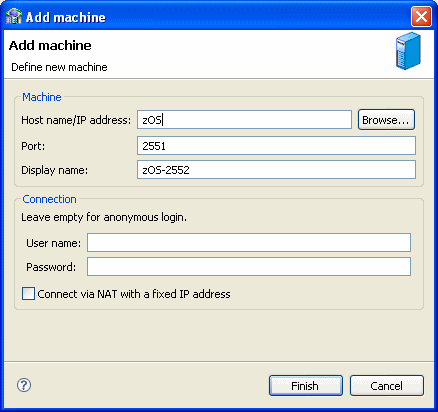
You begin by configuring access to the Windows computer with Tuxedo and Oracle Connect. You configure this access with Oracle Studio. Open Oracle Studio and follow the directions Securing Access to Oracle Connect. Enter the following information in the Add machine dialog box:
Host name/IP address: Enter the name or IP address for the computer with Tuxedo.
Port: Enter the port number where the daemon is running. The default port is 2551.
Display name: You do not need to enter any information in this field (By default, the display name will be the host name and the port number).
User name: If the computer you are accessing needs an administrator password. If so enter the name o f the computer's administrator.
Password: If necessary, enter the computer administrator's password.
Connect via NAT with fixed IP address: Select this if the machine uses the NAT (Network Address Translation) firewall protocol, with a fixed configuration, mapping each external IP to one internal IP, regardless of the port specified.
The following figure shows the Add Machine dialog box with the correct information:
You now create an adapter, which lets you create interactions to get the information you are seeking. To create an adapter, do the following
Expand the computer you just added and then expand the NAV binding.
Right-click the Adapters folder and then select New adapter.
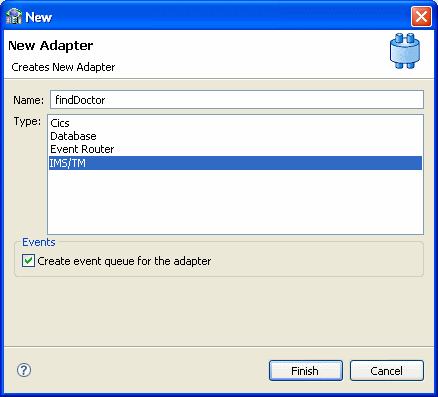
Enter the following information for your adapter, then click Finish.
Name: ToUpper
Type: Tuxedo
Select Create event queue for the adapter.
For a detailed explanation on how to set up a Tuxedo adapter, see Setting up the Tuxedo OracleAS Adapter.
The following figure shows the Add adapter dialog box with the correct information:
You now import the metadata from Tuxedo into the adapter. For information on how to import data, see Modeling Interactions for the Tuxedo OracleAS Adapter.
In this example you create the TOUPPER interaction.
In the Configuration view of the Design perspective, right-click the toupper adapter that you created in Add a Tuxedo Adapter and select Show metadata view. The Metadata view opens with the toupper adapter expanded and selected.
Right-click Imports and select New Import.
Enter a name for the import and then select Tuxedo Import Manager Using FML/VIEW Files as the Import type then click Finish to view the Metadata Import Wizard.
You will need the following information for the metadata import:
In the Get Input Files step, just click Next.
In the Add FML Records step, just click Next.
In the Get Tuxedo Records step, create two records. Name the records ToUpper_In and ToUpper_Out. Both records should have a Field Type of STRING and a Size of 20.
In the Add interactions step, under the Name column, enter TOUPPER, in the Input column, select ToUpper_In and in the Output column, select ToUpper_Out.
In the Interation-Specific Parameters section, select STRING for both the Input Buffer Type and Output Buffer Type.
In the Import Metadata step, select Yes and then click Finish.
To work with the OracleAS Adapter for Tuxedo and create inbound interactions you will create Tuxedo interactions using the Tuxedo Queue adapter and import the metadata.
You use a Tuxedo Queue adapter to create the interactions used to send the data that you need. The interactions are used as services when you set up the endpoint in JDeveloper. For more information on using JDeveloper to create an endpoint, see Deploy a BPEL Inbound Process.
Do the following to create the interactions.
In order to create an the DEQUEUE interaction, make sure to create a Tuxedo queue space and and individual queue for it. For information , see the Tuxedo documentation.
You begin by configuring access to the Windows computer with Oracle Connect and Tuxedo. You configure this access with Oracle Studio. Open Oracle Studio and follow the directions Securing Access to Oracle Connect. Enter the following information in the Add machine dialog box:
Host name/IP address: Enter the name or IP address for the computer with Tuxedo. This should be installed in the same directory as Oracle Connect.
Port: Enter the port number where the daemon is running. The default port is 2551.
Display name: You do not need to enter any information in this field (By default, the display name will be the host name and the port number).
User name: If the computer you are accessing needs an administrator password. If so enter the name o f the computer's administrator.
Password: If necessary, enter the computer administrator's password.
Connect via NAT with fixed IP address: Select this if the machine uses the NAT (Network Address Translation) firewall protocol, with a fixed configuration, mapping each external IP to one internal IP, regardless of the port specified.
The following figure shows the Add Machine dialog box with the correct information:
You now create an adapter, which lets you create interactions to get the information you are seeking. To create an adapter, do the following
Expand the computer you just added and then expand the NAV binding.
Right-click the Events folder and then select New event.
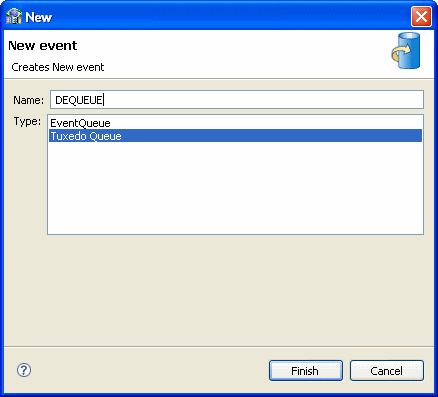
Enter the following information for your adapter, then click Finish.
Name: DEQUEUE
Type: Tuxedo Queue
For a detailed explanation on how to set up a Tuxedo Queue adapter, see Setting up the Tuxedo Queue OracleAS Adapter.
The following figure shows the New Event dialog box with the correct information:
You now import the metadata from Tuxedo into the adapter. For information on how to import data, see Modeling Interactions for the Tuxedo Queue OracleAS Adapter.
In this example you should import the create the event queue for the DEQUEUE adapter. You must also create the View files in Tuxedo. Do the following to import the metadata:
In the Configuration view of the Design perspective, right-click the DEQUEUE adapter that you created in Add a Tuxedo Queue Adapter and select Show metadata view. The Metadata view opens with the toupper adapter expanded and selected.
Right-click Imports and select New Import.
Enter a name for the import and then select select Tuxedo Queue Import Manager for XML/STRING/CARRAY Buffer as the Import type then click Finish to view the Metadata Import Wizard.
You will need the following information for the metadata import:
In the Get Records step, click Add Record and change the name to str_record with a size of 20. Leave STRING as the Field Type.
In the Configure Tuxedo Records step, just click Next.
In the Import Metadata step, select Yes and then click Finish.
To work with the OracleAS Adapter for Tuxedo and create inbound interactions you will create Tuxedo interactions using the Tuxedo Gateway adapter and import the metadata.
You use a Tuxedo Queue adapter to create the interactions used to send the data that you need. The interactions are used as services when you set up the endpoint in JDeveloper. For more information on using JDeveloper to create an endpoint, see Deploy a BPEL Inbound Process.
Do the following to create the interactions.
In order to create an the DEQUEUE interaction, make sure to create a Tuxedo queue space and and individual queue for it. For information , see the Tuxedo documentation.
You begin by configuring access to the Windows computer with Oracle Connect and Tuxedo. You configure this access with Oracle Studio. Open Oracle Studio and follow the directions Securing Access to Oracle Connect. Enter the following information in the Add machine dialog box:
Host name/IP address: Enter the name or IP address for the computer with Tuxedo. This should be installed in the same directory as Oracle Connect.
Port: Enter the port number where the daemon is running. The default port is 2551.
Display name: You do not need to enter any information in this field (By default, the display name will be the host name and the port number).
User name: If the computer you are accessing needs an administrator password. If so enter the name o f the computer's administrator.
Password: If necessary, enter the computer administrator's password.
Connect via NAT with fixed IP address: Select this if the machine uses the NAT (Network Address Translation) firewall protocol, with a fixed configuration, mapping each external IP to one internal IP, regardless of the port specified.
The following figure shows the Add Machine dialog box with the correct information:
You now create an adapter, which lets you create interactions to get the information you are seeking. To create an adapter, do the following
Right-click the machine you are working with and select Tuxedo Gateway.
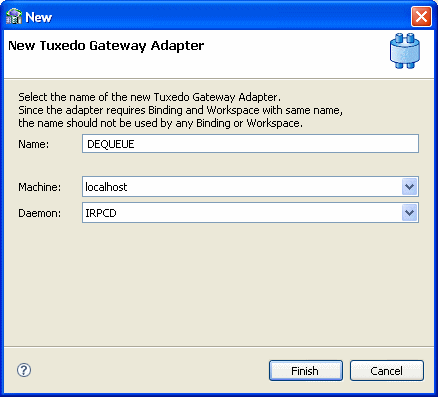
Enter the following information for your adapter, then click Finish.
Name: DEQUEUE
Machine: Enter the name of the machine you are working with. If you opened the dialog box by right-clicking the machine, the information is already entered.
Daemon: Select the damon you are using. This is usually IRPCD.
The following figure shows the New Tuxedo Gateway Adapter dialog box with the correct information:
Figure 5-6 New Tuxedo Gateway Adapter Dialog Box
Enable the adapter to accept inbound interactions by setting the correct properties. Right-click the adapter and select Open.
Set the transactionSupport property to true.
Set the tmsTimeout property to an appropriate value. For information on setting this property, see Setting Properties for the Tuxedo Gateway Adapter. For additional information on how to determine the timeout value, see Booting the Tuxedo Gateway Transaction Group.
You also need to be sure to Configure a Transactional Tuxedo Gateway as a Tuxedo Group.
For a detailed explanation on how to set up a Tuxedo Queue adapter, see Setting up the Tuxedo Gateway OracleAS Adapter.
You now import the metadata from Tuxedo into the adapter. For information on how to import data, see Modeling Interactions for the Tuxedo Queue OracleAS Adapter.
In this example you should create the DEQUEUE interaction. You must also create the View files in Tuxedo. Do the following to import the metadata:
In the Configuration view of the Design perspective, right-click the DEQUEUE adapter that you created in Add a Tuxedo Queue Adapter and select Show metadata view. This adapter is in a binding with the name DEQUEUE. Expand the DEQUEUE binding and then expand the Adapters folder to find the DEQUEUE adapter.
The Metadata view opens with the DEQUEUE adapter expanded and selected.
Right-click Imports and select New Import.
Enter a name for the import and then select select Tuxedo Import Manager Using FML/VIEW Files as the Import type then click Finish to view the Metadata Import Wizard.
You will need the following information for the metadata import:
In the Get Input Files step, just click Next.
In the Add FML Records step, just click Next.
In the Get Tuxedo Records step, click Add Record and create two records with the name str_record_In and str_record_Out with a size of 20. Leave STRING as the Field Type.
In the Add interactions step, under the Name column, enter DEQUEUE, in the Input column, select str_record_In and in the Output column, select str_record_Out.
In the Configure Tuxedo Records step, just click Next.
In the Import Metadata step, select Yes and then click Finish.
|
 Copyright © 2006, 2008, Oracle and/or its affiliates. All rights reserved. Legal Notices |
|