| Oracle® Application Server Adapters for Tuxedo User's Guide 10g Release 3 (10.1.3.4) Part Number E13829-01 |
|


|
View PDF |
| Oracle® Application Server Adapters for Tuxedo User's Guide 10g Release 3 (10.1.3.4) Part Number E13829-01 |
|
|
View PDF |
This chapter contains the following topics:
This topic describes the components necessary to work with the samples and how to prepare your system.
Prerequisites
The following are installation and configuration requirements for using the examples.
Personal computer running Microsoft Windows XP or Windows Server 2003 with one GB of RAM.
The Tuxedo adapter that you are using (Tuxedo, Tuxedo Queue, or Tuxedo Gateway) must be deployed to the Oracle Application Server.
OracleAS Tuxedo Adapter must be configured for outbound or inbound processing. See
Oracle JDeveloper must be installed.
Legacy adapter must be deployed.
Oracle Studio with the necessary machines loaded. See Configuring OracleAS Adapters for Tuxedo in Oracle Studio.
This chapter provides examples of the configuration steps that are used when using BPEL to work with the Oracle Tuxedo adapters. You should be familiar with the following before working with these examples:
How to create J2CA connections. See Chapter 6, "Integrating OracleAS Adapters for Tuxedo with OC4J" for more information.
How to configure the OracleAS adapters for Tuxedo using Oracle Studio. See Chapter 3, "Configuring OracleAS Adapters for Tuxedo" for more information.
Integration between the OracleAS adapters for Tuxedo and BPEL has the following processes:
Design Time: The OracleAS adapters for Tuxedo are configured with Oracle Studio as described in Chapter 3, "Configuring OracleAS Adapters for Tuxedo".
Runtime: After you deploy the BPEL process with JDeveloper, you can test your configurations. See
This section describes how to create a BPEL inbound process that connects to a Tuxedo adapter. For information on how to configure a Tuxedo adapter for inbound, see
To configure a process with the BPEL process manager, you use JDeveloper. This section describes how to create a BPEL inbound process for Tuxedo adapters using JDeveloper. There are two configuration types necessary to carry out this inbound sample.
Before you design the inbound process, make sure to integrate and connect your OracleAS adapter for Tuxedo with the BPEL process manager. See Chapter 7, "Integrating OracleAS Adapters for Tuxedowith Oracle BPEL Process Manager" for more information.
Before you design the inbound process, you must carry out the following:
Integrate the OracleAS Adapter for VSAM with OC4J. See Integrating OracleAS Adapters for Tuxedo with OC4J for more information.
Configure the connection for the J2CA VSAM resource adapter. You do this by creating a connection factory. See Configuring the Tuxedo Queue Inbound Adapter for information on how to do this.
Write a schema file. First, create an interaction called findDoctor using Oracle Studio. See Configuring the Tuxedo Queue Inbound Adapter for more information.
Create a BPEL PM Server Connection in JDeveloper.
Create the WSDL for the interaction. You do this in JDeveloper Connections explorer before you begin to build your endpoint in JDeveloper. JDeveloper will create the WSDL automatically based on the interaction you create. In the Connections explorer, browse for the Oracle Connect server you configured in Oracle Studio (see Installing Oracle Connect), then double-click the findDoctor interaction to view and create the WSDL.
This section describes the design-time steps necessary to deploy a BPEL inbound process:
You use JDeveloper to create a Partner Link to the OracleAS adapter you are working with. The process is raised by the adapter, so the inbound process defines the OracleAS type. Do the following to create the BPEL project.
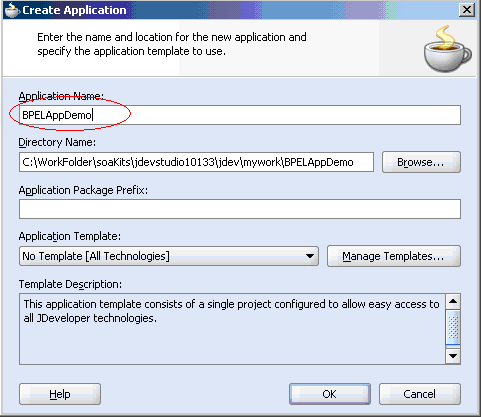
In JDeveloper, from the View menu, select Application Navigator then Create a new application. The Create Application dialog box is displayed.
Enter a name in the Application Name field, for example BPELAppDemo.
In the Applications Navigator tab, right-click the application called that you created in step 2 and select New Project. The New Gallery dialog box is displayed.
From the Items list, select BPEL Process Project then click OK. The BPEL Project Creation Wizard-Project Settings dialog box is displayed.
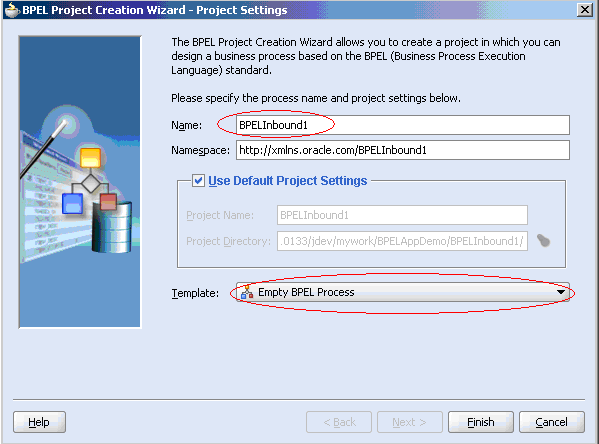
Do the following in BPEL Project Creation Wizard-Project Settings dialog box:
Enter a name for the BPEL process, for example BPELInbound1.
From the Template list, select Empty BPEL Process.
Click Next to review the input/output schema elements or click Finish.
Before you begin the design inbound process procedure, find the WSDL file you will work with from your Windows file system. Open the file in a text editor and copy the XSD schema section into a new file. Save the file as message.xsd.
For more information on working with the inbound WSDL, see Configuring Inbound WSDL.
Do the following to define the BPEL inbound process.
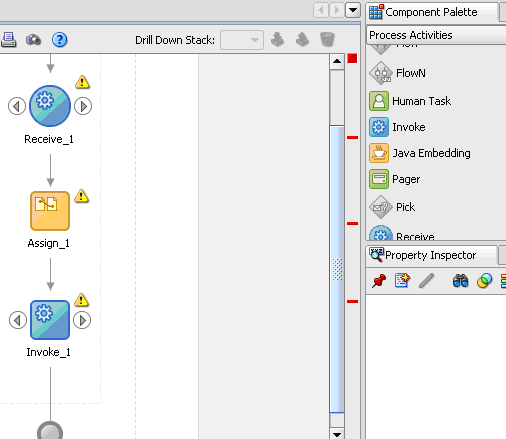
From the Component Palette-Process Activities pane, drag a Receive, Assign, and Invoke process into the editor for the process you created in the Create a BPEL Project for a BPEL Inbound Process step.
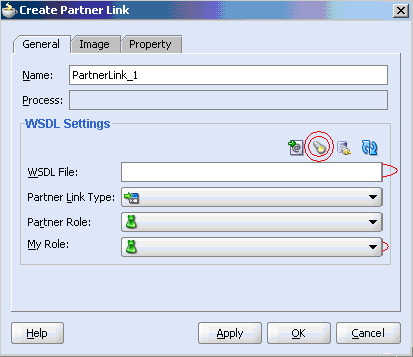
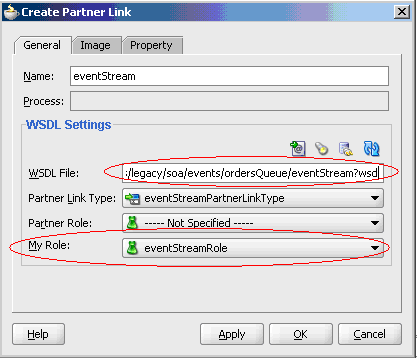
Drag a PartnerLink into a service lane of the visual editor. The Create Partner Link dialog box is displayed.
From the Create Partner Link dialog box, click the Service Explorer button. This button is the second form the left and is shown in the figure in the previous step.
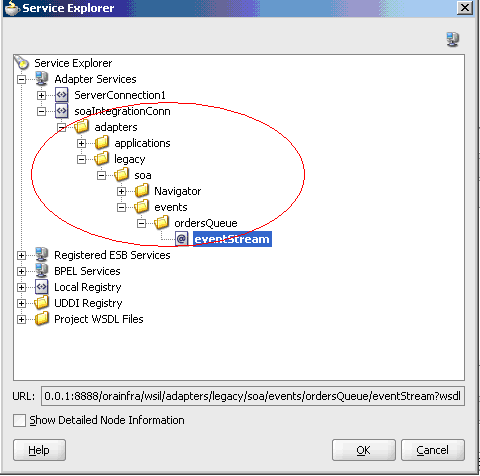
The Service Explorer dialog box is displayed.
In the Service Explorer, expand the connection you are using, then expand adapters and then applications, and continue to browse until you find the WDSL file you are using.
Select the file and click OK.
The WSDL File field in the Create Partner Link dialog box displays the path to the WSDL file you selected. The Partner Link Type field displays the Partner Link defined in the WSDL file.
Do the following in the Create Partner Link dialog box:
In the Partner Role list, select Not Specified.
In the My Role list, select the role for the selected WSDL file.
Click OK. The new Partner Link appears in the visual editor. Save the file.
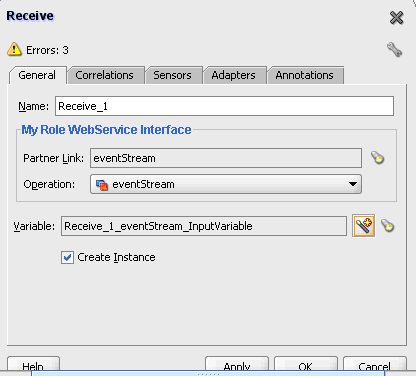
In the Visual Editor, connect the Receive activity to the Partner Link. The Edit Receive dialog box is displayed.
Do the following in the Edit Receive dialog box:
Enter a name for the Receive activity.
Make sure to crate the variable. Click the first button to the right of the Variable field, then click OK in the Crate Variable dialog box that is displayed.
Make sure that the Create Instance check box is selected.
Click OK to close the dialog box and accept the information.
This section describes how to create a connection to the adapter files you are using. Do the following to create the connection.
Create a file adapter and give it a name, for example WriteRes.
Click Next and select Write File. Give the file a name, for example Write Message.
Click Next and enter the path to the message file you want to write to.
In the Message Schema chooser, browse to the file message.xsd. You should have made sure that this file was created before you started this process. See the beginning of the section, Design the BPEL Inbound Process for more information.
Select the Message type, bigOrderEvent and then click OK.
Create an Input Variable with the default name for the Invoke activity.
Create a Copy Operation for the Assigned activity.
Do the following to deploy the BPEL inbound process that you created.
Right-click the process flow in the Applications-Navigator pane.
Select Deploy, then Your BPEL PM Server Connection, then Deploy to default domain.
At the prompt, enter your BPEL PM server password and click OK
The deployment process starts automatically.
This section describes how to test the project and run it to see that the inbound process is executed successfully. By using the XML utility, you will call an event in Oracle Connect that is defined in the file adapter you created. See Create the Connection. Because this event is called from Oracle Connect it is an inbound event. Events that originate with SOA services in the OracleAS, it is an outbound event. For more information, see Deploy a BPEL Outbound Process. The Runtime configuration for inbound has one step called Triggering the Event using the XML Utility.
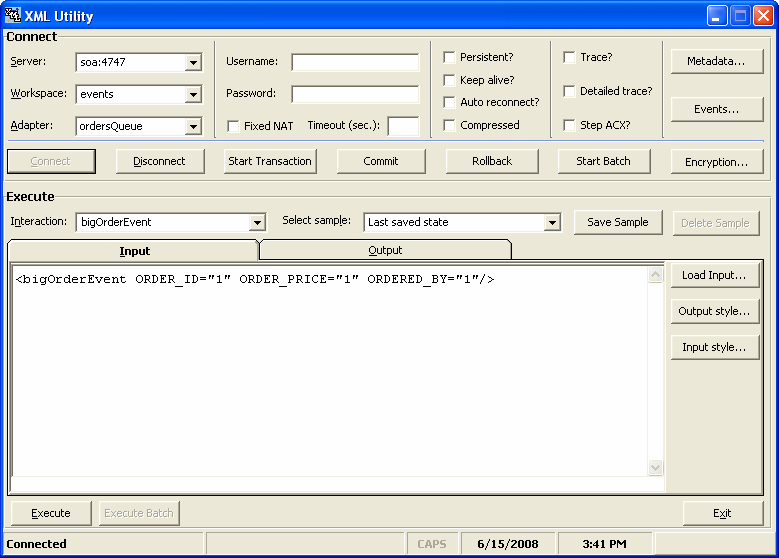
Use the XML utility to create an SQL statement to trigger the event you are requesting. Do the following to trigger the event.
From the Start menu, select All Programs, then Oracle, then Server Utilities, and then XML Utility. The XML Utility is displayed.
Enter the following information in the Connect section of the XML utility:
Server: The name of the machine where the OracleAS adapter for Tuxedo is located.
Workspace: The name of the workspace where the OracleAS adapter for Tuxedo is located. A list of available workspaces is shown in the list for this field. The workspaces are defined in Oracle Studio.
Adapter: The name of the OracleAS adapter for Tuxedo. A list of available adapters is shown in the list for this field. The adapters are defined in Oracle Studio.
Click Connect to connect to the selected machine.
In the Interaction field, enter the name of the interaction to call. This is defined in Oracle Studio.
In the Input window, enter a statement to call the interaction. You can see an example in the above figure.
Click Execute. If successful, you will get a return similar to the following example:
<?xml version="1.0"?>
<bigOrderEvent ORDER_ID="1"ORDERED_BY="1" xmlns+"noNamespace://ordersQueue"/>
This section describes how to create a BPEL outbound process that connects to a Tuxedo adapter. For information on how to configure a Tuxedo adapter for outbound, see
To configure a process with the BPEL process manager, you use JDeveloper. This section describes how to create a BPEL outbound process for Tuxedo adapters using JDeveloper. The following sections describe how to deploy a BPEL outbound process. There are two configuration types necessary to carry out this outbound sample.
Before you design the outbound process, make sure to integrate and connect your OracleAS adapter for Tuxedo with the BPEL process manager. See Chapter 7, "Integrating OracleAS Adapters for Tuxedowith Oracle BPEL Process Manager" for more information.
Before you design the outbound process, you must carry out the following:
Integrate the OracleAS Adapter for VSAM with OC4J. See Integrating OracleAS Adapters for Tuxedo with OC4J for more information.
Configure the connection for the J2CA VSAM resource adapter. You do this by creating a connection factory. See Configuring the J2CA 1.5 Tuxedo Gateway Synchronous Inbound Adapter for information on how to do this.
Create a BPEL PM Server Connection in JDeveloper.
Create the WSDL for the interaction. You do this in JDeveloper Connections explorer before you begin to build your endpoint in JDeveloper. JDeveloper will create the WSDL automatically based on the interaction you create. In the Connections explorer, browse for the Oracle Connect server you configured in Oracle Studio (see Installing Oracle Connect on a Windows Platform), then double-click the findDoctor interaction to view and create the WSDL.
This section describes the design-time steps necessary to deploy two BPEL outbound processes. The processes use the Web service called TOUPPER. This service reads a string of lower-case letters and writes them in upper-case letters. The following are the steps required to create the outbound process.
Before you design the outbound process, make sure to define the Toupper interaction using Oracle Studio. Then write a schema file called TOUPPERSchema.xsd to define the message schema. The following is an example of the TOUPPERSchema.xsd file:
<schema targetNamespace="http://xmlns.oracle.com/Esb/ToUpperData" xmlns:cust="http://xmlns.oracle.com/Esb/ToUpperData" xmlns="http://www.w3.org/2001/XMLSchema"> <element name="ToUpperData" type="cust:ToUpperDataType"/> <complexType name="ToUpperDataType"> <sequence> <element name="Record1" type="string"/> </sequence> </complexType></schema>
Do the following to create a BPEL project for outbound.
In JDeveloper, from the View menu, select Application Navigator.
In the Application Navigator, right-click the application you are working with and select New Project. The New Gallery dialog box is displayed.
From the Items list, select BPEL Process Project then click OK. The BPEL Project Creation Wizard-Project Settings dialog box is displayed.
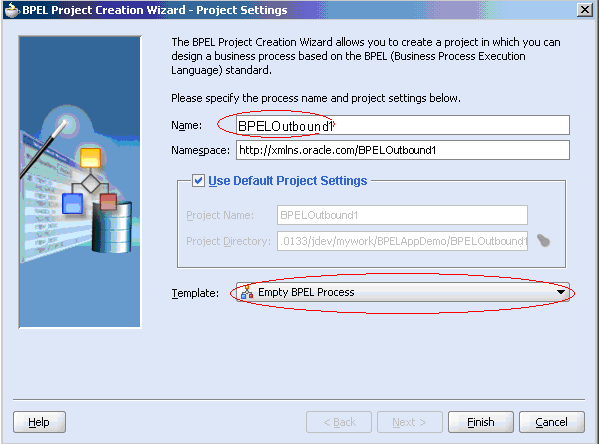
Do the following in BPEL Project Creation Wizard-Project Settings dialog box:
Enter a name for the BPEL process, for example BPELOutbound1.
From the Template list, select Empty BPEL Process.
Click Next to review the input/output schema elements or click Finish.
You create a file adapter to read a file as string input. SOA reads this string and passes it to a resource adapter. The resource adapter then processes the information in this string and returns it in Upper case. Do the following to create the file adapter.
Drag a PartnerLink into a service lane of the visual editor. The Create Partner Link dialog box is displayed.
Figure 4-10 Partner Link for File Adapter
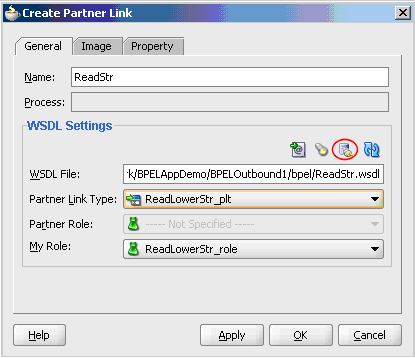
Click the Adapter Wizard button. This is the third button in the WDSL Settings section of the Create Partner Link dialog box, as shown in the figure above.
Enter the following information in the Adapter Configuration wizard:
Step 1, Adapter Type: Select File Adapter.
Step 2, Service Name: type ReadStr
Step 3, Operation:
Operation Type: select Read File
Operation Name: Type ReadLowerStr
Step 4, File Directories
Directory Names are Specified as: Select Physical Path
Directory for Incoming Files (physical path): Enter the full path to the folder where you want the incoming files, for example C:\temp.
Step 5, File Filtering:
Includes Files with Name Pattern: Enter *xml
Step 6, File Polling:
Polling Frequency: enter 1 then select seconds from the list.
Step 7, Messages:
Schema File URL: Enter TOUPPERSchema.xsd
Schema Element: Enter ToUpperData
Click Finish.
In this step, you design the BPEL process. Do the following to design the BPEL outbound process:
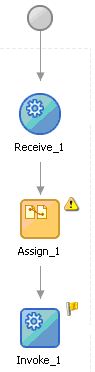
From the Component Palette-Process Activities pane, drag a Receive, Assign, and Invoke activity into the editor for the process you created in the Create a BPEL Project for a BPEL Outbound Process step.
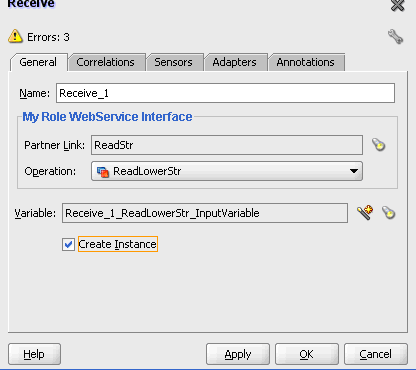
In the Visual Editor, connect the Recieve_1 activity to the ReadStr file adapter. The Edit Receive dialog box is displayed.
Do the following in the Edit Receive dialog box:
Enter a name for the Receive activity, in this example it is Receive_1.
Make sure to create the variable. Click the first button to the right of the Variable field, then click OK in the Create Variable dialog box that is displayed.
Make sure that the Create Instance check box is selected.
Click OK to close the dialog box and accept the information.
In this step, create a partner link to the Tuxedo adapter you are working with. Do the following to create a partner link.
Drag a PartnerLink into a service lane of the visual editor. The Create Partner Link dialog box is displayed.
Figure 4-13 Partner Link to Tuxedo Outbound
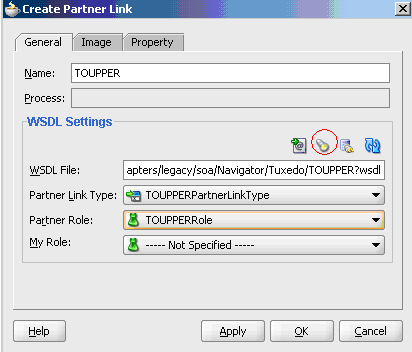
From the Create Partner Link dialog box, click the Service Explorer button. This button is the second form the left and is shown in the figure in the previous step. The Service Explorer dialog box is displayed.
In the Service Explorer, expand the connection you are using, then expand adapters and then applications, and continue to browse until you find the WDSL file you are using. Select the file and click OK.
The WSDL File field in the Create Partner Link dialog box displays the path to the WSDL file you selected. The Partner Link Type field displays the Partner Link defined in the WSDL file.
Enter the following information in the Create Partner Link dialog box:
In the Partner Role list, select TOUPPERRole.
In the My Role list, select Not Specified.
Edit the Invoke_1 activity that you added to the Visual Editor so that it will invoke the TOUPPER service. Do the following to edit the Invoke_1 activity.
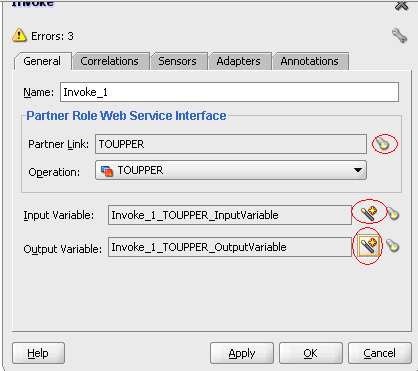
Double-click the Invoke_1 activity to edit it. The Invoke dialog box is displayed.
In the Invoke dialog box, make sure that the Partner Role Web Service Interface section has the following values:
Partner Link: TOUPPER
Operation: TOUPPER
Click the Automatically Create Input Variable button. It is the first icon to the right of the Input Variable field as shown in the figure in the previous step. The Create Variable dialog appears with the input variable.
The Input Variable should be Invoke_1_TOUPPER_InputVariable. Click OK.
Click the Automatically Create Input Variable button for the Output Variable field.
The Output Variable should be Invoke_1_TOUPPER_OutputVariable. Click OK.
You use the assign activity to assign a value to the resource adapter. Do the following to edit the Assign_1 activity.
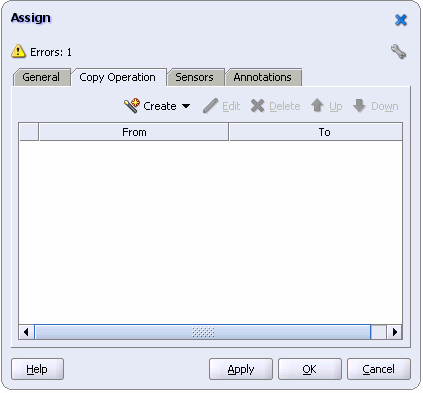
Double-click the Assign_1 activity to edit it. The Assign dialog box is displayed.
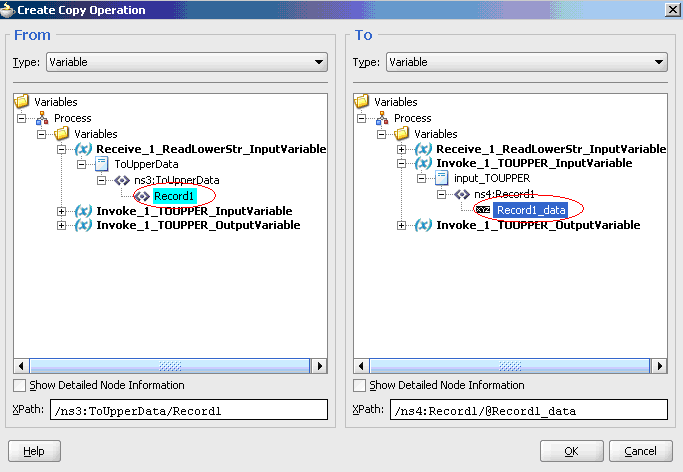
Click the Create list and select Copy Operation. The Create Copy Operation dialog box is displayed.
On the From side, expand Variables then expand Read_1_ReadLowerStr_InputVariable, then expand nsx:ToUpperData and select Record1.
On the To side, expand Variables then expand Read_1_ReadLowerStr_InputVariable, then expand input:ToUPPER, then expand nsx:Record1 and select Record1_data.
Click OK. The Copy Operation tab in the Assign window updates to show the rule.
After you create a process that reads a string of lower-case letters, create another process that will write the string in upper case letters. Do the following to create a process that will write the string in upper-case letters.
Create a file adapter as described in Create a File Adapter to Read the String. To write the string, use the following values:
Service Name: WriteStr
Operation Type: Write File
Operation Name: WriteUpperStr
Directory for Incoming Files: C:\tempOut
File Naming Pattern: *.xml
Add an Assign activity and an Invoke activity to the visual editor.
Double-click the Invoke_2 activity to edit it. See Edit the Invoke_1 Activity for an explanation on how to edit an invoke activity. Use the following values for the Invoke_2 activity:
Partner Link: WriteStr
Operation: WriteStr
Input Variable: Invoke_2_WriteStr_InputVariable
Output Variable: Invoke_1_TOUPPER_OutputVariable
Double-click the Assign_2 activity to edit it. See Edit the Assign_1 Activity for an explanation on how to edit an Assign activity. Use the following values for the Assign_2 activity:
From: Expand Variables then expand Invoke_1_TOUPPER_InputVariable, then expand output:ToUPPER, then expand nsx:TOUPPER_Response and select Record1_data.
To: Expand Variables then expand Invoke_2_1_WriteStr_InputVariable, then expand ToUpperData, then expand nsx:ToUpperData and select Record1.
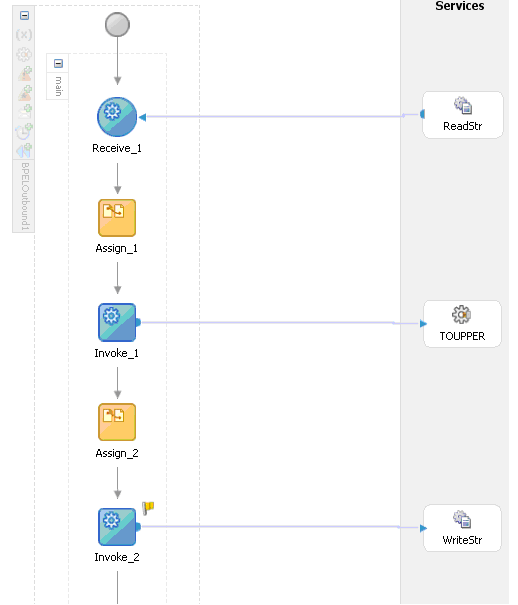
The following figure shows how the final process looks:
This section describes how to test the project and run it to see that the outbound process is executed successfully. Do the following to test the outbound process.
Create a file and call it ToUpperIn.xml as shown in the following example:
<?xml version="1.0" encoding="UTF-8"?><CU:ToUpperData xmlns:CU="http://xmlns.oracle.com/Esb/ToUpperData" xmlns:xsi="http://www.w3.org/2001/XMLSchema-instance"> <Record1>tuxedo</Record1></CU:ToUpperData>
Save the file to the C:/temp folder that was defined for the first file adapter. The file is deleted after the SOA server reads the file and complete the process.
Open the C:\tempOut folder that was defined in the second file adapter. A file with the following contents is copied to this folder.
<?xml version="1.0"?>
<ToUpperData xmlns="http://xmlns.oracle.com/Esb/ToUpperData">
  <Record1 xmlns>="">TUXEDO</Record1>
|
 Copyright © 2006, 2008, Oracle and/or its affiliates. All rights reserved. Legal Notices |
|