| Oracle® WebCenter Framework Developer's Guide 10g (10.1.3.4) Part Number E12434-01 |
|


|
View PDF |
| Oracle® WebCenter Framework Developer's Guide 10g (10.1.3.4) Part Number E12434-01 |
|
|
View PDF |
This chapter explains how you can embed discussion forums in your WebCenter applications. The discussion forum is a powerful service that enables users to share information and discuss topics embedded within your WebCenter application.
This chapter includes the following sections
One of the services that you can integrate into your WebCenter application is discussion forums. Users can browse threads in a convenient portlet to locate pertinent messages, and then go to the discussion forum to read more and add their own posts or replies. In particular, Oracle WebCenter Discussions provides a J2EE application with an open architecture and extensive features. You can easily integrate Oracle WebCenter Discussions into your WebCenter application.
This section includes the following topics:
Section 7.2.1, "How to Install and Configure Oracle WebCenter Discussions"
Section 7.2.2, "How to Configure SSO with Your Oracle WebCenter Discussions Application and Portlet"
Section 7.2.3, "How to Consume the Discussion Forums Portlet in Your WebCenter Application"
To install the Oracle WebCenter Discussions J2EE application, do the following:
Unzip jive_forums_silver_5_1_0.zip from the companion CD. Follow the installation instructions located in owc_discussions\jive_forums_silver_5_1_0\documentation\install-guide.html.
Note:
owc_discussions is the directory where you unzipped jive_forums_silver_5_1_0.zip.When you reach the point in the Oracle WebCenter Discussions installation where you must install the jiveforums.war file in an application server, you need to deploy the WAR file through Oracle Enterprise Manager 10g as described in the following steps.
Log on to the Application Server Control as an administrator.
Click the Oracle Application Server instance to go to its application server page.
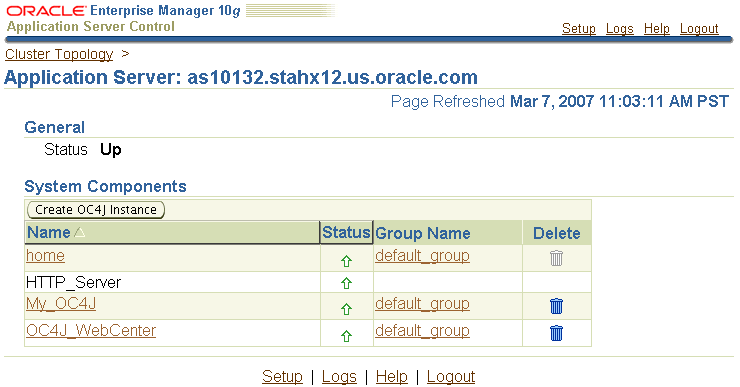
Although you can use an existing OC4J instance, Oracle recommends that you create a new OC4J instance to contain Oracle WebCenter Discussions. To create a new OC4J instance, click Create OC4J Instance (Figure 7-1).
Figure 7-1 Oracle Application Server Instance
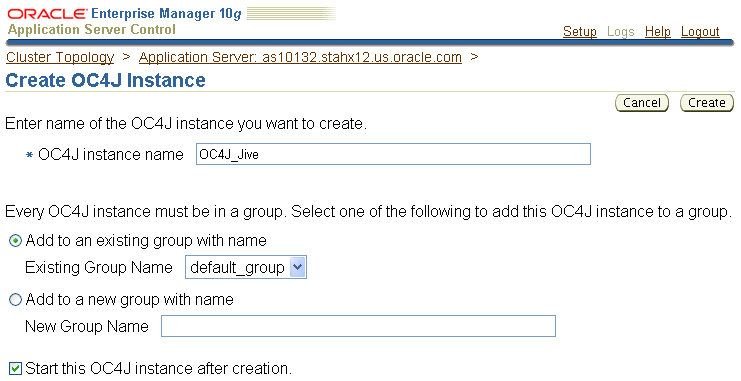
Enter values for the new OC4J instance (Figure 7-2). Be sure to check Start this OC4J instance after creation.
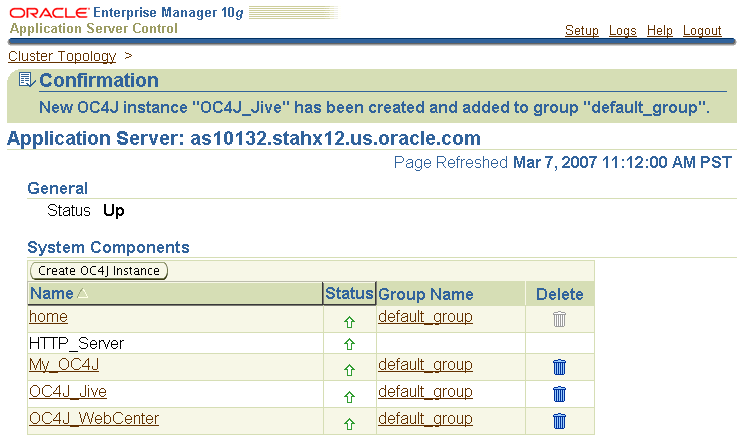
Click Create. The instance should now appear in the list of System Components (Figure 7-3).
Figure 7-3 Application Server Page of Application Server Control
Follow the instructions in Section 18.3, "Configuring Your Application Server or Standalone OC4J to Run Portlets" to configure your OC4J instance to run portlets.
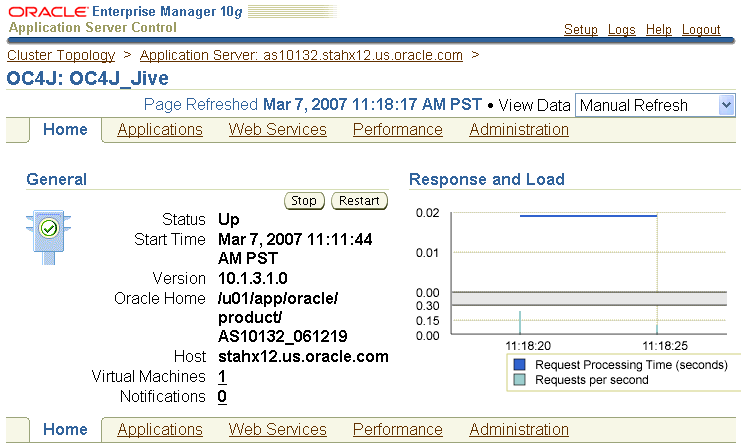
Click the name of the OC4J instance. The Home tab of the instance appears (Figure 7-4).
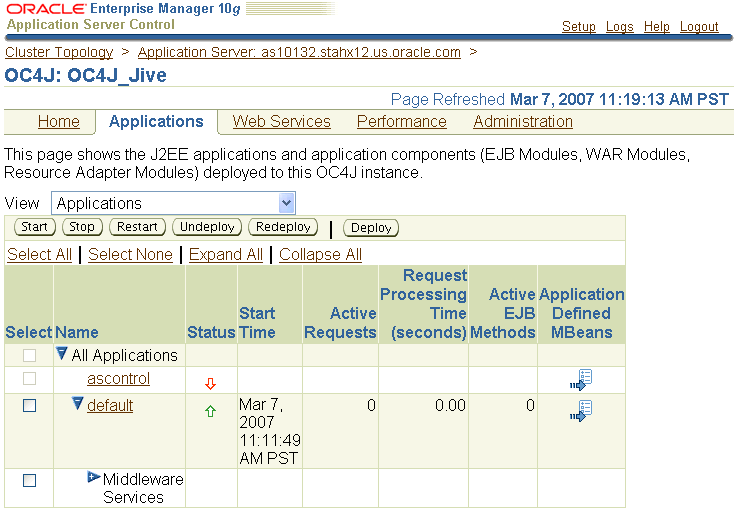
Click the Applications tab (Figure 7-5).
Figure 7-5 Applications Tab for OC4J Instance
Click Deploy.
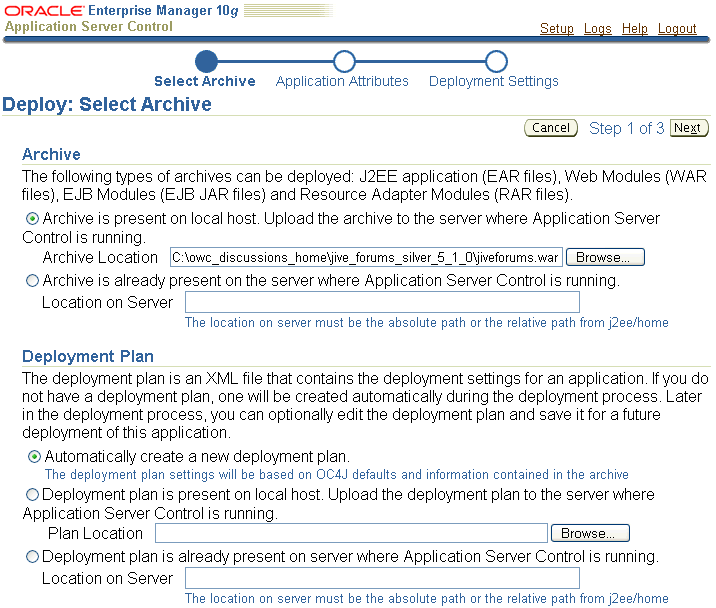
Select the location of the WAR file (local or host) and specify the path (Figure 7-6). From the companion CD, the path is owc_discussions\jive_forums_silver_5_1_0\jiveforums.war.
Select Automatically create a new deployment plan (Figure 7-6).
Click Next. If the WAR file is local, it may take several minutes to upload to the server.
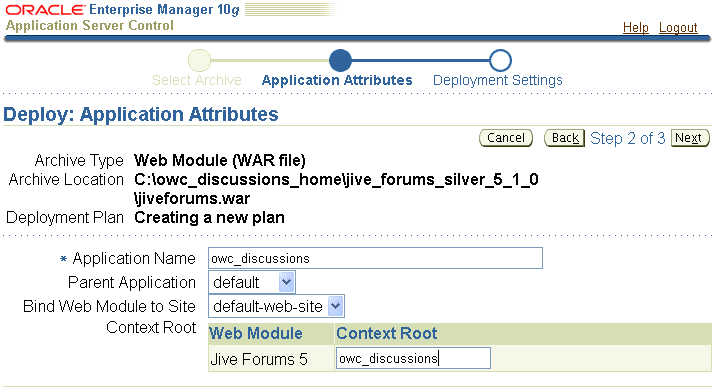
Enter Application Name (for example, owc_discussions). The Context Root should be something meaningful (for example, owc_discussions), because you will use this context root to call your application from this point forward (Figure 7-7).
Figure 7-7 Deploy: Application Attributes Page
Click Next.
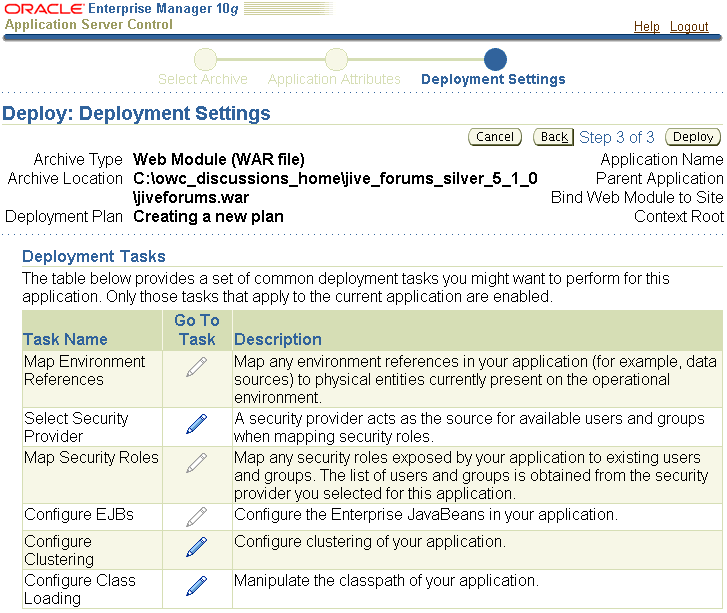
The Deployment Settings page appears (Figure 7-8). Click the Go to Task icon for Configure Class Loading.
Figure 7-8 Deploy: Deployment Settings Page
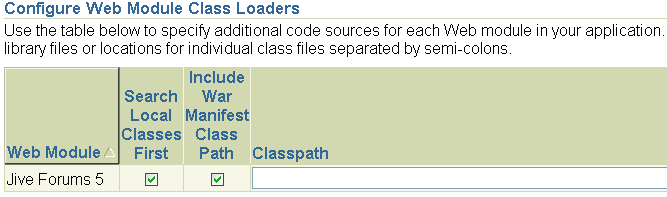
From the Configure Class Loading page, go to the Configure Web Module Class Loaders section (Figure 7-9) and check Search Local Classes First for the Jive Forums 5 Web module.
Figure 7-9 Configure Web Module Class Loaders Section
Click OK. Note the informational message at the top of the page that indicates that the deployment plan was successfully updated.
Click Deploy.
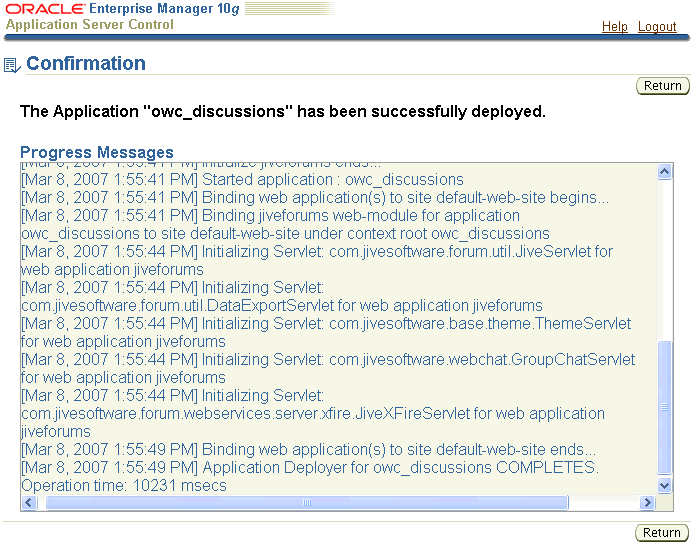
After the deployment has completed successfully, you get a confirmation message (Figure 7-10). If the deployment is not successful, then review the log and confirm that you had the correct deployment settings.
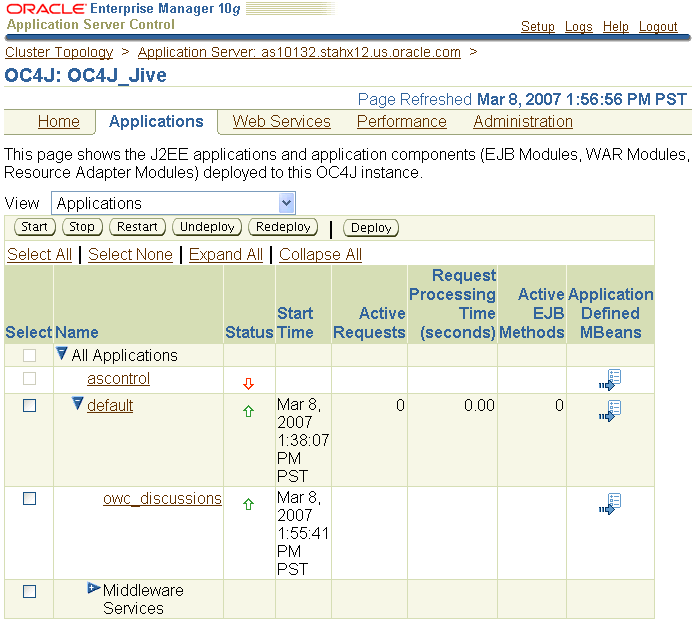
Click Return. You should see the application running in your OC4J instance (Figure 7-11).
Note:
If you do not intend to use the discussion forums portlets, then restart the OC4J instance now.Figure 7-11 Applications Tab with Oracle WebCenter Discussions Application Deployed
Return to the Oracle WebCenter Discussions installation instructions in owc_discussions\jive_forums_silver_5_1_0\documentation\install-guide.html and follow the remainder of the steps.
See Also:
JAZN Provider LDAP for information on how to configure Jive to use the LDAP identity storeTo confirm that you have successfully set up Oracle WebCenter Discussions, go to the Admin Console and try to log on as the administrator you created during the installation process: http://host:port/owc_discussions/admin/.
This section describes how to properly configure security for Oracle WebCenter Discussions. Perform the steps in this section after you have successfully deployed and configured the Oracle WebCenter Discussions application.
Single sign-on (SSO) integration requires custom classes to override the standard AuthFactory class. In OracleSSOAuthFactory, Oracle ADF APIs check user authentication. In addition, you must override a few action classes for user log on/log off and filter classes for presence and administration. Finally, to integrate the ADF authentication servlet for SSO login, you must edit web.xml, orion-application.xml, and orion-web.xml.
Synchronize User / Identity Stores: To enable single sign-on between the Oracle WebCenter Discussions application and the discussion forums portlet, use SSO to authenticate users from a central user data store. You must synchronize an Oracle WebCenter Discussions user and the Oracle Application Server administrator user. When using the JAZN authentication model, you create an oc4jadmin user in the Oracle WebCenter Discussions administration interface and assign it administrative privileges as follows:
Note:
If you are not using LDAP as the identity store and have not configured LDAP, then you must create the oc4jadmin user now. This is required to log on to the Oracle WebCenter Discussions application later.Open the Oracle WebCenter Discussions administration interface with following URL:
http://host:port/owc_discussions/admin/
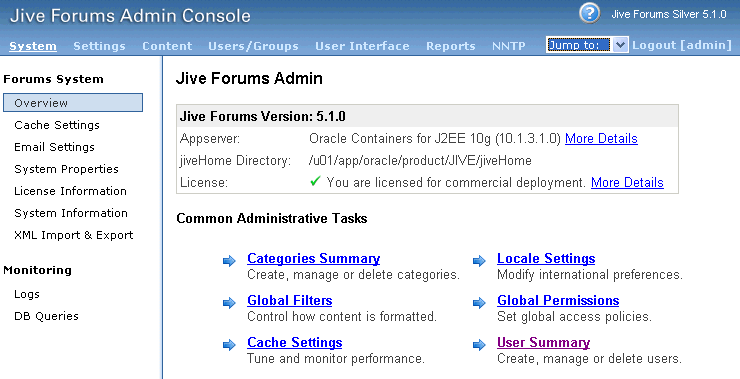
Log on using the administrator user name and password you created during the installation of Oracle WebCenter Discussions. The Oracle WebCenter Discussions Admin Console appears (Figure 7-12).
Figure 7-12 Oracle WebCenter Discussions Admin Console
Optional Steps (only if you are not using LDAP):
1. Click the Users/Groups tab (Figure 7-13).
Figure 7-13 User/Groups Tab of Admin Console
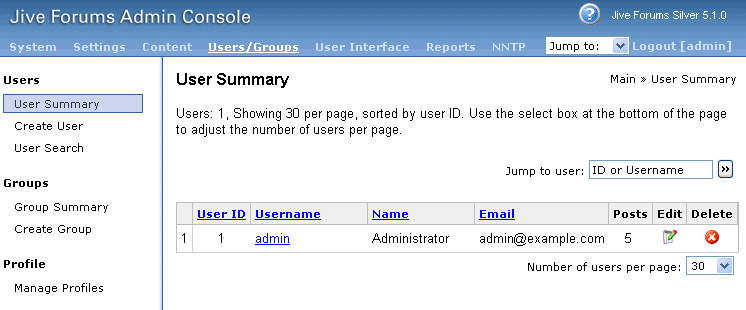
2. Click Create User from the left pane.
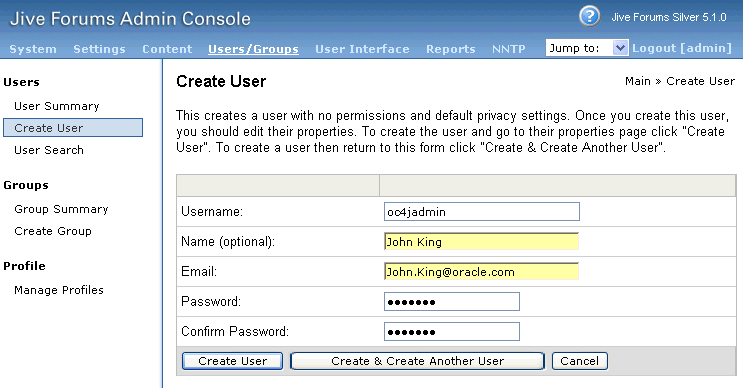
3. Specify oc4jadmin for Username and fill in the other required properties (Figure 7-14).
4. Click Create User.
After the oc4jadmin user is created or present in your LDAP store, grant it administrator privileges. Click the Settings tab (Figure 7-15).
Figure 7-15 Settings Tab of the Admin Console
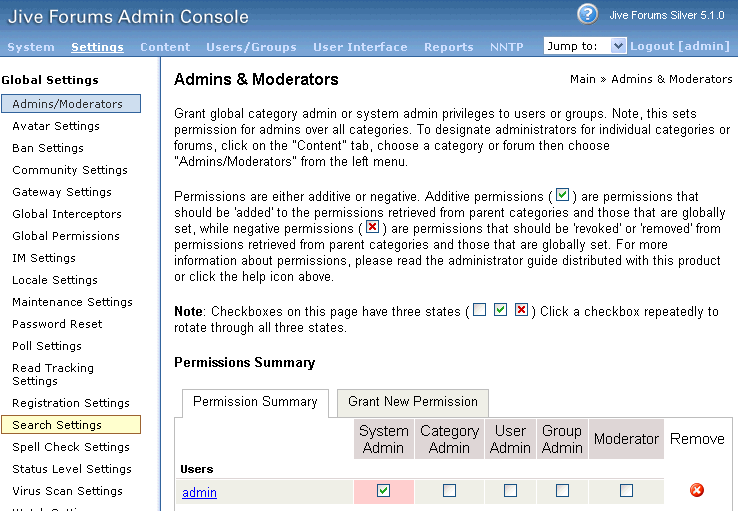
Click Grant New Permissions.
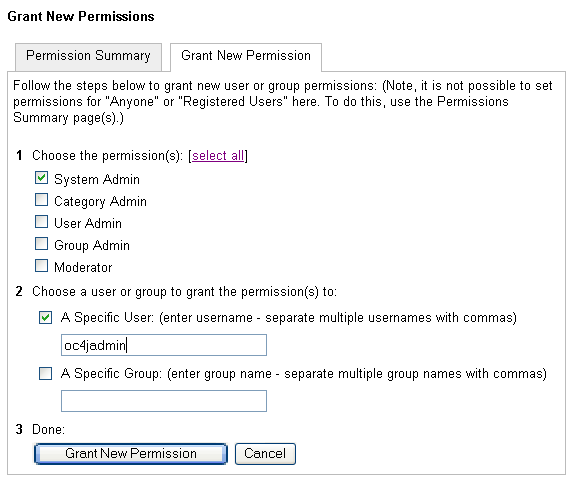
For Choose the permission(s), select System Admin (Figure 7-16).
For Choose a user or group to grant the permission(s) to, select A Specific User and enter oc4jadmin in the adjoining field (Figure 7-16).
Click Grant New Permission.
Set Necessary System Properties: Click the System tab. Change the default classes for AuthFactory by adding a system property.
Click System Properties (Figure 7-17) and scroll to the bottom of the page where you should see the Add new property section.
Figure 7-17 System Properties of System Tab
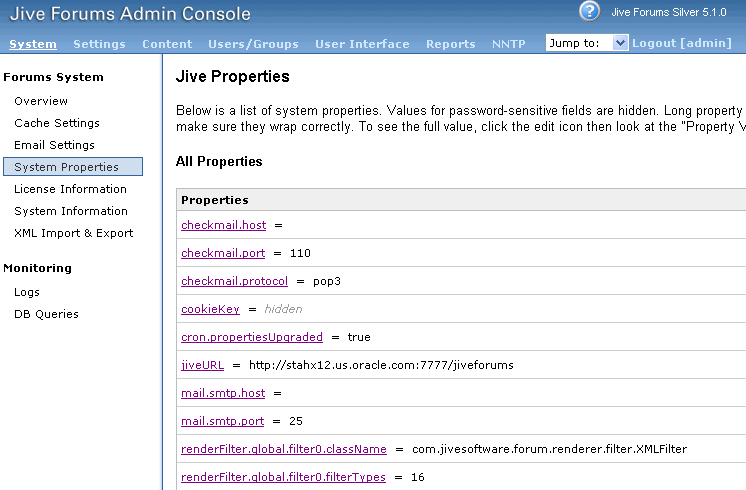
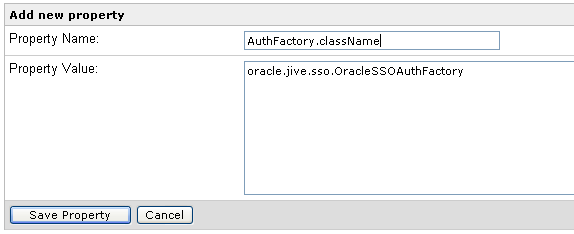
For Property Name, enter AuthFactory.className.
For Property Value, enter oracle.jive.sso.OracleSSOAuthFactory.
Click Save Property (Figure 7-18).
Running the SSO Script: To complete the portlet setup process, you must modify some configuration files. The recommended way to make these modifications is to run deploy-jive-portlet.jar, which is found on the companion CD.
The deploy-jive-portlet.jar file configures web.xml, xwork-community.xml (in jiveforums-version.jar), orion-application.xml, orion-web.xml and jive_startup.xml, and it unzips oracle-jive-portlet.zip.
Oracle recommends using the deploy tool, deploy-jive-portlet.jar because it reduces the risk of manual errors in the configuration files. It also automatically backs up the previous versions of your configurations files, which can be useful if you later undeploy the portlet and return to your previous configuration.
To perform this process manually, follow the steps in Section 7.2.2.7, "Manual Configuration Steps for Portlet Deployment".
See Also: Section 7.2.2.1, "Configuring JSSO", Section 7.2.2.2, "Configuring SSO", Section 7.2.2.4, "JAZN Provider XML", Section 7.2.2.5, "JAZN Provider LDAP" and Section 7.4, "FAQ for Discussions" for more information about these options. The security provider must be configured before you deploy the script in the steps below.
If you are using JSSO/auth_method=CUSTOM_AUTH for authentication, then see Section 7.2.2.1, "Configuring JSSO".
If you are using SSO/auth_method=SSO for authentication, then see Section 7.2.2.2, "Configuring SSO".
If you are using jazn_provider=LDAP and you want to use the same LDAP for user identity in Jive, then see Section 7.2.2.5, "JAZN Provider LDAP".
If you are using Oracle Access Manager (OAM), then see Section 7.2.2.3, "Configuring Oracle Access Manager".
To run deploy-jive-portlet.jar, perform the following steps:
Copy deploy-jive-portlet.jar and oracle-jive-portlet.zip from the companion CD to j2ee/OC4J_instance/applications/owc_discussions/jiveforums.
Ensure that you have JDK 1.5 in your PATH variable. If not, then set PATH to point to the JDK 1.5 found in ORACLE_HOME/jdk/bin, where ORACLE_HOME is the Oracle WebCenter home.
Set the JDK path to point to your application server JDK.
From Enterprise Manager, stop the OC4J instance that runs your Oracle WebCenter Discussions application.
Run the following command:
java -client -Dhttp.proxyHost=proxy-host \
 -Dhttp.proxyPort=proxy-port \
 -jar deploy-jive-portlet.jar \
 jive_version=jive version, for example 5.1.0 \
 auth_method=CUSTOM_AUTH/SSO/COREIDSSO \
 jazn_provider=LDAP/XML
If this is a Windows Server 2003 environment, then run the command using JDK from the application server instance itself.
Notes:
jive_version can be found at the top right of the administrator user interface.
If you are running through a proxy, then specify values for http.proxyHost and http.proxyPort on the command line as well.
To undeploy, run the following command:
java -client -Dhttp.proxyHost=www-proxy.us.oracle.com \
 -Dhttp.proxyPort=80 \
 -jar deploy-jive-portlet.jar \
 jive_version=jive version, for example 5.1.0 \
 undeploy=true
When you run the command to deploy, the tool prompts you for the full path to your jiveHome directory. Enter the path that you used when you set up the jiveHome directory according to the instructions in owc_discussions\jive_forums_silver_5_1_0\documentation\install-guide.html.
Delete the following directory:
j2ee/OC4J_instance/application-deployment/owc_discussions/
You can also use the Admin Console to create and manage categories, forums, users, and groups (when using Jive database for user identity). See the Jive Forums Administrator's Guide (forums-admin-guide.pdf) on the companion CD for more information.
For more information on consuming the discussion forum portlet in your WebCenter application, see Section 7.2.3, "How to Consume the Discussion Forums Portlet in Your WebCenter Application".
Upon successful completion of these steps, your Oracle WebCenter Discussions software and the sample portlet are installed and ready for use.
To use JSSO as the authentication scheme, first run the deployment tool with the auth_method=CUSTOM_AUTH option. Then, check the OC4J instance in Enterprise Manager. Java SSO should appear as an application under the OC4J instance. If the instance is started, then confirm that Java SSO is running. If Java SSO is down, then start it.
For more information about Java SSO, see the Oracle Containers for J2EE Security Guide.
When you start Java SSO, you might get a warning message (Figure 7-19) that Java SSO is not properly configured. This warning indicates that you are running multiple Java SSO applications in a cluster. To ensure that you properly configure Java SSO for a clustered environment, see Section 7.2.2.6.1, "Clustered Configurations for Java SSO".
Figure 7-19 Warning for Java SSO Configuration

To use Oracle SSO for authentication, first run the deployment tool with the auth_method=SSO option. Then follow the steps in the Oracle Containers for J2EE Security Guide on Oracle Identity Management. Here is a general example of configuring the OC4J container to run with Oracle SSO:
Register the OC4J_container with Oracle Internet Directory: This configuration must be done for the OC4J created for Jive deployment; for example, OC4J_Jive.
Click the Administrator tab of the container.
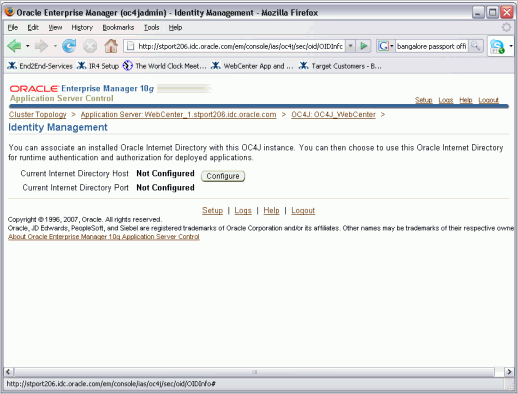
Click Identity Management (Figure 7-20).
Enter the required information for Oracle Internet Directory (Figure 7-21).
Figure 7-21 Configure Identity Management Page
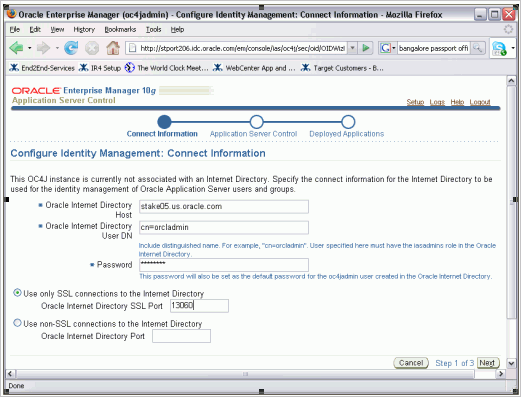
Leave the Enable SSO check box in the last page as it is. (Do not check it.)
Click Configure, and restart the OC4J.
Go to the SSO Server. Run this script from ORACLE_HOME/sso/bin.
See the "Run the SSO Registration Tool" section in chapter 8 of Oracle Identity Management Guide for details. Here is the syntax of the command:
ORACLE_HOME/sso/bin/ssoreg.sh -oracle_home_path ORACLE_HOME\
-site_name host \
-config_mod_osso TRUE \
-mod_osso_url http://host:port \
-remote_midtier \
-config_file ORACLE_HOME/Apache/Apache/conf/osso/myforums_final_osso.conf
For example:
ORACLE_HOME/sso/bin/ssoreg.sh -oracle_home_path ORACLE_HOME \
-site_name hmpsmt05.us.oracle.com \
-config_mod_osso TRUE \
-mod_osso_url http://hmpsmt05.us.oracle.com:7781 \
-remote_midtier \
-config_file ORACLE_HOME/Apache/Apache/conf/osso/myforums_final_osso.conf
Note:
myforums_final_osso.conf is the user-defined file that would be created on the SSO server for this configuration.Copy the ORACLE_HOME/Apache/Apache/conf/osso/myforums_final_osso.conf file and SCP or FTP it to the application server where Jive is deployed.
At the forums OC4J installation, run a script called osso1013 to complete the SSO registration process, specifying the location where you placed the osso.conf file. The syntax of the command is as under osso1013 path/osso.conf. This script is located in the ORACLE_HOME/Apache/Apache/bin directory.
On Windows, you may need run it through Perl:
% perl osso1013 path/osso.conf
Note:
If you get an error like invalid format of config file in the Apache logs, then you may need to manually copy the filemyforums_final_osso.conf to ORACLE_HOME/Apache/Apache/conf/osso/osso.conf.Restart the SSO server.
Restart the application server used for Jive.
Ensure that the identity management has been configured by navigating to the Administration tab in Enterprise Manager for OC4J container created for Jive; for example, OC4J_Jive.
Click Identity Management.
Check if the LDAP server has been configured.
Go back to the Administrator tab for the same OC4J container; for example, OC4J_Jive.
Click the security provider.
Edit the WebCenter Discussions application; for example, owc_discussions.
Change Security Provider to "Oracle Identity Management Security Provider" (Figure 7-22).
Figure 7-22 Confirmation for Security Provider
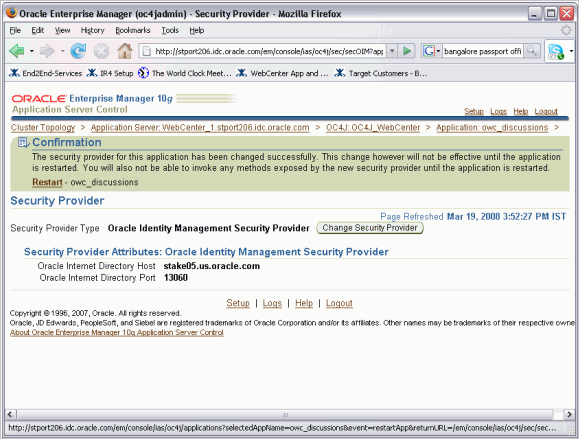
Click Enable SSO Authentication for owc_discussions.
Click OK.
Restart the server.
Note:
This setup assumes that there is a group calledusers_forums in the Oracle Internet Directory server. Make sure to create a group (static or dynamic) with that name in Oracle Internet Directory and assign all forum users to it as members.If you want all users in the directory to have access to the forums, then create a dynamic group for this. For example, to create a dynamic group of all users, named users_forums, use the following LDIF file:
dynusers.ldif
dn: cn=users_forums,cn=groups,dc=us,dc=oracle,dc=com
labeleduri: ldap://host.domain.com:389/cn=users,dc=us,
 dc=oracle,dc=com??sub?(objectclass=inetorgperson)
description: Dynamic Group of all Forum Users
cn: users_forums
orclisvisible: true
objectclass: orclDynamicGroup
objectclass: orclGroup
objectclass: top
objectclass: groupOfUniqueNames
displayname: All Users
owner: cn=orcladmin,cn=users,dc=us,dc=oracle,dc=com
To create the group, invoke the ldapadd command with this LDIF file:
ldapadd -h host.domain.com -p 389 -D cn=orcladmin -w password -vf dynusers.ldif
To manually add more groups mapped to the valid-users security role:
Stop the server.
Edit ORACLE_HOME/j2ee/OC4J_Jive/application-deployments/jive3/jiveforums/orion-web.xml by adding the following role to the XML:
<orion-web-app
…
    <security-role-mapping name="oc4j-administrators">
    </security-role-mapping>
    <security-role-mapping name="ascontrol_monitor">
    </security-role-mapping>
     <security-role-mapping name="valid-users">
             <group name="users_forums" />
             <group name="More_Group" />
     </security-role-mapping>
</orion-web-app>
Add your Oracle Internet Directory group name in More_Group. You can add more groups the same way.
Start the server.
However, if you define your group users_forums as containing all users, there is no need for any additional groups mapped to valid-users. That one group is sufficient.
To use Oracle SSO for authentication, run the deployment tool with the auth_method=COREIDSSO option. Also, specify the XML security provider, which is required when using OC4J integration with Oracle Access Manager (OAM).
To use OAM for Oracle WebCenter Discussions authentication, ensure that the following components are installed:
Oracle HTTP Server 10.1.3.2
Oracle Internet Directory 10.1.4.0.1
Oracle Access Manager Identity Server 10.1.4.0.1
Oracle Access Manager Web Pass 10.1.4.0.1
Oracle Access Manager 10.1.4.0.1
Oracle Virtual Internet Directory 10.1.4.0.1 (optional)
These components are installed one time for the central server. In addition, each OC4J to be configured for integration with OAM must have an Access Server and an Access Gate installed.
Access Server
An Access Server must be installed for OC4J_Jive. See the Oracle® Access Manager Installation Guide 10g (10.1.4.0.1) "Chapter 8, Installing the Access Server" to install an Access Server for this OC4J instance.
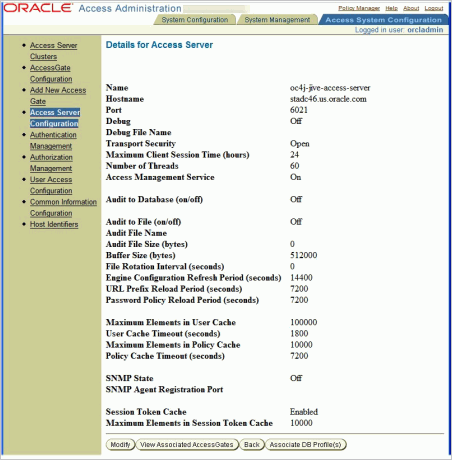
You will be asked to create an Access Server instance in the Access System Console. Leave all defaults as they are, except the following specific entries:
Set Name to oc4j-jive-access-server.
Set Hostname to the host on which OC4J_Jive resides.
Set Port to 6021 or to any other available port.
Set Access Management Service to On.
The saved values should look something like the following:
Name      oc4j-jive-access-server
Hostname  host.domain.com
Port      6021
Debug      Off
Debug File Name
Transport Security      Open
Maximum Client Session Time (hours)      24
Number of Threads      60
Access Management Service      On

Audit to Database (on/off)      Off

Audit to File (on/off)      Off
Audit File Name
Audit File Size (bytes)      0
Buffer Size (bytes)      512000
File Rotation Interval (seconds)      0
Engine Configuration Refresh Period (seconds)      14400
URL Prefix Reload Period (seconds)      7200
Password Policy Reload Period (seconds)      7200

Maximum Elements in User Cache      100000
User Cache Timeout (seconds)      1800
Maximum Elements in Policy Cache       10000
Policy Cache Timeout (seconds)      7200

SNMP State      Off
SNMP Agent Registration Port

Session Token Cache      Enabled
Maximum Elements in Session Token Cache      10000
After creating this instance in the Access System Console, install the actual Access Server, using the OAM command appropriate to your platform. For example:
Oracle_Access_Manager10_1_4_0_1_linux_Access_Server
Follow the installation guide instructions to complete the installation.
Access Gate
Next, the Access Gate module must be installed. See the Oracle® Access Manager Installation Guide 10g (10.1.4.0.1) "Chapter 9, Installing the WebGate" to install an Access Gate for this Oracle HTTP Server instance.
Note that WebGate and Access Gate are synonymous.
Again, you will be asked to create an Access Gate instance in the Access System Console. When creating the instance, provide the following properties:
Set Name to oc4j-jive-access-gate or to any other name
Set Hostname to the host on which the Oracle HTTP Server (OHS) is installed
Set ASDK Client, Access Management Service to On
Set Primary HTTP Cookie Domain to an appropriate value depending on your installation. Typically, this would be a domain-based cookie; for example, ".yourcompany.com".
The port does not need to be specified.
For Oracle Access Manager setup, see the OC4J Security Guide, "Chapter 11, Oracle Access Manager". Make sure that the following steps are all performed:
Configuring Oracle Access Manager
Configuring OC4J with the Access Manager SDK
Configuring opmn.xml for Oracle Access Manager
Creating Required Accounts in the LDAP Server (If you are using Oracle Internet Directory as the identity store, then use Oracle Application Server Control to configure OC4J_Jive with the Oracle Identity Management Provider. You will not associate the owc_discussions application with the Oracle Identity Management provider (leave it as XML), but the act of associating OC4J_Jive with Oracle Internet Directory results in the appropriate user accounts and groups being added to Oracle Internet Directory.
Configuring the Application (The discussions deployment tool discussed earlier handles some of these steps. Confirm that the changes that were made. You do need to configure the Login Module.)
After the section on Configuring the Application, the remaining sections in Chapter 11 of the OC4J Security Guide are not applicable to the OC4J_Jive integration with Oracle Access Manager.
The remainder of the information in this section provides samples of the configuration specifically for Jive Forums integration. The following configuration must be done in Oracle Access Manager.
Access System Configuration Overview
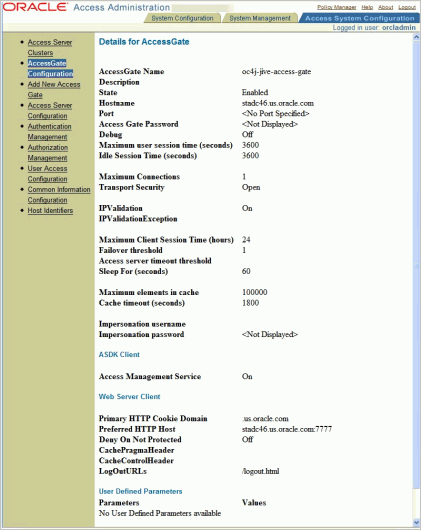
Figure 7-23 shows the details for the Access Gate configuration.
Figure 7-24 shows the details for the access server configuration.
Authentication Management
Figure 7-25 shows the Authentication Management: General page.
Figure 7-25 Authentication Scheme COREidSSOform
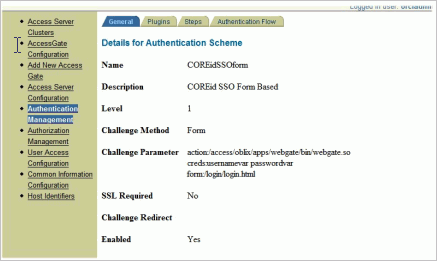
Table 7-1 shows the authentication plug-in parameters.
Table 7-1 Plug-in Parameters
| Name | Parameters |
|---|---|
|
|
|
|
|
|
Figure 7-26 shows the steps for the authentication scheme.
Figure 7-26 Steps for the Authentication Scheme
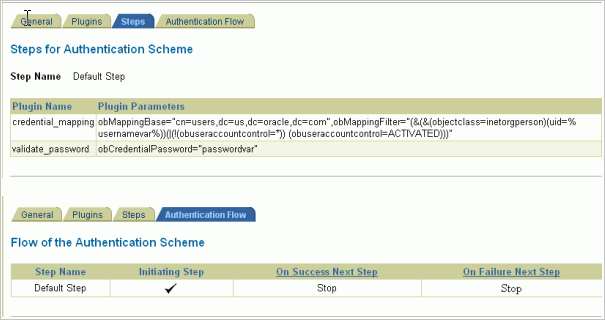
Figure 7-27 shows the details for authentication scheme COREidSSONoPwd.
Figure 7-27 Authentication Scheme COREidSSONoPwd
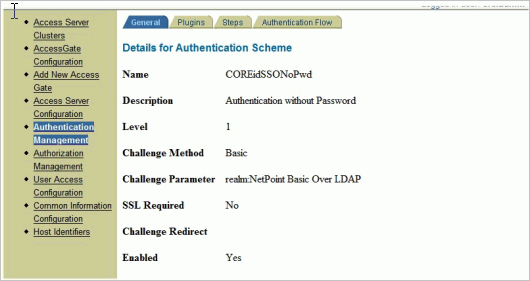
Table 7-2 shows the plug-in parameter.
Table 7-2 Plug-in Parameters
| Name | Parameter |
|---|---|
|
|
|
Figure 7-28 shows the list of resource types.
Figure 7-28 Common Information Configuration: Resource Type Definitions
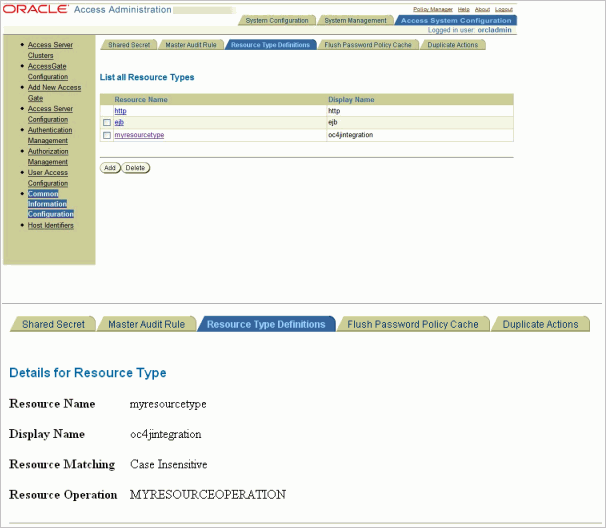
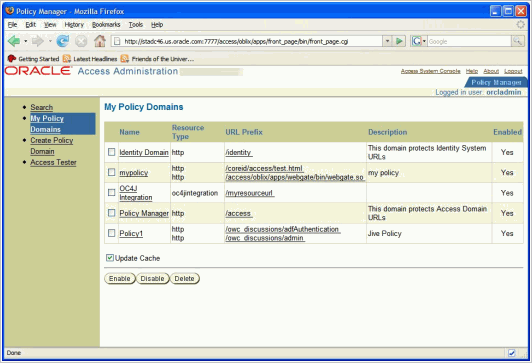
Figure 7-29 shows the relevant configuration entries in Policy Manager.
mypolicy: This contains the /access/oblix/apps/webgate/bin/webgate.so, which is the arbitrary post action for the custom login form. This policy is secured with the COREidSSONoPwd basic authentication with no password authentication scheme.
OC4J Integration: This defines the policy for the resource used by the CoreIDLoginModule to access the identity information for the authenticated user, through the Access Server SDK. This is also secured with the COREidSSONoPwd basic authentication with no password authentication scheme.
Policy1: This defines the policy for the Jive application resources. Most discussion pages are public, but access to the /admin path is secured, and the /adfAuthentication path is used to trigger authentication and is used by the login link in the application. This policy specifies the form-based authentication scheme: COREidSSOform.
Figure 7-30 shows the General tab for Policy1.
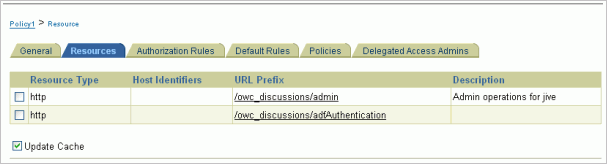
Figure 7-31 shows the Resources tab for Policy1.
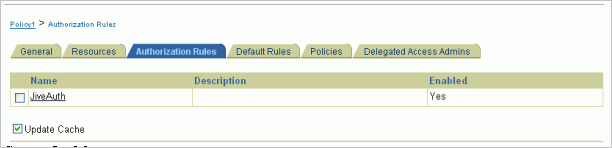
Figure 7-32 shows the Authorization Rules tab for Policy1.
Make sure that the authorization rule that you added is the same as shown in Figure 7-33.
Figure 7-33 Details of the Authorization Rules
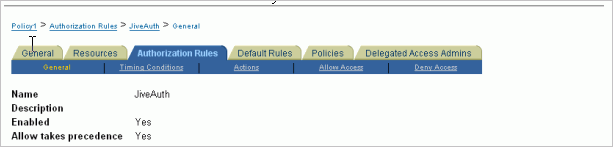
Figure 7-34 shows the Authentication Rule page on the Default Rules tab.
Figure 7-34 Default Rules Tab: Authentication Rule
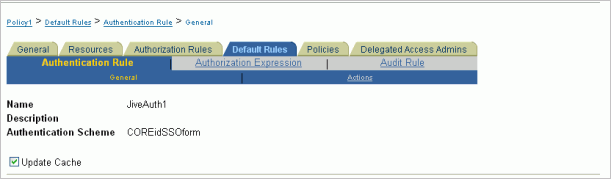
Figure 7-35 shows the Authorization Expression page on the Default Rules tab.
Figure 7-35 Default Rules Tab: Authorization Expression
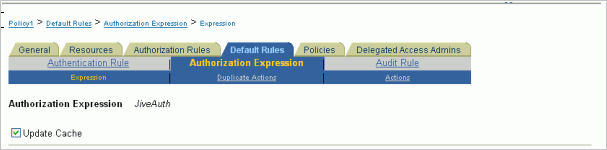
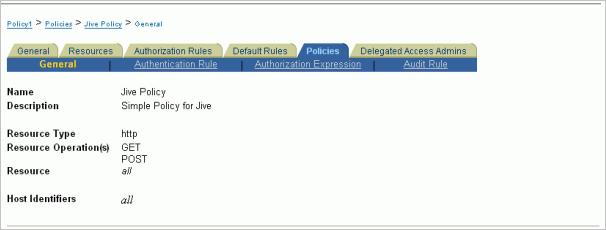
Figure 7-36 shows the General page on the Policies tab.
Figure 7-37 shows the Authorization Expression page on the Policies tab.
Figure 7-37 Policies: Authorization Expression
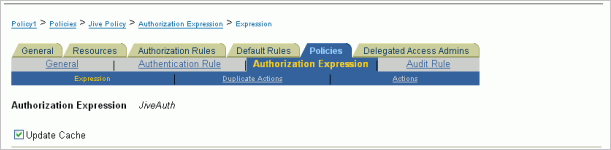
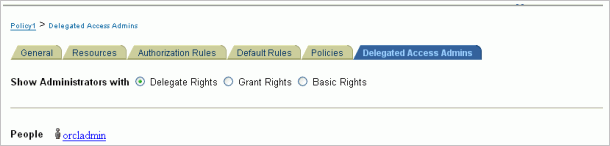
Figure 7-38 shows the Delegated Access Admins tab.
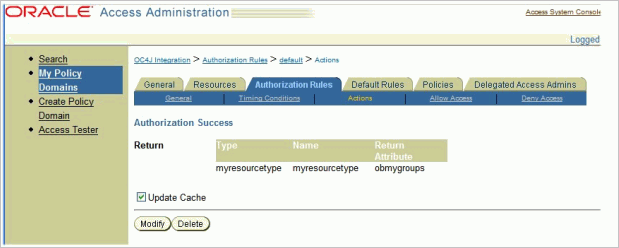
For the OC4J integration policy that is used by the Login Module, it is important to ensure that the authorization action to return the user's groups is defined. Figure 7-39 shows the Actions page on the Authorization Rules tab.
Confirm that you have the following configuration in OC4J:
Configure the Access Manager SDK to each OC4J instance.
Configure the Access Manager SDK library path for each OC4J instance.
Configure opmn.xml for Oracle Access Manager.
The opmn.xml entries should include the following:
…
<process-type id="OC4J_Jive" module-id="OC4J" status="enabled">
  <environment>
    <variable id="LD_ASSUME_KERNEL" value="2.4.19"/>
    <variable id="LD_LIBRARY_PATH" value="OAMHOME/identity/AccessServerSDK/oblix/lib" append="true"/>
  </environment>
  <module-data>
    <category id="start-parameters">
      <data id="java-options" value="-server -XX:MaxPermSize=128M -ms512M -mx1024M -XX:AppendRatio=3
-Djava.library.path=/OAMHOME/identity/AccessServerSDK/oblix/lib
-Djava.security.policy=ORACLE_HOME/j2ee/OC4J_Jive/config/java2.policy
-Djava.awt.headless=true -Dhttp.webdir.enable=false"/>
    </category>
    <category id="stop-parameters">
      <data id="java-options"
       value="-Djava.security.policy=ORACLE_HOME/j2ee/OC4J_Jive/config/java2.policy
-Djava.awt.headless=true
-Dhttp.webdir.enable=false"/>
    </category>
  </module-data>
  <start timeout="600" retry="2"/>
  <stop timeout="120"/>
  <restart timeout="720" retry="2"/>
  <port id="default-web-site" range="12501-12600" protocol="ajp"/>
  <port id="rmi" range="12401-12500"/>
  <port id="rmis" range="12701-12800"/>
  <port id="jms" range="12601-12700"/>
  <process-set id="default_group" numprocs="1"/>
</process-type>
…
<ias-component id="HTTP_Server">
  <process-type id="HTTP_Server" module-id="OHS">
    <environment>
      <variable id="LD_ASSUME_KERNEL" value="2.4.19"/>
    </environment>
    <module-data>
      <category id="start-parameters">
        <data id="start-mode" value="ssl-enabled"/>
      </category>
    </module-data>
    <process-set id="HTTP_Server" numprocs="1"/>
  </process-type>
</ias-component>
…
You may not need to follow the application configuration in the Oracle Access Manager documentation, since the same configuration is done when you run the deployment tool. However, review the configuration described in the documentation.
Configure the Oracle Access Manager Login Module by adding the following lines in system-jazn-data.xml in ORACLE_HOME/j2ee/OC4J_Jive/config:
<application>
  <name>owc_discussions</name>
  <login-modules>
    <login-module>
       <class>oracle.security.jazn.login.module.coreid.CoreIDLoginModule</class>
      <control-flag>required</control-flag>
      <options>
        <option>
          <name>addAllRoles</name>
          <value>true</value>
        </option>
        <option>
          <name>coreid.resource.type</name>
          <value>myresourcetype</value>
        </option>
        <option>
          <name>coreid.resource.operation</name>
          <value>myresourceoperation</value>
        </option>
        <option>
          <name>coreid.resource.name</name>
          <value>/myresourceurl</value>
        </option>
        <option>
          <name>coreid.name.attribute</name>
          <value>usernamevar</value>
        </option>
        <option>
          <name>coreid.password.attribute</name>
          <value>passwordvar</value>
        </option>
      </options>
    </login-module>
  </login-modules>
</application>
Note:
Make sure that there is no white space within the<class> element: this could cause the login module not to load. To verify that the login module is being loaded, you should be able to see the login module log entries in the J2EE log file when setting the logger "oracle.j2ee.security" to FINEST level. These entries will be marked with "[CoreIDLoginModule]".Some settings must be specified for the LDAP configuration in Jive administration setup to work with the CoreIDLoginModule:
In Jive admin setup, specify the ldap.usernameField property to be "CN".
In the Oracle Internet Directory server, make sure that the CN for each user entry in the directory tree is unique.
Finally, configure for logout. The default logout.html that the access server uses is located in WEBPASS_HOME/access/oblix/lang/en-us/logout.html.
To use XML as the JAZN provider or to use system-jazn-data.xml as the user identity, specify a command line argument as jazn_provider=XML. For example:
java -client -Dhttp.proxyHost=proxy-host -Dhttp.proxyPort=proxy-port \
-jar deploy-jive-portlet.jar \
 jive_version=jive version, for example 5.1.0 \
 auth_method=CUSTOM_AUTH/SSO/COREIDSSO \
 jazn_provider=XML
While using JAZN provider as XML, maintain users in system-jazn-data.xml using the Enterprise Manager interface in OracleAS release 10.1.3.2. In this case, Jive user management also must be done in the Jive user table using the Jive administration user interface.
To use LDAP as the JAZN provider or to use Oracle Internet Directory as the user identity, specify a command line argument as jazn_provider=LDAP. For example:
java -client -Dhttp.proxyHost=proxy-host \
 -Dhttp.proxyPort=proxy-port \
 -jar deploy-jive-portlet.jar \
 jive_version=jive version, for example 5.1.0 \
 auth_method=CUSTOM_AUTH/SSO/COREIDSSO \
 jazn_provider=LDAP
While using LDAP, all user management tasks for SSO must be done in the LDAP-Oracle Internet Directory server. The Jive deployment can use the same LDAP-Oracle Internet Directory server for user identity, but user management (like creating, updating, or deleting user profiles) must be done in the LDAP-Oracle Internet Directory server.
To use LDAP as the user identity store, follow the instructions in the Jive Administration Guide. Here is an example of using LDAP-Oracle Internet Directory from Jive configuration:
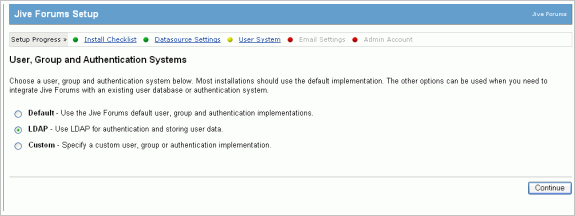
In the Setup Progress -> Install Checklist -> Datasource Settings -> User System, select LDAP. Figure 7-40 shows the Jive Forums Setup page.
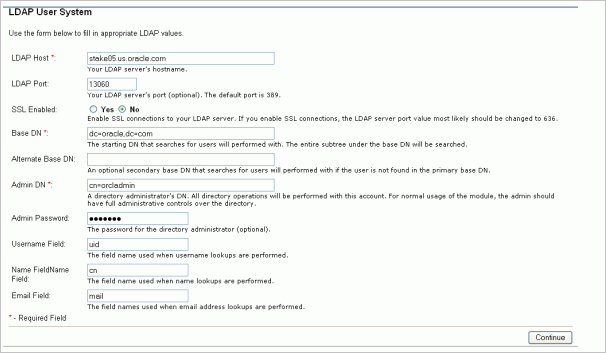
Then, specify the LDAP-specific information. Figure 7-41 shows the LDAP User System page.
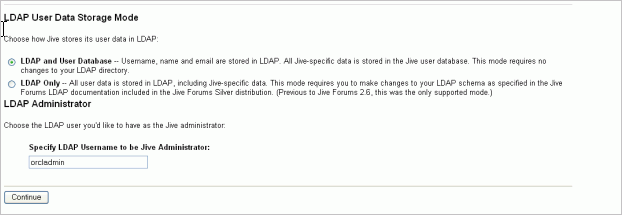
After the e-mail configuration screen, Jive gives you the option to select LDAP User Data Storage Mode. If you do not want to change the LDAP schema, then select the first option: LDAP and User Database. Provide the administrative user ID as shown in Figure 7-42.
After setting the User Data Storage Model, log on using the user name and password admin/admin. (These are the default admin user credentials for Jive.)
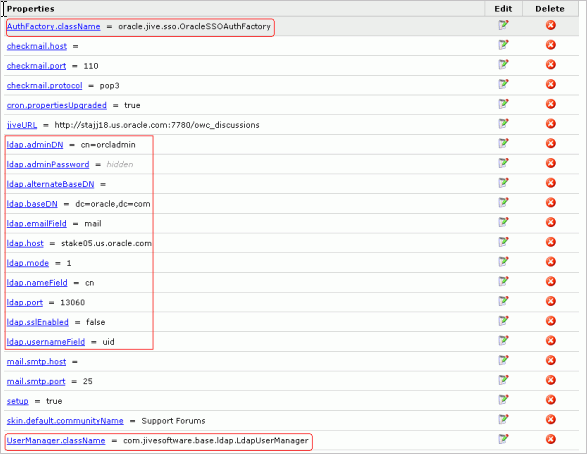
Set the system property AuthFactory.className as oracle.jive.sso.OracleSSOAuthFacotry.
The admin user specified in the last step will be created as the system administrator in Jive; that is, orcladmin. To log on as that user, first configure Jive with Oracle deployment logic to use the authentication model that has been configured as default with WebCenter.
Ensure that, after setup, when you go to the system properties page in the Jive administration user interface, you have the following properties set as your specified values (Figure 7-43). If these are not synchronized, then you must edit the property values to ensure these are correct, as shown in the following image or as described in Step 2 of Section Section 7.2.2, "How to Configure SSO with Your Oracle WebCenter Discussions Application and Portlet".
This section provides configuration tips for your Oracle WebCenter Discussions application and portlet.
You can set custom.sso.key.alias from Enterprise Manager. Click Java SSO Configuration at the bottom of the Cluster Topology page for your application server instance.
For more information, see the OC4J Java Single Sign-On chapter in the Oracle Containers for J2EE Security Guide.
When you configure Java SSO from Enterprise Manager, users may encounter an error when they try to log off (where the Oracle Application Server home page displays). To correct this problem, delete the following properties from jazn.xml:
property name="custom.sso.cookie.domain" value=""
property name="custom.sso.url.param" value=""
You cannot change the underlying database of Oracle WebCenter Discussions. It will not function correctly if you try to redeploy the Oracle WebCenter Discussions application to a new database.
In general, Oracle recommends that you use LDAP for your user data store. If you must use file-based security, be aware of the following issue:
When configuring the file-based security provider for a clustered OC4J, JAZN does not pick up the configured system-jazn-data.xml file. Therefore, when you create a new user from Enterprise Manager, it is only added in j2ee/home/config/system-jazn-data.xml and it is not available in the other clustered OC4J instances. To resolve this issue, manually copy and paste the user and role from j2ee/home/config/system-jazn-data.xml to the clustered OC4J_HOME/config/system-jazn-data.xml.
As an alternative to running deploy-jive-portlet.jar, you can manually perform the following steps:
The portlet and other configuration-related files are available in the oracle-jive-portlet.zip file on the companion CD. Unzip the file into ORACLE_HOME/j2ee/OC4J_instance/applications/owc_discussions/owcd_root_context.
Extract xwork-community.xml from ORACLE_HOME/j2ee/OC4J_instance/applications/owc_discussions/owcd_root_context/WEB-INF/lib/jiveforums-5.1.0.jar. To extract the file, run the following command:
jar xvf jiveforums-5.1.0.jar xwork-community.xml
Note: For the jar commands in these steps, Oracle recommends using the jar executable located in ORACLE_HOME/jdk/bin.
Open xwork-community.xml in a text editor and modify all of the log on/log off actions between the <!-- Base actions --> and <!--Default skin --> tags to use the classes available in the jsso-action-classes.xml file located in the following directory:
ORACLE_HOME/j2ee/OC4J_instance/applications/owc_discussions/owcd_root_context/WEB-INF
The entries in the file are given below:
<action name="login" class="oracle.jive.sso.actions.SSOLoginAction">
<result name="input">adfAuthentication?success_url=index.jsp</result>
<result name="success" type="redirect">${#attr['jive.login.successURL']}</result>
<result name="cancel" type="redirect">${#attr['jive.login.cancelURL']}</result>
<result name="error" type="redirect">adfAuthentication?success_url=${#attr['jive.login.successURL']}</result>
<result name="newaccount" type="redirect">account!default.jspa?username=${username}</result>
<result name="fatal" type="redirect">index.jsp</result>
<result name="success-no-redirect" type="chain">index</result>
<result name="create-account" type="chain">create-account</result>
<result name="cancel-no-redirect" type="chain">index</result>
</action>
<action name="login-default" class="oracle.jive.sso.actions.SSOLoginAction" method="default">
<result name="input">adfAuthentication?success_url=index.jsp</result>
<result name="success" type="redirect">${#attr['jive.login.successURL']}</result>
<result name="cancel" type="redirect">${#attr['jive.login.cancelURL']}</result>
<result name="error" type="redirect">adfAuthentication?success_url=${#attr['jive.login.successURL']}</result>
<result name="newaccount" type="redirect">account!default.jspa?username=${username}</result>
<result name="fatal" type="redirect">index.jsp</result>
<result name="success-no-redirect" type="chain">index</result>
<result name="create-account" type="chain">create-account</result>
<result name="cancel-no-redirect" type="chain">index</result>
</action>
<action name="login-withRedirect" class="oracle.jive.sso.actions.SSOLoginAction" method="withRedirect">
<result name="input">adfAuthentication?success_url=index.jsp</result>
<result name="success" type="redirect">${#attr['jive.login.successURL']}</result>
<result name="cancel" type="redirect">${#attr['jive.login.cancelURL']}</result>
<result name="error" type="redirect">adfAuthentication?success_url=${#attr['jive.login.successURL']}</result>
<result name="newaccount" type="redirect">account!default.jspa?username=${username}</result>
<result name="fatal" type="redirect">index.jsp</result>
<result name="success-no-redirect" type="chain">index</result>
<result name="create-account" type="chain">create-account</result>
<result name="cancel-no-redirect" type="chain">index</result>
</action>
<action name="logout" class="oracle.jive.sso.actions.SSOLogoutAction">
<result name="success">adfAuthentication?logout=true&end_url=index.jsp</result>
<result name="error">error.jsp</result>
</action>
Save the file, and run the following command to copy it back into the JAR file:
jar uvf jiveforums-5.1.0.jar xwork-community.xml
Log on to the Application Server Control as an administrator.
Click the Oracle Application Server instance to go to its application server page.
Click the OC4J instance where you are running the Oracle WebCenter Discussions application.
Ensure that the OC4J instance is down, and click Stop.
Make a backup of web.xml in ORACLE_HOME/j2ee/OC4J_instance/applications/owc_discussions/owcd_root_context/WEB_INF and /WEB-INF/lib/jiveforums-5.1.0.jar from the following directory:
ORACLE_HOME/j2ee/OC4J_instance/applications/owc_discussions/owcd_root_context
Ensure that you have unzipped oracle-jive-portlet.zip into ORACLE_HOME/j2ee/OC4J_instance/applications/owc_discussions/owcd_root_context.
To configure the discussion forum portlet with the Oracle WebCenter Discussions application, modify the web.xml file in ORACLE_HOME/j2ee/OC4J_instance/applications/owc_discussions/owcd_root_context/WEB-INF as follows:
Change the XML header to look like the following:
<?xml version = '1.0' encoding = 'UTF-8' standalone = 'yes'?>
Open the file called jive-portlet-for-web.xml located in ORACLE_HOME/j2ee/OC4J_instance/applications/owc_discussions/owcd_root_context/WEB-INF.
Select all of the content of the file and copy and paste it into web.xml, right after the <web-app> tag. This change alters the security model and makes some role changes. Note that the security role and authentication constraints can be changed to be synchronized with roles and users added from the Enterprise Manager console.
Modify AdminActionFilter and PresenceFilter in the web.xml file as shown in the following example to override the Java SSO integration. If these filters are not present already, then you must create them.
<filter>
 <filter-name>AdminActionFilter</filter-name>
  <filter-class>
   oracle.jive.sso.actions.SSOAdminActionFilter
  </filter-class>
</filter>
<filter> <filter-name>PresenceFilter</filter-name>
  <filter-class>
   oracle.jive.sso.actions.SSOPresenceFilter
  </filter-class>
</filter>
Modify the orion-application.xml file to point to the correct JAZN provider. The default location of this file is ORACLE_HOME/j2ee/OC4J_instance/applications/owc_discussions/META-INF.
If the file is not present in this directory, then copy WEB-INF/orion-application-default.xml as orion-application.xml in this directory.
If you had previously modified orion-application.xml and you need to preserve it, then edit the file to add or replace the JAZN provider to look similar to the following. Update these entries inside the tags <orion-application..> .. < </orion-application>. Be careful while modifying orion-application.xml: an incorrect modification could remove Jive from the deployed applications.
To select auth_method=CUSTOM_AUTH for JSSO and XML as the JAZN provider:
<orion-application ... >
   ...

<library path="./adf"></library>
<jazn provider="XML" default-realm="jazn.com">
  <jazn-web-app auth-method="CUSTOM_AUTH"/>
</jazn>

...
</orion-application>
To select auth_method=CUSTOM_AUTH or SSO or COREIDSSO and the JAZN provider as LDAP:
<orion-application ... >
   ...
<library path="./adf"></library>
<jazn provider="LDAP">
  <jazn-web-app auth-method="<change option>"/>
</jazn>

...
</orion-application>
Edit the orion-web.xml file in the WEB-INF directory. Add the following content inside the <orion-web-app> </orion-web-app> tag.
<orion-web-app …..
>
   <!--Replaced for Oracle Single Sign On-->
   <security-role-mapping name="oc4j-administrators"/>
   <security-role-mapping name="ascontrol_monitor"/>
   <security-role-mapping name="valid-users">
      <group name="users_forums"/>
      <group name="oc4j-administrators"/>
   </security-role-mapping>
</orion-web-app>
In orion-web.xml you can add more dynamic groups as in Oracle Internet Directory server under <security-role-mapping name="valid-users">. </security-role-mapping>; for example, forum-users and oc4j-administrators are added.
To clear any cached copies, delete the following directory:
ORACLE_HOME/j2ee/OC4J_instance/applications/owc_discussions\
/jiveforums/j2ee/home/applications-deployments/jive_directory/
Set admin.tryAlternativeLogin in jiveHome/jive_startup.xml by adding the following lines somewhere before the </jive> tag:
<admin>
  <tryAlternativeLogin>true</tryAlternativeLogin>
</admin>
Return to step 1 in Section 7.2.2, "How to Configure SSO with Your Oracle WebCenter Discussions Application and Portlet" and complete the remainder of the procedure.
To consume the discussion forums portlet in your WebCenter application, do the following:
Start Oracle JDeveloper. Create a new WebCenter application, or open an existing one.
Register your producer according to the instructions in Section 4.3.1.1, "Registering WSRP Portlet Producers". The URL endpoint should be in the following form:
http://host:port/owc_discussions/portlets/wsrp2?WSDL
Your producer should then be available for consumption from the Component Palette.
Open a JSP or create a new one according to the information in Section 4.2, "Building WebCenter Application-Enabled Pages in Oracle JDeveloper with Oracle ADF".
Note that for the discussion forums portlet to work, you must select Automatically Expose UI Components in a New Managed Bean on the Component Binding page of the Create JSF JSP wizard.
For information about the security configuration of the application consuming the discussion forums portlet, see Section 7.2.3.1, "Configuring Security for the Portlet and Oracle WebCenter Discussions Application".
Drag and drop the JiveSamplePortlet onto your page. See Section 4.3.2, "Adding Portlets to a Page" for more information on this procedure.
After your portlet is on the page, contextually link the portlet to the page using the data in Table 7-3 and Table 7-4. See Section 4.5.1, "Linking Portlets to Pages" for the complete linking procedure.
Table 7-3 Page Parameter Names and Values
| Parameter ID | Parameter Value |
|---|---|
|
|
The name of any available view in the portlet, for example, |
|
|
The corresponding containerID for the specified |
Table 7-4 Page Variable Default Values
| Page Variable | Default Value |
|---|---|
|
|
|
|
|
|
Run the page to confirm that the portlet appears as expected.
Optionally, you can configure the application consuming the discussion forums portlet to use Oracle ADF security to authenticate users with Java SSO. By configuring security this way, the same authentication token is used to navigate from portlet links to Oracle WebCenter Discussions application, and users only need to log on one time.
To configure Oracle ADF security for your consumer application, perform the steps described in Section 10.2.2, "Configuring Security for Your Application".
To upgrade the 10.1.3.2 discussion forums configuration done in Jive, you must first undeploy the changes and then deploy it again.
Before undeploying, make a backup of the existing deployed application from ORACLE_HOME/j2ee/OC4J_Jive/applications/owc_discussions. Also make a backup of jiveHome directory, and optionally take a backup of the database user.
Go to the Jive administration user interface and remove the system properties added during deployment: AuthFactory.className and UserManager.className.
Ensure that the application is not further customized from the 10.1.3.2 configuration. If more configuration is done, then undeploy may not work as expected.
To undeploy, use the existing release 10gR2 of discussions portlet and run the command with the undeploy option.
java -client -Dhttp.proxyHost=www-proxy.us.oracle.com -Dhttp.proxyPort=80 -jar deploy-jive-portlet.jar undeploy
You can also use the patch set release to undeploy these changes.
java -client -Dhttp.proxyHost=www-proxy.us.oracle.com \
 -Dhttp.proxyPort=80 \
 -jar deploy-jive-portlet.jar \
 jive_version=5.1.0 undeploy=true
The remaining steps describe how to use Oracle Internet Directory as your SSO server.
Go to your jiveHome directory, and open jive_startup.xml.
Locate the setup tag. Typically, it looks like the following:
<!-- When setup is false, you can access the setup tool. -->
  <setup>true</setup>
Change <setup>true</setup> to <setup>false</setup>, and save the file.
Restart OC4J_Jive.
Access the Jive URL and follow the setup tool to configure to your LDAP. Make sure the database setting is the same as your previous deployment.
Ensure that you are able to access the Jive administration URL.
Follow the deployment instructions in Section 7.2.2, "How to Configure SSO with Your Oracle WebCenter Discussions Application and Portlet".
When using LDAP-Oracle Internet Directory for the user identity store, can I manage user profiles from the Jive administration user interface?
No. Manage user profiles from the Oracle Internet Directory server.
When using LDAP-Oracle Internet Directory for user identity, are e-mail ID updates in user profiles handled by Jive?
No. Jive does not handle e-mail ID updates from user profiles. Restart the Jive server.
When using LDAP-Oracle Internet Directory, are any extra settings required for e-mail notifications for watches (forum or thread)?
When using LDAP-Oracle Internet Directory for the Jive user identity store, make sure that e-mail and watch settings are configured correctly. See the Jive Administration Guide for details. Try sending a test e-mail from the Jive administration user interface. If the e-mail or watch settings are not configured correctly, then the e-mail notification for watched objects will not be sent by Jive.
When using the Jive database for user profiles, how can I add new users to those I have added from Enterprise Manager or LDAP-Oracle Internet Directory?
Explicitly create all users in the Jive administration user interface
What Jive versions does the deployment tool support for Jive SSO and portlet integration?
The deployment tool supports any version that matches the regular expression [0-9]*.[0-9]*.[0-9]*. For example, 5.1.0.
How do I find the Jive version?
Find the Jive version from you distribution or from the Jive administration user interface.
What authentication methods are supported in the deployment tool? Are they case-sensitive?
The deployment tool supports three authentication methods. The must be entered in uppercase:
JSSO-based authentication must be CUSTOM_AUTH.
SSO-based authentication must be SSO.
OAM-based authentication must be COREIDSSO.
What JAZN providers are supported in deployment tool? Are they case-sensitive?
The deployment tool supports LDAP and XML as the JAZN provider for the user identity store. With LDAP, users are managed in the LDAP-Oracle Internet Directory server. With XML, users are managed in system-jaz-data.xml of the OC4J instance.
Can I redeploy changes?
Yes, you can redeploy changes, but you must undeploy first.