
Most portlets use settings. In some cases, a portlet can access user-specific settings stored by another portlet or service. This page provides information on implementing settings in portlets.
Portlets can use seven types of settings (preferences) to provide personalized functionality. Each type of setting is intended for a specific range of use, and each is treated differently by the IDK and the portal.
|
SETTING TYPE |
APPLIES TO: |
|||
|
User |
Portlet |
Preferences Page |
Notes | |
|
Administrative Setting |
All |
1 specific |
Administrative
Preferences page |
Administrative settings can be modified only by users with administrative access to the portal and read/write access to the object. |
|
User Setting |
1 specific |
All |
User settings must be uniquely named. You must enter the names of any User settings in the Web Service editor on the Preferences page. | |
|
Session Preference |
1 specific |
All |
N/A (not stored in portal database) Session preferences can also be set via the ALI Scripting Framework. |
Session preferences are only persisted for the duration of the user's session. You must enter any session preferences in the Web Service editor on the Preferences page. |
|
Portlet Setting |
1 specific |
1 specific |
Portlet settings can only be set from a Portlet Preferences page. | |
|
CommunityPortlet Setting |
All in a specific Community |
1 specific |
CommunityPortlet settings are only relevant when a portlet is displayed in a Community, and can be set only by a Community owner. These settings are not available to portlets displayed on a My Page. | |
|
Community Setting |
All in a specific Community |
All in a specific Community |
You must enter the names of any Community
settings in the Web Service editor on the Preferences page. | |
|
User Information Setting |
1 specific
|
All |
User Information settings required by a portlet must be configured in the Portlet Web Service editor on the User Information page | |
The following sections provide important information on configuring and accessing settings for portlets. For more details on the types of settings, see ALI Settings Model.
Manipulating Settings: Preference Pages vs. Configuration Pages: The portal provides a collection of pages that allow you to configure settings used by portlets.
Best Practices: Settings and Preference Pages: It is important to follow these basic best practices when storing settings in the portal database.
You can manipulate settings from a variety of locations. Portlets can use Preference pages to help in processing user input. The portal provides four types of Preference pages for a portlet:
Portlet Preferences page: Used to modify Portlet and User settings; accessible from the My Page or Community page. The Portlet Preferences URL is different from the User Configuration URL (covered below). The Portlet Preferences URL displays a link on the My Portlet Preferences page, but the link displays only when the associated portlet is on the selected page. A Portlet Preferences page can include user preferences or portlet-specific preferences.
Community Preferences page: Used to modify Community and CommunityPortlet settings; accessible from the Community page.
Administrative Preferences page: Used to modify Administrative settings; accessible from the Portlet editor.
Portlet Template Preferences page: Used to modify Administrative settings; accessible only from the Portlet Template editor. The Portlet Template Preferences URL can be the same as the Administrative Preferences URL. Any Administrative settings entered on the Portlet Template Preferences page are pre-set for any Portlet created from the template. Any settings on the Portlet Template Preferences page that are not accessible from the Administrative Preferences page apply to all Portlet objects created from the template. (If you change these settings after portlets have been created from the template, it affects only new portlets.)
Portlets can also use Configuration pages to manipulate settings. There are two types of Configuration pages:
User Configuration page: Used to modify User settings that are used by multiple portlets and services; appears on the My Account page. The User Configuration URL is different from the Portlet Preferences URL (covered above). The User Configuration URL displays a link on the My Account page to any user with at least Read access to the Web Service object. The User Configuration page provides access to User settings only.
Administrative Configuration page: Used to modify settings on the remote server (not in the ALI database) that are used by multiple portlets and services; appears in the Select Utility menu in the Administration section of the portal.
The Portlet Preferences page can be used to manipulate both Portlet and User settings. As noted above, Portlet settings apply to one specific Portlet object and one particular user. User settings apply to one specific user but can be used by all portlets and services.
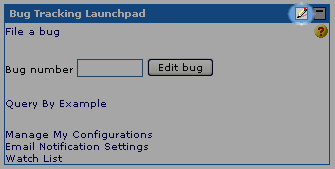
If a portlet has an associated Portlet Preferences page, an edit icon appears in the portlet title bar. (If a portlet requires configuration, always include a link to the appropriate preferences page in the portlet. When a user first adds the portlet to a page, it might not be obvious where to enter necessary settings.)
The URL to the Portlet Preferences page must be specified in the Portlet Web Service editor on the Preferences page. (The base URL to the Remote Server is automatically entered in the form.)
All User settings required by the portlet must be entered in the Preference list on this page. If a setting is not entered in this list, it will not be available to the portlet. (Portlet settings do not need to be entered.)
Note: Since User settings are shared among all services, pick a name that will be unique. For example, the name "password" is probably not unique, whereas "Exchange55Password" is less likely to result in a name collision.
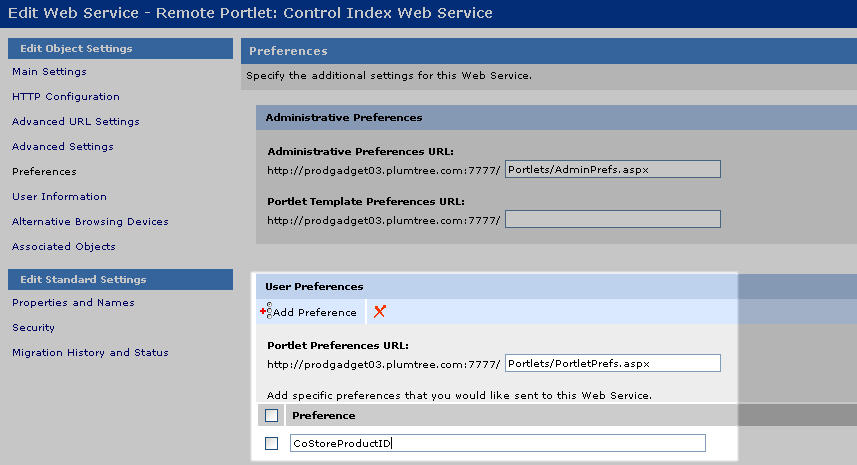
In the example below from the Company Store, the Display Product portlet and the Recommended Products portlet share the User setting CoStoreProductID.
Note: The setting name ("CoStoreProductID") must be entered in the Portlet Web Service editor for both portlets. All portlet files must be gatewayed. (On the Gateway Settings page of the Portlet Web Service Editor, enter “.” to gateway the portlet directory, or "/" to gateway the root directory of the remote server.)
The Display Product portlet provides a form for the user to enter the product ID, and stores this information as a User setting.
Java
|
|
VB
|
|
The Recommended Products Portlet checks for the User setting before building its display. (The portlet then retrieves the stored User setting from the ALI database and displays the product.)
Java
|
|
VB
|
|
User settings entered on the User Configuration page can also be used by portlets. As noted above, the User Configuration page is access from the My Account page in the portal. For details, see the portal online help.
Before implementing any preference pages, make sure to review the Best Practices for Settings and Preference Pages.
Community Preferences page is used to manipulate Community and CommunityPortlet settings, allowing Community Owners to modify content for all users without leaving the Community.
Community Preferences pages are accessed from the Community Editor, accessible only to Community Owners. Community Owners can access the Community editor by clicking My Communities | Edit this Community in the portal banner or by browsing to the Community in portal administration. This page also allows you to disable the portlet title bar (if it has not already been disabled for the Portlet object).
The URL to the Community Preferences page must be entered in the Portlet Web Service editor on the Preferences page. (The base URL to the Remote Server is automatically entered in the form.) Any Community settings used by a portlet must be entered in the Preference list under Community Preferences. As with User settings, only the shared settings specified by name in the Portlet Web Service editor will be available to a portlet. (This does not apply to CommunityPortlet settings.)
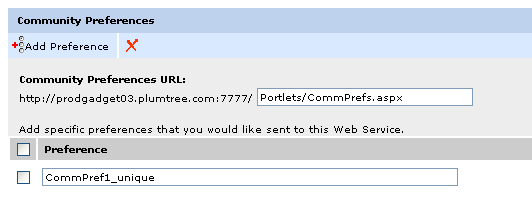
Remember, all pages that access settings must be gatewayed.
For an example of a Community Preferences page, see the Recommended Products Community portlet in the Company Store sample application. Before implementing any preference pages, make sure to review the Best Practices for Settings and Preference Pages.
Administrative settings for a specific portlet are set via an Administrative Preferences page. This page is accessible only from within the Portlet editor, and only to users with administrative rights in the portal and read/write access to the Portlet object. (You can also set Administrative settings via a Portlet Template Preferences page, explained next.)
The URL to the Administrative Preferences page and Portlet Template Preferences page (if applicable) must be specified in the Portlet Web Service editor on the Preferences page. (The base URL to the Remote Server is automatically entered in the form.)
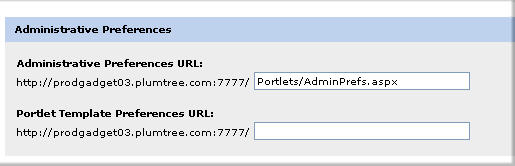
For an example Administrative Preferences page, see the Catalog portlet in the Company Store sample application. Before implementing your preference page, make sure to review the Best Practices for Settings and Preference Pages.
Administrative settings that are set via a Portlet Template Preferences page apply to all Portlet objects created from that Portlet Template. The Portlet Template Preferences page is accessible only from within the Portlet Template editor, and only to users with administrative rights in the portal and read/write access to the Portlet Template.
The Portlet Template Preferences page is structured exactly like a standard Administrative Preferences page. Before implementing any preference pages, make sure to review the Best Practices for Settings and Preference Pages.
Portlets have access to read-only User Information settings that have been entered by users or imported into the portal using an Profile Source Identity Service.
The User Information settings required by a portlet must be selected in the Portlet Web Service editor on the User Information page. The standard settings appear at the top of the page; check the settings that should be sent to the portlet. Select additional settings by clicking Add Existing User Info. You can also enter setting names manually; to add rows to the list, click Add User Info.
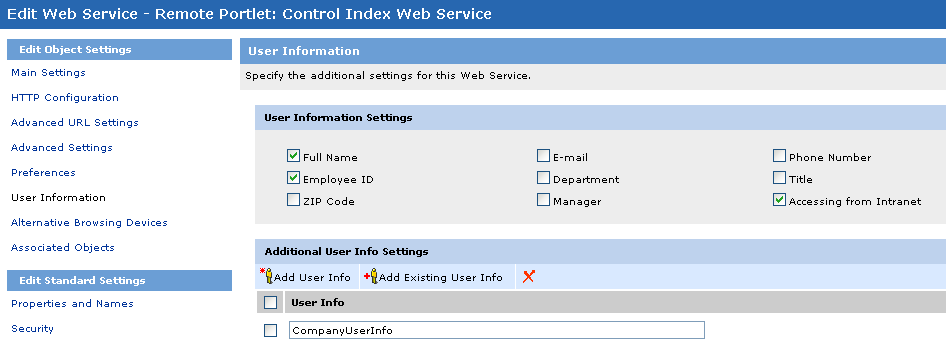
Once the Portlet object has been configured, portlet code can access the User Information settings sent from the portal using the IDK. In the following examples from the Company Store sample application, the portlet code retrieves the user's Company information property (CompanyUserInfo).
Java
|
|
VB
|
|
The following best practices are important for portlet functionality and appearance.
|
|
All preference and configuration pages used by a portlet must be entered in the Web Service - Portlet editor. You must enter the URL to any preference pages in the Web Service - Portlet editor on the Preferences page. You must enter the URL to any configuration pages in the Web Service - Portlet editor on the Advanced URLs page. |
|
|
All User settings and Community Settings required by a portlet must be entered in the Preference list in the Portlet Web Service editor. If a shared setting is not entered in this list, it will not be available to the portlet. |
|
|
Portlets on the same portal page and the same remote server cannot use the same session. To implement shared settings, you must use the Application object, store User settings in the ALI database, or use the Portlet Communication Component (PCC). |
|
|
All pages that store settings in the portal must be gatewayed. To store settings on the portal, preference pages must be included in the Gateway Prefixes List, configured in the Web Service - Portlet editor on the HTTP Configuration page. For instructions on entering gateway prefixes, see Configuring Portlets in the Portal. |
|
|
Never send query string or form variables directly to the My Page. Always use a separate page to set and remove settings. Sending query string or form variables directly to the portal page is unreliable and can result in seemingly random errors. Your code will not have access to these variables in most cases, because it might be preceded by other code on the portal page. |
|
|
Redirects
from a preferences page to a portal page should bring the user to the
location of the portlet on the page. This can be done using the
IDK |
|
|
Always include a link to the correct settings page within the portlet display. It might not be clear to users where they should enter settings for a portlet. If the portlet requires configuration, include a link to the appropriate preference page or configuration page within the portlet display. |
|
|
Always use popup windows for preference pages. Use the following guidelines for all popup windows.
|
There are some additional considerations if the data stored by a portlet should be secure; for details, see Portlet Security.
Next: Internationalization

