
A tag is a keyword that you create and apply to an item or person to describe its function, usefulness, content, or any other characteristic. Tags can include any combination of words, except those that your administrator has defined as restricted. If your administrator has enabled auto-tagging, the system automatically creates and applies tags to items and people.
To apply tags to items and people, you must have the Add Tags capability.
This topic discusses:
Benefits of Using
Tags
Tag Lists
Tag Clouds
Auto-Tags
Behavior of Tags
Following are some reasons why tags are useful:
If you want to find information on a certain topic—but you do not know the name of the item that contains that information—you can search for tags that describe what you are looking for. Similarly, if you want to find a person who has an area of expertise—but you do not know the name of the person—you can search for tags that describe that area of expertise. When you tag items and people, you are also helping others find what they are looking for.
When you scan an item's tags, you are more able to quickly determine whether that item is useful to you without going through the trouble of opening it and viewing its contents. Similarly, if you scan a person's tags, you can gain a greater understanding of that person's job function, interests, and areas of expertise without spending the time to communicate with that person. When you tag items and people, you are also helping others save time.
When a large number of people apply tags to the same items and people, the group of people collectively expresses its knowledge about those items and people. Leveraging this collective knowledge helps you perform searches from a more informed perspective.
A tag list is a set of tags wherein each tag shows the number of items or people that it is applied to within the result set. Tag lists are displayed beneath the search box on the Search page (Simple Mode only), Pathways Items portlet, and Pathways People portlet.
Following is an example of a tag list beneath the search box:
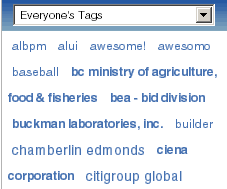
A tag cloud is a set of tags wherein each tag's size is determined by the number of items or people that it is applied to in the search results. Tags that have been applied to a greater number of items and people in the search results are larger than tags that have been applied to fewer items and people in the search results. Pathways' tag clouds can include up to 10 sizes of tags. Tag clouds are displayed beneath the View drop-down list on the Search page (Enhanced Mode only).
Following is an example of a tag cloud beneath the search box:
An auto-tag is a tag that is created by the system. Your administrator defines auto-tagging rules. You can choose to display or hide auto-tags on the Pathways Preferences page.
Before you perform your first search, Pathways displays a tag cloud of the most popular tags in the system. Popular tags give you a quick understanding of the concepts that the largest number of people are defining.
You can edit your user preferences to specify the maximum number of tags that you want your tag clouds to include.
When Pathways returns your search results, Pathways displays a tag cloud of the tags that are applied to the items and people in your search results. These tags are called related tags. Related tags are also displayed with each item and person in your search results.
Related Topics: