The BEA TUXEDO Builder Release Notes present changes or updates to the standard documentation provided with your BEA TUXEDO Builder 2.0 product release. Information in these Release Notes should be considered authoritative should anything in the Release Notes conflict with information in the online help or the PDF files.
The BEA TUXEDO Builder documentation is presented in HTML and PDF formats on the CD-ROM as well as being available via the BEA Systems Web site, at http://www.beasys.com/.
This section describes the platforms supported in the BEA TUXEDO Builder 2.0 release. BEA TUXEDO Builder platform support consists of a multifaceted support matrix for various versions of hardware, operating systems, BEA TUXEDO versions, Windows client tools, Java runtime environments, Netscape Navigator, Rational Rose, and Oracle. In an effort to make this issue simpler, we present each product separately and deal with BEA TUXEDO support at a global level wherever possible.
Note: Check the BEA Customer Support Web page for the latest information on certification of Builder products on newer versions of the Java Runtime Environment (JRE) and Java Development Kit (JDK).
| Hardware | Operating System (initial) | TUXEDO Releases |
|---|---|---|
|
Sun Sparc |
2.5.1, 2.61 |
TUXEDO 6.3, 6.4 |
|
HP HP9000 |
TUXEDO 6.3, 6.4 | |
|
Intel |
Intel/Windows NT 4.0 |
TUXEDO 6.3, 6.4 |
|
Operating Systems | |
|
Help System Requirements |
Netscape Communicator 4.0 or above. |
Note: Intel/Windows NT support is with Service Pack 3 installed.
|
Operating Systems | |
|
Java Runtime Environment (JRE) | |
|
Help System Requirements |
Netscape Communicator 4.0 or above. |
The following table shows compilers supported for BEA TUXEDO Builder 2.0.
These pre-installation notes are also included in the file req.txt displayed by the setup program during the Windows installation.
OBRIDGE.DLL is removed from your machine after the uninstall.
These post-installation notes are also included in the file readme.txt displayed by the setup program during the Windows installation.
bldr_upgrade
program to translate your Builder 1.0 Repository to Builder 2.0 format. An
example of the command line for this would be:
where:
bldr_upgrade -r
old_data_file -u
irepository
old_data_file is your repository data file name
irepository refers to the new repository data file included in the 2.0 release
tuxedo.ini. Also, make sure
that the /WS BIN directory is in the PATH.
." to file names when
the file is stored on a CD-ROM. The install.sh install script depends on a file
called readme being in the platform directory. The readme file sometimes appears
as "readme." on HP-UX systems and the installation will fail if it cannot find this
file. There are two possible workarounds:
cp -r) and rename "readme." to "readme"
Mount the CD-ROM with the nohup pfs_mountd &
nohup pfsd &pfs_mount command:
pfs_mount -o xlat=unix /dev/dsk/dev_file /mount_point
Once one of the previous has been completed, you can run the install.sh program and complete the installation.
-o cdcase option. Following is an example of using this option:
For more information, refer to the mount -F cdfs -o cdcase /dev/dsk/c0t2d0 /cdrom
mount_cdfs reference page.
bldr_upgrade
program to translate your Builder 1.0 Repository to Builder 2.0 format. An
example of the command line for this is:
where:
bldr_upgrade -r
old_data_file -u
irepository
old_data_file is your repository data file name
irepository refers to the new repository data file included in the 2.0 release
udataobj directory under the
TUXDIR directory. (ubbirep contains a complete sample UBB configuration.
irep.env contains a sample environment file for the sample UBB
configuration.) Note that AUTOTRAN must be set to Y (AUTOTRAN=Y) in the
UBB for the BANKAPP services to function correctly. For information on the
configuration of Jolt 1.1 and the Contract Repository server (IREPSVR), refer to
the BEA TUXEDO Builder Setup and Installation Guide.
The following tables identify known limitations or bugs associated with the BEA TUXEDO Builder 2.0 release and includes possible workarounds, where applicable. Each bug has an associated change request (CR) identification number. Please refer to this number when contacting Customer Support for problem resolution or updates on these issues. (See "Contacting Customer Support.")
In the C++ Expert, incorrect code is generated for operation parameters of type CARRAY. If you must use CARRAY for binary data, you can modify the generated code by editing a few files.
For a workaround, we assume that a Module named Module1 has an interface named Interface1 in the Contract Repository. Interface1 has an operation named op1() with a parameter param1 of type carray of length of 16 (for our example).
The generated code for the operation op1() is incorrect wherever param1 occurs.
Edit the following files to get the generated code to work.
Module1_Interface1.h file
char param1 to char param1[16]
Module1_Interface.cpp file
op1Reply class default constructor, delete references to _param1 or initialize _param1 using memcpy() or by any other means.
op1Reply::Getparam1() from char to char*
Interface1.h file
Change all occurrences of char param1 to char param1[16]
Interface1.cpp file
Change the signature of op1() to match the changes made in Interface1.h file. Add code in op1() to add the param1 to the FML buffer. Make sure you specify the length in the SeFadd() operation (argument #4 in SeFadd()).
Interface1Impl.h file
Change the signature of op1() to match the changes made in Interface1.h file.
Interface1Impl.cpp file
carray* param1 to char param1[16]
Interface1Skel.cpp file
param1 as follows:
If it is of mode If it is of mode If it is of mode in, then add char param1[16];
out, then add char* _param1;
inout, then add char param1[16]; and char* _param1; add SeFget() code to extract from FML buffer if param1 is of in or inout mode.
SeFadd() code to add the value of param1 (if out or inout parameter). Make sure to specify the length in the SeFadd() operation (argument #4 in SeFadd()).
Module1_tst file
param1.
The following sections list miscellaneous notes on each product. Issues tracked as change requests (CR) are followed by a CR ID number in parentheses.
The following notes generally apply to all products:
tpusradd or
tpadusr).
http://developer.java.sun.com/developer/bugParade/index.html
JMIGRATE does not support migration of VIEWs from the Jolt
1.01 and 1.1 Repositories to the Contract Repository.
<
ControlClass>Impl.cpp file if you change
your model and want to regenerate the code for it. The service test logic is
contained in a protected code section, so the only way to change it is to delete the
file or delete all the lines in the file (including blank lines) in the protected code
section. (For more information on the use of protected sections in generated
files, refer to the section "Generated Service Implementation" under the API topic
in the Rose Expert Online Help.)
Ensure that you have the following patch levels on your system:
<
ControlClass>Impl.cpp file if you change
your model and want to regenerate the code for it. The service test logic is
contained in a protected code section, so the only way to change it is to delete the
file or delete all the lines in the file (including blank lines) in the protected code
section. (For more information on the use of protected sections in generated
files, refer to the section "Generated Service Implementation" under the API topic
in the C++ Expert Online Help.)
Ensure that you have the following patch levels on your system:
autoexec.bat file. For example, the WSENVFILE entry in your autoexec.bat file should look similar to this:
SET WSENVFILE=<
YourPath>\tuxedo.iniNote that the equal sign (
=) must not be delimited by spaces.
servers.lst file either by regenerating it with the C++ Expert
or Rose Expert or by editing the file directly, you must close the current
configuration and then re-open it to see the latest server list displayed under Step 3
(Configure Servers).
Do not use spaces between entries in these files An example of correct syntax for the iservers.lst or gservers.lst files.
gservers.lst file is:
Account,ACCT,TUXEDO/SQL,N,-A
Balance,BAL,TUXEDO/SQL,N,-A
Teller,TLR,TUXEDO/SQL,N,-A -- -T 100
Transfer,XFER,TUXEDO/SQL,N,-Aiserver.lst and gserver.lst files needs further explanation.
In the Files Reference section of the Configuration Expert Online Help, under the topic "Example of the But this only happens when the iservers.lst," it says "The only difference is that the Module name will always appear exactly the same as the server name."
iserver.lst file is created using the Configuration Expert. If you edit the file manually, you can use a different module name and the Configuration Expert still can read it.
AUTOTRAN=Y. The default configuration
provided by the setup program has this set properly. If this is not set, the sample
application will produce unpredictable results at runtime.
<
YourDrive:TUXBldr\doc\<
YourProduct>help.htm\default.htm (Windows NT)
Builder_Install_dir>/client/doc/<
YourProduct>help.htm/(UNIX)
default.htm
<
Note:
If you do not have a reader, you can download one from the Adobe Web site at
YourDrive:TUXBldr\doc\acropdf\<
YourProduct>help.pdf (Windows NT)
Builder_Install_dir>/client/doc/acropdf/<
YourProduct>help.pdf (UNIX)
http://www.adobe.com/
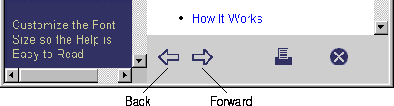
The Back and Forward buttons at the bottom of the Help window are history buttons that allow you to navigate through previously visited links. However, when you first open the Help window, there is no history of visited links recorded. So, if you click on these buttons when you first open the Online Help, nothing happens-the currently displayed file remains in the window. Only after you take some links by clicking on one of the Help Topics or the Next, Previous buttons (at the top of the display) will you have a history of visited links. Once you have this history, you can navigate the visited links using the Back button (first) and then the Forward button. Note, also, that whenever the currently displayed file is the most recently visited file, the Forward button is not active.
If you click on the Back and Forward buttons when they are inactive (when there is no history present to go back to or when you are at the most recent file and try to go forward), the cursor changes to a "timer" but nothing happens. Simply move the cursor off of the buttons and it reverts to an active cursor.
Figure 1 Back, Forward Buttons
If you have any questions about this version of BEA BEA TUXEDO Builder, or if you have problems installing and running BEA BEA TUXEDO Builder, contact BEA Customer Support through BEA WebSupport at www.beasys.com. You can also contact Customer Support by using the contact information provided on the Customer Support Card, which is included in the product package.
When contacting Customer Support, be prepared to provide the following information: