Introduction
Common Quick Menu Options
This section provides a description of the more common Quick Menu Options. About the View Option
To view detailed configuration information about a BEA TUXEDO object, click the right mouse button on the object name and choose View from the Quick Menu. About the Edit Option
To make changes to the configuration of a BEA TUXEDO object, click the right mouse button on the object name and choose Edit from the Quick Menu. About the New Option
To create a new BEA TUXEDO object, click the right mouse button on the object class name in the Object Tree and choose New from the Quick Menu. A screen will be displayed prompting you to enter required information about the new object. For detailed information about filling in these fields, see Chapter 3, "Creating New Domains and Administrative Class Objects." About the Delete Option
To delete a BEA TUXEDO object, click the he right mouse button on the object name and choose Delete from the Quick Menu. You cannot delete all BEA TUXEDO objects in this fashion. About the Folders Option
The Folders option on the Quick Menu allows you to customize your view of the Object Tree so that you see only the type(s) of object you want to see. You can use this option to limit the Object Tree to displaying only one class of object or you can choose to display every object. To use the Folders option, complete the following steps:
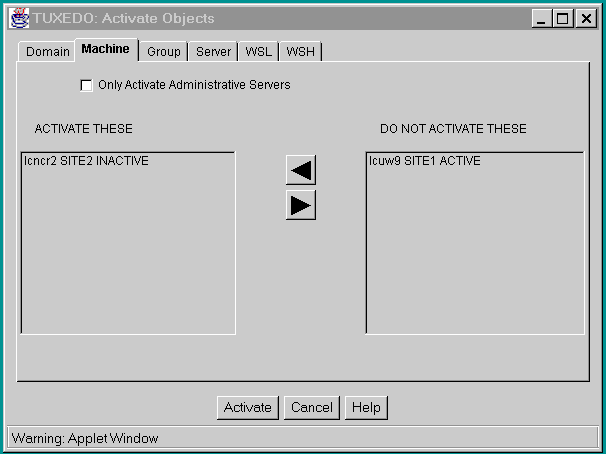
You can activate the following objects using the Activate Objects screen:
Figure 5-1: Activate Objects Screen
Six tabbed folders are displayed on the Activate Objects screen. To activate the entire domain or a particular type of object, you must select the appropriate tabbed folder.
Selecting Objects to Activate
Two lists appear on the Activate folders for all objects except Domains: ACTIVATE THESE and DO NOT ACTIVATE THESE. The BEA TUXEDO objects on the ACTIVATE THESE list will be activated; objects on the DO NOT ACTIVATE THESE list will not be activated. By moving an object name into the appropriate list, you can specify whether the object will be activated or not.
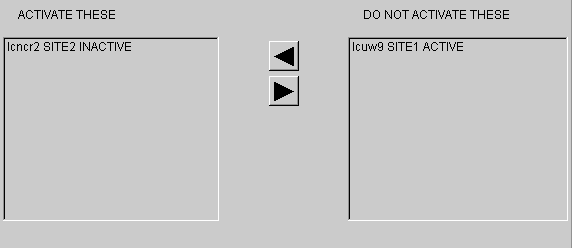
| To move the highlighted object name to the | Click on the |
|---|---|
| DO NOT ACTIVATE THESE list | Right arrow button |
| ACTIVATE THESE list | Left arrow button |
You can choose whether to limit your activation to BBLs and the DBBL when activating the entire Domain or selected Machines. Turning on the Only Activate Administrative Servers option on the Activate Objects screen means that only BBLs and the DBBL will be activated.
How to Activate Only Administrative Servers
To activate only administrative servers, click on the Only Activate Administrative Servers button. A checkmark is displayed in the box when the option is turned on.

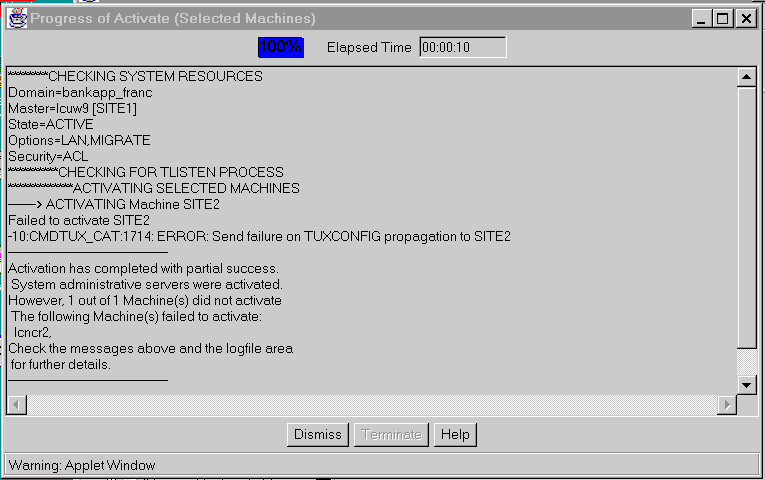
Figure 5-3: Progress of Activate Screen
To terminate the activation process after it begins, press the Terminate button at the bottom of the screen.
Because terminating the operation at this point could yield unexpected results, consider allowing the process to conclude and then deactivating the undesired objects.
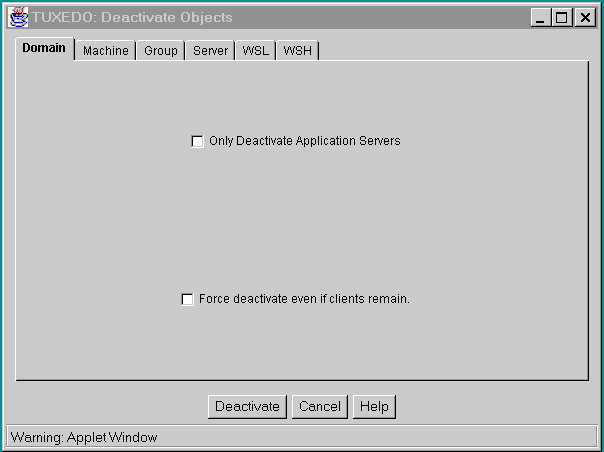
Figure 5-4: Deactivate Objects Screen
Six tabbed folders are displayed on the Deactivate Objects screen. To deactivate the entire domain or a particular type of object, you must select the appropriate tabbed folder.
Selecting Objects to Deactivate
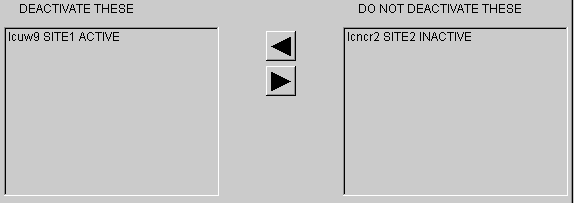
Two lists appear on the Deactivate folders for all objects except Domains: DEACTIVATE THESE and DO NOT DEACTIVATE THESE. The BEA TUXEDO objects on the DEACTIVATE THESE list will be deactivated; objects on the DO NOT DEACTIVATE THESE list will not be deactivated. By moving an object name into the appropriate list, you can specify whether the object will be deactivated or not
.
| To move the highlighted object name to the | Click on the |
|---|---|
| DO NOT DEACTIVATE THESE list | Right arrow button |
| DEACTIVATE THESE list | Left arrow button |
How to Deactivate Only Application Servers
To deactivate only application servers, click on the Only Deactivate Application Servers button. A checkmark is displayed in the box when the option is turned on.
How to Force Deactivation
To force deactivation even if clients remain, click on the Force Deactivate Even If Clients Remain button. A checkmark is displayed in the box when the option is turned on.

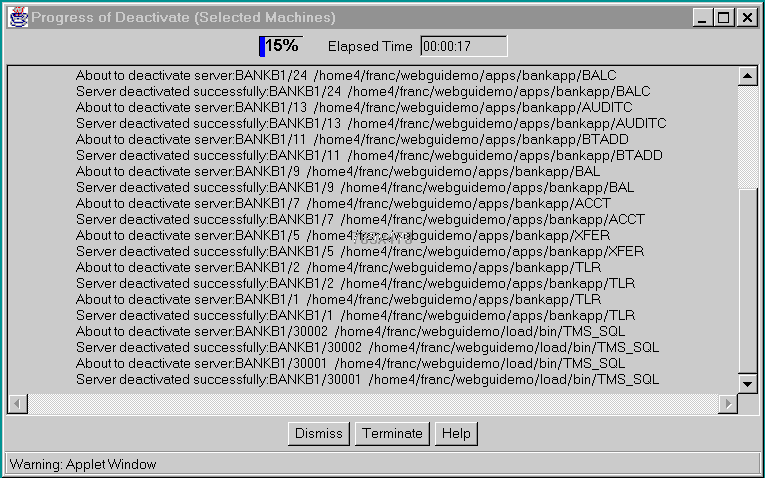
Figure 5-6: Progress of Deactivate Screen
To terminate the deactivation process after it begins, press the Terminate button at the bottom of the screen.
Because terminating the operation at this point could yield unexpected results, consider allowing the process to conclude and then activating the desired objects.
When you migrate a server group, the environment on the destination machine must duplicate the environment on the source machine, including all packages such as database software and any other application software necessary to run the BEA TUXEDO application.
To terminate the migration process after it begins, press the Terminate button at the bottom of the screen.
Because terminating the operation at this point could yield unexpected results, consider allowing the process to conclude and then migrating the undesired objects back to the original machine.
If you clean a partitioned machine but the machine is still running, you have to kill the BEA TUXEDO and application processes and remove all of the BEA TUXEDO shared memory, semaphores, and message queues by hand. A reboot is often faster.
How to Advertise a Service
To advertise a service (either from an existing service or from a service default object), complete the following steps:
If the service cannot be suspended, an error message is displayed specifying the reason.
Suspending a Client
If you want to isolate your client temporarily, you can suspend it. When you suspend a client, the client is prevented from performing the following tasks:
If the client can't be suspended, an error message is displayed specifying the reason.
The application may not be able to kill the client due to platform or signaling restrictions. In this case, a native client is abortively terminated at its next access to Application Transaction Manager Interface (ATMI), and a workstation client connection to a workstation handler will be preemptively torn down. The connections to all clients attached to that WSH are terminated.
Suspending Workstation Handlers
If you want to isolate the clients connected to a particular workstation handler temporarily, you can suspend it. When you suspend a workstation handler, the clients connected to it are prevented from performing any of the following tasks:
A workstation handler involved in a transaction when you suspend it is not actually suspended until the transaction is aborted or committed.
If the workstation handler can't be suspended, an error message is displayed specifying the reason.
The recommended method to kill a workstation handler is:
Caution: There is a very slight risk that the data roll back may not be successful. You can minimize the risk by aborting a transaction early in the process.