 Understanding FASB 13 Standards and Process
This chapter provides overviews of the FASB 13 standards and the FASB 13 billing process and discusses how to:
Generate FASB 13 information.
Revise FASB 13 information.
Update recurring billings with FASB 13 information.
Understanding FASB 13 Standards and Process
The Financial Accounting Standards Board (FASB) controls the accounting standards in the United States to ensure that financial statements are in accordance with Generally Accepted Accounting Principles (GAAP). FASB 13, which is Ruling 13 from that board, states that the revenue from rent (recurring billings) must be recognized evenly (as a straight line) over the life of the lease. The difference between the straight-line rent that the system calculates for FASB 13 and the actual rent that you bill the tenant (or pay the landlord) must be reflected in the general ledger.
These examples illustrate the actual rent amount for three years and the effect of FASB 13.
Example: Actual Rent
This table illustrates the actual rent for the lease term January 1, 2007 – December 31, 2008:
|
Time Period |
Actual Rent |
|
January 1, 2007 to December 31, 2007 |
15,000 |
|
January 1, 2008 to December 31, 2008 |
20,000 |
|
January 1, 2009 to December 31, 2009 |
25,000 |
|
Total |
60,000 |
Example: Effect of FASB 13
This table illustrates the effect of FASB 13 for the lease term January 1, 2007 – December 31, 2008:
|
Time Period |
Actual Rent |
Straight-Line Rent |
Accrual/Deferral* |
|
January 1, 2007 to December 31, 2007 |
15,000 |
20,000 |
5,000 |
|
January 1, 2008 to December 31, 2008 |
20,000 |
20,000 |
0 |
|
January 1, 2009 to December 31, 2009 |
25,000 |
20,000 |
(5,000) |
*Straight-line rent minus actual rent
To calculate the effect of FASB 13, the system adds the rent amounts for the entire lease term, and then divides the sum by the number of months in the lease term. Then the system subtracts the actual rent from the straight-line rent to determine the amount of the accrual or deferral that must be recorded in the general ledger. GAAP states that accruals and deferrals must be recognized in the financial statements.
A positive difference is an accrual. In the example, you received 15,000 in cash the first year, but you earned 20,000 based on FASB 13. Therefore, the system generates an accrual entry to debit the account for accrued/deferred rental income and credit the account for rental revenue.
A negative difference is a deferral. In the example, you received 25,000 in cash the third year, but you earned 20,000 based on FASB 13. Therefore, the system generates a deferral entry to debit the account for rent revenue and credit the account for accrued/deferred rental income.
Note. The net sum of the accruals and deferrals over the life of the lease should be zero.
Understanding the FASB 13 Billing Process
The process for generating the effect of FASB 13 on the recurring billing process consists of these activities:
|
Activity |
Description |
|
Generating FASB 13 Information |
To calculate the effect of FASB 13 on the rent that you bill, you run the FASB 13 Generation program (R15130). The system calculates the straight-line rent for each period, compares it to the actual rent for the period, and determines the accrual or deferral (adjustment) amount. |
|
Updating Recurring Billings with FASB 13 Information |
You run the FASB 13 Recurring Billing Update program (R15132) to generate the FASB 13 recurring billing records that you process into general ledger entries. |
|
Generating the Billing Edit/Register |
After you generate recurring billings, you must run the Billing Edit/Register program (R15300) to ensure that the batch is ready to post. |
|
(Optional) Reviewing and Approving Batches |
If the Manager Approval of Input option is enabled in the Accounts Receivable or Accounts Payable constants, the system changes the batch status to pending when you successfully generate the billing edit register. You must approve batches that are in a pending status before you can post them. |
|
Posting Real Estate Invoices and Vouchers |
When batches are at a status of Approved, they are ready to post. Depending on how the lease is set up, you run either the Post RE Invoices to generate invoices or the Post RE Vouchers program (R15199) to generate vouchers. You can use either version of the program to post accrual entries, but you should post the entries in a separate batch. You can segregate billing records that generate accrual entries from other billing records by specifying in the data selection for the post program that the transaction type is equal to A. |
This process flow illustrates the associated billing process used in the JD Edwards EnterpriseOne Real Estate Management system:
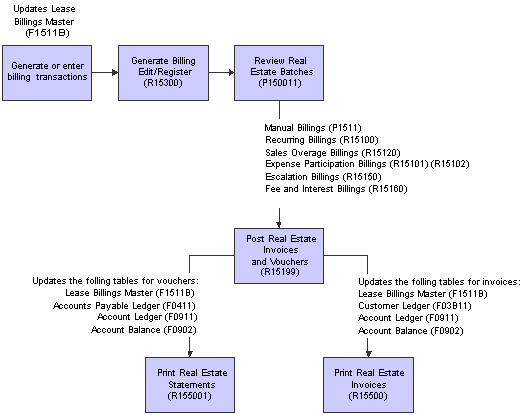
Real Estate Billing Process
Generating FASB 13 Information
This section provides an overview of generating FASB 13 information and discusses how to:
 Understanding the FASB 13 Generation Program
When you run the FASB 13 Generation program, the system calculates the effect of FASB 13 by performing these steps in sequential order:
The system determines the start and end dates to use to generate FASB 13 information.
Start date - The Lease Term Date Selection processing option determines whether the system uses the start date of the lease or the move-in date on the building or unit. Then, based on the date entered in the FASB 13 As of Date processing option, the system uses whichever date is later, the as of date or the lease start date (or move-in date on the building or unit).
For example, if the FASB 13 As of Date processing option is set to June 1, 2007, and the processing option is set to use the start date on the lease, which is June 20, 2007, the system uses June 20, 2007 as the start date for the FASB 13 generation.
End date - The system generates FASB 13 information through the date specified in the Lease Term Date Selection processing option (either the end date of the lease or the plan-out date on the building or unit).
Note. Regardless of the end date on the lease (or move-out date on the unit), the maximum number of months that the FASB 13 Generation
program can process is 1188, or 99 calendar years beginning with January.
Additionally, the value of the century change year data item (CENTCHG) can affect the end date that the system uses because
it affects the cutoff date for the century. For example, if the value of CENTCHG is 20, the cutoff year for processing FASB
is 2020, regardless of the length of the lease. If the leases that you process have long terms, verify that the value of this
data item is set to a number that represents the longest lease term that you process.
The system generates a batch for processing and retrieves information from these tables based on the start and end dates:
The system calculates the straight-line rent for the lease term.
The system compares the straight-line rent to the actual rent and calculates the difference (accrual or deferral) for each month for the lease term.
Based on the setting of the processing options, the system either generates a report of the records that would be generated, so that you can review them before you generate them, or generates records in the FASB 13 Lease Control table (F1513B) and generates a report.
Running FASB 13 Generation
Select FASB 13 (G1528), FASB 13 Generation.
Setting Processing Options for FASB 13 Generation (R15130)
Set these processing options to specify the default processing for this report.
Process
These processing options enable you to specify which records to process and how to process them.
|
1. FASB 13 As Of Date |
Specify the date to use to begin generating FASB 13 information. The system process all records from the date specified forward (no ending date). If you leave this processing option blank, the system uses the system date. Note. If you enter a date prior to the lease begin date, the lease begin date value overrides the date entered. |
|
2. Catch-Up Adjustment Date |
Specify the date to use to generate FASB 13 catch-up adjustments. The system generates FASB 13 information for all periods (based on the date you enter) through the date specified in the FASB 13 As of Date processing option. If you leave this option blank, the system does not generate catch-up adjustments. |
|
3. Prorate Partial Month Rents |
Specify whether to generate prorated FASB 13 information for partial month rents. Values are: Blank: Do not generate. 1: Generate. The system prorates information based on the number of days the unit is occupied and the number of days in the month. |
|
4. Lease Term Date Selection |
Specify which dates on the lease to use to generate FASB 13 information. Values are: Blank: Use the beginning and ending dates on the lease. 1: Use the move-in and plan-out dates entered for the building or unit on the lease. |
|
5. FASB 13 Rounding Option |
Specify whether the system rounds the FASB amounts to the nearest whole number. Values are: Blank: Do not round. 1: Round. |
|
6. Process Mode |
Specify whether to print a report only, generate FASB 13 records, or delete FASB 13 records. Blank: Print a report of the FASB 13 calculations, but do not generate FASB 13 records. 1: Generate FASB 13 records and print a report. 2: Delete the FASB 13 records previously generated and print a report. You must specify a batch number in the Batch Number for Roll Back Process processing option to select the records to delete. Note. The system ignores all other processing options when you select this option. |
|
7. Batch Number for Roll Back Process |
Specify the batch number to use to update the FASB 13 Lease Control table (F1513B) with calculations previously generated. The value of the Print Edit Report processing option must be 2 or the system ignores this processing option. |
Bill Codes
These processing options enable you to specify the bill codes to use for retrieving data for the FASB 13 records that the system generates.
|
1. Bill Codes to Retrieve Rent Amounts |
Specify the bill codes to use to retrieve the rent amounts from the Recurring Billings Master table (F1502B) to generate the FASB 13 information. You can specify as many as 10 bill codes. |
|
2. Bill Codes for Conversion |
Specify the bill codes to use to retrieve the converted FASB amounts from the Recurring Billings Master table (F1502B) to generate new FASB 13 information. You can specify as many as 10 bill codes. |
Conversion
These processing options enable you to specify whether to generate converted FASB 13 records.
|
1. Perform Manual FASB 13 conversion |
Specify whether to calculate FASB 13 information for the bill codes entered in the Bill Codes for Conversion processing option for which manual billing records exist. Values are: Blank: Do no calculate. 1: Calculate. |
|
2. Suspend Pre-Conversion Entries |
Specify whether to suspend the converted FASB 13 recurring billing records based on the bill codes entered in the Bill Codes for Conversion processing option. Values are: Blank: Suspend. 1: Do not suspend. |
Version
These processing options enable you to select which version of a lease is used when generating information.
|
1. Version Effective Date |
Specify the date to use to retrieve the lease version. If you leave this processing option blank, the system uses the value entered in the Search Default for Lease Version processing option. |
|
2. Search Default for Lease Version |
Specify whether the system prints information for the version of the lease that is based on today's date (the system date) or the latest effective date. The system uses the value specified in this processing option only when the Version Effective Date processing option is blank. Values are: Blank: Prints information for the version of the lease that is effective as of the system date. 1: Prints information for the version of the lease with the latest (future) effective date. For example, if today's date is June 30, 2007 and the lease has two versions dated January 1, 2007 and October 1, 2007, respectively, the system displays the version dated October 1, 2007. Note. If versioning is not set up in the Real Estate Management Constants table (F1510B), the system ignores this processing option. |
Revising FASB 13 Information
This section provides an overview about revising FASB 13 information and discusses how to:
Set processing options for the FASB 13 Revisions program (P1513).
Revise FASB 13 information.
Understanding FASB 13 Revisions
After you generate FASB 13 information, you can revise it, if necessary, using one of these methods:
Use the FASB 13 Revisions program (P1513) to change the actual or straight-line rent amounts, or adjustments.
The system automatically revises the accrual or deferral amount, but these requirements must be met to prevent the system from generating an error:
The total of the amounts in the Actual Rent column must equal the total of the amounts in the Straight Rent column.
The total in the Accr/Defer column (the FASB effect) must be zero (blank).
After you revise information, if the system detects no errors, it summarizes the annual amounts and recalculates the accruals, deferrals, and balance forward.
Change information on the recurring billing record or lease information record, and rerun the FASB 13 Generation program (R15130).
When the system generates the FASB 13 records, the Generation Control field (GENC) for the record is blank, which prevents the system from generating FASB 13 records again. When changes that you make either to the lease information or recurring billings affects FASB 13, the system updates the GENC field to Y, enabling you to recalculate new FASB 13 records.
Two conditions must be met, however, to automatically update the GENC field to Y; they are as follows:
The processing option for the FASB 13 Warning Window must be set to 1 (Activate).
You must click OK when the system displays the FASB 13 warning window.
If you do not set the processing option to automatically update the GENC field, you must manually update it using the FASB 13 Revisions program (P1513).
Note. In the FASB 13 Revisions program, you must set the Allow Revision of Generation Control processing option to 1 to display the GENC field.
Delete the active FASB 13 records, and roll back to the records previously generated.
If you discover that FASB 13 records were generated using the wrong data selection or processing option settings, or that you need to revise a recurring billing record, you can delete all or part of the active batch of FASB 13 records and reactivate the previous records. Then you can make the changes and regenerate the correct FASB 13 records.
To delete and roll back the calculations, you must set the Process Mode processing option to 2 (roll back to previous generation) in the FASB 13 Generation program (R15130), and specify the batch number assigned to the FASB 13 records in the corresponding processing option. You can use data selection to limit the records that are deleted, if desired. When you run the program with the processing options set to roll back, the system deletes the active FASB records and reassigns the batch number to the previous records.
For example, after you run the FASB 13 Generation program twice, the records appear as follows in the FASB 13 Lease Control table (F1513B):
|
Lease |
Building |
Unit |
Century |
Year |
Batch Number |
Generation Code |
Actual Rent Period 1 |
|
1234 |
150 |
101 |
20 |
3 |
0 |
10,000 |
|
|
1234 |
150 |
101 |
20 |
4 |
0 |
12,000 |
|
|
1234 |
150 |
101 |
20 |
5 |
0 |
13,000 |
|
|
1234 |
150 |
101 |
20 |
3 |
552 |
11,000 |
|
|
1234 |
150 |
101 |
20 |
4 |
552 |
12,000 |
|
|
1234 |
150 |
101 |
20 |
5 |
552 |
13,000 |
After you run FASB 13 Generation (R15130) to roll back the records to the previous batch, the system deletes the active records and updates the records for the previous calculations as follows:
|
Lease |
Building |
Unit |
Century |
Year |
Batch Number |
Generation Code |
Actual Rent Period 1 |
|
1234 |
150 |
101 |
20 |
3 |
552 |
Y |
10,000 |
|
1234 |
150 |
101 |
20 |
4 |
552 |
Y |
12,000 |
|
1234 |
150 |
101 |
20 |
5 |
552 |
Y |
13,000 |
The system updates the Generation Code field to Y so that you can rerun FASB 13 calculations.
Note. The system retains only two batches in the FASB 13 Lease Control table (F1513B); therefore, you cannot roll back a specific batch more than once.
Forms Used to Revise FASB 13 Information
|
Form Name |
FormID |
Navigation |
Usage |
|
Work with FASB 13 |
W1513A |
FASB 13 (G1528), FASB 13 Revisions |
Review and select FASB 13 records. |
|
FASB 13 Revisions |
W1513B |
Select a record to revise on Work with FASB 13. |
Revise FASB 13 information. |
Setting Processing Options for FASB 13 Revisions (P1513)
Set these processing options to specify the default processing for this program.
Process
These processing options enable you to specify which records and fields appear on the forms.
|
1. Display FASB Generation |
Specify whether to display FASB 13 from the previous generation or the current generation. Values are: Blank: Current generation. 1: Previous generation. |
|
2. Allow Revision of Generation Control |
Specify whether to display the Generation Control field (GENC) so that it can be updated manually. Values are: Blank: Do not display. 1: Display. |
Versions
This processing option enables you to specify the version of the Lease Information program.
|
1. Lease Information (P1501) |
Specify the default version of the Lease Information program (P1501) to use when the program is accessed from the Form menu. If you leave this processing option blank, the system uses version ZJDE0001. |
Reviewing FASB 13 Information
Access the FASB 13 Revisions form.
|
Actual Rent |
Enter the amount that is billed or amortized for the period specified. |
|
Straight Rent |
Specify the average monthly rent amount that the system calculates when FASB 13 information is generated for the period specified. The system calculates the average monthly rent through the lease effective period based on the actual amounts. For example, if the lease starts on January 1, 2007 and ends on December 31, 2008, and the rent is 1000 per month for 2007 and 1200 per month for 2008, the system calculates the straight line rent as 1100 per month ([1000 × 12 + 1200 × 12) ÷ 24 = 1100). |
|
Accr/Defer (accrual or deferral amount) |
Displays a number that represents the accrual or deferral amount as a result of FASB 13 calculations. The system subtracts the amount in the Straight Rent field from the amount in the Actual Rent field to calculate the accrual or deferral amount. If the number is positive, it represents the accrual amount. If the number is negative, it represents the deferral amount. |
|
Adjustment |
Displays a number that represents the FASB adjustment amount for the period specified. The system includes catch-up amounts, as well as amounts adjusted from converted FASB records. |
Updating Recurring Billings with FASB 13 Information
This section provides an overview about updating recurring billing records with FASB 13 information and discusses how to:
Run the FASB 13 R.B. Update program.
Set processing options for the FASB 13 R.B. Update program (R15132).
Understanding the Process to Update Recurring Billing Records with FASB 13 Information
After you generate the FASB 13 information, you must update the effects of FASB 13 to recurring billings. You run the FASB 13 R.B. Update program (R15132) to automatically create the bill code lines for accrued rent, deferred rent, and adjustments in the Recurring Billings Master table (F1502B). The system uses this information to update the recurring billing cycle and to create the appropriate FASB 13 adjustment billings.
You use a processing option to specify whether the system updates the Recurring Billings Master table for the entire batch of FASB 13 information or only the records that you specify in the data selection. In addition, you can specify whether the program runs in print mode, which enables you to preview the FASB 13 billing information without updating the recurring billing table.
After you generate the FASB 13 recurring billing records, you can review them using the Recurring Billing Information program (P1502).
Related Tasks for Processing FASB 13 Information
This table lists the related tasks to perform after you update FASB 13 to recurring billings; to complete the FASB 13 billing process, you must run the programs that are designated as required:
|
Task |
Description |
|
(Required) Generating the Billing Edit/Register |
After you generate recurring billings for FASB 13, you must run version XJDE0001 of the Billing Edit/Register program (R15300) to validate the transactions in the batch and to change the batch status. See Generating the Billing Edit/Register Report, Generating the Billing Edit/Register Report. |
|
Recurring Billing Journal Review |
You can review the batch of recurring billing records before you post them, and revise or delete billing transactions as necessary. |
|
(Required) Posting Invoices and Vouchers |
After you generate the billing edit register, you must post the FASB 13 transactions to generate the invoice or voucher records. |
|
Billings Transaction Inquiry |
You can review FASB 13 billing transactions in detail using the Billings Transaction Inquiry program (P15211). |
Running the FASB 13 R. B. Update program
Select FASB 13 (G1528), FASB 13 R.B. Update.
Setting Processing Options for FASB 13 Recurring Billing Update (R15132)
Set these processing options to specify the default processing for this report.
Process
These processing options enable you to specify the records to update to the Recurring Billings Master table (F1502B).
|
1. Batch Selection |
Specify the batch number to select the FASB 13 Lease Control records (F1513B) to use to update recurring billings. If you leave this processing option blank, the system uses Data Selection to select the appropriate records. If Data Selection is not specified, the system processes all records. Note. Do not specify a batch number and data selection. |
|
2. FASB 13 Record Selection |
Specify whether to generate recurring billing records for all FASB 13 records (based on the batch number or data selection) or for specific FASB 13 records, by additionally using the date range entered in the Generation From Date and Generation Through Date processing options. Values are: Blank: Process specific FASB 13 records based on the additional date range criteria. 1: Process all FASB 13 records. |
|
3. Generation From Date |
Specify the date range to use to select FASB 13 records from the FASB 13 Lease Control table (F1513B) to generate recurring billing records; use this processing option in conjunction with the Generation Through Date processing option. The system processes all FASB records for the periods that correspond to the dates entered. For example, if the date range entered is June 10, 2007 through December 31, 2007, the system processes the FASB records for periods 6 through 12 for 2007. If you leave this processing option blank, the system processes all records through the date specified in the Generation Through Date processing option. If you leave both date processing options blank, the system processes all FASB 13 records based on the batch number or data selection. |
|
4. Generation Through Date |
Specify the date range to use to select FASB 13 records from the FASB 13 Lease Control table (F1513B) to generate recurring billing records; use this processing option in conjunction with the Generation From Date processing option. The system processes all FASB records for the periods that correspond to the dates entered. For example, if the date range entered is June 10, 2007 through December 31, 2007, the system processes the FASB records for periods 6 through 12 for 2007. If you leave this processing option blank, the system processes all records from the date specified in the Generation From Date processing option. If you leave both date processing options blank, the system processes all FASB 13 records based on the batch number or data selection. |
|
5. Proof or Final Mode |
Specify whether to process recurring billings in proof or final mode. In proof mode, the system prints a report only of the recurring billing records that it generates. In final mode, the system updates the Recurring Billings Master table (F1502B) and prints a report. Values are: Blank: Proof mode. 1: Final mode. |
Bill Codes
These processing options enable you to specify the bill codes to use on the recurring billing records that the system generates.
|
1. Bill Codes for Entries Generated in the Recurring Billing Table |
Specify the bill codes to assign for the accrued, deferred, adjusted, and catch-up billing entries that the system generates in the Recurring Billings Master table (F1502B). |
|
2. Monthly Billing Frequency |
Specify the billing frequency code to use for monthly billings. The billing frequency code that you enter must exist in the Billing Frequency Master table (F15019). |