Oracle® Insurance Rules Palette 9.4.0.0 E18894_01
An environment connection can be established in the Rules Palette once the connection information is received from the Build Manager. The Build Manager will send the following information:
server name
port number
Rules Palette log-in name and password for step one of the wizard
application database name and password for step two of the wizard
IVS database name and password for step two of the wizard
Note: If you need to download the Rules Palette application, then use the installation instructions in the release library on OTN. Navigate to http://www.oracle.com/technetwork/documentation/insurance-097481.html then scroll to the bottom of the screen and select the Oracle Insurance Policy Administration library E18894_01. The Install Guide link is located at the top of the library in the OIPA section.
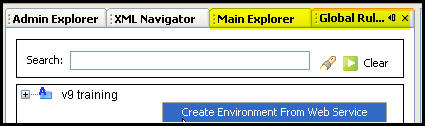
Log in to the Rules Palette and select either the Global Rules Explorer tab or the Main Explorer tab.
Right-click anywhere in the tab and select Create Environment from Web Service.
Right-click Option to Create Environment
Enter a descriptive environment name that will allow you to distinguish between the various environment connections created. Only use alphabet characters in the environment name. No numbers or other characters are supported at this time.
Enter the Configuration Server (server name) provided by the Build Manager.
Enter the Configuration Port information provided by the Build Manager.
Enter the palette username provided by the Build Manager.
Enter the palette password provided by the Build Manager.
Check the automatic Login box if you want the application to automatically log in once the environment creation is complete. This is only for convenience and is not necessary.
Click Test Configuration Server to test the connection to the Web Service that will auto-populate the database properties. If the connection is successful, click Next.
Note: If an error message appears that says the username and password are incorrect, check the configuration server and port information as well. There are times when errors in these fields also trigger the username and password error.
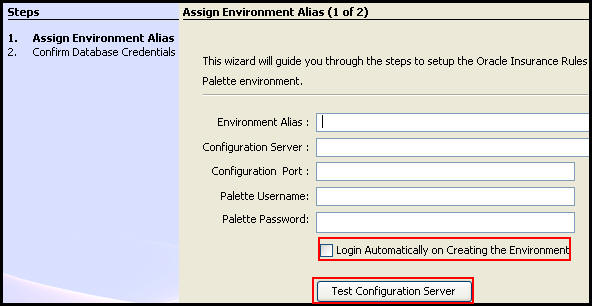
Step One of Environment Creation Wizard
When using SQL Server or DB2 databases, identify the location of the driver files. Browse to the location of the jdbc driver files. (SqlServer uses the jtds.jar and DB2 uses three jar files beginning with db2_***.jar. The file location can be obtained from the Build Manager.) You will only need to specify the jar file location the first time an environment is set-up. If additional environments are created, then this Browse field will not display.
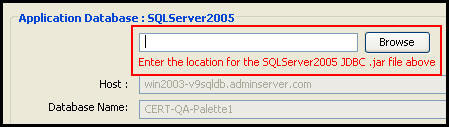
Browse Button on Step Two of Environment Creation Wizard
Enter the user ID and password for the Application database. The database properties should be grayed out and listed in the database fields directly above the user ID and password.
Click Test Connection to test the database connection. If the connection is not successful, contact the Build Manager.
Enter the user ID and password for the IVS database. The IVS database properties should be grayed out and listed in the database fields directly above the user ID and password.
Click Test Connection to test the IVS database connection. Once both connections are successful, click Finish.
A node for the environment that was just created will display on the Main Explorer and Global Rules Explorer tabs. If the automatic login box was not clicked, then log in now. Right-click on the node and select Log on to access the Rules Palette application. Enter the palette login name and password used in step one of the environment creation wizard.
Note: You will not be able to log in or log out from the Admin Explorer tab.
Copyright © 2009, 2011, Oracle and/or its affiliates. All rights reserved. Legal Notices