| Sun ONE Instant Messaging Deployment Guide |
Deploying Sun ONE Instant Messaging
This guide gives an overview of the issues involved in designing and installing an instant messaging solution with Sun™ Open Net Environment (Sun ONE) Portal Server (also referred as Sun™ ONE Instant Messaging Server). It outlines important deployment concepts and installation decisions to be considered.
This guide contains the following sections:
Planning the Operating System and HardwareThe first step in planning your Sun ONE Instant Messaging configuration is to decide on the operating system platform and identify server hardware requirements. See the Sun ONE Instant Messaging Release Notes for more information.
http://docs.sun.com/prod/s1.ipportalsicp
Note
Installing Sun ONE Instant Messaging in portal mode requires that your operating system be Solaris. Sun ONE Portal Server currently runs only on Solaris.
Deploying in Portal or Standalone ModeThis section provides an overview of deploying Sun ONE Instant Messaging in both portal and standalone modes.
Deployment Options
You can install and configure Sun ONE Instant Messaging in one of the two ways:
Whether you install Sun ONE Instant Messaging in the Sun ONE Portal Server environment or as a standalone server, you can use a variety of configurations to fit your site needs. See the Sun ONE Instant Messaging Administrator’s Guide for more information on these configurations.
Deploying Sun ONE Instant Messaging in Portal Mode
Sun ONE Instant Messaging enables you to utilize a number of different portal deployment scenarios, including:
- Using directory server used by Sun ONE Portal Server
- Installing Sun ONE Instant Messaging Server and client components on the same host (the portal host)
- Installing Sun ONE Instant Messaging Server and client components on different hosts
- Using the Sun ONE Portal Server, Secure Remote Access (gateway and netlet) for encrypted communication in a secure mode between clients and the Sun ONE Instant Messaging Server
You can add Sun ONE Instant Messaging software to an existing portal deployment or create a fresh installation. Answer the following questions before deploying Sun ONE Instant Messaging in the portal mode:
- Do I want to deploy all the components on the portal host, or do I want to deploy separate components on different hosts? See the Sun ONE Instant Messaging Installation Guide for more guidelines.
- Do I want to run the Sun ONE Instant Messenger client in secure or non-secure mode? In the secure mode, communication between Sun ONE Instant Messaging Server and the multiplexor is encrypted. If you choose to use the secure mode, you must install the Sun ONE Portal Server, Secure Remote Access (gateway) product.
- Do I want to enable the Contact List of the portal channel and the archive provider based on Portal Search Server.
- Do I want to assign the Instant Messaging Service to existing users.
- Do I have all the other required software installed? See the Other Software Dependencies for more information on what other software is required.
Deploying Sun ONE Instant Messaging in Standalone Mode
When deploying Sun ONE Instant Messaging in the standalone mode, you do not need to install the Sun ONE Portal Server software. You will need an LDAP directory server to contain the user IDs required by Sun ONE Instant Messaging server for authentication and user search.
Sun ONE Instant Messaging enables you to utilize two different standalone deployment scenarios:
Other Software DependenciesThis section describes the server and client software needed by Sun ONE Instant Messaging and Sun ONE Instant Messenger. This additional software is not included with the Sun ONE Instant Messaging software package.
Be sure to install all the recommended operating system patches before installing any of the other required software or Sun ONE Instant Messaging itself.
Server Software Dependencies
Sun ONE Instant Messaging Server depends on the following software for proper operation. This software is not included with the Sun ONE Instant Messaging software. You must install and configure this software separately. See the Sun ONE Instant Messaging 3.0 Release Notes for information on supported software and versions.
- Sun ONE Portal Server 6.0 - Required for deploying Sun ONE Instant Messaging in a portal environment. If you are installing Sun ONE Instant Messaging in a standalone environment, you do not need to install Sun ONE Portal Server 6.0. (However, you still might be required to buy the Sun ONE Portal Server software.)
- Directory Server - Either an LDAP directory for standalone or portal modes is required. See How Sun ONE Instant Messenger Uses the Directory Server for more information.
Note
For both portal and standalone modes, you can use an existing directory server; you do not have to install a directory server dedicated for Sun ONE Instant Messaging use. See Indexed LDAP Attributes for information on which directory attributes need to be indexed to optimize Sun ONE Instant Messaging .
- Web Server - Required to serve Sun ONE Instant Messenger files and resolve URLs included in instant messages and news channel content.
- SMTP server - Required to send email to users who receive alerts while offline. In the absence of an SMTP server, alerts cannot generate email for offline users; otherwise, the product still functions normally. You can use an existing SMTP server; you do not need an SMTP server dedicated for Sun ONE Instant Messaging use.
- (Optional) User Provisioning Tool - Subscriber provisioning can be accomplished with LDAP command-line tools. All Sun ONE Instant Messaging preferences are accessible with the Sun ONE Instant Messenger.
Client Software Dependencies
Sun ONE Instant Messenger depends on the following software (see the Sun ONE Instant Messaging Release Notes for more information on supported software and versions):
This software is not included with the Sun ONE Instant Messaging software. Download this software from the Java Web Start web site and install it on each client running the Sun ONE Instant Messenger. Table 1 shows the Instant Messenger’s software dependencies. This table consists of two columns. The first column lists the client operating systems and the second the client software options.
See the Sun ONE Instant Messenger Quick Reference Guide for information on obtaining and installing Java Runtime Environment, Java Web Start, and Java Plug-in software.
The Java Web Start web site for downloads is:
http://java.sun.com/products/javawebstart/index.html
Planning Your Server ConfigurationThis section provides the namespace and LDAP server information you need to plan your configuration.
Namespace Management
A namespace is defined by a node in the directory under which all uids are unique. With the namespace you must be able to associate an instant messaging domain name. Sun ONE Instant Messaging has the following namespace requirements:
Directory Information Tree Examples
Use the following DIT examples to help determine how to deploy Sun ONE Instant Messaging at your site.
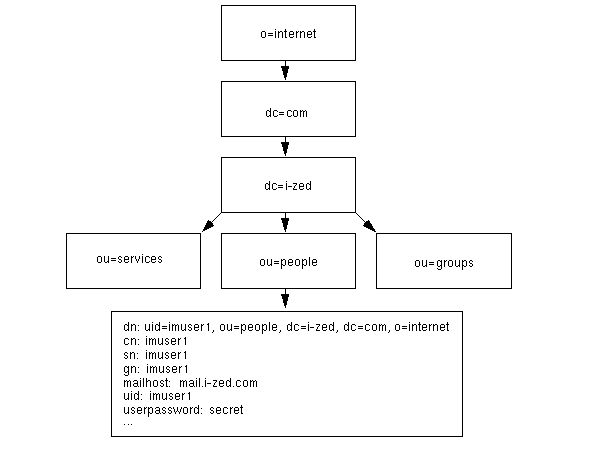
DIT Example 1—Unique UIDs Across the DIT
Figure 1 shows a DIT in which UIDs are unique across the tree.
Figure 1 DIT Example 1—Unique UIDs Across the DIT
For this kind of tree structure, you would deploy a single Sun ONE Instant Messaging server and make the following base DN entry in the iim.conf file:
dc=i-zed, dc=com, o=internet
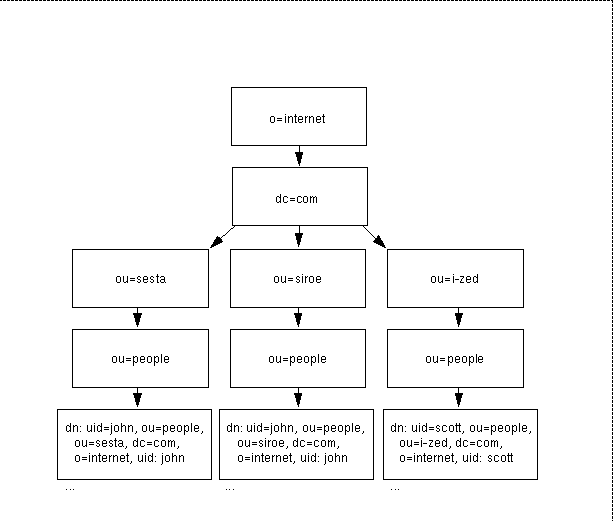
DIT Example 2—UIDs Unique Across Multiple Organizations
Figure 2 shows a DIT in which UIDs are unique for each organization (ou container).
Figure 2 DIT Example 2—UIDs Unique Across Multiple Organizations
For this kind of tree structure, deploy one Sun ONE Instant Messaging server for each logical subtree and use the following base DN entries:
- Server 1: ou=sales, dc=i-zed, dc=com, o=internet
- Server 2: ou=engineer, dc=i-zed, dc=com, o=internet
- Server 3: ou=marketing, dc=isp, dc=com, o=internet
Note
These base DNs would also enable Sun ONE Instant Messaging Server to search LDAP groups, which appear at the same node in the DIT as the people containers. For simplicity’s sake, Figure 2 does not show any group containers.
When deploying multiple servers in this example, pay attention to the following:
- You need to install three hosts each with its own Sun ONE Instant Messaging Server process. When running multiple hosts, users must be informed how to connect to the proper multiplexor. You accomplish this by installing a specific Instant Messenger component for each server instance. Therefore, the proper multiplexor host name that the client connects to gets filled in the appropriate launch file (iim.html, or iim.jnlp/iimres.jnlp). You can install a single client component, but then you need to edit the appropriate launch files to point users to the proper multiplexor. See the Sun ONE Instant Messaging Administrator’s Guide for more information on customizing these files.
- Sun ONE Instant Messenger distinguishes users in different instant messaging domains by appending the instant messaging domain name to the user name, for example, john@sales, scott@marketing, and so on. In Sun ONE Instant Messenger, when you place your cursor over a userID, a tooltip message appears, displaying the user’s status. If the user is on a server (domain) different than yours, the tooltip displays the userID in the form userID@domain.
Directory Server and Provisioning Sun ONE Instant Messenger Users
Sun ONE Instant Messaging itself does not store user information, but does store data such as user preferences. The user ID information is maintained in a directory that you specify during the installation process.
Sun ONE Instant Messaging does not provide user provisioning administration tools. You can use the site provisioning tools for your directory server.
There are no Sun ONE Instant Messaging specific commands to add, modify, or delete an Instant Messenger user. Use your site provisioning tools to perform these operations on the directory in which users exist. Administration of User preferences can be done from Sun ONE Instant Messenger. See the Sun ONE Instant Messaging Administrator’s Guide for more information.
Likewise, in the case of a stand alone deployment you cannot disable a Sun ONE Instant Messenger user. The only way to prevent users from using Sun ONE Instant Messaging is to delete them from the directory. In the case of Portal Deployment the policy attributes can be used to disable the access to Instant Messenger.
How Sun ONE Instant Messenger Uses the Directory Server
Sun ONE Instant Messenger uses the directory server for user authentication and/or user search depending on the following configurations:
- Standalone Deployment. The LDAP directory server contained in the directory become user IDs for Sun ONE Instant Messenger users. Additionally, Sun ONE Instant Messenger performs user searches with that directory.
- Portal Deployment. If you use the directory server pointed by portal server, Sun ONE Instant Messenger does not authenticate the user IDs in the directory, it just performs user searches with the directory. (Sun ONE Portal Server itself performs the authentication based on whatever portal authentication mechanism is used.) When configured to use the directory, Sun ONE Instant Messaging users must first establish a session with Sun ONE Portal Server to use Sun ONE Instant Messaging.
Logical Domain versus DNS Domain
An important distinction needs to be made between the Sun ONE Instant Messaging domain (instant messaging domain) and the DNS domain, as they are not equivalent. The instant messaging domain name is the logical domain name you want the Sun ONE Instant Messaging Server to support. This is the name that is used by other Sun ONE Instant Messaging Servers in the network to identify this server (the name tagged to users on this server when displayed to users on other server). It is also the name used by this server to identify its users to other servers. This is not necessarily the FQDN (fully qualified domain name) of the system running the Sun ONE Instant Messaging Server.
During installation, the installer prompts you to enter the Sun ONE Instant Messaging domain name, which is stored in the iim.conf file as the iim_server.domainname parameter. This name can, and probably should be, different than the underlying DNS domain name. For example, if your DNS domain is www.i-zed.com, rather than use the same name for the instant messaging domain, consider using something such as iim.i-zed.com. This could help alleviate confusion that the Sun ONE Instant Messenger ID is not an email address.
The result of this is that an Instant Messenger user ID, which looks like an email address, is in fact not an email address. In some cases the Sun ONE Instant Messenger user ID might map to an email address. Thus, users might have a user ID such as johndoe@i-zed.com and an Instant Messenger ID of johndoe@iim.i-zed.com (the ID displayed by the tooltip in the Sun ONE Instant Messenger client).
In addition, if you install multiple Sun ONE Instant Messaging Servers, and multiple instant messaging logical domains, the users need to know about these domains to search for and locate appropriate contacts. Users can use the “Domain to search on” drop-down list, in the various Sun ONE Instant Messenger windows, to search other domains they are configured to access.
Note
In future, the product might be redesigned to use DNS. At such point in time, the logical instant messaging domain name would no longer apply and you would want to use the DNS name.
Searching the Directory and Anonymous Bind
Sun ONE Instant Messaging needs to be able to search the directory to function correctly. By Default Sun ONE Instant Messaging assumes that the directory is configured to be searchable by anonymous users. If the directory is not readable by anonymous users, you must take additional steps to configure the iim.conf file with the credentials of a user ID that has at least read access to the directory.
These credentials consist of:
Thus, you need to modify the iim.conf file if the LDAP directory server does not allow anonymous bind.
See the Sun ONE Instant Messaging Administrator’s Guide for the steps to configure a specific user to search your directory.
LDAP Issues
The following LDAP issues might arise in a given deployment. Change the LDAP parameters in the iim.conf file accordingly.
Issue: Your directory does not permit anonymous bind. By default, Sun ONE Instant Messaging Server performs an anonymous search of the LDAP directory. However, it is common for sites to prevent anonymous searches in their directory so that any random person cannot do a search and retrieve all the information.
Solution: If your site’s directory is configured to prevent such anonymous searches, then Sun ONE Instant Messaging Server needs to have a user ID and password it can use to bind and do searches. Use the iim_ldap.usergroupbinddn and iim_ldap.usergroupbindcred parameters to configure the necessary credentials. See the Sun ONE Instant Messaging Administrator’s Guide for more details.
Issue: Your site does not use the uid attribute for user authentication.
Solution: Use the iim_ldap.loginfilter parameter to set the attribute that is used by your directory for authentication. By default, this parameter is set to uid. Also, change any “filter” parameters that contains uid in its value.
Issue: You want to change how Sun ONE Instant Messenger displays contact names from the default.
Solution: The default attribute that Sun ONE Instant Messenger uses to display contact names is cn. Thus, contact names appear as Frank Smith, Mary Jones, and so on. Edit the iim_ldap.userdisplay and iim_ldap.groupdisplay parameters to a different attribute, such as uid.
Issue: Your directory is indexed to use wildcards.
Solution: Change the iim_ldap.allowwildcardinuid parameter to True. This parameter determines if the use of wildcards should be enabled for User IDs while doing a search. As most directory installations have User IDs indexed for exact searches only, the default value is False. Setting this value to True can impact performance unless User IDs are indexed for substring search.
Issue: Your directory uses non-standard object/group classes.
Solution: Change the appropriate iim_ldap.* parameters, replacing inetorgperson and groupofuniquenames with your values.
Issue: Your directory does not use the mail attribute for email addresses. If so, Sun ONE Instant Messenger will not be able to forward instant messages to offline users as email messages.
Solution: By default, the iim_ldap.user.mailattr contains the value mail. Change this value to your site’s value.
Issue: Your directory uses an attribute other than uid as the user id attribute
Solution: If the attribute "loginname" is used as the user id attribute:
iim_ldap.user.uidattr=loginname
Add the following index directives to the indexing rules in LDAP:
index login name eq
Indexed LDAP Attributes
Index the attributes below as indicated for adequate directory performance when used with Sun ONE Instant Messaging .
index cn pres, eq, sub
index sn pres, eq, sub
index givenName pres, eq, sub
index uid eq
index uniquemember eq
If your site permits substring search on uid, the index list for uid should be:
index uid eq, sub
For more information on managing indexes refer to iPlanet Directory Server 5.1.Administrator’s Guide at: http://docs.sun.com/source/816-5606-10/index1.htm#996824
Planning Your Client ConfigurationThis section describes potential problems and solutions when installing and configuring the Sun ONE Instant Messenger client software to work with a web server. It also describes issues associated with running the client with Sun ONE Portal Server. See the Sun ONE Instant Messaging Release Notes for information on supported web server software.
Web Server Overview
When installing Sun ONE Instant Messaging with Sun ONE Portal Server, you can use the Sun ONE Portal Server’s Web Server. When installing Sun ONE Instant Messaging in a standalone deployment, you supply the Web Server.
Sun ONE Instant Messaging depends on a Web Server to serve up Instant Messenger resources, including:
- An initial index.html file, provided by the product, or your own home page, with a link to invoke the Sun ONE Instant Messenger. (This applies only to a standalone deployment.)
- The product’s client jar files (iim.jar, iimres.jar, iimnet.jar, and iimjni.jar).
- The Sun ONE Instant Messenger online help.
- Embedded URLs in messages and news channels, to Sun ONE Instant Messenger.
Web Server Issue for Both Portal and Standalone Deployments
Location of Sun ONE Instant Messenger Software and Web Server
Issue: You must install the Sun ONE Instant Messenger software on the host where the web server is installed. In a portal deployment, this can be the Sun ONE Portal Server host (the Sun ONE Portal Server’s web server).
Some sites might include the web server on the Sun ONE Instant Messaging Server host, in which case there is no issue. However, if the web server is not on the Sun ONE Instant Messaging Server host, you will need to install the Sun ONE Instant Messenger software separately on the web server host.
Solution: Run the Sun ONE Instant Messaging installer, after installing the Sun ONE Instant Messaging Server software, and install just the Instant Messenger resources (the Sun ONE Instant Messenger component) on the web server host. See the Sun ONE Instant Messaging Installation Guide for more information.
Launching Java Web Start and MIME Types
Issue: To run Sun ONE Instant Messenger using Java Web Start, you might need to edit the web server’s MIME types file to include a line for JNLP.
Solution:
- Type the following URL to start the administration server in your browser: http://hostname.domain-name:administration_port
For example: http://budgie.siroe.com:8888
- Sun ONE Web Server then displays a window prompting you for a user name and password. Type the administration user name and password you specified during the Web Server installation.
- Sun ONE Web Server displays the Administration Server page.
- In the Manage Servers page, click Manage. Sun ONE Web Server displays the Server Manager page
- Click the MIME Types link.
- From the MIME file drop-down list, choose a MIME type to edit and click OK.
- In the Global MIME Types page, select type from the Category drop-down list.
- In the Content-Type text box, type:
application/x-java-jnlp-file
- In the File-Suffix text box, type:
jnlp
- Click New Type to create the MIME type.
- Restart the Web Server for this change to take effect.
Solution: For Apache Web Server, the mime.types file, located in the Apache Web Server configuration directory (its location is site-specific), should be edited to include the line:
application/x-java-jnlp-file jnlp
Sun ONE Portal Server Issues
This section describes Sun ONE Portal Server specific issues with regards to Sun ONE Instant Messenger.
Application Channel Links
When installing Sun ONE Instant Messaging in the Sun ONE Portal Server environment, the installer inserts the following two links in the Applications channel of the Sun ONE Portal Server Desktop:
These links are displayed to users in their Sun ONE Portal Server Desktop Applications channel only if they have not customized the Application Channel. If users do not automatically receive the Sun ONE Instant Messenger links, then they must add them manually from the available Application channel.
To Manually Add Applications to the Applications Channel
Secure Mode vs. Non-Secure Mode
When you install Sun ONE Instant Messaging in the Sun ONE Portal Server environment, users invoke the Sun ONE Instant Messenger client from their Sun ONE Portal Server Desktop Applications channel. In the Sun ONE Portal Server environment, you configure Sun ONE Instant Messenger in either secure or non-secure mode. In secure mode, communication is encrypted through the Sun ONE Portal Server Netlet (SRA gateway). A lock icon appears in Sun ONE Instant Messenger’s Status area when you are running in secure mode. See the Sun ONE Portal Server Administrator’s Guide for more information on Netlet.
In non-secure mode, no encryption takes place between Sun ONE Portal Server and the user’s machine.
Launching Sun ONE Instant Messenger in Sun ONE Portal Server Overview
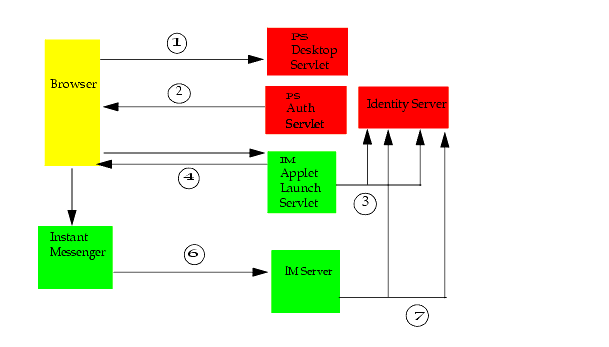
Figure 3 shows how Sun ONE Instant Messenger functions in the Sun ONE Portal Server Single Sign-on (SSO) environment.
Figure 3 Sun ONE Instant Messenger Single Sign-on in Sun ONE Portal Server
The following describes the above figure:
- User logs on to the Sun ONE Portal Server Desktop. Sun ONE Portal Server sets a Single Sign-on (SSO) cookie.
- User selects the Instant Messenger link in the Applications Channel.
Note
If the Sun ONE Instant Messenger log on fails, a “logon failed” dialog appears. If this happens click the Launch Sun ONE Instant Messenger link again.
- The Sun ONE Instant Messenger launch servlet validates the user’s session ID and gets the user profile.
- The launch servlet returns the Sun ONE Instant Messenger applet launch page, which contains the Sun ONE Portal Server SSO token as parameter.
- The Sun ONE Instant Messenger applet is launched.
- Sun ONE Instant Messenger talks to Sun ONE Instant Messaging Server, passing the SSO token.
- Sun ONE Instant Messaging Server validates the SSO token with the Sun ONE Portal Server services.
Notes on Running Sun ONE Instant Messenger with Sun ONE Portal Server
Note the following conditions when running Sun ONE Instant Messenger in the Sun ONE Portal Server environment:
- You can run Sun ONE Instant Messenger in secure mode using either Java plug-in and Java Web Start to launch the application. (You can configure Sun ONE Instant Messenger for secure mode only if the Sun ONE Portal Server gateway is configured.) When running in secure mode, Sun ONE Instant Messenger displays a lock icon in the Status area at the top of the Main window.
- Secure mode does not work if users launch Sun ONE Instant Messenger from a desktop shortcut. In addition, unlike a standalone deployment, when running in a portal deployment Java Web Start does not give the option of creating a desktop shortcut. However, users can still create bookmarks (for both Java Web Start and Java Plug-in) to launch Sun ONE Instant Messenger. (Launching by a shortcut should only be done in standalone mode.)
- Single Sign-on (SSO) is not supported with the Sun ONE Portal Server Desktop if users launch Sun ONE Instant Messenger from an operating system desktop shortcut.
- Auto-logon - Because SSO is used, the Auto-logon feature for Sun ONE Instant Messenger cannot be disabled when running in portal mode.
Planning Your Multiplexor ConfigurationThis section describes the information you need to plan the Instant Messaging multiplexor configuration.
The Sun ONE Instant Messaging multiplexor component is a connection multiplexor that listens for Sun ONE Instant Messenger clients and opens only one connection to the backend Sun ONE Instant Messaging Server.
In effect, the multiplexor always acts as a front-end component to the Sun ONE Instant Messaging Server. Any client-server communication must go through the multiplexor; that is, Sun ONE Instant Messaging Server architecture is such that it always uses the multiplexor. Sun ONE Instant Messenger and Sun ONE Instant Messaging Server do not talk to each other directly.
You can install multiple multiplexors as needed, depending on your configuration. When using multiple multiplexors, you should consider also installing some sort of load balancer product, such as offered by Resonate.
For more information on multiplexor configuration, see "Tuning and Performance Issues".
Note
Windows only supports one multiplexor process per machine. Solaris supports multiple multiplexors per machine.
Planning SecurityThis section describes the information you need to plan for Sun ONE Instant Messenger security, including:
Planning Privileges: Access Control
Almost all features of Sun ONE Instant Messenger are controlled by a privilege system that limits what a user can see or do. Before deploying Sun ONE Instant Messaging Server, determine the privileges you want your users to have from the following list:
- Administrator privileges - Enables a user to control all aspects of the system, so should be restricted to the few administrator accounts.
- Privilege to change client user settings - Most likely you’ll want to permit users to set and save their own preferences. However, for sites that want to standardize on user settings, you can deny this privilege and lock out users from making any preference changes.
- Privilege to add and delete news channels - Enables a user to create and delete news channels from Sun ONE Instant Messaging Server.
- Privilege to add and delete conference rooms - Enables a user to create and delete conference rooms from Sun ONE Instant Messaging Server.
- Privilege to send and forward alerts - Enables a user to create and send alert messages.
- Privilege to set up watches on other users - Enables a user to monitor the status of other users and receive an alert when the status changes.
You set or change user privileges by editing the appropriate ACL file. See Sun ONE Instant Messaging Administrator’s Guide for more information on how to set privileges for the system.
You cannot disable a Sun ONE Instant Messenger user because Sun ONE Instant Messaging during authentication uses the directory for authenticating. Hence, any existing user can access Sun ONE Instant Messenger. The only way to prevent users from using Sun ONE Instant Messaging is to delete them from the directory. When deploying on a Portal Server, the policy attributes can be used to deny access to some users.
Planning Server-to-Server Communication
You can configure multiple Sun ONE Instant Messaging Servers to communicate and form a larger instant messaging community. Users on each server can communicate with users on every other server, using conferences rooms on other servers, and subscribing to news channels on other servers (subject to access privileges).
For communicating between multiple Sun ONE Instant Messaging Servers in your network, you need to configure server-to-server communication. When configuring server-to-server communication, you identify your server to the other servers, and identify each coserver, or cooperating server, which will have a connection to your server.
When you configure your server to talk to another server, each server is notified of all activities, such as login, watch, conference room creation, and so on, which happen on its coservers. This means you must trust all of your coservers with activities happening on your system.
You establish server-to-server communication by editing the appropriate parameters in the iim.conf file on each server. See Sun ONE Instant Messaging Administrator’s Guide for more information on how to configure server-to-server communication.
Note
You can configure standalone installation of Sun ONE Instant Messaging Server to use server-to-server communication with a portal installation.
Planning Secure Sockets Layer (SSL) For Server to Server Communication
The high-level steps to configure SSL for server to server communications in Sun ONE Instant Messaging are:
- Generating a self-signed certificate.
- Generating a Certificate Signing Request.
- Sending a Certificate Signing Request to a Certificate Authority (CA) and getting back a signed certificate.
- Installing the Certificate on the Instant Messaging Server, and the CA’s certificate on other servers; which means you also have to install the other server’s CA certificate on your system. (This is much easier when you have the same CA.)
- Activating SSL
When enabling SSL for use with Sun ONE Instant Messaging , choose one of the following methods:
- Using a self-signed certificate - Put your self-signed certificate in the iimkeys file (on Solaris,/etc/opt/Sunwiim/config/iimkeys; on Windows NT, im_install_dir\config\iimkeys)and also export it to other Sun ONE Instant Messaging Servers so they can put it in their nlcacerts file.
- Using a certificate signed by a CA that is not already in cacerts - Put your certificate and your signing CA’s certificate in the iimkeys file (on Solaris, /etc/opt/Sunwiim/config/iimkeys; on Windows NT, im_install_dir\config\iimkeys). Also, export your signing CA’s certificate to the other servers so that they can save this information in their nlcacerts file.
- Using a certificate signed by a CA already in cacerts - Put your certificate in the iimkeys file only (on Solaris, /etc/opt/Sunwiim/config/iimkeys; on Windows NT, im_install_dir\config\iimkeys), and the other servers already have your signing CA in their cacerts file.
In all cases, remember that your Sun ONE Instant Messaging Server is the “client” of the other server, so you might have to import the CA’s certificate for that server.
See the Sun ONE Instant Messaging Administrator’s Guide for more information on how to activate SSL for Server to Server communication.
Other Considerations
The following information is useful if you are going to use SSL:
Planning SRA Gateway and Netlet
Sun ONE Instant Messaging enables users to communicate securely and reliably. It can take advantage of the Netlet technology offered by Sun ONE Portal Server Secure Remote Access (SRA) that enables instant messaging to occur over a secure virtual private network (VPN). In the Sun ONE Portal Server environment, you configure Sun ONE Instant Messenger in either secure or open mode. In secure mode, communication is encrypted through the Sun ONE Portal Server Netlet. In open mode, Sun ONE Instant Messenger communication is not encrypted.
When installing Sun ONE Instant Messaging in portal mode, you are asked if you want to run Sun ONE Instant Messenger in secure or open mode. When you choose during installation to run in secure mode, the installer configures the appropriate Netlet rules for encrypted communications. Refer to the Sun ONE Instant Messaging Administrator’s Guide if you did not choose to run in secure mode, but later want to.
Planning for Accessing Sun ONE Instant Messenger Outside a Firewall
There are two modes to choose from: portal mode, and standalone mode.
Portal Mode
In this mode, the Sun ONE Instant Messaging client and Sun ONE Portal Server, SRA (gateway) are outside the firewall and the Sun ONE Portal Server, Sun ONE Instant Messaging multiplexor, and Sun ONE Instant Messaging Server are inside the firewall. Note that the connection between the multiplexor and the server is not encrypted; they should both be inside the firewall.
The SRA gateway can be configured to run in either secure or non-secure modes. In non-secure mode, the communication between client, gateway, firewall, and the other components is clear, without encryption.
In secure mode, the individual components communicate via VPN, which provides secure connections by encrypting lower protocol layers in an otherwise non-secure network, such as the internet.
Standalone Mode
In standalone mode, SSL is used to ensure link security between the Instant Messenger, and a multiplexor and server combination on either side of the firewall. This solution may still not provide adequate security since there is a server on the outside of the firewall.
An alternative to this is to have the Instant Messenger outside the firewall, while the multiplexor and server reside inside the firewall. With this alternative, the firewall is opened only for the SSL port to the multiplexor.
Tuning and Performance IssuesThis section describes the information you need to consider for tuning and performance of your Sun ONE Instant Messaging system.
Tuning Server Memory
Server memory size can be set using the following iim.conf parameter: iim.jvm.maxmemorysize. This parameter specifies the maximum number of megabytes of memory that the JVM running the server is allowed to use. The default setting is 256 MB.
This parameter is used to construct the -mx argument of the java command. For example, if iim.jvm.maxmemorysize = 500, the JVM will be allowed to use up to 500 MB.
On NT, you cannot currently change this value.
Tuning the Multiplexor
A multiplexor consists of one or more multiplexor processes. There are three parameters (found in the iim.conf file) used for tuning multiplexor performance:
Figuring Maximum Number of Concurrent Client Connections
To figure the maximum number of concurrent client connections possible, multiply the numinstances number by the maxsessions number.
Multiplexor Configuration Rules of Thumb
The following suggestions and generalizations might be useful for your planning:
- The iim_mux.maxsessions should be high enough to avoid rejecting connections, but it should be reasonable enough so that the multiplexor processes to not get overloaded.
- Be sure that your expected number of concurrent client connections is less than the maximum possible by a safe margin.
- However, do not configure threads or number of concurrent sessions to more than you require. Otherwise, you will unnecessarily consume system resources.
- A good starting point is to configure iim_mux.numinstances to the number of CPUs on the system.
Tuning Parameters for Archive Providers
The following three parameters need to be configured in the iim.config file:
Table 2 provides a short description on each parameter. This table consists of three columns.The first column of the table lists the parameter name, the second column mentions the default value assigned to each parameter, and the third column a description on the parameter.
Concurrent Users and Resource Requirements
Correctly formulating the maximum number of concurrent users that has to be sustained by the system is key to planning your resource requirements. Although a deployment usually has maximum number of configured users, it is important to plan for the maximum number of concurrent users (connected and more or less active). A conservative estimate for the number of concurrent users can then be determined based on a 1:10 ratio. Thus, for a deployment of 50,000 configured users, the concurrent users would be 5,000.
Use the following procedure to generate a more precise picture of your resource requirements:
- Characterize your configured users using three general profiles:
- Not Connected - Non-connected users consume disk space but no CPU or memory.
- Connected/Inactive - Typical usage consists of having the client up and running and receiving a small amount of presence notification per day. Users rarely use the chat rooms.
- Connected/Active - Typical usage consists of the following:
- Presence updates equal to or greater than 20 times a day.
- Contact list contains about 30 contacts.
- Users subscribe to the presence updates of all the contacts in the contact list.
- Users set up around 4 conferences or chats per day.
- Each conference has 3 people in the conference rooms and lasts 10 minutes.
- A message is added to the conference every 1 -15 seconds.
- Determine the mix of profiles your system needs to accommodate.
Divide all of your configured users into these groups.
- Use Table 3 to determine Server and Multiplexor sizing numbers when archive is enabled or disabled. This table consists of four columns. The first column mentions the server memory consumption for connected per inactive users; the second column mentions the server memory consumption for connected per active users; the third column mentions the multiplexor memory consumption for connected per inactive users; and the fourth column mentions the multiplexor memory consumption for connected per active users. The figures listed in the table were generated using a 400MHz Ultra Sparc II Processor.
- Use Table 4 to help determine the number of CPUs your installation requires for optimum performance when archive is enabled or disabled. This table consists of four columns. The first column mentions the server CPU Utilization requirement for connected per inactive users; the second column mentions the server CPU Utilization requirement for connected per active users; the third column mentions the multiplexor CPU Utilization for connected per inactive users; and the fourth column mentions multiplexor CPU Utilization for connected per active users. The figures listed in the table were generated using a 400MHz Ultra Sparc II Processor.
- Add a safety buffer of extra capacity.
Small Deployment Sample Resource Requirements Numbers
For a small deployment with the server and multiplexor on a single server having 10,000 users with the following profile:
The memory requirements are: 1/2 CPU with 300-500 MB RAM.
Large Deployment Sample Resource Requirements Numbers
For a large deployment having 1,000,000 users with the following profile:
The server memory requirements are 4 GB RAM on 2 CPUs. The multiplexor requirement is 4 GB RAM on 16 CPUs.
Note
You need to use a provisioning tool to create the profile information on the backend server (LDAP) for each new user.
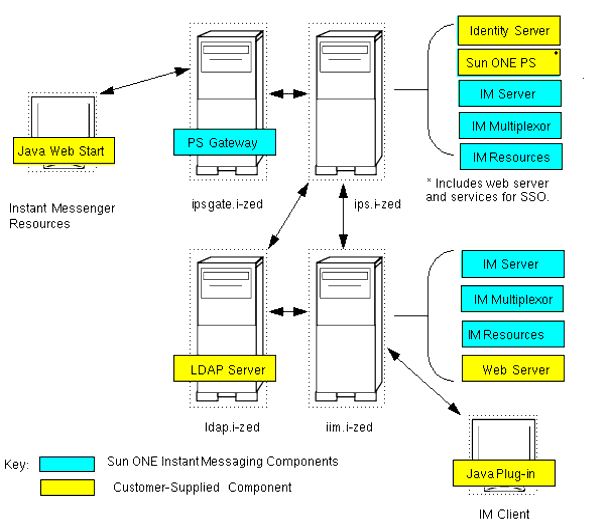
Sun ONE Instant Messaging Deployment ExampleFigure 4 shows a sample deployment, including two Sun ONE Instant Messaging Servers (one in portal mode and one in standalone mode), and the required software components.
Figure 4 Sample Sun ONE Instant Messaging Deployment
Deploying Multiple Instances on a Server
You can create multiple instances from a single installation. Follow the steps outlined below to create multiple instances on the same server:
- Install the software in a standalone mode.
- Do the following to create an instance called xyz:
mkdir /var/opt/SUNWiim/xyz
mkdir /var/opt/SUNWiim/xyz/log
mkdir /var/opt/SUNWiim/xyz/lock
mkdir /var/opt/SUNWiim/xyz/db
cp -r /etc/opt/SUNWiim/default /etc/opt/SUNWiim/xyz
- Edit /etc/opt/SUNWiim/xyz/imadmin and rename the configuration file to:
/etc/opt/SUNWiim/xyz/config/iim.conf
- Edit /etc/opt/SUNWiim/xyz/config/iim.conf and modify the port number so that there is no conflict with the default instance.
- Modify iim.instancedir and iim.instancevardir to point to directories relevant to the xyz instance.
- Ensure that the file or directory ownership and permissions are the same for all instances.
- Make renamed copies of $installdir/html/iim.html iim.jnlp index.html so that the client has the correct default port number for each instance.
Software Components Description
Table 5 describes the software components deployed on each host. This table consists of four columns. The first column lists the software components to be deployed on SRA gateway host; the second column lists the software components to be deployed on Sun ONE Portal Server host; the third column lists software components to be deployed on LDAP directory host for iim.i-zed users; and the fourth column lists the software components to be deployed on a standalone Sun ONE Instant Messaging Server host:
Instant Messenger Resources
Table 6 shows the Instant Messenger resources that are required for the two Instant Messaging hosts.This table consists of three columns. The first column lists the client files; the second column mentions whether the client files are used by ips.i-zed host and the location of the client file; the third column mentions whether the client files are used by iim.i-zed host and the location of the client file.
Client Files Content by Server
Each Instant Messaging server has its own client component. The ips.i-zed host uses Java Web Start, so it has iim.jnlp, and iimres.jnlp files. The iim.i-zed host uses the Java plug-in, so it has index.html and iim.html files.
In this example, the Instant Messenger component was not installed at the doc root of the Web Server. It was put in its own icp directory. See the Sun ONE Portal Server Instant Collaboration Installation Guide for more information on steps to take when the client is not installed at the web server doc root.
How the Sample Deployment Works
From a high-level overview, this sample deployment requires four hosts as follows:
S1psgate.i-zed - Host containing the SRAP gateway.
S1ps.i-zed - Host containing the Sun ONE Portal Server and Sun ONE Instant Messaging software.
ldap.i-zed - Host containing LDAP directory server.
S1im.i-zed - Host containing Sun ONE Instant Messaging software, installed in standalone mode.
This sample deployment contains a combination of two Instant Messaging server, one in the portal mode, running on ips.i-zed, another in standalone mode in iim.i-zed. It demonstrates how a company can cooperate with partners to communicate in a controlled and secure manner.
This deployment shows that users can get to the Instant Messaging server securely from outside the firewall, using the portal gateway, while at the same time users inside the firewall connect directly to the iim.i-zed server.
The outside users can talk with the internal users because the systems, ips.i-zed and iim.i-zed, are configured for server-to-server communication. If the link between these two systems are within a firewall, they can be connected without using SSL. If the link between them needs to be protected from snooping, the two systems can be set up to communicate using SSL. For simplicity in this example, the outside users are shown using only Java Web Start and the inside users only Java plug-in.
Using the hypothetical case that the outside users are partners of the company I-ZED who need to communicate with people working inside I-ZED, the partners are given access through the secure portal, authenticating themselves as legitimate users. They can then use instant messaging to communicate with users inside I-ZED.
To facilitate secure communications, conference rooms can be set up on ips.i-zed, which allow access by specific partners. For example, you can have a conference room, Nova, which allows only access by users A, B, C, who are partners of I-ZED working on the Nova project. And users X, Y, Z in iim.i-zed who also work on the Nova project are also allowed access. Access to this conference room is private. Non-invited users can’t gain access.
The users, A, B, C and X, Y, Z can also watch each other’s status so they know when the other goes online or goes away. The users, A, B, C can also subscribe to a news channel called Nova News and the users X, Y, Z can be set up to be able to post to this Nova News channel. Others can be restricted from reading this news channel, so information is limited to only those with specific access.
Users A, B, C can also subscribe to a general access I-ZED News channel, which is accessible to all who have access to the ips.i-zed Instant Messaging server. This news channel can contain general news related to I-ZED.