|
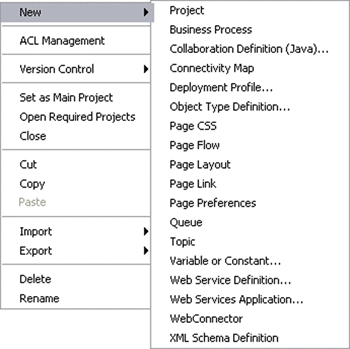
New
|
Project
|
Adds a Subproject folder to the selected Project. You should
limit the total number of Project/Subproject levels to 5.
|
|
Business Process
|
Adds a Business Process to the selected Project.
|
|
Collaboration Definition (Java)
|
Presents the Collaboration Definition Wizard (Java), with which
you can create a Java based Collaboration Definition.
|
|
Connectivity Map
|
Adds a Connectivity Map to the selected Project.
|
|
Deployment Profile
|
Presents a dialog with which you can create a Deployment Profile
for the selected Project.
|
|
Object Type Definition
|
Presents the OTD Wizard, with which you can create an Object
Type Definition (OTD) file.
|
|
Page CSS
|
Used with Sun Composite Page Designer.
|
|
Page Flow
|
Used with Sun Composite Page Designer.
|
|
Page Layout
|
Used with Sun Composite Page Designer.
|
|
Page Link
|
Used with Sun Composite Page Designer.
|
|
Page Preferences
|
Used with Sun Composite Page Designer.
|
|
Queue
|
Adds a queue to the selected Project.
|
|
Topic
|
Adds a topic to the selected Project.
|
|
Variable or Constant
|
Presents a dialog with which you can add a constant or variable
icon to the selected Project.
|
|
Web Service Definition
|
Adds a WSDL document to the selected Project and opens the Web
Services Designer.
|
|
Web Services Application
|
Adds a Web Services Application to the selected Project.
|
|
Web Connector
|
Adds a Web Connector to the selected Project. Used with Sun
Business Process Manager.
|
|
XML Schema Definition
|
Adds an XML Schema Definition (XSD) to the selected Project
and opens the XSD Editor.
|
|
ACL Management
|
Presents the ACL Properties dialog, in which an Administrator can assign
read/write privileges to users for the selected Project.
|
|
Version Control
|
Check In
|
Presents a dialog with which you can check in a new version
of the selected Project.
|
|
Check Out
|
Presents a dialog with which you can check out the current version
of the selected Project.
|
|
Tag
|
Presents a dialog with which you can specify a tag to attach
to the selected Project.
|
|
Set as Main Project
|
Sets the selected Project as the main Project (top-level Projects
only). This option has no functionality in Java CAPS 6.
|
|
Open Required Projects
|
Ensures that all other directly or indirectly referenced top-level
CAPS Projects are also opened when the selected Project is opened
(top-level Projects only).
|
|
Close
|
Closes the selected Project (top-level Projects only).
|
|
Cut
|
Copies the selected Project and removes it from the current
Project tree, after which you can paste it to another Project as a
Subproject within the same branch (once only). All changes must be
committed before you can cut the Project. Cut and paste is disabled
for other users when you have the Project checked out.
|
|
Copy
|
Copies the selected Project, after which you can paste it to
other Projects as a Subproject within the same branch (multiple times).
All changes must be committed before you can copy the Project. You
can copy a Project even when another user has the Project checked
out.
|
|
Paste
|
Pastes a cut or copied component into the selected Project within
the same branch (Projects are pasted as Subprojects). Pasting is disabled
for other users when you have the Project checked out.
|
|
Import
|
File
|
Presents a dialog with which you can import an external file
into the Project.
|
|
Project
|
Presents a dialog with which you can import a Project as a Subproject
under the selected Project.
|
|
Web Service Definition
|
Presents a dialog with which you can import existing Web Service
Definitions for defining a web service.
|
|
XML Schema Definition
|
Presents a dialog with which you can import existing XML Schema
Definitions for defining a web service.
|
|
Export
|
Project
|
Presents a dialog with which you can export the selected Project.
|
|
Delete
|
Deletes the selected Project, subject to the following conditions:
-
You have write privileges for
the Project (see ACL Management, above).
-
The Project is not checked out by anyone other than
yourself.
If these conditions are true, a dialog is displayed
in which you confirm that you want to delete the selected Project.
Clicking Yes then deletes the Project.
If
the selected Project contains active Deployment Profiles, a dialog
is displayed listing those deployments and requesting that you deactivate
them. You must select deactivation to enable the Yes button.
|
|
Rename
|
Activates the field, allowing you to rename the selected Project.
Note that all Project names should contain only alphanumeric
characters (letters and numbers), dashes, and underscores. Blank spaces
are not allowed.
|