Sun Java™ System Application Server Standard Edition Getting Started Guide
Version 7 2004Q2
Part Number 817-6646
The Getting Started Guide shows you how to start the Sun Java System Application Server, confirm that it is running, and deploy a sample application. It also includes where to go for more information.
|
| |
| Note |
The Getting Started Guide assumes you have already installed the Sun Java System Application Server. For installation instructions, see the Sun Java System Application Server Installation Guide. |
|
| |
This guide contains the following topics:
Starting the Server
When you install the Sun Java System Application Server, by default you install both an Administration Server to administer server instances, and an instance of the Application Server. The Application Server instance is called server1.
The Administration Server is a special instance of the Sun Java System Application Server that provides administrative facilities for the Administration interface (sometimes called the Administration Console) and the command-line interface. It manages the configuration, deployment, and monitoring facilities for these interfaces.
The combination of an Administration Server and one or more server instances is called a domain. When you install the server, a default domain called domain1 is created for the Administration Server and the server1 instance.
To start and stop both the Administration Server and the Application Server, see the following sections:
Starting the Server on UNIX
To start the UNIX version of the server, use the command-line utility for administering the server, asadmin.
Add the bin directory to the command path:
% setenv PATH install_dir/bin:$PATH
Start the server:
% asadmin start-domain domain1
By starting the domain, you start both the Administration Server and the server1 server instance. You’ll see messages similar to the following:
Instance domain1:admin-server started
Instance domain1:server1 started
Domain domain1 Started.
Starting the Server on Microsoft Windows
To start the Windows version of the server, follow these steps:
A command window appears with a message similar to the following:
Instance domain1:admin-server started
Instance domain1:server1 started
Domain domain1 Started.
Press any key to continue . . .
Press any key to close this window.
A second window also appears when the server instance is started, showing the event log of the server instance server1. It remains open while the server instance is running.
|
| |
| Note |
Windows users can run tools like asadmin from the command line as well. The only difference is in how the environment variables are set. For details, see Configuring the Windows Environment to Use the Command-Line Tools at the end of this section. |
|
| |
Confirming that the Server is Running
Once you have started the Sun Java System Application Server, confirm that it is running.
Confirming that the Administration Server is Running
To confirm that the Administration Server is running, use the URL:
This URL has two pieces:
The name “localhost” is a special host name that refers to the system the browser is currently running on. If the Administration Server is running on another system, substitute the name of that system in the URL.
The number 4848 is the Administration Server's default port number. If you chose a different number during installation, substitute that number in the URL.
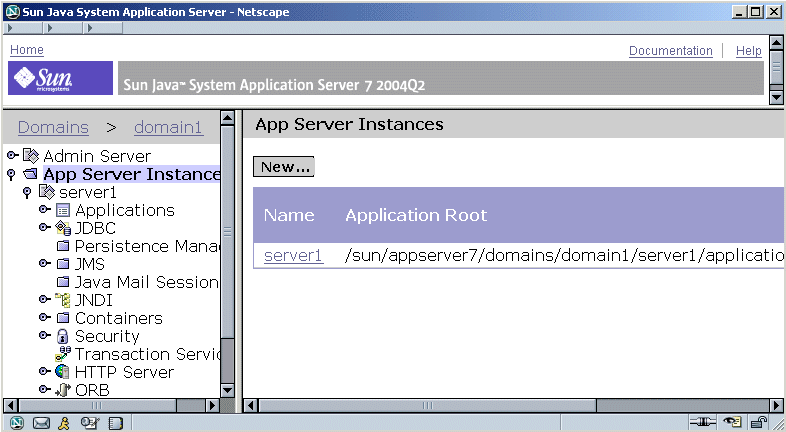
When you access that URL, you are asked for the administration user name and password set during installation. Once you enter the username and password, you see the Administration interface from which you administer your server instances.
Figure 1 Administration Interface
Confirming that the Server Instance is Running
To confirm that the server instance is running, access the following URL:
Or:
The numbers 80 and 1024 are the server instance’s default HTTP port numbers. Which number is the default depends upon your type of installation, your platform, and whether you installed as root. For more information see the Sun Java System Application Server Installation Guide. If you chose a different number during installation, substitute that number in the URL.
When you access the server instance’s URL, you see the server instance’s welcome page, which contains information about Sun Java System Application Server, as well as helpful links to additional resources.
Figure 2 Server Welcome Page

If the server isn't running, and your system is operating normally in other respects, you'll get a “server not found” error. (In some browsers, that error automatically launches a search engine.) For deeper problems, you may need to check your server and browser settings, as described in the Sun Java System Application Server Troubleshooting Guide.
Stopping the Server
To stop the Sun Java System Application Server, use the following procedures:
Stopping the Server on UNIX
To stop the Sun Java System Application Server on UNIX, use the asadmin utility’s stop-domain command.
% asadmin stop-domain
Stopping the Server on Microsoft Windows
To stop the Sun Java System Application Server, follow these steps:
Deploying a Sample Application
To demonstrate deploying a sample application, this document uses the Caching Web sample application included in the Sun Java System Application Sever. The Caching Web sample application demonstrates how to utilize servlet/JSP caching on the Sun Java System Application Sever.
To deploy an application, you have to give the Sun Java System Application Server the information it needs to load the application, map a URL to it, and connect it to the resources it uses. That information is contained in deployment descriptors, which form part of the packaged application. Packaged applications may be in the form of a WAR (Web ARchive file), JAR (Java ARchive file), or EAR (Enterprise ARchive file) file. In this case, the application is contained in a WAR file in the samples directory.
To deploy the application using the Administration interface:
- Open the Administration interface as described in "Confirming that the Administration Server is Running" on page 3.
- Under App Server Instances, open server1.
- In the left pane, open Application
- Click Web Apps.
- Click Deploy.
- Enter the path to the Caching Web sample’s war file.
- Click OK.
- Click OK.
- The sample is deployed to your Sun Java System Application Server.
The default path is install_dir/samples/webapps/caching/webapps-caching.war
A screen with options for deploying the application appears. You do not need to change the default values.
When you deploy an application, it is enabled by default. An application must be enabled before you can use it.
To check to see that your application deployed properly, use the following URL:
for example:
The application's first page appears:
Figure 3 Caching Web Sample Page
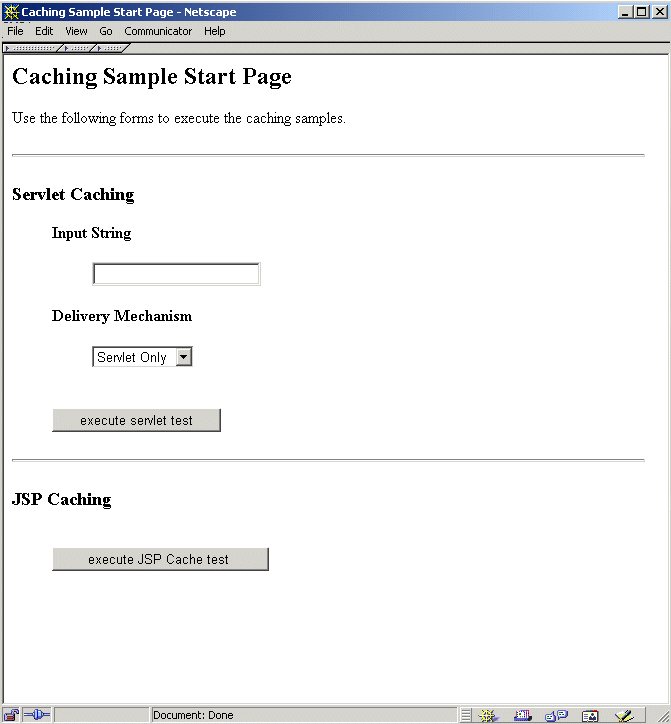
If you can see this page, it means you successfully deployed your application.
You can also use the asadmin command line utility to deploy from the command line or in a shell script, which can be useful when you are setting up more than one machine. The command is asadmin deploy. To see the syntax, consult the asadmin online help.
Available Tools
You have many tools available to you in the Sun Java System Application Server including the ones discussed previously, the Administration interface and the asadmin utility. The following table describes the available tools:
Configuring the Windows Environment to Use the Command-Line Tools
To access the command-line utilities, you need to have the install_dir\bin directory in your PATH environment variable. Before accessing the command line utilities:
- From the Explorer window or desktop, right click on My Computer.
- Choose Properties.
- Click the Advanced tab.
- Click Environment Variables.
- If a PATH variable exists:
- Click Edit
- In Variable Value, enter the path to the server's bin directory, separated from other entries by a semicolon:
- Click OK to commit the change, then close the remaining open windows.
- Click New.
- In Variable Name, type PATH
- In Variable Value, type the path to the server's bin directory:
- Click OK to commit the change, then close the remaining open windows.
The System Properties dialog appears.
;C:\install_dir\bin
If a PATH variable does not exist:
C:\install_dir\bin
To test that your PATH variable is set correctly, open a command window and type asadmin. If set correctly, you see the asadmin> prompt.
Next Steps
For more detailed on the Sun Java System Application Server, see:
| Resource |
Information |
|---|---|
| The server's welcome page |
Links to online resources for Sun Java System and Sun Java System Application Server. |
| Release Notes |
Information on what's new, platform support, and known problems. |
| The Administration Guide |
Information on administering the Sun Java System Application Server, using the Administration interface and the asadmin utility. |
| The Samples |
Information on the samples shipped with Sun Java System, found at install_dir/samples/index.html |
| Documentation |
The full documentation set for the Sun Java System Application Server, found at: http://docs.sun.com. |
| asadmin online help |
More information on specific asadmin commands. |
| Utility manpages |
More information on command-line utilities. |
| Java BluePrints |
A comprehensive set of examples that demonstrate server operations, and which can be used as application templates. |
Copyright � 2004 Sun Microsystems, Inc. All rights reserved.
Sun Microsystems, Inc. has intellectual property rights relating to technology embodied in the product that is described in this document. In particular, and without limitation, these intellectual property rights may include one or more of the U.S. patents listed at http://www.sun.com/patents and one or more additional patents or pending patent applications in the U.S. and in other countries.
SUN PROPRIETARY/CONFIDENTIAL.
U.S. Government Rights - Commercial software. Government users are subject to the Sun Microsystems, Inc. standard license agreement and applicable provisions of the FAR and its supplements.
Use is subject to license terms.
This distribution may include materials developed by third parties.
Portions may be derived from Berkeley BSD systems, licensed from U. of CA.
Sun, Sun Microsystems, the Sun logo, Java and Solaris are trademarks or registered trademarks of Sun Microsystems, Inc. in the U.S. and other countries. All SPARC trademarks are used under license and are trademarks or registered trademarks of SPARC International, Inc. in the U.S. and other countries.
Copyright � 2004 Sun Microsystems, Inc. Tous droits r�serv�s.
Sun Microsystems, Inc. d�tient les droits de propri�t� intellectuels relatifs � la technologie incorpor�e dans le produit qui est d�crit dans ce document. En particulier, et ce sans limitation, ces droits de propri�t� intellectuelle peuvent inclure un ou plus des brevets am�ricains list�s � l'adresse http://www.sun.com/patents et un ou les brevets suppl�mentaires ou les applications de brevet en attente aux Etats - Unis et dans les autres pays.
Propri�t� de SUN/CONFIDENTIEL.
L'utilisation est soumise aux termes du contrat de licence.
Cette distribution peut comprendre des composants d�velopp�s par des tierces parties.
Des parties de ce produit pourront �tre d�riv�es des syst�mes Berkeley BSD licenci�s par l'Universit� de Californie.
Sun, Sun Microsystems, le logo Sun, Java et Solaris sont des marques de fabrique ou des marques d�pos�es de Sun Microsystems, Inc. aux Etats-Unis et dans d'autres pays.
Toutes les marques SPARC sont utilis�es sous licence et sont des marques de fabrique ou des marques d�pos�es de SPARC International, Inc. aux Etats-Unis et dans d'autres pays.