Getting Started Getting Started
| SMC Architecture ~ Sample User Session ~ How To Proceed ~ Creating Tools ~ Creating Services ~ Migrating Applications to SMC ~ Starting the Console ~ Starting Services |
This section provides an overview of SMC architecture, and explains the basic steps and considerations involved in creating and porting tools and services for the SMC platform.

SMC is a Java-based application environment designed to facilitate the rapid development of network management client tools and server-based services.
In the simplest terms, the SMC environment is based on three types of JavaBeans components:
JavaBean Description Tools Client-side applications; for example, a date/time tool that shows a clock and calendar, and which allows the user to change the date and time on a machine. Tools are the simplest GUI presentations in the SMC system. Consoles An extension of a Tool, providing a more advanced GUI presentation, and acting as a container for sets of client Tools. For example, a Console could provide a common display hierarchy, toolbar, menu bar, and information pane for the Tools it contains. The benefit of this model is that Tools can be combined into a single Console implementation, sharing the common resources provided by the Console, yet still retain their own complex hierarchies and behavior. Services Server-side components that support SMC tools; native SMC services are generally a combination of Java and platform-specific code. SMC includes a set of core services for security, authentication, authorization, messaging, user preferences, registration, logging, and launch management.
These three primary components are integrated by means of three sets of meta-components:
Meta-Component Description Look and Feel The presentation layer used in a Console -- that is, the specific window and dialog types, interface widgets, layout, and so forth. In the SMC, "Look and Feel" is a pluggable component, and you can use whatever look and feel -- including a command-line interface -- that is most appropriate for your tools and customers. Infrastructure The "glue" that holds everything together; the SMC infrastructure includes the core services listed above and an RMI-based communication model, although SMC tools and services can also be implemented using other infrastructures, such as
Event Bus Any tool running in the SMC console can receive events related to any other tool in the console by means of the VConsoleActionListenerinterface. Tools that implementVConsoleActionListenerare said to be on the event bus because, analogous to a hardware bus, all events on the bus are public and available to any tool that is configured to listen for one or more event types. See Events for more information.
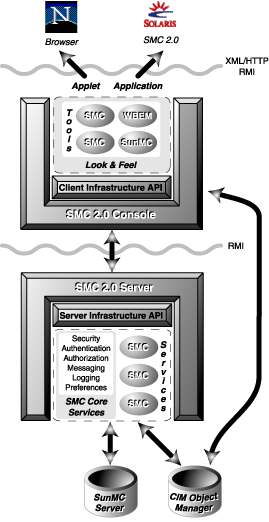
The illustration below provides a general overview of SMC architecture.
SMC Architecture Overview
In the accompanying illustration, the SMC Console contains four tools implemented as JavaBeans. In this case, two of the tools are SMC native, one is WBEM-based, and the fourth is SunMC-based. The specific combination of tools here is for illustration purposes only -- the point is that you can integrate native SMC tools with tools based on other object models.
Tools are organized into toolkits, which are properties files associated with given users, groups, and/or administrative roles. Toolkits, in turn, are displayed in the console, with the specific user interface determined by the look and feel implemented for the console.
 |
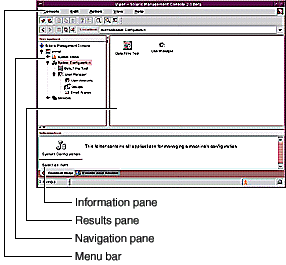
Look and feel is a pluggable component that can vary from console to console regardless of the toolkits used. For example, the look and feel of a given toolkit in one console could implement the common MS Windows Explorer-like interface, while the same toolkit could be used in a browser-based interface modeled on Motif property sheets. SMC tools can be ported as standalone Java applications, and browser-based Java applets. The illustration below shows the default SMC look and feel.
|
The console provides container and wrapper services for the tools. One of the most important aspects of this wrapper service is to provide a conduit between the toolkit and the platform-specific APIs. This makes it possible to write tools that have no platform-specific interfaces.
Communication between the client view -- that is, a browser-based applet, a standalone Java application, and so forth -- is accomplished via XML and/or HTTP over RMI.
Note that while creating customized consoles is certainly possible, supporting documentation is not available at this time.
Again, in the architecture illustration above, the SMC server contains the SMC core services and three tool-specific SMC services. A SunMC server and a CIM object manager communicate with the SMC server directly. The CIM object manager also communicates with a WBEM tool in the console.
|
Services implemented in the SMC server can be configured as daemons, singletons, or multiple-instance processes. |
One of the interesting features of the SMC server model is that it supports non-native services like CIM/WBEM and SunMC. The SMC server acts as wrapper for these non-native services, providing a model for extending the server infrastructure APIs to support platform-specific hooks. Moreover, because the SMC server is built from sets of pluggable native and (in this example) non-native components, dynamic and distributed management of services -- for example, updating and replacing components -- is relatively quick and easy.
Similar to the model used for SMC client tools, the SMC server infrastructure API isolates platform-specific code in the server components from the tools by means of the server infrastructure API. In this model, the tools do not need to know about the underlying platform on which a given service runs.
|
Ideally, to take advantage of SMC's component-oriented design, you should as much as possible adhere to Model->Viewer->Controller paradigm of separating your client and server code as much as possible, and rely as little as possible on platform- or service-specific APIs. In the SMC coding model, tools do not have direct access to console components -- for example, the navigation and results pane. Instead, specific interfaces are provided for accessing the underlying data model, and for accessing and customizing the console. |
As mentioned previously, SMC uses RMI by default for communications between services and tools. There is nothing in the SMC architectural model that prevents the use of other communication models, but RMI is recommended for its ease of use, which complements the SMC goal of enabling rapid development of management applications.
|
In cases where difficulties using RMI arise -- for example, when operating through some firewalls -- RMI has the capability to fall back to HTTP as its transport mechanism. |
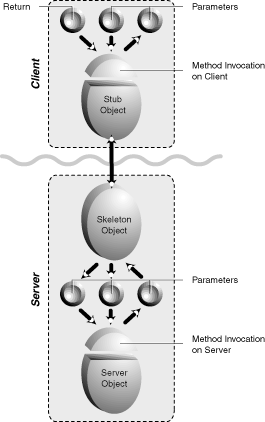
The illustration below shows a typical RMI client/server interaction, in which a skeleton object is used for passing client and server parameters. In this model, a typical server application creates some remote objects, makes references to them accessible, and waits for clients to invoke methods on these remote objects. A typical client application gets a remote reference to one or more remote objects on the server, and then invokes methods on them. RMI provides the mechanism by which the server and client communicate and pass information.
RMI Client/Server Model
|
Writing an SMC application is similar to writing a common RMI application, except that SMC developers can ignore the "stub" and "skeleton" components shown in the illustration. |
Before stepping through the flow of events in a typical SMC user session, it is useful to describe SMC tools and toolkits in slightly more detail.
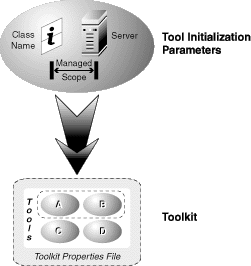
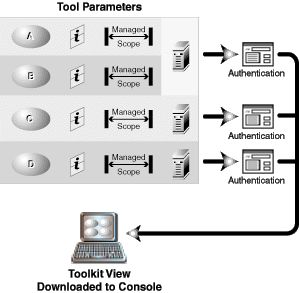
Tool Initialization Parameters
Toolkits are defined by properties files, in which sets of tools are specified. In particular, as shown in the illustration above, an SMC toolkit needs to know three things about a tool before that tool can be initialized:
Class name -- The tool's class name, as provided by the tool information file (XML format)
Server name -- The name of the local or remote server on which the tool is located
Managed scope -- The scope, in URL form, that the tool can manage; if that scope requires a session to some other server, the tool obtains a session to that machine using getExternalClient()
With this in mind, the illustration below shows an example of the flow of events in a typical SMC session.
Typical SMC Session
Before doing anything in a console, the user must open a toolbox. The console attempts to construct a view of the toolbox by reading the server location and the class name for each tool encountered.
For each server on which a tool is located, the SMC console must authenticate the user before any tool or tool information can be retrieved. This authentication happens through one or more dialog boxes, depending on where the tools are located.
For example, in the illustration, tools A and B both reside on the same server, so the console only requires the user to log in once. However, tools C and D reside on two different servers, and so the user is presented with two separate authentication dialogs. In this example, the user must log in three times, to three different servers, before the toolkit will load.
It's probably best to understand the main classes that you need to implement and/or will work with most often in the SMC environment. The reader is urged to consult the SMC SDK javadocs for details on these classes.
The primary classes and files are:
The general steps for creating an SMC tool are as follows:
The general steps for creating an SMC service are as follows:
The first question one might ask when considering porting their applications to SMC is "How much of my existing code is salvageable?". It depends, you might salvage more than half, or you might salvage nothing. For applications that display their data as simple nodes or in tables, the SMC engine will handle all the rendering for you; you need only provide your icons and data. So if your application maintains a clear seperation between it's data model and the presentation of that data, you can salvage the data model and it's management code, but throw away the presentation code. Note that applications can still do their own rendering, but that SMC provides "Windows Explorer-like" rendering services for free for those applications that need a similar presentation.
Many applications are integrated into a parent console which is proprietary to their product. If access to that console is provided thru a proxy class which provides the interface to the console, then only the proxy needs to be changed to "point" to the SMC console, with little or no changes to the application. Otherwise, you'll need to specifically port every instance where the application has specific knowledge of the parent console.
In the SMC framework, applications do not have direct access to console components (eg., the navigation pane, the results pane). Instead, specific interfaces are provided for accessing the underlying data model and for accessing and customizing the console.
The SMC Service model is similar to other RPC models. You need to seperate out the presentation layer from those functions that need to be performed on the server. The presentation layer becomes the client side tool and the part that runs on the server becomes one or more services. An interface needs to be defined between the tool and service(s). Some of the native code on server side can be preserved by adding a JNI interface to it. Click here for details on porting an RMI service implementation to an SMC service.
In most cases, you start the console with the command /usr/sadm/bin/smc. This will launch the console and allow you to run tools from the toolboxes you load. By default, SMC will load the toolbox called this_computer.tbx for the local machine on which the console was started.
IMPORTANT: Note that only upon the first time the console is started after installation, there will be a delay of several minutes before the toolbox is loaded. This is due to SMC server configuration taking place. During this time, SMC is bootstrapping it's registry with the tools and services required for the SMC framework to run properly. It is important to be patient and let this configuration complete, otherwise SMC may not function properly. This delay will be eliminated in a future release.
SMC services are bundled with WBEM services into a single JVM, and thus can be started and stopped thru the WBEM script /etc/init.d/init.wbem.
To start the services, enter the following command:
/etc/init.d/init.wbem start
To stop the services, enter the command:
/etc/init.d/init.wbem stop