Demand Management Worksheets
Tip: The Demantra Local Application replaces Collaborator Workbench. You may see both names in this text.
This chapter covers the following topics:
- Worksheets Overview
- New Product Launch Management Worksheet
- Configure to Order Worksheets
- Service Parts Forecasting (SPF) Worksheets
Worksheets Overview
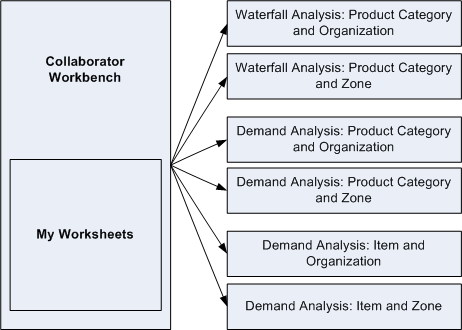
To manage or view forecasts and demand, you start in the Collaborator Workbench and launch any of the relevant Demand Management worksheets. Worksheets with the necessary series for analysis and modification of the forecast are available for the analyst at the beginning of each cycle.
Waterfall Analysis Worksheet

The first step in the Demand Management process is to look at your previous cycle and determine how accurate your forecasts were. Using the Waterfall Analysis worksheets you can compare actual versus forecast demand for individual product categories, organizations, and regions (zones). By comparing actuals to forecast, demand planners can identify problem areas, and deduce why forecast demand did better (or worse) than planned.
For example, a retailer notices that some of their seasonal product categories did not perform well during December. Using this data, your demand analyst deduces that an unseasonably mild winter was to blame. Since this anomaly was restricted to December, the demand analyst decides to not make any changes in future demand for those products. Based on the results in the Forecast Accuracy worksheet, demand analysts can make the required adjustments and take those lessons learned and apply them to the next forecast.
The Waterfall Analysis worksheet is aggregated to the following levels, which allows you to view and slice data depending on the details in which you're interested:
-
Product Category and Zone
-
Product Category and Organization
The following archived forecasts are used in these worksheets:
-
4 Week Lag Forecast: The forecast series for the four weeks prior to the current week.
-
8 Week Lag Forecast: The forecast series for the eight weeks prior to the current week.
-
12 Week Lag Forecast: The forecast series for the 12 weeks prior to the current week.
-
4, 8, and 12-Week Lag Absolute Percentage Error: A measure of forecast accuracy, which is calculated as actual demand minus forecast demand, and displayed as a percentage.
-
4, 8, and 12-Week Lag Absolute Deviation: A measure of forecast accuracy, and represents the average amount that the actual demand varies from forecast demand.
About the Forecast and Metrics View
The Forecast and Metrics view displays a table showing demand and forecast values for individual products, broken down by weekly time buckets.

About the Absolute Deviation View
The Absolute Deviation view graphically represents the amount of deviation that exists in your forecast at the four, eight and 13 week level, represented as total units. Use the Absolute Deviation view to determine how much real demand differs from the forecast.

About the Forecast Percentage Error View
The Forecast Percentage view graphically represents the amount of deviation that exists in your forecast at the four, eight and 13 week level, represented as a percentage of the demand. Use the Forecast Percentage view to determine how much real demand differs from the forecast.

Reference
| Accessing this Worksheet | Do one of the following:
|
| Levels you can select | Either:
|
| Time Aggregation | Weekly |
Demand Analysis Worksheet

Once you have reviewed your forecast from previous cycles to determine how accurate it was, the next step is to review the forecast for the current planning cycle. The Demand Analysis worksheets are available at the start of the planning cycle, and display historical data, forecasted demand accuracy statistics and demand priority at various levels of aggregation.
You can use the Demand Analysis worksheets to view, edit, and approve the forecast for individual weekly time buckets. The Demand Analysis worksheet is aggregated to the following levels, which allows you to view and slice data depending on the details in which you're interested:
-
Product Category and Organization
-
Product Category and Zone
-
Item and Organization
-
Item and Zone
About the Demand Tracking Table
The Demand Tracking table compares sales and demand figures, at your chosen aggregation level, in weekly time buckets. It gives analysts a side-by-side view of their actual sales, demand and forecasted sales, along with Absolute Deviation and Absolute Percentage Error for comparison.

This table tracks the following on a weekly basis:
-
History
-
History Override
-
Adjusted History
-
Baseline Forecast
-
Simulation
-
Base Override
-
% Chg to Base
-
Final Forecast
-
Absolute Deviation
-
Absolute Percentage Error
-
Demand Priority
This table also enables users to track final approval for each line in the forecast. For more information, see Approving the Forecast.
About the Demand Tracking Graph
The Demand Tracking graph displays the Sales, Demand, Sales Forecast, Simulation, and Final Forecast values for the chosen product category over time.

About the Detail Demand Analysis Embedded Worksheet
The Detail Demand Analysis table is an embedded worksheet that compares sales and demand figures for your chosen aggregation level, in weekly time buckets. It gives analysts a side-by-side view of their historical sales, and forecasted sales, along with Absolute Deviation and Absolute Percentage Error for easy comparisons.
Use this worksheet to look at the item level detail for the category. Analysts often look at a higher level first and if the data is not what they expect, they drill down to lower levels to see the detail. As you click on different categories, the detail level worksheet reflects the items for the category, allowing you to review details for that particular item.

Modifying Sales Override Values
-
In My Worksheets (in Collaborator Workbench), click Demand Analysis. Or if a worksheet is currently open, click File > Open. Click Demand Analysis and then click Open.
-
If the worksheet does not show data immediately, click Data > Rerun. Or click the Run button.
This launches the Demand Analysis worksheet.
-
Enters data in the History Override field for history or base override and/or the % Chg to Base field for the Forecast.
The results are shown in the Adjusted History and Final Forecast columns.
Note: You can select and edit multiple cells.
-
From the Data menu, choose Save Data. Or click the Save Data button.
-
From the Data menu, choose Rerun.
The worksheet updates to display the edited values.
Setting the Demand Priority
Note: This setting is only applicable for Demantra integrations with EBS.
-
In My Worksheets (in Collaborator Workbench), click Demand Analysis. Or if a worksheet is currently open, click File > Open. Click Demand Analysis and then click Open.
-
If the worksheet does not show data immediately, click Data > Rerun. Or click the Run button.
This launches the DM: Demand Analysis worksheet.
-
In the Demand Priority field, double-click the cell for which you want to set a demand priority.
-
Enter the desired (numerical) priority.
-
From the File menu, choose Save Worksheet.
Approving the Forecast
Approvers are notified in the My Tasks window that a new forecast is available for the current planning cycle.
-
In My Tasks (in Collaborator Workbench), click Demand Analysis. Or if a worksheet is currently open, click File > Open. Click Demand Analysis and then click Open.
-
If the worksheet does not show data immediately, click Data > Rerun. Or click the Run button.
This launches the Demand Analysis worksheet.
-
Do one of the following:
-
To approve a line item in the forecast, click the appropriate check box in the Approve column.
-
To final approve a line item in the forecast, click the appropriate check box in the Final Approve column.
-
-
From the File menu, choose Save Worksheet.
-
In My Tasks (in Collaborator Workbench), select the Demand Analysis worksheet and then click Done.
Demand Management notifies the final approver when all analysts have approved the current forecast.
Reference
| Accessing this Worksheet | Do one of the following:
|
| Levels you can select | One of:
|
| Time Aggregation | Weekly unless Oracle Demantra was implemented with a monthly or daily time period. |
New Product Launch Management Worksheet
New Product Launch Management is the introduction of a new product at a site (DC/store), site group (also known as a store group), account, or retailer. Launch Management uses an existing product's historical demand to generate a forecast for the new product. With Launch Management you can:
-
Choose whether source data should be scaled when copied.
-
Specify a start date when copying historical data.
-
Specify an end date when copying forecast data.
-
Specify how much historical demand to use (e.g. 50%, 100%, 200%, and so on).
You have the following options when launching a new product:
-
New product introduction at one site based on an existing product.
-
New product introduction at one, multiple or all accounts based on an existing product.
-
New product introduction at one, multiple or all retailers based on an existing product.
-
New product introduction at one, multiple or all site groups based on an existing product.
Launch Management can also copy promotional data including historical promotions from the source product.
Use the icons on the Launch Management toolbar to perform tasks in the Launch Management worksheets.
The New Product Launch Management worksheet uses the following series:
-
Launch Type
-
Launch Status
-
Launch Status Detail
-
Message
Note: Review and/or update the NPI_SERIES_DATA table before creating any new product launch definitions. For more information, see Configuring New Product Launches in the Oracle Demantra Implementation guide.
Business Data
The following table provides information about the default series displayed in the worksheet:
| Series | Series Group | Description |
| Copy Data | Launch Management | Indicates whether historical data will be copied to the new product. The following options are available:
|
| Copy Percentage | Launch Management | Indicates the amount (as a percentage) of historical data copied from the source item to the new product being introduced. The default value is 100, which means that all the historical data will be copied. Defining whether a specific series scales as part of data copy occurs when defining which series will be copied. If you only wanted to copy half of the historical data, you would enter 50 in this field. |
| Launch Mode | Launch Management | Indicates when the new product request is processed. The following options can be displayed:
|
| Launch Status | Launch Management | Indicates the current status for the new product launch. For more information, see Launch Statuses. |
| Launch Status Detail | Launch Management | Provides additional explanation of the launch state. For more information, see Launch Status Details. |
| Launch Type | Launch Management | Indicates the type of launch requested - New Product Launch. In the New Product Launch Management worksheet, this Series displays New Product Launch since the worksheet is dedicated to managing new product launches. For more information refer to Launch Message Requests. |
| Message | Launch Management | Displays any validation or error messages for the launch request. For more information, refer to Launch Request Messages. |
| Product Launch Date | Launch Management | Indicates the date the new product is expected to be available. |
| Request Date | Launch Management | Indicates the date the new product request was created. |
| Request ID | Launch Management | Indicates the internal processing ID assigned when the request was initiated. |
| User Name | Launch Management | Indicates the user that initiated the product launch request. |
To Create a New Product Launch:
Use the New Product Launch Management worksheet to launch a new product at a store, store group or account. This worksheet is also used to view previous product launches. You can edit and cancel product launches that have not reached their product launch date, which is the date the product is expected to be available at the store. A similar worksheet is provided in the Demantra PTP and CDP components.
-
Click New Product Launch from the Launch Management toolbar, or right-click in the Members Browser and choose New Product Launch. The New Product Launch screen appears.
-
In the Request Name field, enter a descriptive name for the product launch.
-
Click the Edit button from the Source region. The Edit Source screen appears.
-
Define the source item and site, site group, or account levels to be used as the basis for the new product.
Note: New product introductions are only supported at the following levels:
-
Item/DC Site
-
Item/Site group (store Group)
-
Item/Account
-
Item/Retailer
One of these source-level combinations has to be selected for the new product introduction to be valid. Select the Item level. Select only one member for the Item and Site level. For the location level, select only one member from the Site, Account, or Retailer level. If different levels or more than one member is selected, then the process will not execute successfully and the launch profile will not be added.
-
Add Item to the Selected Filter Levels, and then add the source item to the Selected members.
Note: Only select a single item.
-
To add the new product to an account, add Account to the Selected Filter Levels and add the account to Selected members.
-
Click Finish.
-
-
Accept the default dates for the source.
-
Click the Edit button from the Target region to define the target item for the new product. The Edit Target screen appears.
Note: The target Item must already exist. Demantra does not create the item. It must be available as a member of the Item level.
-
Select only a single item member. Add the item to the Selected Filter Levels, and then add the target item to the selected members.
-
Click Finish.
-
-
In the Product Launch Date field, enter the date the new product is expected to be available in the date format mm/dd/yyyy, or click the Product Launch Date list to select a date from the calendar.
-
From the Copy Data list, indicate whether the data from the source product should be copied to the new product.
Choose one of the following options:
-
Yes - Copy source historical data to the new product.
-
No - Do not copy historical data to the new product. Only combinations specified from the source population will be copied to the new product (the target). The historical data from the combinations that were specified in the source section will not be copied to the target/new product, but the product will be available at any of the locations that were specified as the source. The product will not have pseudo history on which to generate a forecast, but a forecast may be entered manually or imported from an external source.
-
Yes (Include Promotion History) - Copy source historical promotions to the new product.
Note: For newly created products only promotions occurring until the launch data will be copied. Past the launch date the Refresh Population process will be used to incorporate the new items into promotions.
-
-
In the Copy Percentage field, enter the percentage of the source item's historical data to be copied to the target item.
This value will be used to scale the information from the source item. If 200% is entered, then source item's historical demand is doubled when copied to the new item.
-
In the Copy Start Date – History field, enter the starting date to use when copying the source item's historical data to the target item.
-
In the Copy End Date – Forecast field, enter the end date to use when copying the source item's forecast data to the target item.
-
From the Launch Mode list, select one of the following options:
-
Now - Used to initiate the new product introduction once the request is defined and saved. The Launch Management Realtime workflow runs continuously in the background and processes the request immediately when Now is selected.
Note: If a product is added to a large number of stores, this process may take some time to complete.
-
Batch - Used to initiate the new product request when the next Nightly Batch Process workflow runs. This option is recommended if the process will copy a very large amount of data, or if you are creating multiple product launches.
-
-
Click Submit. When prompted to create the population, click OK.
If an error occurs, review the error message(s), modify the launch parameters as necessary, and then repeat the process.
Note: You may want to create a worksheet to review the new DM, PTP, or IMCDP data that was created by the New Product Launch process.
New Product Launch Workflows
These are the Demantra Predictive Trade Planning New Product Launch workflows:
| Workflow Name | Purpose | Description |
|---|---|---|
| Create Launch Management Views | Launch Management | This workflow validates the NPI_SERIES_DATA definitions and should be run when the NPI_SERIES_DATA table is modified. If all definitions in this table are valid, then the workflow modifies and refreshes the launch management integration interfaces. The Status column in NPI_SERIES_DATA will be set to either Valid or Invalid. If the status is set to Invalid, then the ERROR_MESSAGE column will be populated with the appropriate error message. |
| Launch Management Batch | Launch Management | Executed by the Nightly Batch Process workflow to process launch requests with Status of Valid and Launch Mode of Batch. |
| Launch Management Ongoing | Launch Management | Executed by the Weekly Batch Process workflow to process product and store launch requests with Status of Processed and Ongoing. If the new product or store launch date is greater than or equal to “max_sales_date” system parameter, then it sets the Launch Status to Completed. |
| Launch Management Realtime | Launch Management | Runs continuously in background to process launch requests with Status of Valid and Launch Mode of Now. This workflow is scheduled to Launch on Startup. It runs whenever the Demantra Web application is restarted. |
Launch Request Messages
The Messages field displays any validation or error messages for the launch request. The table below provides a description of the launch messages that can be displayed for a request. If the message indicates your launch request was unable to be processed, modify the launch parameters as necessary, and then resubmit the request.
| Launch Message | Description |
| (Empty) | If the Message field is empty, then no errors occurred while processing the launch request. |
| Multiple Source Account Selection is Not Allowed | Displayed when multiple level members selected for the “Account” level in the source population attribute for the New Product Launch request. |
| Ongoing Launch Request already exists for the Target Item. Edit the Original Launch Request. | Displayed when a launch request already exists for the given target new product and site/site group/account/retailer |
| Validation Success | The source and target population selections were successfully validated. |
| Multiple Source Item Selection is Not Allowed | During a new product launch request, multiple level members were selected for the " Item" level in the source population attribute. |
| Multiple Target Item Selection is Not Allowed | During a new product launch request, multiple level members selected for the "Item" level in the target population attribute. |
| Same Item Cannot be selected for both Source and Target | During a new product launch request, the same level member was selected for the "Item Level" in both the source and target population attribute. |
| Source/Target Item Selection is Missing | During a new product launch request, a level member was not selected for the "Item" level in the source or target population attribute. |
Configure to Order Worksheets
Worksheets with the necessary series for analysis and modification of the forecast and historical data will be available for the planner at the beginning of each cycle. These are the same worksheets available in Oracle Demantra Demand Management. For each set, there are four predefined high level worksheets and one base level worksheet that is launched from the high level worksheet. The worksheets are:
-
Waterfall Analysis: Product Category and Organization
-
Waterfall Analysis: Product Category and Zone
-
Demand Analysis: Product Category & Org
-
Demand Analysis: Product Category & Zone
-
Demand Analysis: Item and Org
-
Demand Analysis: Item and Zone
Worksheets for Demand by Base Model, Option, and Item
There are configure to order seeded worksheets for the review of the bill of material dependent demand. The purpose of these worksheets is to support the demand planning process by analyzing the dependent demand for all the options and items that belong to a base model. This analysis can be accomplished either across all the location dimensions such as organization and site or for a specific organization and site. Some worksheets display the information an indented bill of material layout.
This table shows information about worksheet CTO: Item Demand by BOM by Week (Crosstab). This worksheet is similar to worksheet CTO: Item Demand by BOM by Month (Crosstab). However, it is at the week time level.
Selected series:
-
Adjusted History
-
Consensus Forecast
-
Forecast Dependent Demand
-
Forecast Dependent Demand Override
-
Final Forecast Dependent Demand
-
Consensus Total Demand
-
Final Plng Pct
-
Plng Pct Choice
-
Plng Pct Override
Worksheets for Demand Forecast for All Items of an Option and Base Model
These seeded worksheets are for the dependent demand review of all the items for an option-model combination. The purpose of these worksheets is to support the demand planning process by analyzing the dependent demand for all the dependent items for an option and base model. This analysis can be accomplished either across all the location dimensions such as organization and site or for a specific organization and site. There are two seeded worksheets--one across all the organizations and sites and the other by organization and site. If the worksheet display is across all organizations, Final Planning Percentage is not in the display.
This table shows information about worksheet CTO: Demand for All Items of an Option & Base Model. This worksheet is similar to worksheet CTO: Demand for All Items of an Option & Base Mode across Org and Site. However, it does not have Organization and Site selected for Levels in the page section and does not display Final Planning Percentage.
Selected series:
-
Adjusted History
-
Consensus Forecast
-
Forecast Dependent Demand
-
Forecast Dependent Demand Override
-
Final Forecast Dependent Demand
-
Consensus Total Demand
Worksheet CTO: Demand for All Items of an Option & Base Model across Org and Site is similar to worksheet CTO: Demand for All Items of an Option & Base Model. However, this worksheet has Organization and Site selected for Levels in the page section.
Worksheets for Total Demand and Amount by Option Across All Models
These seeded worksheets are for the review of option demand across all base models. The purpose of these worksheets is to support the demand planning process by analyzing the demand generated for the options across base models. This analysis can be accomplished either across all the location dimensions such as organization and site or for a specific organization and site. There are two seeded worksheets--one across all the organizations and sites and another by organization and site.
This table shows information about worksheet CTO: Total Demand & Amount by Option Across All Models. This worksheet is similar to worksheet CTO: Total Demand & Amount for Options by Base Model. However, it does not include Base Models in the display.
Selected series:
-
Adjusted History
-
Consensus Forecast
-
Final Forecast Dependent Demand
-
Consensus Total Demand
-
Consensus Forecast Amount
-
Final Forecast Dependent Demand Amount
-
Consensus Total Demand Amount
Worksheet CTO: Total Demand & Amount for Options by Base Model is similar to worksheet CTO: Total Demand & Amount by Option Across All Models. However, this worksheet displays the Base Models.
Worksheets for Total Demand and Amount by Item and Week
Worksheet CTO: Total Demand and Amount by Item and Week is for the review of demand and mount for all items, base models and options. The purpose of these worksheets is to support the demand planning process by analyzing the total demand generated for an item or component.
Selected series:
-
Adjusted History
-
Final Forecast Dependent Demand
-
Consensus Forecast
-
Consensus Total Demand
-
Final Forecast Dependent Demand Amount
-
Consensus Forecast Amount
-
Consensus Total Demand Amount
Filtering Data on CTO Worksheets
By default, CTO worksheets are filtered to only display items with CTO data. This includes items that are CTO-only, as well as items with both CTO and sales data. CTO worksheets can be configured to also display general sales data through the Advanced Worksheets Options dialog box.
To see the Advanced Worksheet Options dialog box, go to Worksheet Designer, navigate to section Aggregation, and click button Advanced. You can click button Advanced if either:
-
The worksheet includes a series that is based on a general level
-
You select a general level as an aggregation level or filter
These are the settings:
-
Include SALES_DATA combinations only: The worksheet displays all of the combinations that have historical demand (that exist in table SALES_DATA).
-
Include CTO combinations only: The worksheet displays only combinations that have historical demand for the specified base models.
-
Both options: The worksheet displays all combinations that have historical demand. This includes combinations with independent demand from Sales_data and combinations with dependent demand such as CTO data.
-
Neither option: If neither option is checked, only items that are in Sales_data and CTO data are displayed. For example, base models and items with both independent and dependent demand.
-
All General Levels: Available only when you select neither of the other options. The Neither option displays but uses the lowest level of aggregation for the specified members as criteria for displaying combinations
Caution: Overriding the Base Override series for the Option and Option Classes series may cause unexpected results when viewing worksheet data and creates extraneous combinations in the SALES_DATA table. To prevent this, Oracle strongly recommends adding an Edit-Lock expression to the Base Override series and any other SALES_DATA series that are not relevant to Options and Option Classes.
For more information, see Creating an Edit-Lock Expression in the Oracle Demantra Implementation Guide.
Service Parts Forecasting (SPF) Worksheets
The following Demantra Service Parts Forecasting worksheets are available:
-
SPF: Analyze Forecast Organization Latest Revision
-
SPF: Analyze Forecast Latest Revision
-
SPF: Analyze Organization Base Model Spare
SPF: Analyze Forecast Organization Latest Revision Worksheet
Use this worksheet to review and modify the forecast for a specific Latest Revision/Organization. You can view the inputs used for both forecasting methods (statistical and calculated) and review both the forecasts and MAPE values for each.
You can then modify the historical demand and analytical settings and run simulations. Reject a simulation to roll back the changes and start over. Accept a simulation if you prefer the results over the original values.
You can also toggle between different forecast methods or override the forecast manually. The series SPF Final Forecast displays results of any changes.
The SPF: Analyze Forecast Organization Latest Revision worksheet uses the following series:
-
SPF Item Usage
-
SPF Item Usage Override
-
SPF Item Usage Final
-
SPF Baseline Forecast
-
SPF Simulation
-
SPF Calculated Forecast
-
SPF Forecast Method
-
SPF Forecast Override
-
SPF Final Forecast
-
SPF Failure Rate % Final
-
SPF Forecast MAPE (Out of Sample)
-
SPF Calculated Forecast MAPE
-
SPF Average Demand
For details about these series, see Service Parts Forecasting Series.
SPF: Analyze Forecast Latest Revision Worksheet
This worksheet provides an aggregated view of item usage, statistical and calculated forecasts, and accuracy metrics for a Latest Revision consisting of one or more spares across all organizations. You can easily modify the worksheet to display specific spares, organizations, or tiers. When more detailed analysis of Latest Revision is necessary, use the SPF: Analyze Forecast Spare/Organizations worksheet.
This worksheet does not provide the SPF Forecast Override series by default, but you can add it if desired.
The SPF: Analyze Forecast Latest Revision worksheet includes the following series:
-
SPF Item Usage Final
-
SPF Baseline Forecast
-
SPF Simulation
-
SPF Calculated Forecast
-
SPF Forecast Method
-
SPF Forecast Override
-
SPF Final Forecast
-
SPF Forecast MAPE (Out of Sample)
-
SPF Analytical Forecast MAPE
-
SPF Calculated Forecast MAPE
-
SPF Analytical Forecast BIAS %
-
SPF Calculated Forecast BIAS %
-
SPF Final Forecast MAPE 1 Month Lag
For details about these series, see Service Parts Forecasting Series.
SPF: Analyze Organization Base Model Spare Worksheet
This worksheet displays the Base Model, Spare, and the Latest Revisions servicing the Base Model at the Organization level. This view allows you to carefully examine historical install base and the projected install base. In this view you can override or simulate changes to install base and see how it will affect the forecast across spares that are associated with the base model.
The worksheet uses the BOM tree with Base Model displayed followed by all spares that are part of the base model. Modifications which result in changes of values shown in the SPF Install Base Final or SPF Failure Rate % Final series are propagated to the SPF Calculated Forecast series.
The SPF: Analyze Organization Base Model Spare worksheet includes the following series:
-
SPF Latest Rev
-
SPF Install Base under Contract
-
SPF Install Base Forecast
-
SPF Install Base Simulation
-
SPF Install Base Override
-
SPF Install Base Final
-
SPF Item Usage
-
SPF Item Usage Override
-
SPF Item Usage Final
-
SPF Engineering Estimated Failure Rate %
-
SPF Failure Rate % Calculated
-
SPF Failure Rate % Generation Method
-
SPF Failure Rate % Override
-
SPF Failure Rate % Final
-
SPF Calculated Forecast
-
SPF Baseline Forecast
-
SPF Forecast Method
-
SPF Forecast Override
-
SPF Final Forecast
For details about these series, see Service Parts Forecasting Series.