|
|
 Copyright © 2013, Oracle. All rights reserved. |
|
In the controller layer, where handling page flow of your web applications is a key concern, ADF Controller provides an enhanced navigation and state management model on top of JSF. OEPE allows you to declaratively create task flows where you can pass application control between different types of activities, such as pages, methods on managed beans, case statements, or calls to other task flows.
These task flows can be reused, and can also be nested, both within themselves and within pages. Task flows nested in pages become regions that contain their own set of navigable pages, allowing users to view a number of different pages and functionality without leaving the main page.
This section contains the following topics:
ADF task flows provide a modular approach for defining control flow in an ADF application. Instead of representing an application as a single large JSF page flow, you can break it up into a collection of reusable task flows. Each task flow contains a portion of the application's navigational graph. The nodes in the task flows are activities. An activity node represents a simple logical operation such as displaying a page, executing application logic, or calling another task flow. The transitions between the activities are called control flow cases.
For more information about ADF Task Flows, see the Introduction to ADF Task Flows section in the "Getting Started with ADF Task Flows" chapter of the Oracle Fusion Middleware Fusion Developer's Guide for Oracle Application Development Framework.
To create a new task flow:
task-flow.xml) and location (default: WebContent/WEB-INF folder of your web project) for the ADF Task Flow. Then click Next..jsff). Leave it unselected if you want the view activities that you add to the task flow to reference JSF pages. Then click Finish. The task flow that you created opens by default in the Diagram view of the ADF Task Flow Editor.A new XML source file is created every time you create a new ADF unbounded or bounded task flow. By default, the XML source file for an ADF unbounded task flow is called adfc-config.xml.
Note: Do not use the same name for more than one task flow in the same workspace, even if the task flows belong to different projects. Identical task flow names can cause unpredictable behavior while debugging.
To add activities to a task flow:
Drag an activity from the Palette onto the ADF Task Flow. Normally, you would start with a view activity.Note:The default activity is the first activity to execute in an ADF bounded task flow. For example, the default activity always executes first when a task flow call activity passes control to the ADF bounded task flow. The first activity that you add to a new ADF bounded task flow diagram is automatically identified as the default activity. A green blob over a node indicates that it is the default activity.
For more information on activity types, see the Introduction to Activity Types section in the "Working with Task Flow Activities" chapter of the Oracle Fusion Middleware Fusion Developer's Guide for Oracle Application Development Framework.
Once you have created your task flow, you can add ADF bindings to the Router, Method Call, and TaskFlow Call activities by creating Page Definitions.
To create a Page Definition for binding task flow activities:
Example of a Method Call on a task flow page showing the Create Page Definition option.

Example of a Router on a task flow page showing the Create Page Definition option.
 Example of a methodAction binding on the Page Definition that can be bound to a method call activity.

To configure ADF bindings for Method Calls in a task flow:
Example showing the Choose Method dialog for a Method Call taskflow page definition.
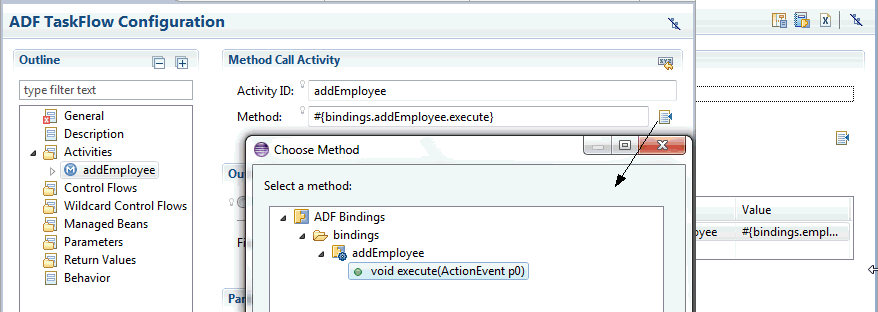
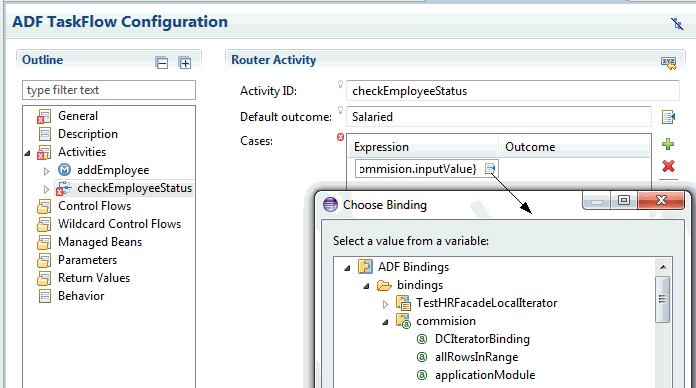
To configure ADF bindings for Router activities in a task flow:
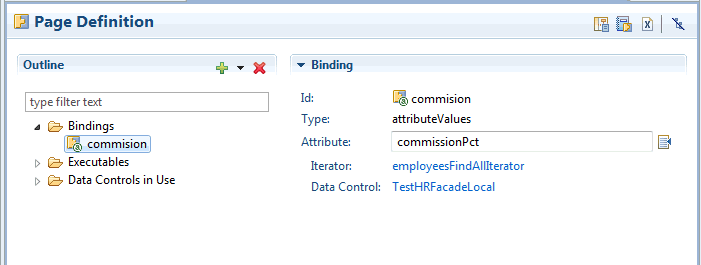
Example of an attribute binding to be used to bind a Router in a taskflow.
Example showing the Choose Binding dialog for the Router activity.
A control flow case identifies how control passes from one activity to the next in the application.
To add a control flow case:
You can render a bounded task flow in a JSF page or page fragment (.jsff) by using an ADF region. When first rendered, the ADF region's content is that of the first view activity in the bounded task flow. The view activities used in the bounded task flow must be associated with page fragments, not pages.
You can pass values to the ADF Region using task flow binding input parameters or contextual events. In addition, you can configure the task flow binding's parametersMap property to determine what input parameters the task flow binding passes from the bounded task flow to the ADF region.
For more information on ADF Regions, see the Introduction to Using Task Flows in ADF Regions section in the "Using Task Flows as Regions" chapter of the Oracle Fusion Middleware Fusion Developer's Guide for Oracle Application Development Framework.
Before you create an ADF region, you need to do the following:
To create an ADF Region:
#{bindings.task_flow1.regionModel}. This is the region model that describes the behavior of the region.
The procedure for running and debugging task flows differs depending on whether the task flow is bounded or unbounded, whether it contains pages or page fragments.
To run or debug a bounded task flow that uses pages:
To run or debug a bounded task flow that uses page fragments:
For more information on running and debugging task flows, see the Testing ADF Task Flows section in the "Getting Started with ADF Task Flows" chapter of the Oracle Fusion Middleware Fusion Developer's Guide for Oracle Application Development Framework.