| Skip Navigation Links | |
| Exit Print View | |

|
Oracle ZFS Storage Appliance Administration Guide |


Example: Manipulating DFS Namespaces
Adding a user to a local group
Authentication and Access Control
Local vs. Remote Configurations
Backing up with "dump" and "tar"
Section A: Kerberos issue (KB951191)
Section B: NTLMv2 issue (KB957441)
Identity Mapping Directory-based Mapping
Identity Mapping Name-based Mapping
Mapping Rule Directional Symbols
RIP and RIPng Dynamic Routing Protocols
Receiver Configuration Examples
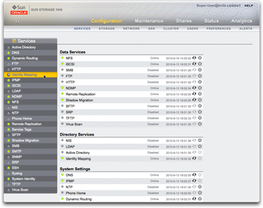
The Services screen features a side panel for quick navigation between services.
You can configure the following services on an appliance:
|
Note: UIDs and GIDs from 0-99 are reserved by the operating system vendor for use in future applications. Their use by end system users or vendors of layered products is not supported and may cause security related issues with future applications.
|
|
|
|
You use the BUI Services screens to view and modify the services and settings described in tables above. Double click a service line to view the definition screen for that service. The following tables describes the icons and buttons in the services screens:
|
See the Basic Usage section of the documentation for a full icon list.
To view or edit the properties for a specific service, mouse over the service the status icon that is to the left of the service name. The status icon turns into an arrow icon, which you click to display the properties screen for the selected service.
Note: In any of the services screens, you can show a side panel of all services by clicking the small arrow icon to the left of the Services title (near the top left of each screen). Click this icon again to hide the list.
If a service is not online, click the power icon  to
bring the service online
to
bring the service online  .
.
If a service is online and you want to disabled it, click
the power icon to take the service offline 
You define properties for a service by displaying a service screen (double click a service). Change the properties and then click the APPLY button. Use the REVERT button to reset properties to the state they were in before you edited them.
Some service screens also provide service logs that provide information to help you diagnose service issues. If a Logs button exists in the top right of a service screen, that service provide logs. Logs can provide information about:
Times when a service changed state
Error messages from the service
Log content is specific to each individual service and is subject to change with future updates to the appliance software. The following are example messages that are commonly used in this version of the appliance:
|
The following example is from the NTP service:
[ Oct 11 21:05:31 Enabled. ]
[ Oct 11 21:07:37 Executing start method (...). ]
[ Oct 11 21:13:38 Method "start" exited with status 0. ]
The first log event in the example shows that the system was booted at 21:05. The second entry at 21:07:37 records that the service began startup, which completed at 21:13:38. Due to the nature of NTP and system clock adjustment, this service can take minutes to complete startup, as shown by the log.
The CLI services section is under configuration services. Use the show command to list the current state of all services:
caji:> configuration services
caji:configuration services> show
Services:
                              ad => disabled
                             smb => disabled
                             dns => online
                      dynrouting => online
                             ftp => disabled
                            http => disabled
                        identity => online
                           idmap => online
                            ipmp => online
                           iscsi => online
                            ldap => disabled
                            ndmp => online
                             nfs => online
                             nis => disabled
                             ntp => disabled
                     replication => online
                            scrk => disabled
                            sftp => disabled
                          shadow => online
                            smtp => online
                            snmp => disabled
                             ssh => online
                          syslog => disabled
                            tags => online
                            tftp => disabled
                           vscan => disabled


Children:
                              ad => Configure Active Directory
                             smb => Configure SMB
                             dns => Configure DNS
                      dynrouting => Configure Dynamic Routing
                             ftp => Configure FTP
                            http => Configure HTTP
                        identity => Configure System Identity
                           idmap => Configure Identity Mapping
                            ipmp => Configure IPMP
                           iscsi => Configure iSCSI
                            ldap => Configure LDAP
                            ndmp => Configure NDMP
                             nfs => Configure NFS
                             nis => Configure NIS
                             ntp => Configure NTP
                     replication => Configure Remote Replication
                            scrk => Configure Phone Home
                            sftp => Configure SFTP
                          shadow => Configure Shadow Migration
                            smtp => Configure SMTP
                            snmp => Configure SNMP
                             srp => Configure SRP
                             ssh => Configure SSH
                          syslog => Configure Syslog
                            tags => Configure Service Tags
                            tftp => Configure TFTP
                           vscan => Configure Virus Scan
                         routing => Configure Routing Table
Select a service by entering its name. For example, to select nis:
caji:configuration services> nis
caji:configuration services nis>
After you select a service, you can view its state, enable it, disable it, and set its properties.
You can view a service's state using the show command:
caji:configuration services nis> show
Properties:
                      <status> = online
                        domain = fishworks
                     broadcast = true
                     ypservers =
Use the enable command to enable a service:
caji:configuration services nis> enable
Use the disable command to disable a service:
caji:configuration services nis> disable
Use the set command to set the properties for the selected service. After setting the properties, use the commit command to save and activate the new configuration:
caji:configuration services nis> set domain="mydomain"
                        domain = mydomain (uncommitted)
caji:configuration services nis> commit
caji:configuration services nis> show
Properties:
                      <status> = online
                        domain = mydomain
                     broadcast = true
                     ypservers =
Note: Property names are similar to their names in the BUI, but CLI names are usually shorter and sometimes abbreviated.
You cannot view service logs from the CLI. Use the BUI as described above.
Type help to see all commands for a service:
caji:configuration services nis> help
Subcommands that are valid in this context:

   help [topic]         => Get context-sensitive help. If [topic] is specified,
                           it must be one of "builtins", "commands", "general",
                           "help", "script" or "properties".

   show                 => Show information pertinent to the current context

   commit               => Commit current state, including any changes

   done                 => Finish operating on "nis"

   enable               => Enable the nis service

   disable              => Disable the nis service

   get [prop]           => Get value for property [prop]. ("help properties"
                           for valid properties.) If [prop] is not specified,
                           returns values for all properties.

   set [prop]           => Set property [prop] to [value]. ("help properties"
                           for valid properties.) For properties taking list
                           values, [value] should be a comma-separated list of
                           values.


|


