You are here: Clients > Addresses > Address Change Letter

Address Change Letter

When a change to an existing client address is made, OIPA can automatically spawn an activity on the Client Activity screen that will generate an Address Change Letter. This will all happen automatically if configuration is in place to support this functionality.


Steps to Process the Address Change Letter Activity

  1. Log in using a Prototype Company user name and password. This will provide access to the prototype company where the sample activities are configured.
  2. Click Client | Search from the Main menu and find an existing client record that already contains an address. If no clients exist, create a new client and add one address record.
  3. Click Address in the Left Navigation menu of the Client screen and select the Residence address. If one does not already exist add a Residence address.
  4. Make a change to the address and then save the change.
  5. Click Activities on the Left Navigation menu.
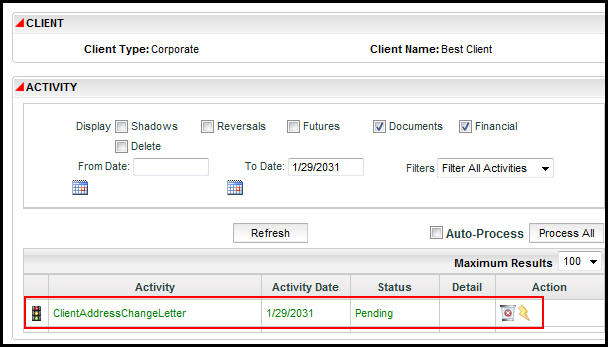
  6. Notice the ClientAddressChangeLetter activity is listed in pending status on the Activity screen.
  7. Process the activity. If configured, a letter is generated at this point..


Client Address Change Letter Activity on Client Activity Screen

Client Address Change Letter Activity on Client Activity Screen


Copyright © 2009, 2013, Oracle and/or its affiliates. All rights reserved. Legal Notices