The main Dashboard Architect screen is divided into numbered segments, as illustrated in the figure. Each segment is described in Table 5.
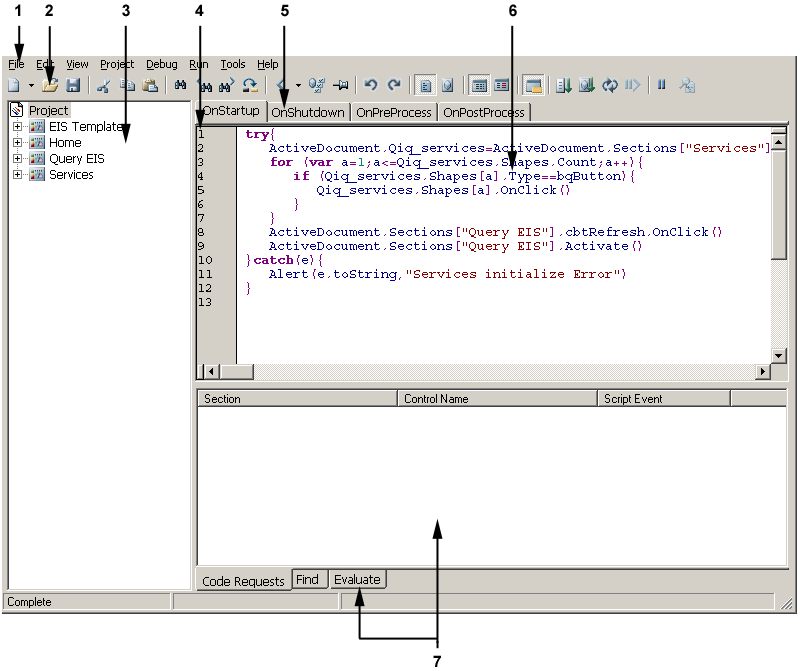
Table 5. Interface Descriptions
Item Label | Description |
|---|---|
1. Menu bar | Access to Dashboard Architect features (Some menu bar entries provide common keyboard shortcuts and use buttons to activate functionality) |
2. Toolbar | One-click access to the most functionality |
3. Navigation panel | The panel contains one of these modes:
|
4. Line number | Line number indicator |
5. Event handlers | Displayed as content tabs for sections or controls at the top of the editing window (6) |
6. Editing window | Edit JavaScript or examine executed code with breakpoints |
7. Output window and content tabs | The output window contains three content tabs.
Note: The output window is visible only if |
 ). Clicking a line of code in the output window causes the editing window (6) to display the JavaScript for that event handler.
 (Evaluate) and
  (Stack Trace). Within the evaluate pane
  (Cut),
  (Copy), or
  (Paste) an expression to be evaluated, or click
  (Clear) to delete the expression from this window.
 is clicked or Crtl+W is pressed.