
Running and Managing Pay Cycles
This section discusses how to process and manage pay cycles.
Page Used to Run and Manage a Pay Cycle
|
Page Name |
Definition Name |
Navigation |
Usage |
|---|---|---|---|
|
Pay Cycle Manager |
PYCYCL_MGR |
|
Run and manage the Pay Cycle process, from Payment Selection through output processing (printing checks and advices, producing EFT files, and so forth). Transfer to pay cycle exceptions pages and pay cycle detail and summary data pages, where you can handle exceptions and hold, exempt, or separate payments. View Pay Cycle processing status and results. |
Pay Cycle Manager Page
Use the Pay Cycle Manager page (PYCYCL_MGR) to run and manage the Pay Cycle process, from Payment Selection through output processing (printing checks and advices, producing EFT files, and so forth).
Transfer to pay cycle exceptions pages and pay cycle detail and summary data pages, where you can handle exceptions and hold, exempt, or separate payments. View Pay Cycle processing status and results.
Image: Pay Cycle Manager page before processing payment selection and creation
This example illustrates the fields and controls on the Pay Cycle Manager page before processing payment selection and creation. You can find definitions for the fields and controls later on this page.
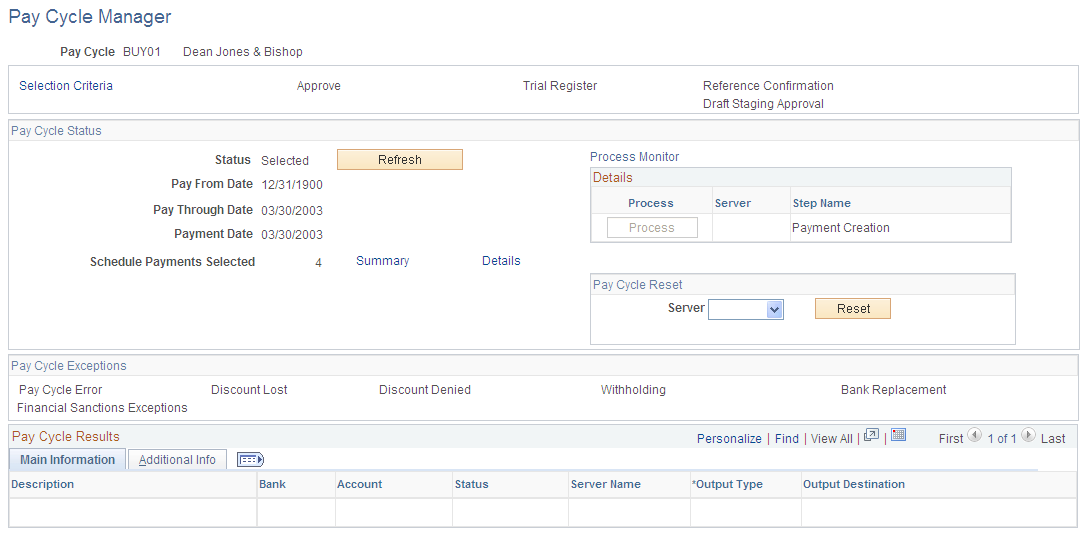
Image: Pay Cycle Manager page after processing payment selection and creation and before processing output processes
This example illustrates the fields and controls on the Pay Cycle Manager page after processing payment selection and creation and before processing output processes. You can find definitions for the fields and controls later on this page.

Starting the Pay Cycle
Start the pay cycle by clicking the Process button for either Payment Selection or Payment Selection & Creation. The Pay Cycle Manager searches for all banks and payment methods defined for the pay cycle. Each type of output is placed in a row in the Pay Cycle Results grid after the Payment Creation process has finished. You can enter an output destination for each row or accept the output destination that is supplied by default from the User Preferences.
Pay Cycle Processes and Output Processes
Pay cycle processes are the applications that must run before you start receiving output from each bank account or payment method. These processes can consist of Payment Selection, Draft Staging, and Payment Creation, individually. You can run them all together by selecting Payment Selection & Creation. Click the Process button next to the process that you want to perform.
After all pay cycle processes are run, the pay status changes to Created or Approved, depending on whether user approval is required. If approval is required, you perform approval at this point. You are now ready to produce an output file. All output processes are listed in the Pay Cycle Results grid near the bottom of the page. A process button exists for each output process that can be generated for the pay cycle (for example, printing a check for a different bank account, printing an advice, or generating EFT files). After you have run the output process once, the Process button changes to Recreate, which links you to the Recreate Checks page, where you can re-create payments. The Pay Cycle status does not change to Complete until you have finished running all output processes.
Note: (USF) If you are a U.S. federal customer who requires payment schedule certification, this certification must occur after Payment Selection. This means that you must run Payment Selection and Payment Creation separately.
Note: When you run multiple pay cycles in parallel and in large volume, Oracle recommends that you set up different business units and banks in pay cycles to avoid contention issues. Running several pay cycles in parallel for the same bank may cause processing issues.
Common Page Information
Pay Cycle Status
| Status |
Displays the current status of the pay cycle. A New status indicates that this is the first time that the pay cycle is being run. See Pay Cycle Statuses. |
| Pay Through Date |
Displays the last scheduled payment date that a voucher can have to be included for payment in the pay cycle. |
| Payment Date |
Displays the date that prints on checks or shows on other payment methods in the pay cycle. It can differ from the pay through date. |
| Schedule Payments Selected |
Displays the number of scheduled payments to be processed. |
| Refresh |
Refreshes the Pay Cycle Manager page, displaying the most current status. Some Pay Cycle processes must be complete before the next process can start. While these processes are running, the status for the pay cycle is Running. Clicking the Refresh link updates the page so that you can see whether the pay cycle is ready to advance to the next step. |
| Update Payment Advice |
This button appears if you run a pay cycle with EXPN defined as a source. Clicking this button will encrypt the credit card number for EXPN transactions listed in the payment advice table and remove any related information from the temp table. After you click this button, a message will appear. Click OK to update the Payment Advice table with encrypted credit card numbers, if any, and remove any related information from the temp table. After you click the Update Payment Advice button, it will no longer appear on the page. If you do not click this button, the unencrypted credit card data will be saved to the Payment Advice table. When this paycycle is run again, users can click the button to clean all of the current and previous data. |
| Summary |
Click to transfer to the Pay Cycle Summary page, where you can view payment information about scheduled payments, summarized by bank account and payment method. This link becomes available after Payment Selection is complete. |
| Details |
Click to transfer to the Pay Cycle Details page, where you can search scheduled payments by various search criteria, such as business unit, invoice, or supplier ID. You can also hold individual scheduled payments, exempt them from pay cycle processing, or flag them as separate payments. This link becomes available after Payment Selection is complete. |
Process
Each row contains a Process button, a Server field, and a display-only description of an available pay cycle process. Some processes are available only if you are creating certain types of payments. For example, Draft Staging is available only if you are processing draft payments.
Processes are not available and no longer appear after they have been completed.
To run a process, select a server and click the process button for the process row. The server drop-down list box shows only servers that have a status of Running on the Process Monitor Server List page. The system performs validation before a process is initiated to ensure that the Process Scheduler server is currently running.
The standard processes are:
Pay Cycle Reset
Pay Cycle Exceptions
The links in this group box become active only if pay cycle exceptions exist after the Payment Selection, Payment Creation processes, or both have been run. If a payment is marked with an exception (except for discounts lost exceptions), it is rejected for further processing within the pay cycle. You must either correct or override the exception and run the payment as part of another pay cycle.
Pay Cycle Results - Main Information tab
When the Payment Creation process is complete, the Pay Cycle Results grid displays a row of data for each output process that must be run to generate payment files and negotiable documents. For EFT payments, because all payments regardless of bank account run as one output process, only one EFT row can appear. For checks, advices, positive payment files, and file copies, each bank account and payment method combination runs as a separate output process. This means that multiple check rows, positive payment rows, and so forth can appear in the grid.
Pay Cycle Results - Additional Info tab
Resetting Pay Cycles
You can reset a payment cycle in the Pay Cycle Manager if you decide against creating any payments for the selected vouchers. This option enables you to deselect vouchers for payment after you run a pay cycle, but before you print the checks. You can reset a pay cycle after Payment Selection, but to reset after Payment Creation requires extra steps. To reset after Payment Creation, go through Pay Cycle Approval to reject the pay cycle. Then perform the reset.
Note: PeopleSoft Payables marks vouchers as selected when Payment Selection runs. No other transactions can occur on the selected vouchers. If you decide not to produce payment files or print checks for these vouchers, reset the selection so that a later pay cycle can reselect the vouchers.
Note: Resetting a pay cycle that is using bank account replacement reverses the bank replacement. For example, assume that a payment is coming from bank account A, and that during the pay cycle, bank account B replaces bank account A. If you reset the pay cycle for this payment, the payment reverts to the original account, which is bank account A.
Note: If EFT and ACH prenotes are included in the pay cycle, the system reverses the prenote status on the Supplier Information component (VNDR_ID) from Pending to New when you reset a pay cycle.
Completing the Pay Cycle
When you have successfully selected your payments, viewed and processed any exceptions, generated payments, approved the pay cycle, produced payment outputs, confirmed payment reference numbering, and formatted and produced the positive payment file (if required), the Pay Cycle Manager shows a status of Completed.