
Handling Pay Cycle Exceptions and Alerts
This section provides overviews of pay cycle alerts and financial sanctions validation and discusses how to:
Handle potential lost discounts.
Handle denied discounts.
View withholding alerts.
View Pay Cycle errors.
View bank replacement exceptions.
View financial sanctions exceptions.
Pages Used to Handle Pay Cycle Exceptions and Alerts
|
Page Name |
Definition Name |
Navigation |
Usage |
|---|---|---|---|
|
Lost Discount Alert |
PYCYCL_DSCNT_ALRT |
|
View scheduled payments that you have not included in the current pay cycle with earned discounts that you may lose if you don't pay them before the next payment date. |
|
Discount Denied |
PYCYCL_DSCNT_DENY |
|
View scheduled payments for which the system has denied a discount because waiting for the due date and earning the interest income during that time is better. |
|
Withholding Exception |
WTHD_EXCEPTION |
|
View payments for which withholding errors occurred during pay cycle processing. |
|
Pay Cycle Errors |
PYCYCL_ERR |
|
View pay cycle processing errors for a pay cycle. You can view general information on financial sanctions exceptions using the Pay Cycle Errors page. Use the Pay Cycle Financial Sanction Warnings page to access detail information about the financial sanctions exceptions. |
|
Bank Replacement Exceptions - Schedule Exceptions |
PYCYCL_BANK_EXPTN |
|
Review bank replacement exceptions created during the Payment Selection process. These occur only when you apply a bank replacement rule to replace the bank account (optionally including payment method and currency) for all payments in a pay cycle. |
|
Bank Replacement Exceptions - Payment Exceptions |
PYCYCL_BANK_EXPTN1 |
|
Review bank replacement exceptions created during the Payment Creation process. These occur when you apply a bank replacement rule that includes any of the following options: Replace Bank with Another Bank, Replace by Currency, Replace by Individual Payment Limit, and Replace by Bank Maximum Limit. |
|
Pay Cycle Financial Sanction Warnings |
PYCYCL_FNS_ERR |
|
View detail information about financial sanctions exceptions for a pay cycle. |
Understanding Pay Cycle Alerts
This section discusses:
General pay cycle alerts.
Discount evaluation alerts.
General Pay Cycle Alerts
After you run the Payment Selection and Payment Creation processes, you may find that one or more of the links in the Pay Cycle Exceptions group box in Pay Cycle Manager becomes available. This means that you have an exception or an alert to view and handle. Some of these exceptions are logged after Payment Selection has finished; you can usually take immediate action to handle these exceptions before continuing with pay cycle processing. Others are logged only after Payment Creation is finished; these can be viewed as informational only, and usually require handling outside of the pay cycle pages before you run them in a later pay cycle.
Discount Evaluation Alerts
The Discount Evaluation feature compares the potential interest income with the discount amount and determines whether taking a discount is economically feasible.
PeopleSoft Payables uses the Number of Days in Year to compute the annual discount effective rate. PeopleSoft Payables is delivered with a default number of 360 days, in accordance with U.S. federal specifications; but you can override that default on the External Accounts - Accounts Information page.
During the pay cycle, the system calculates the due dates for vouchers based on the invoice date, invoice receipt date, acceptance date, or constructive receipt date, in conjunction with the payment terms (interest rates versus payment discounts).
If the bank interest income is greater than the amount of the discount, the pay cycle drops the voucher from the process. If a payment is denied, the system provides a discount denied alert so that you can pay the voucher if you choose to.
Understanding Financial Sanctions Validation
Oracle provides validation of your suppliers against financial sanctions lists (for example, the Specially Designated Nationals (SDN) list) at the supplier level, voucher level, and payment level. At the payment level, financial sanctions validation is performed if you:
Select the Financial Sanctions list edit check box on the Payment Selection Criteria - Preferences page for that pay cycle.
If financial sanctions validation is enabled at the installation level, all remit suppliers selected for a pay cycle are validated. If financial sanctions validation is enabled at the bank level, only selected remit suppliers whose banks are enabled are validated. The system updates the supplier's financial sanctions status on the Supplier Information component.
Run the Financial Sanctions Validation Application Engine process (AP_SDN_VAL).
You can schedule the Financial Sanctions Validation process to run on a predefined schedule using the Process Scheduler, or you can run it on an ad hoc basis.
Note: Financial sanctions validation is performed only on remit suppliers with a source transaction of VCHR (Accounts Payable transactions).
At the payment level, the system verifies the financial sanctions status of the supplier during:
The Payment Selection process.
The system does not select payments for a supplier with a financial sanctions status of Blocked or Review. However, if financial sanctions validation is enabled at the bank level and you no longer validate for a particular supplier's bank, the system may select a supplier with a financial sanctions status of Review.
The validation step of the Payment Selection process, only if you select the Financial Sanctions edit list check box on the Payment Selection Criteria - Preferences page for that pay cycle.
Selecting this option enables you to validate your suppliers once again before payment creation. If the supplier's financial sanctions status changes to Review, the system creates payment validation errors for this supplier's payments. You can view these payment validation errors on the Pay Cycle Financial Sanction Warnings page.
Note: The system never creates payments for a supplier with a financial sanctions status of Blocked regardless of whether financial sanctions validation is enabled at the installation level or bank level, or is not enabled at either level. If you change how financial sanctions validation is performed (for example, you no longer validate for a particular bank), you must change the financial sanctions status on the supplier from Blocked to Valid or Cleared before you can pay this supplier.
Lost Discount Alert Page
Use the Lost Discount Alert page (PYCYCL_DSCNT_ALRT) to view scheduled payments that you have not included in the current pay cycle with earned discounts that you may lose if you don't pay them before the next payment date.
Image: Lost Discount Alert page
This example illustrates the fields and controls on the Lost Discount Alert page. You can find definitions for the fields and controls later on this page.
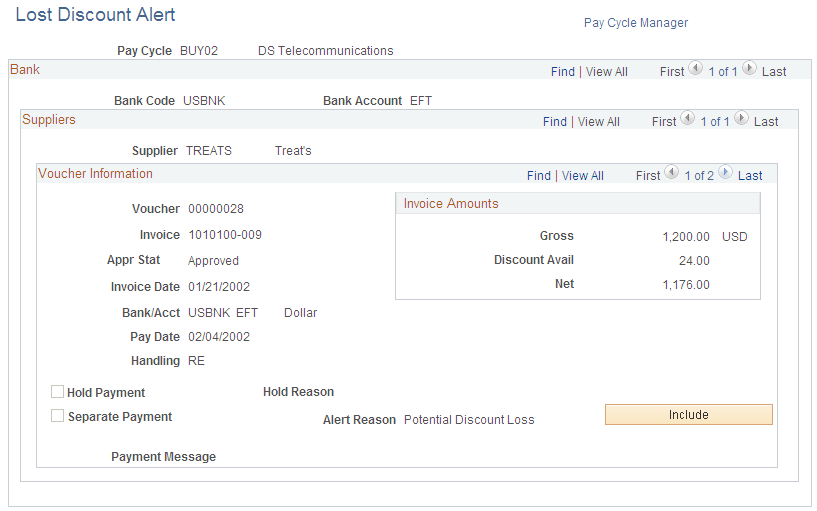
This page alerts you to any discount lost on a pay cycle. If you selected the Include Lost Discount check box on the Payment Selection Criteria - Preferences page for the pay cycle, then all payments with potential lost discounts are automatically paid in the pay cycle, and this page is not applicable. You must view this page after Payment Selection has run and before you run Payment Creation to use the Include button to include a payment with a potential lost discount.
Note: All discount alerts are cleared automatically when you rerun a completed pay cycle.
Note: Lost rebates are not tracked and do not appear on this page.
Voucher Information
| Appr Stat (approval status) |
Displays the voucher scheduled payment approval status. |
| Handling |
Displays the payment handling code. You set up payment handling codes on the Payment Handling Codes page. See Payment Sorting. |
| Separate Payment |
Specifies whether the scheduled payment is a separate payment and prevents it from being grouped with any other payment. If this option is not selected, the scheduled payment is combined with other scheduled payments that are being paid to a supplier from the same bank account using the same payment method. By default, the system groups all payments for a supplier by the payment method, even if the payments are for different business units. In addition to the standard payment groupings, draft payments have added groupings, such as draft maturity date, sight code, or scheduled payment date. You can overrule the default grouping criteria if you set up the Do Not Mix with Other Business Units option for a particular business unit or when you select the Separate payment option. |
| Hold Payment |
Specifies whether the payment schedule is on hold so that it is not picked up by the pay cycle. The hold option can be set manually or by a scheduled process. For example, the withholding process places on hold those vouchers with withholding exceptions. |
| Hold Reason |
Displays the reason that the scheduled payment is on hold. |
| Alert Reason |
Indicates why the alert was issued for the payment. |
| Payment Message |
Shows any payment message for the payment schedule. |
| Include |
Click to include the payment in the current pay cycle. This button is active only after you run Payment Selection and before you run Payment Creation. |
Discount Denied Page
Use the Discount Denied page (PYCYCL_DSCNT_DENY) to view scheduled payments for which the system has denied a discount because waiting for the due date and earning the interest income during that time is better.
The fields on this page are the same as the fields on the Lost Discount Alert page, except that this page shows discounts that were evaluated as not worth taking. If you access the page after running Payment Selection and before running Payment Creation, you can click the Include button to include the scheduled payment in the current pay cycle and take the discount.
Withholding Exception Page
Use the Withholding Exception page (WTHD_EXCEPTION) to view payments for which withholding errors occurred during pay cycle processing.
Note: Scheduled payments with withholding exceptions are automatically placed on hold. To make a payment with withholding exceptions available for pay cycle processing, you must modify the voucher or the withholding setup, take the scheduled payment off of hold, and run the payment in a new pay cycle.
Pay Cycle Errors Page
Use the Pay Cycle Errors page (PYCYCL_ERR) to view pay cycle processing errors for a pay cycle.
Search Criteria
Search Results
The search results grid displays the error type for each error, along with the source of the error (such as voucher entry), the advice ID and advice sequence (which are identical to the voucher ID and payment count), key fields and, in the Message Text field, a description of the error.
Viewing Bank Replacement Exceptions
Use the Bank Replacement Exceptions - Schedule Exceptions page (PYCYCL_BANK_EXPTN) to review bank replacement exceptions created during the Payment Selection process.
These occur only when you apply a bank replacement rule to replace the bank account (optionally including payment method and currency) for all payments in a pay cycle.
Schedule exceptions occur during the Payment Selection process, and payment exceptions occur during the Payment Creation process. Schedule exceptions occur only if your bank replacement rule consists of the option to replace all bank accounts in the pay cycle.
Note: Scheduled payments with bank replacement exceptions are dropped from the pay cycle and revert to their original bank account, payment method, and currency upon completion of the pay cycle. They remain available in their original state for future pay cycles.
Viewing Schedule Exceptions
Viewing Payment Exceptions
Pay Cycle Financial Sanction Warnings Page
Use the Pay Cycle Financial Sanction Warnings page (PYCYCL_FNS_ERR) to view detail information about financial sanctions exceptions for a pay cycle.
Use this page to access detail information on the financial sanctions exceptions. You can also use the Pay Cycle Errors page to view general information on financial sanctions exceptions.
Voucher
Name/Address Information
Displays the address, city, and country of the supplier.
Message Detail
Displays the error and description of the error.