Creating, Updating, and Reusing Pay Cycles
Use the Payment Selection Criteria component (PYCYCL_DEFN) to define pay cycles.
This section provides an overview of pay cycle definition, lists prerequisites, and discusses how to:
Define pay cycle date criteria.
Set pay cycle preferences.
Specify source criteria.
Specify bank and payment methods criteria.
Specify pay group and netting criteria.
Set pay cycle draft options.
Pages Used to Create, Update, and Reuse Pay Cycles
|
Page Name |
Definition Name |
Navigation |
Usage |
|---|---|---|---|
|
Payment Selection Criteria - Dates |
PYCYCL_DEFN_DT |
|
Define pay cycle dates. |
|
Payment Selection Criteria - Preferences |
PYCYCL_DEFN_OPT |
|
Set pay cycle general options. |
|
Source / BU (Source / Business Unit) |
PYCYCL_DEFN_SRC |
|
Define the pay cycle by source transaction and business unit. |
|
Bank / Method |
PYCYCL_DEFN_BNK |
|
Specify bank information and payment methods. |
|
Pay Group / Netting |
PYCYCL_DEFN_PYGRP |
|
Specify pay groups to include in the pay cycle and netting reference codes to use in performing payables/receivables netting. Specifying pay groups restricts the selection of payments to the pay group specified. The fields on this page are available for entry only if you select Use Supplier Pay Groups or specify a netting option of S on the Preferences page. |
|
Draft Options |
PYCYCL_DFT_OPT |
|
Set Draft rounding and optimization options. |
Understanding Pay Cycle Definition
This section provides an overview of pay cycle creation and discusses:
Other payment options.
Payment forecasting.
Netting.
Lost discount alert dates.
Pay Cycle Creation
In PeopleSoft Payables, a pay cycle is a set of payment selection criteria that you use to pay groups of vouchers that share certain characteristics. You can run the Pay Cycle process repeatedly, using the same pay cycle criteria to select payments, by updating the date information. Think of a pay cycle as a payment selection criteria template.
For example, you might want to create two types of pay cycles: one for regular suppliers, the other for employees set up as suppliers. Or you might want to create checks for each of your business units separately. In this case, you could set up a separate pay cycle for each business unit. PeopleSoft Payables creates payments only for the business unit or units specified in the pay cycle. You can also select payments based on bank information, supplier pay groups, or payment method.
Your pay cycle definition controls the scheduled payments that are eligible for payment in each cycle. Each individual voucher scheduled for payment within the cycle contains information that ultimately determines its selection. To create or update a pay cycle, you use the Payment Selection Criteria component. Each page of the Payment Selection Criteria component defines different aspects of the payment selection cycle.
Other Payment Options
After you have gone through the payment processing routine a few times, you will find that it runs easily. However, occasionally you might have payments that need to be paid outside of the regular payment processing routine. You can use the manual Payment Creation process or express payments to create manual payments, or you can create record-only payments on the Voucher - Payments page.
Payment Forecasting
To see the expected cash requirements for upcoming payment cycles, go to the Forecast by Bank Account page. You can also see the different time intervals for payments on the Forecast Cycle page. You can run the Payment Forecast report (APY2040), which enables you to see your cash requirements by business unit, supplier, bank, or payment method.
See Forecasting Payments.
Netting
When you create a pay cycle, you can specify to use the netting process to offset accounts receivable and accounts payable transactions for a customer who is also a supplier. Netting decreases the number of transactions between you and your customer or supplier and, by reducing banking fees, saves you business costs. The Netting Bank is a virtual bank account, meaning that no funds are actually paid into or out of the netting account. It is debited and credited by the netted amount of the accounts payable and accounts receivable transactions.
For example, suppose that you are both a customer and supplier to company A and that you set up a contractual netting relationship. You agree on certain intervals to conduct netting and zero out your respective accounts. At netting closing time, you might have the following transactions:
|
Accounts Payable Transactions (in USD) |
Accounts Receivable Transactions (in USD) |
|---|---|
|
100.00 |
150.00 |
|
200.00 |
50.00 |
|
Total: 300.00 |
Total: 200.00 |
|
<200.00> |
None |
|
Net: 100.00 |
None |
Instead of performing three accounts payable transactions and two accounts receivable transactions after the netting closing process, you pay a single outstanding payment of 100.00 USD to balance your account. In this example, the books for both you and company A mirror each other.
Netting closing can be run manually from the Manual Select Netting component (NET_MANUAL_SELECT), or it can be run automatically during Pay Cycle. You specify the automatic netting parameters in the Automatic Netting Selection component (NET_AUTO_SELECTION).
Enter the netting reference ID to specify which supplier accounts to run the netting process on. The system creates the netting reference ID when you define your PeopleSoft Payables netting relationship with your supplier. The netting reference ID is a unique identifier that contains information such as the netting date, status, bank, and settlement information.
The Netting Closing Application Engine processes (TR_NET_CLOSE and TR_NET_ARCLS), which are launched by the Pay Cycle process, base the settlement on information contained in the netting contract, maintained in PeopleSoft Cash Management. All balanced payments go through the normal Payment Selection process and are consolidated as a single payment. The netting payment currency and rate are automatically set to match the transaction currency and rate type.
Important! You must have PeopleSoft Cash Management and Receivables installed to use the netting functionality. However, if your organization is not using the PeopleSoft Payables netting functionality, you generally do not need PeopleSoft Cash Management installed on your system. Confirm that your implementation does not need PeopleSoft Cash Management installed, and then disable it on the Installed Products page. Disabling products that you do not have installed on the system improves performance.
Note: You can exclude certain vouchers from netting by setting up netting exclusion rules on the Netting Exclusion Parameters page in PeopleSoft Cash Management. The parameters that can determine exclusion include supplier ID, supplier location, supplier classification, and ChartField value.
Lost Discount Alert Dates
When you create a pay cycle, you can use the Include Lost Discounts option on the Payment Selection Criteria - Preferences page to elect to include in the current pay cycle any payments that would potentially lose discounts if paid in the next pay cycle. If you do not select the Include Lost Discounts option, the system alerts you to lost discounts using the Lost Discount Alert page when you run the pay cycle, after you run Payment Selection. You can use the Lost Discount Alert page only if you run Payment Selection and Payment Creation separately. Using the Lost Discount Alert page, you can manually include payments with potential lost discounts in the pay cycle before you run Payment Creation. Selecting the Include Lost Discounts option, however, is the only way to include payments with potential lost discounts in a pay cycle if you run Payment Selection and Payment Creation together.
The system calculates whether a discount was potentially lost by comparing the discount terms on the voucher to the next payment through date (the last scheduled payment date that will be included in the next pay cycle) and next payment date (the actual payment date that will be recorded for the payments made in the next pay cycle) that you enter on the Payment Selection Criteria - Dates page. If the following criteria are met for a voucher, then the system includes the payment in the current pay cycle (if you selected the Include Lost Discounts check box) or lists it on the Lost Discount Alerts page (if you didn't select Include Lost Discounts and you run Payment Selection separately from Payment Creation):
The payment due date on a voucher is greater than the pay through date for the current pay cycle, and indicates that it should be included in a later pay cycle.
The discount terms on the voucher are such that the discount due date is earlier than the next payment due date, and thus a payment made in the next pay cycle would cause a lost discount.
The potential lost discount outweighs the potential interest earned on the payment amount if the payment is paid on the due date rather than the discount due date.
You set up discount evaluation criteria, including interest percentage, when you set up bank accounts.
If you lose discounts by not selecting Include Lost Discounts and not manually including payments with potential lost discounts in the pay cycle after running Payment Selection separately, the lost discounts are reported on the Discounts Denied page.
Note: Rebate terms on a voucher are evaluated in the same way as discount terms. However, vouchers that would lose rebates if they aren't paid in the current pay cycle (and pass the interest amount versus rebate amount evaluation) are always automatically taken during Pay Cycle processing, irrespective of whether you select Include Lost Discounts. Rebates are not tracked and don't appear on the Lost Discount Alert page.
The following example illustrates how the system handles potential lost discounts:
Suppose that a voucher has a discount due date of March 21. The pay cycle has a pay through date of March 15 and a pay date of March 18. The following pay cycle has a pay through date of March 31 with a pay date of April 15.
If you selected the Include Lost Discount option, the system automatically includes the item for payment in the current pay cycle.
If you deselected the Include Lost Discount option, the system alerts you on the Lost Discount Alerts page that you have a potential lost discount.
Prerequisites
Before you can create pay cycles using the Payment Selection Criteria component, you must:
Set up banks and bank accounts.
(Optional) Define bank replacement rules.
(Optional) Set up supplier pay groups.
(Optional) Set up netting reference codes and exclusion parameters.
(Optional) Tailor your pay cycle definition.
Before you use a pay cycle, you must complete all PeopleSoft Payables setup and create vouchers with scheduled payments or define payment sources for the PeopleSoft Payables payment interface.
Payment Selection Criteria - Dates Page
Use the Payment Selection Criteria - Dates page (PYCYCL_DEFN_DT) to define pay cycle dates.
Image: Payment Selection Criteria - Dates page
This example illustrates the fields and controls on the Payment Selection Criteria - Dates page. You can find definitions for the fields and controls later on this page.
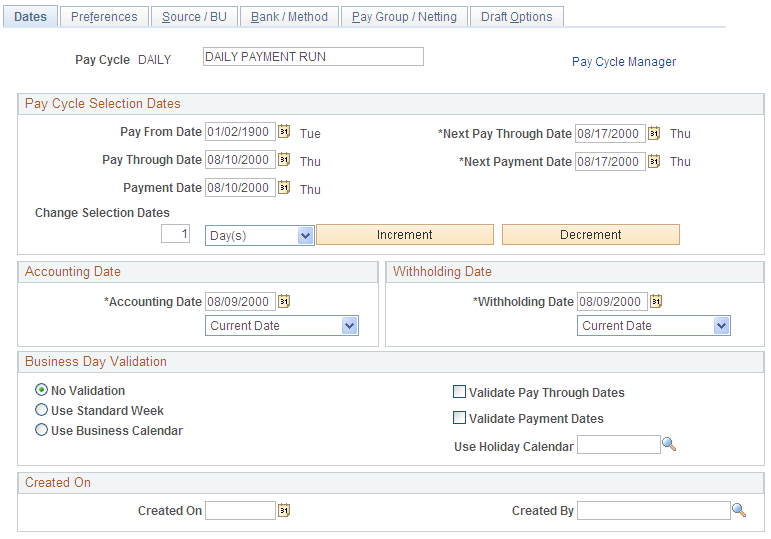
| Pay Cycle |
Enter a description for the pay cycle. |
| Go To Pay Cycle Manger |
Click to save the pay cycle and open the Pay Cycle Manager, where you initiate and control processing for the pay cycle. |
Pay Cycle Selection Dates
Accounting Date and Withholding Date
Business Day Validation
Business calendars enable you to verify that transaction processing dates are valid working days. The business calendar is used throughout PeopleSoft applications to define nonworking days and holidays.
Select from the following options:
Payment Selection Criteria - Preferences Page
Use the Payment Selection Criteria - Preferences page (PYCYCL_DEFN_OPT) to set pay cycle general options.
Image: Payment Selection Criteria - Preferences page
This example illustrates the fields and controls on the Payment Selection Criteria - Preferences page . You can find definitions for the fields and controls later on this page.
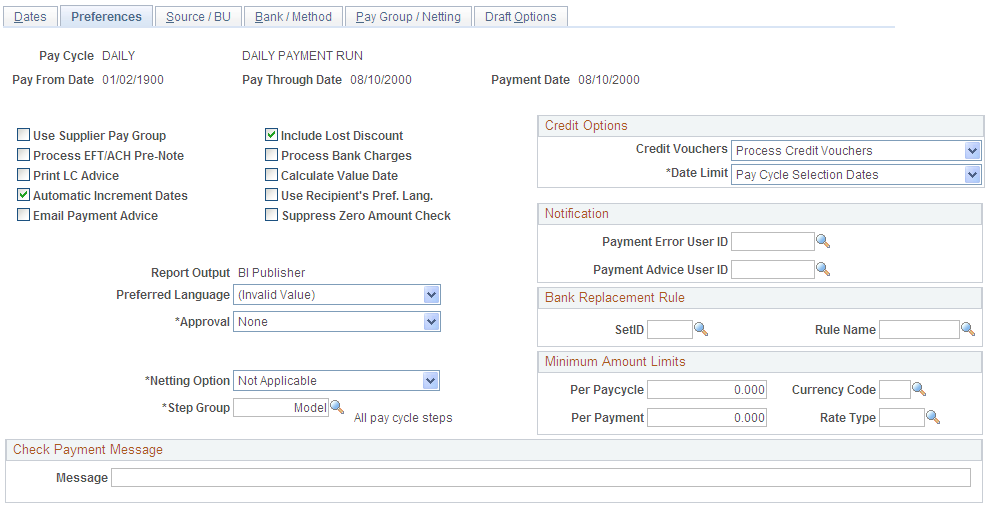
General Options
Credit Options
Define processing options for credit vouchers.
Notification
See Setting Up the PeopleSoft Financial Gateway Integration.
Bank Replacement Rules
Minimum Amount Limits
Source / BU Page
Use the Source / BU (Source / Business Unit) page (PYCYCL_DEFN_SRC) to define the pay cycle by source transaction and business unit.
Image: Source / BU page
This example illustrates the fields and controls on the Source / BU page. You can find definitions for the fields and controls later on this page.
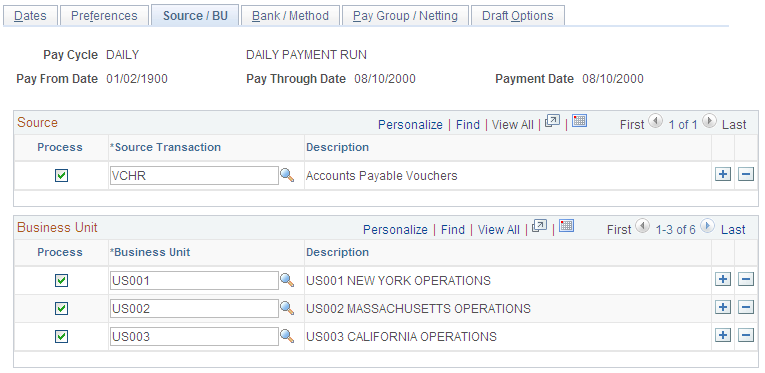
Source
The source transactions define the types of payments processed in a pay cycle. You set up new or review delivered source transaction definitions on the Payment Source and Payment Source Search Definition pages, and source transaction mapping detail on the Pay Cycle Mapping and Pay Cycle Mapping Detail pages. If you set up a new payment source, you must map it to the payables payment tables using the mapping pages.
Select or deselect each source transaction by selecting or deselecting the Process check box next to the appropriate source transaction. These are the delivered values:
| EXAD |
Employee Advances Definition. |
| EXPN |
Employee Expense Sheet Definition. |
| TR |
Treasury Settlement Payments. |
| TRET |
Treasury EFT Settlement Payments. |
| VCHR |
Accounts Payable Vouchers. |
Note: You must select a least one source. At a minimum, you should select the Accounts Payable Vouchers source transaction.
Note: If you create a new payment source, you must map it in the Pay Cycle Mapping component.
Business Unit
You can select multiple business units. For example, your regular pay cycle can include all business units. Select the Process check box for each business unit that you want to include during the pay cycle to narrow the selection criteria. Only vouchers for the business units that you specify are included in the pay cycle. The system uses the supplier and voucher information at the business unit level unless you override that information. If you do not want to process a particular business unit during a specific run of the Pay Cycle process, deselect the Process check box for that business unit.
Note: You must select at least one business unit for the pay cycle to create any payments.
Bank / Method Page
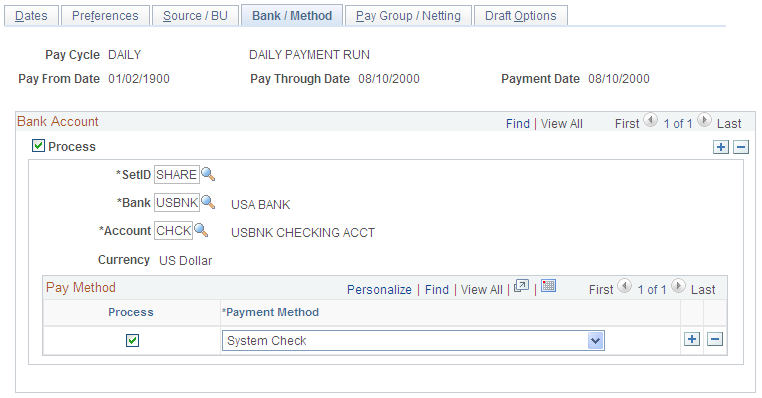
Use the Bank / Method page (PYCYCL_DEFN_BNK) to specify bank information and payment methods.
Image: Bank / Method page
This example illustrates the fields and controls on the Bank / Method page. You can find definitions for the fields and controls later on this page.
Bank Account
Enter banks and bank accounts from which to draw payments in the pay cycle. Every voucher that has a scheduled payment from a bank, bank account, and payment method that matches the ones you specify here becomes eligible for payment in this pay cycle. You can enter multiple banks and accounts.
Note: You can specify replacement bank accounts for a pay cycle if a voucher or set of vouchers meet certain criteria by selecting a bank replacement rule on the Payment Selection Criteria - Preferences page. You set up bank replacement rules on the Bank Replacement Rules page.
| Process |
Selects vouchers with scheduled payments drawn on the specified bank account for pay cycle processing. |
| Currency |
Shows the default currency for the bank account. |
Pay Method
If the payment method for a voucher's scheduled payments is the same as the pay cycle payment method, the voucher is a candidate for selection. For each bank account, you can specify multiple payment methods. Specify the payment methods to be processed during the pay cycle by selecting the Process check box next to the appropriate payment method. These are the available payment method values:
Pay Group / Netting Page
Use the Pay Group / Netting page (PYCYCL_DEFN_PYGRP) to specify pay groups to include in the pay cycle and netting reference codes to use in performing payables/receivables netting.
Specifying pay groups restricts the selection of payments to the pay group specified. The fields on this page are available for entry only if you select Use Supplier Pay Groups or specify a netting option of S on the Preferences page.
You must select the Use Supplier Pay Group check box or enter a netting option on the Preferences page to enter values on this page.
Pay Group
Enter the SetID and pay group code for each pay group that you want to process. Select or deselect the Process check box, depending on whether you want to include the pay group in the current cycle. If you have pay groups selected, only scheduled payments that contain one of the selected pay groups are paid. Use the row insert function to add more pay groups to the pay cycle.
Note: If you deselect the Use Supplier Pay Group option on the Preferences page for a pay cycle, any information that you enter in this grid will not apply as payment selection criteria for that pay cycle.
Note: The Pay Cycle process uses supplier pay groups as selection criteria only for vouchers that were input through PeopleSoft Payables. The Pay Cycle process ignores any supplier pay group selection criteria when selecting payments from non-PeopleSoft Payables sources that are integrated through the PeopleSoft Payables Payment Interface, such as PeopleSoft Expenses.
Netting
For each qualified netting reference ID, the Pay Cycle process processes netting closing for both accounts payable and accounts receivable transactions. Select the Process option to indicate that the Pay Cycle process needs to run the Netting Closing processes. During the Pay Cycle process, the Payables Netting Closing process starts and selects those vouchers that fall within the netting date range with a netting status of A (approved). The system then launches the Receivables Netting Closing process. After processing the PeopleSoft Receivables transactions, the process returns to the Payables netting process, which updates the netting status to C (closed).
Draft Options Page
Use the Draft Options page (PYCYCL_DFT_OPT) to set Draft rounding and optimization options.
Image: Draft Options page
This example illustrates the fields and controls on the Draft Options page. You can find definitions for the fields and controls later on this page.
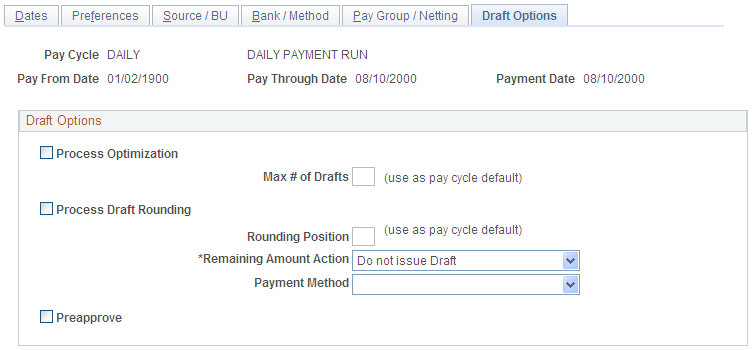
Draft optimization, or stamp tax minimization, in PeopleSoft Payables is primarily applied to Japanese domestic drafts that are created during the customer-initiated Draft Staging Application Engine process (AP_DFT_PROC). Draft rounding enables you to control at what point a draft is issued for payment and what alternate payment method is used for those payments that do not meet your specifications.
Deactivate Pay Cycle Page
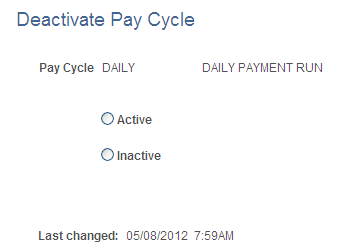
Use the Deactivate Pay Cycle page (DEACTIVATE_PYCYCL) to activate or deactivate the pay cycle.
Image: Deactivate Pay Cycle page
This example illustrates the fields and controls on the Deactivate Pay Cycle page. You can find definitions for the fields and controls later on this page.