
Setting Up Risk Scoring Rules
This section presents an overview of risk scoring rules and discusses how to:
Define risk scoring rules.
Enter risk scoring range values.
Pages Used to Set Up Risk Scoring Rules
|
Page Name |
Definition Name |
Navigation |
Usage |
|---|---|---|---|
|
Risk Scoring Rule |
AR_RISKSCR_TBL |
|
Define risk scoring rules. |
|
Risk Range Details |
AR_RISK_SEC |
Click the Risk Range Details link on the Risk Scoring Rule page. |
Enter risk scoring range values. |
Understanding Risk Scoring Rules
You can set up one or more risk scoring rules for selected setid, customer, or customer group. These risk score rules are used by the Risk Scoring program (RUN_AR_RISK) to compute a risk score for a customer. The range value is used in conjunction with the risk scoring weight to compute the risk score. The system computes the Range Value * Risk Scoring Weight = Risk Score.
You can define a risk score rule using one or more risk scoring elements selected from a risk scoring group. You assign a risk scoring weight, a low and high range, and range value for each risk scoring element. The high and low ranges are determined by the type of scoring element you select, which can be Amount, Char (character), percent, days, date or numeric.
For example, when the risk scoring element is BALDUE and the type is Amount, you can enter the low and high range values and the range value on the Risk Range Details grid of the Risk Range Details page. For example, if the risk scoring element is BALDUE, the type is Amount, and the length is 23, you could enter these multiple rows of values:
|
Range Low |
Range High |
Range Value |
|---|---|---|
|
1 |
1,999 |
10 |
|
2.000 |
2,999 |
20 |
|
3.000 |
3,999 |
30 |
|
4.000 |
9,999,999,999.99 |
40 |
When the risk scoring element is CRHOLD and the type is Char and has a yes/no value (such as: Is the customer on credit hold?) the system automatically populates the Risk Range Details grid with Y for Range High and Range Low values in one row and N for Range High and Range Low values in the next row. You can enter the range value. For example if CRHOLD is the risk scoring element:
|
Range Low (system generated) |
Range High (system generated) |
Range Value |
|---|---|---|
|
Y |
Y |
5 |
|
N |
N |
10 |
When the risk scoring element is CUSTOMER_TYPE, the type is Char, and CUSTOMER_TYPE does not have a yes/no value, then you could enter these values:
|
Range Low |
Range High |
Range Value |
|---|---|---|
|
A |
L |
10 |
|
M |
Z |
20 |
You can set up multiple risk rules for a customer or customer group. However, the Risk Scoring Application Engine program only applies one rule per customer or customer group per run.
Risk Scoring Rule Page
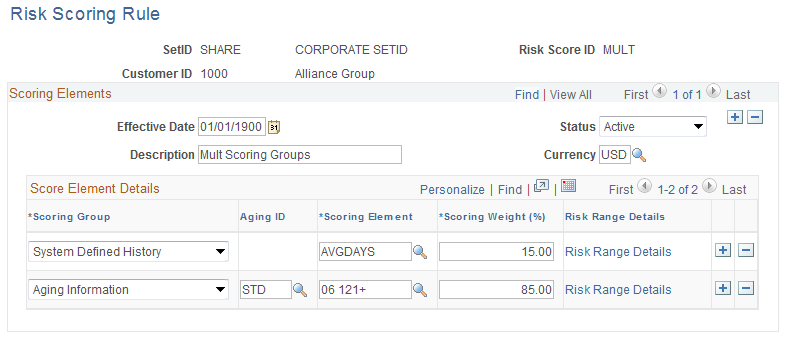
Use the Risk Scoring Rule page (AR_RISKSCR_TBL) to define risk scoring rules.
Image: Risk Scoring Rules page
This example illustrates the fields and controls on the Risk Scoring Rules page. You can find definitions for the fields and controls later on this page.
Risk Range Details Page
Use the Risk Range Details page (AR_RISK_SEC) to enter risk scoring range values.
Image: Risk Range Details page
This example illustrates the fields and controls on the Risk Range Details page. You can find definitions for the fields and controls later on this page.
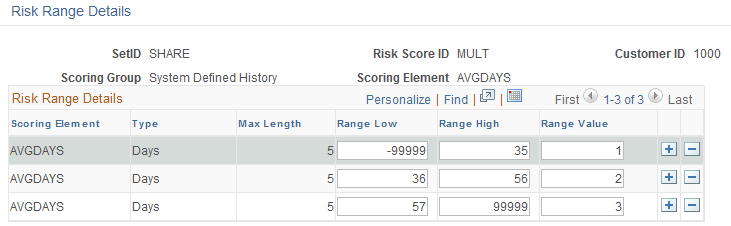
This page displays the risk range details for each scoring group and scoring element.