
Establishing PeopleSoft Program Management Business Unit Options
To set up business unit options, use the Program Management Options component (PGM_BUS_UNIT_OPT).
This topic discusses how to:
Define business unit options.
Define health options.
Pages Used to Establish PeopleSoft Program Management Business Unit Options
|
Page Name |
Definition Name |
Navigation |
Usage |
|---|---|---|---|
|
Program Management Options |
PGM_PROG_MGMT_OPT |
|
Define business unit options. You can specify program management options, designate the enterprise program tree, and establish various default settings for specific business units. |
|
Health Options |
PGM_BU_HLTH_OPT |
|
Specify default project health options. |
Program Management Options Page
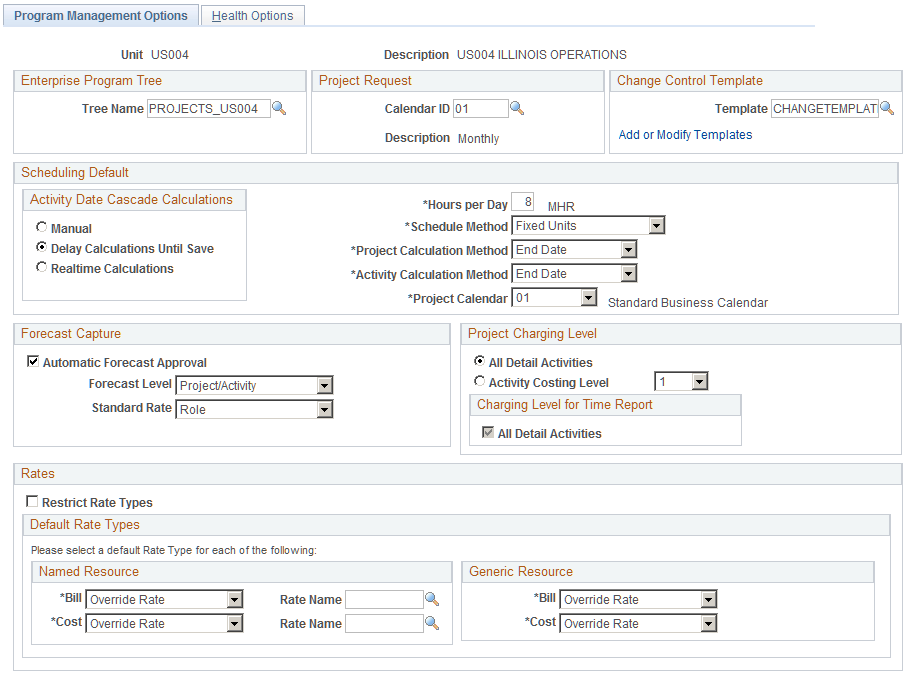
Use the Program Management Options page (PGM_PROG_MGMT_OPT) to define business unit options. You can specify program management options, designate the enterprise program tree, and establish various default settings for specific business units.
Image: Program Management Options page
This example illustrates the fields and controls on the Program Management Options page.
Enterprise Program Tree
The system uses the enterprise program tree to establish the relationships among all programs and projects that are within the business unit. You do not need to create and maintain enterprise program trees if the organization does not need to create a hierarchy of programs and detail projects for analysis and organization. However, if you want to take full advantage of the ability of PeopleSoft Program Management to create programs as umbrellas for detailed projects and other programs for the purposes of management, reporting, and analysis, you must maintain at least the programs and projects that you want to be able to analyze in the tree. Although you are not required to do so, you should enter and maintain all projects and programs in an enterprise program tree for maximum control, organizational clarity, and reporting sophistication with respect to the projects and programs.
Project Request
Change Control Template
| Template |
Select a template that defines the default change control settings for projects and activities that are created within the selected business unit. |
| Add or Modify Templates |
Click to access the Change Control Template Page, on which you can specify change control attributes for projects, activities, transactions, budget plans, resources, and estimates to complete. |
Scheduling Default
Select an Activity Date Cascade Calculations option to determine how the system rolls up start and end dates on summary activities.
Note: You can override each of these defaults, except for the project request Calendar ID for individual programs and projects.
Forecast Capture
Note: You can override these defaults for individual programs and projects.
Project Charging Level
Select options on this page to establish project charging-level options by default for new projects that you create for the business unit. You can override the business unit default values at the project level, for pending projects only, on the Project General - Program Management page. You can override the business unit default values for new projects that you create from Microsoft Project on the Create Project from Microsoft page.
Rates
| Restrict Rate Types |
Select to restrict rate types for named and generic labor resources. Doing so limits the rate types that you can select for cost and bill rates on the Resources and Resources by Activity pages. Additionally, the rate options that are available on the Rate Sets - Target page are based on the rate types that you specify for the project business unit. If you do not restrict rate types, select the default bill and cost rate types that appear on the Resources and Resources by Activity pages for named resources and generic labor resources. |
| (Named Resource) Bill and Cost |
Select the specific bill and cost rate types that you want to be available when you add a named labor resource to the project or activity team. You can override the default rate type on the Resources and Resources by Activity pages with another rate type. Available options are: Custom: Users enter the custom rate name in the Rate Name field. The custom rates that are available on this component are limited to those with criteria fields EMPLID, JOBCODE, PROJ_ROLE, and/or REGION_CD, and have a value of Source Quantity in the Apply Rates to field on the Define Custom Rates Page. Custom rates containing any other criteria field will not be available for use on this component. The system assigns the rate based on the Populate Custom Rate page for the rate name. Override: Users enter the resource's rate type when they add a resource. Employee: The system assigns the rate that is set up for the employee on the Rates by Employee page in PeopleSoft Project Costing. Job Code: The system assigns the rate that is set up for the employee's job code on the Rates by Job Code page in PeopleSoft Project Costing. Project Role: The system assigns the rate that is set up for the employee's project role on the Rates by Role page in PeopleSoft Project Costing. |
| (Generic Resource) Bill and Cost |
Select the specific bill and cost rate types that you want to be available when you add a generic labor resource to the project or activity team. You can override the default rate type on the Resources and Resources by Activity pages with another rate type. Available options are Override and Project Role. |
Health Options Page
Use the Health Options page (PGM_BU_HLTH_OPT) to specify default project health options.
Image: Health Options page
This example illustrates the fields and controls on the Health Options page.

Use this page to configure the project and activity health indicators that appear on the Manager Workbench page.
Project Health Default
Select the default method for calculating project health for Project Overall, Schedule, Budget, Resources, Issues, and Risks that are generated in the project business unit. Select from these options:
Manual Entry: A project team member manually enters health values into the system. The system does not calculate any health values.
Calculated: The system calculates the health value based on parameters that you define in the Project Health Criteria grid.
Note: You can override these defaults for individual programs and projects.
Project Health Criteria
| Project Health Indicator |
Select one or more default health indicators that the system uses to measure how well a project or activity is doing in this business unit. The health indicators that you select appear on the Manager Workbench and Activity pages. The indicator options are:
|
| Alert Percent |
Enter a numerical value that triggers an alert status (displayed as a red symbol) for the corresponding project health indicator. All project health indicators with calculated percent values that are equal to or higher than the alert percent trigger a red alert status on the Manager Workbench page. |
| Warning Percent |
Enter a numerical value that triggers a warning status (displayed as a yellow symbol) for the corresponding project health indicator. All project health indicators with calculated percent values that are equal to or higher than the warning percent but less than the alert percent trigger a yellow warning status on the Manager Workbench page. |
| Project Weight Percent |
Enter the percent to weigh the health indicator for the project as compared to other health indicators. The system calculates overall project health as the weighted average of the health indicators. Note: The sum of the project weight percents for all of the project health indicators must total 100 percent. |
| Activity Weight Percent |
Enter the percent to weigh the health indicator for the activity as compared to other health indicators. The system calculates overall activity health as the weighted average of the health indicators. Note: The sum of activity weight percents for all of the project health indicators must total 100 percent. |
| Distribute Project Weight |
Click to evenly spread 100 percent to the project weight of each health indicator. |
| Distribute Activity Weight |
Click to evenly spread 100 percent to the activity weight of each health indicator. |
Note: The health indicators on the Manager Workbench do not appear if you do not set up health criteria for them and you select the Calculated method to determine health for that indicator. A user can override the default method used to calculate project health at the project level. For example, you set the project health defaults at the business unit level to Manual Entry and you do not set up the project health criteria indicators. If a user changes the Project Health Default settings to Calculated for a particular project, the system will not have any project health criteria set up to determine how to calculate the health. Therefore, you should set up project health criteria for each project health indicator at the business unit level.