
Setting Up and Using Express Capitalization
To set up and use express capitalization, use these components:
Express Asset Transaction Filter (PC_AM_FLTR).
Projects Options (PC_BUS_UNIT_OPT).
Project General (PROJECT_GENERAL).
Activity General (PROJECT_ACTIVITY).
Project Costing - Asset Management Express (PC_AM_EXPRESS).
This topic provides an overview of the Express Asset Definition pages and discusses how to:
Filter asset transactions for express capitalization.
Define filter criteria for express capitalization.
Define asset integration rules for express capitalization.
Create one asset per activity.
Create one asset from many activities.
Create many assets from many activities.
Select activities to create many assets from many activities.
Distribute cost percentages at the project level.
Distribute cost percentages at the activity level.
Distribute quantities at the project level.
Distribute quantities at the activity level.
Pages Used to Set Up and Use Express Capitalization
|
Page Name |
Definition Name |
Navigation |
Usage |
|---|---|---|---|
|
Express Asset Filter Criteria |
PC_AM_FLTR |
|
Define the filter criteria that the system uses to select the project transactions that make up an asset. |
|
Select Field Values |
PC_AM_FLTR_FLD_VAL |
Click the Select Field Values link on the Express Asset Filter Criteria page. |
Select field values that define the filtering criteria on the Express Asset Filter Criteria page. |
|
Project Costing Options - Asset Integration Rules |
PC_AM_RULE_BU |
Select the Asset Integration Rules tab. |
Set up integration with PeopleSoft Asset Management at the business unit level to define how the system uses project transaction costs to create assets for integration with Asset Management. |
|
Project Definitions - Asset Integration Rules |
PC_AM_RULE_PRJ |
Select the Asset Integration Rules tab. |
Set up integration with PeopleSoft Asset Management at the project level to define how the system uses project transaction costs to create assets for integration with Asset Management. |
|
Activity Definitions - Asset Integration Rules |
PC_AM_RULE_ACT |
Select the Asset Integration Rules tab. |
Set up integration with PeopleSoft Asset Management at the activity level to define how the system uses project transaction costs to create assets for integration with Asset Management. |
|
Express Asset Definition |
PC_AM_EXPRESS1 |
|
Create a single asset definition from each selected activity's cost transactions (one asset per activity). |
|
Express Asset Definition |
PC_AM_EXPRESS2 |
|
Create a single asset definition from cost transactions from multiple activities (one asset from many activities). |
|
Express Asset Definition |
PC_AM_EXPRESS3 |
|
Create multiple asset definitions from cost transactions from multiple activities (many assets from many activities). |
|
Select Activities |
PC_AM_SELECT_ACTS |
Click the Select Activities link on the Express Asset Definition - Many Assets from Many Activities page. |
Select the activities from which cost transactions are used to create assets. |
|
Express Asset Definition |
PC_AM_EXPRESS4 |
|
Enter percent values to specify how transaction costs are spread across multiple assets that are from a project (percentage distribution - project level). |
|
Express Asset Definition |
PC_AM_EXPRESS5 |
|
Enter percent values to specify how transaction costs are spread across multiple assets that are from each activity (percentage distribution - activity level). |
|
Express Asset Definition |
PC_AM_EXPRESS6 |
|
Enter quantity values to specify the number of assets that are created from a project (quantity distribution - project level). |
|
Express Asset Definition |
PC_AM_EXPRESS7 |
|
Enter quantity values to specify the number of assets that are created from each activity (quantity distribution - activity level). |
Understanding the Express Asset Definition Pages
The Express Capitalization process distributes project costs to assets according to asset integration rules. For example, when multiple assets are created from a project, cost distribution can take place at the project or activity level as percentages of the project costs spread across each asset.
After you define filter criteria and asset integration rules for express capitalization, you define express assets and relate them to projects by using an Express Asset Definition page. The Express Asset Definition page that appears when you enter the Project Costing - Asset Management Express component (PC_AM_EXPRESS) is based on the asset identification rule that you select on the Asset Integration Rules page.
When you save an Express Asset Definition page, the system:
Creates an asset definition.
Relates the specified assets to the selected activities.
Automatically assigns an asset ID if the Asset ID field contains the default value of NEXT.
Enables the system to create express assets.
Removes a previously saved relationship of an asset to an activity for each activity that you deselected in the Capitalize column.
Most of the Express Asset Definition pages contain three tabs that you use to define asset details: Basic Asset, Asset Detail 1, and Asset Detail 2. All of the Express Asset Definition pages contain a link to the Define Assets page to view the details of a project asset. Additionally, all of the pages display the program name if the project is inheriting asset integration rules from a program.
Many of the Express Asset Definition page fields that appear in this topic are defined in the Common Elements Used to Manage Assets topic.
Express Asset Filter Criteria Page
Use the Express Asset Filter Criteria page (PC_AM_FLTR) to define the filter criteria that the system uses to select the project transactions that make up an asset.
Image: Express Asset Filter Criteria page
This example illustrates the fields and controls on the Express Asset Filter Criteria page. You can find definitions for the fields and controls later on this page.

Create a filter that the system uses to select the transaction costs that are eligible for express capitalization. Add rows to designate additional parameters to narrow selections to the appropriate set of transactions. The filter that you create is available for selection on the Asset Integration Rules page at the business unit, project, and activity levels.
Note: If the integration template is different than the Project Costing business unit, the Express Asset Filter Criteria uses the General Ledger business unit for accounting periods, which is specified on the Project Costing Business Unit Options page.
Select Field Values Page
Use the Select Field Values page (PC_AM_FLTR_FLD_VAL) to select field values that define the filtering criteria on the Express Asset Filter Criteria page.
Image: Select Field Values page
This example illustrates the fields and controls on the Select Field Values page. You can find definitions for the fields and controls later on this page.

Project Costing Options - Asset Integration Rules Page
Use the Project Costing Options - Asset Integration Rules page (PC_AM_RULE_BU) to set up integration with PeopleSoft Asset Management at the business unit level to define how the system uses project transaction costs to create assets for integration with Asset Management.
Note: There are three Asset Integration Rules pages in PeopleSoft Project Costing—one at the business unit level, project level, and activity level. The navigation path to these pages is based on whether you are defining the integration rules for the business unit, project, or activity. The field definitions that appear in this section are applicable for all three pages.
Image: Project Costing Options - Asset Integration Rules page (1 of 2)
This example illustrates the fields and controls on the Asset Integration Rules page (1 of 2). You can find definitions for the fields and controls later on this page.
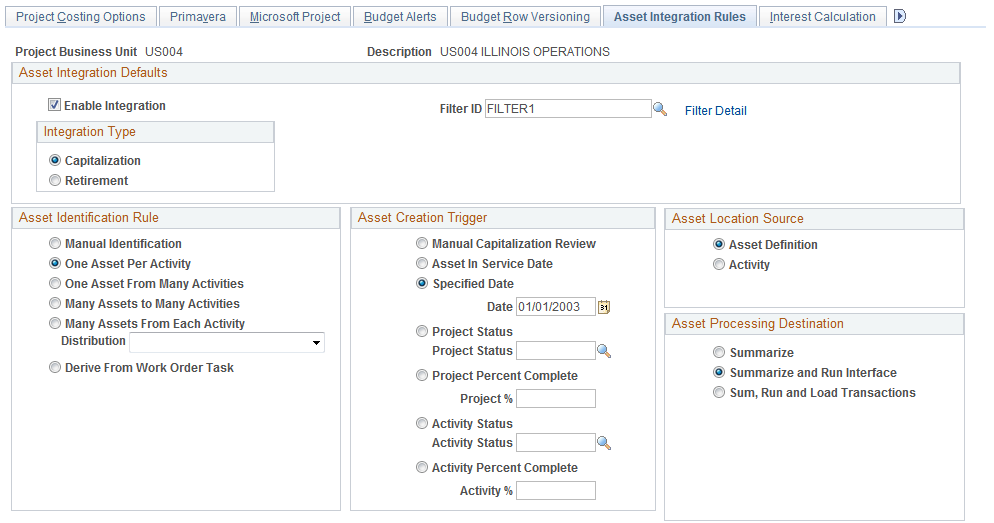
Image: Project Costing Options - Asset Integration Rules page (2 of 2)
This example illustrates the fields and controls on the Asset Integration Rules page (2 of 2). You can find definitions for the fields and controls later on this page.

If you enable integration for the business unit, projects inherit asset integration rules that you establish at the business unit level. You can override business unit default values at the project level. Activities also inherit asset integration rules from the project level. Based on the project's capitalization rule, you can override some of the asset integration rules at the activity level.
Asset Integration Defaults
Integration Type
Select an option to specify if the project activity is for retiring or capitalizing assets. The default value at the project level is from the business unit. The default value at the activity level is from the project. After you create a project or activity, changes to the value at a higher level do not change existing projects or activities at a lower level.
Asset Identification Rule
Select the method for distributing project costs and creating assets. The available asset creation triggers and location sources are based on the asset identification rule that you select.
Note: The system disables most of the asset integration rules at the activity level when you select any asset identification rule, except for the One Asset Per Activity and Derive From Work Order Task options. This prevents confusion from options such as One Asset from Many Activities where each activity can specify a different rule. Regardless of the asset identification rule that you select, the enable integration, filter, and integration type options in the Asset Integration Defaults group box remain enabled.
| Manual Identification |
Select to capitalize assets by using components that require manual steps. This option does not use express capitalization functionality to create assets for this project. You must select this option to retire an asset that is associated with this project or its activity. |
| One Asset Per Activity |
Select to distribute the cost of a single activity to a single asset by using express capitalization. All of the asset creation triggers and location sources are available when the capitalization rule option is one asset per activity. |
| One Asset From Many Activities |
Select to distribute the cost of multiple activities to a single asset by using express capitalization. |
| Many Assets to Many Activities |
Select to distribute the cost of multiple activities to multiple assets by using express capitalization. |
| Many Assets From Each Activity |
Select to distribute the cost of each activity to multiple assets by cost percentage or quantity by using express capitalization. Cost distribution takes place at the project level or the activity level based on the method that you select in the required Distribution field. |
| Distribution |
Select a distribution method. Available options are: Activity Percent Distribution: Create assets by distributing cost percentages at the activity level. Activity Quantity Distribution: Create assets by distributing quantities at the activity level. Project Percent Distribution: Create assets by distributing cost percentages at the project level. Project Quantity Distribution: Create assets by distributing quantities at the project level. This field is required if you select a capitalization rule of many assets from each activity. |
| Derive From Work Order Task |
Select to enable the Express Capitalization process to identify the transaction rows in activities that belong to assets. If the Work Order Managed Project flag is active for a project, the system automatically selects this asset identification rule. This option is:
Note: If the integration type is Retirement, the Derive from Work Order Task option is available only if the project is work order-managed. See Understanding Integration with PeopleSoft Maintenance Management. |
Asset Creation Trigger
Select the event that causes asset integration to occur automatically. You must select an asset integration trigger if you enable integration.
When you save the page, a message appears indicating that the system will ignore the unselected asset integration triggers and the system clears their values from the page.
Asset Location Source
You must select an asset location source if you enable integration.
Asset Processing Destination
Select the default option that determines what tables that the system updates with asset information during the asset integration process.
If you require asset approval before sending assets to PeopleSoft Asset Management, the available option is Summarize.
If you do not require asset approval before sending assets to PeopleSoft Asset Management, the available options are:
Summarize
Summarize and Run Interface
Sum, Run and Load Transactions
You must select an asset processing destination if you enable integration.
Asset processing destination options are discussed in the Common Elements Used to Manage Assets topic.
Asset Adjustment Trigger
Select if you want to create asset adjustments manually or automatically. You must select an adjustment trigger if you enable integration.
Note: The transaction date of an adjustment that you make after an asset is created must be equal to or greater than the previous transaction date.
Transaction Load Type
The system uses transaction load types to determine the types of transactions that occur when the Load Transaction into Asset Management process loads rows into the PeopleSoft Asset Management transaction tables. Different load types set different attributes of an asset, perform different asset processing, or load different asset tables.
See Understanding the Loader Tables.
These transaction load type options enable different processing to occur when cost adjustments are sent to PeopleSoft Asset Management. You must select a transaction load type if you enable integration.
End of Year Rule
You must select an end-of-year rule if you enable integration.
Express Asset Definition Page (one asset per activity)
Use the Express Asset Definition page (PC_AM_EXPRESS1) to create a single asset definition from each selected activity's cost transactions (one asset per activity).
Image: Express Asset Definition page (one asset per activity)
This example illustrates the fields and controls on the Express Asset Definition page (one asset per activity). You can find definitions for the fields and controls later on this page.
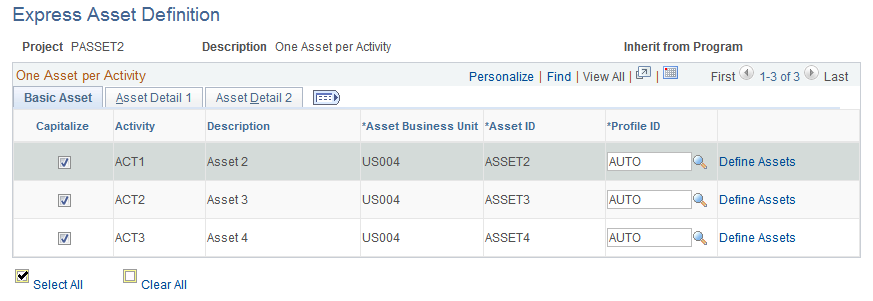
This page appears when the project capitalization rule is one asset per activity.
This page displays a list of every activity under a project, matching every activity to an asset ID and additional asset details.
When you save the page, the system creates an asset definition for each activity that you selected in the Capitalize column and relates that asset to each activity.
Express Asset Definition Page (one asset from many activities)
Use the Express Asset Definition page (PC_AM_EXPRESS2) to create a single asset definition from cost transactions from multiple activities (one asset from many activities).
Image: Express Asset Definition page (one asset from many activities)
This example illustrates the fields and controls on the Express Asset Definition page (one asset from many activities). You can find definitions for the fields and controls later on this page.
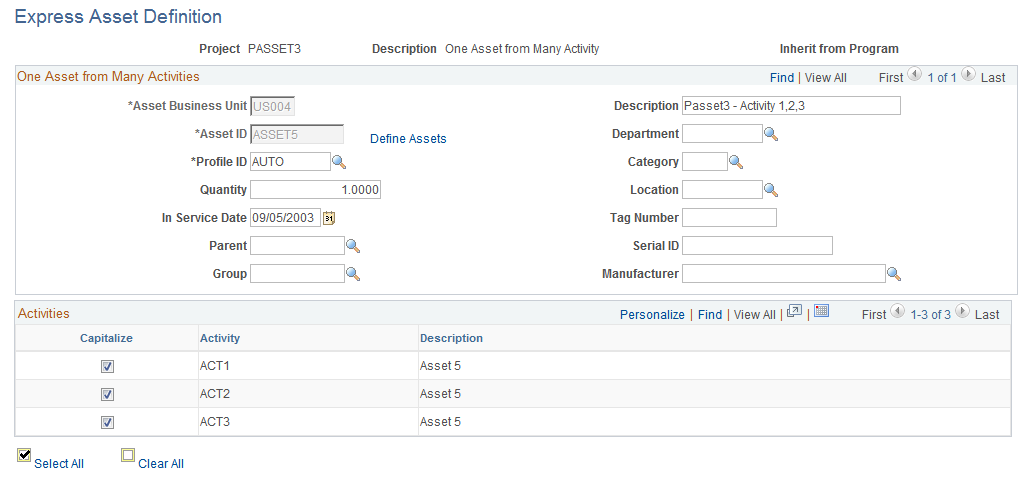
This page appears when the project capitalization rule is one asset from many activities.
| Capitalize |
Select activities that you want to relate to the asset that is identified in the Asset ID field. |
The system creates a single asset definition when you save the page and relates the asset to each activity that you select in the Capitalize column.
Express Asset Definition Page (many assets to many activities)
Use the Express Asset Definition page (PC_AM_EXPRESS3) to create multiple asset definitions from cost transactions from multiple activities (many assets from many activities).
Image: Express Asset Definition page (many assets to many activities)
This example illustrates the fields and controls on the Express Asset Definition page (many assets to many activities). You can find definitions for the fields and controls later on this page.
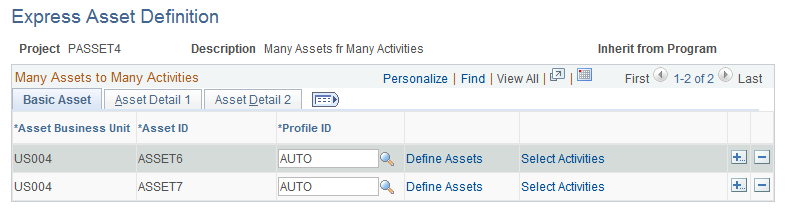
This page appears when the project capitalization rule is many assets to many activities.
Add a row for each asset that will be created, and enter the necessary values to define express assets and relate them to a project and project activities.
| Select Activities |
Click to access the Select Activities page to select the activities that contribute transaction costs to an asset. |
When you save the page the system creates asset definitions and relates the assets to the activities that you select on the Select Activities page.
Select Activities Page
Use the Select Activities page (PC_AM_SELECT_ACTS) to select the activities from which cost transactions are used to create assets.
Click the Select Activities link on the Express Asset Definition - Many Assets from Many Activities page.
Image: Select Activities page
This example illustrates the fields and controls on the Select Activities page. You can find definitions for the fields and controls later on this page.
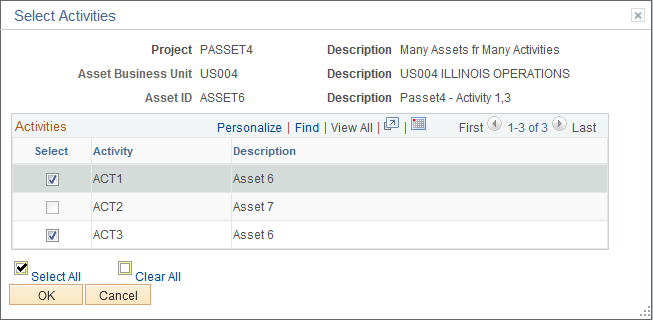
Select the activities that contribute costs to the asset that is defined on the Express Asset Definition page (many assets from many activities). You can select an activity for only one asset definition.
Express Asset Definition Page (percentage distribution at the project level)
Use the Express Asset Definition page (PC_AM_EXPRESS4) to enter percent values to specify how transaction costs are spread across multiple assets that are from a project (percentage distribution - project level).
Image: Express Asset Definition page (percentage distribution at the project level)
This example illustrates the fields and controls on the Express Asset Definition page (percentage distribution at the project level). You can find definitions for the fields and controls later on this page.
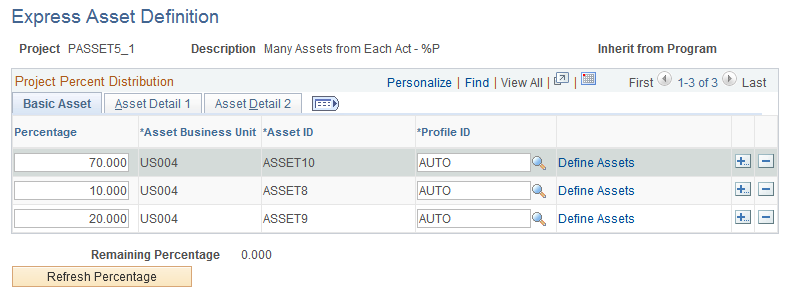
This page appears when the project capitalization rule is many assets from each activity, and the distribution option is project percent distribution.
Add a row for each asset that will be created, and enter the necessary values to define express assets and relate them to a project and project activities.
When you save the page the system creates asset definitions and relates the assets to each activity under this project that has integration enabled at the activity level on the Asset Integration Rules page.
This distribution method relates assets to the entire project. Because of this relationship, each activity in the project contributes the same percentage that is specified on the asset row to the asset. This table illustrates an example in which a project with three activities distributes cost to two express assets:
|
Percentage at the Project Level |
Asset 1 |
Asset 2 |
|---|---|---|
|
Asset 1 to receive 75% Asset 2 to receive 25% |
75% of Activity 1 75% of Activity 2 75% of Activity 3 |
25% of Activity 1 25% of Activity 2 25% of Activity 3 |
In this example, distributing cost percentages at the project level results in creating two assets with each activity contributing 75 percent of its cost to Asset 1 and 25 percent of its cost to Asset 2.
Express Asset Definition Page (percentage distribution at the activity level)
Use the Express Asset Definition page (PC_AM_EXPRESS5) to enter percent values to specify how transaction costs are spread across multiple assets that are from each activity (percentage distribution - activity level).
Image: Express Asset Definition page (percentage distribution at the activity level)
This example illustrates the fields and controls on the Express Asset Definition page (percentage distribution at the activity level). You can find definitions for the fields and controls later on this page.
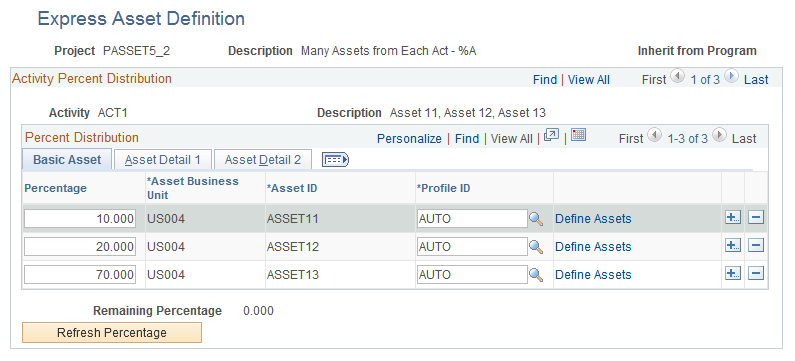
This page appears when the project capitalization rule is many assets from each activity, and the distribution option is activity percent distribution.
Add a row for each asset that will be created, and enter the necessary values to define express assets and relate them to a project and project activities.
Using this distribution method, assets are related to activities within the designated project. Because of this relationship, each activity contributes the specified percentage on the asset row to the asset. This table illustrates an example in which a project with two activities distributes cost to each activity's respective assets:
|
Activity |
Percentage |
Asset 1 |
Asset 2 |
Asset 2 |
Asset 3 |
Asset 4 |
|---|---|---|---|---|---|---|
|
Activity 1 |
Asset 1 to receive 75% Asset 2 to receive 25% |
75% of Activity 1 |
25% of Activity 1 |
|
|
|
|
Activity 2 |
Asset 2 to receive 50% Asset 3 to receive 40% Asset 4 to receive 10% |
|
|
50% of Activity 2 |
40% of Activity 2 |
10% of Activity 2 |
In this example, distributing cost percentages at the activity level results in each activity contributing a specified percentage of its cost to its respective assets. Note that the same asset (Asset 2 in this example) can draw its costs from more than one activity.
Express Asset Definition Page (quantity distribution at the project level)
Use the Express Asset Definition page (PC_AM_EXPRESS6) to enter quantity values to specify the number of assets that are created from a project (quantity distribution - project level).
Image: Express Asset Definition page (quantity distribution at the project level)
This example illustrates the fields and controls on the Express Asset Definition page (quantity distribution at the project level). You can find definitions for the fields and controls later on this page.

This page appears when the navigation menu and the project capitalization rule is many assets from each activity, and the distribution option is project quantity distribution.
Enter parameters to indicate the number of assets to create from the designated project. After generating the list of assets that will be created, enter the necessary values to define express assets and relate them to a project and project activities.
Warning! If you click Generate Assets after asset rows are created, the system deletes all existing rows and replaces them with the number of new rows that are specified in the Number of assets to create field.
When you save the page, the system relates the assets to each activity under this project that has integration enabled on the Asset Integration Rules page at the activity level. Additionally, the system distributes the project costs equally across the assets.
Express Asset Definition Page (quantity distribution at the activity level)
Use the Express Asset Definition page (PC_AM_EXPRESS7) to enter quantity values to specify the number of assets that are created from each activity (quantity distribution - activity level).
Image: Express Asset Definition page (quantity distribution at the activity level)
This example illustrates the fields and controls on the Express Asset Definition page (quantity distribution at the activity level). You can find definitions for the fields and controls later on this page.
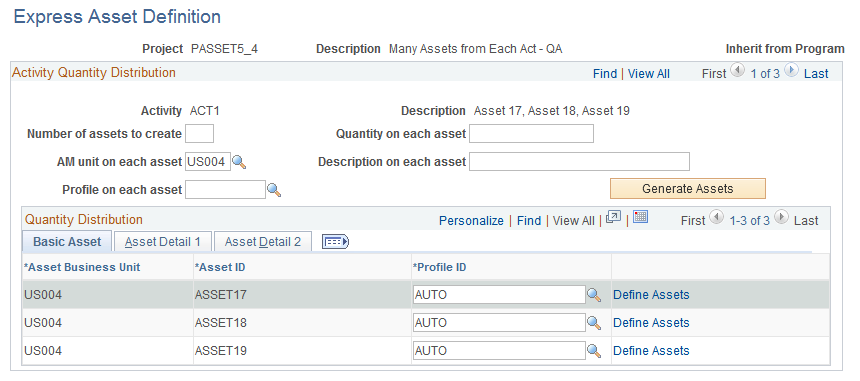
This page appears when the project capitalization rule is many assets from each activity and the distribution option is activity quantity distribution.
Enter parameters to indicate the number of assets that are created from each of the designated project's activities. After generating the list of assets that will be created, enter the necessary values to define express assets and relate them to a project and project activities.
Warning! If you click Generate Assets after asset rows are created, the system will delete all existing rows and replace them with the number of new rows that are specified in the Number of assets to create field.
When you save the page, the system distributes the activity costs equally across the assets.