Setting Up and Using Manual Capitalization
To set up and use manual capitalization, use these components:
Asset Profile (PROFILE_PC).
Project Costing Options (PC_BUS_UNIT_OPT).
Project General (PROJECT_GENERAL).
Activity General (PROJECT_ACTIVITY).
Project Costing Asset Definition (PC_AM_DEFN)
Relate Assets by Project ID (PC_PCAM_DEFN)
Assign Resources to an Asset component (PC_AM_RESOURCES)
Selection Criteria component (PC_SEL_CRITERIA)
This topic discusses how to:
Define asset profiles if you do not use PeopleSoft Asset Management.
Define asset integration rules for manual capitalization.
Define project assets.
Capitalize assets in the early phases of projects.
Relate assets to projects and activities for manual capitalization.
Relate projects and activities to assets for manual capitalization.
View assets and profiles related to projects.
Assign transactions to assets.
Define date, activity, and transaction filter criteria.
Define department, location, and asset profile criteria.
Define custom filter criteria.
Pages Used to Set Up and Use Manual Capitalization
|
Page Name |
Definition Name |
Navigation |
Usage |
|---|---|---|---|
|
Asset Profile |
PROFILE_DEFN_PC |
|
Create asset profiles in PeopleSoft Project Costing if you do not use PeopleSoft Asset Management. |
|
Project Costing Options - Asset Integration Rules |
PC_AM_RULE_BU |
Select the Asset Integration Rules tab. |
Set up integration with PeopleSoft Asset Management at the business unit level. |
|
Project Definitions - Asset Integration Rules |
PC_AM_RULE_PRJ |
Select the Asset Integration Rules tab. |
Set up integration with PeopleSoft Asset Management at the project level. |
|
Activity Definitions - Asset Integration Rules |
PC_AM_RULE_ACT |
Select the Asset Integration Rules tab. |
Set up integration with PeopleSoft Asset Management at the activity level. |
|
Define Assets |
PC_AM_DEFN |
|
Specify basic information about a project asset. |
|
Relate by Project |
PC_PCAM_DEFN |
|
Associate assets with a specific project. |
|
Assign Transactions to Assets |
PC_AM_RES_SUM |
|
You can view the list of assets or profiles that are related to a project, and drill down into the asset or profile to assign transactions. |
|
Assign Transactions |
PC_AM_RESOURCES |
Click the Assign Transactions link on the Assign Transactions to Assets page after you save the row. |
Assign or clear transactions to a profile or asset. View transactions that are eligible for asset assignment. |
|
Define Filter Criteria - Standard 1 |
PC_SEL_CRITERIA1 |
Click the Define Filter Criteria link on the Assign Transactions page. |
Define selection criteria for date, activity, and transaction fields. |
|
Define Filter Criteria - Standard 2 |
PC_SEL_CRITERIA2 |
Select the Standard 2 tab on the Define Filter Criteria - Standard 1 page. |
Define selection criteria for department, activity location, and asset profile. This is an extension of the Define Filter Criteria - Standard 1 page. |
|
Define Filter Criteria - Custom |
PC_SEL_CRITERIA3 |
Select the Custom tab on the Define Filter Criteria - Standard 1 or Standard 2 page. |
Include or exclude transaction fields from the criteria definition. |
Asset Profile Page
Use the Asset Profile page (PROFILE_DEFN_PC) to create asset profiles in PeopleSoft Project Costing if you do not use PeopleSoft Asset Management.
Define templates that contain standard depreciation criteria for an asset type and its corresponding asset books.
Asset profiles are discussed in the Asset Profiles and the .Asset Profile Page topics.
Project Costing Options - Asset Integration Rules Page
Use the Project Costing Options - Asset Integration Rules page (PC_AM_RULE_BU) to set up integration with PeopleSoft Asset Management at the business unit level.
To enable the manual asset integration processes to create assets from the business unit's project activities:
Select Enable Integration in the Asset Integration Defaults group box.
Select an integration type of Capitalization.
Select an asset identification rule of Manual Identification.
After you select the manual identification rule on the Asset Integration Rules page you will perform other manual steps to define assets, relate assets to projects, and assign transactions to assets. After those manual steps are complete, the values that you specify on this page for timing triggers, asset location source, destination of asset rows, and asset adjustment rules can be used for the manual capitalization process.
Define Assets Page
Use the Define Assets page (PC_AM_DEFN) to specify basic information about a project asset.
Image: Define Assets page
This example illustrates the fields and controls on the Define Assets page. You can find definitions for the fields and controls later on this page.
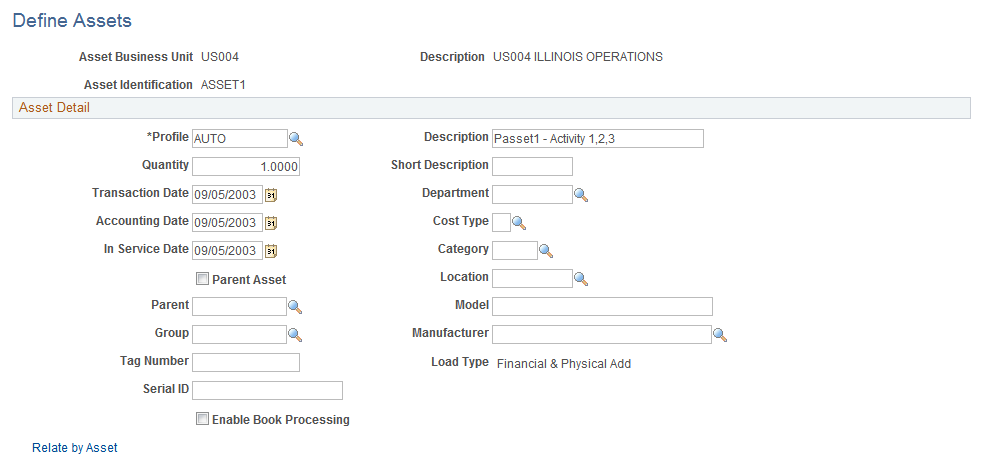
Some of the fields that appear in this topic are defined in the Common Elements Used to Manage Assets topic.
Note: PeopleSoft Project Costing can create capitalized rows and distribute them without integrating with PeopleSoft Asset Management. You can use the PeopleSoft Asset Management Loader tables, but you must create a custom process that PeopleSoft does not support to extract data from the tables.
When an asset definition is created in PeopleSoft Asset Management, information such as depreciation method, useful life, category, or group asset ID are inherited from the asset profile. You can override default values from the profile on this page.
Capitalizing Assets in the Early Phases of Projects
Costs that a project incurs can be depreciated during the early phases of a project's life cycle even before you know exactly what assets the project will create. By using the Summarize by Profile feature in PeopleSoft Project Costing to integrate with PeopleSoft Asset Management, the system automatically reverses profile summaries and creates permanent assets when you process the actual asset information.
To set up this integration process:
Create a project and a work breakdown structure (WBS) that contains one or more activities.
You must select an asset identification rule of Manual Identification on the Asset Integration Rules page.
Define a temporary asset by using the Define Assets page.
When you define the permanent asset, assign the same asset profile to the permanent asset as you assign to the temporary asset.
Relate the temporary asset to the appropriate project activities.
You must select a Summarization Type of By Profile on the Relate by Project page or Relate by Asset page.
Accumulate transaction costs against the project activities.
Transactions with an analysis type that belongs to the PRECL (PC to AM Profile Summary) analysis group are eligible for assignment during this process.
Assign transactions to the temporary asset.
You must select an Assign Type of Profile on the Assign Transactions to Assets page.
Run the Send to Asset Management process.
You must select a Summarize Type of By Profile on the Send to Asset Management page.
Use the manual capitalization process when you are ready to capitalize the permanent asset. On the Relate by Project page, select a summarization type of By Asset. On the Assign Transactions to Assets page, select an assign type of Asset.
Before you run the Send to Asset Management process you must change the accounting date of the temporary asset to match the accounting date of the permanent assets. Additionally, you must change the transaction date of the permanent assets to match the original transaction date of the temporary asset. This ensures that the system reverses the temporary asset capitalized value and uses the correct final capitalized amount to create the permanent assets.
Relate by Project Page
Use the Relate by Project page (PC_PCAM_DEFN) to associate assets with a specific project.
Note: You can relate a single asset to multiple projects and activities.
Image: Relate by Project page
This example illustrates the fields and controls on the Relate by Project page. You can find definitions for the fields and controls later on this page.

This page displays a project's view of the data. Add rows to associate the project activity with additional assets.
Relate by Asset Page
Use the Relate by Asset page to relate projects and activities for manual capitalization.
Note: You can relate a single asset to multiple projects and activities.
Image: Relate by Asset page
This example illustrates the fields and controls on the Relate by Asset page. You can find definitions for the fields and controls later on this page.

This page displays an asset's view of the data and it is used to associate an asset with project activities. Add rows to associate the asset with additional project activities.
| Assign Transactions to Assets |
Click to access the Assign Transactions to Assets page, which contains a list of assets for assignment to transactions. This link appears when you save the row. |
Assign Transactions to Assets Page
Use the Assign Transactions to Assets page (PC_AM_RES_SUM) to view the list of assets or profiles that are related to a project, and drill down into the asset or profile to assign transactions.
Image: Assign Transactions to Assets page
This example illustrates the fields and controls on the Assign Transactions to Assets page. You can find definitions for the fields and controls later on this page.
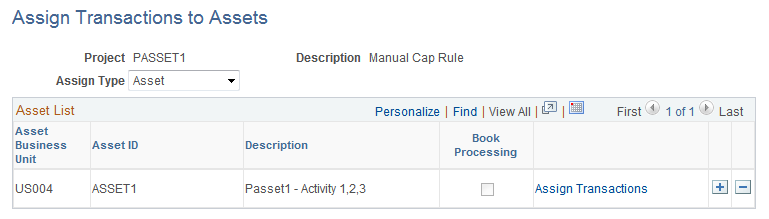
Projects appear on this page if the project's asset identification rule is Manual Identification on the Asset Integration Rules page.
Assign Transactions Page
Use the Assign Transactions page (PC_AM_RESOURCES) to assign or clear transactions to a profile or asset.
View transactions that are eligible for asset assignment.
Click the Assign Transactions link on the Assign Transactions to Assets page after you save the row.
Image: Assign Transactions page
This example illustrates the fields and controls on the Assign Transactions page. You can find definitions for the fields and controls later on this page.
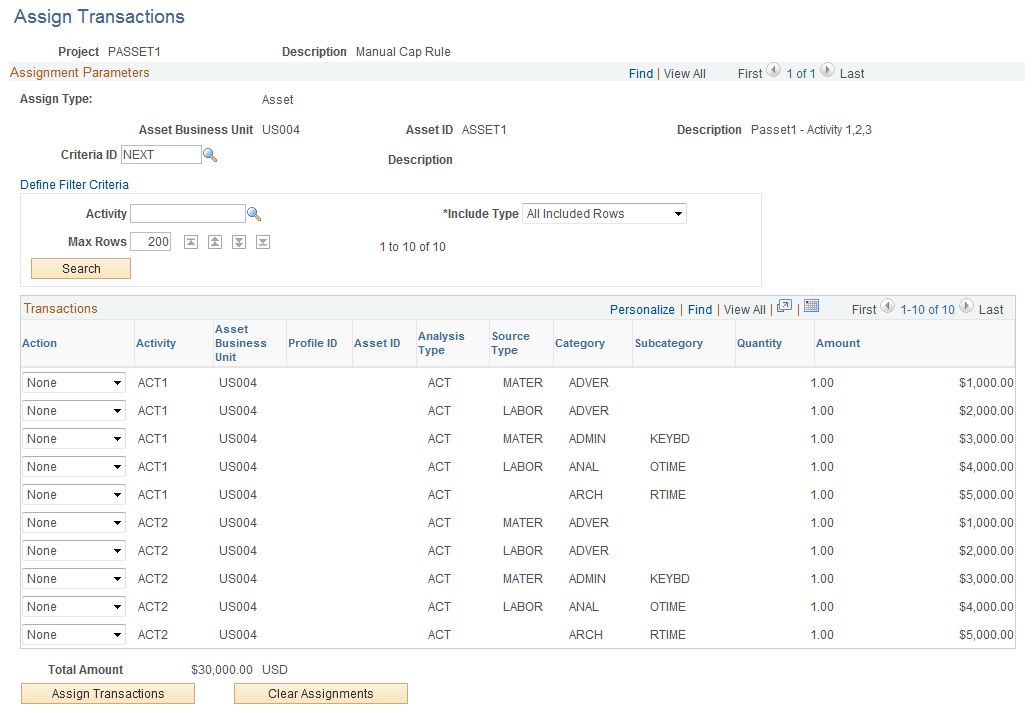
Use this page to:
Assign a group of transactions to a profile or an asset.
Clear a group of transactions from the profile or asset.
View transactions that are eligible or ineligible for asset assignment based on specific criteria.
Selectively override the criteria for individual transactions.
Note: The Activity, Max Rows, and and Include Type fields define only which rows appear in the grid. These fields are used for viewing only, whereas the Criteria ID field is used to filter rows. For example, assume that the filter criteria returns transaction rows with activities of PLAN, DEVELOP, and BUILD. You can enter a value of PLAN in the Activity field to view only the transaction rows in the PLAN activity. If you click the Assign Transactions button, the system stamps the asset information on all transactions from the PLAN, DEVELOP, and BUILD activities that the system returned based on the criteria ID.
Warning! You must save the selections on this page before you click the Assign Transactions or Clear Assignments buttons. Otherwise, you will lose any unsaved actions when the assign or clear event occurs.
Note: If an activity has transactions with a pending action, no additional transactions can be assigned to that activity until the pending transactions are interface to Asset Management. In other words, you must interface pending transactions to Asset Management before assigning additional transactions to the same activity.
Define Filter Criteria - Standard 1 Page
Use the Define Filter Criteria - Standard 1 page (PC_SEL_CRITERIA1) to define selection criteria for date, activity, and transaction fields.
Image: Define Filter Criteria - Standard 1 page
This example illustrates the fields and controls on the Define Filter Criteria - Standard 1 page. You can find definitions for the fields and controls later on this page.
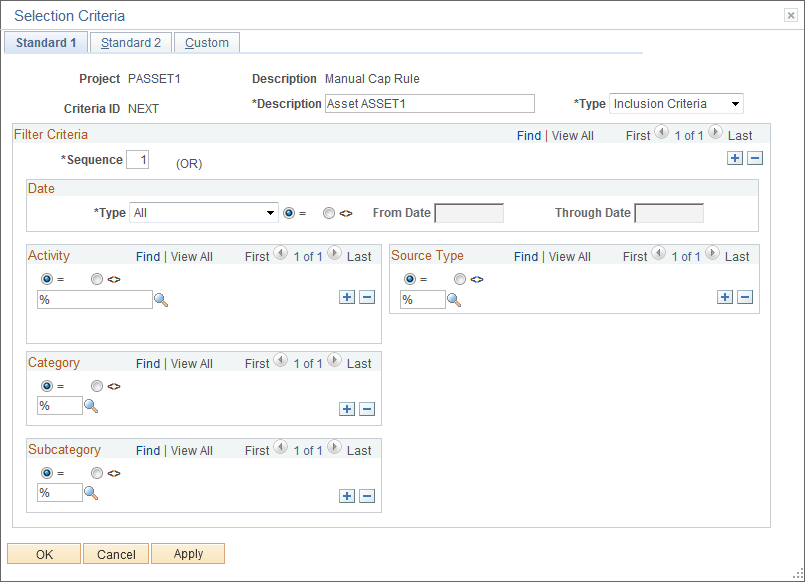
Define criteria to determine what transactions are eligible to select transactions for asset assignment. You must define filter criteria each time that you create a new project for the manual capitalization process. The system stores manual capitalization filters at the project level, and the express capitalization filters at the project business unit level.
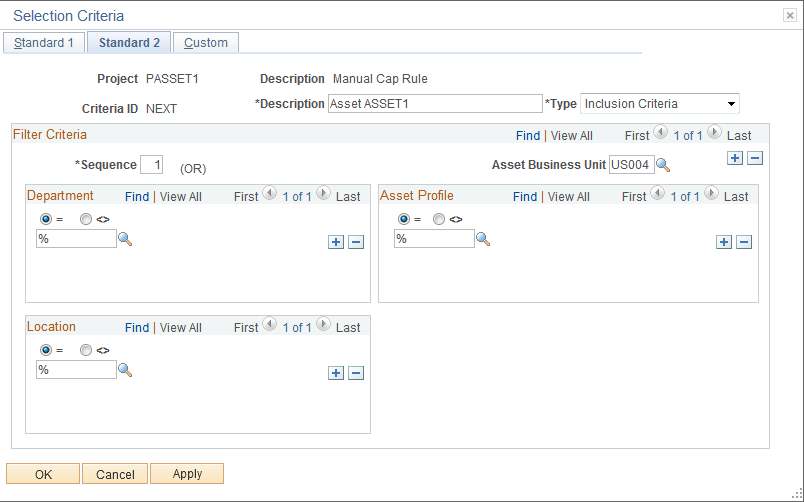
Define Filter Criteria - Standard 2 Page
Use the Define Filter Criteria - Standard 2 page (PC_SEL_CRITERIA2) to define selection criteria for department, activity location, and asset profile.
This is an extension of the Define Filter Criteria - Standard 1 page.
Image: Define Filter Criteria - Standard 2 page
This example illustrates the fields and controls on the Define Filter Criteria - Standard 2 page. You can find definitions for the fields and controls later on this page.
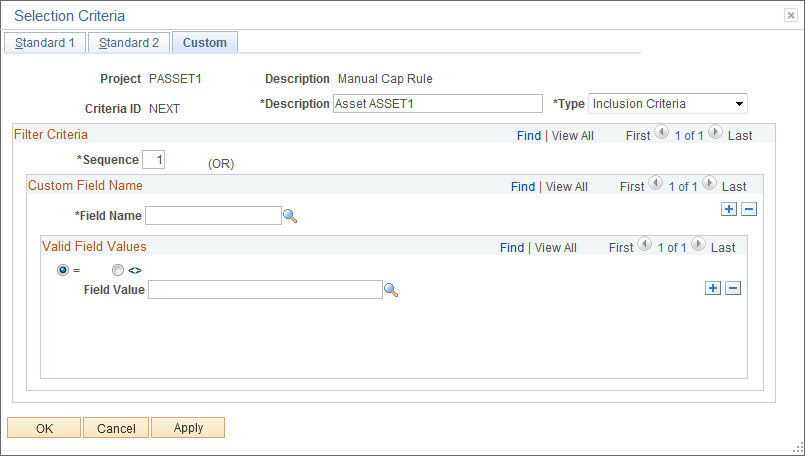
Define Filter Criteria - Custom Page
Use the Define Filter Criteria - Custom page (PC_SEL_CRITERIA3) to include or exclude transaction fields from the criteria definition.
Image: Define Filter Criteria - Custom page
This example illustrates the fields and controls on the Define Filter Criteria - Custom page. You can find definitions for the fields and controls later on this page.