
Combining Accounts Using Summary Ledgers
General Ledger has default summary ledgers in which you can store balances without additional modification. However, you can create additional summary ledgers and modify existing ledgers.
To combine accounts using summary ledgers, use the Summary Ledger component (SUMMARY_LEDGER) and the Ledger Set for Summary Ledgers component (LEDGER_SET_SLED).
This section lists prerequisites and discusses how to:
Create a summary ledger table.
Define a summary ledger.
Set up ledger sets.
Generate or update a summary ledger.
Update summary ledgers incrementally through posting.
View a summary ledger status table.
Pages Used to Combine Accounts Using Summary Ledgers
|
Page Name |
Definition Name |
Navigation |
Usage |
|---|---|---|---|
|
Summary Ledger |
LEDGER_SUMMARY1 |
General Ledger, Summary Ledgers, Define Summary Ledger, Summary Ledger |
After you define a summary ledger table that stores the summary balances, use this page to specify the ledger template that defines the records and fields for the summary ledger and specify the ChartFields to summarize. |
|
Ledger Set |
LEDGER_SET |
General Ledger, Summary Ledgers, Ledger Set for Summary Ledger, Ledger Set |
Sets up the business unit and ledgers to use to build the summary ledger. |
|
Build Summary Ledger Request |
SUMMARY_REQUEST |
General Ledger, Summary Ledgers, Build Summary Ledger, Build Summary Ledger Request |
Either creates a new summary ledger or performs the incremental update process. |
|
Review Summary Ledger Status |
SLED_STAT_INQ |
General Ledger, Summary Ledgers, Review Summary Ledger Status, Review Summary Ledger Status |
View the status of a summary ledger. |
Prerequisites
Before you set up a summary ledger record and create a summary ledger table:
Decide how to summarize your data either directly from the detail ledger or from data that is rolled up in trees.
Note: When you summarize data directly from the detail ledger, the field lengths for the summary ledger ChartFields must be the same as the detail ledger ChartFields that you summarize.
If you obtain summary ledger data from roll up trees, set up a tree for each ChartField that you want to summarize.
For example, to create a table for a summary ledger that summarizes accounts by departments, set up one tree that rolls up the departments that you want to summarize and one tree that rolls up accounts. Also, when you summarize data using trees, the field lengths for summary ledger ChartFields must be exactly 20 characters long to accommodate the maximum length of a tree node name.
Determine which summary ledger record definitions are required fields.
Required Fields
Possible ChartFields to Summarize
Field Type
BUSINESS_UNIT
CHARACTER
LEDGER
CHARACTER
At least one ChartField to summarize. See next column.
ACCOUNT
CHARACTER
OPERATING_UNIT
CHARACTER
DEPTID
CHARACTER
PRODUCT
CHARACTER
PROJECT_ID
CHARACTER
STATISTICS_CODE
CHARACTER
FISCAL_YEAR
NUMBER
ACCOUNTING_PERIOD
NUMBER
POSTED_TOTAL_AMT
SIGNED NUMBER
DTTMSTAMP_SEC
DATETIME
PROCESS_INTSTANCE
NUMBER
Note: When you set up your summary ledger record definition, position all ChartFields to be summarized between the LEDGER and FISCAL_YEAR fields to ensure that the system populates the summary ledger table correctly. This order is applicable only to the PeopleSoft Application Designer, not the physical storage of the table.
Define all of the ChartFields to summarize.
Use unique naming conventions that differentiate them from detail ledger ChartFields, so that you can modify field specifications (such as field length) to accommodate the summary ledger without affecting tables that already use the detail ledger ChartField. This also creates a unique set of summary ledger fields that you can reuse in other summary ledger record definitions.
For example, ACCOUNT might be ACCOUNT_SUM.
Note: Any modifications that you make to a detail ledger field's type, length, format, and description affects every table that uses the field.
Define all of the required fields, including new ones that you want to add to the table.
Determine whether you want to summarize balances in currencies other than the base currency.
To summarize, include the CURRENCY_CD field in your summary ledger record definition.
Determine whether you want to summarize data based on the statistics code ChartField.
To summarize, include the STATISTICS_CD field in your summary ledger record definition.
Note: If you do not include the STATISTICS_CD field in your summary ledger record definition, by default the system summarizes only detail ledger rows where the STATISTICS_CD field contains blank values and does not generate summarized balances for the ChartField.
Determine whether you want to use drill-down during PS/nVision reporting.
To use drill-down, include the account ChartField in your summary ledger record definition. Although this ChartField is not required, summarize this ChartField to enable drill-down during PS/nVision reporting.
Determine whether you want to track the date and time of each summary ledger update.
To track, include the DTTM_STAMP_SEC field.
Creating a Summary Ledger Table
To create or modify summary ledgers, create a summary ledger table in which to store summary ledger data.
To create a summary ledger table:
Create a new record for the summary ledger record definition.
Add summary ledger fields to the record.
In the new record, add the required ChartFields and amount fields to the record definition, and to the ChartFields that you want to summarize. Ensure that you add the fields in the correct order.
Position the ChartFields that you want to summarize between the LEDGER and FISCAL_YEAR fields, and rename them.
For example, if you are creating a summary ledger table that summarizes accounts by operating unit and department, add these fields:
BUSINESS_UNIT
LEDGER
ACCOUNT (a ChartField to be summarized that you should name ACCOUNT_SUM)
OPERATING_UNIT (a ChartField to be summarized that you should name OPERATING_UNIT_SUM)
DEPTID (a ChartField to be summarized that you should name DEPTID_SUM)
FISCAL_YEAR
ACCOUNTING_PERIOD
POSTED_TOTAL_AMT
POSTED_BASE_AMT (for multicurrency purposes)
POSTED_TRAN_AMT (for multicurrency purposes)
BASE_CURRENCY (for multicurrency purposes)
Note: If you are using multicurrency in General Ledger, include all ledger amount fields (POSTED_TOTAL_AMT, POSTED_BASE_AMT, and POSTED_TRAN_AMT) for reporting in the summary ledgers. The summary ledger process definition and request reads the summary ledger table, and it summarizes amount fields that you include.
Insert existing fields (such as BUSINESS_UNIT and LEDGER) into the record definition.
In the new file, select each field required for your summary ledger. PeopleSoft Application Designer adds the field with the correct parameters to your record definition.
Add the required fields exactly as they appear in the detail ledger.
Do not rename or change the required field parameters.
Define new fields, and add them to the record definition.
Define the field in PeopleSoft Application Designer, add the new field to the record definition for the ChartFields that you want to summarize, and enter properties for the field.
Save the record definition frequently.
Specify which fields in your summary ledger record definition are key fields that uniquely identify rows of data.
Designate BUSINESS_UNIT, LEDGER, FISCAL_YEAR, ACCOUNTING_PERIOD, CURRENCY_CD, and all of the ChartFields as key fields by selecting the Key check box. All key fields should be at the top of the record as defined in PeopleSoft Application Designer. Designate all ChartFields as Summarized.
Save the summary ledger record definition.
Create the table using PeopleSoft Application Designer's Build feature.
See the product documentation for PeopleTools: PeopleSoft Application Designer Developer's Guide
Summary Ledger Page
Use the Summary Ledger page (LEDGER_SUMMARY1) to specify the ledger template that defines the records and fields for the summary ledger and specify the ChartFields to summarize (after defining a summary ledger table that stores the summary balances).
Image: Summary Ledger page
This example illustrates the fields and controls on the Summary Ledger page. You can find definitions for the fields and controls later on this page.
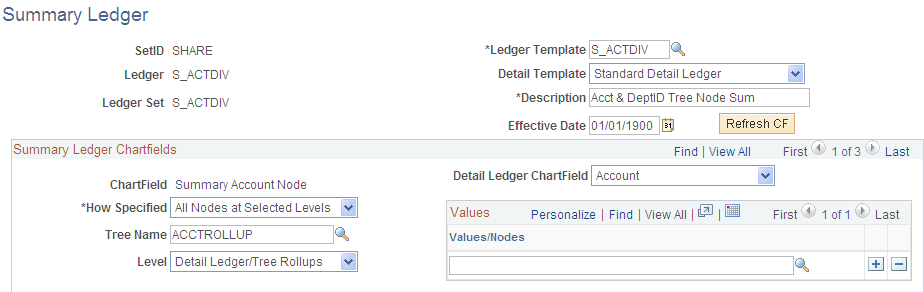
Note: Summary ledgers support summarization of ADB (average daily balance) target ledgers. However, summarizing daily ledgers is not supported.
Note: The field length for the summary ledger ChartFields is a critical factor in defining a summary ledger. It is dependent on whether you specify the summary ledger ChartFields by using detail values or tree nodes.
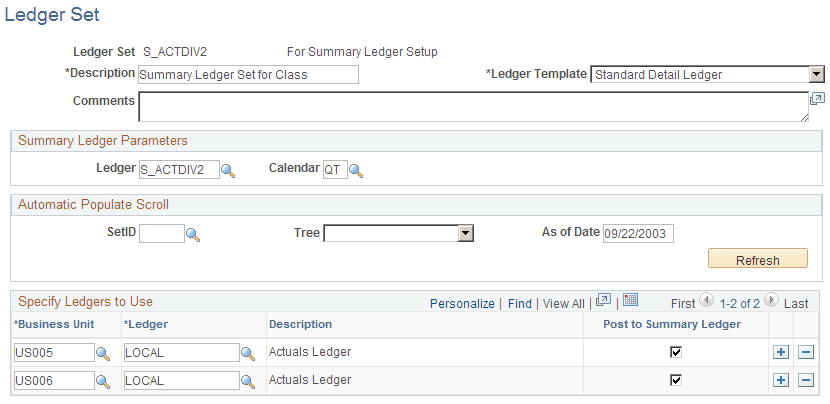
Ledger Set Page
Use the Ledger Set page (LEDGER_SET) to set up the business unit and ledgers for building the summary ledger.
Image: Ledger Set for Summary Ledgers - Ledger Set page
This example illustrates the fields and controls on the Ledger Set for Summary Ledgers - Ledger Set page. You can find definitions for the fields and controls later on this page.
Build Summary Ledger Request Page
Use the Build Summary Ledger Request page (SUMMARY_REQUEST) to either creates a new summary ledger or performs the incremental update process.
Image: Build Summary Ledger Request page
This example illustrates the fields and controls on the Build Summary Ledger Request page. You can find definitions for the fields and controls later on this page.
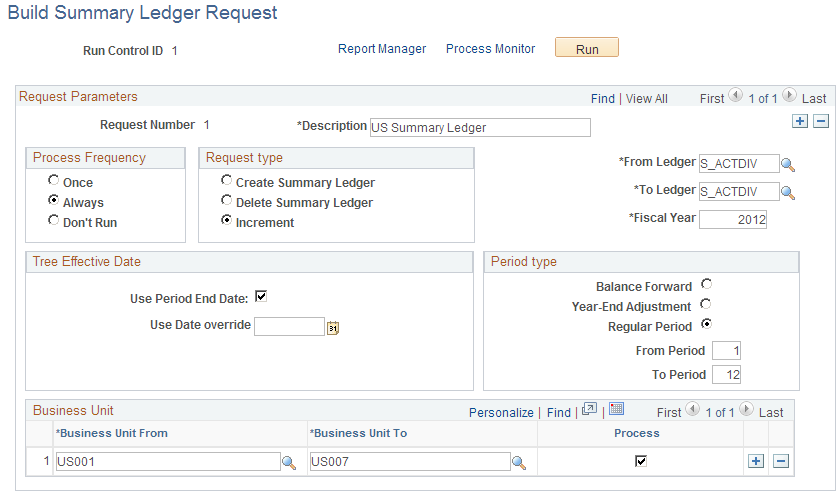
General Ledger uses the information that you entered on the Define Summary Ledger - Definition page and on the Ledger Set for Summary Ledgers - Ledger Set page to update summary ledger balances. After you define all of your requests, run the background process each time that you want to generate or update a summary ledger. Each time the system processes a summary request, it erases the results of any earlier summary request of the same period.
The Build Summary Ledger Request page enables you to specify one or more business units for summary ledger processing. This facilitates processing and improves performance, whether you process your business units by group or by individual business unit.
| Fiscal Year |
The year that the detail calendar uses to determine the summarized accounting periods. |
Request Type
These options determine what you want the background process to do with the summary ledger.
Tree Effective Date
These fields determine the use of the effective date.
Business Unit
Identify the business units or range of business units for which to process the summary ledger.
Period Type
You identify the period and whether its period is a balance forward period or a year end adjustment period.
Updating Summary Ledgers Incrementally Through Posting
General Ledger provides the option to update summary ledgers incrementally. This reduces system processing time.
To update summary ledgers incrementally through posting:
On the Ledgers For A Unit - Journal Post Options page, select Enable Incremental Sum Ledgers for each business unit and detail ledger combination for which you want defined summary ledgers to be updated incrementally.
On the Ledger Set for Summary Ledgers - Ledger Set page for the appropriate ledger set, select Post to Summary Ledger for any combinations that you want to run through the posting process.
Note: This option only allows summary ledger incremental updates. Whether the incremental updates actually occur depends on what you select for the Skip Summary Ledger Update option (see step 3).
Verify that the Skip Summary Ledger Update option on the User Preferences - General Ledger page is not selected.
If you run posting through the Journal Post Request page, be sure that this option on that page is not selected.
Note: Select the Skip Summary Ledger Update option on the User Preferences - General Ledger page when you run the Journal Post process and you do not want to incrementally update summary ledgers at the same time. You can always update the summary ledger incrementally later through posting or from the Build Summary Ledger - Request page.
You can run posting through a remote call (clicking the Go button on the Create/Update Journal Entries - Lines page), as part of the Journal Edit process, or directly from other background processes that create and post journals (such as the Journal Generator process or the Currency Translation process). Do not select the Skip Summary Ledger Update option on the User Preferences - General Ledger page.
Run the posting process.
Posting calls the summary ledger process for each business unit and ledger group requested. This process adds all defined summary ledgers that meet the following criteria:
The Post to Summary Ledger option on the Ledger Set for Summary Ledgers - Ledger Set page is selected.
There is a row in the status table, as determined by the BUSINESS_UNIT, LEDGER, FISCAL_YEAR, and ACCOUNTING_PERIOD fields.
Review Summary Ledger Status Page
Use the Review Summary Ledger Status page (SLED_STAT_INQ) to view the status of a summary ledger.
Image: Review Summary Ledger Status page
This example illustrates the fields and controls on the Review Summary Ledger Status page. You can find definitions for the fields and controls later on this page.
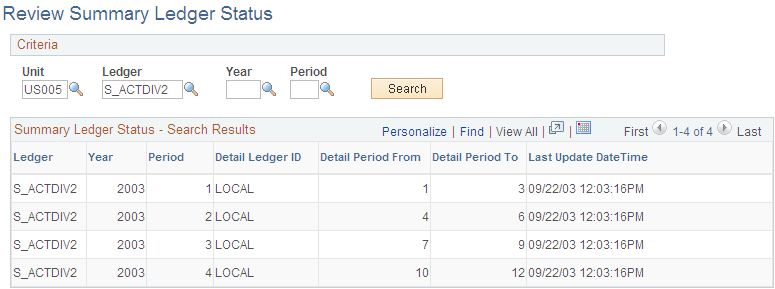
Use this page to view summary ledger status and search results for the criteria you select.