
Defining Common Journal Definitions
To define common journal definitions, use the following components:
Journal Class (JRNL_CLASS)
Journal Entry Template (GL_JRNL_TMPLT)
Journal Source (SOURCE)
Schedules (SCHEDULES)
This topic discusses how to:
Define process partitions.
Define journal class.
Use the journal entry template to show journal line columns and define copy down options.
Define journal source.
Specify journal source error processing.
Specify balance suspense ChartFields for the journal source.
Specify edit suspense ChartFields for the journal source.
Specify amount suspense ChartFields for the journal source.
Specify currency options for the journal source.
Specify approval options for the journal source.
Set up schedules.
Pages Used to Define Common Journal Definitions
|
Page Name |
Definition Name |
Navigation |
Usage |
|---|---|---|---|
|
Partition ChartField Entry |
PROC_PART_CF_ENTRY |
|
Create and modify your partition IDs. PeopleSoft General Ledger processes use partition IDs to group transaction data when you run Journal Post processes (GLPPPOST) concurrently. |
|
Journal Class |
JRNL_CLASS |
|
Journal classification values that can be selected on the Header page for all types of journal entries and some reports and are used for reporting purposes added to JRNL_CLASS_TBL using this page |
|
Journal Entry Template |
GL_JRNL_TMPLT |
|
Use the Journal Entry Template page to control which grid columns you want to show on your Journal Entry page. |
|
Journal Source - Definition |
SOURCE1 |
|
Use the Journal Source - Definition page to define a journal source. |
|
Journal Source - Journal Options |
SOURCE2 |
|
Use the Journal Source - Options page to specify the journal error processing options for a specific source. |
|
Balance Suspense ChartFields |
SRC_JE_BS_CFS_SEC |
Click the Balance Suspense ChartFields link. |
Specify the ChartField and the ChartField value for the suspense account. |
|
Edit Suspense ChartFields |
SRC_JE_ES_CFS_SEC |
Click the Edit Suspense ChartFields link. |
Specify the ChartField and the ChartField value for the suspense account. |
|
Amount Suspense ChartFields |
SRC_JE_AS_CFS_SEC |
Click the Amount Suspense ChartFields link. |
Specify the ChartField and the ChartField value for the suspense account. |
|
Currency Options |
SOURCE3 |
|
Specify currency options for a specific source. |
|
Approval Options |
SOURCE4 |
|
Specify journal entry approval options for standard journals and budget journals for a specific source. |
|
Schedules |
SCHEDULE |
|
Create schedules that automate and control the generation of standard or recurring journal entries. |
Partition ChartField Entry Page
Use the Partition ChartField Entry page (PROC_PART_CF_ENTRY) to create and modify your partition IDs.
PeopleSoft General Ledger processes use partition IDs to group transaction data when you run Journal Post processes (GLPPPOST) concurrently.
Image: Partition ChartField Entry page, specifying ChartField as a range
This example illustrates the fields and controls on the Partition ChartField Entry page, specifying ChartField as a range. You can find definitions for the fields and controls later on this page.
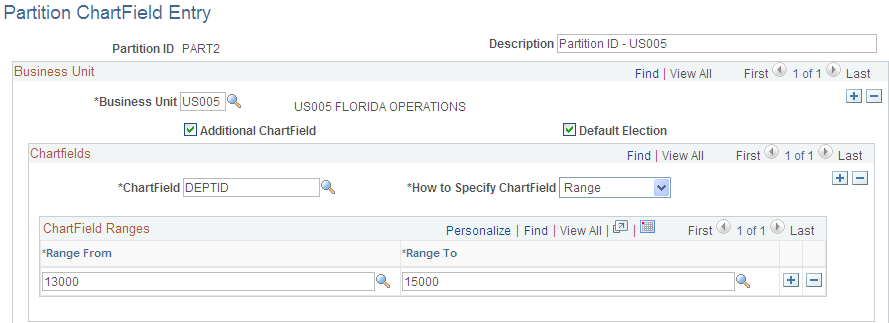
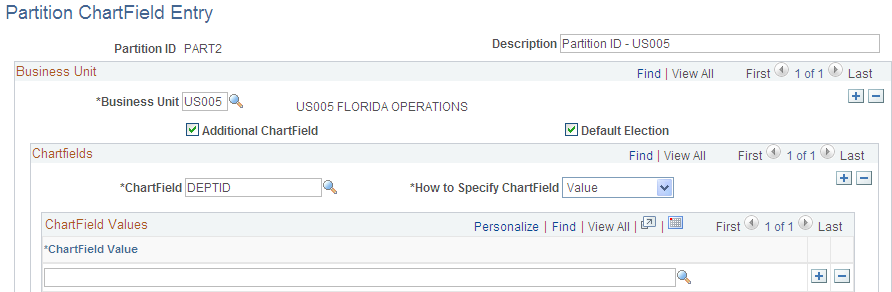
Image: Partition ChartField Entry page, specifying ChartField as a value
This example illustrates the fields and controls on the Partition ChartField Entry page, specifying ChartField as a value. You can find definitions for the fields and controls later on this page.
Note: Only a DBA or system administrator should have access to this table.
To add a new instance of a partition ID, select the tab to add a new value, enter its name in the Partition ID field, and click the Add button. The Process Partition page appears, enabling you to define the new instance of the partition ID.
Select Range to specify a range of ChartField values. When you select this option, edit boxes for the following two fields appear:
Select Value to specify a single ChartField value to define your process group. When you select this option, an edit box for the following field appears:
| ChartField Value |
Specify the single value for the ChartField that you want in your process group. |
Use SQL to delete an unwanted partition ID.
Journal Class Page
Use the Journal Class page (JRNL_CLASS) to .add and maintain journal classes.
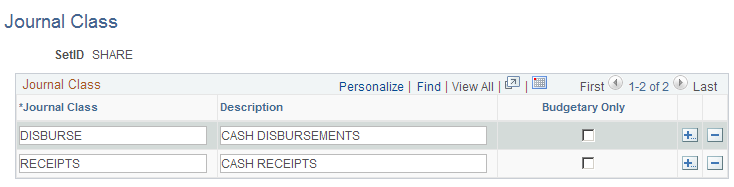
Image: Journal Class page
This example illustrates the fields and controls on the Journal Class page. You can find definitions for the fields and controls later on this page.
Journal Entry Template - ChartField Page
Use the Journal Entry Template page (GL_JRNL_TMPLT) to control which grid columns you want to show on your Journal Entry page.
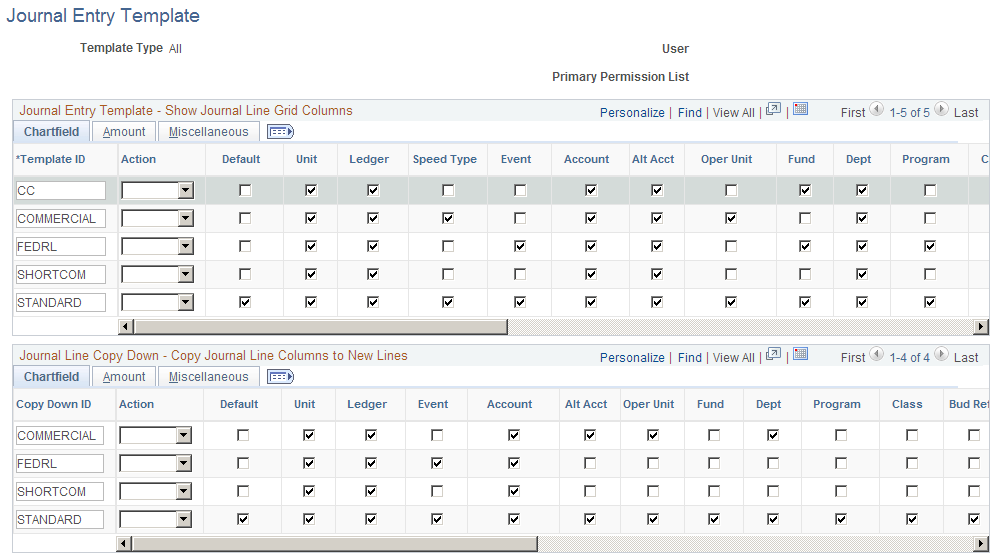
Image: Journal Entry Template - ChartField page
This example illustrates the fields and controls on the Journal Entry Template - ChartField page. You can find definitions for the fields and controls later on this page.
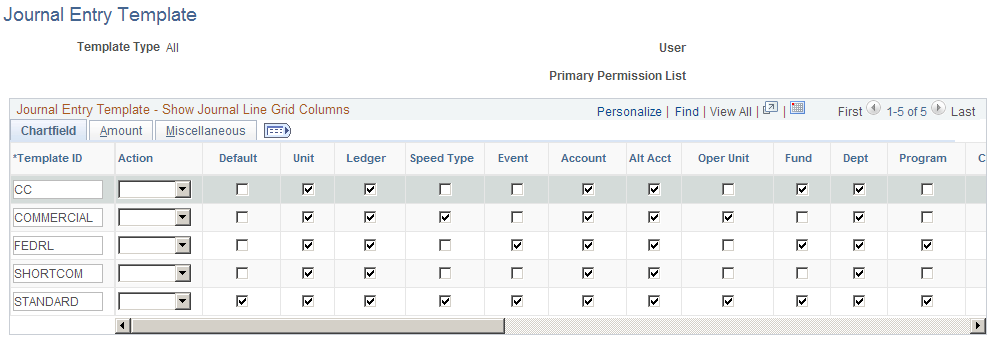
PeopleSoft General Ledger is delivered with a number of fields shown on the Journal Entry page grid. When you are using fewer than the delivered number of fields, you can use this page to eliminate the unwanted columns from the grid. For example, if the journal you are entering does not use interunit transactions, you can eliminate InterUnit fields from that journal's entry page.
You can define journal entry templates to be used by all users, a specific user ID, or users of a specific primary permission list.
ChartField
Use the ChartField tab to control which columns of data you want included on your journal entry page for the template.
The names of the remaining check boxes correspond to the ChartFields that appear on the journal entry page as it is delivered with your application. Select a check box for each field that you want to appear on the journal entry page.
Note: When you select the Project ChartField check box, all the associated project ChartFields become available on the Journal Entry Page. The ChartFields associated with the Project ChartField are, Activity, Source Type, Category, Subcategory, PC Business Unit, and Analysis Type. If the Project ChartField is not selected or it is deselected, the associated ChartFields are not available.
Amount
Select the Amount tab.
Image: Journal Entry Template page - Amount tab
This example illustrates the fields and controls on the Journal Entry Template page - Amount tab. You can find definitions for the fields and controls later on this page.

The names of the check boxes correspond to the currency and amount-related fields that appear on the journal entry page. Select a check box for each field that you want to appear on the journal entry page. Select any of the other fields that you want to display.
Miscellaneous
Select the Miscellaneous tab.
Image: Journal Entry Template page: Miscellaneous tab
This example illustrates the fields and controls on the Journal Entry Template page: Miscellaneous tab. You can find definitions for the fields and controls later on this page.
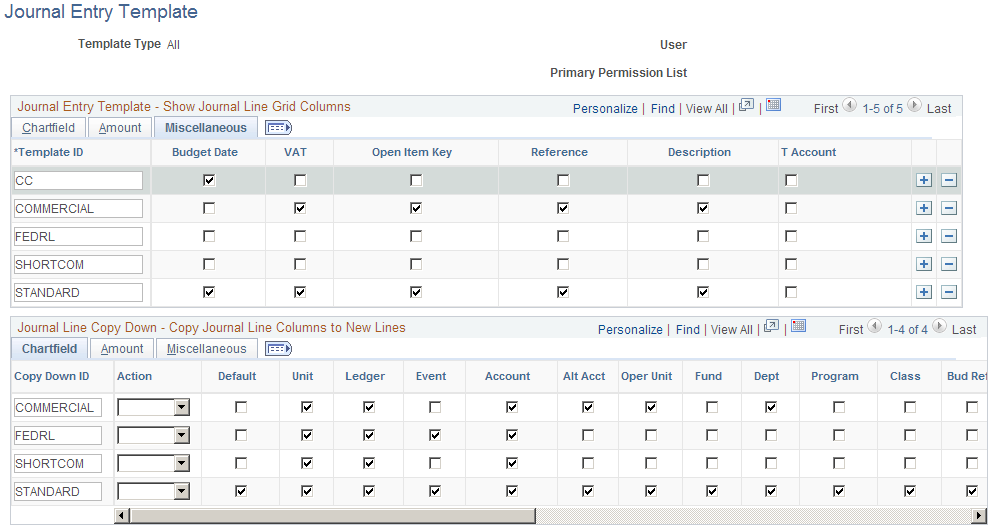
| Budget Date |
The date of the journal for the control budget. |
| Reference |
A reference of the journal line. |
| Description |
A description of the journal line. |
VAT and Open Item Key are also available from the Miscellaneous tab.
 |
Click the Show All Columns button to view all ChartField, Amount, and Miscellaneous columns without the tabs. |
 |
Click the Show Tabs button from the all columns view to return to the tab format. |
Journal Line Copy Down
The Journal Line Copy Down settings for templates appear on the same page as the Show Journal Line Grid template. They also have the same tabs and the same toggle buttons to show all columns and to show tabs as described for the Show Journal Line Grid.
Image: Journal Entry Template page - Journal Line Copy Down grid
This example illustrates the fields and controls on the Journal Entry Template page - Journal Line Copy Down grid. You can find definitions for the fields and controls later on this page.
When you add a journal line on the journal Lines page the fields you selected on the journal entry template are copied down from the preceding line.
The Journal Entry Template page enables you to define various copy down templates. For example, you can define one template to copy down all fields, another to copy down all fields except the amount fields.
Select Default to designate the template as the default.
Journal Source - Definition Page
Use the Journal Source - Definition page (SOURCE1) to define a journal source.
Image: Journal Source - Definition page
This example illustrates the fields and controls on the Journal Source - Definition page. You can find definitions for the fields and controls later on this page.
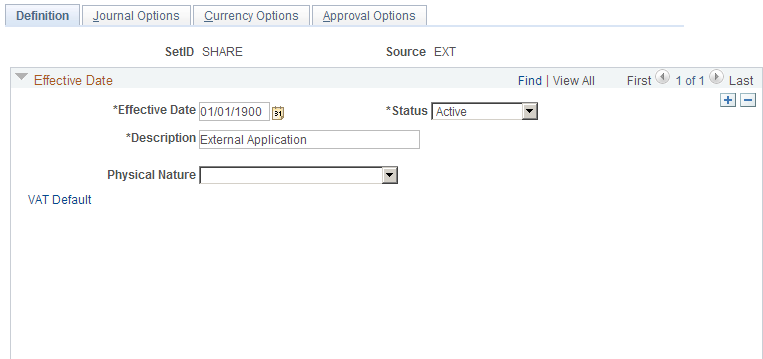
In addition to identifying the origin of each journal entry, PeopleSoft applications enable you to define special processing options for specific data entry sources, giving you control over when certain sources are active.
The source identifies the origin of a journal entry. It can also define any special journal entry error handling options. You can also use a source to associate journal entries with a type of transaction or a group of transactions. Sources could include individuals who enter journals, departments such as Finance or Accounting, and subsystems that generate transactions such as accounts payable or payroll entries to the general ledger.
You can use sources to facilitate inquiries and reporting. Typically, sources appear on screens and reports that reference journal entries; you can use them to identify and group journal entries from similar sources. For example, you might define sources that identify different revenue types (such as sales, services, interest, late charges) or different expense origins (such as payroll processing, payroll accruals and reversals, refunds, supplies expense).
Settings generally override from the source to the ledger and then to the business unit level. Conversely, the default is from the business unit to the ledger and then to the source level. For example, a ledger setting will override a business unit setting, but a source setting will override both a setting at the ledger and at the business unit level for the same option.
Journal Source - Journal Options Page
Use the Journal Source - Journal Options page (SOURCE2) to specify the journal error processing options for a specific source.
Image: Journal Source - Journal Options page
This example illustrates the fields and controls on the Journal Source - Journal Options page. You can find definitions for the fields and controls later on this page.
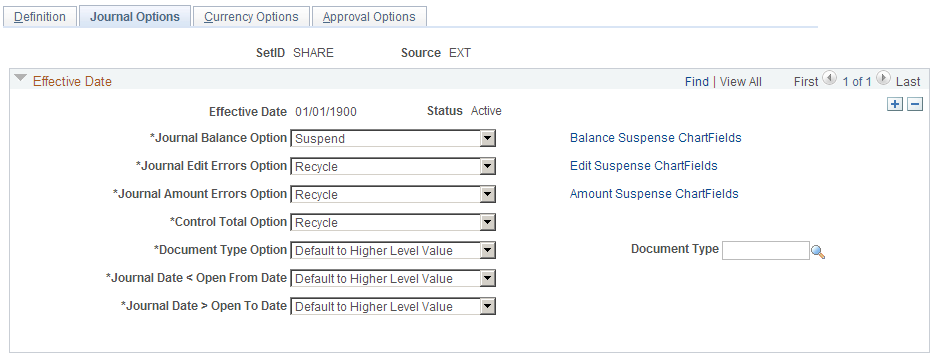
You use the Journal Balance option, Journal Edit Errors option, Journal Amount Errors option, Control Total option, and Document Type option in entry error processing.
Note: When you define journal options at the source level, they override any error handling that you specified at the business-unit or ledger levels for journals using that source only.
You can determine how the system will process a journal entry entered with errors for that source. Remember that settings generally override from the source to the ledger and then to the business unit level. Conversely, the default is from the business unit to the ledger and then to the source level. For example, a ledger setting will override a business unit setting, but a source setting will override both a setting at the ledger and at the business unit level for the same option.
Settings for the following types of errors can be specified at the source level.
Journal Balance Errors
Use the options in the Journal Balance Error group box to define how the system should handle errors when an unbalanced journal is targeted to a balanced ledger. You can post unbalanced journals only to ledgers that have been set up as unbalanced ledgers, such as a budget ledger.
Journal Edit Errors Option
Use the options in the Journal Edit Errors group box to define how the system should handle errors when invalid ChartField values or combinations are entered on journal lines. As you enter journal lines, PeopleSoft General Ledger checks to see that all ChartField values are valid as of the journal entry date. An error occurs if the system finds an invalid ChartField value or ChartField combination. This error category also includes other line errors, such as a blank currency code or an invalid OpenItem reference value.
Journal Amount Errors Option
Use the options in the Journal Amount Errors Option group box to define how the system should handle errors when the foreign amounts and the monetary amounts are not the same sign. For example, it determines how to handle errors for a journal that has a foreign amount that is 10.00 USD and the monetary amount is −200.00 USD.
Control Total Errors
As you enter journal lines, PeopleSoft General Ledger displays a running total of the number of lines, debits, credits, and units that you've entered on the journal. Use the options in the Control Total Errors group box to define how the system should handle errors when the journal line totals do not match the control totals you entered at the journal header level. This feature is optional.
Document Type Option
This only applies if you have enabled document sequencing within the Installation Options component. This document type will be the default for journals entered through the General Ledger Journal Entry component.
Journal Source - Currency Options Page
Use the Journal Source - Currency Options page (SOURCE3) to specify currency options for a specific source.
Image: Journal Source - Currency Options page
This example illustrates the fields and controls on the Journal Source - Currency Options page. You can find definitions for the fields and controls later on this page.
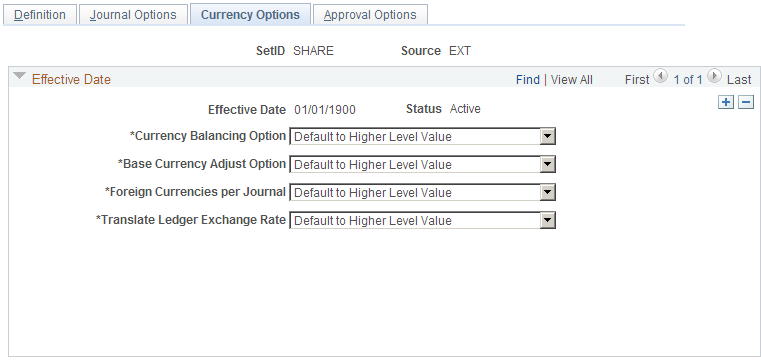
Currency Balancing Option
Select a currency balancing option, which specifies how journal lines are balanced for this source:
Base Currency Adjust Option
Select a base currency adjust option, which controls manual adjustments to the base currency in foreign currency journals:
Foreign Currencies per Journal
Select a foreign currencies per journal option, which controls the number of foreign currencies for each journal:
Note: When you define currency options at the source level, they override any currency handling you specified at the business unit or ledger levels for journals using that source only.
Translate Ledger Exchange Rate
Select the source of the currency exchange rate to be used for the translate ledger for a given journal source:
Note: If the translate ledger line already has the exchange rate of the primary line, then the values are retained. Therefore. if the journal is edited once with Inherit From Primary Ledger selected, and it is then re-edited with the Retain Exchange Rate (do not inherit) option, then the exchange rate that was inherited during first edit is retained. The second option is to retain the exchange rate values.
Journal Source - Approval Options Page
Use the Approval Options page (SOURCE4) to specify journal entry approval options for standard journals and budget journals for a specific source.
Image: Journal Source - Approval Options
This example illustrates the fields and controls on the Journal Source - Approval Options. You can find definitions for the fields and controls later on this page.
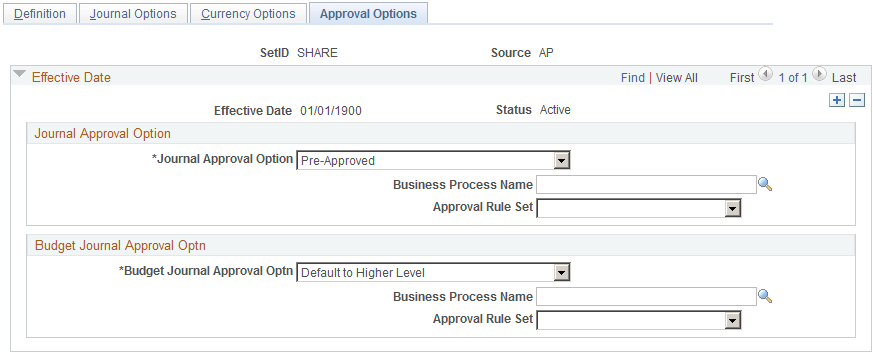
You have the option to use either the Virtual Approver method or Approval Framework method for the journal approval process. You select the approval methodology for journal approval on the Installation Options - General Ledger page. The selection choices on the Approval Options page depend upon which methodology that you select to use in Installation Options. When using the Virtual Approver method, the Business Process Name and Approval Rule Set fields appear on the page. When using the Approval Framework method, these fields are not visible, since the Approval Framework provides its own Business Process and Approval Rule Set to communicate with PeopleTools.
See Understanding Configurable Workflow.
See .Approving Journals Using the GL Journal Approval Components
Select a journal approval option and a budget journal approval option:
Note: When you define approval options at the source level, they override any approval handling that you specified at the business unit or ledger levels for journals using that source only.
Schedules Page
Use the Schedules page (SCHEDULE) to create schedules that automate and control the generation of standard or recurring journal entries.
Image: Schedules page
This example illustrates the fields and controls on the Schedules page. You can find definitions for the fields and controls later on this page.
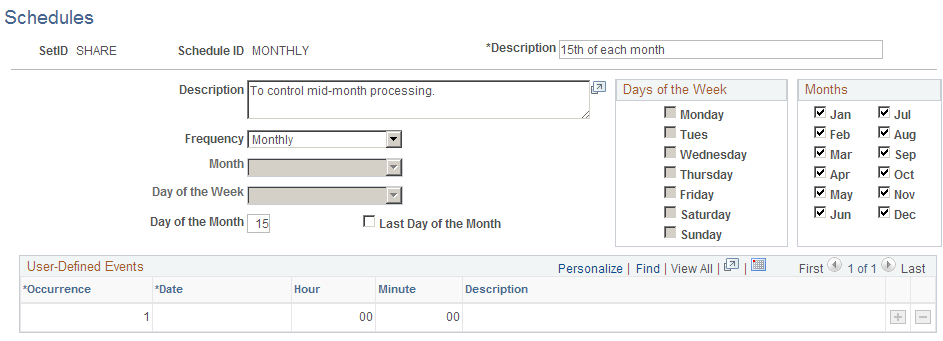
Schedules are used to automate and control the generation of recurring journal entries. You can define daily, weekly, monthly, or annual schedules for recurring transactions such as closing schedules or schedule specific user-defined events such as expense report due dates.
Schedules control the frequency of processing. For example, if you pay your rent on the 15th of each month, select a monthly schedule that specifies the day of the month as the 15th. By defining schedules that are tailored to your accounting environment, you can easily automate the creation of a Standard Journal Entry (SJEs) or a group of SJEs. You can set up daily, weekly, monthly, annual, or user-defined schedules. User-defined schedules enable you to specify specific dates and times.
Note: When you define schedules for use with standard journal entries, don't define multiple occurrences for a single day.
Note: When you specify a day of the month for monthly schedules, use the Day of the Month edit box to enter any day up to and including day 28. Use the Last Day of Month edit box to enter the absolute last day of the month, whether it's day 28, 29, 30, or 31.