
Setting Up Combination Editing
To set up combination editing, use the following components:
ChartField Editing Template (COMBO_EDIT_TMPL1).
Templates (LEDGER_TEMPLATE).
Combination Definition (COMBO_CF_DEFN).
Combination Rule (COMBO_RULE).
Combination Group (COMBO_GROUP).
Ledgers For A Unit (BUSINESS_UNIT_LED).
Use the EM_BUS_UNIT_LED component interface to load data into the tables for the BUSINESS_UNIT_LED component.
This section provides an overview of combination editing setup and discusses how to:
Define the ChartField combination editing template.
Link templates.
Define combinations of ChartFields to edit.
Define the combination rule.
Define the combinations for editing ChartField values.
Link combination rules in a combination group.
Associate combination editing groups to ledger groups.
Use the Combo Edit Transaction Source (display only) page (COMBO_TRAN_SRC_COB) to (Display only) Displays all Combo Transaction Sources attached to a particular Process Group.
This page is accessed from the Build Combination Data Request page.
Pages Used to Set Up Combination Editing
|
Page Name |
Definition Name |
Navigation |
Usage |
|---|---|---|---|
|
ChartField Combination Editing Template |
COMBO_EDIT_TMPL1 |
|
Define a template to tell the combination editing process which tables and fields to process and how to process them. |
|
Ledger Template - Field Definitions |
LEDGER_TEMPLATE2 |
|
Link a ChartField combination editing template for the applicable application to a ledger template for combination ChartField editing during journal edit; it is also required for ChartField validation during journal edit whether you are using combination editing or not. |
|
ChartField Combination Editing Definition |
COMBO_CF_DEFN |
|
Define the combination of ChartFields to edit. |
|
Rule Definition |
COMBO_RULE1 |
|
Define the combination rule by specifying the setID, naming the combination rule, and specifying the combination definition and effective dates that are for the rule. |
|
ChartField Combinations |
COMBO_RULE2 |
|
Define the anchor ChartField and nonanchor ChartField values to include in the rule. |
|
ChartField Combination Editing Group |
COMBO_GROUP |
|
Link combination rules together in a combination group. |
|
Journal Edit Options |
BUSINESS_UNIT_LED2 |
|
Link a process group to ledger groups. Assign a transaction source by process group if you want to limit combination edit processing for efficiency. |
|
Combo Edit Transaction Source |
COMBO_TRAN_ SOURCE |
|
Define the name of the transaction source that is associated with a given process group. |
|
Combo Edit Transaction Source (display only) |
COMBO_TRAN_SRC_COB |
|
(Display only) Displays all Combo Transaction Sources attached to a particular Process Group. This page is accessed from the Build Combination Data Request page. |
Understanding Combination Editing Setup
To set up the combination editing process, complete the following setup steps:
Enable combination editing in the applications, for example Accounts Payable and Billing.
Select or define the ChartField combination editing template that is specific to the application for performing background combination editing.
Link the combination edit template to the applicable ledger template for People Soft General Ledger.
Set up combination definitions that specify two or more ChartFields that you want to edit in combination for a business unit and ledger group.
Define combination rules 1 and 2 that link ChartField combination values for journal entries.
These rules determine the combinations of ChartField values that pass the Journal Editing process. Consider the following:
Whether to edit for valid or invalid combinations, after analyzing which is more efficient in the circumstances.
Whether to define ChartField values as specific values or as a range of values using PeopleSoft tree-based criteria.
Which rules, and how many, to define for each ledger group.
An unlimited number of rules is possible, but the more rules there are, the slower the process. This is especially true when you have required ChartFields in the combination rules.
You must update the rules whenever the accounting control requirements change.
Define combination editing groups.
Associate multiple combination rules with a combination group definition. Include combination editing rules that belong to each group. The system uses these related combinations for validating journal entries during the journal edit process.
Tie a combination group to a ledger group on the Ledgers for a Unit — Journal Edit page. Decide whether to assign a transaction source to the combination group or not. Assigning a specific transaction source to the process group can avoid unnecessary processing of data.
Run the process to build the COMBO_DATA_TBL or master selector tales from the Build Combination Data page.
Build a user-defined data table if it fills your needs.
Run the Journal Edit process to generate selector tables dynamically and validate ChartField combinations.
Use the Retain Detail Values options to create a permanent table of combination ChartField Values from the master selector table.
Maintain the system by changing combination rules and regenerating the tables as necessary.
ChartField Combination Editing Template Page
Use the ChartField Combination Editing Template page (COMBO_EDIT_TMPL1) to define a template to tell the combination editing process which tables and fields to process and how to process them.
Image: ChartField Combination Editing Template page
This example illustrates the fields and controls on the ChartField Combination Editing Template page. You can find definitions for the fields and controls later on this page.
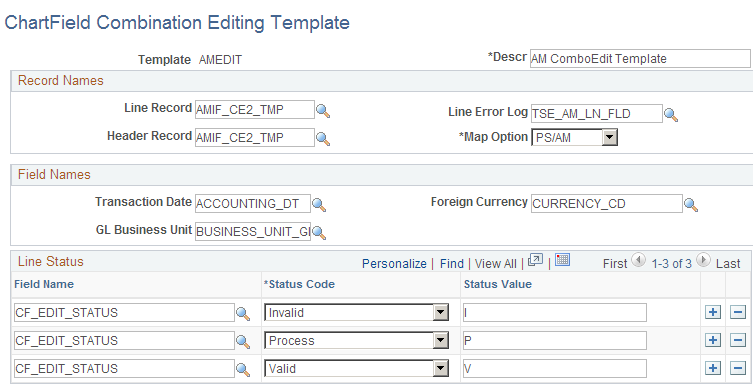
In the example screen shot, the JOURNALS combination template appears. This is a delivered template that is used in the background combination editing as well as the journal edit process. PeopleSoft delivers several templates for its applications that define the record names, field names, and line status values that are to be used in combination editing.
Note: You do not need to change the delivered templates for the various PeopleSoft application or create new templates unless you customize the system.
Ledger Template - Field Definitions Page
Use the Ledger Template - Field Definitions page (LEDGER_TEMPLATE2) to link a ChartField combination editing template for the applicable application to a ledger template for combination ChartField editing during journal edit; it is also required for ChartField validation during journal edit whether you are using combination editing or not.
Image: Ledger Template - Field Definitions page
This example illustrates the fields and controls on the Ledger Template - Field Definitions page . You can find definitions for the fields and controls later on this page.

For PeopleSoft applications that use the background combination editing process, you must link the combination edit template for the application to a ledger template on the Ledger Template - Fields Definition page. The Journal Edit process uses the specified combination edit template for ChartField validation during journal editing.
| Combination Edit Template |
Select the templates that are applicable to the ledger template from the drop-down list box. |
Warning! The Journal Edit process requires this template for ChartField validation. The Journal Edit process fails if this field is blank.
ChartField Combination Editing Definition Page
Use the ChartField Combination Editing Definition page (COMBO_CF_DEFN) to define the combination of ChartFields to edit.
Image: ChartField Combination Editing Definition page
This example illustrates the fields and controls on the ChartField Combination Editing Definition page. You can find definitions for the fields and controls later on this page.

When you run the Combination Editing process, the system first searches for the anchor ChartField that you define in the combination definition and then matches the other nonanchor ChartFields in the combination.
For example, you define ACCOUNT as the anchor ChartField for the definition, with DEPTID and PRODUCT as valid ChartField combinations that are associated with the anchor.
You can then create ChartField value combinations using the Rule Definition page that you determine to be valid for this ACCOUNT, DEPTID and PRODUCT ChartField combination definition. The anchor ChartField drives the combination rule dealing with ChartField values that you define in the next step.
Note: For commitment control budget journal combination editing, Analysis Type (ANALYSIS_TYPE), Category (RESOURCE_CATEGORY) and Subcategory (RESOURCE_SUB_CAT) (Project Costing-related detail ChartFields), are not supported.
Rule Definition Page
Use the Rule Definition page (COMBO_RULE1) to define the combination rule by specifying the setID, naming the combination rule, and specifying the combination definition and effective dates that are for the rule.
Image: Rule Definition page
This example illustrates the fields and controls on the Rule Definition page. You can find definitions for the fields and controls later on this page.

ChartField Combinations Page
Use the ChartField Combinations page (COMBO_RULE2) to define the anchor ChartField and nonanchor ChartField values to include in the rule.
Image: ChartField Combinations page
This example illustrates the fields and controls on the ChartField Combinations page. You can find definitions for the fields and controls later on this page.
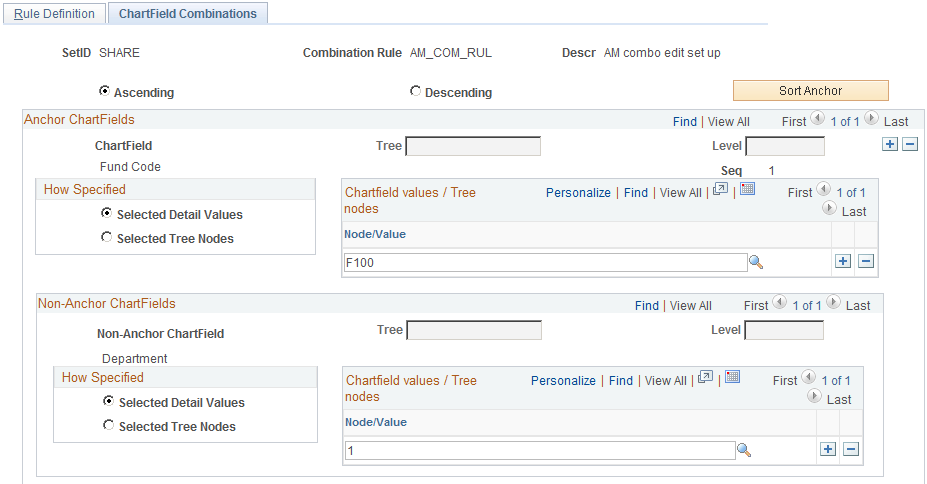
If you select the Value Required check box on the Rule Definition page, this page is automatically populated.
ChartField Combination Editing Group Page
Use the ChartField Combination Editing Group page (COMBO_GROUP) to link combination rules together in a combination group.
Image: ChartField Combination Editing Group page
This example illustrates the fields and controls on the ChartField Combination Editing Group page. You can find definitions for the fields and controls later on this page.
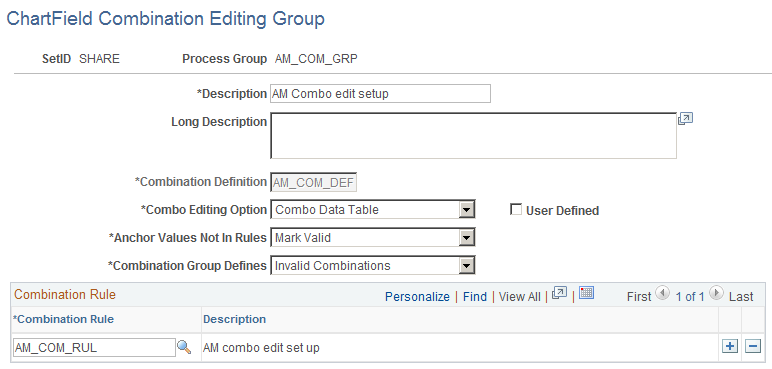
Note: To use the PeopleSoft rules for Combination Editing, you must select at least one valid combination rule. You can add any number of rules by inserting additional rows.
Journal Edit Options Page
Use the Journal Edit Options page (BUSINESS_UNIT_LED2) to Link a process group to ledger groups.
Assign a transaction source by process group if you want to limit combination edit processing for efficiency.
Image: Ledgers For A Unit - Journal Edit Options page
This example illustrates the fields and controls on the Ledgers For A Unit - Journal Edit Options page. You can find definitions for the fields and controls later on this page.
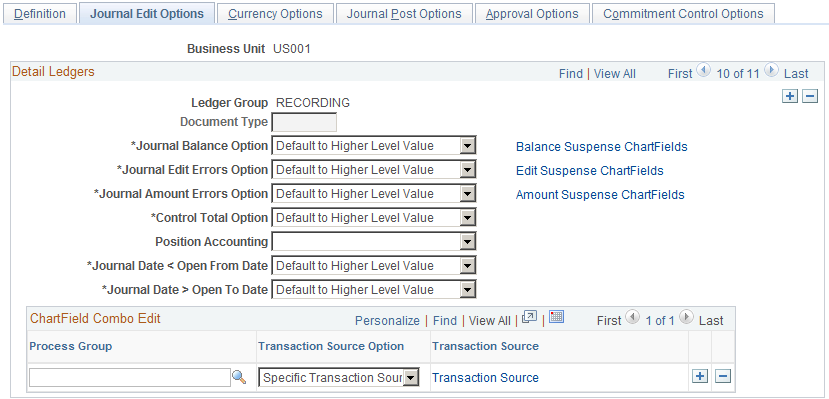
Designate which combination editing rules apply to specific transactions by tying combination editing groups (process groups) to ledger groups on this page. During the Journal Edit process, the system looks to the ledger group that is indicated on the journal to see which rules apply. The system also looks at the Source Option to determine which groups of transactions to process for each process group.
Warning! For subsystems that do not pass ledger groups with the accounting entry lines (for example, PeopleSoft Billing), be sure that you set up the ledger group as a journal generator default ledger group on the Ledgers For A Unit Definition page.
Note: If you do not want to use combination editing, turn it off by not entering combination editing groups in the Process Group field on the Journal Edit Options page. If no process groups are entered in this field, the system does not apply any combination editing rules. If you receive a combination editing error after you remove all groups, check to ensure that the combination template is attached to the ledger template. This template applies only to journals, not to feeder system transactions.
Combo Edit Transaction Source Page
Image: Combo Edit Transaction Source page
This example illustrates the fields and controls on the Transaction Source Link. You can find definitions for the fields and controls later on this page.

Select one or more Combo Edit Transaction Sources to associate with a given process group. The combination edit program processes for validation only those transactions for this process group.
For a list of the delivered Combo Edit Transaction Sources:,
See Defining Combination Editing by Transaction Source.
Note: You can add new transaction sources, if necessary, by adding new translate values to the COMBO_TRAN_SRC field.