
Using PeopleSoft Mobile Approvals
This topic provides an overview of PeopleSoft Mobile Approval Framework and discusses how to:
Access Mobile Approvals.
Approve multiple transactions using Mobile Approvals.
View attachments using Mobile Approvals.
Understanding PeopleSoft Mobile Approval Framework
PeopleSoft Mobile Approval Framework allows you to perform the following from your mobile device:
Approve, deny, or push back pending transactions at the header level from a mobile device. You can perform approval actions for individual transactions or multiple transactions at once.
View attachments (if applicable) and add comments for approval actions.
Preview a graphical representation of the transaction approval flow, view other approvals, and see any comments that previous approvers have entered.
Note: Although Mobile Approval actions are not available at the line level, you are still able to view the individual lines for all transactions.
Note: Attachments are not currently available for purchase orders, requisitions, or expense reports.
Click to view a Video Feature Overview (VFO) of PeopleSoft Mobile Approvals.
Accessing PeopleSoft Mobile Approvals
Once you have completed the prerequisite configuration (see Configuring PeopleSoft Mobile Applications, you can access the Mobile Approvals application using the URL for the Approvals homepage. Log in using a supported browser, providing your PeopleSoft user ID and password. The URL can be obtained from:
The Mobile Applications page. See Mobile Applications Page
The Mobile Approval Options setup page. See Mobile Approval Options Page
If you are accessing Mobile Approvals from an iPad or iPhone using the Safari browser, you are prompted to bookmark the application to the Home Screen as shown:
Image: Mobile Approvals Bookmark page
This example illustrates the fields and controls on the Mobile Approvals Bookmark page. You can find definitions for the fields and controls later on this page.
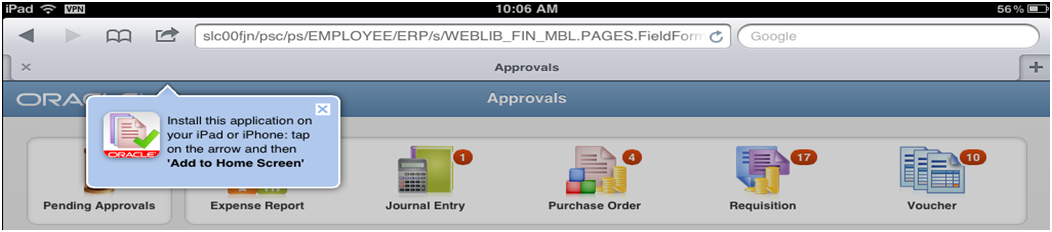
You can:
Follow the prompt to bookmark the application to the Home Screen and launch the application from there.
Ignore the prompt. The prompt will disappear in a few seconds and you can continue with the application. However, this prompt will appear again the next time you use Safari to access the application.
Select the “X” to close the prompt. You will not be prompted again to bookmark the application.
Launching Mobile Approvals from a Mobile Tablet
Launch Mobile Approvals from your mobile tablet device, such as an iPad, to access the Approvals homepage:
Image: Mobile Approvals Hopepage
This example illustrates the fields and controls on the Mobile Approvals Hopepage. You can find definitions for the fields and controls later on this page.

The Approvals homepage provides access to the respective transactions that are pending the login user’s approvals, as well as other analytical charts from which you can drill down to view the details. Select any button or graph bar to open the main page with the selected pending approvals. For example, you can select the Journal Entry bar in the graph to open the main page with only the journal entries that are pending your approval.
Similar to dashboard or worklists, Mobile Approvals simply provides a convenient option to review and approve pending transactions. All transactions must be created in the database first and adhere to the Approval Framework logic and configuration within each application. For information on configuring Approval Framework for each application, see related topics by product. See related links in Mobile Approval Options Page.
Footer Buttons
The following buttons appear in the footer of the Mobile Approvals application pages:
|
Buttons |
Description |
|---|---|
|
Full Site |
Select to access the full PeopleSoft Full Site, which includes the traditional PeopleSoft menus. The default view on the full site is the user worklist page. |
|
Refresh |
Select to refresh the homepage. |
|
Sign out |
Select to log out of the Mobile Approvals application. |
 |
Select the Pending Approvals button to access the main Approvals page that lists all of the pending transactions that require your approval (secure by given user ID login). |
Individual Transaction Buttons
Select the transaction buttons – Expense Report, Journal Entry, Purchase Order, Requisition, or Voucher – to access the main Approvals page that limits the search result to only that specific type of transaction.
All buttons display a red bubble count of transactions pending approval within each category for the user.
Metric Bar Charts
The Approvals homepage includes a bar chart for each of the three metrics: Pending Amounts by Transaction, Pending Amounts By Priority, and Pending Amounts By Date. Swipe the display to advance through the various charts. You can select the bars and access the main Approvals page that is filtered for the specific criteria of the bar that you selected.
Pending Amounts by Transaction
This metric displays the sum total amounts of all transactions by transaction type that await approval from the given approver. You can select the bar or the metric row to access the main Approvals page for each transaction category.
Pending By Priority
The Approvals homepage sorts your pending approval transactions by priority - High, Medium, or Low - so that you can address more urgent pending approvals first. It displays the number of transactions within each priority as well. You can select the bar or priority row to access the main Approvals page with only those transactions that require your approval with the corresponding criteria.
Pending By Date
The Approvals homepage sorts your pending transactions based on the Pending Since date. Possible values are:
Today
Yesterday
Less Than 7 Days
Less Than 30 Days
More Than 30 Days
A bubble count displays the number of transactions within each aging category. Select the row by age to access only those transactions for approval action.
All buttons and bars launch the Approvals page filtered by the various metrics from the point of entry:
Image: Approvals Transaction List page - (tablet view)
This example illustrates the fields and controls on the Approvals Transaction List page - (tablet view). You can find definitions for the fields and controls later on this page.
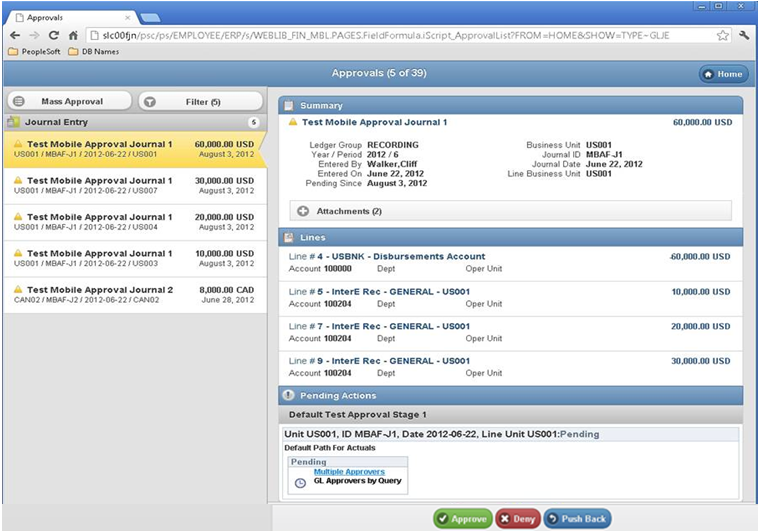
On the mobile tablet (in landscape mode), the filtered transaction list displays on the left side of the page. The right side of the page displays the details for the selected (highlighted) transaction from the list on the left. In the example presented, the corresponding Summary, Lines, and Pending Actions for the selected journal are displayed. You can approve or deny the selected journal entry using the action buttons at the bottom of the page.
Note: The action buttons that display vary based on whether the transaction is eligible for the action or actions. The actions currently supported in Mobile Approvals are Approve, Deny, and Push Back. The Hold action is not available for Mobile Approvals. You must use the desktop application to use the Hold action.
Summary
The Summary section on the right side of the Approvals page displays corresponding header information for the selected transaction (left side). The Summary section also displays attachments, justificaitons, and alerts, if applicable. Select the Attachments button to view any attachments for the transaction, if applicable. The number of attachments displays on the button in paratheses. See Viewing Attachments Using Mobile Approvals. Expand the Justification/Alters button to view any associated comments and alerts.
Lines
The Lines section displays line information for the selected transaction.
Pending Actions
The Pending Actions section displays the approval flow diagram. Select the links in the diagram to access more details. Expand the Comments section to view comments from approvers.
Note: For Expense Reports, this section displays pending approvers instead of the approval flow diagram.
Launching Mobile Approvals from a Mobile Phone
The Approvals homepage is accessible only from a mobile tablet. When you launch Mobile Approvals from your mobile phone (iPhone), you are directed to the transaction list page:
Image: Approvals Transaction List page - (mobile phone view)
This example illustrates the fields and controls on the Approvals Transaction List page - (mobile phone view). You can find definitions for the fields and controls later on this page.

When you select a transaction from the transaction list page, you are directed to the Summary, Lines, and Pending Actions where you can view attachments, justifications/alerts, other approvals, and select an approval action for a single transaction (portrait view of the right side of the Approvals page):
Image: Summary, Lines, and Pending Actions (mobile phone view)
This example illustrates the fields and controls on the Summary, Lines, and Pending Actions (mobile phone view). You can find definitions for the fields and controls later on this page.
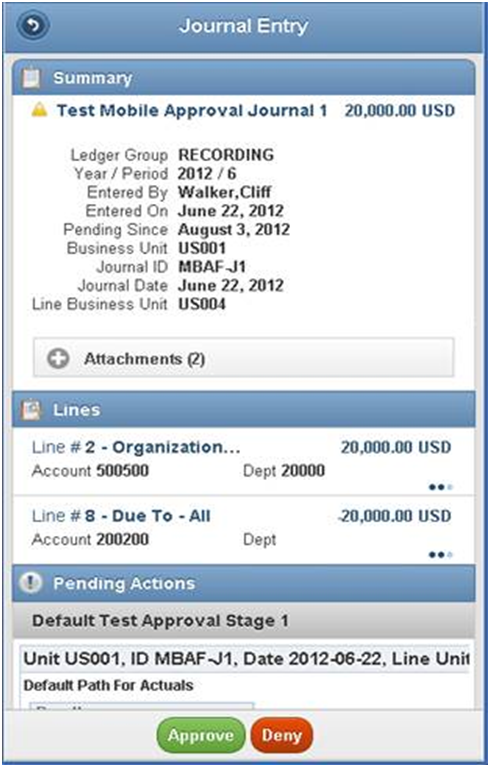
See Summary, Lines and Pending Actions.
Approving Multiple Transactions Using Mobile Approvals
To perform mass transaction approvals using Mobile Approvals, select the Mass Approval button located in the top left corner of the Approvals page or the Transaction List page. Once you select the Mass Approval button, a selection column appears on the left of each transaction so that you can select one or many transactions for approval:
Note: For mobile phone or portrait tablet view, the transaction list page allows only mass approval mode. In this case, you must select a transaction to access the detail page to approve a single transaction.
Select the Mass Approval button to approve multiple transactions at once:
Image: Mass Approvals page - (mobile phone view)
This example illustrates the fields and controls on the Mass Approvals page - (mobile phone view). You can find definitions for the fields and controls later on this page.
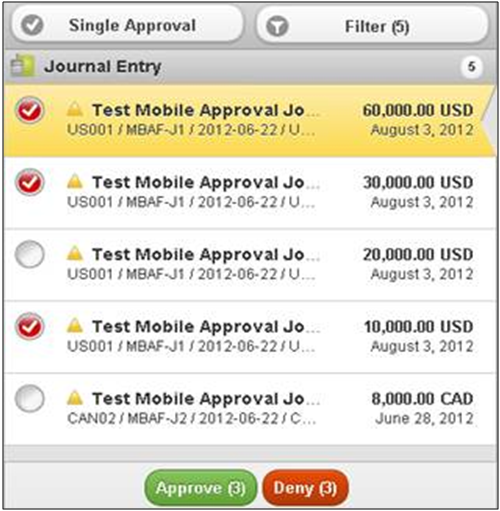
Select one or many transactions to approve, deny, or push back, if applicable. Once you have selected the transactions to process, select the appropriate button to Approve, Deny, or Push Back the transactions. The buttons display the number of transactions that you selected for processing.
This launches the Approve, Deny, or Push Back page (depending on the button selected) where you can add a comment and submit for processing:
Image: Approve - Comment page (mobile phone view)
This example illustrates the fields and controls on the Approve - Comment page (mobile phone view). You can find definitions for the fields and controls later on this page.


Viewing Attachments Using Mobile Approvals
You can view attachments using a mobile device if you selected the Display Attachments check box from the Mobile Approval Options page. See Mobile Approval Options Page
From the Summary section, select the Attachment button to access the Approval Detail:
Image: Approval Detail page
This example illustrates the fields and controls on the Approval Detail page. You can find definitions for the fields and controls later on this page.
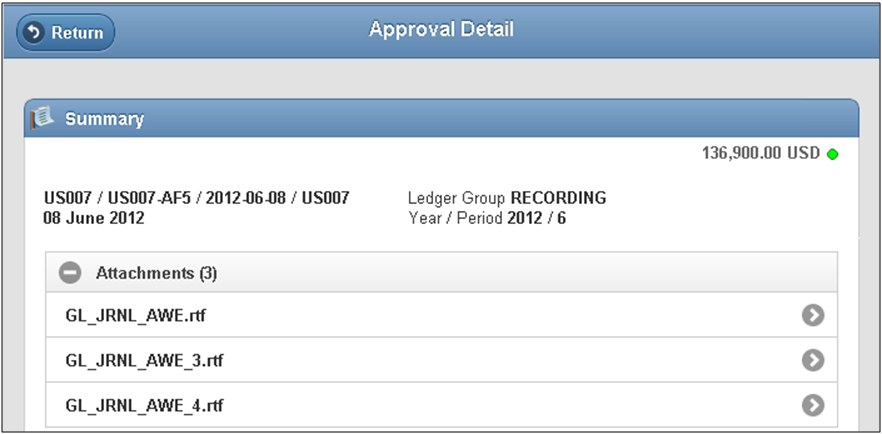
Access the Approval Detail page and expand the Attachments section to view attachments, if enabled. Select the arrow button that is associated with the attachment that you would like to view or download. You are presented with a new window to view or save the file.
Note: Attachment display support is limited by attachment type and mobile device used.
For details by application, see the respective application documentation.